-
How to customise your command line to make it pretty and useful (ie. git branch/branch status parser)
-
For Linux And windows 10 users, mostlikely you would already have a colored and costumized command line
Example:

-
For a MAC (OSX) users, you can download one of many available addones or just use different commands to customize it
For one example:
-
-
How to install using a package manager
-
One of the way to use Package manager is NPM (Node Pacage Manager) in the command line to download different packages from the web The way to do thast is by going to the command line and type the next command:
npm install "PACKAGE-NAME"or
npm i "PACKAGE-NAME"
-

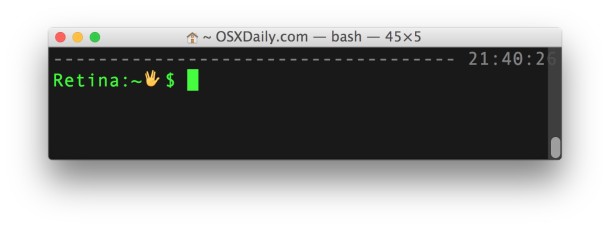
Some people keep a list handy of their most visited commands, but that’s still far off from a lasting solution. Instead, we turn to an inherent feature of command line shells – aliases. Command line aliases are an essential part of working with the command line interface, and once you start using them, you’ll wonder how you ever coped without it.
As the name implies, the command line allows you to define aliases, or alternative syntax in the scope of your operating system’s command line shell. Once defined, any occurrence of the alias will be swapped out for the appropriate commands. This allows you to bind a command line call, perhaps with some of the flags already set, to an easily remembered alias. Henceforth, instead of jumbling flags or trying to remember a discombobulated series of commands, you’ll simply use the appropriate alias.
you can define a temporary alias by running the following command:
alias name=’command‘
To make the command permanant when you’re done, hit CTRL+X to exit. You’ll have to restart the Terminal or create a new window before you’ll be able to use those aliases.
its the same as above but the command is:
DOSKEY name=’command‘
-
How do you customize the command line for MAC users?
-
What is the name of the Package Manager?
-
Does windows, MAC and Linux use the same Command Line Aliases?