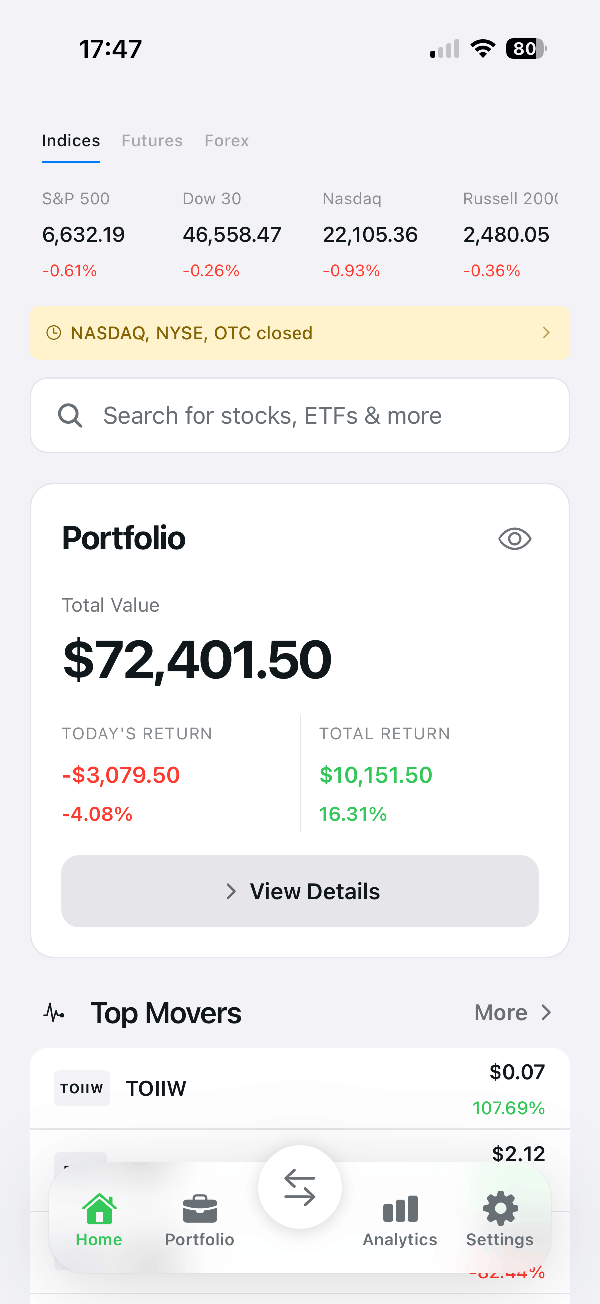
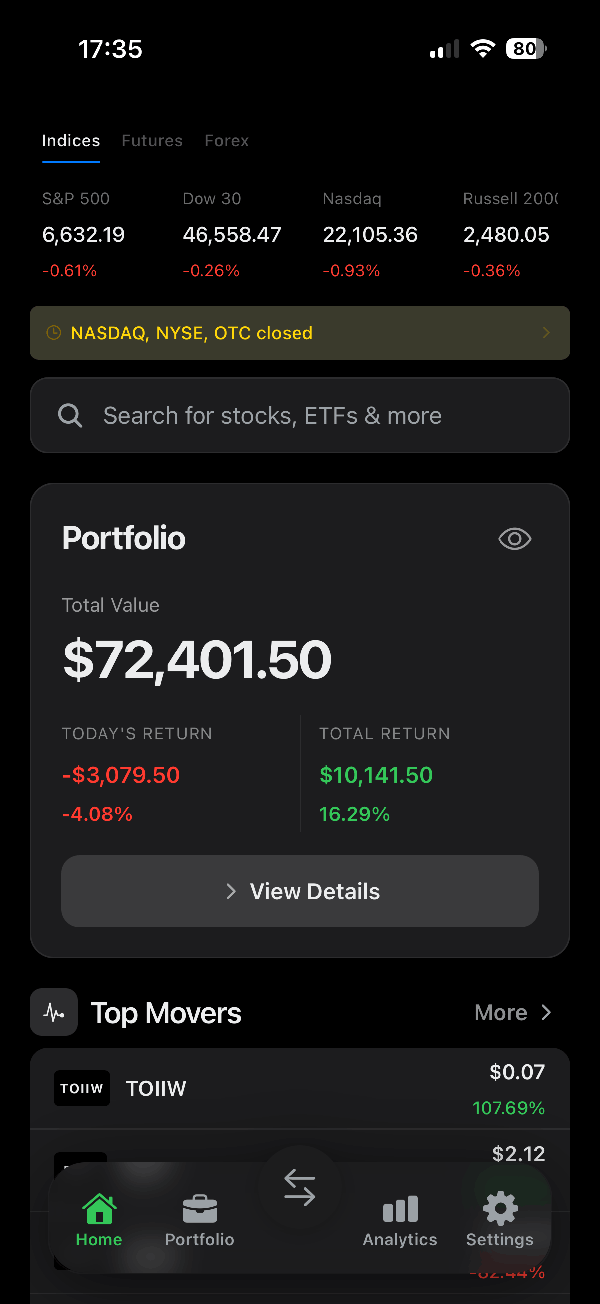
Open more screenshots
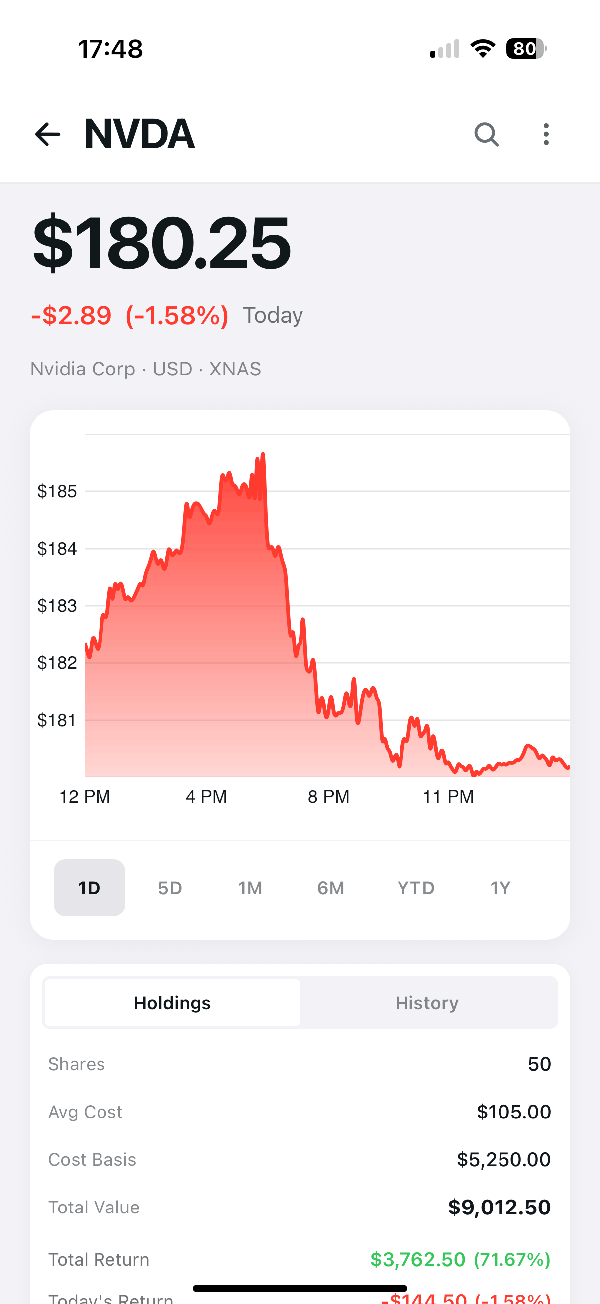
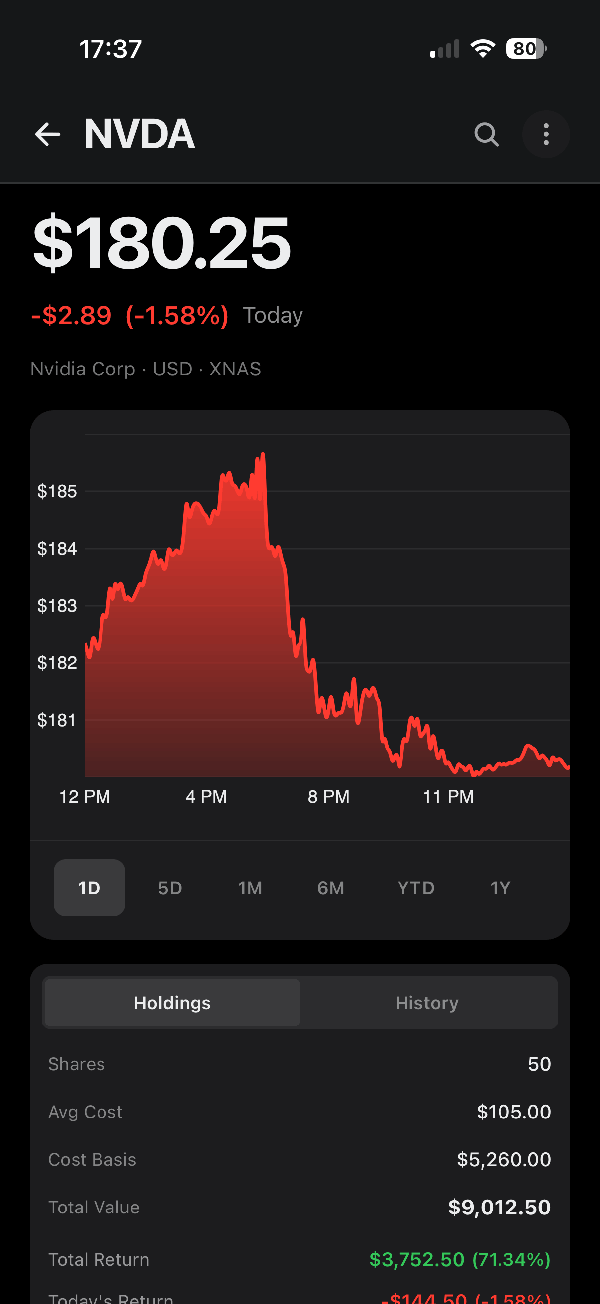
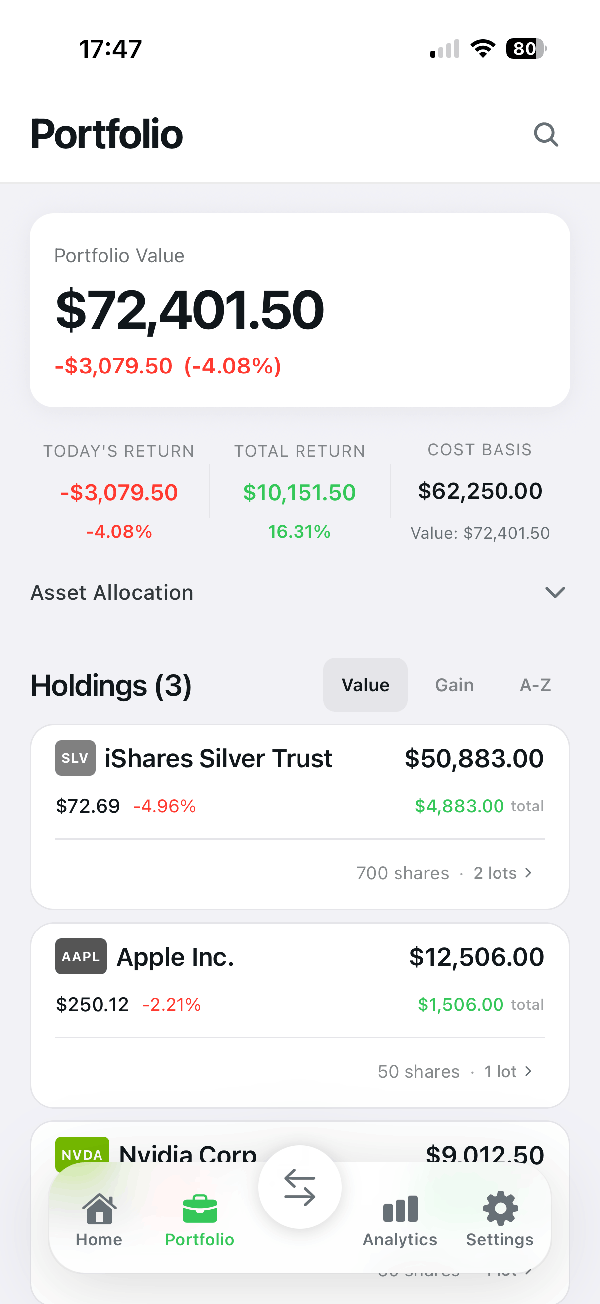
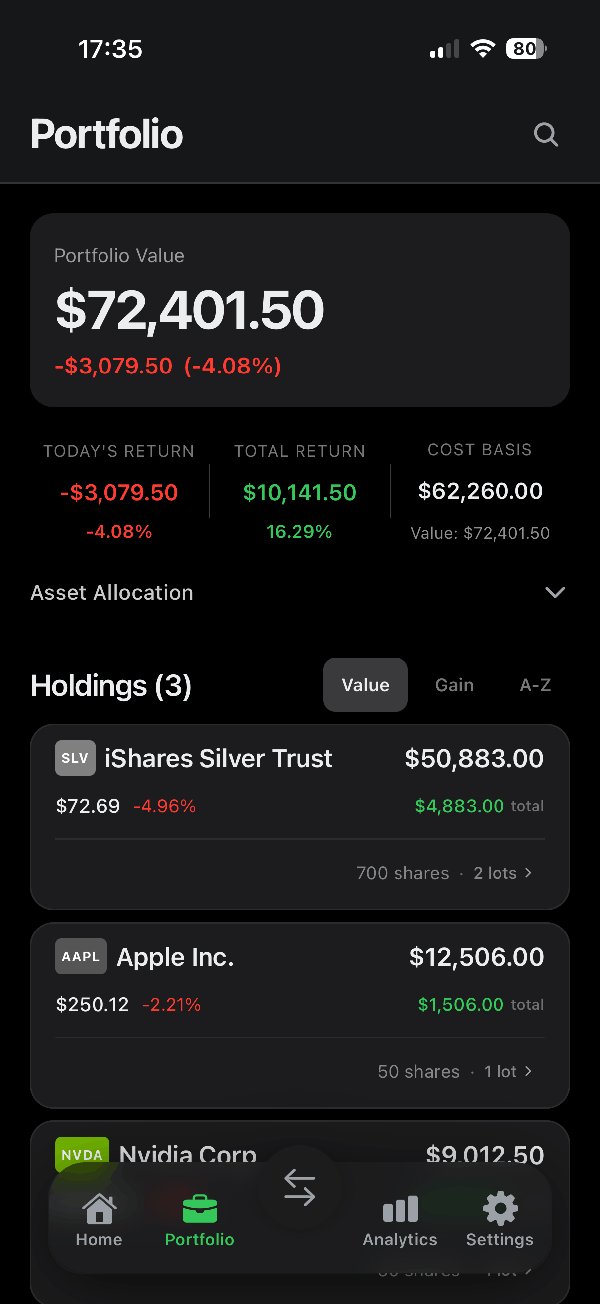
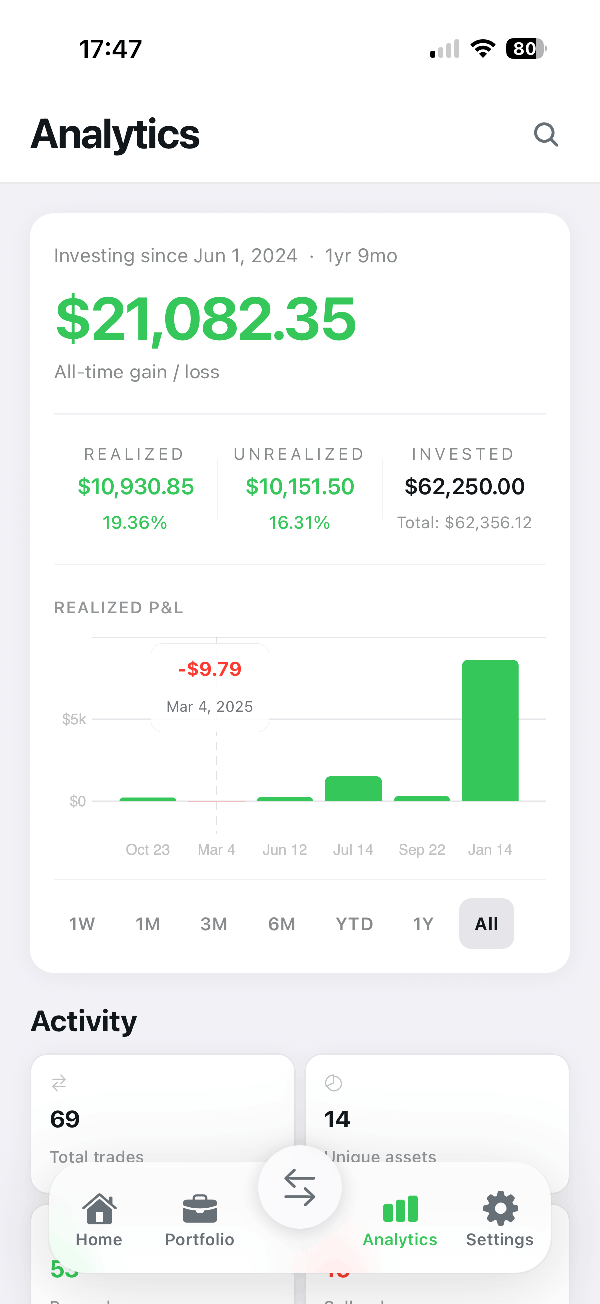
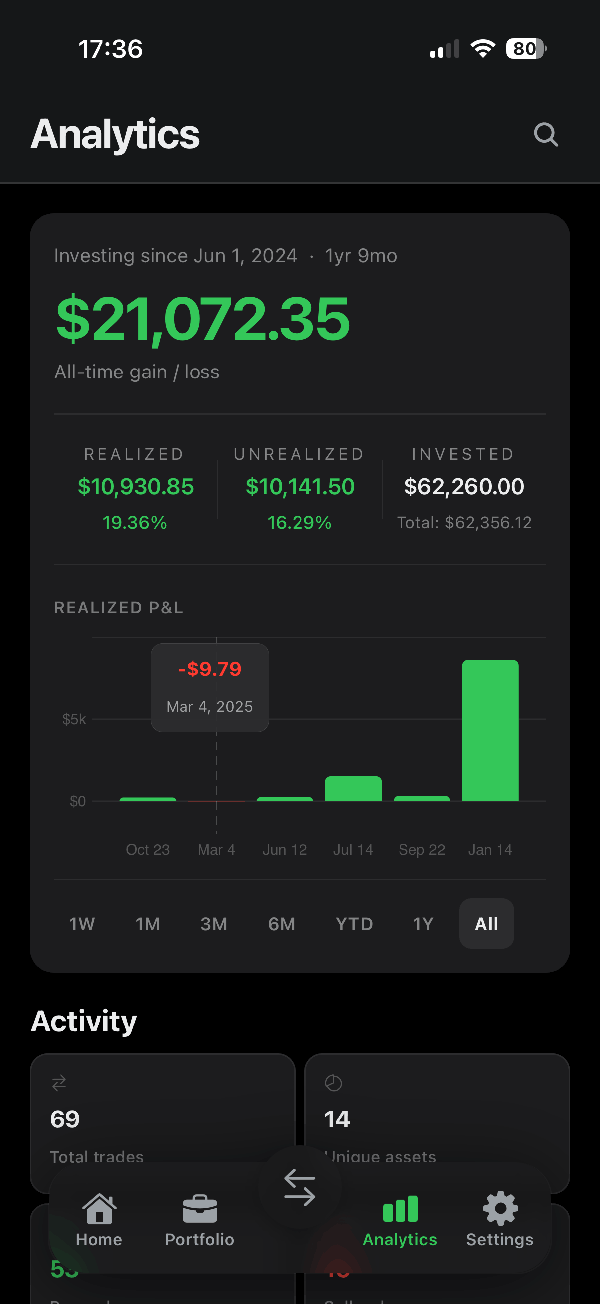
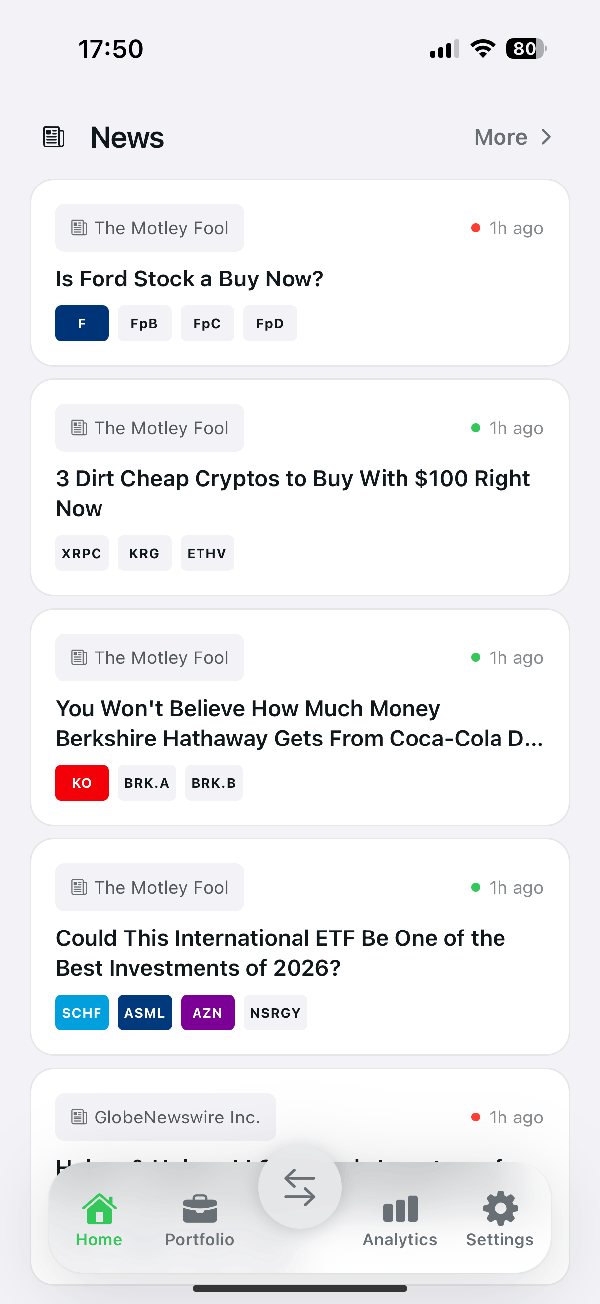
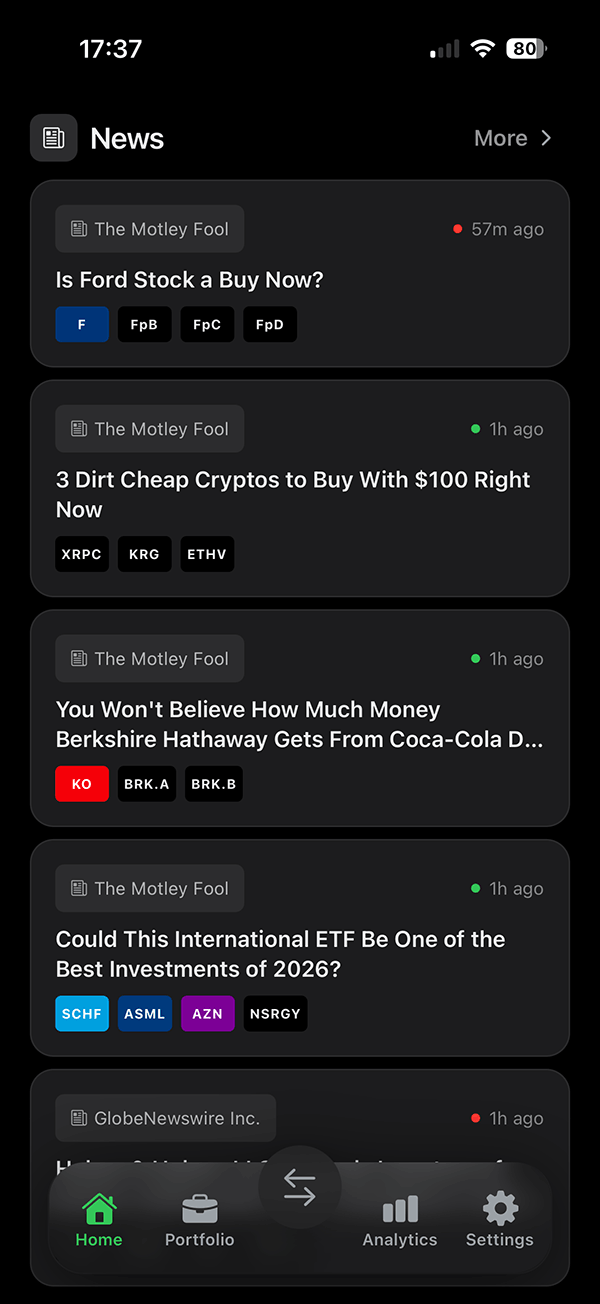
Simple, open-source portfolio tracking app for long-term investors.
Finance 2049 helps you clearly understand how much you invested, how your portfolio performs over time, and what you actually earned — without trading noise, subscriptions, or complex tools.
Most finance apps are built as full investing platforms with busy interfaces and unnecessary features for long-term investors.
Others are simple but too limited and do not provide essential portfolio analytics.
Finance 2049 is built in the middle — calm, simple, but complete.
- Portfolio value and total return tracking
- Cost basis and invested capital visibility
- Realized and unrealized gains separation
- Transaction and lot history
- Performance analytics
- Import transactions from
.xlsx,.json,.pdf, images and more - Export full portfolio data anytime
- Local-first storage (your data stays on your device)
- Fully open-source and transparent
Finance 2049 does not support buying or selling assets.
It is designed purely for portfolio tracking and performance understanding.
All portfolio data is stored locally on your device.
No subscriptions. No hidden tracking. Full control.
Early stage project. Feedback and contributions are welcome.
Finance 2049 is local-first, but a full self-hosted install uses a few trusted services:
- Supabase for anonymous auth, database migrations, and Edge Functions
- Massive for market data through the
massive-proxyEdge Function - OpenAI for transaction extraction through the
extract-transactionsEdge Function - Firebase for Analytics, Crashlytics, In-App Messaging, and FCM push notifications
- Apple Developer / Google Firebase app config for production mobile push delivery
Portfolio data stays on the device. The hosted backend stores only operational metadata such as anonymous user identity and notification device tokens.
- Node.js and Yarn
- Supabase CLI
- Xcode for iOS builds
- Android Studio for Android builds
- A Supabase project
- A Firebase project with iOS and Android apps
- Massive API key
- OpenAI API key
- Apple Developer account if you want iOS push notifications
This app uses native Firebase modules, so Expo Go is not enough for a full local test. Use native builds with npx expo run:ios and npx expo run:android, or build from Xcode/Android Studio.
yarn installIf you do not already have the Supabase CLI installed globally, install it for this repo:
yarn add -D supabaseCreate .env.local:
EXPO_PUBLIC_SUPABASE_URL=""
EXPO_PUBLIC_SUPABASE_PUBLISHABLE_KEY=""
Use your Supabase project URL and publishable/anon key.
Log in and link the repo:
yarn supabase login
yarn supabase link --project-ref <your-project-ref>
Enable anonymous auth in Supabase:
Supabase Dashboard -> Authentication -> Sign In / Providers -> Anonymous Sign-Ins
Push database migrations:
yarn supabase db pushThis creates the app tables, including notification_devices for push token metadata.
Set these production secrets in Supabase:
MASSIVE_API_KEY=
OPENAI_API_KEY=
Dashboard path:
Supabase Dashboard -> Edge Functions -> Secrets
Or set them with the CLI:
yarn supabase secrets set MASSIVE_API_KEY=your_massive_api_key OPENAI_API_KEY=your_openai_api_keyThese built-in Supabase secrets should already exist:
SUPABASE_URL
SUPABASE_ANON_KEY
SUPABASE_SERVICE_ROLE_KEY
SUPABASE_DB_URL
Deploy Edge Functions:
yarn deployCreate Firebase iOS and Android apps with IDs that match app.json:
iOS bundle ID: com.lomsa.finance2049
Android package: com.lomsa.finance2049
Download the Firebase config files into these exact paths:
ios/GoogleService-Info.plist
android/app/google-services.json
Firebase Console paths:
Firebase Console -> Project settings -> General -> Your apps
Firebase Console -> Project settings -> Cloud Messaging
Firebase Console -> Run -> In-App Messaging
For iOS push notifications, upload an APNs authentication key in Firebase:
Firebase Console -> Project settings -> Cloud Messaging -> Apple app configuration -> APNs Authentication Key
You do not need Apple Push Notification service SSL certificates if Firebase has a valid APNs auth key.
Apple Developer Console:
Certificates, Identifiers & Profiles -> Identifiers -> your App ID -> Capabilities -> Push Notifications
Xcode:
Target -> Signing & Capabilities -> Push Notifications
Target -> Signing & Capabilities -> Background Modes -> Remote notifications
Android notification permission is declared in app.json:
android.permission.POST_NOTIFICATIONS
Android 13+ still asks the user for runtime permission when push notifications are enabled.
Start Metro:
npx expo startBuild and run native apps:
npx expo run:android
npx expo run:ios
If you build iOS directly from Xcode after adding native dependencies, run:
cd ios && pod installIn the app:
Settings -> Notifications -> Push Notifications
Supported FCM data payload examples:
{ "type": "stock", "symbol": "AAPL", "notification_id": "unique-id" }{ "type": "portfolio", "notification_id": "unique-id" }{ "type": "import_result", "notification_id": "unique-id" }{
"type": "article",
"article_id": "article-id",
"title": "Article title",
"url": "https://example.com/article",
"source": "Source name",
"published_at": "2026-05-19T12:00:00Z",
"notification_id": "unique-id"
}Route-style payloads are also supported:
{ "route": "/stock/AAPL", "notification_id": "unique-id" }{ "route": "/news/article-id", "title": "Article title", "url": "https://example.com/article", "notification_id": "unique-id" }Firebase Console:
Firebase Console -> Run -> In-App Messaging -> Create campaign -> Test on device
In-app messages are enabled by default and can be controlled from:
Settings -> Notifications -> In-App Messages
Messages are suppressed during onboarding, transaction import, and app modals so campaigns do not interrupt critical workflows.
- Supabase migrations are pushed.
- Supabase Edge Function secrets are set.
- Supabase Edge Functions are deployed.
- Firebase iOS and Android config files match your app IDs.
- Firebase Cloud Messaging has an APNs auth key for iOS.
- Apple App ID has Push Notifications enabled.
- Xcode target has Push Notifications and Remote notifications background mode.
- Android package name matches Firebase and
app.json. - Real devices have tested push delivery.
- In-App Messaging campaign test device works.
- Store builds were created from the native iOS/Android projects or equivalent CI.
You might see these warnings in the console:
Could not parse Expo config: android.googleServicesFile: "./android/app/google-services.json"
Could not parse Expo config: ios.googleServicesFile: "./ios/GoogleService-Info.plist"
These are Firebase config file warnings. They are safe to ignore only if you are not testing Firebase locally. If you want Firebase features, add the Android google-services.json file and the iOS GoogleService-Info.plist file in those paths, then rebuild the app.
If iOS push registration fails with an APNs token error:
- Use a real iOS device.
- Confirm Push Notifications capability is enabled in Apple Developer Console.
- Confirm Xcode Signing & Capabilities includes Push Notifications.
- Confirm Firebase has the APNs auth key uploaded.
- Rebuild the app after changing native capabilities.
If Android push delivery is missing:
- Confirm notification permission is allowed in Android system settings.
- Check
adb logcatforRNFirebaseMsgReceiver. - Make sure you rebuilt after changing native notification dependencies.