An alternative to lofiatc built with PowerShell and designed to be cross-platform (Linux, macOS, and Windows). This script integrates multimedia players like VLC, PotPlayer, MPC-HC, or mpv, enabling you to simultaneously enjoy Lofi Girl and live Air Traffic Control streams from around the world.




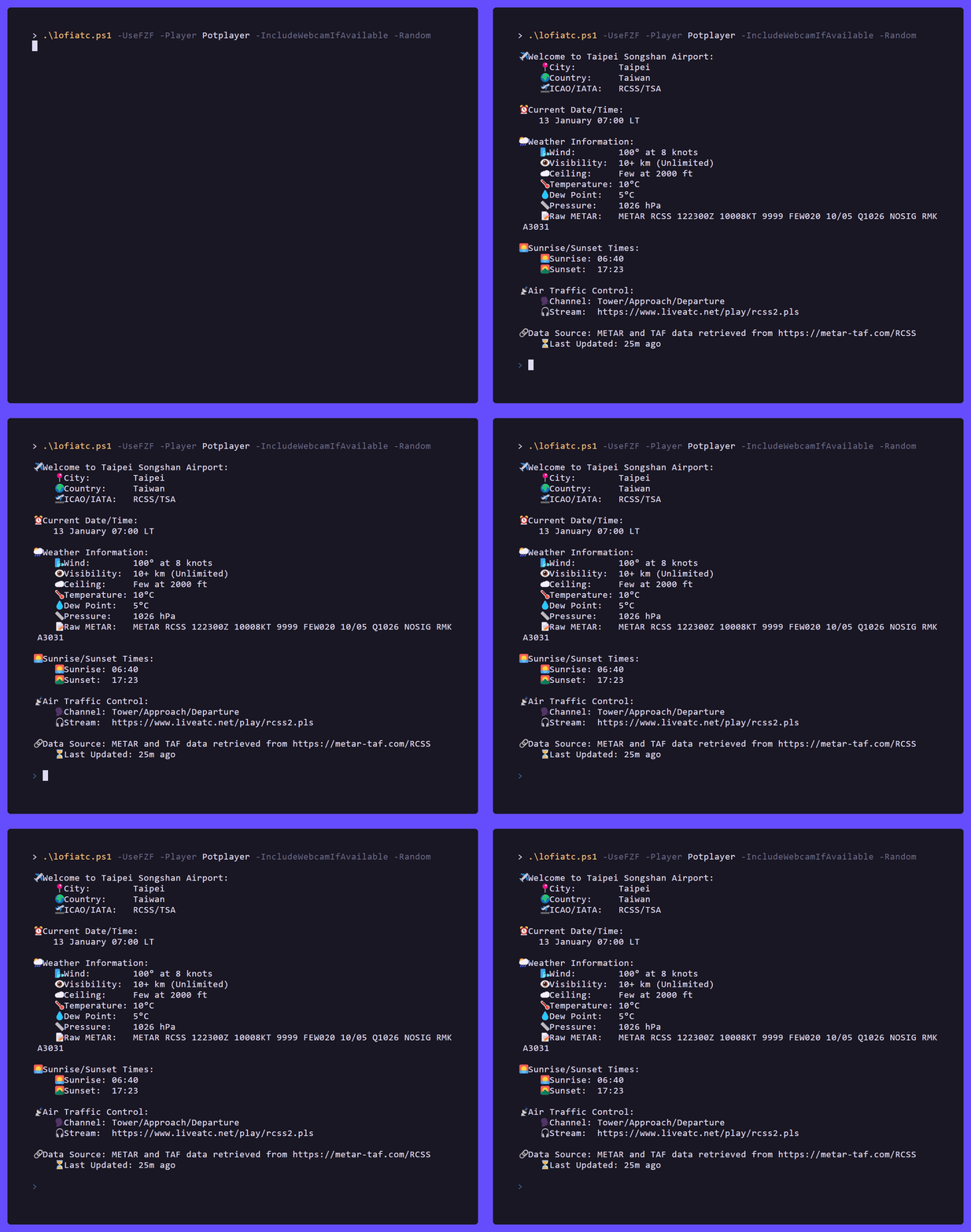

- Requirements
- Install
- Run
- Usage Recipes
- Parameters (Quick Reference)
- Configuration
- Favorites
- Airport Sources
- Player Selection
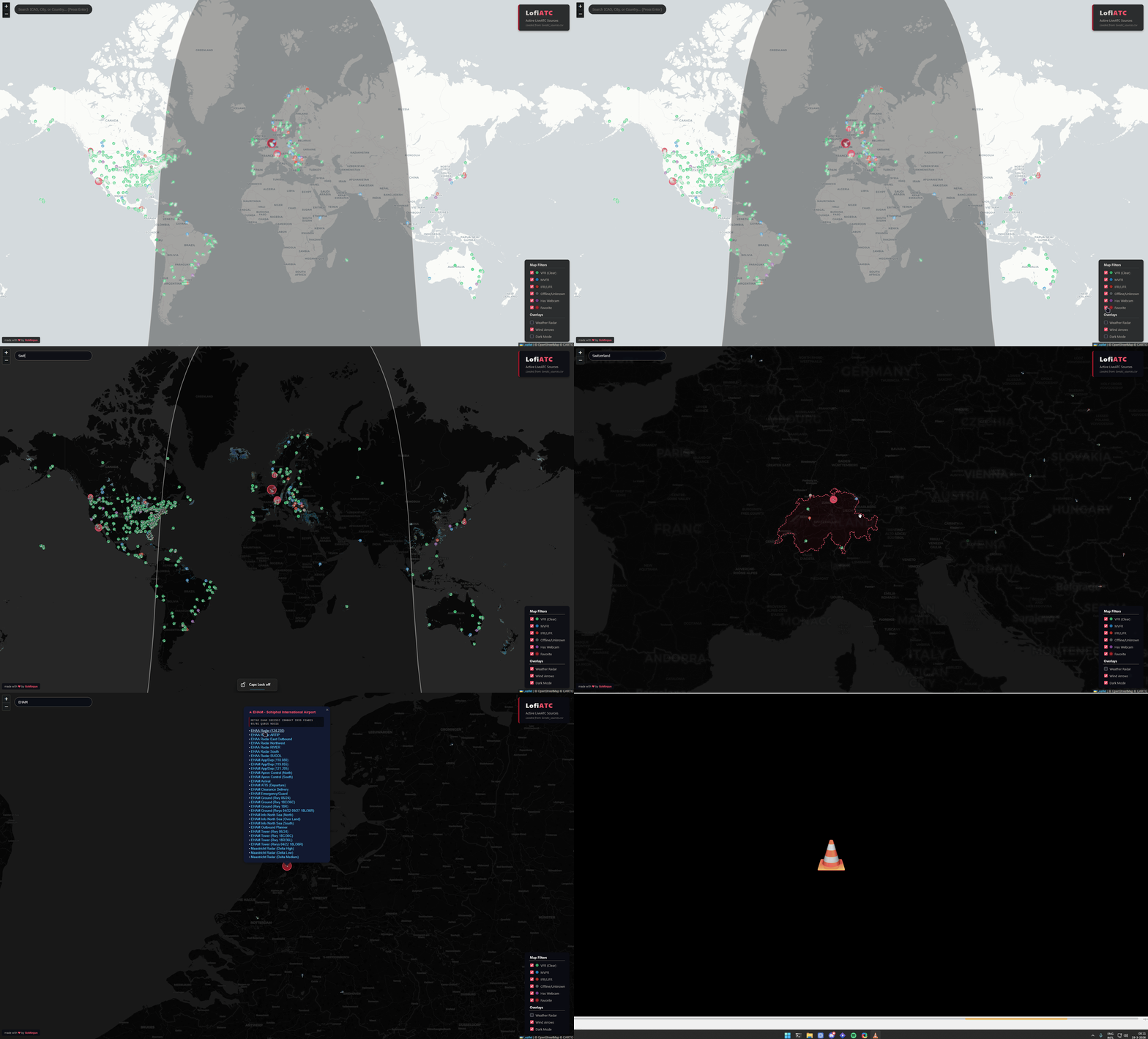
- Interactive Map
- Dependency Check
- Platform Notes
- Troubleshooting
- Clean Up / Uninstall
- Contributing
- Support LiveATC
Ensure you have the following installed before running the script:
- PowerShell 5.1 or later
- A Multimedia Player (choose one or multiple of the following):
- VLC Media Player:
Install with:- Windows
winget install --id VideoLAN.VLC -e - Debian based distros:
sudo apt install vlc
- Windows
- Potplayer:
Install with:winget install potplayer --id Daum.PotPlayer -s winget - MPC-HC:
Install with:winget install MPC-HC --id clsid2.mpc-hc - MPV:
Install with:- Windows:
scoop install mpvor via mpv.io - Debian based distros:
sudo apt install mpv
- Windows:
- VLC Media Player:
- yt-dlp (recommended for resolving YouTube-backed sources more reliably):
Install with:
- Windows:
winget install --id=yt-dlp.yt-dlp -e - Debian based distros:
sudo apt install yt-dlp
- Windows:
- git (for installing repo):
Install with:
- Windows:
winget install --id Git.Git -e --source winget - Debian based distros:
sudo apt install git
- Windows:
- fzf (Optional, but recommended):
Install with:- Windows:
winget install --id=junegunn.fzf -e - Debian based distros:
sudo apt install fzf
- Windows:
After cloning the repo, you can verify required tools and optional integrations with:
.\lofiatc.ps1 -CheckDependenciesThis prints a dependency report and exits without starting playback.
Useful variations:
.\lofiatc.ps1 -CheckDependencies -UseFZF
.\lofiatc.ps1 -CheckDependencies -ShowMap
.\lofiatc.ps1 -CheckDependencies -Player VLC
-CheckDependencies reports:
- supported media players found in
PATH - optional tools like
fzf,yt-dlp, andyoutube-dl - local files such as
config.json,favorites.json, and ATC source CSVs - optional network/service checks for airport and weather endpoints
Clone the repository locally to get started:
git clone https://github.com/RoMinjun/lofiatc.ps1.git
cd lofiatc.ps1
Important
Keep it updated with git pull.
Note
If you prefer the older, lightweight lofiatc.ps1 without the new features, switch to the legacy branch in this repository.
.\lofiatc.ps1If PowerShell blocks the script, use one of these:
# One-time relaxed policy for the current user
Set-ExecutionPolicy -Scope CurrentUser -ExecutionPolicy RemoteSigned

# OR run once with a bypass
powershell -ExecutionPolicy Bypass -File .\lofiatc.ps1pwsh ./lofiatc.ps1Tip
If pwsh isn’t in your PATH, install from https://aka.ms/pscore6
# Interactive (auto-detect player, show menus)
.\lofiatc.ps1

# Use fuzzy finder to pick an airport, open its radar, tweak volumes
.\lofiatc.ps1 -UseFZF -OpenRadar -ATCVolume 70 -LofiVolume 45

# Load your last-used settings, but override to open radar this time
.\lofiatc.ps1 -LoadConfig -OpenRadar

# Force a specific player
.\lofiatc.ps1 -Player mpv
.\lofiatc.ps1 -Player vlc

# Open the interactive ATC map in your browser
.\lofiatc.ps1 -ShowMap

# Open the map faster by skipping live weather fetch
.\lofiatc.ps1 -ShowMap -NoWeather

# Open the map in dark mode
.\lofiatc.ps1 -ShowMap -Dark

# Show the map centered around your current location, with nearby airport context
.\lofiatc.ps1 -ShowMap -Nearby

# Open the map and include webcam-enabled feeds where available
.\lofiatc.ps1 -ShowMap -IncludeWebcamIfAvailable

# Nearby airport selection without the map
.\lofiatc.ps1 -Nearby

# Nearby airport selection with a custom radius in kilometers
.\lofiatc.ps1 -Nearby -NearbyRadius 250

# Check required and optional dependencies without starting playback
.\lofiatc.ps1 -CheckDependencies

# Check dependencies for the fzf flow
.\lofiatc.ps1 -CheckDependencies -UseFZF

# Check dependencies for the map flow
.\lofiatc.ps1 -CheckDependencies -ShowMap

# Check whether a specific player is available
.\lofiatc.ps1 -CheckDependencies -Player VLC
Tip
The interactive map feature works best when your terminal stays open while the browser tab is active.
To explore all features:
Get-Help .\lofiatc.ps1 -Full| Parameter | Type | Default | What it does |
|---|---|---|---|
-Player |
string | auto | Choose vlc, mpv, potplayer, or mpc-hc. Auto-detects cross-platform. |
-UseFZF |
switch | false | Use fzf for fuzzy airport search. |
-UseFavorite |
switch | false | Pick from your top 10 most-played favorites. (Works with -UseFZF.) |
-RandomATC |
switch | false | Start a random ATC stream (not added to favorites). |
-OpenRadar |
switch | false | Opens the selected airport’s FlightAware radar in your browser. |
-ATCVolume |
int 0–100 | 65 |
ATC stream volume. |
-LofiVolume |
int 0–100 | 50 |
Lofi Girl volume. |
-SaveConfig |
switch | false | Saves the current flags/values to config.json. |
-LoadConfig |
switch | false | Loads options from config.json. CLI flags override loaded values. |
-ConfigPath |
string | ./config.json |
Custom path for saving/loading. |
-UseBaseCSV |
switch | false | Force using the base atc_sources.csv even if a local updated file exists. |
-ICAO |
string | none | Select a specific airport by ICAO code. If multiple channels exist, you’ll be prompted unless -RandomATC is used. |
-Nearby |
switch | false | Uses your current location to show or select nearby airports. |
-NearbyRadius |
int | 500 |
Radius in kilometers used with -Nearby. |
-ShowMap |
switch | false | Opens an interactive browser map of available ATC sources. |
-NoWeather |
switch | false | Skips live weather/METAR fetching for the map to improve load speed. |
-Dark |
switch | false | Starts the interactive map in dark mode. |
-NoLofiMusic |
switch | false | Disables the lofi stream and only plays ATC audio. |
-IncludeWebcamIfAvailable |
switch | false | Includes webcam-enabled feeds when available. |
-CheckDependencies |
switch | false | Prints a dependency report and exits without starting playback. Useful for validating players, optional tools, files, and service reachability. |
Tip
Switches are boolean, just include them (no true/false needed). CLI overrides always win over loaded config.
Easily persist your favorite command-line options and reuse them across sessions by saving to or loading from a JSON file.
Save your settings
.\lofiatc.ps1 -UseFZF -OpenRadar -ATCVolume 70 -LofiVolume 45 -SaveConfigLoad saved settings
.\lofiatc.ps1 -LoadConfigCustom file path
.\lofiatc.ps1 -LoadConfig -ConfigPath "C:\work\lofiatc.json"Command-line overrides
Even if your config has OpenRadar: false, you can re-enable it with:
.\lofiatc.ps1 -LoadConfig -OpenRadarExample config.json
{
  "Player": "mpv",
  "UseFZF": true,
  "OpenRadar": true,
  "ATCVolume": 70,
  "LofiVolume": 45
}Each time you select a stream, its ICAO and channel are recorded in favorites.json beside the script. The file tracks how many times you've listened to each stream and keeps the ten most frequently used entries.
- Use
-UseFavoriteto pick from this list (combine with-UseFZFto search within favorites). - Streams chosen with
-RandomATCaren't saved to the favorites list.
Example favorites.json
[
  {
    "ICAO": "RJAA",
    "Channel": "RJAA Tower (Both)",
    "Count": 1,
    "LastUsed": "2025-08-11T22:24:38.3289048+02:00"
  },
  {
    "ICAO": "EHAM",
    "Channel": "EHAM Tower (Rwy 18R/36L)",
    "Count": 1,
    "LastUsed": "2025-08-11T22:24:26.5105686+02:00"
  }
]The script reads ATC streams from atc_sources.csv.
Important
Don't try manually update the sources. LiveATC has added a challenge page, so for now the update script doesn't work. Working on a fix. A workaround is to use FlareSolverr, but to keep it stealthy each request would take around 8 seconds (So it can take up hours to fully update the sources). So I wouldn't recommend trying to update yourself anymore. Instead I'll publish a more recent version every now and then. But if you really wish to update yourself, check the steps below.
- Run
tools/UpdateATCSources.ps1to generate/refresh a localatc_sources.csv. By default it'll be calledliveatc_sources.csv. This overrides the currentliveatc_sources.csvfile. - If a locally updated CSV exists, it is preferred over the
liveatc_sources.csv. - Use
-UseBaseCSVto ignoreliveatc_sources.csvand use the base CSV.
Download the FlareSolverr binary from GitHub. Run the binary and accept any pop ups. Then run the UpdateATCSources.ps1 script as per usual.
# From <projectroot>/tools
.\UpdateATCSources.ps1
Important
The base atc_sources.csv must not be deleted; both scripts rely on it.
If -Player is not specified, the script auto-detects a supported player.
- On Windows, it first checks the default app for
.mp4and uses it if it is supported and available inPATH. - If no supported default app is available, it falls back to the first supported installed player.
- On non-Windows systems, it prefers MPV first, then VLC.
Force a specific player any time:
.\lofiatc.ps1 -Player mpv
.\lofiatc.ps1 -Player vlcUse -ShowMap to open an interactive browser map of all available ATC sources.
- Opens a local HTML map in your browser
- Lets you search by ICAO, city, or country
- Shows active ATC sources as clickable markers
- Optionally overlays live weather categories and wind arrows
- Can highlight webcam-enabled feeds when available
- Can center the map around your current location when used with
-Nearby
.\lofiatc.ps1 -ShowMap
.\lofiatc.ps1 -ShowMap -NoWeather
.\lofiatc.ps1 -ShowMap -Dark
.\lofiatc.ps1 -ShowMap -Nearby -NearbyRadius 300
.\lofiatc.ps1 -ShowMap -IncludeWebcamIfAvailableUse -CheckDependencies to verify the current environment before running the full script.
.\lofiatc.ps1 -CheckDependencies- supported media players available in
PATH - optional tools such as
fzf,yt-dlp, andyoutube-dl - ATC source CSV availability
config.json/favorites.jsonpresence and JSON validity- optional browser/map helpers such as
xdg-openon Linux oropenon macOS - optional network/service checks for airport and weather data sources
- exits with code
0when all required items are available - exits with code
1when required items are missing
- network/service checks are informational and may fail temporarily even when local dependencies are installed
fzfis only required when you use-UseFZF- browser opener checks only matter when you use
-ShowMap
- macOS/Linux: Run with
pwsh. On these platforms the script auto-detects mpv or vlc when-Playeris omitted. - Windows Execution Policy: If execution is blocked, use:
Set-ExecutionPolicy -Scope CurrentUser -ExecutionPolicy RemoteSigned
# or
powershell -ExecutionPolicy Bypass -File .\lofiatc.ps1
- “Command not found: pwsh” (macOS/Linux): install PowerShell Core; reopen your terminal.
- Player not found: ensure your chosen player is in
PATH. Try the explicit-Playerflag. - No audio / very low audio: check OS mixer; ensure per-stream volumes aren’t set to
0. - fzf not working: confirm
fzfis installed and inPATH. Runfzf --version. - yt-dlp errors: update it to the latest version and retry.
- YouTube or webcam streams not loading in player: make sure
yt-dlpis up to date; recent upstream changes may require extra packages depending on your platform. - Map opens slowly: use
-ShowMap -NoWeatherto skip live weather fetch and load faster. - Map opens but clicking a channel does nothing: make sure the PowerShell window is still running in the background; the browser talks back to a temporary local listener started by the script.
- Map selection feels stuck: return to the terminal and press
Qto cancel the map selection flow. - Nearby airport lookup fails: location access may be unavailable on your device; the script falls back to IP-based lookup, which is approximate.
- No nearby airports found: try increasing
-NearbyRadius, for example-NearbyRadius 1000. - Not sure what is missing on your system? Run
.\lofiatc.ps1 -CheckDependenciesto print a dependency report without starting playback.
You can safely delete the repo folder. Optional user files created:
favorites.jsonconfig.json- locally updated
liveatc_sources.csv
The source code in this repository is licensed under the MIT License. See LICENSE.
This project may reference third-party services and content, including LiveATC.net. Such third-party content is not covered by this repository's license. See NOTICE.
PRs welcome! Popular contributions:
- New/updated ATC sources. Please add to
atc_sources.csv, let the script update the rest. - Better player detection across platforms
- Additional examples / docs improvements
This project depends on the existence of liveatc.net.
If you live near an airport and have a passion for air traffic control, and if it's legal in your country, consider contacting LiveATC.net about hosting a feed.