A guide on how to set up a workspace and run ERPLibre on Windows 10 version 2004 and up or Windows 11. There are two methods of installation, one is automatic and the other manual.
"WSL2 Ubuntu 22.04" will be referred as "WSL2"
"PyCharm Professional" will be referred as "PyCharm"
Run Powershell with administrator rights and run the following command:
wsl --install -d Ubuntu-22.04If you have trouble opening the Powershell with administrator rights, press Windows + R, enter the following line and press OK. You will be automatically prompted for administrator rights.
powershell.exeIf you have issues enable virtualization options in BIOS is available (hyper-v, vt-x, etc). Search for Turn Windows features on or off in the Windows search bar and ensure that Windows Subsystem for Linux is turned on before restarting your machine.
You can also try theses powershell commands:
dism.exe /online /enable-feature /featurename:VirtualMachinePlatform /all /norestart
wsl --set-default-version 2
Download and install the lastest Linux kernel update package from Microsoft with the following link:
https://wslstorestorage.blob.core.windows.net/wslblob/wsl_update_x64.msiOnly run this command as your last resort as it can break other virtual machines:
bcdedit /set hypervisorlaunchtype autoRun Powershell with administrator rights and run the following command:
curl.exe -L -o ubuntu-2004.appx https://aka.ms/wslubuntu2004Run Powershell with administrator rights and run the following commands:
Invoke-WebRequest -Uri https://aka.ms/wslubuntu2004 -OutFile Ubuntu.appx -UseBasicParsing
Add-AppxPackage .\Ubuntu.appx
Install WSL2 from the Microsoft Store with the following link:
https://apps.microsoft.com/store/detail/ubuntu-22041-lts/9PN20MSR04DWOnce WSL2 has been installed correctly, reboot your computer.
- Search "Ubuntu" by clicking the Windows key
- Download the Windows Terminal from the Microsoft Store
If you are using the Windows Terminal, you just have to click the little arrow next to the + sign and then you will see Ubuntu.
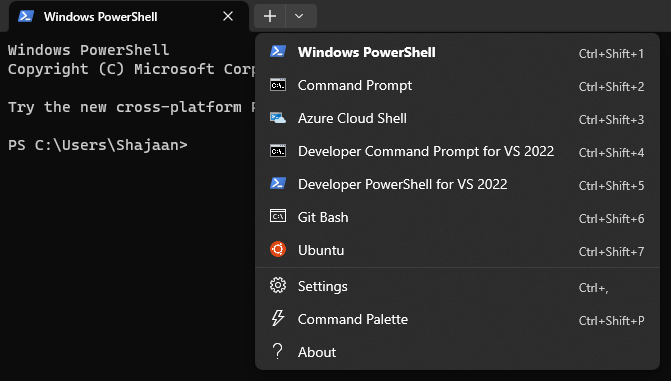
- Update your Ubuntu
sudo apt-get update -y && sudo apt-get upgrade -y- Install the XFCE4 Desktop
sudo apt install -y xrdp xfce4 xfce4-goodies- Setup the Desktop
sudo cp /etc/xrdp/xrdp.ini /etc/xrdp/xrdp.ini.bak
sudo sed -i 's/3389/3390/g' /etc/xrdp/xrdp.ini
sudo sed -i 's/max_bpp=32/#max_bpp=32\nmax_bpp=128/g' /etc/xrdp/xrdp.ini
sudo sed -i 's/xserverbpp=24/#xserverbpp=24\nxserverbpp=128/g' /etc/xrdp/xrdp.ini
echo xfce4-session > ~/.xsession- Setup the Remote Desktop Connection
sudo nano /etc/xrdp/startwm.shComment these lines with a #
test -x /etc/X11/Xsession && exec /etc/X11/Xsession
exec /bin/sh /etc/X11/Xsession
Add this line at the end of the file
startxfce4Exit with Ctrl+S, Ctrl+X
- Starting Ubuntu Desktop GUI
Open Ubuntu Terminal on your Windows and enter this command
sudo /etc/init.d/xrdp startThen open Remote Desktop Connection by clicking the Windows key and connect to localhost:3390
If WSL is taking too much memory, you can reduce with an easy step. You just have to go to C:\Users\YourUsername.wslconfig and create a .wslconfig file and write:
sudo /etc/init.d/xrdp start

[wsl2]
memory=3GBsudo apt update
sudo apt install build-essential zlib1g-dev libncurses5-dev libgdbm-dev libnss3-dev libssl-dev libsqlite3-dev libreadline-dev libffi-dev curl libbz2-dev rsync make gitMake sure to be in the directory where you want to clone the project.
git clone https://github.com/ERPLibre/ERPLibre.git
cd ERPLibre
make install
Add role to PostgresSQL, change USERNAME field in the command with your UNIX username from your WSL2 environment.
sudo service postgresql start
sudo su - postgres -c "createuser -s USERNAME" 2>/dev/null || trueEnsure all dependencies are installed correctly. Re-run the following command to fix any broken dependencies:
sudo apt-get install -fCheck the PostgreSQL service status with the following command:
sudo service postgresql statusIf PostgreSQL is not running, try restarting it with:
sudo service postgresql restartEverytime you restart your machine, the following command has to be executed to start the PostgreSQL service if it is not already running:
sudo service postgresql startAfter that run this command in the root of the project:
./run.shWhile ERPLibre is running, make sure that you can connect to the following URL http://localhost:8069 and have the ability to create, modify and remove databases.
Install PyCharm from the following link:
https://www.jetbrains.com/pycharm/download/#section=windowsSelect Connect to WSL under Remote Development. After that select your Ubuntu instace ("Ubuntu-22.04"). Point Project directory to the root of the project. Once everything has been selected and filled out correctly, click on Start IDE and Connect.

Press CTRL+ALT+S, search for interpreter and inside the Python Interpreter page, click on Add Interpreter and select Add Local Interpreter....

Make sure to select Virtualenv Environment on the left and the Existing radio button. Once theses are both selected properly, point your interpreter to the ../ERPLibre/.venv/bin/python directory of the project and click on OK.

If these last steps to set up your development environment were unsuccessful, follow the next "Manual" steps to set up your environment.
You can delete the files that are left over in your home directory regarding the python installation when the steps have been completed succesfully.
cd ~
wget https://www.python.org/ftp/python/3.10.14/Python-3.10.14.tgz
tar -xzf Python-3.10.14.tgz
cd Python-3.10.14
./configure --enable-optimizations
make -j $(nproc)
sudo make installpython3.10alias python='/usr/local/bin/python3.10'
source ~/.bashrcOpen the project directory in PyCharm.
Press CTRL+ALT+S, search for interpreter and inside the Python Interpreter page, click on Add Interpreter and select On WSL....

Wait until PyCharm detects your WSL2 instance and press NEXT. Click on System Interpreter on the left, select the correct interpreter if it hasn't done so automatically and click Create.

Close the project's settings. Once PyCharm prompts you to import modules and allow it.
Search for terminal in the settings, and under Application Settings in the Shell path: field enter the following line:
wsl.exe
If you experience high memory usage, click on Help in the toolbar and choose Change Memory Settings to increase the memory heap of the IDE.
PyCharm might not fully recognize some details from requirements.txt and pyproject.toml (e.g., specific module versions). If you encounter issues at runtime or while debugging, search for the correct version of the module and reinstall it using PyCharm's package manager.
If ERPLibre fails to run from PyCharm, execute the following command in the root directory of the project from the terminal in PyCharm or WSL2:
./script/ide/pycharm_configuration.pyRun htop from the terminal in PyCharm or WSL2 and close the python processes related to ERPLibre to release the socket.
WSL Installation Comprehensive guide on installing Windows Subsystem for Linux (WSL) on Windows.
PostgreSQL Official Documentation Official PostgreSQL documentation for troubleshooting common issues and learning more about PostgreSQL commands and configuration.
PyCharm Installation and Configuration Quick start guide for setting up and configuring PyCharm, including handling Python modules and environment setup.
WSL Troubleshooting Troubleshooting guide for common issues encountered in WSL, providing solutions for various problems that may arise.
Linux GUI Instructions for setting up a graphical user interface (GUI) in WSL, which might be helpful for better integration of Linux applications.
Memory Problem Guide on how to manage and limit memory usage in WSL 2 to avoid high memory consumption issues.