MiniMax Open Platform offers two billing options for text models: Coding Plan and Pay-As-You-Go. You can choose flexibly based on your usage requirements.MiniMax-M2.1 features strong code understanding, multi-turn dialogue, and reasoning capabilities.
The billing model is determined by the API Key you use. Different types of keys will trigger different billing methods.
If you are subscribed to a coding plan, please use your coding plan API key to access your benefits.
Visit the Account/Coding Plan page, get your Coding Plan API Key for use in coding tools.
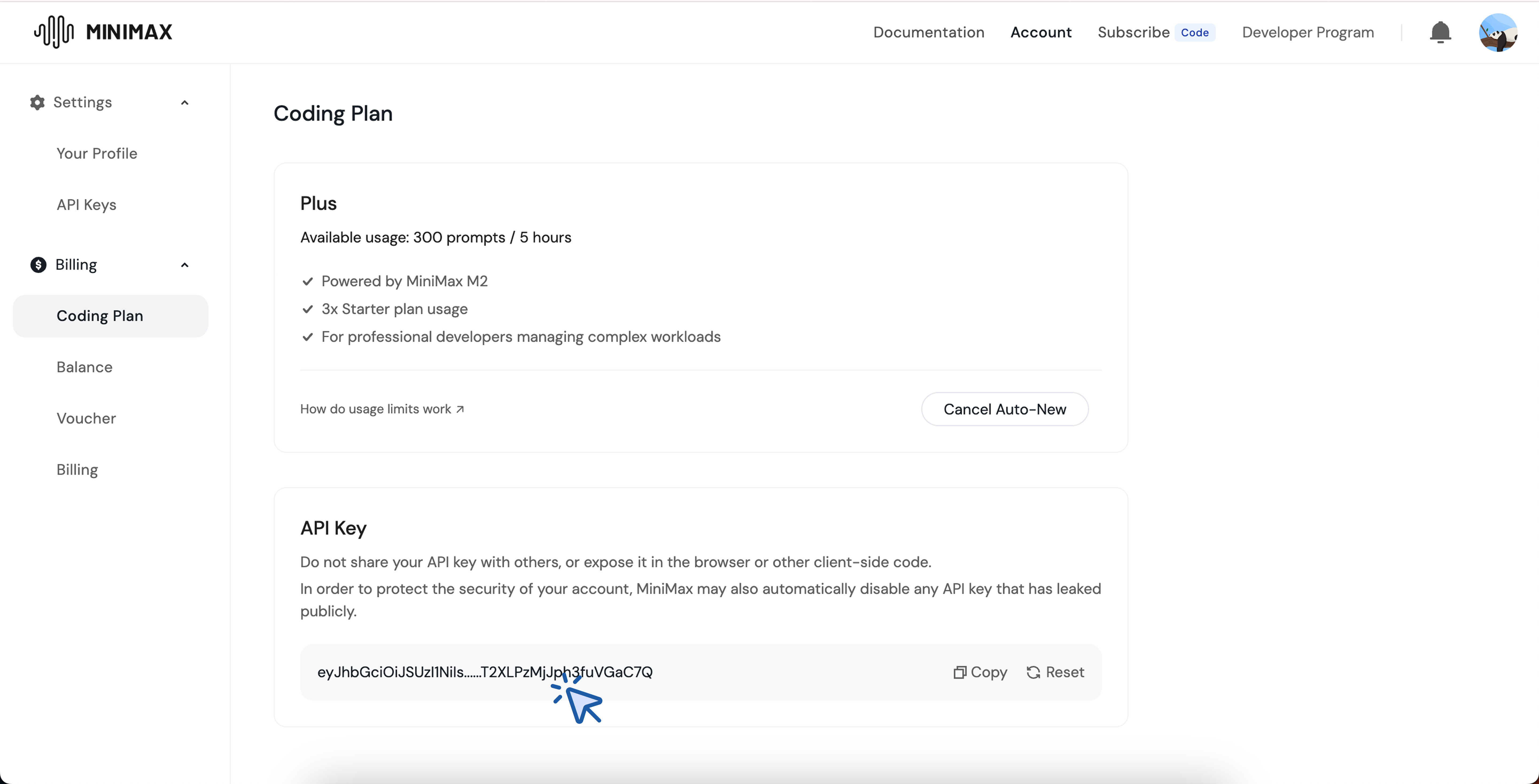
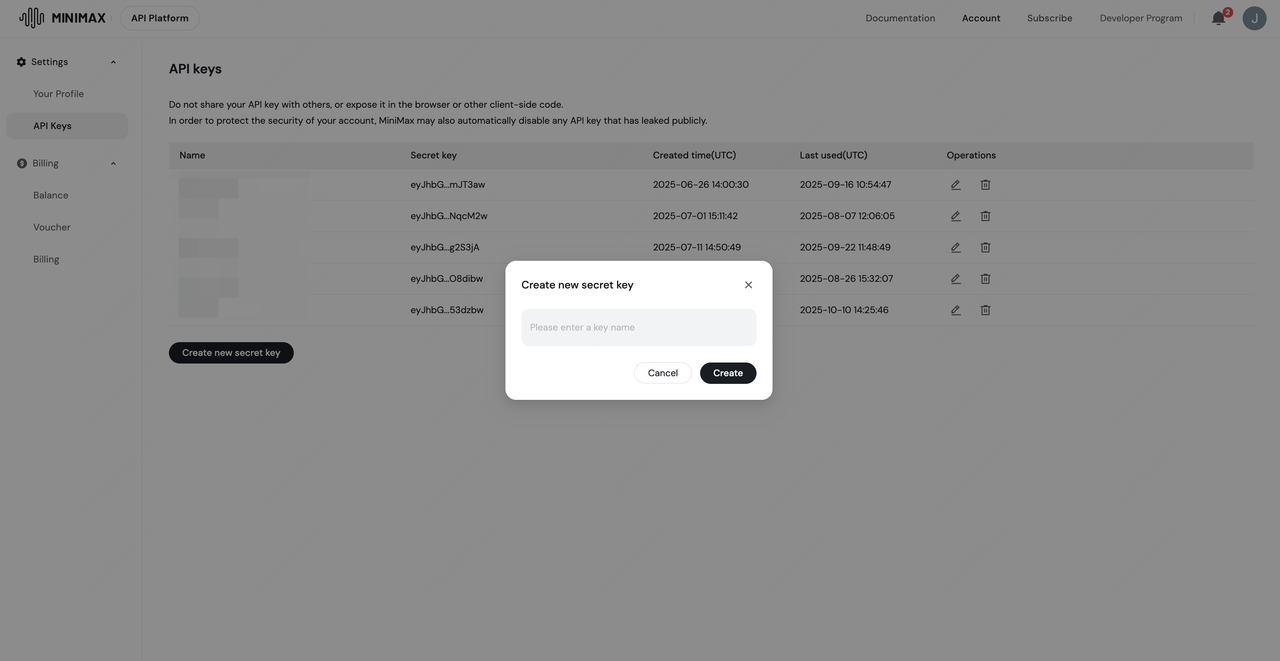
- Visit the MiniMax Developer Platform (For users in China, visit MiniMax Developer Platform)
- Click the "Create new secret key" button and enter a project name to create a new API key.
- After creation, the system will display the API key. Be sure to copy and save it securely. The key is shown only once and cannot be viewed again.
Refer to the Claude Code documentation for installation.
**Important: Clear Anthropic Environment Variables Before Configuration**Before configuring, ensure you clear the following Anthropic-related environment variables to avoid conflicts with MiniMax API:
ANTHROPIC_AUTH_TOKENANTHROPIC_BASE_URL
- Edit or create the Claude Code configuration file located at
~/.claude/settings.json. In this file, add or update theenvfield as shown below.
- The
ANTHROPIC_BASE_URLshould be set based on your location: for international users, usehttps://api.minimax.io/anthropic; for users in China, usehttps://api.minimaxi.com/anthropic. - Set
<MINIMAX_API_KEY>to the API key obtained from the MiniMax Developer Platform (For users in China, visit MiniMax Developer Platform).
{
  "env": {
    "ANTHROPIC_BASE_URL": "https://api.minimax.io/anthropic",
    "ANTHROPIC_AUTH_TOKEN": "<MINIMAX_API_KEY>",
    "API_TIMEOUT_MS": "3000000",
    "CLAUDE_CODE_DISABLE_NONESSENTIAL_TRAFFIC": 1,
    "ANTHROPIC_MODEL": "MiniMax-M2.1",
    "ANTHROPIC_SMALL_FAST_MODEL": "MiniMax-M2.1",
    "ANTHROPIC_DEFAULT_SONNET_MODEL": "MiniMax-M2.1",
    "ANTHROPIC_DEFAULT_OPUS_MODEL": "MiniMax-M2.1",
    "ANTHROPIC_DEFAULT_HAIKU_MODEL": "MiniMax-M2.1"
  }
}- After completing the configuration, navigate to your working directory and run the
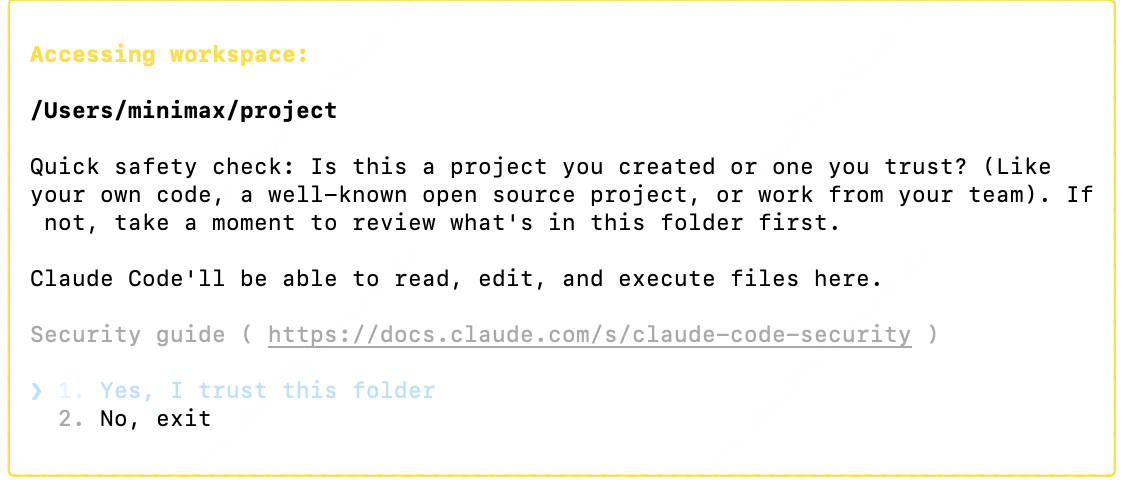
claudecommand in the terminal to start using Claude Code. After startup, select Trust This Folder to allow it to access the files in your folder as shown below:
- You can now start using Claude Code for development.
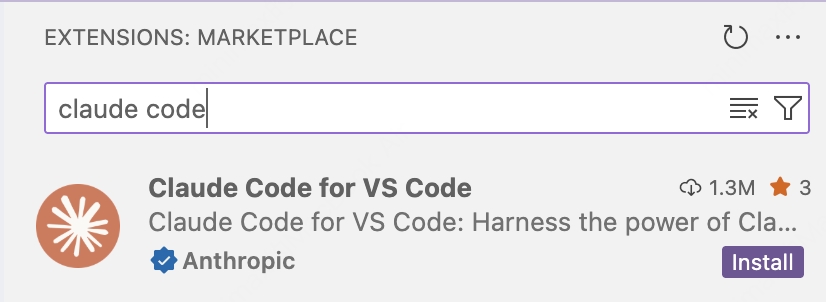
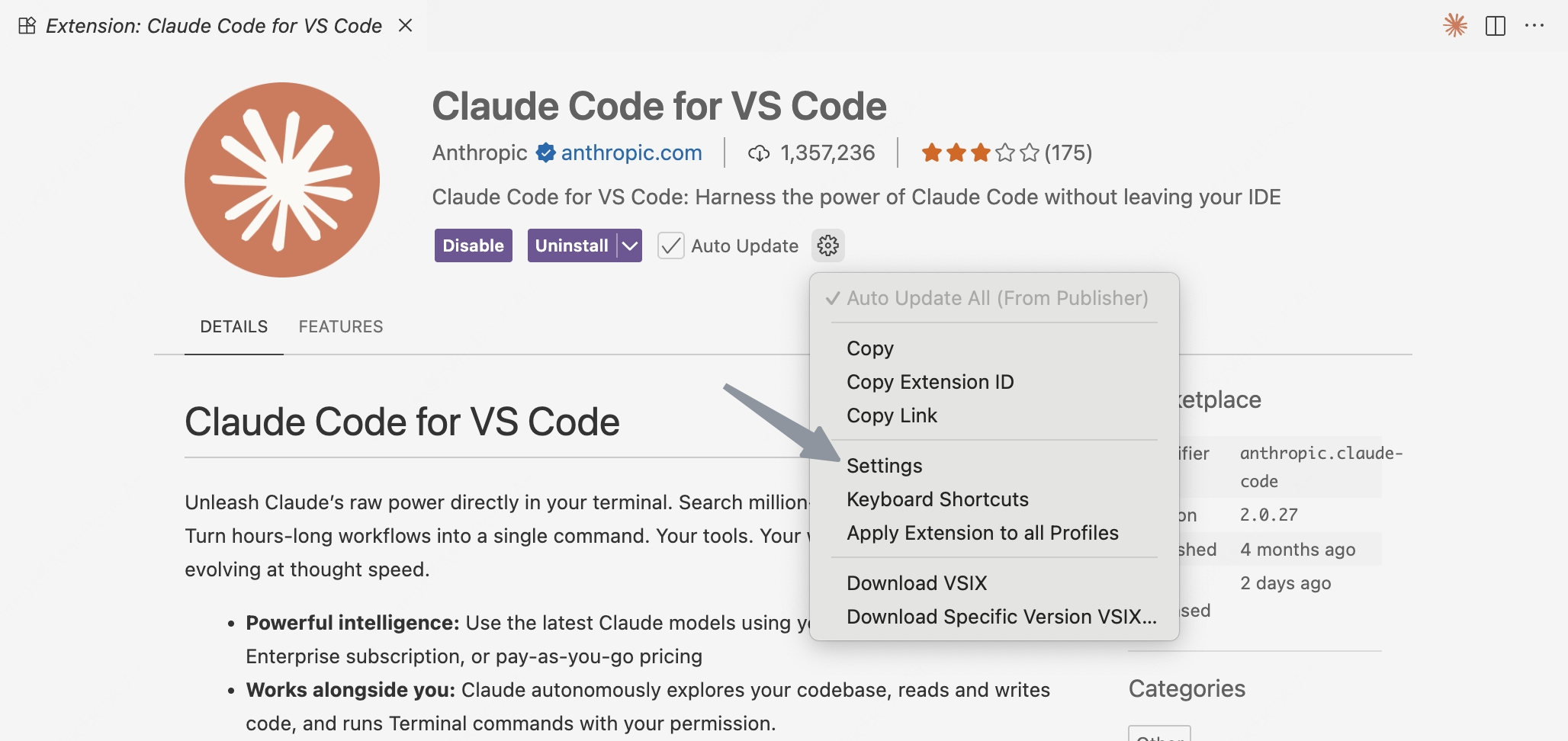
- Install Claude Code Extension for VS Code
- After installation, click Settings
- Configure the model to
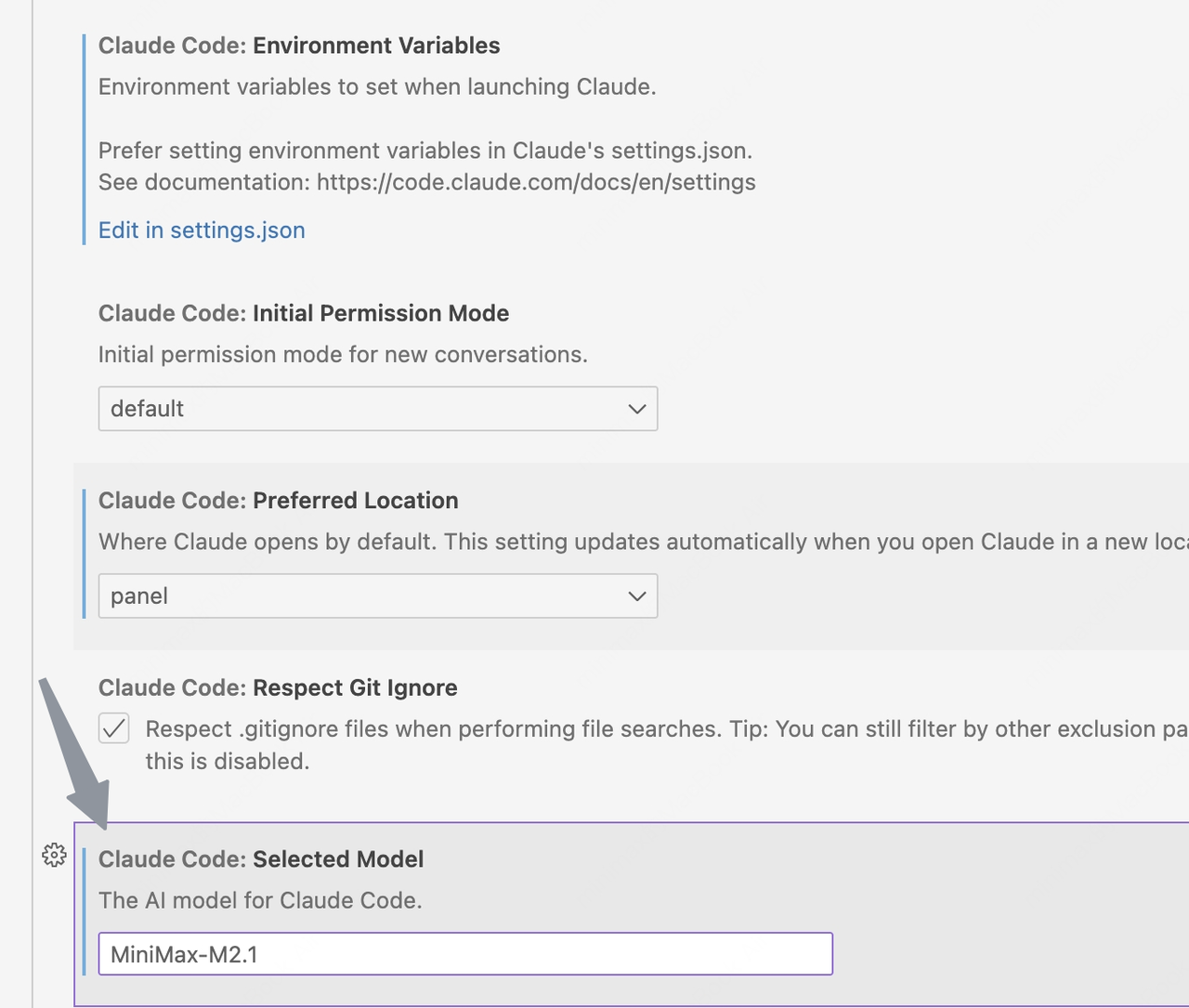
MiniMax-M2.1
- In Settings -
Claude Code: Selected Model, enterMiniMax-M2.1
Or
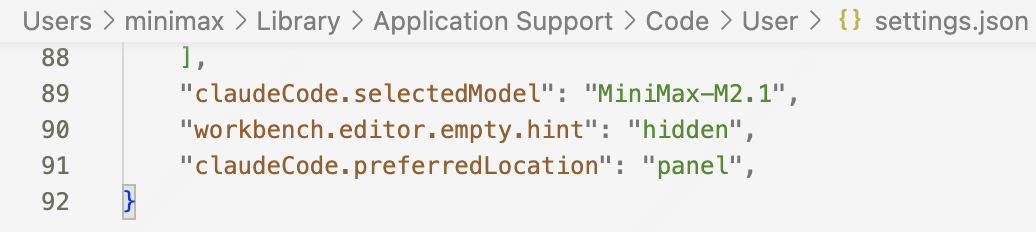
- Click
Edit in settings.json, modifyclaude-code.selectedModeltoMiniMax-M2.1in the configuration file.
- Configure the environment variables
- If Claude Code is already installed, please refer to the Claude Code Configuration to configure the environment variables.
- If Claude Code is not installed, click
Edit in settings.json
- Then modify
claudeCode.environmentVariablesto following settings. - The
ANTHROPIC_BASE_URLvalue should be set based on your location: for international users, usehttps://api.minimax.io/anthropic; for users in China, usehttps://api.minimaxi.com/anthropic
"claudeCode.environmentVariables": [
        {
            "name": "ANTHROPIC_BASE_URL",
            "value": "https://api.minimax.io/anthropic"
        },
        {
            "name": "ANTHROPIC_AUTH_TOKEN",
            "value": "<MINIMAX_API_KEY>"
        },
        {
            "name": "API_TIMEOUT_MS",
            "value": "3000000"
        },
        {
            "name": "CLAUDE_CODE_DISABLE_NONESSENTIAL_TRAFFIC",
            "value": "1"
        },
        {
            "name": "ANTHROPIC_MODEL",
            "value": "MiniMax-M2.1"
        },
        {
            "name": "ANTHROPIC_SMALL_FAST_MODEL",
            "value": "MiniMax-M2.1"
        },
        {
            "name": "ANTHROPIC_DEFAULT_SONNET_MODEL",
            "value": "MiniMax-M2.1"
        },
        {
            "name": "ANTHROPIC_DEFAULT_OPUS_MODEL",
            "value": "MiniMax-M2.1"
        },
        {
            "name": "ANTHROPIC_DEFAULT_HAIKU_MODEL",
            "value": "MiniMax-M2.1"
        }
],- Download and install Cursor from the Cursor website.
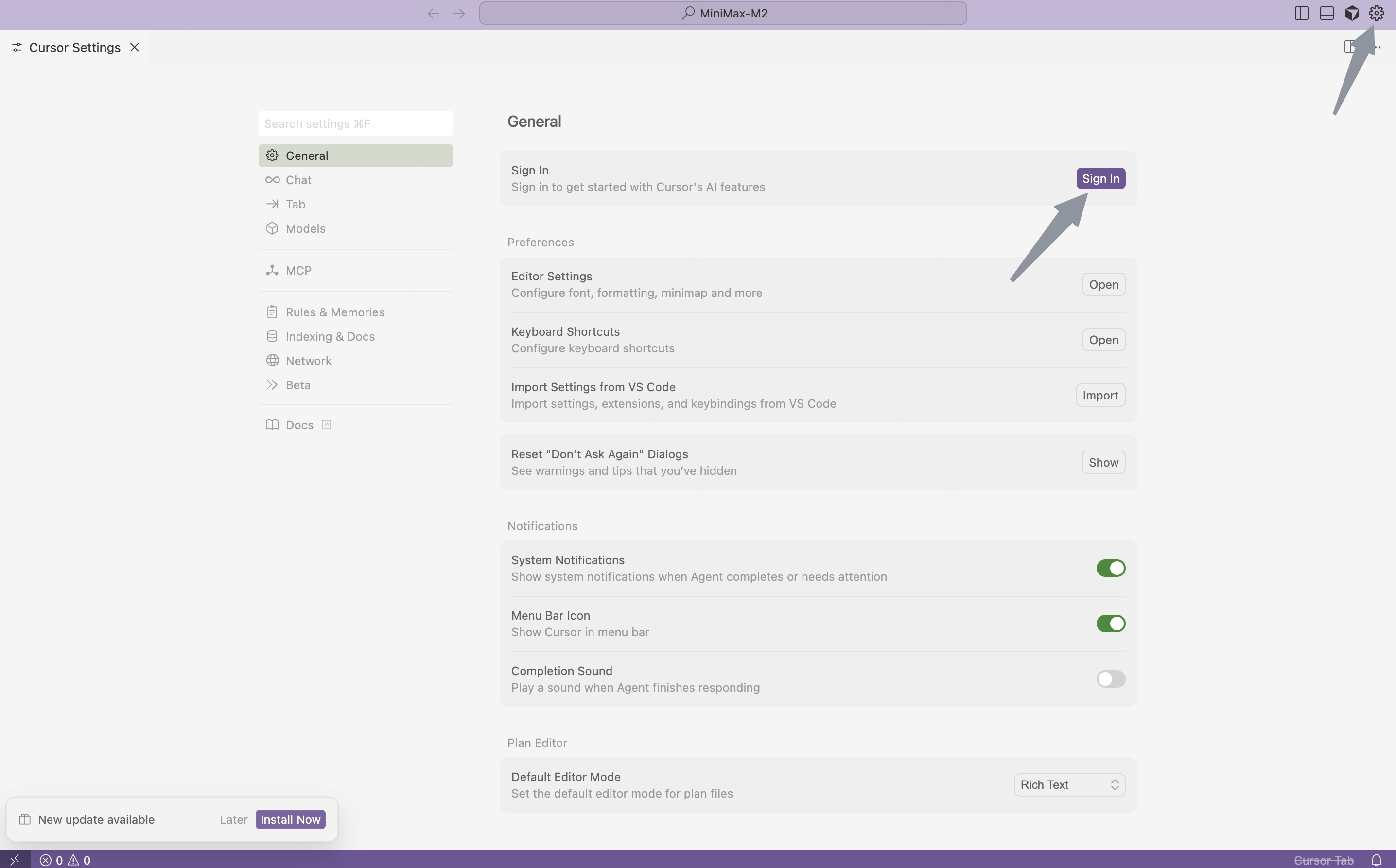
- Open Cursor, click the "Settings" button in the top-right corner to enter the settings page.
- Click the "Sign in" button to log in to your Cursor account.
Before configuring, ensure you clear the following OpenAI-related environment variables to avoid conflicts with MiniMax API:
OPENAI_API_KEYOPENAI_BASE_URL
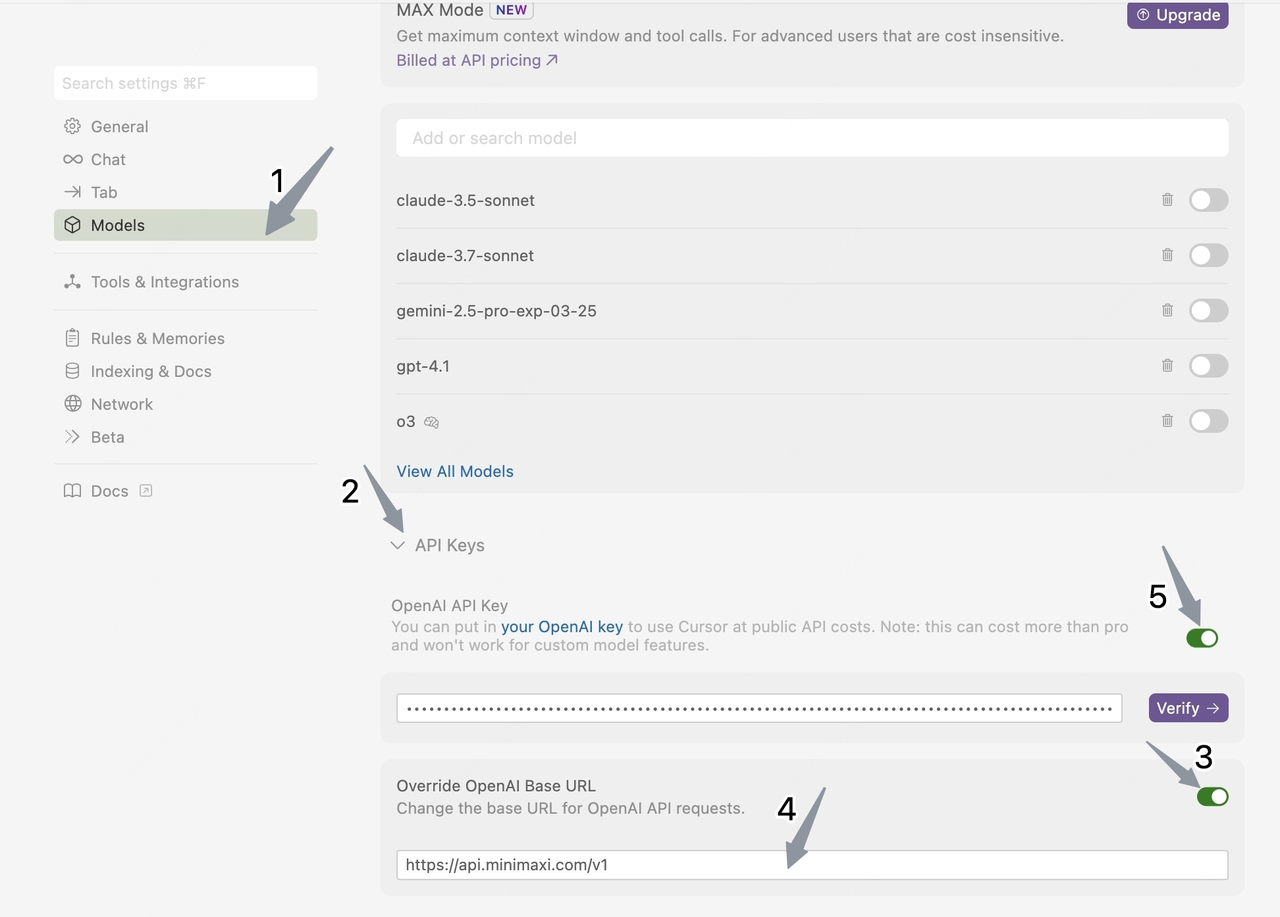
- Click "Models" in the left sidebar to open the model configuration page.
- Expand the "API Keys" section and configure the API information:
- Enable "Override OpenAI Base URL";
- Enter the MiniMax base URL (for international users, use
https://api.minimax.io/v1; for users in China, usehttps://api.minimaxi.com/v1)
- Paste the API key obtained from the MiniMax Developer Platform (For users in China, visit MiniMax Developer Platform) into the OpenAI API Key field.
- Click the button on the right side of the “OpenAI API Key” field.
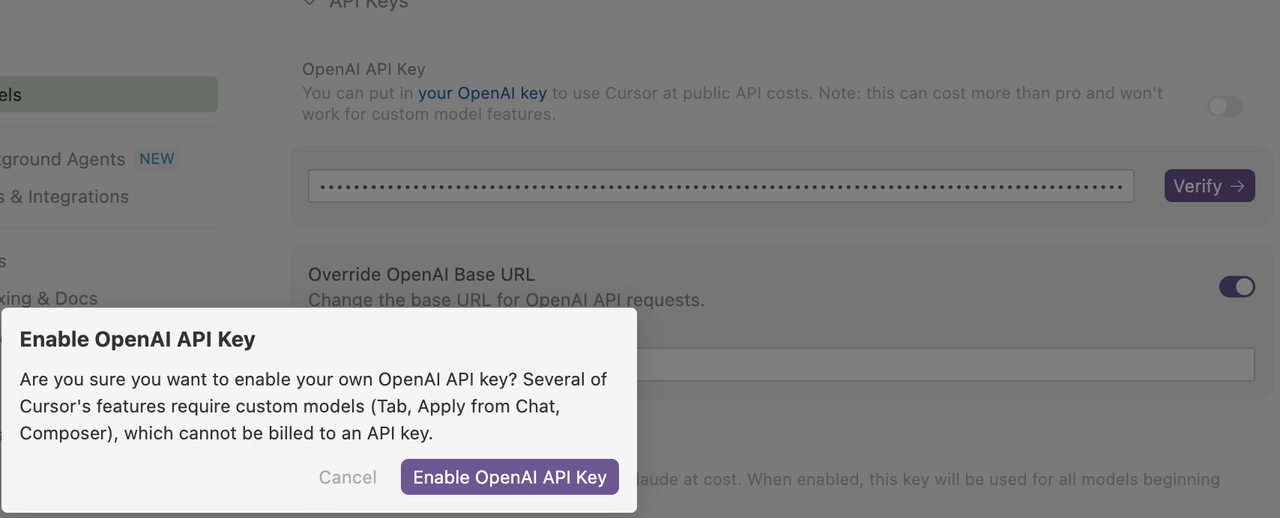
- Click the "Enable OpenAI API Key" button in the pop-up window to complete verification.
- In the Models section, click the "View All Models" button, and then click the "Add Custom Model" button.
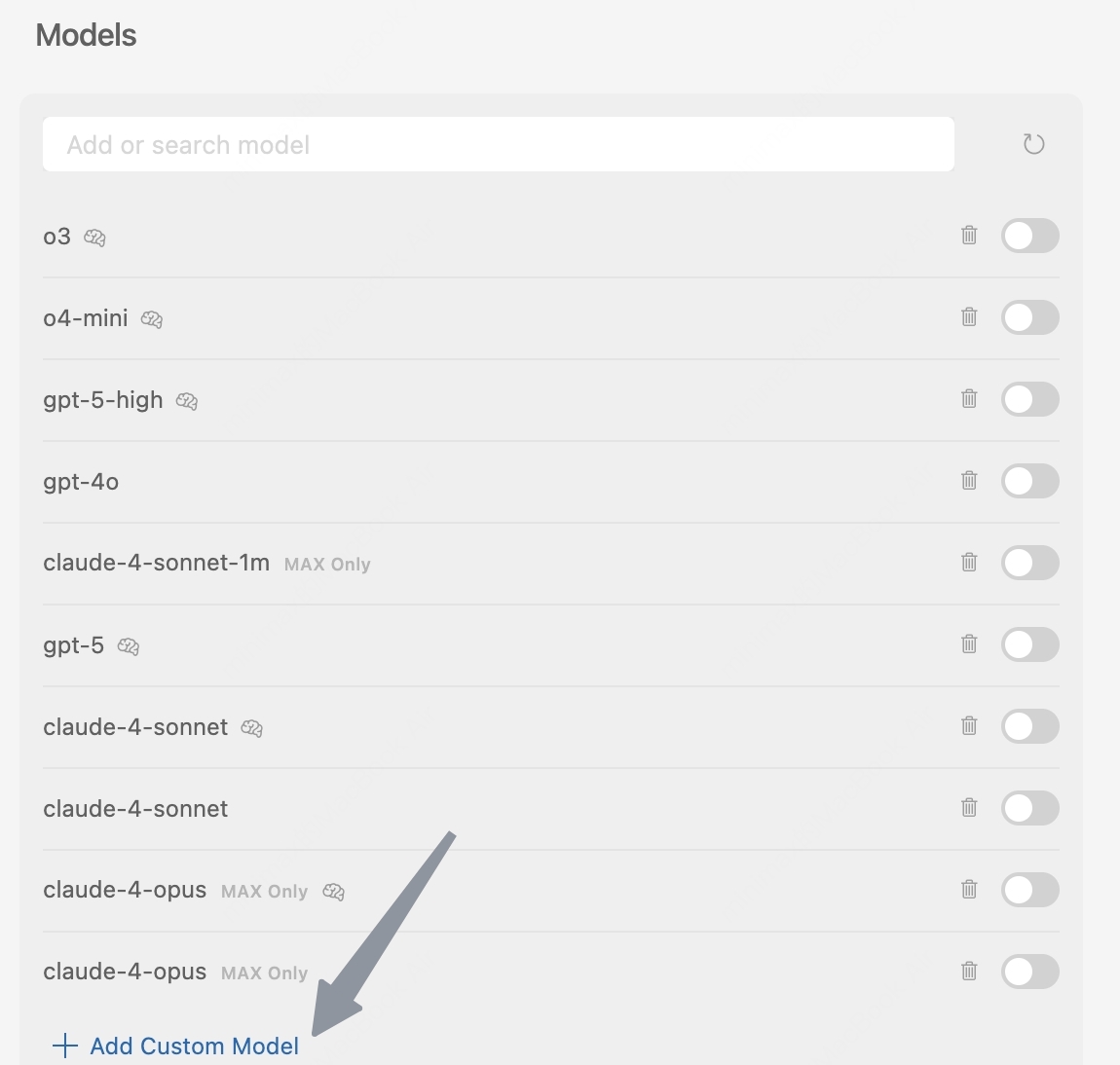
- Enter the model name "MiniMax-M2.1", then click the "Add" button.

- Enable the newly added "MiniMax-M2.1" model.
- Select the "MiniMax-M2.1" model in the chat panel and start using "MiniMax-M2.1" for development.
- Go to TRAE's website to install TRAE
- Click TRAE's icon to launch it
- The following screen appears at TRAE's first launch
- Click the Get Started button,TRAE's setup begins
For detailed installation steps, please refer to: Trae Setup Guide
**Important: Clear OpenAI Environment Variables Before Configuration**Before configuring, ensure you clear the following OpenAI-related environment variables to avoid conflicts with MiniMax API:
OPENAI_API_KEYOPENAI_BASE_URL
In TRAE, you can connenct to MiniMax M2.1 model using API keys obtained from the MiniMax Developer Platform(For users in China, visit MiniMax Developer Platform).
- At the top right of the side chat box, click Settings icon > Models
- The Models window appears
- Click the + Add Model button
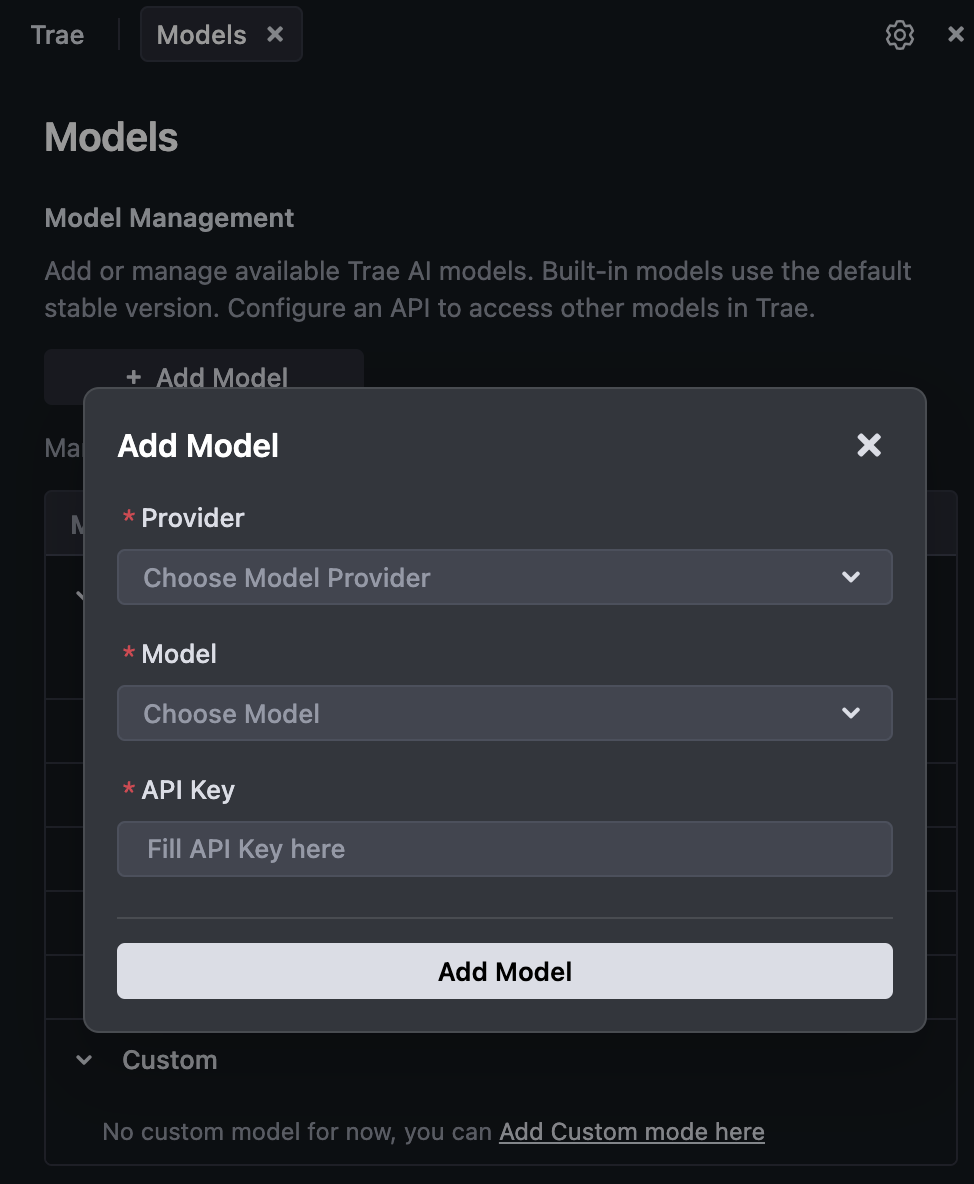
- The Add Model pop-up appears
-
Enter Configuration Details
- Provider: Select OpenRouter or SiliconFlow
- Model: Select other models
- Model ID: MiniMax M2.1
- API Key: Input your MiniMax API Key
-
Click the Add Model button.
MiniMax-M2.1 Coming Soon
- Open VS Code, click the Extensions icon in the left activity bar, and search for "Cline".
- Click the "Install" button to add the extension. After installation, you may need to restart VS Code.
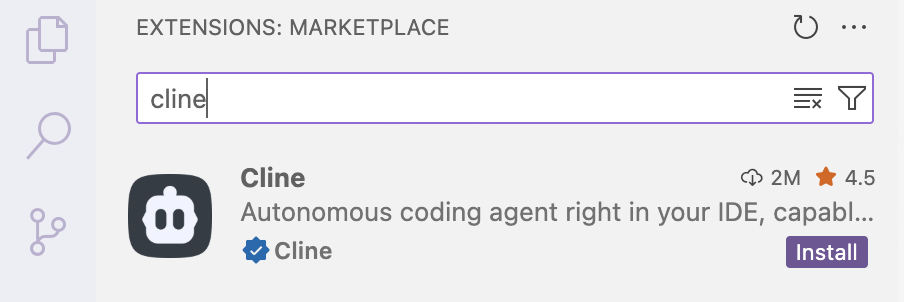
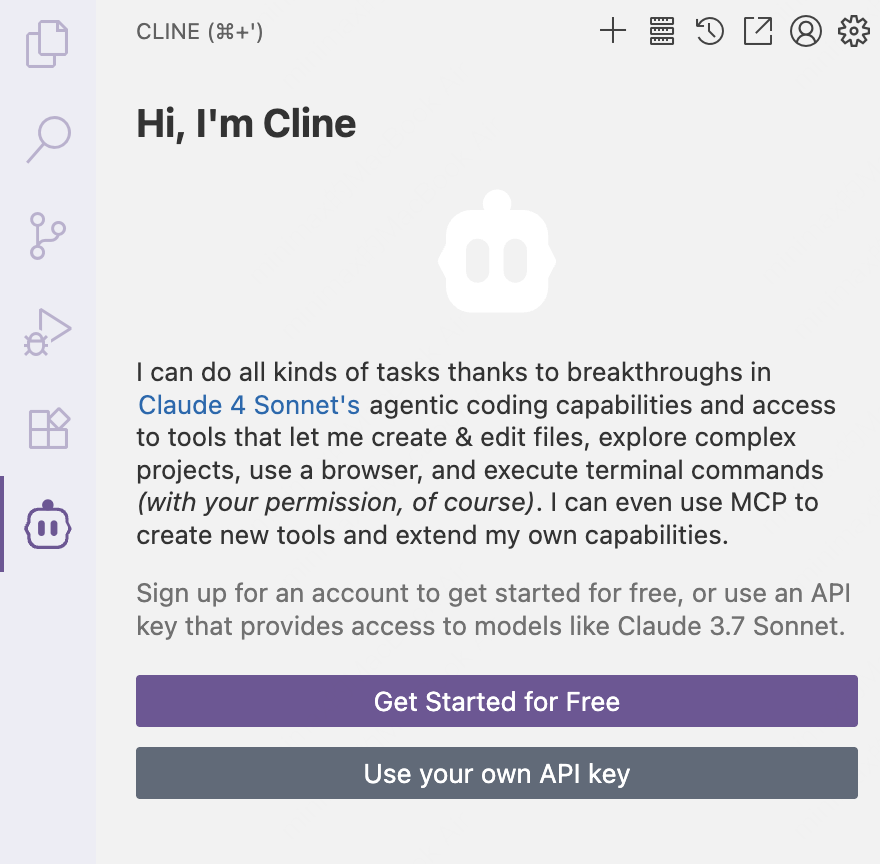
- Once installed, the Cline icon will appear in the left activity bar.
Before configuring, ensure you clear the following Anthropic-related environment variables to avoid conflicts with MiniMax API:
ANTHROPIC_AUTH_TOKENANTHROPIC_BASE_URL
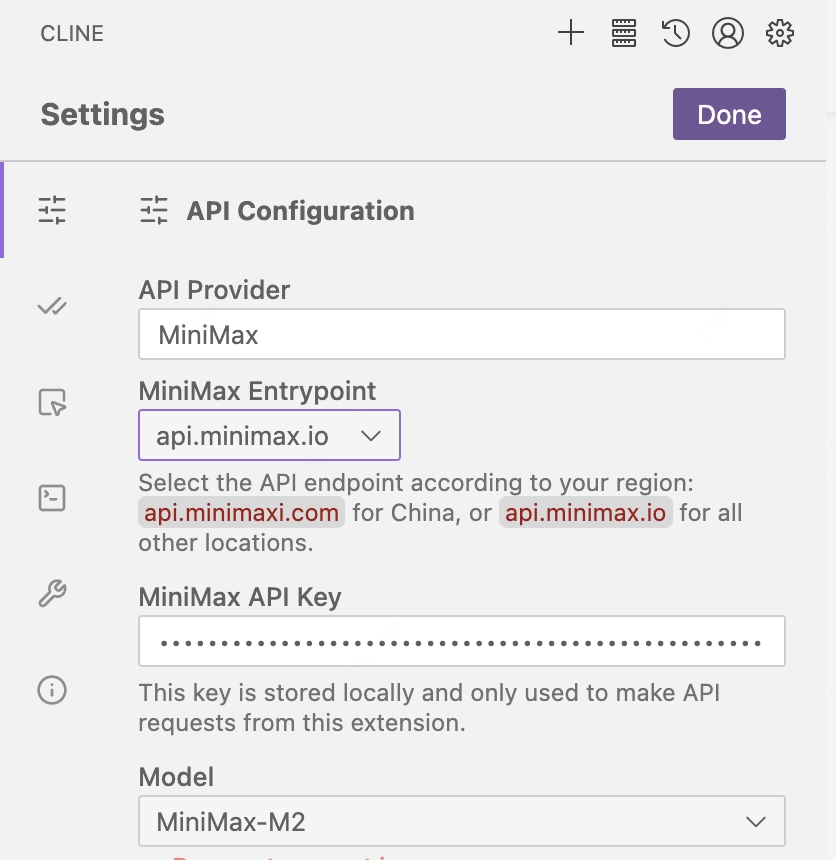
- Click Use your own API key to open Cline's configuration page.
- Under API Provider, select MiniMax.
- In MiniMax Entrypoint, select the appropriate endpoint based on your location (for international users, select
api.minimax.io; for users in China, selectapi.minimaxi.com) - In MiniMax API Key, enter the API key from the MiniMax Developer Platform (For users in China, visit MiniMax Developer Platform).
- In Model, select MiniMax-M2.
- Click Let's go!, then click Done in the top-right corner to save the configuration.
- Enable the "Edit" option box in "Auto-approve" section and start using "MiniMax-M2" for development.
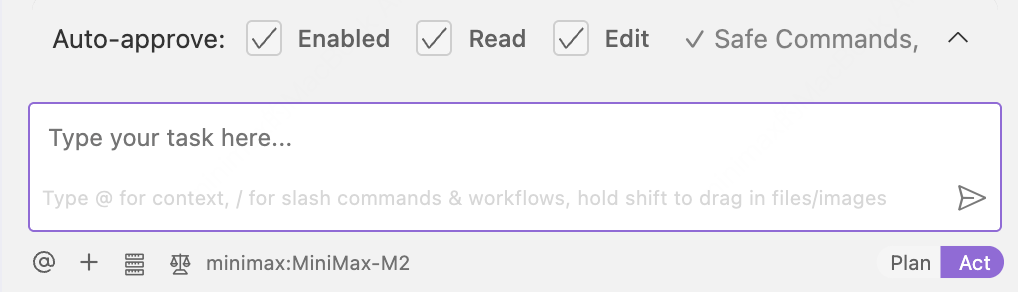
-
Open VS Code, click the Extensions icon in the left activity bar, and search for "Kilo Code".
-
Click the "Install" button to add the extension. After installation, you may need to restart VS Code.
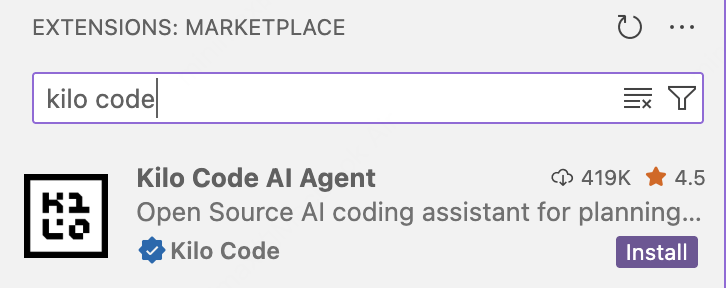
Before configuring, ensure you clear the following Anthropic-related environment variables to avoid conflicts with MiniMax API:
ANTHROPIC_AUTH_TOKENANTHROPIC_BASE_URL
- Click Settings to go to the configuration page.
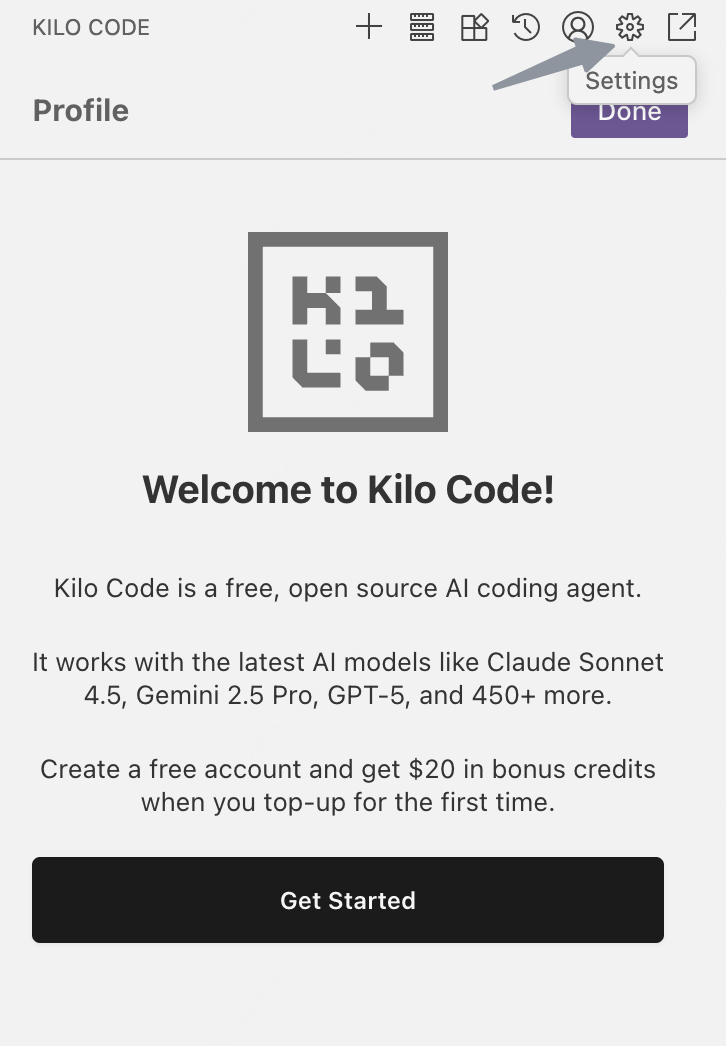
- Under API Provider, select MiniMax.
- In MiniMax Entrypoint, select the appropriate endpoint based on your location (for international users, select
api.minimax.io; for users in China, selectapi.minimaxi.com) - In MiniMax API Key, enter the API key from the MiniMax Developer Platform (For users in China, visit MiniMax Developer Platform).
- In Model, select MiniMax-M2.1.
- Click Save and then Done in the top-right corner to save the configuration.
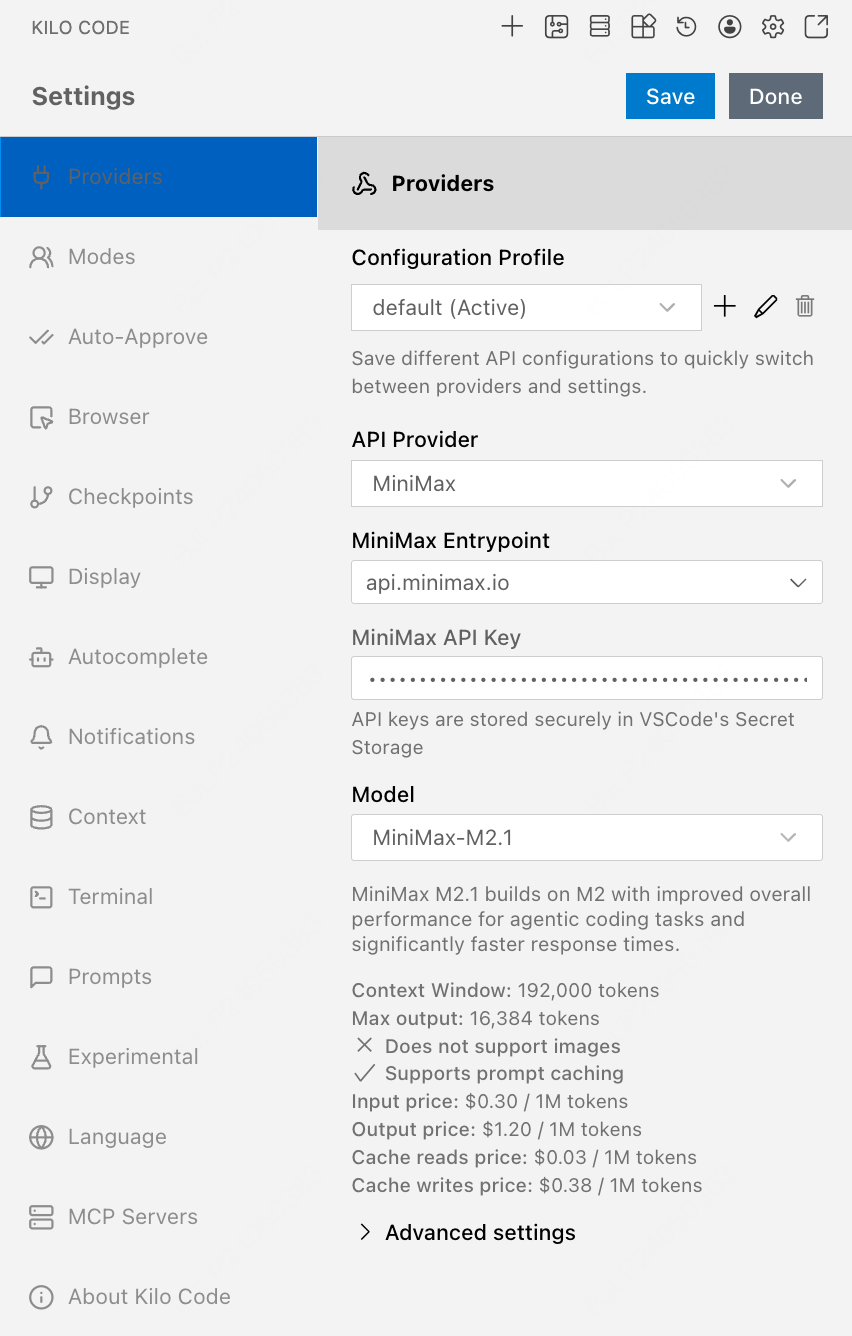
- Start using MiniMax-M2.1 for development.
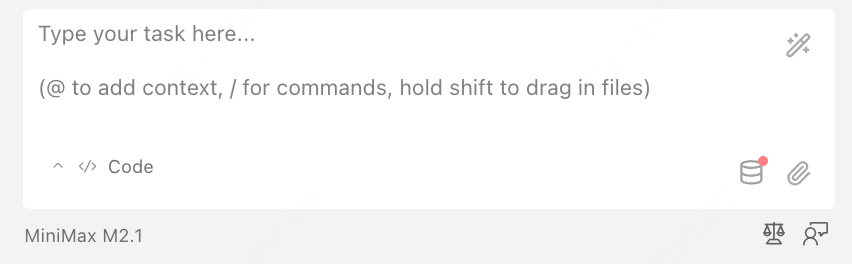
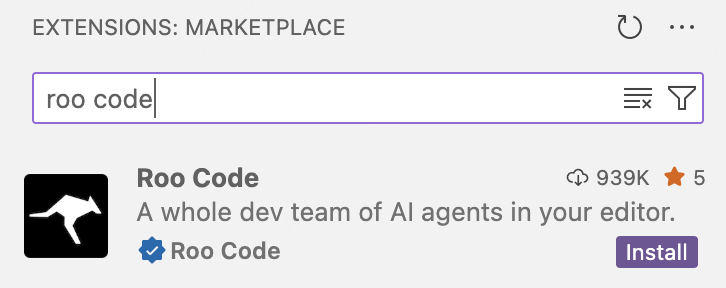
- Open VS Code, click the Extensions icon in the left activity bar, and search for "Roo Code".
- Click the "Install" button to add the extension. After installation, you may need to restart VS Code.
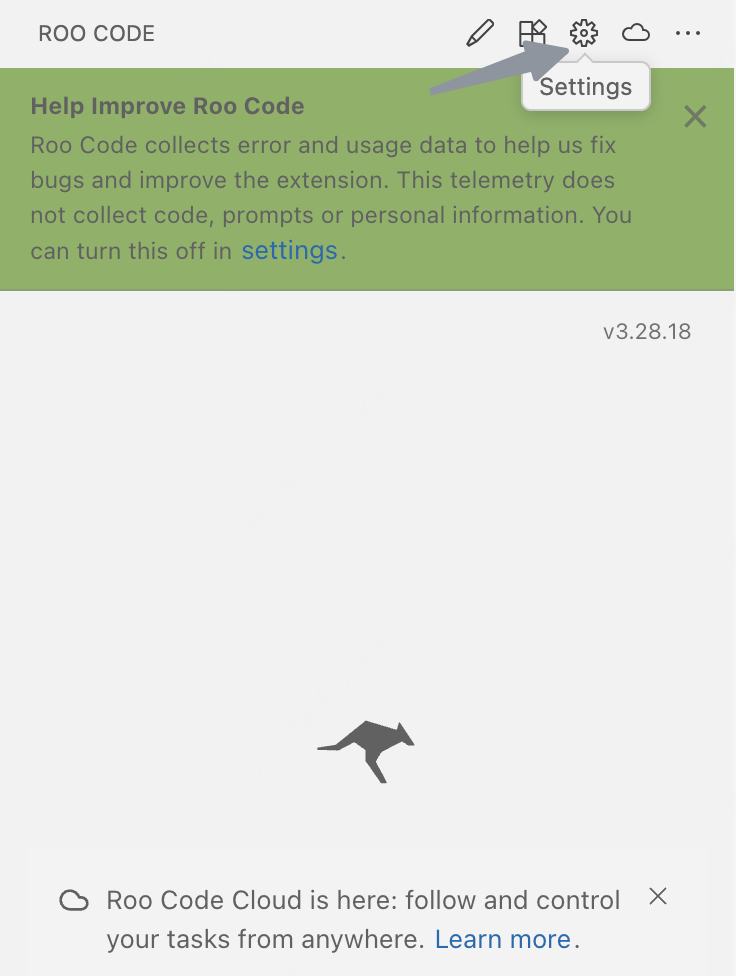
- Click Settings to go to the configuration page.
- Under API Provider, select MiniMax.
- In MiniMax Entrypoint, select the appropriate endpoint based on your location (for international users, select
api.minimax.io; for users in China, selectapi.minimaxi.com) - In MiniMax API Key, enter the API key from the MiniMax Developer Platform (For users in China, visit MiniMax Developer Platform).
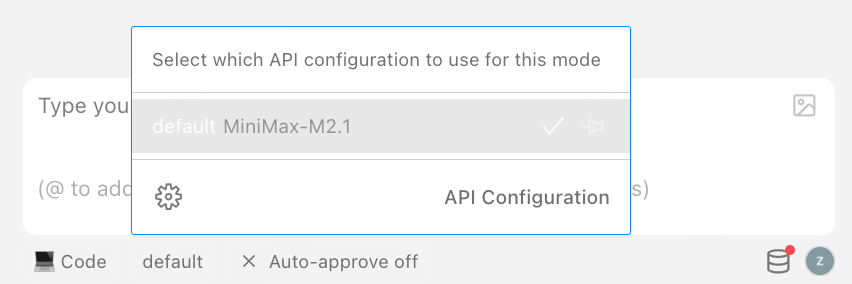
- In Model, select MiniMax-M2.1.
- Click Save and then Done in the top-right corner to save the configuration.

- Start using MiniMax-M2.1 for development.
For Mac/Linux Users:
curl -fsSL https://app.factory.ai/cli | shFor Windows Users:
irm https://app.factory.ai/cli/windows | iexFor more information, please refer to the Droid documentation.
**Important: Clear Anthropic Environment Variables Before Configuration**Before configuring, ensure you clear the following Anthropic-related environment variables to avoid conflicts with MiniMax API:
ANTHROPIC_AUTH_TOKENANTHROPIC_BASE_URL
- Use following command to edit the configuration file located at
~/.factory/config.json.
- The
base_urlshould be set based on your location: for international users, usehttps://api.minimax.io/anthropic; for users in China, usehttps://api.minimaxi.com/anthropic. - Set
<MINIMAX_API_KEY>to the API key obtained from the MiniMax Developer Platform (For users in China, visit MiniMax Developer Platform).
- Config
~/.factory/config.json, NOT~/.factory/settings.json - Clear the
ANTHROPIC_AUTH_TOKENenvironment variable, otherwise it will override the API key in.factory/config.jsonand cause errors
{
    "custom_models": [
        {
            "model_display_name": "MiniMax-M2.1",
            "model": "MiniMax-M2.1",
            "base_url": "https://api.minimax.io/anthropic",
            "api_key": "<MINIMAX_API_KEY>",
            "provider": "anthropic",
            "max_tokens": 64000
        }
    ]
}- Navigate to your project and start interactive session
cd /path/to/your/project
droid- Enter
/model, select the "MiniMax-M2.1" model and use it in Droid.

- Use
curlto install the OpenCode
curl -fsSL https://opencode.ai/install | bash- Use
npmto install the OpenCode
npm i -g opencode-aiFor more information, please refer to the OpenCode website
**Important: Clear Anthropic Environment Variables Before Configuration**Before configuring, ensure you clear the following Anthropic-related environment variables to avoid conflicts with MiniMax API:
ANTHROPIC_AUTH_TOKENANTHROPIC_BASE_URL
- Edit or create the OpenCode configuration file located at
~/.config/opencode/opencode.json. In this file, add or update the env field as shown below.
- The
baseURLshould be set based on your location: for international users, usehttps://api.minimax.io/anthropic/v1; for users in China, usehttps://api.minimaxi.com/anthropic/v1. - Set
<MINIMAX_API_KEY>to the API key obtained from the MiniMax Developer Platform (For users in China, visit MiniMax Developer Platform).
{
  "$schema": "https://opencode.ai/config.json",
  "provider": {
    "minimax": {
      "npm": "@ai-sdk/anthropic",
      "options": {
        "baseURL": "https://api.minimax.io/anthropic/v1",
        "apiKey": "<MINIMAX_API_KEY> (Optional)"
      },
      "models": {
        "MiniMax-M2.1": {
          "name": "MiniMax-M2.1"
        }
      }
    }
  }
}
Alternative Authentication Method:
If you prefer not to add the API key directly to the configuration file, you can authenticate using the interactive login command. Follow these steps:
i. Run the authentication command:
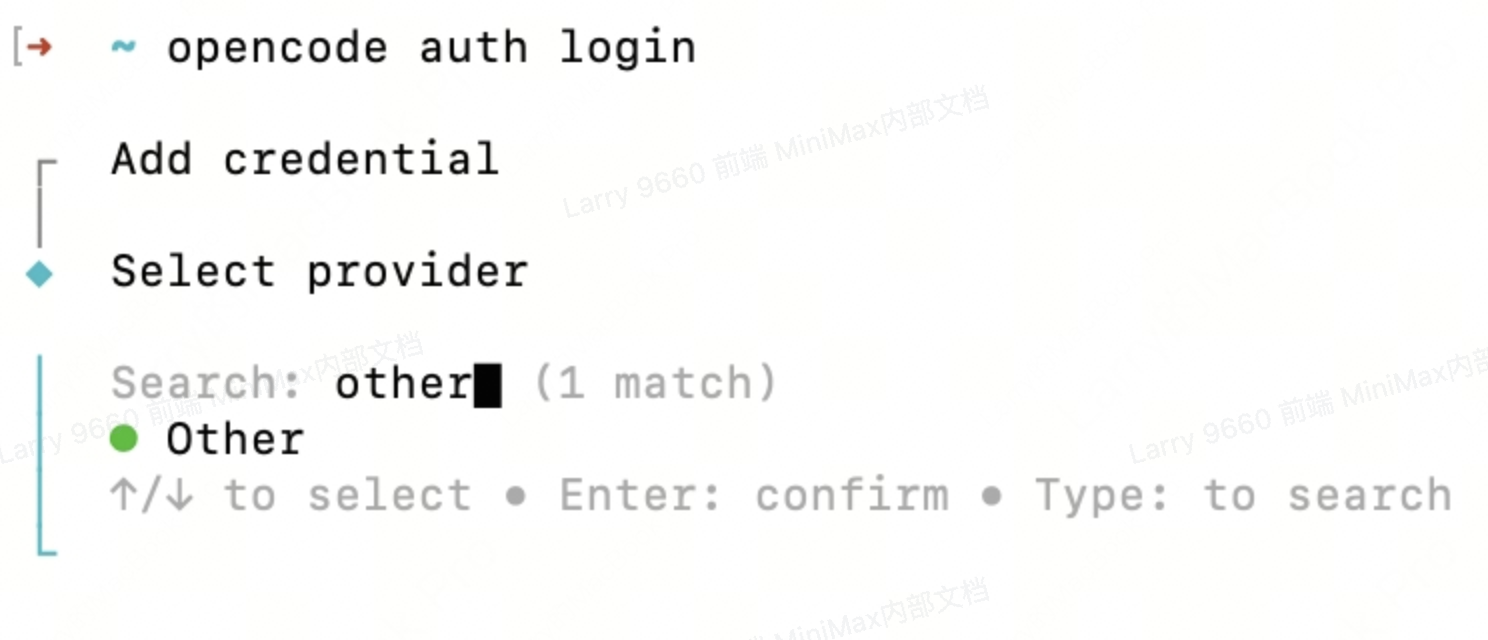
opencode auth loginii. When prompted, select provider "Other":
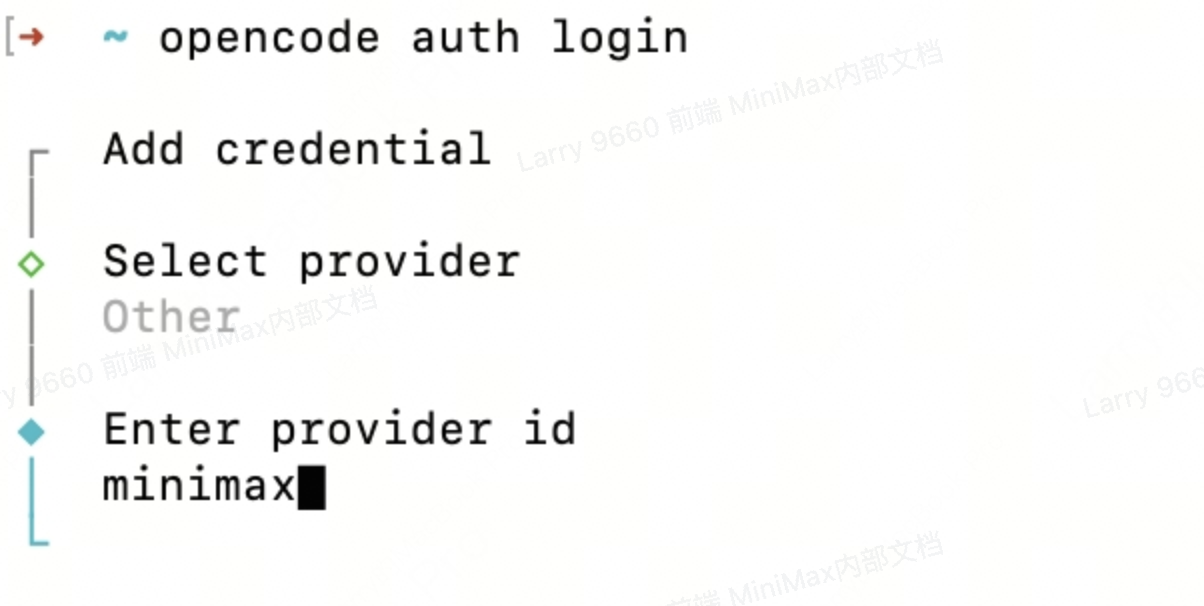
iii. Enter the provider ID as "minimax":
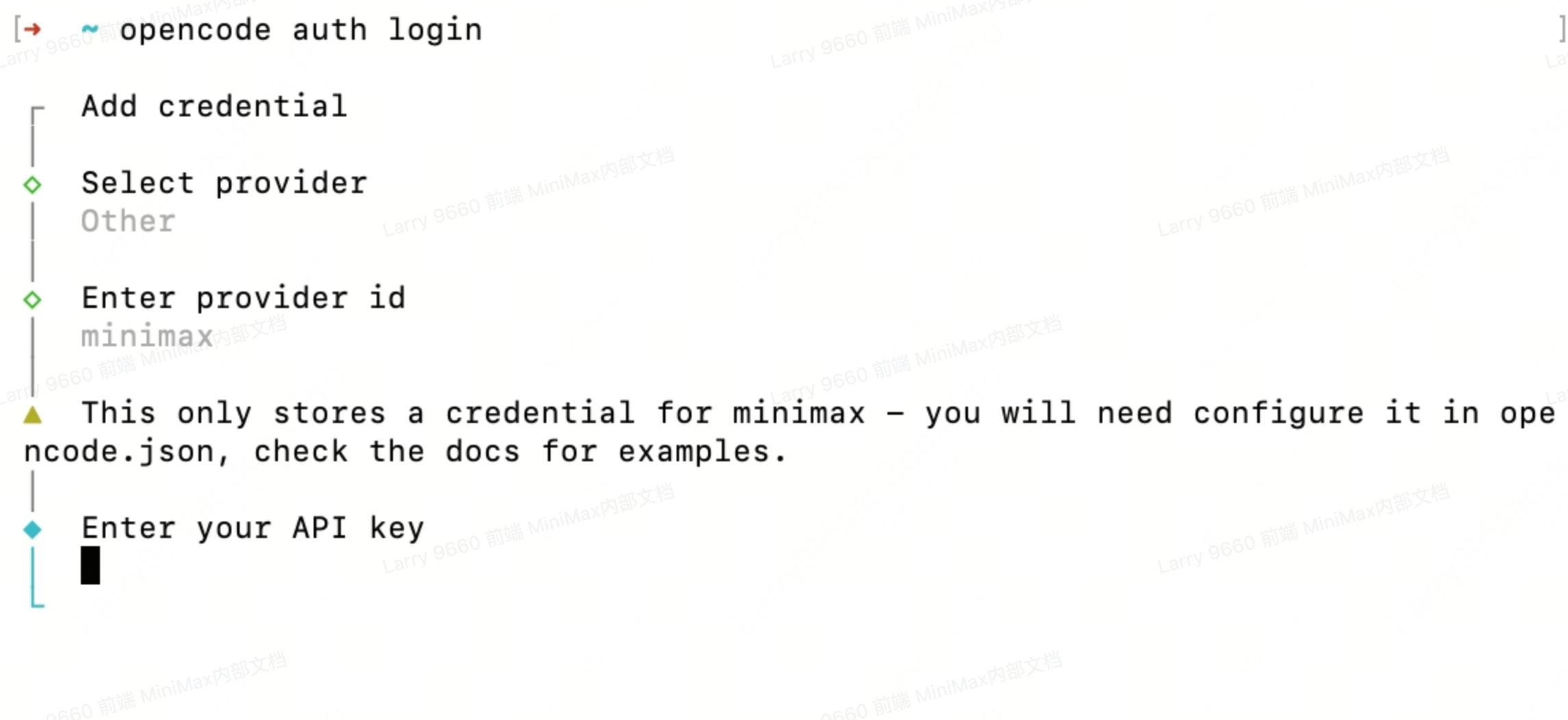
iv. Enter your MiniMax API key when prompted:
- Navigate to your project and start interactive session
cd /path/to/your/project

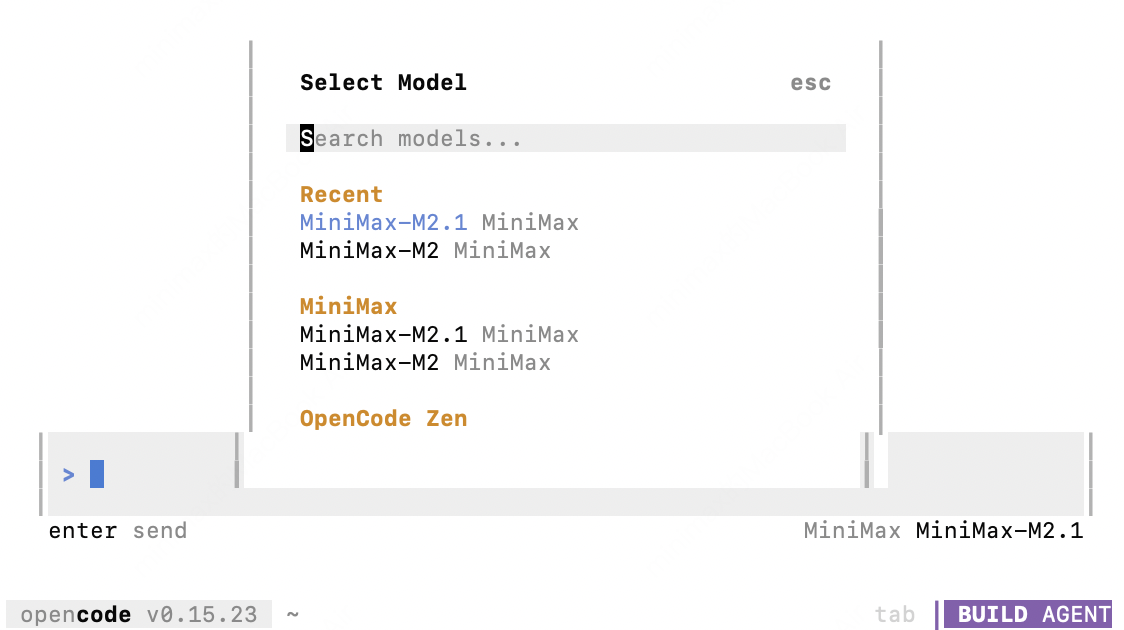
opencode- Enter
/models, select the "MiniMax-M2.1" model and use it in OpenCode
To facilitate integrating models with the Codex CLI, it is recommended to use the codex-MiniMax-M2 model. While models can interact with files using tools like Bash, this approach is not considered optimal for Agent workflows. For better Agent-based practices, we suggest using platforms such as Claude Code or Cursor.
npm i -g @openai/codexBefore configuring, ensure you clear the following OpenAI-related environment variables to avoid conflicts with MiniMax API:
OPENAI_API_KEYOPENAI_BASE_URL
- Add the following configuration to the
.codex/config.tomlfile.
- The
base_urlshould be set based on your location: for international users, usehttps://api.minimax.io/v1; for users in China, usehttps://api.minimaxi.com/v1
[model_providers.minimax]
name = "MiniMax Chat Completions API"
base_url = "https://api.minimax.io/v1"
env_key = "MINIMAX_API_KEY"
wire_api = "chat"
requires_openai_auth = false
request_max_retries = 4
stream_max_retries = 10
stream_idle_timeout_ms = 300000

[profiles.m2.1]
model = "codex-MiniMax-M2.1"
model_provider = "minimax"- Set the API key using environment variables in the current terminal session for security reasons. Use the API key obtained from the MiniMax Developer Platform (For users in China, visit MiniMax Developer Platform) as the value for
MINIMAX_API_KEY.
export MINIMAX_API_KEY="<MINIMAX_API_KEY>"
- Start the Codex CLI with the specified profile.
codex --profile m21- Use npm to install the Grok CLI globally:
npm install -g @vibe-kit/grok-cliBefore configuring, ensure you clear the following OpenAI-related environment variables to avoid conflicts with MiniMax API:
OPENAI_API_KEYOPENAI_BASE_URL
- Set the base URL and API key using environment variables.
- The
GROK_BASE_URLshould be set based on your location: for international users, usehttps://api.minimax.io/v1; for users in China, usehttps://api.minimaxi.com/v1. - Use the API key obtained from the MiniMax Developer Platform (For users in China, visit MiniMax Developer Platform) as the value for
MINIMAX_API_KEY.
export GROK_BASE_URL="https://api.minimax.io/v1"
export GROK_API_KEY="<MINIMAX_API_KEY>"- Start the Grok CLI with a specified model: MiniMax-M2.1
grok --model MiniMax-M2.1API Error: Cannot read properties of undefined (reading 'map')Please verify the following:
- Ensure the API host is set correctly based on your location: for international users, use
https://api.minimax.io; for users in China, usehttps://api.minimaxi.com - Confirm that you have replaced
<MINIMAX_API_KEY>with your API key from MiniMax Developer Platform (For users in China, visit MiniMax Developer Platform) - If you are using Claude Code or Droid, clear the environment variable:
ANTHROPIC_AUTH_TOKEN - If you are using Claude Code in VS Code or Cursor, please make sure to set the model to
MiniMax-M2.1. For more details, see: Using M2.1 in Claude Code for VS Code - Reached the rate limit, please wait and try again later.
If the issue persists, feel free to contact us at: api@minimax.io
AI models can call external functions to extend their capabilities. Supports text generation via compatible Anthropic API and OpenAI API. Use Anthropic SDK with MiniMax models Use OpenAI SDK with MiniMax modelsTo find navigation and other pages in this documentation, fetch the llms.txt file at: https://platform.minimax.io/docs/llms.txt