By using prebuilt Docker containers that are managed by the Carpentries core Workbench maintainers, these workflows are designed to be rarely updated.
However, is important to be able to keep them up-to-date when appropriate.
You can do this locally using your own R and Workbench installation, or via the "04 Maintain: Update Workflow Files" (update-workflows.yaml) GitHub Action.
In a terminal/git bash, navigate to the lesson folder where you want to update the workflows.
Then, start an R session and:
# Install/Update sandpaper
options(repos = c(carpentries = "https://carpentries.r-universe.dev/", CRAN = "https://cloud.r-project.org"))
install.packages("sandpaper")

# update the workflows in your lesson
library("sandpaper")
sandpaper::update_github_workflows()
quit()
And then in a bash prompt/git bash terminal:
$ git add .github/workflows
$ git commit -m "Manual update to docker workflows"
$ git push origin main
Note
For non-renv lessons, this is all the setup you need!
For renv-enabled lessons:
- Cancel any "01 Maintain: Build and Deploy Site" workflow currently running
- Run the "02 Maintain: Check for Updated Packages" workflow and merge any PR opened to update the renv lockfile
- This should automatically run the "03 Maintain: Apply Package Cache" workflow to install packages and build the cache
- A successful cache buid should then trigger the "01 Maintain: Build and Deploy Site" workflow
"Official" lessons are those in the lesson program repositories, Incubator, or Lab. They need no extra setup as this is all managed for you as part of the Carpentries GitHub organisations.
To update the workflows, either:
- wait for the scheduled run of the "04 Maintain: Update Workflow Files" at approximately midnight every Tuesday
- go to the Actions tab on GitHub, click "04 Maintain: Update Workflow Files" on the left, then "Run Workflow" on the right
Once complete, this will raise a PR with any changes to the workflows that are needed. If you are happy with the changes made, you can merge the PR into your lesson repository.
This presumes you:
- already have a lesson repository available on GitHub
- have enabled workflows in the lesson repo
- have set up a SANDPAPER_WORKFLOW personal access token (PAT) in the lesson repo
To go through these steps, please follow the Forking a Workbench Lesson documentation.
Once set up, run the "04 Maintain: Update Workflow Files" (update-workflows.yaml) action.
This will raise a PR with any changes to the workflows that are needed. If you are happy with the changes made, you can merge the PR into your lesson repository.
In summary, generating a reusable package cache is achieved by running the "02 Maintain: Check for Updated Packages" workflow, and then the "03 Maintain: Apply Package Cache" workflow.
Note
Caching is only relevant for lessons that use Rmd files and renv to manage R packages. If you are building basic markdown documents, caching will not apply to you, and the only workflow that needs to be run is "01 Maintain: Build and Deploy Site".
The two cache management workflows are separated to ensure that once you have a successful build with a working renv cache, this cache is stored and will be reused by the Workbench Docker container. This means that lesson builds will be faster once an renv cache is created and reused by the Docker container.
Another major bonus of this setup is that you can keep using this cache indefinitely to build your lesson. This is important if you need very specific versions of R packages ("pinning").
If and when you want to perform an update to the cache, you can re-run the "02 Maintain: Check for Updated Packages" and verify that your lesson still builds with the new packages. If all looks good, re-run the "03 Maintain: Apply Package Cache" workflow, and this will write a new renv cache file to GitHub.
In any case, the renv cache is invalidated by new versions of the renv.lock file.
This happens:
- if you update your lockfile locally by using the
sandpaper::update_cache()function, and then push it to the lesson repository - when you run the "02 Maintain: Check for Updated Packages" and there are new packages to install
More information on managing local renv caches for lessons can be found in the Sandpaper packages vignettes.
There are times when you may want to go back to a previous renv package cache file:
- if you run "02 Maintain: Check for Updated Packages" and "03 Maintain: Apply Package Cache" and the cache generation fails for some reason
- if there is a new R package that produces incorrect or broken lesson output
Cache files will have the following name format, where IMAGE is the workbench-docker image version, and HASHSUM is the renv.lock lockfile MD5 hash:
IMAGE                                HASHSUM
[ |  ]      [                           |                                  ]
v0.2.4_renv-2e499eb706112971b2cffceb49b55a6efe49f3ed75cd6579b10ff224489daca4
Copy the hashsum part of the desired cache file you want to use, e.g. 2e499eb706112971b2cffceb49b55a6efe49f3ed75cd6579b10ff224489daca4.
Then either:
- Add a repository variable called CACHE_VERSION, and paste in the hash
- Go to ...
- Run the "01 Maintain: Build and Deploy Site" manually, supplying the CACHE_VERSION input
- Go to ...
If you have no caches listed, make sure to run the "02 Maintain: Check for Updated Packages" and "03 Maintain: Apply Package Cache" to create a new renv cache file.
Note
If you are maintaining an official lesson, caches are saved in an AWS S3 bucket owned by the Carpentries. Once a successful cache has been saved, these will be listed in the outputs of the "01 Maintain: Build and Deploy Site" workflow.
If you are developing a lesson in your own repository, caches are saved on GitHub. You can see available caches by going to the Actions tab, and clicking Caches on the left hand side.
Input level variables are documented in the carpentries/actions repository READMEs for each composite action.
Specific repository level variables can be set that will force particular options across all workflow runs.
Repository-level variables for this workflow are:
- WORKBENCH_TAG
- The workbench-docker release version to use for a given build
- This can be set to a specific version number to force all builds to use a given container version
- Default is unset or
latest
- BUILD_RESET
- Force a reset of previously build markdown files
- Setting this variable value to
truewill force sandpaper to delete any previously build markdown files - Default is unset or
false
- AUTO_MERGE_WORKBENCH_VERSION_UPDATE
- Control merge behaviour of the workbench-docker version update PR
- When a new workbench Docker image version is detected, usually after a sandpaper, varnish, or pegboard update, its version number will be incremented
- If a newer version is available, a PR will be auto-generated that updates the
.github/workbench-docker-version.txtfile, and this PR will be auto-merged - To not auto-merge this PR and to choose when to update the Docker version used, set this to
false. - Default is unset or
true
- LANG_CODE
- Two-letter language code that triggers the use of Joel Nitta's {dovetail} package for lesson translation
- This is used in the internationalisation repos of the main Carpentry lesson programs
- Default is unset or
''
Repository-level variables for this workflow are:
- LOCKFILE_CACHE_GEN
- Passed to the
generate-cacheinput of the update-lockfile action - A temporary renv cache is generated when this workflow runs
- If this option is set to
false, no temporary cache will be generated - Default is
true
- Passed to the
- FORCE_RENV_INIT
- Passed to the
force-renv-initinput of the update-lockfile action - renv initialises a cache based on a given lockfile
- If this lockfile is particularly old or packages have broken/unresolvable dependencies, then builds will fail
- If this option is set to
true, a full renv reinitialisation will occur, "wiping the slate clean" - This option is useful if you're using Bioconductor packages which often break when new Bioconductor releases happen
- Default is
false
- Passed to the
- UPDATE_PACKAGES
- Passed to the
updateinput of the update-lockfile action - If set to
falseonly package hydration will happen and no package update checks will occur - Default is
true
- Passed to the
Repository-level variables for this workflow are:
- WORKBENCH_TAG
- The workbench-docker release version to use for a given build
- This can be set to a specific version number to force all builds to use a given container version
- Default is unset or
latest
There are no repository variables for this workflow.
Because our lessons execute code, pull requests are a security risk for any lesson and thus have security measures associted with them. Do not merge any pull requests that do not pass checks and do not have bots commented on them.
This series of workflows all go together and are described in the following diagram and the below sections:
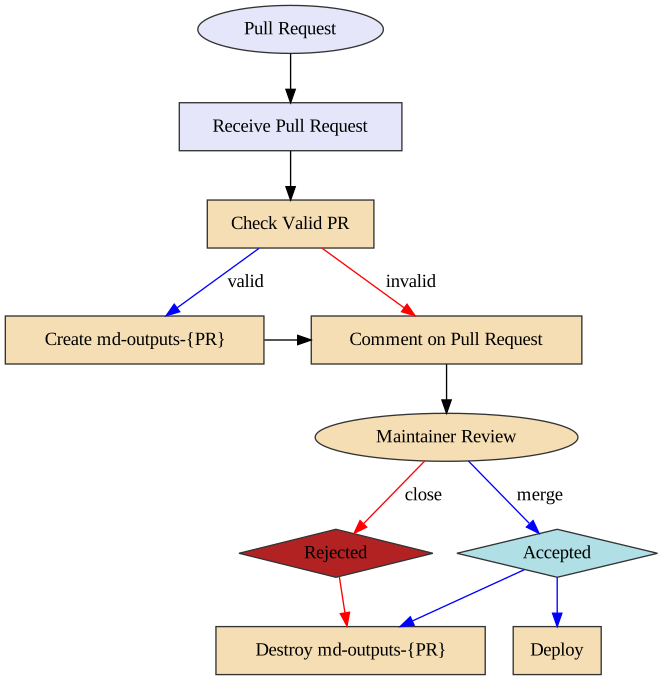
This workflow runs every time a pull request is created and its purpose is to validate that the pull request is okay to run. This means the following things:
- The pull request does not contain modified workflow files
- If the pull request contains modified workflow files, it does not contain modified content files (such as a situation where @carpentries-bot will make an automated pull request)
- The pull request does not contain an invalid commit hash (e.g. from a fork that was made before a lesson was transitioned from styles to use the Workbench).
Once the checks are finished, a comment is issued to the pull request, which will allow maintainers to determine if it is safe to run the "Receive Pull Request" workflow from new contributors.
Note of caution: This workflow runs arbitrary code by anyone who creates a pull request. GitHub has safeguarded the token used in this workflow to have no privileges in the repository, but we have taken precautions to protect against spoofing.
This workflow is triggered with every push to a pull request. If this workflow is already running and a new push is sent to the pull request, the workflow running from the previous push will be cancelled and a new workflow run will be started.
The first step of this workflow is to check if it is valid (e.g. that no workflow files have been modified):
- If there are workflow files that have been modified, a comment is made that indicates that the workflow will not continue.
- If both a workflow file and lesson content is modified, an error will occur and the workflow will not continue.
The second step (if valid) is to build the generated content from the pull request. This builds the content and uploads three artifacts:
- The pull request number (pr)
- A summary of changes after the rendering process (diff)
- The rendered files (build)
The artifacts produced are used by the "Comment on Pull Request" workflow.
This workflow is triggered if the docker_pr_receive.yaml workflow is successful.
The steps in this workflow are:
- Test if the workflow is valid and comment the validity of the workflow to the pull request.
- If it is valid: create an orphan branch with two commits: the current state of the repository and the proposed changes.
- If it is valid: update the pull request comment with the summary of changes
Importantly: if the pull request is invalid, the branch is not created so any malicious code is not published.
From here, the maintainer can request changes from the author and eventually either merge or reject the PR. When this happens, if the PR was valid, the preview branch needs to be deleted.
Triggered any time a pull request is closed. This emits an artifact that is the pull request number for the next action.
Tiggered by pr-close-signal.yaml.
This removes the temporary branch associated with the pull request (if it was created).