- CPU
- Storage & Partitions
- Graphics Card
- Memory Modules
- Battery & status
- Network devices & configuration
-
clinfo -
coreutils -
dmidecode -
fdisk -
hardinfo -
hdparm -
hwinfo- Will probe hardware and show output on the screen. Information about PCI, partitions, keyboard, tablet, earphones etc..
-
lshw- List hardware. Output is in various sections. You can choose a particular section eg :
lshw -c displayorlshw -c processororlshw -c memory
- List hardware. Output is in various sections. You can choose a particular section eg :
-
memtester -
net-tools -
pciutils -
procps -
sysstat -
upower -
util-linux -
Demo
cat /proc/cpuinfogives information about the CPU.cat /proc/partitionsgives partition information. The loop partitions are meant for snap packageslsblk -o NAME,SIZEgives information about the number of block devices that are available.lspcigives the list of PCI devices connected to the computer using the PCI bus.freegives details about the amount of memory used. It is a practice to have double the size of the memory as swapsudo dmidecode --type memorygives information about the memory and modules.hardinfois a GUI utilityclinfogives information about the graphics card.upower -eto know about the battery status. This will give a list.Choose the one that says battery and executeupower -i /org/freedesktop/UPower/devices/battery_BAT0for example.sudo hdparm -Tt /dev/sdaruns diagnostics on the ssd or hdd. Timing cached reads and buffered disk reads.iostat -dx /dev/sdbgives information about speeds of various disks.ifconfigis a network utility that gives information about ethernet / loopback / wifi adapter.
-
Context for prompt strings
bash,dash,zsh,ksh,cshpythonoctave- Mathlab compatible numerical packagegnuplot- Plotting toolsage- symbolic cumputing package. Perhaps better than Mathematica
-
bash prompts
- PS1 : primary prompt string :
$ - PS2 : secondary prompt for multi-line input :
> - PS3 : prompt string in select loops :
#? - PS4 : prompt srting for execution trace :
+Explanation: There are 4 bash prompts that are configured. What we see is normally the primary prompt when we open the shell. PS2 is shown when a command is incomplete. PS3 is shown when we run a bash script in a select loop. PS4 is shown when every command that is executed is displayed on the screen - when we use the optionset -x
- PS1 : primary prompt string :
-
Escape sequences
| - | Description |
|---|---|
\A |
Current time in 24-hour as hh:mm |
\u |
Current user’s username |
\d |
Date in “weekday month day” format |
\w |
Current directory |
\h |
Hostname upto first period |
\W |
Basename of current directory |
\H |
Complete hostname |
\# |
Current command number |
\s |
Name of the shell |
\$ |
If uid is 0, # else $ |
\t |
Current time in 24-hour as hh:mm:ss |
\@ |
Current time in 12-hour a.m/p.m |
\T |
Current time in 12-hour as hh:mm:ss |
\\ |
A literal \ character |
\u@\h:\w\$ - This is the default value of PS1. Username @ machine name : current dir $ if user is not superuser
To change what is displayed in the prompt string.
- Python command line
- ps1 and ps2 are defined in the module sys
- Change
sys.ps1andsys.ps2if needed - Override
__str__method to have dynamic prompt>>>Default python command prompt
Demo
echo $PS1- gives\[\e]0;\u@\h: \w\a\]${debian_chroot:+($debian_chroot)}\[\033[01;32m\]\u@\h\[\033[00m\]:\[\033[01;34m\]\w\[\033[00m\]\$- It can be changed
PS1="\u@\h:\w\$ ". The color will be lost from above prompt string. - If you do
source .bashrcyou get back the prompt after messing up the prompt string. less .bashrcto see where it is defined.echo $PS3doesn't display anything.select x in alpha beta gamma; do echo $x; donedisplays PS3- In octave
x=[1:1:100]creates array - In SageMath
plot(sin(x),x,0,2*pi)
find– locating files and processing themtar,gzipetc – packaging collections of filesmake– conditional actions
find [pathnames] [conditions]
| Condition | Description |
|---|---|
-name |
pattern to match filenames |
-type |
File type code eg., c for character file, d for directory, l for symbolic link etc., |
-atime |
Files accessed +n (more than n), -n (less than n) days ago |
-ctime |
File changed +n (more than n), -n (less than n) days ago |
-regex |
Regular expression for pattern of filenames. Combine with -regextype posix-basic, posix-egrep etc., |
-exec |
Command to run using { } as place holder for filename |
-print |
Print the full path name of matching files |
- Examples
- Find
find $HOME -print | wc -lwill print the number of files in the home directoryfind $HOME -mtime -2 -printprints files modified in the last 2 daysfind . -mtime -2 -printprints files modified in the last 2 says in the current working directoryfind /usr -type d -name 'man*' -printdirectories begining with the word man in /usr directoryfind . -size +10M -printfinds files that are more than 10 MBfind . -size +10M -print -exec ls -lsh {} \;every file that is greater than 10 MB will be inserted in the curly braces. The output will be file name followed by long listing.find . -name '*.jpg' -exec -ls -sh {} \;lists all the jpeg files and their size
- Compression
cp -r /var/log logfilesTo illustrate compression capability get a copy of the log foldersdu -shshows the size it occupiesls -lRdisplays recursivelytar -cvf logfiles.tar logfiles/bundles all the files in the directory as logfiles.tar- Compress it using
gzip logfiles.tar bzip2 logfiles.tarshrinks it better but takes some more timebzip2 -d logfiles.tar.bz2unzipping the filescompress logfiles.taris very fast but compression is not much- For a directory that has lot of subdirectories and lot of small files, it is a good idea to package it as a tar file
rm -rf logfilesto remove the original logfiles directoryuncompress logfiles.tar.Zunzips the tartar -xvf logfiles.targives back the directory
- Make
-
make.fileis given belowBACKUPDIR=/home/username/backup DATESTAMP:=$(shell date+"%Y-%m-%d %G.%M") TARBALL=backup_$(DATESTAMP).tar backup: file1 file2 @echo "Backing up file1 file2 to $(DATESTAMP)" tar -cvf $(TARBALL) file1 file2 @ls -l $(TARBALL) mv $(TARBALL) $(BACKUPDIR)
-
The
:infront of=in theDATESTAMPline indicates one-time substitution. -
make -f make.file backup -
The action is performed only if one of the dependencies has changed. It will get executed again only if file1 or file 2 has changed.
-
ANy maintenence activity can be taken up as a make file command.
-
- Find
- Deep file hierarchies
- Large number of tiny files
tar: collect a file hierarchy into a single filegzip: compress a file- Applications: backup, file sharing, reduce disc utilization Explanations:
- Sometimes when there are several small files in a hierarchy structure, the files may occupy the minimum block size so there is a wastage of space. In such situations doing a
tarwill save space.
tar,zip- compress (ncompress), gzip (ncompress), bzip2 (bzip2), xz (xz-utils), 7z (p7zip-full)
- Tarballs like bundle.tgz for package + compress
- Time & memory required to shrink / expand versus size ratio
- Portability
- Unique names using timestamp, process ID etc., for backup tarballs Explanation :
- Plain text or ASCII files can be compressed to a very good ratio (almost 1:10) if the file contains repeting patterns.
- For more efficiency, first zip and then make a tar. Zipping the files while adding it to tar - .tgz file format combines tar and gzip together.
- The deciscion on which method to use is taken based on time required, space occupied etc..
make -f make.file
# comments
TMP_FILES = *.o *.aux
.PHONY : clean
target : prerequisites
recipe $(OPTION_NAME)
clean:
rm -f $(TMP_FILES)
-
IPv4 address range
- Localhost
127.0.0.0/8
- Private network
Class A : 10.0.0.0/8- 16,777,216Class B : 172.16.0.0/12- 1,048,,576Class C : 192.168.0.0/16- 65,536
- Public network
- Localhost
-
Explanations
- Interfaces between Private and Public network is a gateway
- Local host address is the way by which the system can refer to itself.
- The number after the slash indicates how many IP addresses are possible.
- Class A : The three parts following 10 can be any number between 0 and 255. 2^24-2=16,777,216. This is useful for a large organisation
- You can create orivate networks within private networks upto 3 levels
-
Ways to gain remote access
- VPN access
- ssh tunneling
- secure shell tunneling
- Remote desktop : x2go, rdp, pcoip,
- rdp is popular among Windows machine
- pcoip with VMWare
- Desktop over browser: Apache Guacomole
- Commercial, over internet : Teamviewer, AnyDesk,Zoho assist, ...
-
Some important ports
| Port | Service | Description |
|---|---|---|
21 |
ftp |
File transfer |
22 |
ssh |
Secure Shell |
25 |
smtp |
Simple Mail Transfer Protocol |
80 |
http |
Hypertext Tranfer Protocol |
443 |
https |
Secure Hypertext Tranfer Protocol |
631 |
cups |
Common Unix Printing System |
3306 |
mysql |
MySQL database |
-
Firewall
- Ports open on my machine
- Ports needed to be accessed on remote machine
- Network routing over the port
- Firewall controls at each hop
-
Protecting a server
- Server with a public service > Web Application Filter > Network Firewall > Anonymous users
-
SELinux
- Security Enhanced Linux mode available on Ubuntu too, apart from server grade flavors like CentOS, Fedora, RHEL, SuSE Linux etc.,
- Additional layer of access control on files to services
- A layer beyond file permissions.
- Role Based Access Control
- Process sandboxing, least privilege access for subjects
- Every process will have restriction of reading the memory locations of other processes
- Check using
ls -lZandps -eZ - RBAC items: user
(unconfined_u), role(object_r), type(user_home_t), level(s0)- Role Based Access Control
- Modes:
disabled,enforcing,permissive - Tools:
semanage,restorecon - SELinux is recommended for all publicly visible servers
-
Network tools
| Tool | Description |
|---|---|
ping |
To see if the remote machine is up |
traceroute |
Diagnostics the hop timings to the remote machine |
nslookup |
Ask for conversion of IP address to name |
dig |
DNS lookup utility |
netstat |
Print network connections |
mxtoolbox.com |
For help with accessibility from public network |
whois lookup |
Who owns which domain name |
nmap |
(careful !) Network port scanner |
wireshark |
(careful !) Network protocol analyzer. Sniff packets through the network for diagnostics. |
- High Performance Computing
- Look at www.top500.org for statistics
- All 500 HPC machines are GNU Linux based.
- Accessing a remote HPC machine is usually over SSH
- Long duration jobs are submitted to a job scheduler for execution
- Raw data if large needs to be processed remotely before being transferred to your machine (network charges? bandwidth?)
- Comfort with command line is a must
- Look at www.top500.org for statistics
- Demo
ifconfigshows a Class A IP range network within the campusnslookup www.iitm.ac.inshows it is connected towaf6.iitm.ac.inweb application filter.dig -x 142.250.206.164aqua.iitm.ac.inHPC cluster is not visible from the internet.qstatsis used to get job statusnetstatto display active connections.
cron- Service to run scripts automatically at scheduled times
- Tools:
at,crontab,anacron,logrotate - Script locations:
/etc/crontab/etc/cron.d/etc/cron.hourly/etc/cron.daily/etc/cron.weekly/etc/cron.monthly
Example of job definition:
.---------------- minute (0 - 59)
|  .------------- hour (0 - 23)
|  |  .---------- day of month (1 - 31)
|  |  |  .------- month (1 - 12) OR jan,feb,mar,apr ...
|  |  |  |  .---- day of week (0 - 6) (Sunday=0 or 7) OR sun,mon,tue,wed,thu,fri,sat
|  |  |  |  |
*  *  *  *  * user-name command to be executed
-
Job definition
5 2 * * 1-5 root cd /home/scripts/backup && ./mkbackup.sh5minute (0-59)2hour (0-23)*day of the month (1-31)*month (1-12) or jan, feb, ...1-5day of week (0-6) or sun,mon, ...rootuser-namecd /home/scripts/backupcommand
- The above command runs mkbackup.sh as root every working day at 02:05 AM
-
Demonstration
- The first time crontab is used you have to select the default editor
- crontab is in
etcdirectory anacronis run by the System administratorcron.dailyis a folder inetcthat displays daily tasks. Similarlycron.hourly,cron.monthly,cron.weekly- By placing a script in any of these directories you can make it run at the specified schedule
- By running
crontab -eyou can execute a specific script at a time. Customize timely running of scripts.
-
Startup scripts
- Startup scripts:
/etc/init/,/etc/init.d/ - Runlevel scripts:
- Startup scripts:
| Level | Location | Description |
|---|---|---|
0 |
/etc/rc0.d/ |
Shutdown and power off |
1 |
/etc/rc1.d/ |
Single user mode |
2 |
/etc/rc2.d/ |
Non GUI multi-user mode w/o networking |
3 |
/etc/rc3.d/ |
Non GUI multi-user mode with networking |
4 |
/etc/rc4.d/ |
Non GUI multi-user mode for special purposes |
5 |
/etc/rc5.d/ |
GUI multi-user mode with networking |
6 |
/etc/rc6.d/ |
Shutdown and reboot |
- LVM
- Logical Volume Management
- Pooling multiple storage devices as a single logical volume
lvm2 tools: create and manage virtual block devices from physical devices- Suppose you need a very large partition but there is no HDD available of that size, you can define a logical volume that spans over multiple HDDs.
- Logical Volumes are mounted by the GNU Linux OS, which are mapped over multiple physical disks.
- RAID
- Redundant Arrays of Independent Disks
- Distributing data over multiple discs for redundancy / speed / increased capacity
- Raid Controller : software or hardware
- RAID modes
- usable capacity < actual capacity
| RAID Mode | Min drives | Description | Comments |
|---|---|---|---|
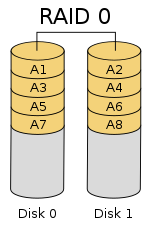
| RAID 0 | 2 | Striping | Speed up |
| RAID 1 | 2 | Mirroring | Read is n times faster, n-1 drive failures tolerated |
| RAID 5 | 3 | Block-level striping with distributed parity | 1 drive failure tolerated, Read is n times faster, write is n-1 times faster |
| RAID 6 | 4 | Block-level striping with dual distributed parity | 2 drive failures tolerated, read is n times faster, write is n-2 times faster |
- Explanation
- RAID 0 - You are using 2 disks as 1. Half of one file is stored on 2 disks. Doubles speed of access of a file. Write Speed is 2x and Read Speed is 2x for 2 disks. If there are n disks in RAID 0 equivalent storage is size of minimum disk * n.
- RAID 1 - Any piece of the file is written to both the disks. Reading is 2x but writing is n-1. People tend to use RAID 1 for OS alone.
- RAID 5 - When you have more than 3 disks. Data is written to more than one disk. If one fails nothing is lost.
- RAID 6 - Parity over 2 disks. If 2 disks fail you still have all your data.
- Most of the hardware supprts hot-swap.
- Useable capacity is less than the actual capacity
- For storage people use RAID 5 or RAID 6.
- Demo
df -hto check system storage- WHich RAID configuration to use to improve read performance and sustain at least one disk failure without losing data ? RAID 4, RAID 6.