Steam ROM Manager
EmuDeck installs Steam ROM Manager https://github.com/SteamGridDB/steam-rom-manager, which allows you to add your ROMs directly to your library. It can either be used as an alternative or in tandem with EmulationStation-DE (a frontend application to manage your ROMs.).
Steam ROM Manager's Website: https://github.com/SteamGridDB/steam-rom-manager
Steam ROM Manager sources art from SteamGridDB: https://www.steamgriddb.com/
Read https://github.com/dragoonDorise/EmuDeck/wiki/EmulationStation-DE to learn more about EmulationStation-DE and how it can be used in tandem with Steam ROM Manager!
-
- Help, I just opened Steam ROM Manager and I have no controls!
- Why does Steam ROM Manager have no parsers?
- "Please shutdown Steam if it is running"
- Large ROM Collections
- Why are my games not showing up in Steam ROM Manager?
- Why do some of my multi-disc games not show up in Steam ROM Manager?
- Unexpected end of JSON input
- Error occurred while loading configuration presets
- A JavaScript error occurred in the main process
- Executable Location:
Emulation/tools/srm/Steam-ROM-Manager.AppImage - Config Location:
/home/deck/.config/steam-rom-manager - Art Location:
/home/deck/.steam/steam/userdata/<steamuseridnumber>/config/grid
Note:
-
~/.configand~/.steamare invisible folders by default. In Dolphin (file manager), click the hamburger menu in the top right, click "view hidden files" to see these folders.
How to Update Steam ROM Manager
- Run
Update Emulators & ToolsinEmuDeck - Run through the
EmuDeckinstall - Manual file replacement of
Steam-ROM-Manager.AppImage- Refer to https://github.com/dragoonDorise/EmuDeck/wiki/file-management#how-to-swap-out-appimages-and-binaries for instructions.
- Run through the
EmuDeckinstall with a fresh download from https://www.emudeck.com/
How to Launch Steam ROM Manager in Desktop Mode
- Launch
Steam ROM ManagerthroughTools & stuffinEmuDeck - Launch
Steam ROM Managerfrom the Applications Launcher (Steam Deck icon in the bottom left of the taskbar) - Launch the AppImage in
Emulation/tools/srm/Steam-ROM-Manager.AppImage
Sometimes after installing EmuDeck, Steam ROM Manager may not be configured correctly and you will be missing EmuDeck's pre-created parsers. Or you may have tinkered with Steam ROM Manager and want to reset it back to EmuDeck's defaults.
You can reset Steam ROM Manager's configurations in the Emulator Guides page.
Tutorial
- Open EmuDeck on your desktop.
- Click the
Tools & stuffbutton at the bottom of the screen. - Click the
Emulator Guidesbutton. - Select Steam ROM Manager in the drop-down menu.
- Click
Reset configuration, wait a moment.- Visual Reference:

- Visual Reference:
- Steam ROM Manager has been reset.
A backup of your original Steam ROM Manager configurations is automatically created after resetting. You can find this backup in /home/deck/.config/steam-rom-manager/userData. The backup file is named: userConfigurations.json.bak.
When you open Steam ROM Manager, it will exit out of Steam. Since your controls are tied to Steam being open, your controls will revert to Lizard Mode. You can use L2 to right click, R2 to left click, and the Right Trackpad to move the mouse.
Alternatively, you can either use a mouse/keyboard (Bluetooth or through a USB-C Hub) or remote into your Steam Deck.
Learn how to remotely control your Steam Deck: https://github.com/dragoonDorise/EmuDeck/wiki/frequently-asked-questions#how-do-i-remotely-control-my-steam-deck
If you recently installed EmuDeck for the first time and Steam ROM Manager is empty, that means you did not select Steam ROM Manager's configurations to be set up in the installation of EmuDeck.
For reference, de-selecting Steam ROM Manager on this screen will prevent EmuDeck from properly setting it up: 
You can fix this by choosing one of the following methods:
- Open EmuDeck on your desktop.
- Click the
Tools & stuffbutton at the bottom of the screen. - Click the
Emulator Guidesbutton. - Select Steam ROM Manager in the drop-down menu.
- Click
Reset configuration, wait a moment.- Visual Reference:
- Visual Reference:
- Steam ROM Manager has been reset.
- Open EmuDeck on your desktop and run through a
Custom Update. This may be recommended over Method 1 in case you accidentally de-selected any other icons on theUpdate emulator configurationsscreen. Any de-selected icons will not be set up by EmuDeck- You do not need to uninstall EmuDeck to do this method
This message is a warning to confirm that you have closed Steam. EmuDeck's shortcut for Steam ROM Manager closes out of Steam for you. You may ignore this warning if you are opening through the applications launcher in the bottom left of the taskbar or through the EmuDeck GUI.
If you are trying to generate an app list and no ROMs are displaying in the app list, read this section: https://github.com/dragoonDorise/EmuDeck/wiki/steam-rom-manager#why-are-my-games-not-showing-up-in-steam-rom-manager
Running Steam ROM Manager external to EmuDeck's script will not exit out of Steam for you. You will need to verify Steam is closed, if you do not use EmuDeck's script. You do not have to worry about this if you are running Steam ROM Manager from its shortcut in the Applications Launcher or the button in the EmuDeck application.
If you have a large ROM collection, generally over 1,000 ROMs, it is recommended you use EmulationStation-DE for some of your larger sets.
Do not turn on all of the parsers in Steam ROM Manager, instead pick smaller sets that you would like to appear in your Steam library. Keep in mind that using all parsers will mean that every ROM will show up in your Steam library. Unexpected behavior or bugs may occur with larger ROM counts in Game Mode.
To use EmulationStation-DE, it is recommended to turn on at least the EmulationStation-DE and the Emulators parser in Steam ROM Manager. These will allow you to manage EmulationStation-DE (to launch your ROMs) and emulators (to do any additional configurations) in Game Mode. In addition to these two parsers, limit the amount of parsers you toggle to prevent any bugs or unexpected behavior in Game Mode.
Known Issues With Large ROM Collections in Game Mode
- Lagging menus and scrolling while browsing games
- Unexpected behavior with collections and games displaying in Game Mode
- Unexpected bugs
Your games may not show up for a few reasons:
- Make sure your file path is correct. Refer to the EmuDeck Cheat Sheet for which folders correlate to which system.
- Example: Nintendo DS games are placed in
Emulation/roms/nds
- Example: Nintendo DS games are placed in
- Make sure your ROMs are in the correct file format. Refer to
the EmuDeck Cheat Sheet for the correct file format.
- Example: Many emulators are not compatible with
.7zor.zipfiles. You will need to extract these files to use them. The cheat sheet will list which emulators can and cannot usezipfiles.
- Example: Many emulators are not compatible with
- Make sure you know how to generate an App List, refer to https://github.com/dragoonDorise/EmuDeck/wiki/steam-rom-manager#how-to-generate-and-save-an-app-list, for further instructions.
- Steam ROM Manager's UI sometimes does not scale properly and the scrollbar on the right does not let you scroll down. However, you can either resize the window or scroll in the middle to see the rest of your generated app list.
Primarily with the Playstation 2 parser, turning on Remove (...) and [...] brackets will trim the ROM name and cause Steam ROM Manager to deem multiple discs of the same game as the same file. When you generate an app list, only one of your discs will show up.
To fix this, do one of the following solutions:
- Remove the () in the file name
- Open the respective folder with the ROMs, and rename each disc to remove the ()
- Example:
- Original File Name:
Xenosaga: Episode 2 (Disc 1)andXenosaga: Episode 2 (Disc 2) - Updated File Name:
Xenosaga: Episode 2 Disc 1andXenosaga: Episode 2 Disc 2
- Original File Name:
- Turn off
Remove (...) and [...] bracketsin the respective parser- Visual Reference (Using Playstation 2 as an example):

- Note: With this setting off, Steam ROM Manager will include any content in the parantheses of the file name when parsing ROMs. This means that if you include region names or any other information in parantheses, your ROM will include this information in a generated app list
- Visual Reference (Using Playstation 2 as an example):
If you receive an error while trying to save the App List that is similar to this:
syntax error: /home/deck/.steam/steam/userdata/<USERID>/config/addeditemsv2.json: unexpected end of JSON input
You will need to delete the file by opening the path in the error message. After deleting the file, try generating your app list again. It's possible to have more than one corrupted file in this way and is related to the Steam ROM Manager process being terminated before it is done saving.
If you see: Error occurred while loading configuration presets in the bottom right when you open Steam ROM Manager, you will need to update your presets.
Here's How
- Click the
Settingsbutton - Click
Force download config presetsunderCommunity variable/preset settings -
- Once you force download the new config presets, the error will no longer appear

If you see a pop-up with the message: A JavaScript error occurred in the main process when you open Steam ROM Manager, you may click Ok to proceed. This error does not mean there is anything wrong with your configurations.
Generating and saving an App List is how you add your ROMs to your Steam library. It's generally recommended that you turn on at least the Emulators parser and the EmulationStation-DE parser.
Here's a quick rundown:
- The
Emulatorsparser allows you to manage your emulators in game mode (game settings, controls, tweaks, etc). - The
EmulationStation-DEparser adds EmulationStation-DE as a shortcut to Steam.- EmulationStation-DE allows you to launch and play all of your ROMs from a single front-end. It can be either used as an alternative or combined with Steam ROM Manager. For further reading, refer to https://github.com/dragoonDorise/EmuDeck/wiki/EmulationStation-DE.
- Open
Steam ROM Manager- Refer to https://github.com/dragoonDorise/EmuDeck/wiki/steam-rom-manager#how-to-launch-steam-rom-manager-in-desktop-mode on how to open Steam ROM Manager in desktop mode.
- Choose which parsers you would like to use (Active parsers are indicated with a green toggle)
- Click
Preview - Click
Generate App list - Wait for all the images to download, click
Save apps to Steam(It may take a few moments, check the Event Log tab to confirm that it is finished)
For a visual, watch the following GIF:

When you generate an app list in Steam ROM Manager, your ROMs are matched to an existing entry on SteamGridDB. If your ROM does not have a SteamGridDB entry, you can request a page by following the instructions here: https://www.steamgriddb.com/faq. Make sure to upload art to your newly created SteamGridDB page.
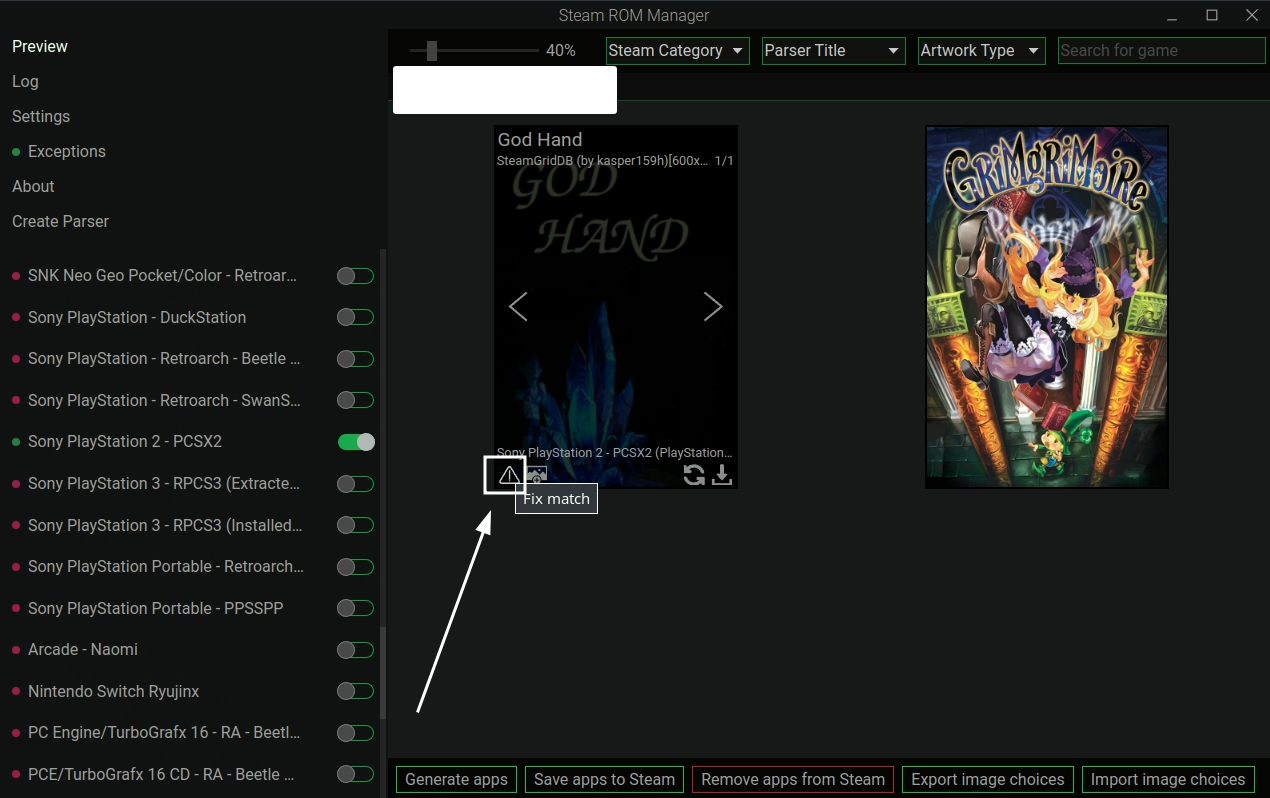
Sometimes, when you generate your app list in Steam ROM Manager, your ROM does not match properly to a game title and either uses incorrect art or does not display art at all. You can solve this issue two ways: editing the file name or by creating an exception in Steam ROM Manager. Follow the steps below to properly match your ROM to its respective page on SteamGridDB.
First, check https://www.steamgriddb.com/ to see if your game has an entry. If it is missing, create one by following the instructions here: https://www.steamgriddb.com/faq. If it exists, make sure your ROM file name matches the SteamGridDB entry as closely as possible.
Open your ROM folder, edit the ROM file name in your ROM folder directly to match the SteamGridDB entry.
If your ROM is still not matching correctly, proceed to Step Two: Create An Exception in Steam ROM Manager below.
Select one of the methods below
- Generate an app list
- Hover over the incorrectly matching ROM
- Click the triangle with an
!in the bottom left -
- Select the correct entry on the right
-
- Click
Save and closein the top right -
- The new entry will be automatically applied and Steam ROM Manager will add a new entry for this ROM to the
Exceptionsmanager, which can be found on the left side of the screen


If correcting the file name does not work, you can create an exception in Steam ROM Manager. On the left in the UI, click the Exceptions button. On the right of this menu, you can add an exception. Use the following format:
Extracted Title:
To find your extracted title:
- Select the game's parser (Example: if it's a Gamecube game, select the
Nintendo Gamecube - DolphinParser). ClickTest Parserat the bottom. You will see a list of your games on this page. Look for theExtracted Titlefor the game you are correcting. Place that title in the Extracted Title field.
New Display Title: The name you want it to show
New Search Title: ${gameid:#####}
To find your gameid:
- Search your game on SteamGridDB (https://www.steamgriddb.com/), copy the numbers at the end of the URL. For example,
The Legend of Zelda: Breath of the Wild's SteamGridDB page is: https://www.steamgriddb.com/game/35744. Thegameidwould be:35744.
New Commandline Args: Leave this entry blank
For a visual, watch the following GIF:
How.to.Fix.a.Mismatched.Entry.mp4
If you have multiple discs for a game and you are using M3U files (refer to https://github.com/dragoonDorise/EmuDeck/wiki/File-Management on how to create one), you may want to hide the discs in Steam ROM Manager.
To do so, you can create an exception in Steam ROM Manager to hide each disc. On the left in the UI, click the Exceptions button. On the right of this menu, you can add an exception. Use the following format:
Extracted Title:
To find your extracted title:
- Select the game's parser (Example: if it's a PS2 game, select the
Sony Playstation 2 - PCSX2Parser). ClickTest Parserat the bottom. You will see a list of your games on this page. Look for theExtracted Titlefor the game you are correcting. Place that title in the Extracted Title field.
New Display Title: Leave this entry blank
New Search Title: Leave this entry blank
New Commandline Args: Leave this entry blank
Exclude Title: Make sure this is toggled on, indicated with a green color.
For a visual, watch the following GIF:
Peek.2023-03-30.16-11.mp4
This setting removes all of your ROMs from your Steam library. It does not remove the ROM files. It is a way to clean up, debug, or reduce the amount of ROMs you have in your Steam library.
- Open Steam ROM Manager
- Click
Settingson the left - Click the
Remove all added app entrieson the top left of the screen - Wait
- All of your ROMs have now been removed from your Steam library (However, they are not deleted from your drive)
Visual Reference: 
After generating an app list: https://github.com/dragoonDorise/EmuDeck/wiki/steam-rom-manager#how-to-generate-and-save-an-app-list, click Select Type in the top right and select which type of artwork you would like to choose for your ROM
Visual Reference: 
Types of Art
- Grids: Grids appear as the poster art in your Steam library. When you open your library, you will see two types of grids for your game, a horizontal and vertical grid
- Steam ROM Manager splits grids into Grids and Posters. In the context of Steam ROM Manager, Grids are horizontal and Posters are vertical
- Example Grid:

- Example Poster:

- Heroes: When you select a game, you will see a large piece of artwork on the top of the screen. This artwork is the hero art for your game
- Example Hero:

- Example Hero:
- Logos: When you select a game, you will see a tiny piece of artwork above the game name. This artwork is the logo art for your game
- Example Logo:

- Example Logo:
- Icons: When you press the
Steambutton in game, the artwork in the top left screen on the Steam overlay is the icon for your game- Example Icon:

- Example Icon: