Virtual ELKS: A How To
ELKS runs fine in many, probably most x86/PC virtualisation tools. Actually most of ELKS development is done that way, with QEMU, which is the preferred and most capable virtual environment for the system. How to run ELKS in QEMU is discussed in the main Wiki.
While QEMU is capable, efficient and very fast, there are things it cannot do. Such as provide real 8086 emulation (it starts at the 386-level). Or deliver the speed of the original, which at times is important in order to simulate how ELKS will perform on a real system.
Thus other emulators are not only interesting, but important. This document describes how to run ELKS in some of these emulators. You are invited to add experience, hints, bugs and other information that may be valuable to other ELKS users.
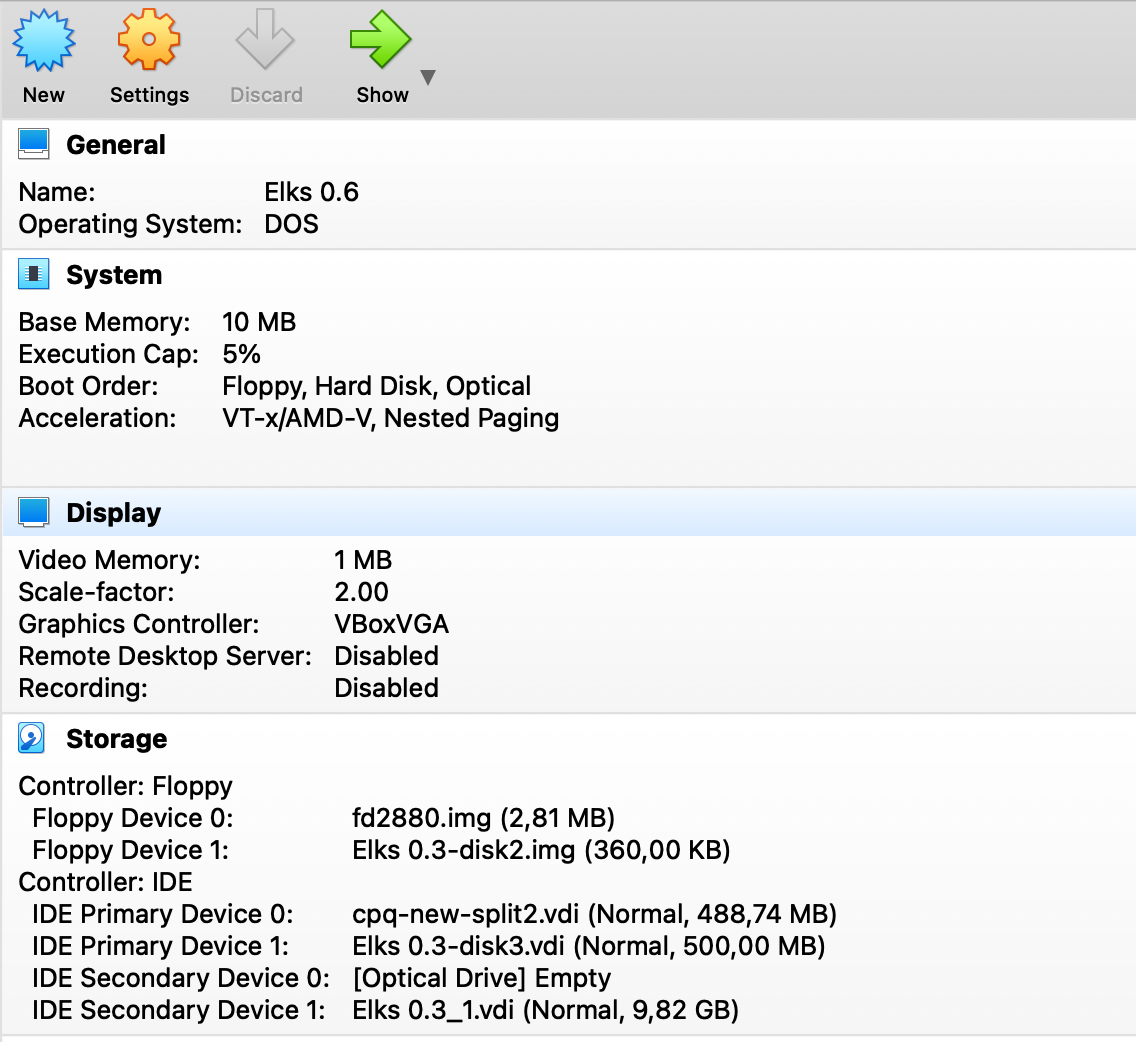
Oracle's VirtualBox is one of the most capable and widespread X86 emulators out there – extremely capable, wide platform coverage and an excellent GUI. For good results with ELKS, configure a DOS-type virtual machine with minimal resources (more than minimal resources is a waste). VB will boot just about any floppy image, including the 2.88MB variant which is very practical because it holds the entire system including manpages and extra tools.
Like QEMU, VB is very fast. You can slow it down by setting an execution cap, but unless your host machine is very slow, you're not getting close to 'real' speed for an old clunker.
Here a sample VB configuration:
VB does not emulate any of the Ethernet interfaces supported by ELKS, so networking is not available unless you can figure out how to use slip.
If you want to use one of the auto built ELKS HD images with VB, you need to convert the raw .img image to virtual box format .vdi:
`VBoxManage.exe convertfromraw --format VDI "d:\temp\hdd.bin" "d:\temp\hdd_vb.vdi"`
Attach the newly created drive as hdd. You will be able to boot it directly or mount it if you booted from floppy.
86Box is a comprehensive x86 emulator covering a wide range of specific hardware components and systems. Its level of hardware specificity distinguishes it from most other platforms which makes is well suited for development. The price to pay is complexity. Getting the various components - CPUs, sockets, main boards, interfaces, peripherals and more to work together may not be possible. IOW - you have to know what you're doing unless you're using a prepackaged configuration - or are willing to spend time trying and failing.
86Box emulates the selected systems extremely well, including realistic speed. E.g. if you choose Compaq Portable III as your system and use the built-in graphics, you'll get an amber screen that looks exactly like the real thing, including the (very slow) memory test as you power it up. Actually, at least when running on a Mac, the speed is significantly slower than the real thing, so choose a higher clock speed than you would otherwise do unless you have a really big coffee pot around.
86Box has a decent GUI which speeds up testing various configurations tremendously. What it doesn't do is warn you if you're making selected that are physically impossible or just bad choices. You have been warned.
While many different floppy types and sizes are supported, there is limited auto detection in 86Box. Make sure you configure the system to exactly match the floppy image you're using.
Also beware that in some configurations, there is no blinking text cursor on the screen. 86Box also get confused as to whether you're using caps lock or not some times. Using the shift button to get lower case for a while is painful but works, and suddenly the issue goes away.
ELKS works well with many different 86Box combos. It emulates the ne2k ethernet card, so ELKS can communicate with the host and the outside world via slirp. It keeps a configuration file in its home (installation) directory (86Box.cfg), and changing configurations may some times be faster via the config file than via the GUI - when you know what you're doing.
Here's a configuration that works:
[General]
vid_renderer = qt_software
confirm_save = 0
confirm_exit = 0
confirm_reset = 0

[Machine]
machine = portableiii
cpu_family = 286
cpu_speed = 25000000
cpu_multi = 1
cpu_use_dynarec = 0
time_sync = local
cpu = 6
mem_size = 640

[Video]
gfxcard = internal

[Input devices]
mouse_type = none

[Storage controllers]
hdc = st506_xt_dtc5150x
cassette_enabled = 0
cassette_mode = load

[Novell NE2000]
base = 0300
irq = 11
bios_addr = 00000
mac = 90:e0:22

[Sound]
sound_type = int16

[Network]
net_card = ne2k
net_host_device = en0

[Ports (COM & LPT)]
lpt1_enabled = 0

[Floppy and CD-ROM drives]
fdd_01_turbo = 1
fdd_02_type = 525_2hd_dualrpm
fdd_02_turbo = 1
fdd_01_type = 35_2hd
fdd_01_fn = /Users/helge/tmp/fd1440.img

[Hard disks]
hdd_01_parameters = 17, 5, 979, 0, mfm
hdd_01_fn = /Users/helge/tmp/venix.raw.disk.oct2020.img
hdd_01_mfm_channel = 0

[SLiRP Port Forwarding]
0_external = 8080
0_internal = 80
1_protocol = udp
1_external = 5555
2_protocol = tcp
2_external = 8323
2_internal = 23
3_protocol = tcp
3_external = 8321
3_internal = 21

[Compaq Plasma]
display_type = 0
composite_type = 0
rgb_type = 0

[Trident TVGA 8900B]
memory = 256

[CGA]
display_type = 0
composite_type = 0
rgb_type = 0
snow_enabled = 1

[Cirrus Logic GD5426 (ISA)]
memory = 512

[WD1004A-WX1 MFM Fixed Disk Adapter]
bios_addr = C8000
base = 0320
irq = 5

[DTC 5150X MFM Fixed Disk Adapter]
bios_addr = C8000

[ST-11M MFM Fixed Disk Adapter]
base = 0320
irq = 5
bios_addr = C8000
revision = 19
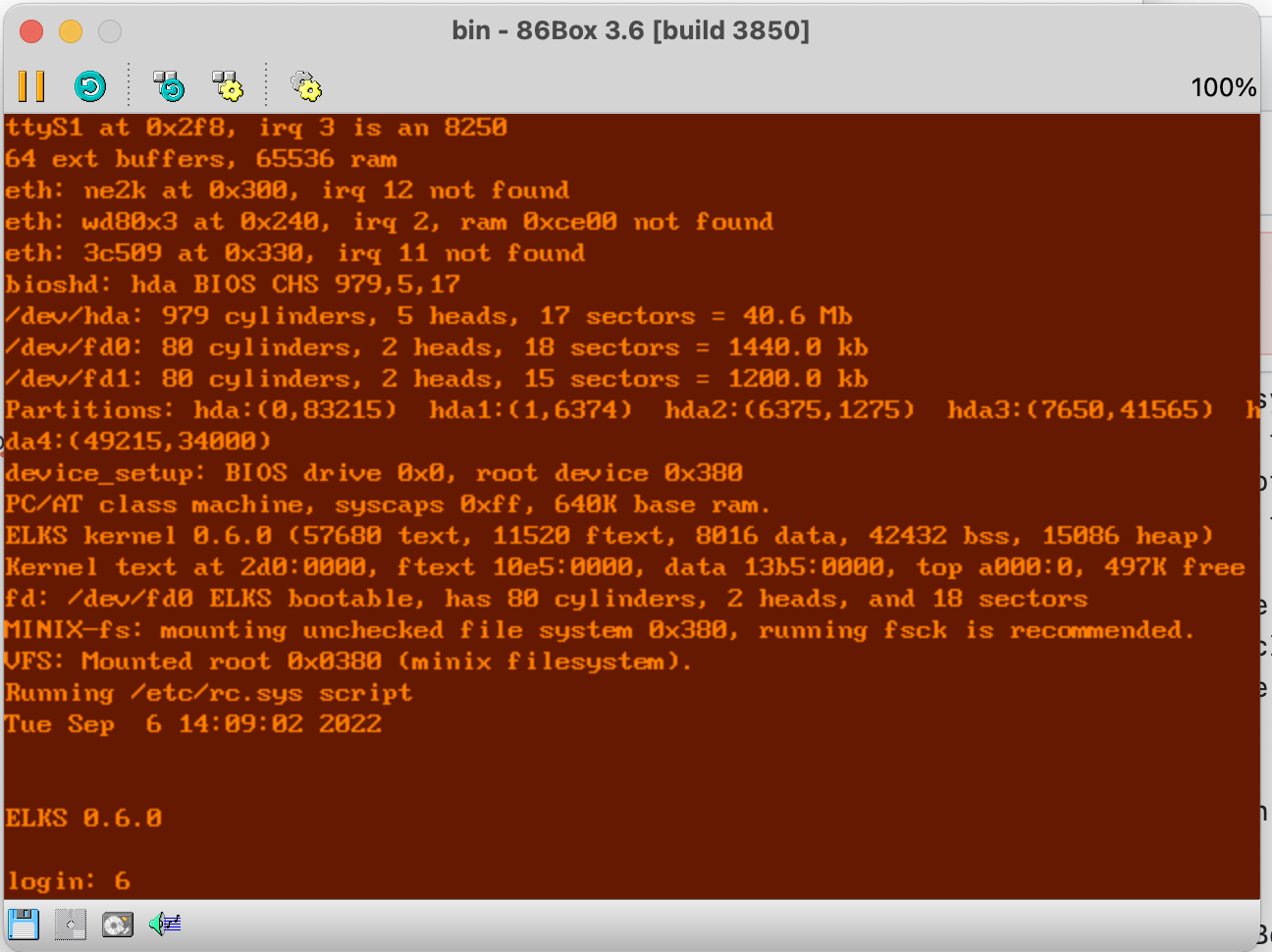
The ELKS boot screen looks like this: