
TAOverlay is a minimalistic and simple overlay meant to display useful information to the user.
- iOS 7.0+
- ARC
- Drag the
TAOverlay/TAOverlayfolder into your project. - Ensure that
TAOverlay.bundleis added toTargets->Build Phases->Copy Bundle Resources. - import
"TAOverlay.h"
Using TAOverlay in your app is very simple.
You can show the TAOverlay using one of the following:
+ (void) showOverlayWithLabel:(NSString *)status Options:(TAOverlayOptions)options;
- The
statusparameter is the text to display on the overlay. If the value is 'nil', overlay is shown without a label - The
optionsparameter is mask of options indicating the type and appearence of the overlay
+ (void) showOverlayWithLabel:(NSString *)status Image:(UIImage *)image Options:(TAOverlayOptions)options;
- The
statusparameter is the text to display on the overlay. If the value is 'nil', overlay is shown without a label - The
imageparameter is the image to display as an icon on the overlay. The image cannot be 'nil' - The
optionsparameter is mask of options indicating the appearence of the overlay
+ (void) showOverlayWithLabel:(NSString *)status ImageArray:(NSArray *)imageArray Duration:(CGFloat)duration Options:(TAOverlayOptions)options;
- The
statusparameter is the text that you want displayed - The
imageArrayparameter is an array containing UIImage objects. Use this if your animation is easily expressable in images. The array cannot be 'nil' - The
durationparameter is the duration of the animation to cycle through the array of images - The
optionsparameter is mask of options indicating the appearence of the overlay
You can hide the TAOverlay using:
+ (void) hideOverlay;
[TAOverlay showOverlayWithLabel:@"This is the status" Options:(TAOverlayOptionOverlayTypeActivityDefault | TAOverlayOptionAllowUserInteraction | TAOverlayOptionOverlaySizeFullScreen | TAOverlayOptionAutoHide)];
The above shows the TAOverlay with the following properties:
- It's status is "This is a status"
- It's type is the default iOS Activity Indicator
- It's size is fullscreen
- It has user interaction enabled
- It has auto hide enabled
( More on these optons below )
TAOverlay has a lot of customization options.
TAOverlayOptions defines the following set of bitmasks that can be used to fine tune the appearence of the overlay:
( passed as parameters in the "show" methods of TAOverlay )
Appearence options
TAOverlayOptionOpaqueBackgroundoption indicates that the overlay does not have a blur effect, rather, a solid backgroundTAOverlayOptionOverlayShadowoptions indicates that the overlay has a semi-transparent shadow over the whole screen behind itTAOverlayOptionAllowUserInteractionoption indicates that the user can interact with objects behind the overlayTAOverlayOptionAutoHideoption indicates that the overlay auto hides after a certain time, based on the length of the status string
Type options
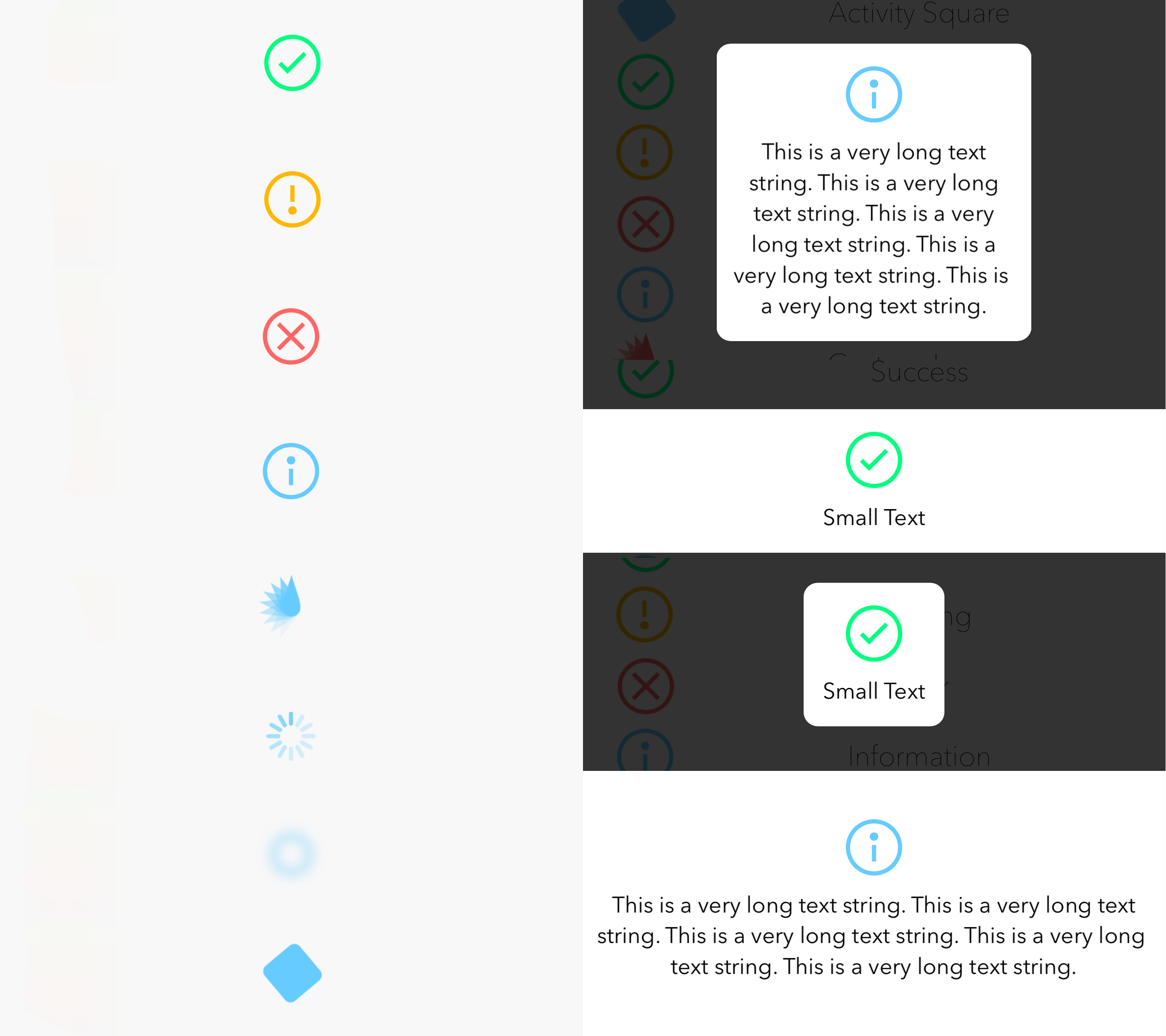
TAOverlayOptionOverlayTypeActivityDefaultoption indicates that the overlay shows ongoing activity using the default iOS Activity IndicatorTAOverlayOptionOverlayTypeActivityLeafoptions indicates that the overlay shows ongoing activity using a custom activity indicator of the style of a leaf Default optionTAOverlayOptionOverlayTypeActivityBluroption indicates that the overlay shows ongoing activity using a custom activity indicator of the style of a blurred haloTAOverlayOptionOverlayTypeActivitySquareoption indicates that the overlay shows ongoing activity using a custom activity indicator of the style of a rounded rectangleTAOverlayOptionOverlayTypeSuccessoption indicates that the overlay shows a check mark inside a circle, signifying, successful completion of a taskTAOverlayOptionOverlayTypeWarningoption indicates that the overlay shows an exclamation mark inside a circle, warning the user of somethingTAOverlayOptionOverlayTypeErroroption indicates that the overlay shows a cross mark inside a circle, signifying, an un-successful eventTAOverlayOptionOverlayTypeInfooption indicates that the overlay shows an information mark inside a circle, informing the user of something
Size options
TAOverlayOptionOverlaySizeFullScreenoption indicates that the overlay fills the whole screenTAOverlayOptionOverlaySizeBaroptions indicates that the overlay takes a bar like shape Default optionTAOverlayOptionOverlaySizeRoundedRectoption indicates that the overlay takes a rounded rect shape
The header file includes the following definitions to tweak the appearence of the overlay:
OVERLAY_LABEL_FONTThe font of the status labelOVERLAY_LABEL_COLORThe text color of the status labelOVERLAY_ACTIVITY_DEFAULT_COLORThe color of the default type activity indicatorOVERLAY_ACTIVITY_LEAF_COLORThe color of the leaf type activity indicatorOVERLAY_ACTIVITY_BLUR_COLORThe color of the blur type activity indicatorOVERLAY_ACTIVITY_SQUARE_COLORThe color of the square type activity indicatorOVERLAY_SHADOW_COLORThe color of the semi-transparent shadow behind the overlayOVERLAY_BACKGROUND_COLORThe color of the background of the overlayOVERLAY_BLUR_TINT_COLORThe tint color of the blur of the overlayOVERLAY_SUCCESS_COLORThe color of the success iconOVERLAY_WARNING_COLORThe color of the warning iconOVERLAY_ERROR_COLORThe color of the error iconOVERLAY_INFO_COLORThe color of the information iconOVERLAY_ICON_THICKNESSThe thickness of success, warning, error and information iconsANIMATION_DURATIONThe animation duration of the appearence and disappearence animations
Custom images can be shown using the latter of the "show" methods described above. TAOverlay includes a UIImage category for masking images to a specific color. Use the following method to do so:
- (UIImage *) maskImageWithColor:(UIColor *)color;
- The
colorparameter is the color with which a given image is masked - The
return valueis the masked image
TAOverlay posts the following notifications via NSNotificationCenter in response to being shown/dismissed:
TAOverlayWillAppearNotificationwhen the show animation starts.TAOverlayDidAppearNotificationwhen the show animation completes.TAOverlayWillDisappearNotificationwhen the dismiss animation starts.TAOverlayDidDisappearNotificationwhen the dismiss animation completes.
Each notification passes a userInfo dictionary holding the Overlay's status string (if any), retrievable via TAOverlayStatusUserInfoKey.
- Customization methods
- Add progress indicator
- Enhance overlay to more than just providing information
If you have feature requests or bug reports, feel free to help out by sending pull requests or by creating new issues :)
TAOverlay is brought to you by Taimur Ayaz. If you're using TAOverlay in your project, attribution would be much appreciated :)
Copyright (c) 2015 Taimur Ayaz
Permission is hereby granted, free of charge, to any person obtaining a copy of this software and associated documentation files (the "Software"), to deal in the Software without restriction, including without limitation the rights to use, copy, modify, merge, publish, distribute, sublicense, and/or sell copies of the Software, and to permit persons to whom the Software is furnished to do so, subject to the following conditions:
The above copyright notice and this permission notice shall be included in all copies or substantial portions of the Software.
THE SOFTWARE IS PROVIDED "AS IS", WITHOUT WARRANTY OF ANY KIND, EXPRESS OR IMPLIED, INCLUDING BUT NOT LIMITED TO THE WARRANTIES OF MERCHANTABILITY, FITNESS FOR A PARTICULAR PURPOSE AND NONINFRINGEMENT. IN NO EVENT SHALL THE AUTHORS OR COPYRIGHT HOLDERS BE LIABLE FOR ANY CLAIM, DAMAGES OR OTHER LIABILITY, WHETHER IN AN ACTION OF CONTRACT, TORT OR OTHERWISE, ARISING FROM, OUT OF OR IN CONNECTION WITH THE SOFTWARE OR THE USE OR OTHER DEALINGS IN THE SOFTWARE.