
(上の画像をクリックすると、このレッスンの動画が見られます)
これまでのカリキュラムで、プロンプトのようなコアコンセプトや「プロンプトエンジニアリング」と呼ばれる分野があることを学びました。ChatGPT、Office 365、Microsoft Power Platformなど、多くのツールはプロンプトを使って何かを達成することをサポートしています。
アプリにそのような体験を追加するには、プロンプトや補完(completions)などの概念を理解し、使うライブラリを選ぶ必要があります。この章ではまさにそのことを学びます。
この章では以下を学びます:
- openaiライブラリとその基本的な概念について
- openaiを使ったテキスト生成アプリの構築
- プロンプト、temperature、トークンなどの概念を使ってテキスト生成アプリを作る方法
このレッスンの終わりには、以下ができるようになります:
- テキスト生成アプリとは何か説明できる
- openaiを使ってテキスト生成アプリを構築できる
- トークン数の増減やtemperatureの調整を行い、出力のバリエーションを変えられるように設定できる
通常、アプリを作るときは以下のようなインターフェースがあります:
- コマンドベース。コンソールアプリは典型的な例で、コマンドを入力するとタスクを実行します。例えば、
gitはコマンドベースのアプリです。 - ユーザーインターフェース(UI)。ボタンをクリックしたり、テキストを入力したり、オプションを選択したりするグラフィカルなUIを持つアプリもあります。
コマンドベースのアプリと比べると:
- 制限がある。入力できるコマンドはアプリがサポートするものだけです。
- 言語依存。多言語対応のアプリもありますが、基本的には特定の言語向けに作られており、追加で言語サポートを入れる必要があります。
テキスト生成アプリはどう違うのでしょうか?
テキスト生成アプリはより柔軟で、決まったコマンドや特定の入力言語に縛られません。自然言語でアプリとやり取りできます。また、膨大な情報で学習されたデータソースとやり取りしているため、従来のアプリのようにデータベースの中身に制限されることがありません。
いろいろなものが作れます。例えば:
- チャットボット。会社や製品に関する質問に答えるチャットボットなど。
- ヘルパー。テキストの要約、洞察の抽出、履歴書の作成など、LLMは得意です。
- コードアシスタント。使う言語モデルによっては、コードを書く手助けをするアシスタントも作れます。GitHub CopilotやChatGPTのような製品が例です。
LLMと連携するには主に以下の2つの方法があります:
- APIを使う。プロンプトを含むWebリクエストを作成し、生成されたテキストを受け取る方法。
- ライブラリを使う。API呼び出しをラップして使いやすくしたもの。
LLMを扱う有名なライブラリには以下があります:
- openai。モデルに接続し、プロンプトを送るのが簡単にできるライブラリ。
さらに高レベルで動作するライブラリもあります:
- Langchain。Python対応で有名です。
- Semantic Kernel。Microsoft製でC#、Python、Javaに対応しています。
まずは最初のアプリをどう作るか、必要なライブラリや手順を見ていきましょう。
OpenAIやAzure OpenAIとやり取りするライブラリは多数あります。C#、Python、JavaScript、Javaなど多くの言語が使えます。ここではopenaiのPythonライブラリを使うので、pipでインストールします。
pip install openai以下の手順を行います:
-
Azureでアカウントを作成する https://azure.microsoft.com/free/
-
Azure OpenAIへのアクセス権を取得する。こちらから申請します:https://learn.microsoft.com/azure/ai-services/openai/overview#how-do-i-get-access-to-azure-openai
[!NOTE] 執筆時点では、Azure OpenAIの利用には申請が必要です。
-
Pythonをインストールする https://www.python.org/
-
Azure OpenAI Serviceのリソースを作成する。作成方法はこちらのガイドを参照してください:リソースの作成
ここで、openaiライブラリに使うAPIキーを教える必要があります。APIキーはAzure OpenAIリソースの「Keys and Endpoint」セクションにあり、「Key 1」の値をコピーしてください。
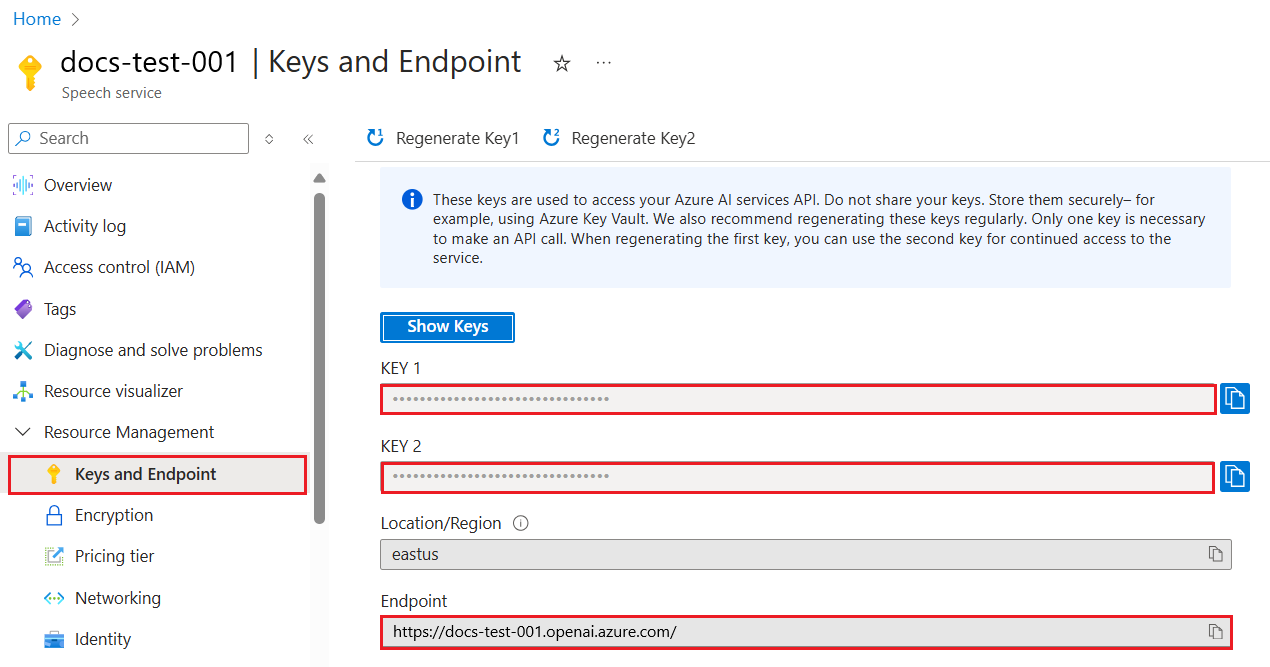
情報をコピーしたら、ライブラリに使うよう設定しましょう。
Note
APIキーはコードから分離して管理するのがおすすめです。環境変数を使う方法があります。
- 環境変数
OPENAI_API_KEYにAPIキーを設定します。export OPENAI_API_KEY='sk-...'
Azure OpenAIを使う場合の設定例はこちらです:
openai.api_type = 'azure'
openai.api_key = os.environ["OPENAI_API_KEY"]
openai.api_version = '2023-05-15'
openai.api_base = os.getenv("API_BASE")
上記では以下を設定しています:
api_typeをazureに。これでOpenAIではなくAzure OpenAIを使うことを指定。api_keyはAzureポータルで取得したAPIキー。api_versionは使いたいAPIのバージョン。執筆時点では2023-05-15が最新。api_baseはAPIのエンドポイント。AzureポータルのAPIキーの隣にあります。
Note
os.getenvは環境変数を読み取る関数です。OPENAI_API_KEYやAPI_BASEなどの環境変数をターミナルやdotenvのようなライブラリで設定しておくと便利です。
テキスト生成はCompletionクラスを使います。例を見てみましょう:
prompt = "Complete the following: Once upon a time there was a"

completion = openai.Completion.create(model="davinci-002", prompt=prompt)
print(completion.choices[0].text)
上記コードでは、completionオブジェクトを作成し、使いたいモデルとプロンプトを渡しています。生成されたテキストを出力しています。
これまでCompletionを使ってテキスト生成を見てきましたが、チャットボット向けにはChatCompletionクラスがあります。使い方の例はこちら:
import openai

openai.api_key = "sk-..."

completion = openai.ChatCompletion.create(model="gpt-3.5-turbo", messages=[{"role": "user", "content": "Hello world"}])
print(completion.choices[0].message.content)
この機能については今後の章で詳しく説明します。
openaiのセットアップと設定がわかったので、最初のテキスト生成アプリを作ってみましょう。手順は以下の通りです:
-
仮想環境を作成し、openaiをインストールする:
python -m venv venv
source venv/bin/activate
pip install openai
[!NOTE] Windowsの場合は
source venv/bin/activateの代わりにvenv\Scripts\activateを使ってください。[!NOTE] Azure OpenAIのキーはhttps://portal.azure.com/で
Open AIを検索し、Open AI resourceを選択、「Keys and Endpoint」からKey 1をコピーしてください。 -
app.py ファイルを作成し、以下のコードを記述:
import openai

openai.api_key = "<replace this value with your open ai key or Azure OpenAI key>"

openai.api_type = 'azure'
openai.api_version = '2023-05-15'
openai.api_base = "<endpoint found in Azure Portal where your API key is>"
deployment_name = "<deployment name>"

# add your completion code
prompt = "Complete the following: Once upon a time there was a"
messages = [{"role": "user", "content": prompt}]

# make completion
completion = openai.chat.completions.create(model=deployment_name, messages=messages)

# print response
print(completion.choices[0].message.content)
[!NOTE] Azure OpenAIを使う場合は
api_typeをazureにし、api_keyにAzure OpenAIのキーを設定してください。以下のような出力が得られるはずです:
 very unhappy _____.

Once upon a time there was a very unhappy mermaid.
プロンプトを使ってテキストを生成する方法がわかりました。すでに動くプログラムもできているので、いろいろ変更して異なるテキストを生成できます。
プロンプトは様々な用途に使えます。例えば:
- 特定の種類のテキストを生成。詩やクイズの質問など。
- 情報の検索。例えば「Web開発におけるCORSとは何か?」のような質問。
- コード生成。メールアドレスの検証に使う正規表現を作ったり、ウェブアプリのようなプログラム全体を生成したり。
家にある材料で料理を作りたいとします。そのためにはレシピが必要です。レシピを探すには検索エンジンを使う方法もありますが、LLMを使うこともできます。
例えば、こんなプロンプトを書けます:
「鶏肉、じゃがいも、にんじんを使った料理のレシピを5つ教えてください。各レシピで使われている材料もリストアップしてください。」
このプロンプトに対して、以下のような回答が得られるかもしれません:
1. Roasted Chicken and Vegetables:
Ingredients:
- 4 chicken thighs
- 2 potatoes, cut into cubes
- 2 carrots, cut into cubes
- 2 tablespoons olive oil
- 2 cloves garlic, minced
- 1 teaspoon dried thyme
- 1 teaspoon dried oregano
- Salt and pepper, to taste

2. Chicken and Potato Stew:
Ingredients:
- 2 tablespoons olive oil
- 1 onion, diced
- 2 cloves garlic, minced
- 2 chicken breasts, cut into cubes
- 2 potatoes, cut into cubes
- 2 carrots, cut into cubes
- 1 teaspoon dried oregano
- 1 teaspoon dried thyme
- 1 cup chicken broth
- Salt and pepper, to taste

3. Chicken and Potato Bake:
Ingredients:
- 2 tablespoons olive oil
- 2 chicken breasts, cut into cubes
- 2 potatoes, cut into cubes
- 2 carrots, cut into cubes
- 1 onion, diced
- 2 cloves garlic, minced
- 1 teaspoon dried oregano
- 1 teaspoon dried thyme
- 1 cup chicken broth
- Salt and pepper, to taste

4. Chicken and Potato Soup:
Ingredients:
- 2 tablespoons olive oil
- 1 onion, diced
- 2 cloves garlic, minced
- 2 chicken breasts, cut into cubes
- 2 potatoes, cut into cubes
- 2 carrots, cut into cubes
- 1 teaspoon dried oregano
- 1 teaspoon dried thyme
- 4 cups chicken broth
- Salt and pepper, to taste

5. Chicken and Potato Hash:
Ingredients:
- 2 tablespoons olive oil
- 2 chicken breasts, cut into cubes
- 2 potatoes, cut into cubes
- 2 carrots, cut into cubes
- 1 onion, diced
- 2 cloves garlic, minced
- 1 teaspoon dried oregano
この結果は素晴らしいですね。何を作るか決まりました。ここからさらに便利にするには:
- 嫌いな材料やアレルギーのある材料を除外するフィルター
- 家にない材料を買うための買い物リストの作成
などが考えられます。
これらを実現するために、追加のプロンプトを用意します:
「にんにくはアレルギーがあるので除外し、代わりの材料を提案してください。また、鶏肉、じゃがいも、にんじんは家にあるので、それを考慮した買い物リストも作成してください。」
すると、以下のような新しい結果が得られます:
1. Roasted Chicken and Vegetables:
Ingredients:
- 4 chicken thighs
- 2 potatoes, cut into cubes
- 2 carrots, cut into cubes
- 2 tablespoons olive oil
- 1 teaspoon dried thyme
- 1 teaspoon dried oregano
- Salt and pepper, to taste

2. Chicken and Potato Stew:
Ingredients:
- 2 tablespoons olive oil
- 1 onion, diced
- 2 chicken breasts, cut into cubes
- 2 potatoes, cut into cubes
- 2 carrots, cut into cubes
- 1 teaspoon dried oregano
- 1 teaspoon dried thyme
- 1 cup chicken broth
- Salt and pepper, to taste

3. Chicken and Potato Bake:
Ingredients:
- 2 tablespoons olive oil
- 2 chicken breasts, cut into cubes
- 2 potatoes, cut into cubes
- 2 carrots, cut into cubes
- 1 onion, diced
- 1 teaspoon dried oregano
- 1 teaspoon dried thyme
- 1 cup chicken broth
- Salt and pepper, to taste

4. Chicken and Potato Soup:
Ingredients:
- 2 tablespoons olive oil
- 1 onion, diced
- 2 chicken breasts, cut into cubes
- 2 potatoes, cut into cubes
- 2 carrots, cut into cubes
- 1 teaspoon dried oregano
- 1 teaspoon dried thyme
- 4 cups chicken broth
- Salt and pepper, to taste

5. Chicken and Potato Hash:
Ingredients:
- 2 tablespoons olive oil
- 2 chicken breasts, cut into cubes
- 2 potatoes, cut into cubes
- 2 carrots, cut into cubes
- 1 onion, diced
- 1 teaspoon dried oregano

Shopping List:
- Olive oil
- Onion
- Thyme
- Oregano
- Salt
- Pepper
にんにくを含まない5つのレシピと、家にある材料を考慮した買い物リストが表示されます。
シナリオを体験したので、これに合わせたコードを書いてみましょう。手順は以下の通りです:
-
既存の app.py ファイルをベースに使う
-
prompt変数のコードを以下のように変更する:prompt = "Show me 5 recipes for a dish with the following ingredients: chicken, potatoes, and carrots. Per recipe, list all the ingredients used"
これを実行すると、以下のような出力が得られるはずです:
-Chicken Stew with Potatoes and Carrots: 3 tablespoons oil, 1 onion, chopped, 2 cloves garlic, minced, 1 carrot, peeled and chopped, 1 potato, peeled and chopped, 1 bay leaf, 1 thyme sprig, 1/2 teaspoon salt, 1/4 teaspoon black pepper, 1 1/2 cups chicken broth, 1/2 cup dry white wine, 2 tablespoons chopped fresh parsley, 2 tablespoons unsalted butter, 1 1/2 pounds boneless, skinless chicken thighs, cut into 1-inch pieces
-Oven-Roasted Chicken with Potatoes and Carrots: 3 tablespoons extra-virgin olive oil, 1 tablespoon Dijon mustard, 1 tablespoon chopped fresh rosemary, 1 tablespoon chopped fresh thyme, 4 cloves garlic, minced, 1 1/2 pounds small red potatoes, quartered, 1 1/2 pounds carrots, quartered lengthwise, 1/2 teaspoon salt, 1/4 teaspoon black pepper, 1 (4-pound) whole chicken
-Chicken, Potato, and Carrot Casserole: cooking spray, 1 large onion, chopped, 2 cloves garlic, minced, 1 carrot, peeled and shredded, 1 potato, peeled and shredded, 1/2 teaspoon dried thyme leaves, 1/4 teaspoon salt, 1/4 teaspoon black pepper, 2 cups fat-free, low-sodium chicken broth, 1 cup frozen peas, 1/4 cup all-purpose flour, 1 cup 2% reduced-fat milk, 1/4 cup grated Parmesan cheese

-One Pot Chicken and Potato Dinner: 2 tablespoons olive oil, 1 pound boneless, skinless chicken thighs, cut into 1-inch pieces, 1 large onion, chopped, 3 cloves garlic, minced, 1 carrot, peeled and chopped, 1 potato, peeled and chopped, 1 bay leaf, 1 thyme sprig, 1/2 teaspoon salt, 1/4 teaspoon black pepper, 2 cups chicken broth, 1/2 cup dry white wine

-Chicken, Potato, and Carrot Curry: 1 tablespoon vegetable oil, 1 large onion, chopped, 2 cloves garlic, minced, 1 carrot, peeled and chopped, 1 potato, peeled and chopped, 1 teaspoon ground coriander, 1 teaspoon ground cumin, 1/2 teaspoon ground turmeric, 1/2 teaspoon ground ginger, 1/4 teaspoon cayenne pepper, 2 cups chicken broth, 1/2 cup dry white wine, 1 (15-ounce) can chickpeas, drained and rinsed, 1/2 cup raisins, 1/2 cup chopped fresh cilantro
NOTE:LLMは非決定的なので、実行するたびに結果が異なることがあります。
では、さらに改善してみましょう。コードを柔軟にして、レシピ数や材料を変更できるようにします。
-
以下のようにコードを変更します:
no_recipes = input("No of recipes (for example, 5): ")

ingredients = input("List of ingredients (for example, chicken, potatoes, and carrots): ")

# interpolate the number of recipes into the prompt an ingredients
prompt = f"Show me {no_recipes} recipes for a dish with the following ingredients: {ingredients}. Per recipe, list all the ingredients used"
テスト実行の例は以下の通りです:
No of recipes (for example, 5): 3
List of ingredients (for example, chicken, potatoes, and carrots): milk,strawberries

-Strawberry milk shake: milk, strawberries, sugar, vanilla extract, ice cubes
-Strawberry shortcake: milk, flour, baking powder, sugar, salt, unsalted butter, strawberries, whipped cream
-Strawberry milk: milk, strawberries, sugar, vanilla extract
今のアプリはレシピを生成でき、ユーザーの入力に応じてレシピ数や材料を変えられる柔軟なものになりました。
さらに改善するために以下を追加します:
-
材料のフィルター。嫌いな材料やアレルギーのある材料を除外できるようにします。これには既存のプロンプトの最後にフィルター条件を追加します:
filter = input("Filter (for example, vegetarian, vegan, or gluten-free): ")

prompt = f"Show me {no_recipes} recipes for a dish with the following ingredients: {ingredients}. Per recipe, list all the ingredients used, no {filter}"
上記では、プロンプトの末尾に
{filter}を追加し、ユーザーからフィルター条件を受け取っています。実行例は以下のようになります:
No of recipes (for example, 5): 3
List of ingredients (for example, chicken, potatoes, and carrots): onion,milk
Filter (for example, vegetarian, vegan, or gluten-free): no milk

1. French Onion Soup

Ingredients:

-1 large onion, sliced
-3 cups beef broth
-1 cup milk
-6 slices french bread
-1/4 cup shredded Parmesan cheese
-1 tablespoon butter
-1 teaspoon dried thyme
-1/4 teaspoon salt
-1/4 teaspoon black pepper

Instructions:

1. In a large pot, sauté onions in butter until golden brown.
2. Add beef broth, milk, thyme, salt, and pepper. Bring to a boil.
3. Reduce heat and simmer for 10 minutes.
4. Place french bread slices on soup bowls.
5. Ladle soup over bread.
6. Sprinkle with Parmesan cheese.

2. Onion and Potato Soup

Ingredients:

-1 large onion, chopped
-2 cups potatoes, diced
-3 cups vegetable broth
-1 cup milk
-1/4 teaspoon black pepper

Instructions:

1. In a large pot, sauté onions in butter until golden brown.
2. Add potatoes, vegetable broth, milk, and pepper. Bring to a boil.
3. Reduce heat and simmer for 10 minutes.
4. Serve hot.

3. Creamy Onion Soup

Ingredients:

-1 large onion, chopped
-3 cups vegetable broth
-1 cup milk
-1/4 teaspoon black pepper
-1/4 cup all-purpose flour
-1/2 cup shredded Parmesan cheese

Instructions:

1. In a large pot, sauté onions in butter until golden brown.
2. Add vegetable broth, milk, and pepper. Bring to a boil.
3. Reduce heat and simmer for 10 minutes.
4. In a small bowl, whisk together flour and Parmesan cheese until smooth.
5. Add to soup and simmer for an additional 5 minutes, or until soup has thickened.
ご覧の通り、牛乳を含むレシピは除外されています。ただし、乳糖不耐症の方はチーズも除外したいかもしれませんので、条件は明確にする必要があります。
-
買い物リストの作成。家にある材料を考慮した買い物リストを作成します。
この機能は一つのプロンプトで解決する方法もありますが、ここでは2つのプロンプトに分ける方法を試します。2つ目のプロンプトには1つ目の結果をコンテキストとして渡す必要があります。
1つ目のプロンプトの結果を出力する部分を見つけ、以下のコードをその下に追加します:
old_prompt_result = completion.choices[0].message.content
prompt = "Produce a shopping list for the generated recipes and please don't include ingredients that I already have."

new_prompt = f"{old_prompt_result} {prompt}"
messages = [{"role": "user", "content": new_prompt}]
completion = openai.Completion.create(engine=deployment_name, messages=messages, max_tokens=1200)

# print response
print("Shopping list:")
print(completion.choices[0].message.content)
ポイントは以下の通りです:
-
1つ目のプロンプトの結果を新しいプロンプトに追加している:
new_prompt = f"{old_prompt_result} {prompt}"
-
- 新しいリクエストを作成しますが、最初のプロンプトで指定したトークン数も考慮して、今回は
max_tokensを1200に設定します。
     completion = openai.Completion.create(engine=deployment_name, prompt=new_prompt, max_tokens=1200)
     ```

このコードを実行すると、次のような出力が得られます:

```output
     No of recipes (for example, 5): 2
     List of ingredients (for example, chicken, potatoes, and carrots): apple,flour
     Filter (for example, vegetarian, vegan, or gluten-free): sugar


     -Apple and flour pancakes: 1 cup flour, 1/2 tsp baking powder, 1/2 tsp baking soda, 1/4 tsp salt, 1 tbsp sugar, 1 egg, 1 cup buttermilk or sour milk, 1/4 cup melted butter, 1 Granny Smith apple, peeled and grated
     -Apple fritters: 1-1/2 cups flour, 1 tsp baking powder, 1/4 tsp salt, 1/4 tsp baking soda, 1/4 tsp nutmeg, 1/4 tsp cinnamon, 1/4 tsp allspice, 1/4 cup sugar, 1/4 cup vegetable shortening, 1/4 cup milk, 1 egg, 2 cups shredded, peeled apples
     Shopping list:
     -Flour, baking powder, baking soda, salt, sugar, egg, buttermilk, butter, apple, nutmeg, cinnamon, allspice
     ```

## セットアップの改善

これまでのコードは動作しますが、さらに改善するためにいくつか調整すべき点があります。やるべきことの例は以下の通りです:

- **コードから秘密情報を分離する**(APIキーなど)。秘密情報はコード内に含めるべきではなく、安全な場所に保管する必要があります。秘密情報をコードから分離するには、環境変数を使い、`python-dotenv` のようなライブラリでファイルから読み込む方法があります。コード例は以下の通りです:

  1. 次の内容で `.env` ファイルを作成します:

     ```bash
     OPENAI_API_KEY=sk-...
     ```


> 注意:Azureの場合は、以下の環境変数を設定する必要があります:

     ```bash
     OPENAI_API_TYPE=azure
     OPENAI_API_VERSION=2023-05-15
     OPENAI_API_BASE=<replace>
     ```

     コード内では、環境変数を次のように読み込みます:

     ```python
     from dotenv import load_dotenv

     load_dotenv()

     openai.api_key = os.environ["OPENAI_API_KEY"]
     ```

- **トークンの長さについて**。生成したいテキストに必要なトークン数を考慮しましょう。トークンはコストがかかるため、可能な限り節約することが望ましいです。例えば、プロンプトの表現を工夫してトークン数を減らせないか検討してみてください。

  トークン数を変更するには、`max_tokens` パラメーターを使います。例えば、100トークンを使いたい場合は次のようにします:

  ```python
completion = client.chat.completions.create(model=deployment, messages=messages, max_tokens=100)-
temperatureの調整。temperatureはこれまで触れていませんが、プログラムの動作に重要な影響を与えます。temperatureの値が高いほど出力はランダムになり、低いほど予測可能な出力になります。出力にバリエーションを持たせたいかどうかを考慮してください。
temperatureを変更するには、
temperatureパラメーターを使います。例えば、0.5に設定する場合は次のようにします:completion = client.chat.completions.create(model=deployment, messages=messages, temperature=0.5)
注意:1.0に近いほど出力のバリエーションが大きくなります。
この課題では、作るものは自由に選べます。
いくつかの提案はこちら:
- レシピ生成アプリをさらに改善してみましょう。temperatureの値やプロンプトをいろいろ試してみてください。
- 「勉強仲間」アプリを作成しましょう。このアプリは、例えばPythonに関する質問に答えられるようにします。「Pythonのあるトピックとは何か?」や「あるトピックのコードを見せて」などのプロンプトを用意できます。
- 歴史ボットを作り、歴史を生き生きとさせましょう。特定の歴史上の人物を演じさせ、その人物の生涯や時代について質問できます。
以下はスタータープロンプトです。使い方や調整方法を試してみてください。
- "You're an expert on the Python language

    Suggest a beginner lesson for Python in the following format:

    Format:
    - concepts:
    - brief explanation of the lesson:
    - exercise in code with solutions"
使えるプロンプトの例はこちらです:
- "You are Abe Lincoln, tell me about yourself in 3 sentences, and respond using grammar and words like Abe would have used"
- "You are Abe Lincoln, respond using grammar and words like Abe would have used:

   Tell me about your greatest accomplishments, in 300 words"
temperatureの概念は何をするものですか?
- 出力のランダムさを制御する。
- 返答の大きさを制御する。
- 使用するトークン数を制御する。
課題に取り組む際、temperatureを変えてみましょう。0、0.5、1に設定してみてください。0は最も変化が少なく、1は最も多様です。あなたのアプリにとって最適な値はどれでしょうか?
このレッスンを終えたら、Generative AI Learning collectionでさらにジェネレーティブAIの知識を深めましょう!
次のレッスン7では、チャットアプリケーションの作り方を学びます!
免責事項:
本書類はAI翻訳サービス「Co-op Translator」を使用して翻訳されました。正確性を期しておりますが、自動翻訳には誤りや不正確な部分が含まれる可能性があります。原文の言語によるオリジナル文書が正式な情報源とみなされるべきです。重要な情報については、専門の人間による翻訳を推奨します。本翻訳の利用により生じた誤解や誤訳について、当方は一切の責任を負いかねます。