Components
The iframe plugin allows you to put some iframes on your dashboard. It doesn't require any externalconfiguration. However, it expects some data, which can be either:
| Property name | Description | Example |
|---|---|---|
| url | The url of the desired page | url: https://www.google.fr |
| src | The content of your iframe | src: '<script src="https://widgets.coingecko.com/coingecko-coin-ticker-widget.js"></script><coingecko-coin-ticker-widget currency="usd" coin-id="bitcoin"></coingecko-coin-ticker-widget>' |
| proxy-port | If the iframe must be proxified (when the target website doesn't want to be in an iframe) a proxy must be created. With that parameter, you tell on which port the proxy will listen. Optional but required for proxy iframe | proxy-port: 8888 |
| proxy-hostname | Indicates the public hostname of this server which will be used to construct the iframe pointing to the proxy. Optional but required for proxy iframe | proxy-hostname: localhost |
| proxy-protocol | Indicates the public protocol used to contact this server. Optional but required for proxy iframe | proxy-protocol: http |
| base | Indicates the base of the url proxified. Optional but required for proxy iframe | base: https://demo.com/demo |
| insecure | Indicates that the proxy doesn't have to check the certificate Optional | insecure: true |
Example:
 - type: iframe
        title: 'Google inside an iframe, pretty cool no?'
        width: 2
        height: 1
        column: 1
        row: 2
        data:
          url: 'https://www.google.fr'
The jenkins plugin allow you to display some data about your views and jobs. It requires an external configuration on order to retrieve those data.
This is the expected configuration:
externalconfig:
  jenkins:
    baseUrl: https://jenkins.demo.fr
    user: demo
    password: demo
| Property name | Description | Required |
|---|---|---|
| baseUrl | The base url of your jenkins instance | Required |
| user | The user used to access to your jenkins instance. Must be a valid user. | Required |
| password | The user's password used to access to your jenkins instance. Must be valid | Required |
The plugin has 2 views. You need to choose the one you want to render:
| View name | Description | Rendered example |
|---|---|---|
| view | This is used to render a Jenkins 'view' | 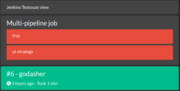 |
| job | This is used to render a Jenkins 'job' | 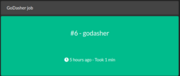 |
As you can saw on the screenshots, the plugins handles well the multi-pipeline job :)
The plugins has the following data variables:
| Property name | Description | Required |
|---|---|---|
| name | The name of the jenkins resource (job or view). Jenkins is case sensitive, so be careful! | Required |
Example:
      - type: jenkins
        view: view
        title: Jenkins Godasher view
        width: 1
        height: 2
        column: 0
        row: 1
        data:
          name: godasher-view
The health plugins allows you to monitor the health of an application. This will display a simple component with a color and a texte according to the health of your application. It doesn't require any externalconfiguration. However, it expects some data, which can be either:
| Property name | Description | Example |
|---|---|---|
| url | The url of your application health check | url: https://my-spring-boot-app.com/actuator/health |
| format | The format of your health check response. Currently, only json is supported | format: json |
| path | The path where the health indicator is stored | path: $.status |
| size | The size of the message displayed in the component | size: 30px |
| Key-value | The text retrieved by the path, associated with a color. The value nil will be used when the program couldn't retrieve the health value |
``` |
| UP: green | ||
| WARN: orange | ||
| DOWN: red | ||
| nil: gray |
Example:
  - type: health
    title: 'Inte01 health check'
    width: 1
    height: 1
    column: 0
    row: 0
    data:
      url: 'https://toto/internal/actuator/health'
      format: json
      path: $.status
      size: 30px
      UP: green
      WARN: orange
      DOWN: red
      OUT_OF_SERVICE: brown
      STARTING: '#fce303'
      nil: gray