Create a dashboard
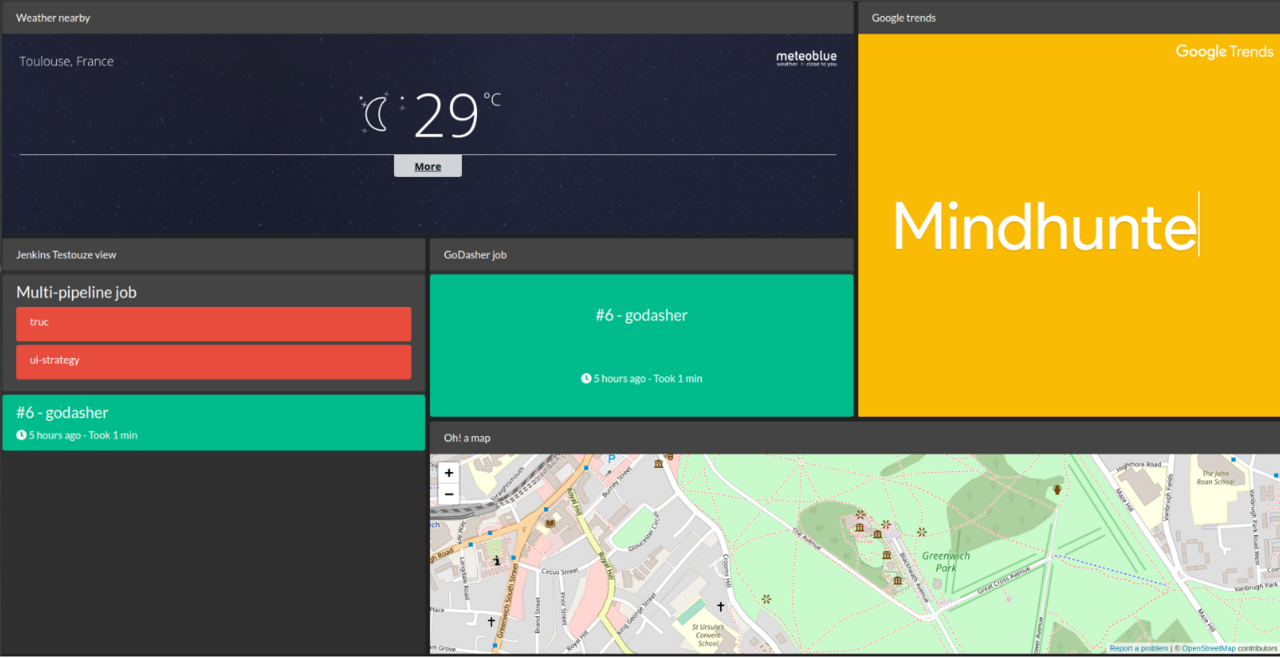
In order to create a dashboard, you need only to write a configuration file. You don't have to write any code in order to display a dashboard.
The configuration file must respect the YAML format and must be called config.yml
In the configuration, you have a block that applies to all your dashboards.
port: 8000
rotationtime: 10
theme: dark

externalconfig:
  jenkins:
    baseUrl: https://jenkins.demo.fr
    user: demo
    password: demo
| Property name | Description | Required |
|---|---|---|
| port | The port where the application will listen HTTP GET requests | Required |
| rotationtime | Time between the render of 2 dashboards. In seconds | Required |
| theme | The global theme for your dashboards. Can be dark or light
|
Optional, default = dark
|
| externalconfig | The place to put some external configuration used to render components. For instance, your jenkins' credentials. Each component will detail the expected configuration | Optional until required by a component |
A dashboard configuration describes all dashboards.
dashboards:
  - title: 'Mon dashboard'
    components:
      - type: iframe
        title: 'Weather nearby'
        width: 2
        height: 1
        column: 0
        row: 0
        data:
          url: 'https://www.meteoblue.com/en/weather/widget/three/toulouse_france_2972315?geoloc=fixed&nocurrent=0&noforecast=0&noforecast=1&days=4&tempunit=CELSIUS&windunit=KILOMETER_PER_HOUR&layout=image&location_url=https%3A%2F%2Fwww.meteoblue.com%2Fen%2Fweather%2Fwidget%2Fthree%2Ftoulouse_france_2972315&location_mainUrl=https%3A%2F%2Fwww.meteoblue.com%2Fen%2Fweather%2Fforecast%2Fthree%2Ftoulouse_france_2972315&nolocation_url=https%3A%2F%2Fwww.meteoblue.com%2Fen%2Fweather%2Fwidget%2Fthree&nolocation_mainUrl=https%3A%2F%2Fwww.meteoblue.com%2Fen%2Fweather%2Fforecast%2Fthree&dailywidth=115&tracking=%3Futm_source%3Dweather_widget%26utm_medium%3Dlinkus%26utm_content%3Dthree%26utm_campaign%3DWeather%252BWidget'

      - type: iframe
        title: 'Google trends'
        width: 1
        height: 2
        column: 2
        row: 0
        data:
          url: "//hawttrends.appspot.com/?delay=9000&neat=1&p=1"

  - title: 'My second dashboard'
    components:
      - type: iframe
        title: 'A beautiful graph from grafana'
        width: 1
        height: 1
        column: 0
        row: 0
        data:
          url: 'https://snapshot.raintank.io/dashboard-solo/snapshot/y7zwi2bZ7FcoTlB93WN7yWO4aMiz3pZb?from=1493369923321&to=1493377123321&panelId=4&orgId=2'
Each dashboard has the following properties:
| Property name | Description | Required |
|---|---|---|
| title | The title of your dashboard. This will set the title of the HTML page | Optional |
| components | a list describing all components | Required |
A component configuration describe a component inside a dashboard: it's place, it's size and it's type.
- type: iframe
  title: 'A beautiful graph from grafana'
  view: 'useless for iframe'
  width: 1
  height: 1
  column: 0
  row: 0
  data:
    url: 'https://snapshot.raintank.io/dashboard-solo/snapshot/y7zwi2bZ7FcoTlB93WN7yWO4aMiz3pZb?from=1493369923321&to=1493377123321&panelId=4&orgId=2'
Each component has the following properties:
| Property name | Description | Required |
|---|---|---|
| type | The component type. This is the name of the plugin which will render the component. A list of available plugins will be listed bellow | required |
| title | The title of the component displayed above it | Optional |
| view | The view to render. Some plugin may have multiple views. This allow you to describe the excepted rendered view. | Optional but required by some plugins |
| width | How many columns does this component will take ? | Required. Min = 1 |
| height | How many rows does this component will take ? | Required. Min = 1 |
| column | On which column does that component start ? | Required. Min = 0 (the first column) |
| row | On which row does that component start ? | Required. Min = 0 (the first row) |
| data | A key-value structures used to create a context for this component. Each plugin will describe what it's expecting | Optional but required by some plugins |
The iframe plugin allows you to put some iframes on your dashboard. It doesn't require any externalconfiguration. However, it expects some data, which can be either:
| Property name | Description | Example |
|---|---|---|
| url | The url of the desired page | url: https://www.google.fr |
| src | The content of your iframe | src: '<script src="https://widgets.coingecko.com/coingecko-coin-ticker-widget.js"></script><coingecko-coin-ticker-widget currency="usd" coin-id="bitcoin"></coingecko-coin-ticker-widget>' |
| proxy | Indicates if the iframe should be proxyfied. Optional | proxy: true |
| basic-auth-user | The user for a basic authentication. Only works when the proxy is enabled. Optional | basic-auth-user: admin |
| basic-auth-password | The password related to the user for the basic authentication. Only works when the proxy is enabled. Optional | basic-auth-password: @dmin |
The jenkins plugin allow you to display some data about your views and jobs. It requires an external configuration on order to retrieve those data.
This is the expected configuration:
externalconfig:
  jenkins:
    baseUrl: https://jenkins.demo.fr
    user: demo
    password: demo
| Property name | Description | Required |
|---|---|---|
| baseUrl | The base url of your jenkins instance | Required |
| user | The user used to access to your jenkins instance. Must be a valid user. | Required |
| password | The user's password used to access to your jenkins instance. Must be valid | Required |
After setting your credentials, you can add a Jenkins view component. The component description should be like this:
      - type: jenkins
        view: view
        title: Jenkins Testouze view
        width: 1
        height: 2
        column: 0
        row: 1
        data:
          name: testouze
The plugin has 2 views:
| View name | Description | Rendered example |
|---|---|---|
| view | This is used to render a Jenkins 'view' | 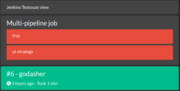 |
| job | This is used to render a Jenkins 'job' | 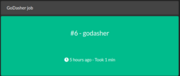 |
As you can saw on the screenshots, the plugins handles well the multi-pipeline job :)
In order to retrieve the right Jenkins resource, you need to name the object you desire. You must do it using the data property named name:
        data:
          name: testouze
The above exemple will retrieve the view/job name testouze on Jenkins and will render it on your dashboard.