If you need to develop a web app that obtains the information of logged-in Feishu users from the browser, you can refer to this article as an example. As an example about getting started with web app, this article describes how to use the identity verification capabilities provided by Feishu Open Platform to complete the login-free web page of a third party and obtain logged-in user information
-
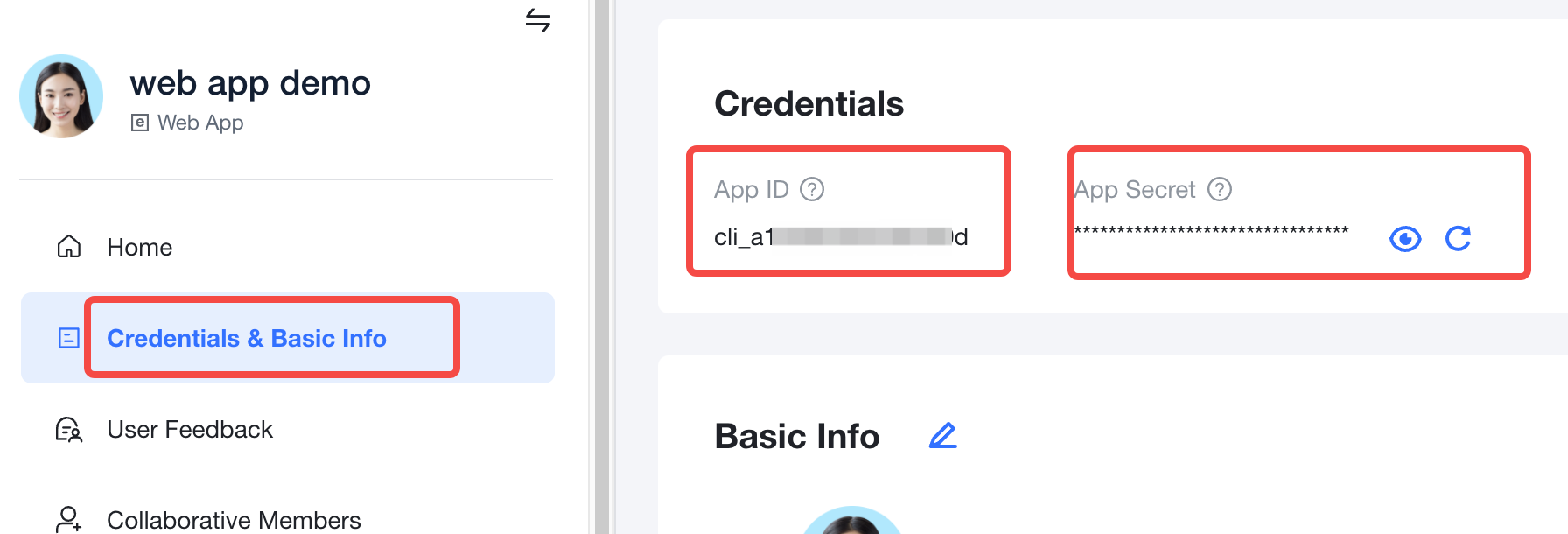
In Developer Console , click Create custom app. Once successfully created, click the app to open it, and click Credentials & Basic Info, where you can obtain the App ID and App Secret.
-
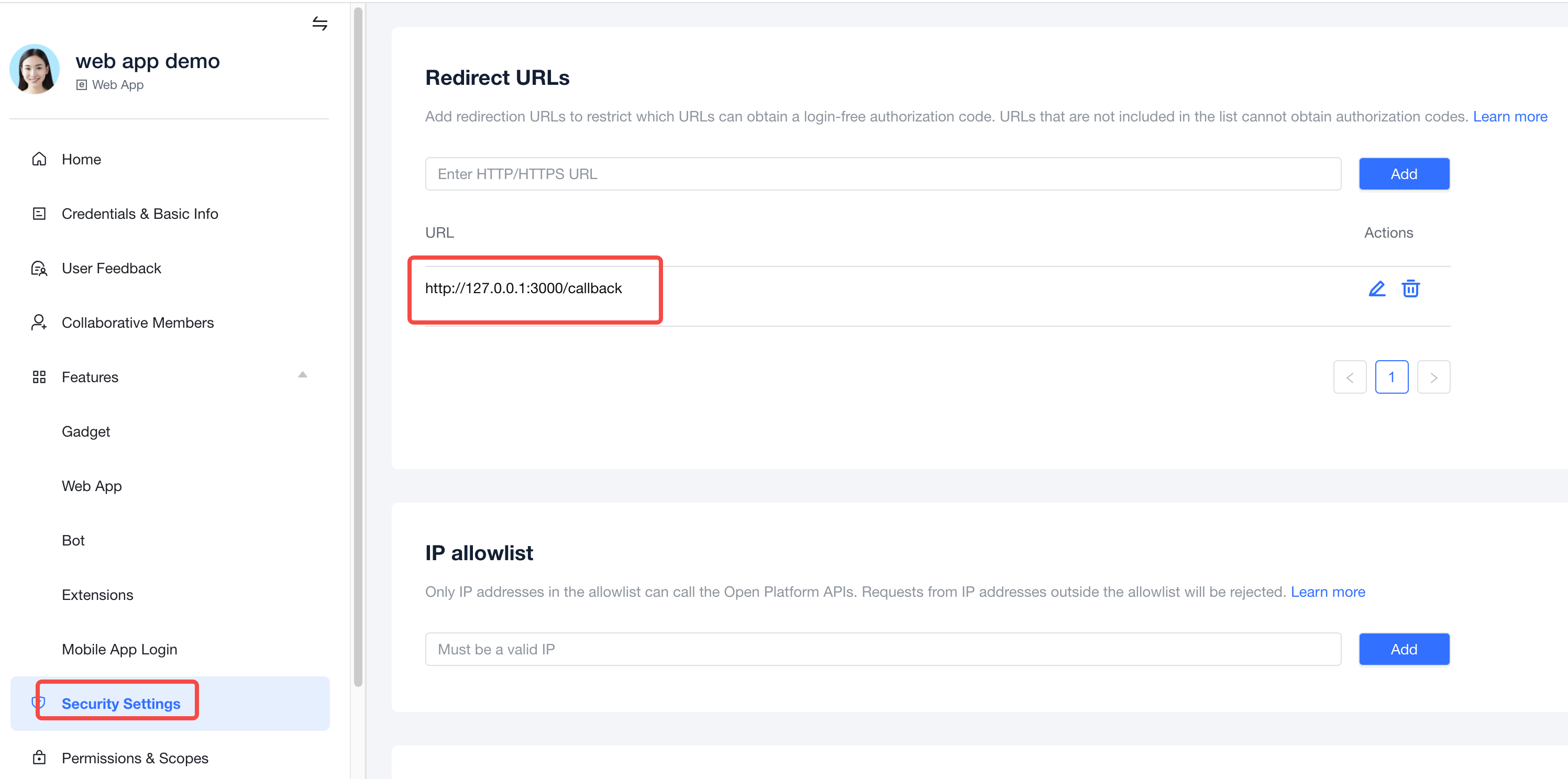
Click Security Settings. In Redirect URLs, configure the redirect URL allowlist as
http://127.0.0.1:3000/callback.Note: The redirect URL list configured here is the redirect URL allowlist of the app. If the redirect URL is not allowlisted, an error will be reported during login redirection.
-
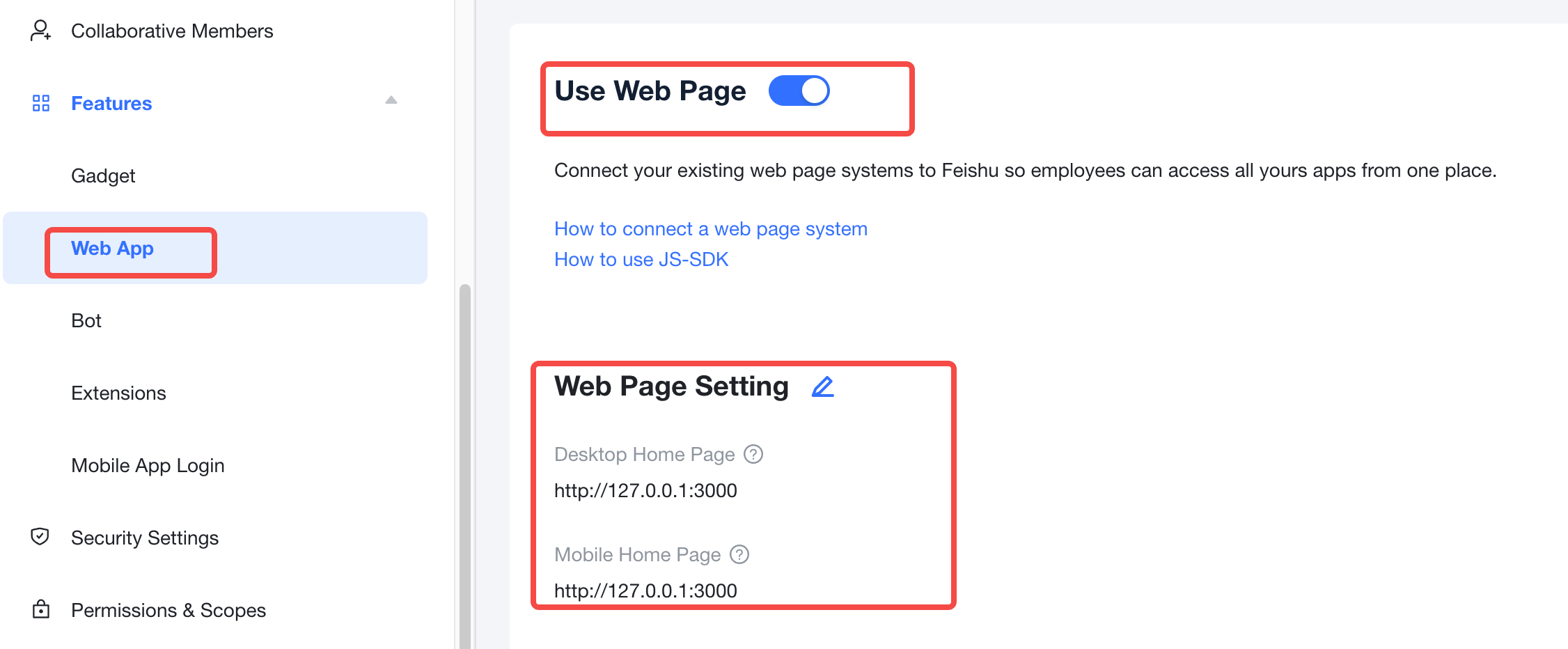
Click Web App switch page and turn on the Use Web Page option. Modify the Web Page Setting and enter
http://127.0.0.1:3000as both the Desktop Home Page and Mobile Home Page. -
Click Version Management & Release and create a version to release it online.
-
Click Create a version, enter the content required for release, and click Save.
Note: Only users within the Availability status can open the app.
-
Click Request for release and the app will go effective immediately.
-
Pull the latest code to local and enter the corresponding directory.
git clone https://github.com/larksuite/lark-samples.git cd lark-samples/web_app_with_auth_v1/python -
Edit environment variables Edit the app credential data in the
.envfile to real data.APP_ID=cli_9fxxxx00b APP_SECRET=EX6xxxxOFThe two parameters above can be found in Developer Console > Credentials & Basic Info.
The redirect URL configuration shall include the
CALLBACK_URLvalue defined in the.envfile. Otherwise, the redirection will report an error after login.CALLBACK_URL=http://127.0.0.1:3000/callback
Ensure that Docker has been installed before running.You can choose to run your code either with Docker or locally.
Mac/Linux
exec.sh
Windows
.\exec.ps1
After running, directly visit http://127.0.0.1:3000 and follow the link instructions to scan the code/authorize login.
User information will be visible once the login is successful.
-
Create and activate a new virtual environment.
Mac/Linux
python3 -m venv venv
. venv/bin/activate
Windows
python3 -m venv venv
venv\Scripts\activate
Once activated, the terminal will display the virtual environment's name.
(venv) **** python % -
Install dependencies
pip install -r requirements.txt -
Run
python3 server.pyAfter running, directly visit
http://127.0.0.1:3000and follow the link instructions to scan the code/authorize login. User information will be visible once the login is successful.
Go to Feishu > Workplace >Search for app name > Open app.