AFX is an Adobe After Effects plugin that streamlines the entire motion design workflow, from creation to delivery. It exports AE compositions to Lottie-compatible formats with Alpha Video support for advanced effects, and provides comprehensive validation, optimization, and preview tools.
- Overview
- Installation & Setup
- Core Concepts & Terminology
- AnimaX Export Module
- Troubleshooting & FAQ
AFX is a professional-grade Adobe After Effects plugin designed to enhance motion design workflows. It provides seamless export capabilities to AnimaX (ByteDance's enhanced Lottie framework) while maintaining full compatibility with standard Lottie players.
- AnimaX Export: Export AE compositions to AnimaX format with Lottie compatibility
- Alpha Video Support: Render unsupported AE effects as Alpha Video for hybrid playback
- Compatibility Detection: Pre-export validation of AE features and properties
- Artifact Optimization: Built-in image and video compression tools
- Live Preview: Real-time animation preview within the plugin interface
- Lynx Preview: QR code scanning for device testing with Lynx Viewer
- Adobe After Effects: 2025 or later recommended for optimal compatibility
- Operating System: Windows 10/11 or macOS 10.15+
- Memory: 8GB RAM minimum, 16GB recommended
- Storage: 500MB free space for plugin installation
Download the latest version of AFX from:
com.bytedance.afx.0.0.2-beta.17-16e562b-out.zxp
AFX is distributed as a ZXP (ZIP Extension Package) file. Follow these steps to install:
-
Download ZXP Installer:
- macOS: ZXP Installer.zip
- Windows: ZXPInstaller-Setup-1.8.2.exe
-
Install the Plugin:
- Launch ZXP Installer
- Drag and drop the AFX ZXP file into the installer window
- Follow the on-screen instructions to complete installation

AFX consists of two separate panels that must be opened in sequence:
-
Animax Server Panel (Background Services):
- Provides image compression, Lynx preview, artifact validation
- Must be opened first and docked to the AE interface
-
AFX Panel (User Interface):
- Main interface for export configuration and controls
- Opens after the server panel is running
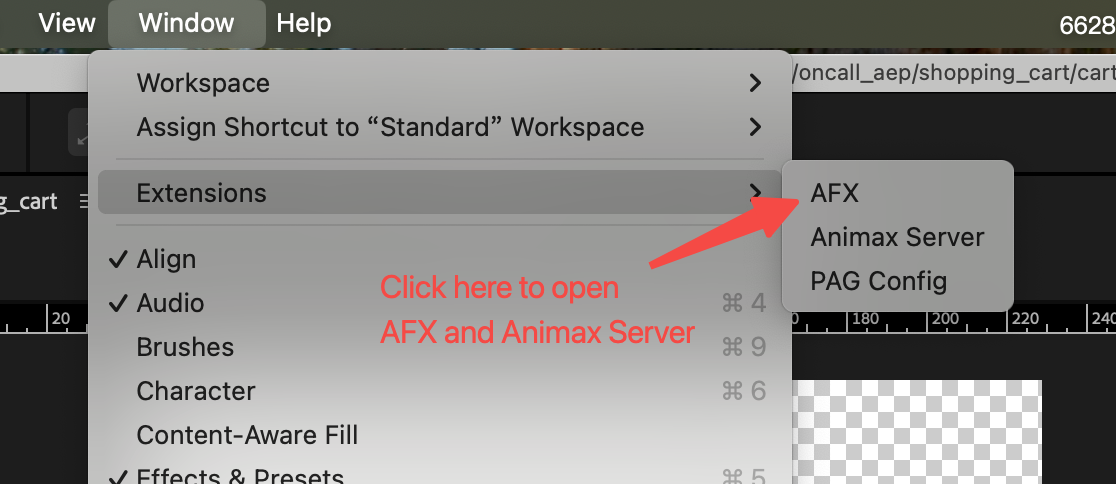
On first launch, ensure:
- Bodymovin and legacy Animax plugins are disabled to prevent conflicts
- Script write permissions are enabled in AE preferences
- AlphaMaker output templates are downloaded and installed
AnimaX (/ˈænɪmæks/) is ByteDance's proprietary C++ motion framework built on Skity rendering engine. It extends Lottie capabilities with support for advanced AE features like particle animations, 3D transformations, and complex gradients.
A video format where transparency information is stored alongside RGB data, typically by tiling the original video (left side: RGB, right side: alpha channel). Used to render AE effects that Lottie cannot natively support.
- Rendering: The process of exporting selected compositions to AnimaX format (data.json + images_en + videos)
- Output Artifacts: The exported files including data.json, images_en, and videos
- Artifact Validation: Built-in checks for image formats, dimensions, memory usage, and compliance with project specifications
Pre-export validation of:
- Composition properties
- Video composition dimensions (must be multiples of 16)
- Unsupported layer types
- Unsupported layer properties
- Unsupported effects and masks
The AnimaX Export module is the primary interface for exporting AE compositions. Ensure you have selected the correct module before proceeding.
-
Select Target Composition:
- Choose the composition you want to export from the dropdown list
- Multiple compositions can be selected for batch processing
-
Configure Output Location:
- Set the destination folder for exported files
- Each composition can have its own output directory
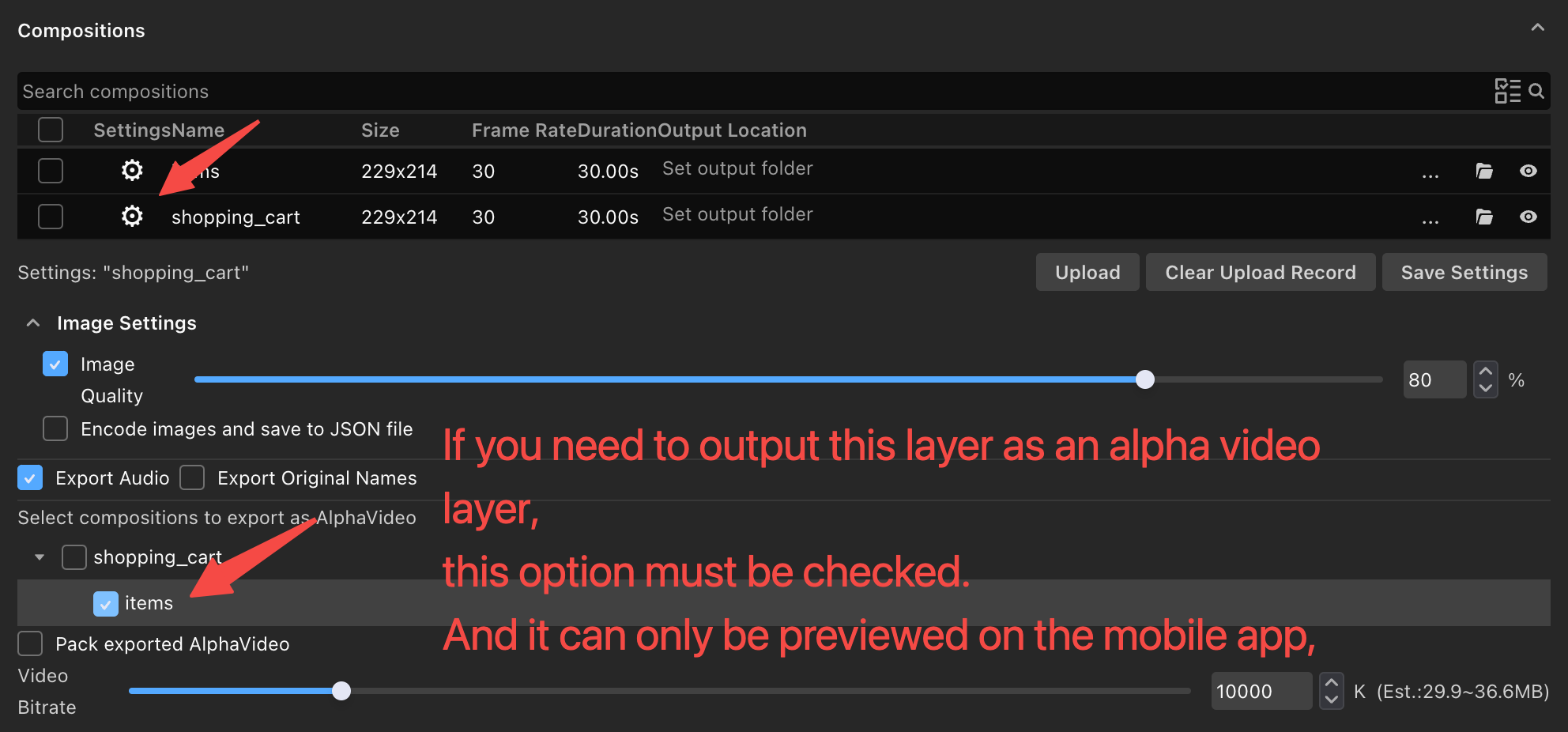
Access image configuration by clicking the gear icon next to the composition name:
- Image Compression: Set quality limits (default 0-80%). Lower values reduce file size but may affect quality
- Embed images_en as Base64: Convert images_en to base64 and embed directly in JSON file
- Note: Base64 encoding increases file size significantly
Important: It is highly recommended that filenames contain only ASCII characters (letters, numbers, and underscores) to avoid potential cross-platform compatibility issues. Any unsupported characters will be automatically replaced with underscores.

When compositions contain sub-compositions or unsupported AE features, you can export them as Alpha Video:
-
Select Layers for Alpha Video Export:
- Check the "Export as Alpha Video" option for specific compositions
- Videos are saved to the
videosdirectory and referenced in JSON
-
Packaged Alpha Video Export:
- MP4 files are compressed into ZIP archives in the
alphaPlayerdirectory - Original Lottie resources are moved to
animaxLottiedirectory - Note: This changes the output directory structure
- MP4 files are compressed into ZIP archives in the
Configure text layer font handling:
- Bundle Fonts: Copy font files from system to output
fontsdirectory
When compositions contain text layers without "Convert to Shapes" enabled, you'll be prompted to configure fonts:
- For Designers: Provide CDN URLs for web fonts
- For Developers: Modify the
fontsfield in the output JSON if needed
AFX provides real-time preview of exported animations directly within the plugin interface:
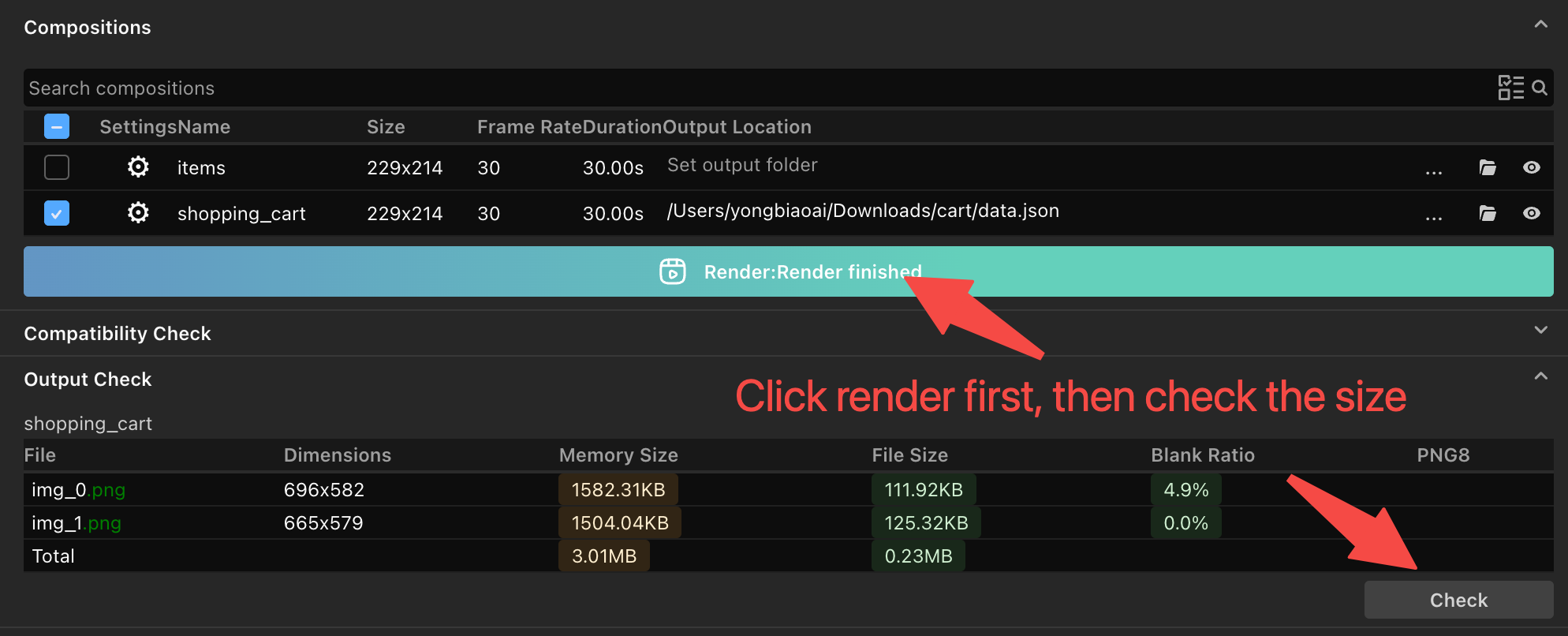
Current Limitations:
- Alpha Video preview not yet supported (planned for Q2 2026)
- Preview matches client-side rendering quality
After rendering, preview animations on mobile devices:
- Click the eye icon next to the composition
- Scan the generated QR code with the Douyin or Tiktok App
- View animations in the Animax Lynx Viewer interface

Upload artifacts to CDN for public access:
- Click "Upload to CDN" after rendering
- Record the data.json URL for sharing
- Use public apps for scanning (no internal test versions required)

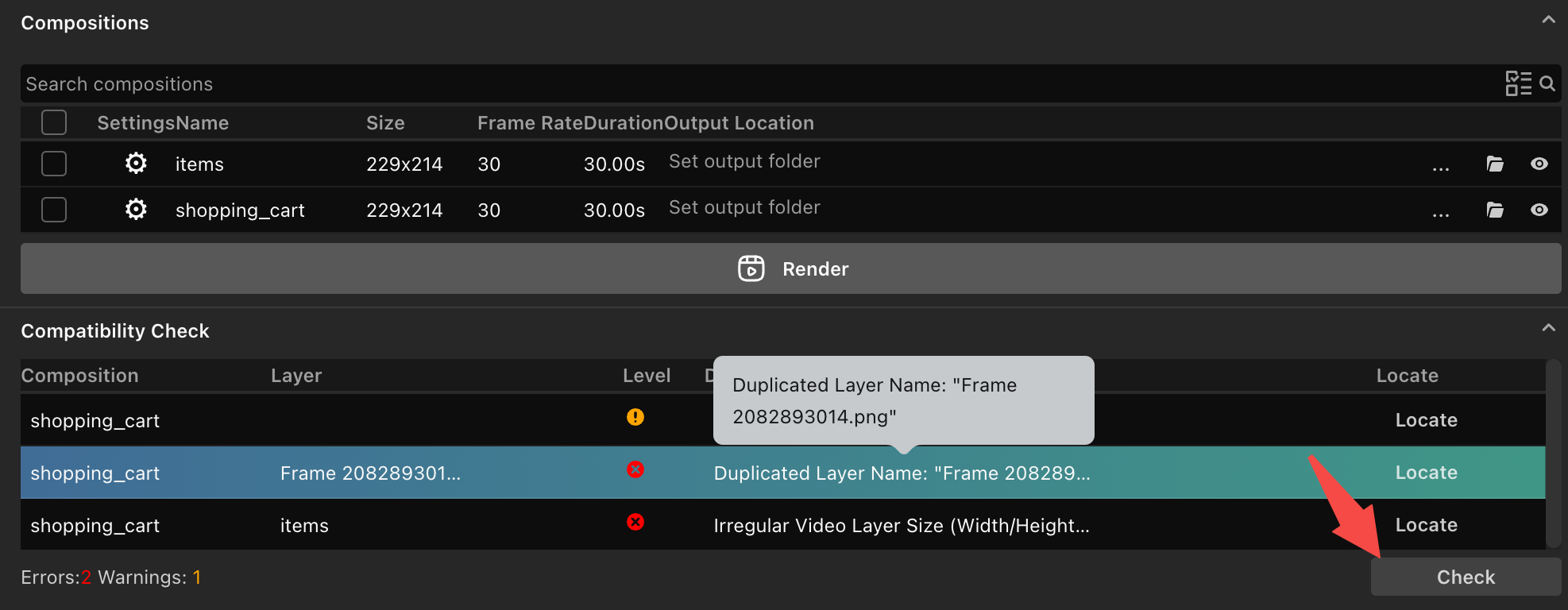
Validate compositions before export:
- Select the composition to check
- Click "Check" in the Compatibility Detection section
- Review warnings and errors
- Use "Locate" buttons to highlight problematic layers
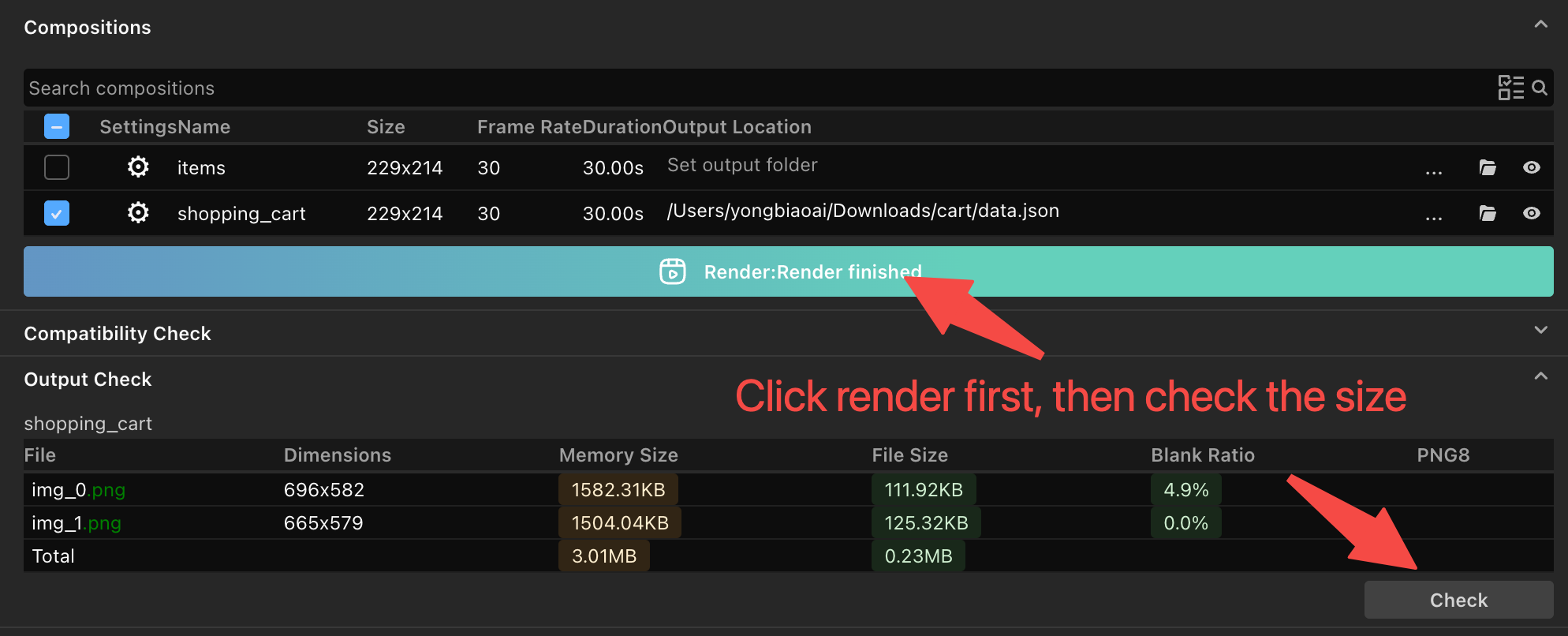
Validate exported files for compliance:
- Image Validation: Memory size, file size, blank space ratio, PNG8 format
- Video Validation: Dimensions, frame rate, codec compatibility
- Double-click filenames to open files in Finder/Explorer
- Automatic PNG compression using
imagemin - Conversion of opaque PNG images_en to JPG format
- Quality adjustment with real-time preview
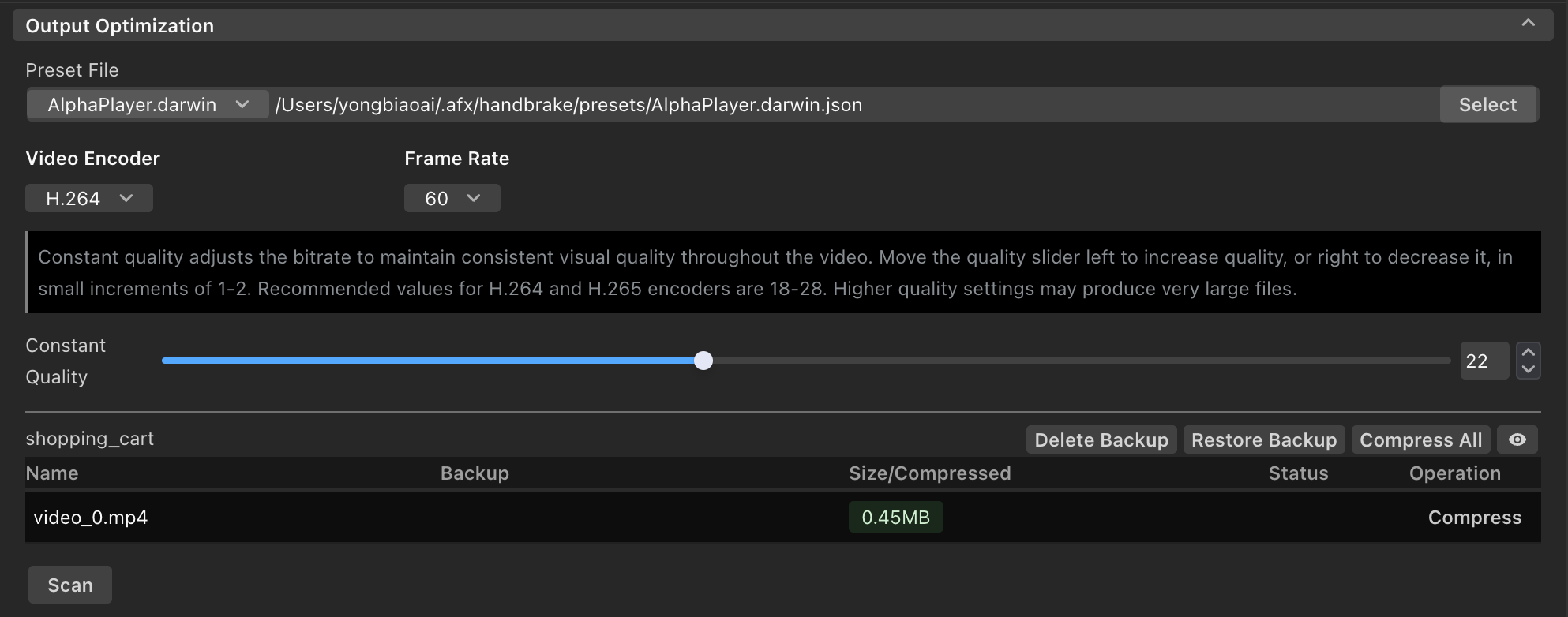
- Handbrake Integration: Compress exported video files
- Parameter Adjustment: Bitrate, frame rate, quality settings
- Backup Management: Restore original videos if compression results are unsatisfactory
Recommendation: Always test compressed Alpha Video on actual devices using Instant or Lynx preview.
Symptoms: Panels show "Loading..." indefinitely
Solutions:
- Ensure no third-party VPN software is running
- Check network configuration for virtual adapters
- Restart After Effects and reopen panels in correct sequence
Symptoms: Image quality settings have no effect
Solutions:
- Verify Animax Server is running (check http://localhost:8862/)
- Restart both AFX panels if server is not responding
- Check system permissions for compression tools
Symptoms: Exported videos have unwanted black borders
Cause: Composition dimensions are not multiples of 16
Solution: Set composition width and height to multiples of 16 before export
Symptoms: "Cannot verify developer" warnings for pngquant or ffmpeg
Solutions:
- Allow execution in System Settings → Security & Privacy
- For ffmpeg, run terminal commands to modify permissions:
cd '/Library/Application Support/Adobe/CEP/extensions/com.bytedance.afx/ffmpeg'
chmod +x ffmpeg
sudo xattr -d com.apple.quarantine ffmpegThird-party VPN software may create virtual network adapters that interfere with AFX server binding. Disable unnecessary virtual adapters in Network Connections settings.
If macOS repeatedly asks for ffmpeg permissions, execute the terminal commands above to permanently grant access.
- Images: Optimize for target device memory constraints
- Videos: Balance quality and file size based on network conditions
- Memory Usage: Monitor total artifact size for performance considerations
For animations that cannot be exported directly as Lottie:
- Render sequence frames to MOV files
- Convert MOV to AE composition
- Reference composition in target export
- Configure as Alpha Video export in AFX