Intro to Construct 2 (19:40)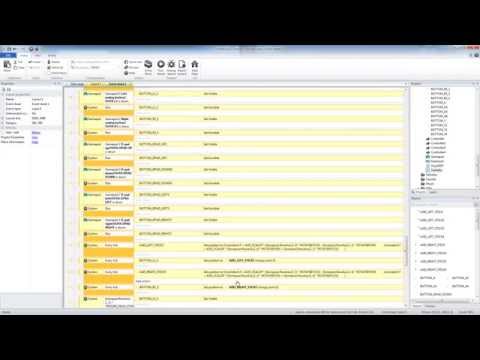
|
Construct 2 - https://www.scirra.com/construct2
Supported Platforms - https://www.scirra.com/manual/168/supported-platforms
Construct 2 is an visually programable engine that publishes HTML5.
-
Install Construct 2.
-
Install your license file into the
C:\Program Files\Construct 2\folder. -
Install the
Construct 2exporter changes into yourConstruct 2exporters folder. -
Restart Construct 2
Publishing to Cortex requires that you package the generated HTML5 from Construct 2 into an Android wrapper, Cordova. The wrapper provides accelerated WebGL and accelerated video decoding.
- Use the menu
File->Export project...item.

- Select
HTML5 websiteand clickNextbutton.

- Specify the
HTML5output folder and clickNextbutton (this should be theCordovawww folder).

- Select
Normal styleand click theExportbutton.

- Return to
Construct 2or open the destinationwwwfolder.

-
Before the
Cordovascripting can be run, be sure to install theCordovaCommand-Line Interface. -
Run the
package.cmdscript in the root of the project which runscordova run android.

- The script builds the
Androidapp, installs, and runs on the connectedAndroiddevice.

Before you can use the OuyaSDK be sure to create a game in the developer portal and download the signing key.
The IAP example places the signing key in Construct2\InAppPurchases\platforms\android\assets\key.der which gets packaged when running ouya-sdk-examples\Construct2\InAppPurchases\package.cmd after exporting HTML5 to Construct2\InAppPurchases\www.
You won't be charged when making IAP purchases of your own game.
Be sure to log into Cortex with the same developer account that the game is created for in the developer portal.
You can reverse purchases in the purchase page of the developer portal to test refund scenarios or testing first-time purchases.
Look for the View and remove your purchases of your products link on the bottom of the purchase page to refund purchases of your own game.
To access the OUYA SDK, insert an OuyaSDK object into your layout.
The OuyaSDK object has to be in the layout for the OuyaSDK events to fire.
Right click the Layout and select Insert New Object.

Select OuyaSDK and click Insert.

Interacting with the Cortex SDK can be done via the event sheet.
Add an event System\On start of layout.

Add actions addInitOuyaPluginValues and initOuyaPlugin to the On start of layout event.

The Developer UUID is available in the developer portal.
You must be logged in to see your Developer UUID.

addInitOuyaPluginValues has key and value arguments.
Add a key of "tv.ouya.developer_id".
Add a value using your Developer UUID.

The initOuyaPlugin action will invoke initializing the OUYA Plugin given the values added with addInitOuyaPluginValues.

Initialize OUYA Plugin on Success will be invoked if the OUYA Plugin was initialized.
Initialize OUYA Plugin on Failure will be invoked if the OUYA Plugin failed to initialize.
-
After the success callback, the other IAP actions can be invoked.
-
After the failure callback, be sure to reinvoke the
InitOuyaPluginaction to ensure theOUYAplugin successfully initializes.

Actions can be added to the init events.

The onFailure event provides error code and error message fields.
-
OuyaSDK.errorCodeOnFailureInitOuyaPlugin- The failureerror codeas a number -
OuyaSDK.errorMessageOnFailureInitOuyaPlugin- The failureerror messageas a string
addInitOuyaPluginValues supports additional strings to make the game compatible with OUYA Everywhere devices.
-
tv.ouya.developer_id- The developer UUID can be found in the developer portal after logging in. -
com.xiaomi.app_id- The Xiaomi App Id is provided by the content team, emailofficehours@ouya.tvto obtain your key. -
com.xiaomi.app_key- The Xiaomi App Key is provided by the content team, emailofficehours@ouya.tvto obtain your key. -
tv.ouya.product_id_list- The product id list is a comma separated list of product ids that can be purchased in the game.

The gamer info includes the gamer's username and unique identifier. Add an OuyaSDK\Request Gamer Info action.

Request Gamer Info has 3 events for on Success, on Failure, and on Cancel.

The Gamer Info fields are available in the onSuccess event.
OuyaSDK.GamerInfoUsername returns the string for the gamer's username which can be used to display in a Text object.
OuyaSDK.GamerInfoUuid returns the string for the gamer's unique identifier.

The onFailure event provides error code and error message fields.
-
OuyaSDK.errorCodeOnFailureRequestGamerInfo- The failureerror codeas a number -
OuyaSDK.errorMessageOnFailureRequestGamerInfo- The failureerror messageas a string
Requesting products gets the details about the Product created in the developer portal.
{
    "currencyCode": "USD",
    "originalPrice": 2.99,
    "localPrice": 2.99,
    "description": "",
    "name": "Sharp Axe",
    "developerName": "Sample Developer",
    "identifier": "sharp_axe",
    "percentOff": 0
}
Add the action OuyaSDK\Request Products.

Request Products takes a string which is a comma separated list of product ids.
You can pass a comma separated list "a,b,c,d,e,f" or a single product "my_awesome_sauce".

The IAP example waits for a button press before invoking the Request Products action.

Request Products has 3 events for on Success, on Failure, and on Cancel.

Request Products on Success gets a list of product details.
OuyaSDK.ProductsLength returns the count of products returned.

Retrieving product details uses an index from 0 to (OuyaSDK.ProductsLength - 1).
Create a global ProductIndex used to get the product details.

Use the Set action to set the ProductIndex to start at the beginning of the products list.

Add a Repeat event to iterate over each of the returned products.

The count will be OuyaSDK.ProductsLength times.

All the OuyaSDK.GetProducts* accessors take the ProductIndex to return the Product item's details.
OuyaSDK.GetProductsIdentifier(ProductIndex) - Returns a string of the product identifier
OuyaSDK.GetProductsName(ProductIndex) - Returns a string of the product name
OuyaSDK.GetProductsDescription(ProductIndex) - Returns a string of the product description
OuyaSDK.GetProductsLocalPrice(ProductIndex) returns a float for the local price of the product.
Increment the ProductIndex with a Set action after looking up the data for each product.

The onFailure event provides error code and error message fields.
-
OuyaSDK.errorCodeOnFailureRequestProducts- The failureerror codeas a number -
OuyaSDK.errorMessageOnFailureRequestProducts- The failureerror messageas a string
Requesting a purchase requires the Product entitlement or consumable was created in the developer portal.
Add the action OuyaSDK\Request Purchase.

Request Purchase has 3 events for on Success, on Failure, and on Cancel.

The onFailure event provides error code and error message fields.
-
OuyaSDK.errorCodeOnFailureRequestPurchase- The failureerror codeas a number -
OuyaSDK.errorMessageOnFailureRequestPurchase- The failureerror messageas a string
A receipt indicates that the gamer has purchased your entitlement.
After querying the receipts list, iterate through the items to check if your entitlement product_id is found to unlock the full game or feature.
{
    "gamer": "2927b3d9-e940-077a-8f68-af923f52f5d9",
    "uuid": "be05dfcdc4eb0d50",
    "generatedDate": "Thu Jan 01 00:00:00 GMT 1970",
    "localPrice": 0.99,
    "identifier": "cool_level",
    "currency": "USD",
    "purchaseDate": "Tue Nov 11 01:36:12 GMT 2014"
}
Add the action OuyaSDK\Request Receipts.

Request Receipts has 3 events for on Success, on Failure, and on Cancel.

Request Receipts on Success gets a list of receipt details. OuyaSDK.ReceiptsLength returns the count of receipts returned.

Retrieving receipts details uses an index from 0 to (OuyaSDK.ReceiptsLength - 1). Create a global ReceiptIndex used to get the receipt details.

Use the Set action to set the ReceiptIndex to start at the beginning of the receipts list.

Add a Repeat event to iterate over each of the returned receipts.
The count will be OuyaSDK.ReceiptsLength times.

All the OuyaSDK.GetReceipts* accessors take the ReceiptIndex to return the Receipt item's details.
OuyaSDK.GetReceiptsIdentifier(ReceiptIndex) - Returns a string of the product identifier
OuyaSDK.GetReceiptsGeneratedDate(ReceiptIndex) - Returns a string of the generated date
OuyaSDK.GetReceiptsLocalPrice(ReceiptIndex) returns a float for the local price of the receipt.
Increment the ReceiptIndex with a Set action after looking up the data for each product.

The onFailure event provides error code and error message fields.
-
OuyaSDK.errorCodeOnFailureRequestReceipts- The failureerror codeas a number -
OuyaSDK.errorMessageOnFailureRequestReceipts- The failureerror messageas a string
Add the action OuyaSDK\Set Safe Area.

The IAP example uses a floating-point SafeAreaAmount global variable that adjusts the safe area amount.

The Set Safe Area action takes a SafeAreaAmount floating-point number. Safe area amounts range from 0.0 with full border to 1.0 with border.

Set Safe Area has 2 events for on Success, and on Failure.

The onFailure event provides error code and error message fields.
-
OuyaSDK.errorCodeOnFailureSetSafeArea- The failureerror codeas a number -
OuyaSDK.errorMessageOnFailureSetSafeArea- The failureerror messageas a string
Add the action OuyaSDK\Shutdown.

Shutdown has 2 events for on Success, and on Failure.

The onFailure event provides error code and error message fields.
-
OuyaSDK.errorCodeOnFailureShutdown- The failureerror codeas a number -
OuyaSDK.errorMessageOnFailureShutdown- The failureerror messageas a string
The examples are capx files which are complete projects that depend on installing the OuyaSDK Construct 2 plugin.
The Virtual Controller example shows 4 images of the OUYA Controller which moves axises and highlights buttons when the physical controller is manipulated. The Virtual Controller example includes support for OUYA-Everywhere.

Open the VirtualController.capx from the Construct2\VirtualController example folder.
- The initial
Cordovaproject was created with the command-line from theConstruct2folder.
cordova create VirtualController tv.ouya.examples.construct2.virtualcontroller VirtualController
Androidsupport is added to theCordovaproject with the following command-line from theConstruct2/VirtualControllerfolder.
cordova platform add android
- Use the
Cordovacommand-line to add thecordova-plugin-ouya-sdkplugin.
cordova plugin add https://github.com/ouya/cordova-plugin-ouya-sdk.git#master
- To build and run the
Virtual Controller Examplerun the following command from theConstruct2/VirtualControllerfolder.
cordova run android
- Manually copy
plugins\cordova-plugin-ouya-sdk\src\android\MainActivity.javatoplatforms\android\src\tv\ouya\examples\construct2\virtualcontroller\MainActivity.javaand edit the package name to betv.ouya.examples.construct2.virtualcontroller.Cordovaauto-configs cannot replaceXMLnodes making this manual one-off necessary.
package tv.ouya.examples.construct2.virtualcontroller;
- When building in
Construct 2and exporting toHTML5be sure to output to theConstruct2\VirtualController\wwwfolder so that the above command will pick up the files.
The In-App-Purchases example shows making purchases, checking receipts, adjusting the safe area, and exiting the app.

Open the InAppPurchases.capx from the Construct2\InAppPurchases example folder.
- The initial
Cordovaproject was created with the command-line from theConstruct2folder.
cordova create InAppPurchases tv.ouya.examples.construct2.inapppurchases InAppPurchases
Androidsupport is added to theCordovaproject with the following command-line from theConstruct2/InAppPurchasesfolder.
cordova platform add android
- Use the
Cordovacommand-line to add thecordova-plugin-ouya-sdkplugin.
cordova plugin add https://github.com/ouya/cordova-plugin-ouya-sdk.git#master
- To build and run the
In-App-Purchases Examplerun the following command from theConstruct2/InAppPurchasesfolder.
cordova run android
- Manually copy
plugins\cordova-plugin-ouya-sdk\src\android\MainActivity.javatoplatforms\android\src\tv\ouya\examples\construct2\inapppurchases\MainActivity.javaand edit the package name to betv.ouya.examples.construct2.inapppurchases.Cordovaauto-configs cannot replaceXMLnodes making this manual one-off necessary.
package tv.ouya.examples.construct2.inapppurchases;
- When building in
Construct 2and exporting toHTML5be sure to output to theConstruct2\InAppPurchases\wwwfolder so that the above command will pick up the files.