The Power Menu in Pieces is a dynamic command palette that gives you quick access to navigation and actions throughout the app. It's designed to keep you in the flow—whether you're working in Workstream Activity, Pieces Copilot, or any other view.
Think of it as your command center for moving around Pieces quickly and efficiently.
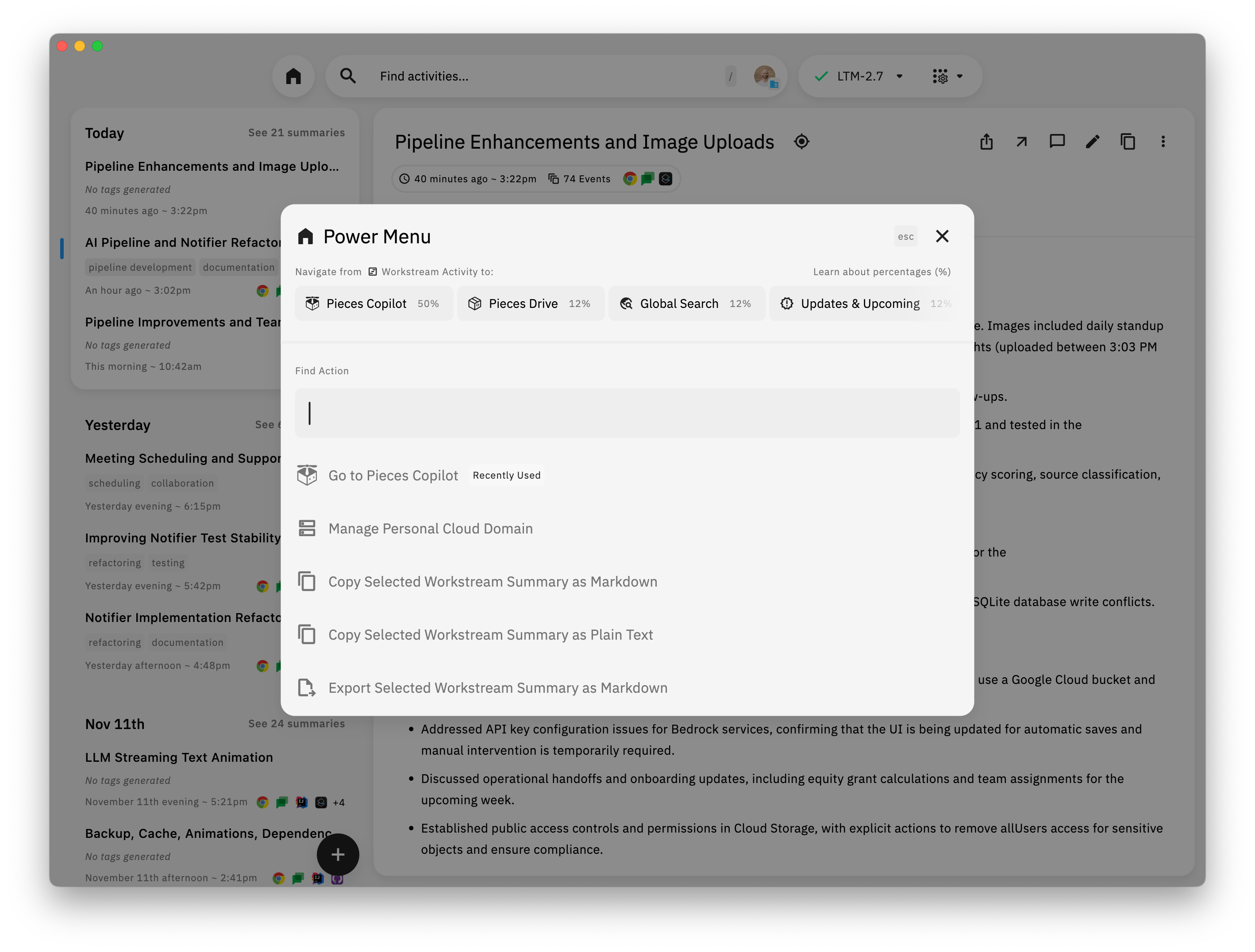
You can open the Power Menu in two ways:
- Keyboard shortcut — Press the Power Menu hotkey (check your keyboard shortcuts in Settings)
- App interface — Open it from the app interface
Once open, you can search for any command or action you need.
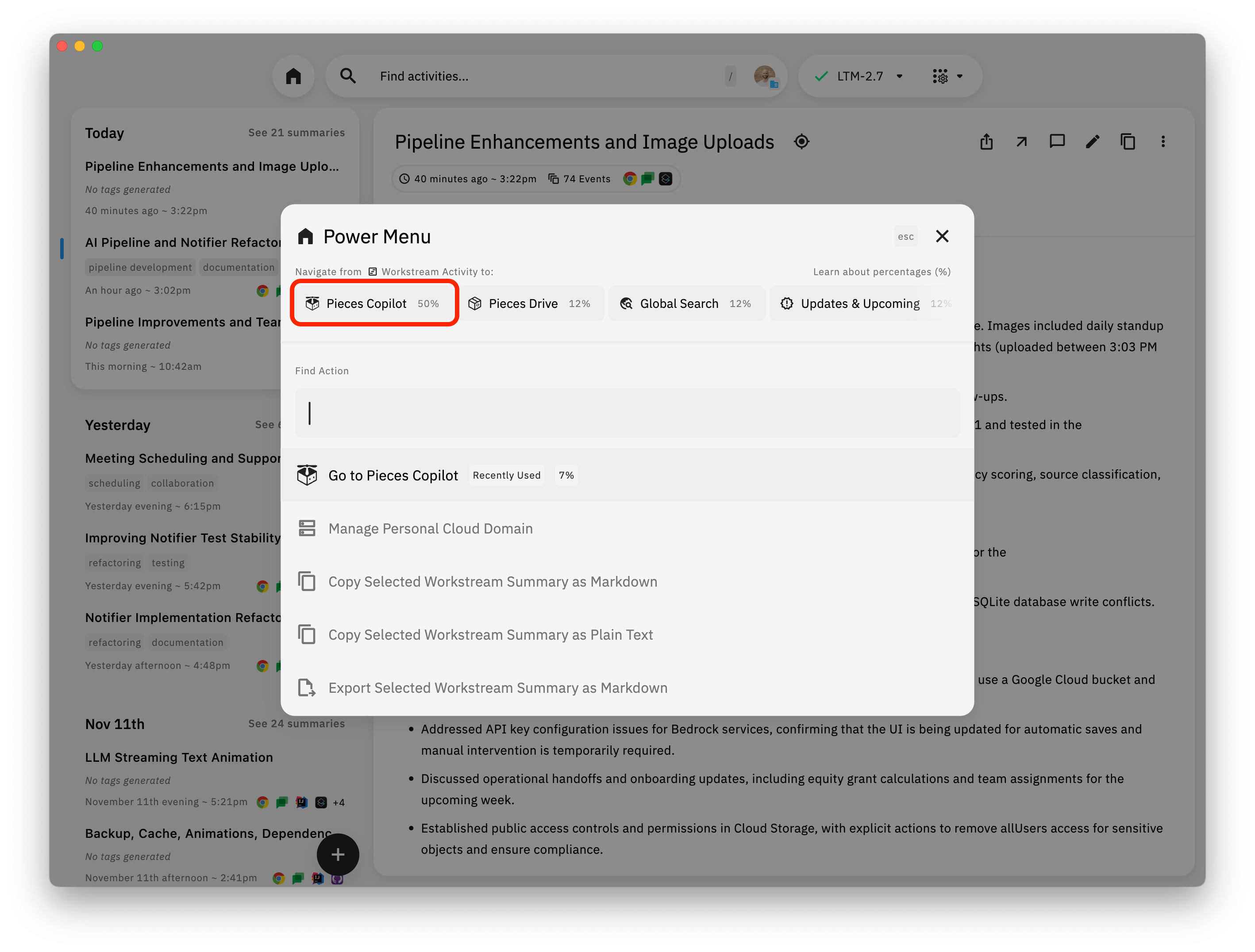
The Power Menu makes it easy to jump between Workstream Activity and Pieces Copilot—two of the most powerful features in Pieces.
To navigate to Pieces Copilot:
- Open the Power Menu
- Search for "Go to Pieces Copilot" or type "copilot"
- Select the command
You'll be taken directly to Pieces Copilot, ready to start a conversation or continue an existing chat.
To navigate to Workstream Activity:
- Open the Power Menu
- Search for "Go to Workstream Activity" or type "workstream"
- Select the command
You'll instantly be taken to your Workstream Activity timeline, where you can browse summaries, search, and interact with your work history.
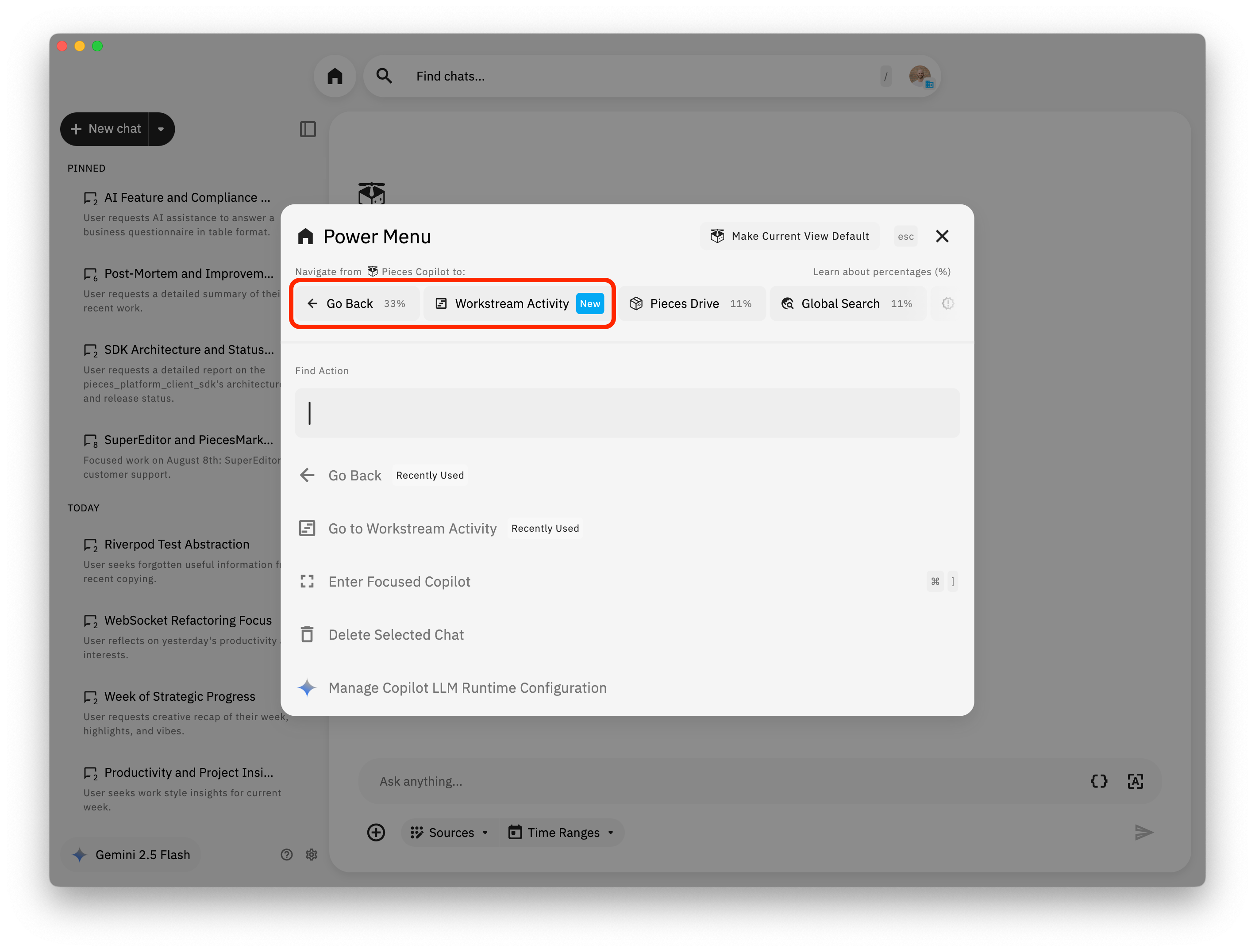
The Power Menu is context-aware—it shows suggested actions based on where you are in the app. When you're in Workstream Activity, you'll see Copilot-related commands prominently displayed, and vice versa.
Pro Tip: The Power Menu learns from your usage patterns. Frequently used navigation commands will appear higher in the list, making your most common jumps even faster.
The Power Menu has a search function—use it! Type a few letters of what you're looking for (like "workstream" or "copilot") and the relevant commands will appear instantly.
Set up and memorize the Power Menu keyboard shortcut. It's the fastest way to navigate—you can jump between views without touching your mouse.
The Power Menu works from any view in Pieces. Whether you're in Workstream Activity, Pieces Copilot, Pieces Drive, or Settings, you can always open the Power Menu to navigate anywhere else.
Remember that the Power Menu is dynamic. Commands relevant to your current view will appear first, making common workflows faster.
- Browse summaries in Workstream Activity
- See something interesting
- Open Power Menu
- Select "Pieces Copilot"
- Ask about the topic from the summary
- Working in Pieces Copilot
- Want to check what you did earlier
- Open Power Menu
- Select "Workstream Activity"
- Browse or search summaries
- In any view
- Open Power Menu
- Type "workstream" or "copilot"
- Select the destination
- Continue your work
The Power Menu is your fast track to navigating Pieces. Whether you're jumping between Workstream Activity and Pieces Copilot, or starting new conversations from summaries, the Power Menu keeps you in the flow.
Key Takeaways:
- Fast Navigation — Jump between views instantly
- Context-Aware — Shows relevant commands based on where you are
- Searchable — Type to find what you need quickly
- Keyboard Shortcuts — Learn the hotkey for even faster access
- Workflow Integration — Seamlessly connect Workstream Activity and Copilot
Learn the Power Menu, and you'll navigate Pieces like a pro.
Stay in the flow with the Power Menu—your command center for navigating Pieces.
| ← Previous: Workstream Activity Timeline | Next: How to Enable LTM Audio Capture → |