
(위 이미지를 클릭하면 이 강의의 영상을 볼 수 있습니다)
지금까지 이 커리큘럼을 통해 프롬프트 같은 핵심 개념과 "프롬프트 엔지니어링"이라는 분야까지 살펴보았습니다. ChatGPT, Office 365, Microsoft Power Platform 등 다양한 도구들이 프롬프트를 사용해 작업을 수행하도록 지원합니다.
앱에 이런 경험을 추가하려면 프롬프트, 완성(completion) 같은 개념을 이해하고 함께 사용할 라이브러리를 선택해야 합니다. 바로 이 장에서 그 내용을 배우게 됩니다.
이 장에서 여러분은:
- openai 라이브러리와 그 핵심 개념을 배웁니다.
- openai를 사용해 텍스트 생성 앱을 만듭니다.
- 프롬프트, 온도(temperature), 토큰(tokens) 같은 개념을 활용해 텍스트 생성 앱을 만드는 방법을 이해합니다.
이 강의를 마치면 다음을 할 수 있습니다:
- 텍스트 생성 앱이 무엇인지 설명할 수 있습니다.
- openai를 사용해 텍스트 생성 앱을 만들 수 있습니다.
- 앱을 설정해 토큰 수를 조절하거나 온도를 변경해 다양한 결과를 얻을 수 있습니다.
일반적으로 앱을 만들면 다음과 같은 인터페이스가 있습니다:
- 명령어 기반. 콘솔 앱은 명령어를 입력하면 작업을 수행하는 전형적인 앱입니다. 예를 들어
git은 명령어 기반 앱입니다. - 사용자 인터페이스(UI). 일부 앱은 버튼 클릭, 텍스트 입력, 옵션 선택 등 그래픽 사용자 인터페이스(GUI)를 갖추고 있습니다.
명령어 기반 앱과 비교해 보면:
- 제한적입니다. 앱이 지원하는 명령어만 입력할 수 있고, 아무 명령어나 쓸 수 없습니다.
- 언어 제한. 일부 앱은 여러 언어를 지원하지만 기본적으로 특정 언어에 맞춰 만들어집니다. 추가 언어 지원이 가능하더라도 기본 언어가 정해져 있습니다.
텍스트 생성 앱은 어떻게 다를까요?
텍스트 생성 앱은 더 유연합니다. 정해진 명령어나 특정 입력 언어에 제한되지 않고 자연어로 앱과 상호작용할 수 있습니다. 또, 방대한 데이터로 학습된 데이터 소스와 상호작용하기 때문에 전통적인 앱이 데이터베이스에 제한되는 것과 달리 더 많은 정보를 활용할 수 있습니다.
다양한 것을 만들 수 있습니다. 예를 들어:
- 챗봇. 회사와 제품에 관한 질문에 답하는 챗봇이 좋은 예입니다.
- 도우미. LLM은 텍스트 요약, 인사이트 추출, 이력서 작성 등 텍스트 생성에 뛰어납니다.
- 코드 어시스턴트. 사용하는 언어 모델에 따라 코드를 작성하는 데 도움을 주는 코드 어시스턴트를 만들 수 있습니다. 예를 들어 GitHub Copilot이나 ChatGPT를 활용할 수 있습니다.
LLM과 통합하는 방법은 보통 두 가지입니다:
- API 사용. 프롬프트를 포함한 웹 요청을 보내고 생성된 텍스트를 받습니다.
- 라이브러리 사용. 라이브러리는 API 호출을 감싸서 더 쉽게 사용할 수 있게 도와줍니다.
LLM 작업에 널리 알려진 라이브러리로는:
- openai: 모델에 쉽게 연결하고 프롬프트를 보낼 수 있게 해줍니다.
더 높은 수준에서 작동하는 라이브러리도 있습니다:
- Langchain: 잘 알려져 있으며 Python을 지원합니다.
- Semantic Kernel: Microsoft에서 만든 라이브러리로 C#, Python, Java를 지원합니다.
첫 번째 앱을 어떻게 만들고, 필요한 라이브러리는 무엇인지 살펴보겠습니다.
OpenAI 또는 Azure OpenAI와 상호작용하는 라이브러리는 많습니다. C#, Python, JavaScript, Java 등 다양한 프로그래밍 언어를 사용할 수 있습니다. 여기서는 openai Python 라이브러리를 사용하며, pip로 설치합니다.
pip install openai다음 단계를 수행해야 합니다:
-
Azure 계정을 만듭니다: https://azure.microsoft.com/free/.
-
Azure OpenAI에 접근 권한을 얻습니다. https://learn.microsoft.com/azure/ai-services/openai/overview#how-do-i-get-access-to-azure-openai 에서 접근 권한을 요청하세요.
[!NOTE] 작성 시점에는 Azure OpenAI 접근 권한을 신청해야 합니다.
-
Python 설치 https://www.python.org/
-
Azure OpenAI 서비스 리소스를 생성합니다. 리소스 생성 방법은 이 가이드를 참고하세요: 리소스 생성.
이제 openai 라이브러리에 사용할 API 키를 알려줘야 합니다. Azure OpenAI 리소스의 "Keys and Endpoint" 섹션으로 가서 "Key 1" 값을 복사하세요.
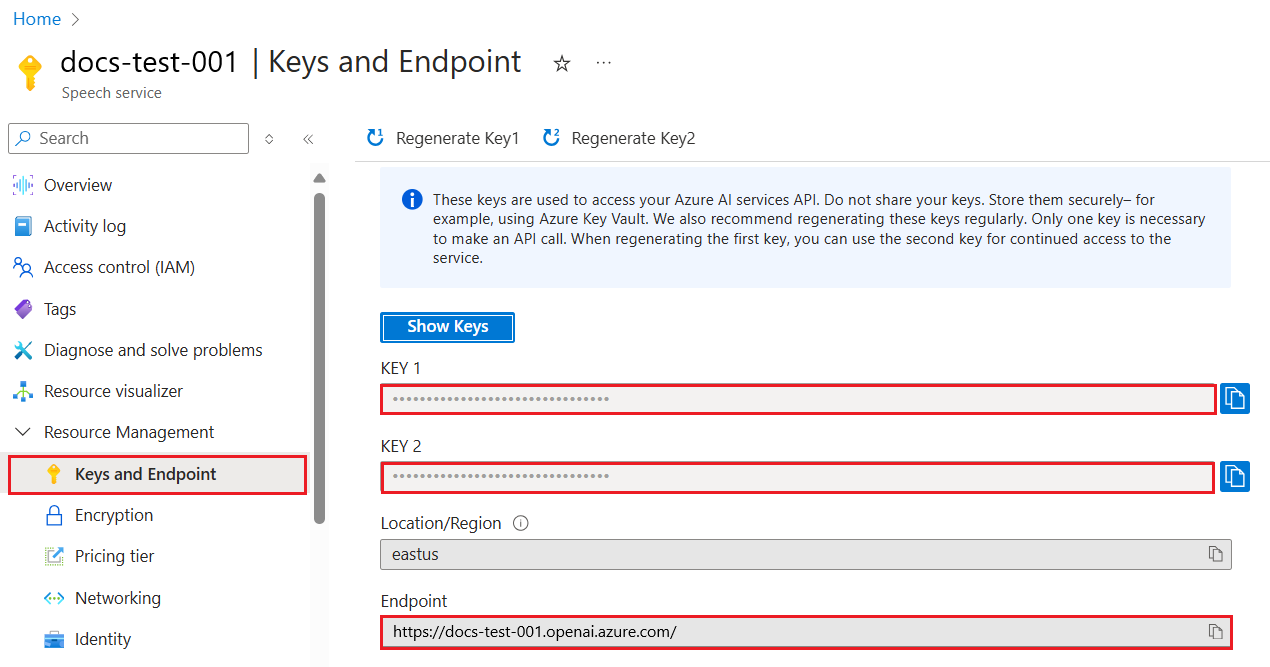
복사한 정보를 바탕으로 라이브러리에 사용법을 알려줍니다.
Note
API 키를 코드와 분리하는 것이 좋습니다. 환경 변수를 사용해 설정할 수 있습니다.
- 환경 변수
OPENAI_API_KEY에 API 키를 설정하세요.export OPENAI_API_KEY='sk-...'
Azure OpenAI를 사용하는 경우 구성 설정 방법은 다음과 같습니다:
openai.api_type = 'azure'
openai.api_key = os.environ["OPENAI_API_KEY"]
openai.api_version = '2023-05-15'
openai.api_base = os.getenv("API_BASE")
위 코드에서 설정하는 내용은:
api_type을azure로 설정해 Azure OpenAI를 사용하도록 지정합니다.api_key는 Azure 포털에서 찾은 API 키입니다.api_version은 사용할 API 버전입니다. 작성 시점 최신 버전은2023-05-15입니다.api_base는 API 엔드포인트로, Azure 포털에서 API 키 옆에 있습니다.
Note
os.getenv는 환경 변수를 읽는 함수입니다. OPENAI_API_KEY와 API_BASE 같은 환경 변수를 읽을 때 사용합니다. 터미널에서 직접 설정하거나 dotenv 같은 라이브러리를 사용할 수 있습니다.
텍스트를 생성하는 방법은 Completion 클래스를 사용하는 것입니다. 예시는 다음과 같습니다:
prompt = "Complete the following: Once upon a time there was a"

completion = openai.Completion.create(model="davinci-002", prompt=prompt)
print(completion.choices[0].text)
위 코드에서는 completion 객체를 만들고 사용할 모델과 프롬프트를 전달합니다. 그리고 생성된 텍스트를 출력합니다.
지금까지 Completion을 사용해 텍스트를 생성하는 방법을 보았습니다. 하지만 챗봇에 더 적합한 ChatCompletion이라는 클래스도 있습니다. 사용 예시는 다음과 같습니다:
import openai

openai.api_key = "sk-..."

completion = openai.ChatCompletion.create(model="gpt-3.5-turbo", messages=[{"role": "user", "content": "Hello world"}])
print(completion.choices[0].message.content)
이 기능에 대해서는 다음 장에서 더 자세히 다룹니다.
openai 설정과 구성을 배웠으니, 이제 첫 번째 텍스트 생성 앱을 만들어 봅시다. 다음 단계를 따라 하세요:
-
가상 환경을 만들고 openai를 설치합니다:
python -m venv venv
source venv/bin/activate
pip install openai
[!NOTE] Windows를 사용하는 경우
source venv/bin/activate대신venv\Scripts\activate를 입력하세요.[!NOTE] Azure OpenAI 키는 https://portal.azure.com/ 에서
Open AI를 검색해Open AI resource를 선택한 후Keys and Endpoint에서Key 1값을 복사하세요. -
app.py 파일을 만들고 다음 코드를 입력하세요:
import openai

openai.api_key = "<replace this value with your open ai key or Azure OpenAI key>"

openai.api_type = 'azure'
openai.api_version = '2023-05-15'
openai.api_base = "<endpoint found in Azure Portal where your API key is>"
deployment_name = "<deployment name>"

# add your completion code
prompt = "Complete the following: Once upon a time there was a"
messages = [{"role": "user", "content": prompt}]

# make completion
completion = openai.chat.completions.create(model=deployment_name, messages=messages)

# print response
print(completion.choices[0].message.content)
[!NOTE] Azure OpenAI를 사용하는 경우
api_type을azure로,api_key를 Azure OpenAI 키로 설정해야 합니다.다음과 같은 출력이 나올 것입니다:
 very unhappy _____.

Once upon a time there was a very unhappy mermaid.
이제 프롬프트를 사용해 텍스트를 생성하는 방법을 알게 되었습니다. 실행 가능한 프로그램도 만들어서 다양한 텍스트를 생성하도록 수정할 수 있습니다.
프롬프트는 여러 작업에 활용할 수 있습니다. 예를 들어:
- 특정 유형의 텍스트 생성. 예를 들어 시, 퀴즈 질문 등을 생성할 수 있습니다.
- 정보 조회. '웹 개발에서 CORS가 무엇인가요?' 같은 질문에 답하도록 프롬프트를 사용할 수 있습니다.
- 코드 생성. 이메일 검증용 정규식 생성이나 웹 앱 같은 전체 프로그램 생성도 가능합니다.
집에 재료가 있고 요리를 하고 싶다고 가정해 봅시다. 요리를 위해 레시피가 필요합니다. 레시피를 찾는 방법으로 검색 엔진을 쓰거나 LLM을 활용할 수 있습니다.
다음과 같은 프롬프트를 작성할 수 있습니다:
"다음 재료로 만들 수 있는 요리 5가지 레시피를 보여주세요: 닭고기, 감자, 당근. 각 레시피마다 사용된 모든 재료를 나열해 주세요."
위 프롬프트에 대한 응답은 다음과 비슷할 수 있습니다:
1. Roasted Chicken and Vegetables:
Ingredients:
- 4 chicken thighs
- 2 potatoes, cut into cubes
- 2 carrots, cut into cubes
- 2 tablespoons olive oil
- 2 cloves garlic, minced
- 1 teaspoon dried thyme
- 1 teaspoon dried oregano
- Salt and pepper, to taste

2. Chicken and Potato Stew:
Ingredients:
- 2 tablespoons olive oil
- 1 onion, diced
- 2 cloves garlic, minced
- 2 chicken breasts, cut into cubes
- 2 potatoes, cut into cubes
- 2 carrots, cut into cubes
- 1 teaspoon dried oregano
- 1 teaspoon dried thyme
- 1 cup chicken broth
- Salt and pepper, to taste

3. Chicken and Potato Bake:
Ingredients:
- 2 tablespoons olive oil
- 2 chicken breasts, cut into cubes
- 2 potatoes, cut into cubes
- 2 carrots, cut into cubes
- 1 onion, diced
- 2 cloves garlic, minced
- 1 teaspoon dried oregano
- 1 teaspoon dried thyme
- 1 cup chicken broth
- Salt and pepper, to taste

4. Chicken and Potato Soup:
Ingredients:
- 2 tablespoons olive oil
- 1 onion, diced
- 2 cloves garlic, minced
- 2 chicken breasts, cut into cubes
- 2 potatoes, cut into cubes
- 2 carrots, cut into cubes
- 1 teaspoon dried oregano
- 1 teaspoon dried thyme
- 4 cups chicken broth
- Salt and pepper, to taste

5. Chicken and Potato Hash:
Ingredients:
- 2 tablespoons olive oil
- 2 chicken breasts, cut into cubes
- 2 potatoes, cut into cubes
- 2 carrots, cut into cubes
- 1 onion, diced
- 2 cloves garlic, minced
- 1 teaspoon dried oregano
이 결과는 훌륭합니다. 무엇을 요리할지 알겠네요. 여기서 유용한 개선점은:
- 싫어하거나 알레르기가 있는 재료를 걸러내기.
- 집에 없는 재료를 위한 쇼핑 목록 생성.
위 경우를 위해 추가 프롬프트를 넣어 봅시다:
"마늘에 알레르기가 있으니 마늘이 들어간 레시피는 빼고 다른 재료로 대체해 주세요. 또한, 닭고기, 감자, 당근은 집에 있으니 이를 고려한 쇼핑 목록도 만들어 주세요."
그러면 다음과 같은 새 결과를 얻을 수 있습니다:
1. Roasted Chicken and Vegetables:
Ingredients:
- 4 chicken thighs
- 2 potatoes, cut into cubes
- 2 carrots, cut into cubes
- 2 tablespoons olive oil
- 1 teaspoon dried thyme
- 1 teaspoon dried oregano
- Salt and pepper, to taste

2. Chicken and Potato Stew:
Ingredients:
- 2 tablespoons olive oil
- 1 onion, diced
- 2 chicken breasts, cut into cubes
- 2 potatoes, cut into cubes
- 2 carrots, cut into cubes
- 1 teaspoon dried oregano
- 1 teaspoon dried thyme
- 1 cup chicken broth
- Salt and pepper, to taste

3. Chicken and Potato Bake:
Ingredients:
- 2 tablespoons olive oil
- 2 chicken breasts, cut into cubes
- 2 potatoes, cut into cubes
- 2 carrots, cut into cubes
- 1 onion, diced
- 1 teaspoon dried oregano
- 1 teaspoon dried thyme
- 1 cup chicken broth
- Salt and pepper, to taste

4. Chicken and Potato Soup:
Ingredients:
- 2 tablespoons olive oil
- 1 onion, diced
- 2 chicken breasts, cut into cubes
- 2 potatoes, cut into cubes
- 2 carrots, cut into cubes
- 1 teaspoon dried oregano
- 1 teaspoon dried thyme
- 4 cups chicken broth
- Salt and pepper, to taste

5. Chicken and Potato Hash:
Ingredients:
- 2 tablespoons olive oil
- 2 chicken breasts, cut into cubes
- 2 potatoes, cut into cubes
- 2 carrots, cut into cubes
- 1 onion, diced
- 1 teaspoon dried oregano

Shopping List:
- Olive oil
- Onion
- Thyme
- Oregano
- Salt
- Pepper
마늘이 제외된 5가지 레시피와 집에 있는 재료를 고려한 쇼핑 목록이 나왔습니다.
시나리오를 살펴봤으니, 이를 코드로 구현해 봅시다. 다음 단계를 따르세요:
-
기존 app.py 파일을 시작점으로 사용합니다.
-
prompt변수를 찾아 다음 코드로 변경하세요:prompt = "Show me 5 recipes for a dish with the following ingredients: chicken, potatoes, and carrots. Per recipe, list all the ingredients used"
코드를 실행하면 다음과 비슷한 결과가 나올 것입니다:
-Chicken Stew with Potatoes and Carrots: 3 tablespoons oil, 1 onion, chopped, 2 cloves garlic, minced, 1 carrot, peeled and chopped, 1 potato, peeled and chopped, 1 bay leaf, 1 thyme sprig, 1/2 teaspoon salt, 1/4 teaspoon black pepper, 1 1/2 cups chicken broth, 1/2 cup dry white wine, 2 tablespoons chopped fresh parsley, 2 tablespoons unsalted butter, 1 1/2 pounds boneless, skinless chicken thighs, cut into 1-inch pieces
-Oven-Roasted Chicken with Potatoes and Carrots: 3 tablespoons extra-virgin olive oil, 1 tablespoon Dijon mustard, 1 tablespoon chopped fresh rosemary, 1 tablespoon chopped fresh thyme, 4 cloves garlic, minced, 1 1/2 pounds small red potatoes, quartered, 1 1/2 pounds carrots, quartered lengthwise, 1/2 teaspoon salt, 1/4 teaspoon black pepper, 1 (4-pound) whole chicken
-Chicken, Potato, and Carrot Casserole: cooking spray, 1 large onion, chopped, 2 cloves garlic, minced, 1 carrot, peeled and shredded, 1 potato, peeled and shredded, 1/2 teaspoon dried thyme leaves, 1/4 teaspoon salt, 1/4 teaspoon black pepper, 2 cups fat-free, low-sodium chicken broth, 1 cup frozen peas, 1/4 cup all-purpose flour, 1 cup 2% reduced-fat milk, 1/4 cup grated Parmesan cheese

-One Pot Chicken and Potato Dinner: 2 tablespoons olive oil, 1 pound boneless, skinless chicken thighs, cut into 1-inch pieces, 1 large onion, chopped, 3 cloves garlic, minced, 1 carrot, peeled and chopped, 1 potato, peeled and chopped, 1 bay leaf, 1 thyme sprig, 1/2 teaspoon salt, 1/4 teaspoon black pepper, 2 cups chicken broth, 1/2 cup dry white wine

-Chicken, Potato, and Carrot Curry: 1 tablespoon vegetable oil, 1 large onion, chopped, 2 cloves garlic, minced, 1 carrot, peeled and chopped, 1 potato, peeled and chopped, 1 teaspoon ground coriander, 1 teaspoon ground cumin, 1/2 teaspoon ground turmeric, 1/2 teaspoon ground ginger, 1/4 teaspoon cayenne pepper, 2 cups chicken broth, 1/2 cup dry white wine, 1 (15-ounce) can chickpeas, drained and rinsed, 1/2 cup raisins, 1/2 cup chopped fresh cilantro
NOTE, LLM은 비결정적이므로 실행할 때마다 결과가 다를 수 있습니다.
좋습니다. 이제 개선 방법을 살펴봅시다. 코드를 유연하게 만들어 재료와 레시피 수를 쉽게 변경할 수 있도록 하겠습니다.
-
코드를 다음과 같이 변경해 봅시다:
no_recipes = input("No of recipes (for example, 5): ")

ingredients = input("List of ingredients (for example, chicken, potatoes, and carrots): ")

# interpolate the number of recipes into the prompt an ingredients
prompt = f"Show me {no_recipes} recipes for a dish with the following ingredients: {ingredients}. Per recipe, list all the ingredients used"
테스트 실행 코드는 다음과 같을 수 있습니다:
No of recipes (for example, 5): 3
List of ingredients (for example, chicken, potatoes, and carrots): milk,strawberries

-Strawberry milk shake: milk, strawberries, sugar, vanilla extract, ice cubes
-Strawberry shortcake: milk, flour, baking powder, sugar, salt, unsalted butter, strawberries, whipped cream
-Strawberry milk: milk, strawberries, sugar, vanilla extract
이제 재료와 레시피 수를 사용자 입력으로 받아 유연하게 레시피를 생성하는 앱이 완성되었습니다.
더 개선하려면 다음을 추가하고 싶습니다:
-
재료 필터링. 싫어하거나 알레르기가 있는 재료를 걸러내고 싶습니다. 이를 위해 기존 프롬프트 끝에 필터 조건을 추가할 수 있습니다:
filter = input("Filter (for example, vegetarian, vegan, or gluten-free): ")

prompt = f"Show me {no_recipes} recipes for a dish with the following ingredients: {ingredients}. Per recipe, list all the ingredients used, no {filter}"
위에서
{filter}를 프롬프트 끝에 추가하고 사용자로부터 필터 값을 받습니다.프로그램 실행 예시는 다음과 같습니다:
No of recipes (for example, 5): 3
List of ingredients (for example, chicken, potatoes, and carrots): onion,milk
Filter (for example, vegetarian, vegan, or gluten-free): no milk

1. French Onion Soup

Ingredients:

-1 large onion, sliced
-3 cups beef broth
-1 cup milk
-6 slices french bread
-1/4 cup shredded Parmesan cheese
-1 tablespoon butter
-1 teaspoon dried thyme
-1/4 teaspoon salt
-1/4 teaspoon black pepper

Instructions:

1. In a large pot, sauté onions in butter until golden brown.
2. Add beef broth, milk, thyme, salt, and pepper. Bring to a boil.
3. Reduce heat and simmer for 10 minutes.
4. Place french bread slices on soup bowls.
5. Ladle soup over bread.
6. Sprinkle with Parmesan cheese.

2. Onion and Potato Soup

Ingredients:

-1 large onion, chopped
-2 cups potatoes, diced
-3 cups vegetable broth
-1 cup milk
-1/4 teaspoon black pepper

Instructions:

1. In a large pot, sauté onions in butter until golden brown.
2. Add potatoes, vegetable broth, milk, and pepper. Bring to a boil.
3. Reduce heat and simmer for 10 minutes.
4. Serve hot.

3. Creamy Onion Soup

Ingredients:

-1 large onion, chopped
-3 cups vegetable broth
-1 cup milk
-1/4 teaspoon black pepper
-1/4 cup all-purpose flour
-1/2 cup shredded Parmesan cheese

Instructions:

1. In a large pot, sauté onions in butter until golden brown.
2. Add vegetable broth, milk, and pepper. Bring to a boil.
3. Reduce heat and simmer for 10 minutes.
4. In a small bowl, whisk together flour and Parmesan cheese until smooth.
5. Add to soup and simmer for an additional 5 minutes, or until soup has thickened.
보시다시피 우유가 들어간 레시피는 걸러졌습니다. 유당불내증이 있다면 치즈도 걸러야 하니 명확히 해야 합니다.
-
쇼핑 목록 생성. 집에 있는 재료를 고려해 쇼핑 목록을 만들고 싶습니다.
이 기능은 한 프롬프트에서 모두 해결할 수도 있고, 두 개로 나눌 수도 있습니다. 여기서는 후자 방식을 시도합니다. 추가 프롬프트를 넣되, 이전 프롬프트 결과를 새 프롬프트의 컨텍스트로 사용해야 합니다.
첫 번째 프롬프트 결과를 출력하는 코드 부분 아래에 다음 코드를 추가하세요:
old_prompt_result = completion.choices[0].message.content
prompt = "Produce a shopping list for the generated recipes and please don't include ingredients that I already have."

new_prompt = f"{old_prompt_result} {prompt}"
messages = [{"role": "user", "content": new_prompt}]
completion = openai.Completion.create(engine=deployment_name, messages=messages, max_tokens=1200)

# print response
print("Shopping list:")
print(completion.choices[0].message.content)
다음 사항에 주의하세요:
-
첫 번째 프롬프트 결과를 새 프롬프트에 추가해 새로운 프롬프트를 만듭니다:
new_prompt = f"{old_prompt_result} {prompt}"
-
- 우리는 새로운 요청을 만드는데, 첫 번째 프롬프트에서 요청한 토큰 수를 고려하여 이번에는
max_tokens를 1200으로 설정합니다.
     completion = openai.Completion.create(engine=deployment_name, prompt=new_prompt, max_tokens=1200)
     ```

이 코드를 실행해 보면, 다음과 같은 출력이 나옵니다:

```output
     No of recipes (for example, 5): 2
     List of ingredients (for example, chicken, potatoes, and carrots): apple,flour
     Filter (for example, vegetarian, vegan, or gluten-free): sugar


     -Apple and flour pancakes: 1 cup flour, 1/2 tsp baking powder, 1/2 tsp baking soda, 1/4 tsp salt, 1 tbsp sugar, 1 egg, 1 cup buttermilk or sour milk, 1/4 cup melted butter, 1 Granny Smith apple, peeled and grated
     -Apple fritters: 1-1/2 cups flour, 1 tsp baking powder, 1/4 tsp salt, 1/4 tsp baking soda, 1/4 tsp nutmeg, 1/4 tsp cinnamon, 1/4 tsp allspice, 1/4 cup sugar, 1/4 cup vegetable shortening, 1/4 cup milk, 1 egg, 2 cups shredded, peeled apples
     Shopping list:
     -Flour, baking powder, baking soda, salt, sugar, egg, buttermilk, butter, apple, nutmeg, cinnamon, allspice
     ```

## 설정 개선하기

지금까지 작성한 코드는 작동하지만, 더 나은 결과를 위해 몇 가지 조정이 필요합니다. 우리가 해야 할 일은 다음과 같습니다:

- **비밀 정보를 코드와 분리하기**, 예를 들어 API 키 같은 것들입니다. 비밀 정보는 코드에 포함되어서는 안 되며, 안전한 장소에 보관해야 합니다. 비밀 정보를 코드와 분리하기 위해 환경 변수와 `python-dotenv` 같은 라이브러리를 사용해 파일에서 불러올 수 있습니다. 코드 예시는 다음과 같습니다:

  1. 다음 내용을 가진 `.env` 파일을 만듭니다:

     ```bash
     OPENAI_API_KEY=sk-...
     ```


> 참고로, Azure를 사용할 경우 다음 환경 변수를 설정해야 합니다:

     ```bash
     OPENAI_API_TYPE=azure
     OPENAI_API_VERSION=2023-05-15
     OPENAI_API_BASE=<replace>
     ```

     코드에서는 환경 변수를 이렇게 불러옵니다:

     ```python
     from dotenv import load_dotenv

     load_dotenv()

     openai.api_key = os.environ["OPENAI_API_KEY"]
     ```

- **토큰 길이에 대해 한마디**. 원하는 텍스트를 생성하는 데 필요한 토큰 수를 고려해야 합니다. 토큰은 비용이 발생하므로, 가능한 한 토큰 수를 절약하는 것이 좋습니다. 예를 들어, 프롬프트를 다르게 표현해서 토큰 수를 줄일 수 있을까요?

  토큰 수를 조절하려면 `max_tokens` 파라미터를 사용하면 됩니다. 예를 들어, 100 토큰을 사용하고 싶다면 다음과 같이 합니다:

  ```python
completion = client.chat.completions.create(model=deployment, messages=messages, max_tokens=100)-
temperature 실험하기. temperature는 지금까지 언급하지 않았지만, 프로그램의 동작 방식에 중요한 역할을 합니다. temperature 값이 높을수록 출력이 더 무작위적이고 다양해집니다. 반대로 낮을수록 출력이 더 예측 가능해집니다. 출력에 변화를 주고 싶은지 여부를 고려하세요.
temperature를 변경하려면
temperature파라미터를 사용합니다. 예를 들어, 0.5로 설정하려면 다음과 같이 합니다:completion = client.chat.completions.create(model=deployment, messages=messages, temperature=0.5)
참고로, 1.0에 가까울수록 출력이 더 다양해집니다.
이번 과제에서는 무엇을 만들지 자유롭게 선택할 수 있습니다.
몇 가지 제안은 다음과 같습니다:
- 레시피 생성기 앱을 더 개선해 보세요. temperature 값을 조절하거나 프롬프트를 바꿔가며 어떤 결과가 나오는지 실험해 보세요.
- "스터디 버디"를 만들어 보세요. 이 앱은 예를 들어 Python 같은 주제에 대해 질문에 답할 수 있어야 합니다. "Python의 특정 주제는 무엇인가요?" 같은 프롬프트나, "특정 주제에 대한 코드를 보여줘" 같은 프롬프트를 사용할 수 있습니다.
- 역사 봇을 만들어 보세요. 역사 속 인물을 연기하도록 지시하고, 그 인물의 삶과 시대에 대해 질문해 보세요.
아래는 시작용 프롬프트입니다. 어떻게 활용하고 원하는 대로 조정할 수 있는지 살펴보세요.
- "You're an expert on the Python language

    Suggest a beginner lesson for Python in the following format:

    Format:
    - concepts:
    - brief explanation of the lesson:
    - exercise in code with solutions"
다음은 사용할 수 있는 몇 가지 프롬프트입니다:
- "You are Abe Lincoln, tell me about yourself in 3 sentences, and respond using grammar and words like Abe would have used"
- "You are Abe Lincoln, respond using grammar and words like Abe would have used:

   Tell me about your greatest accomplishments, in 300 words"
temperature 개념은 무엇을 하나요?
- 출력의 무작위성을 조절한다.
- 응답의 크기를 조절한다.
- 사용되는 토큰 수를 조절한다.
과제를 진행할 때 temperature 값을 다양하게 바꿔보세요. 0, 0.5, 1로 설정해 보세요. 0은 가장 덜 다양하고, 1은 가장 다양합니다. 여러분의 앱에 가장 적합한 값은 무엇인가요?
이 수업을 마친 후, Generative AI Learning collection을 확인하여 생성형 AI 지식을 더 높여보세요!
7강으로 넘어가서 채팅 애플리케이션 만들기를 배워봅시다!
면책 조항:
이 문서는 AI 번역 서비스 Co-op Translator를 사용하여 번역되었습니다. 정확성을 위해 최선을 다하고 있으나, 자동 번역에는 오류나 부정확한 부분이 있을 수 있음을 유의해 주시기 바랍니다. 원문은 해당 언어의 원본 문서가 권위 있는 자료로 간주되어야 합니다. 중요한 정보의 경우 전문적인 인간 번역을 권장합니다. 본 번역 사용으로 인해 발생하는 오해나 잘못된 해석에 대해 당사는 책임을 지지 않습니다.