Getting Started
Periodic requires Node.js, MongoDB and PM2 for running the application, for development you need nodemon. The easiest way to install Periodic is via NPM, when installed via NPM, unlike most node modules, Periodic attempts to install into a application folder, instead of node_modules.
$ mkdir mywebapp && mywebapp
$ npm install pm2 -g #for running the application
$ npm install nodemon -g #for extention and module development
$ npm install periodicjs@latest --prefix ./
$ cd periodicjs
$ sudo mongod # you need mongo running
$ npm start #this starts the pm2 daemon process
$ open http://localhost:8786 #opens your browser to Periodic running on port 8786
By default, Periodic runs on port 8786, this can be configured in /path/to/mywebapp/periodicjs/content/config/config.json environment specific configurations are in periodicjs/content/config/environment/[name of environment].json.
Advanced configuration options, more information about environments, extension settings, deploys are documented in Configuration
Periodic can be fully installed by updating your configuration JSON file but the easiest way to install Periodic is with the install extension.
When you install Periodic via NPM, the Install extension is installed and enabled by default.
The extension configuration for Periodic is managed by the JSON file periodicjs/content/extensions/extensions.json.
When your application setting (in periodicjs/content/config/config.json) for "status" is set to "install" and the Install extension is enabled, all HTTP requests will bring you to the Install extension interface.
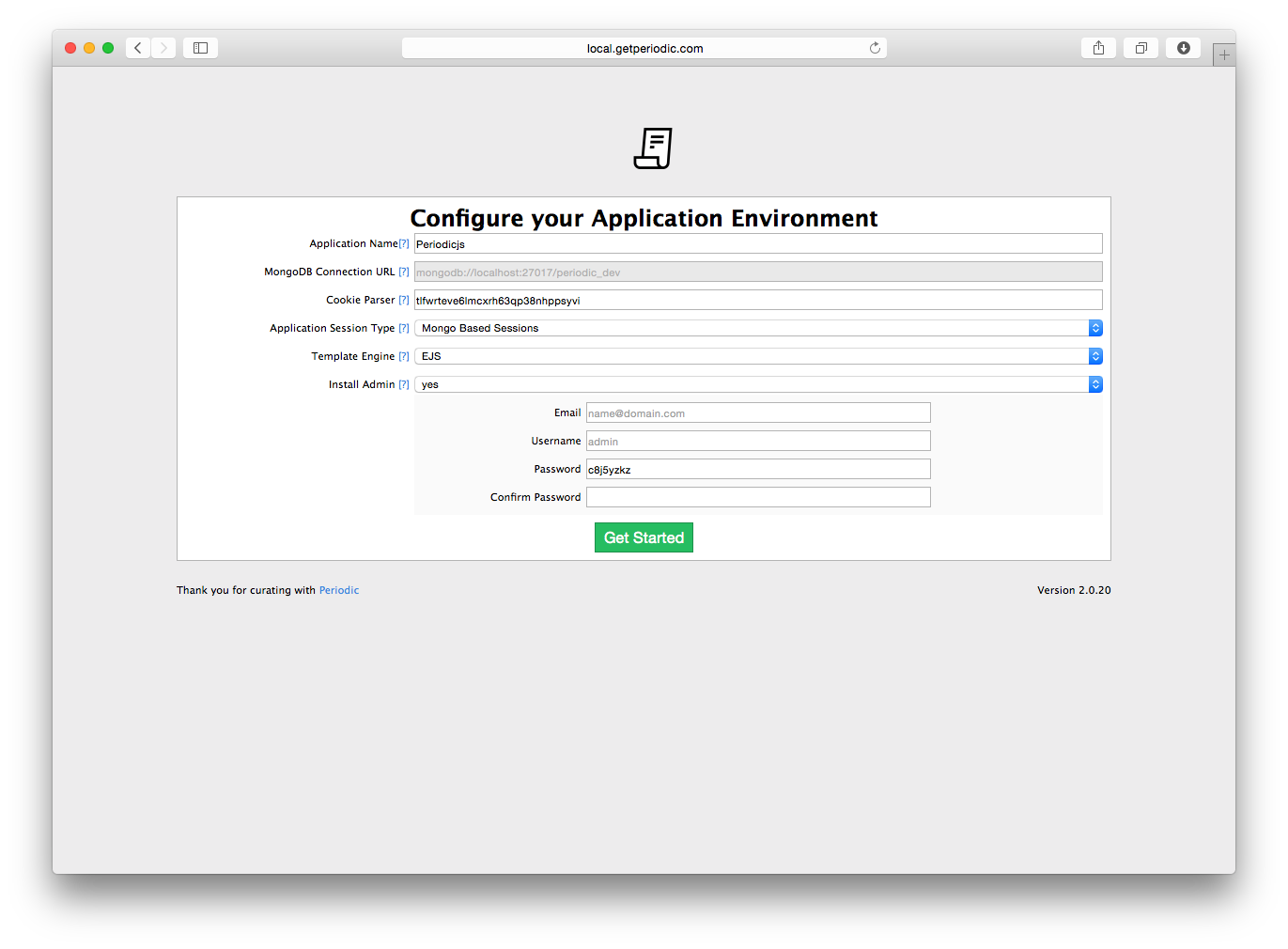
You will see some basic configuration options, like the name of your application, cookie parser, and other Express related options. You'll notice the MongoDB Connection URL is greyed out, you'll need to configure your database settings (located in content/config/database.js), prior to starting the application.
After filling out the required fields, you should be prompted with a success prompt.
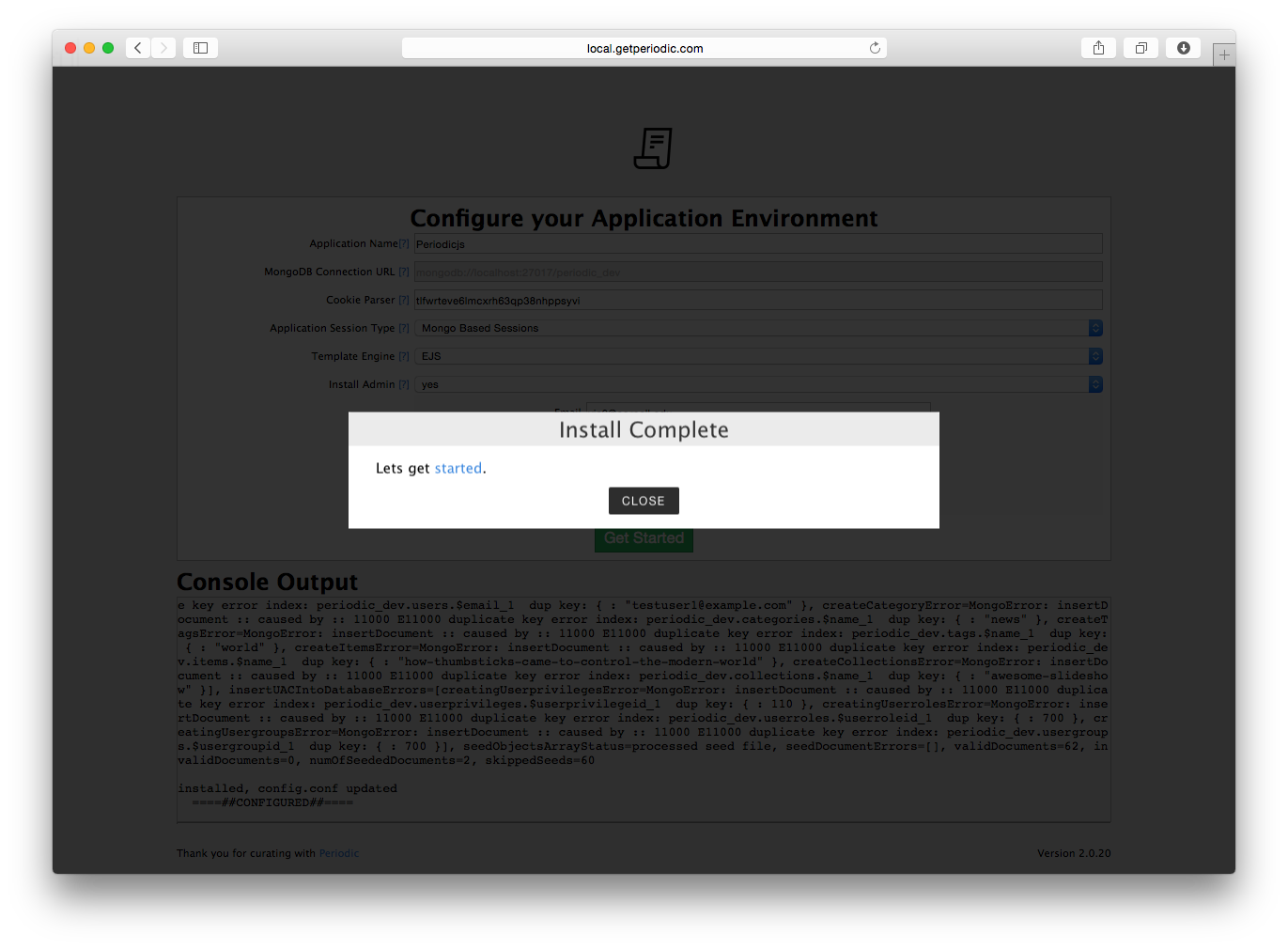
The Install extension, creates an admin user, and seeds the database with the required settings to use the Admin extension (This should also restart your Periodic Node.js application, when in development mode you will see Nodemon restart, otherwise PM2 will restart and you can confirm by running $ PM2 list, and checking your application logs periodicjs/logs).
The strength of being modular means that all of these extensions are optional, the Admin extension is only necessary if you plan on using Periodic in a more traditional Content Management Content, but you can already imagine that in a load balanced infrastructure you may not want to provide content management on certain nodes.
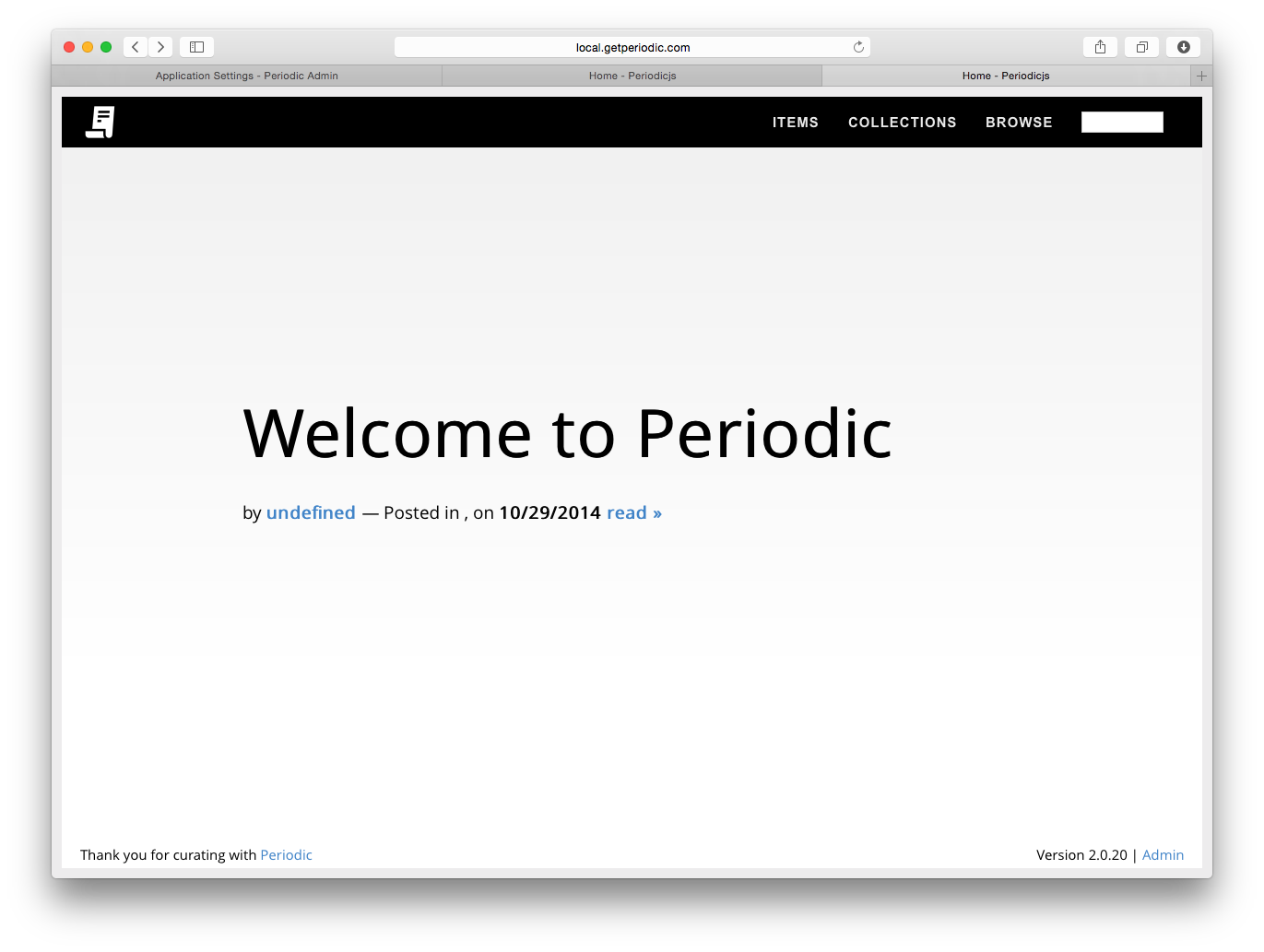
The Admin extension adds advanced Content Management Functionality (like scheduling content, user accounts, user access control, and more).
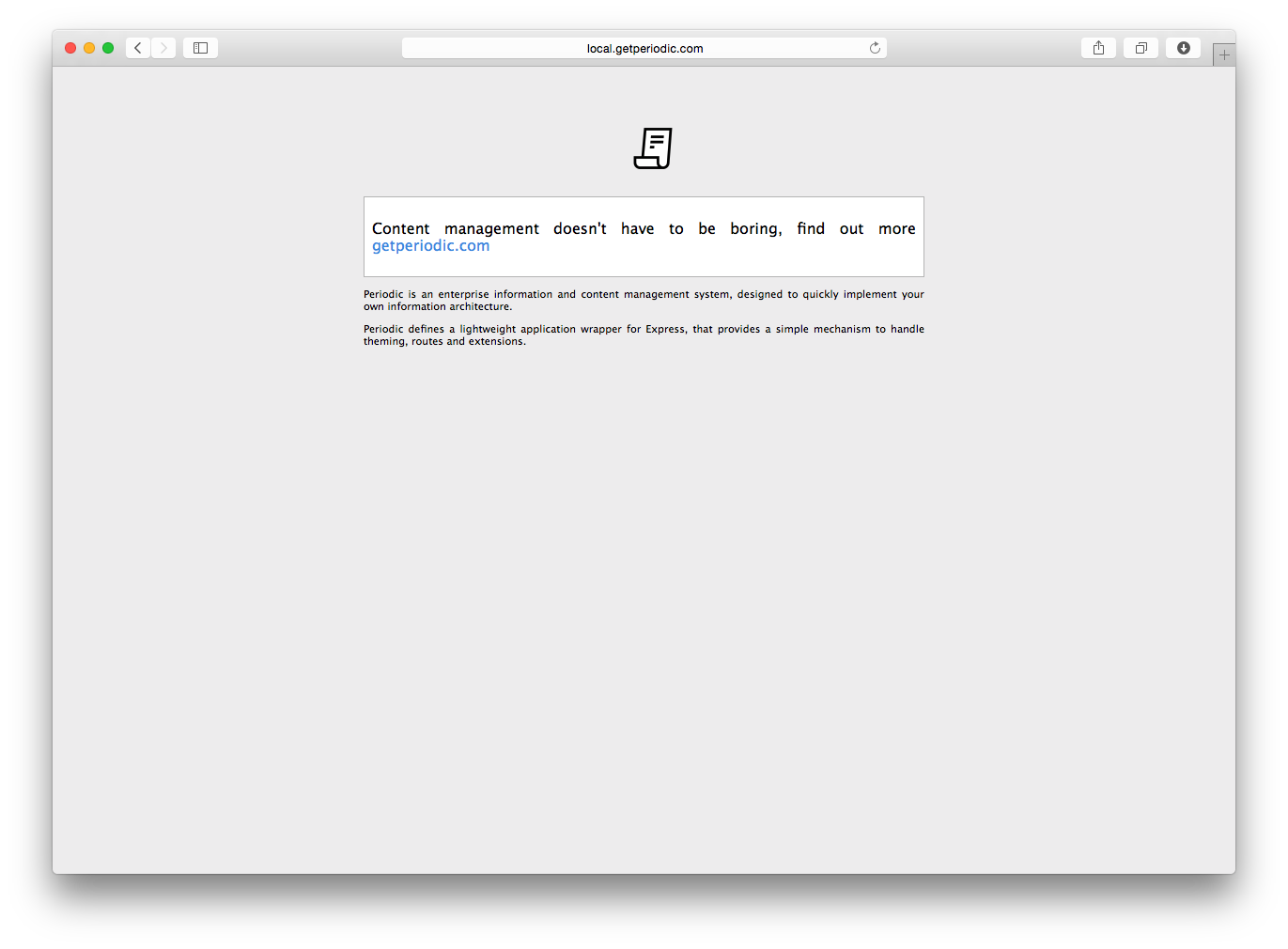
| Installed with Admin | Installed without Admin |
|---|---|
 |
 |