A channel is where you talk to CoPaw: connect DingTalk and it replies in DingTalk; same for QQ, etc. If that term is new, see Introduction.
Two ways to configure channels:
- Console (recommended) — In the Console under Control → Channels, click a channel card, enable it and fill in credentials in the drawer. Changes take effect when you save.
- Edit
config.jsondirectly — Default~/.copaw/config.json(created bycopaw init), setenabled: trueand fill in that platform's credentials. Saving triggers a reload without restarting the app.
All channels have common fields below:
- enabled — Turn the channel on or off.
- bot_prefix — Prefix for bot replies (e.g.
[BOT]) so they're easy to spot. - filter_tool_messages — (optional, default
false) Filter tool call and output messages from being sent to users. Set totrueto hide tool execution details. - filter_thinking — (optional, default
false) Filter model thinking/reasoning content from being sent to users. Set totrueto hide thinking blocks. - dm_policy — (optional, default
"open") Access policy for direct messages."open"allows all users;"allowlist"restricts to users listed inallow_from. - group_policy — (optional, default
"open") Access policy for group chats."open"allows all users;"allowlist"restricts to users listed inallow_from. - allow_from — (optional, default
[]) List of user IDs allowed to interact with the bot. Only effective whendm_policyorgroup_policyis set to"allowlist". - deny_message — (optional, default
"") Message sent to users denied by the allowlist. If empty, denied users receive no reply. - require_mention — (optional, default
false) Whentrue, the bot only responds in group chats when explicitly @mentioned. The allowlist check (allow_from) runs first; if the user passes, the mention check is then applied.
Below is how to get credentials and fill config for each channel.
Video tutorial:
Step-by-step:
-
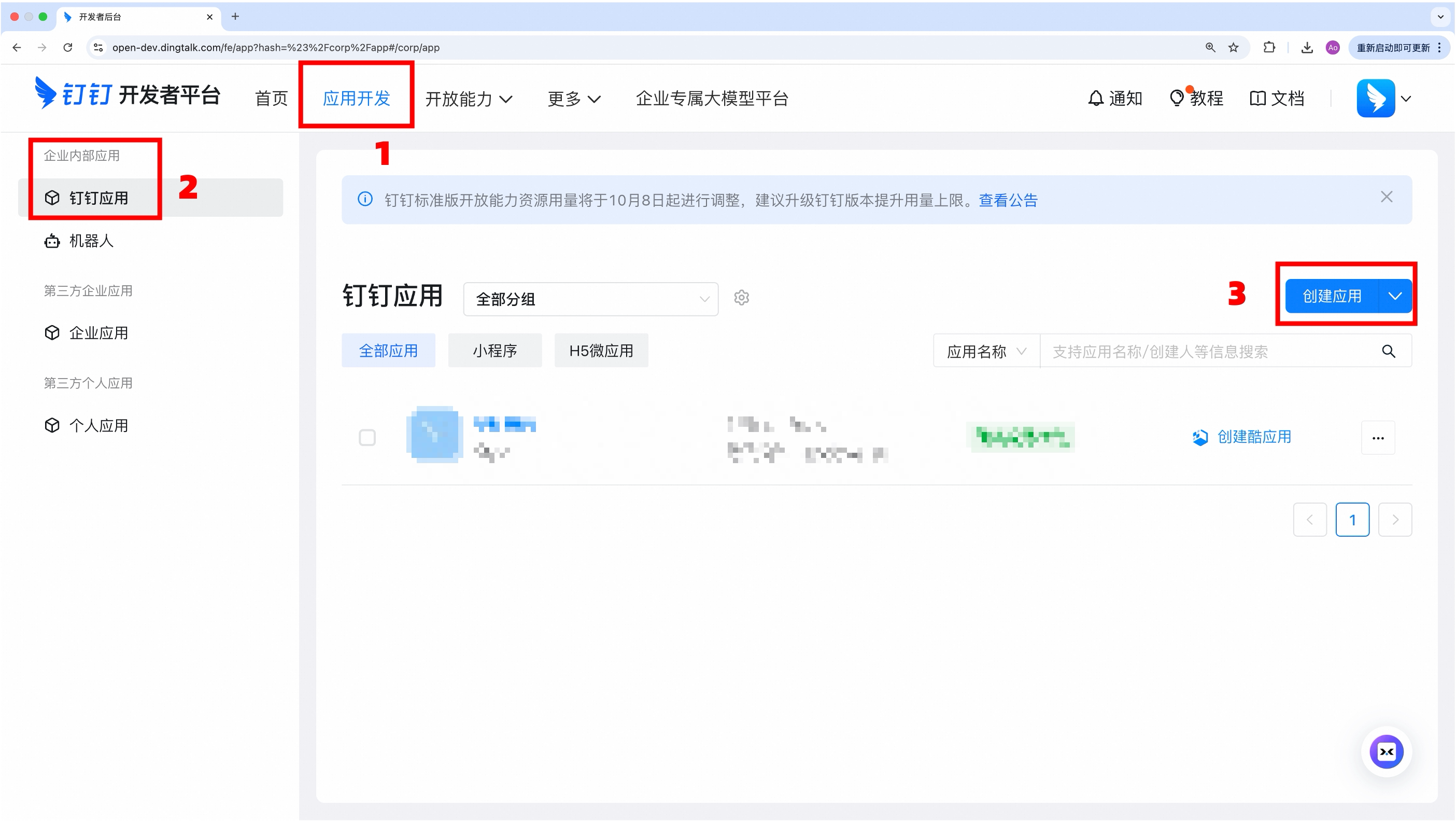
Open the DingTalk Developer Portal
-
Create an internal enterprise app
-
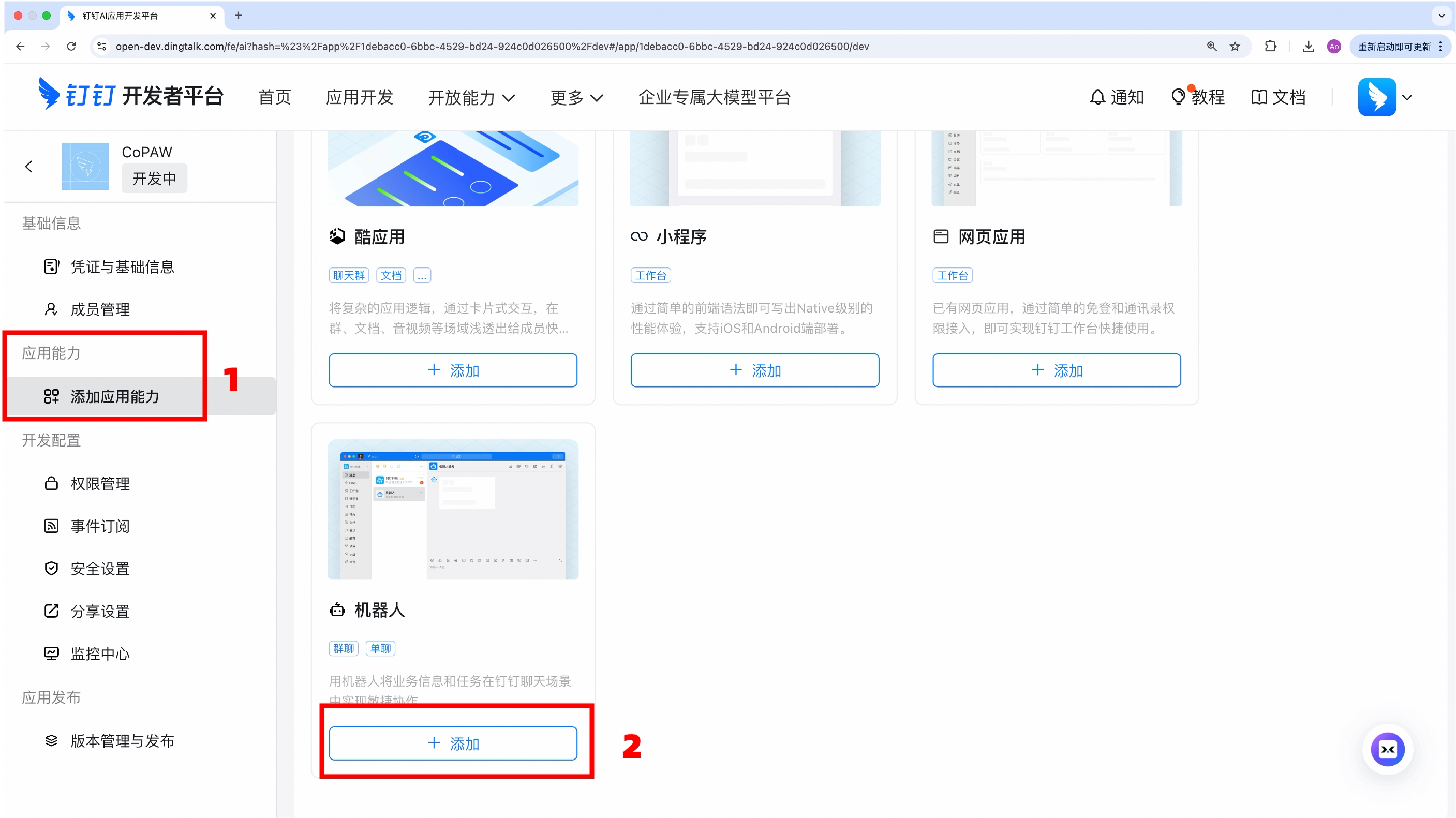
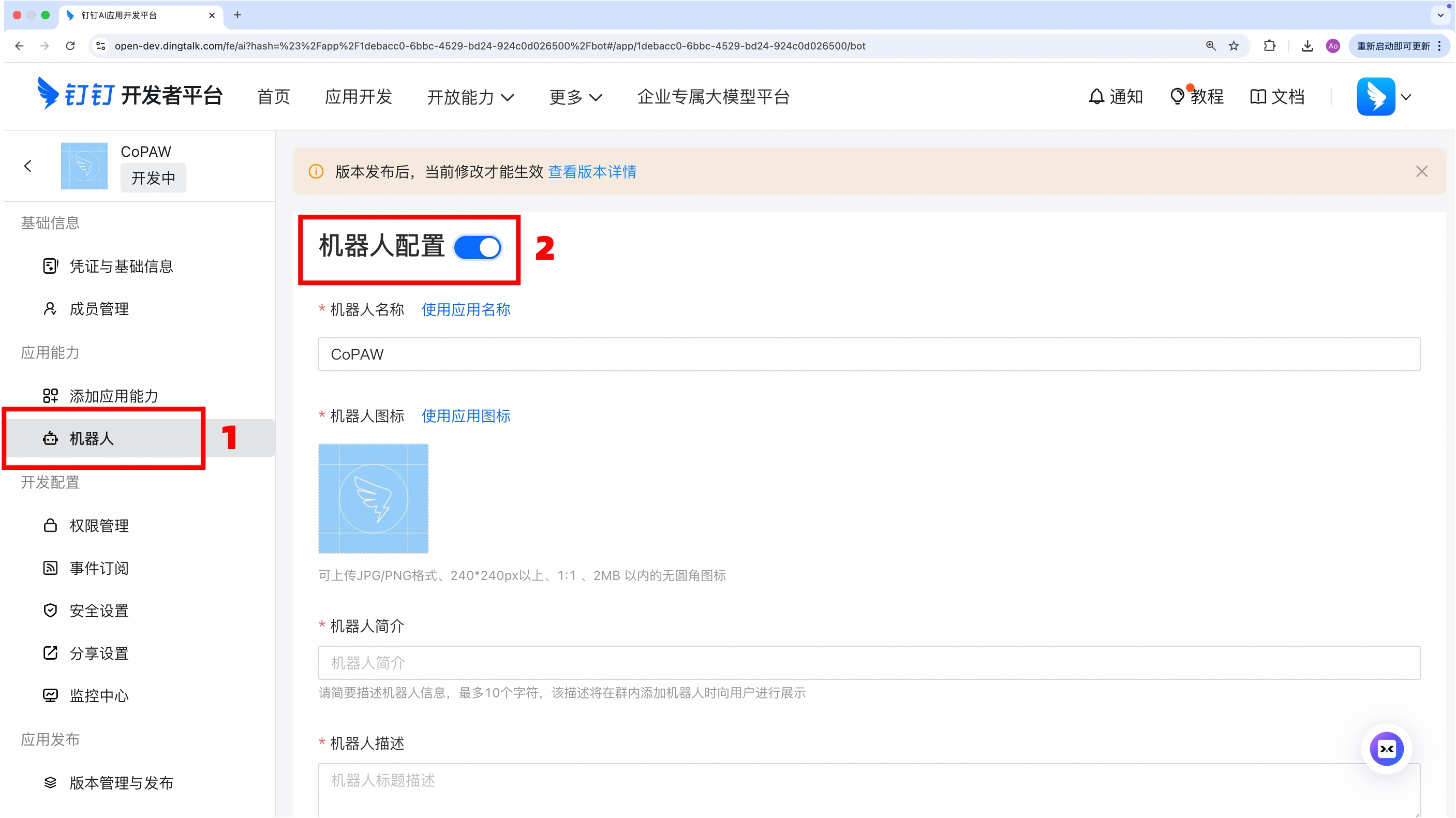
Add the 「Robot」 capability
-
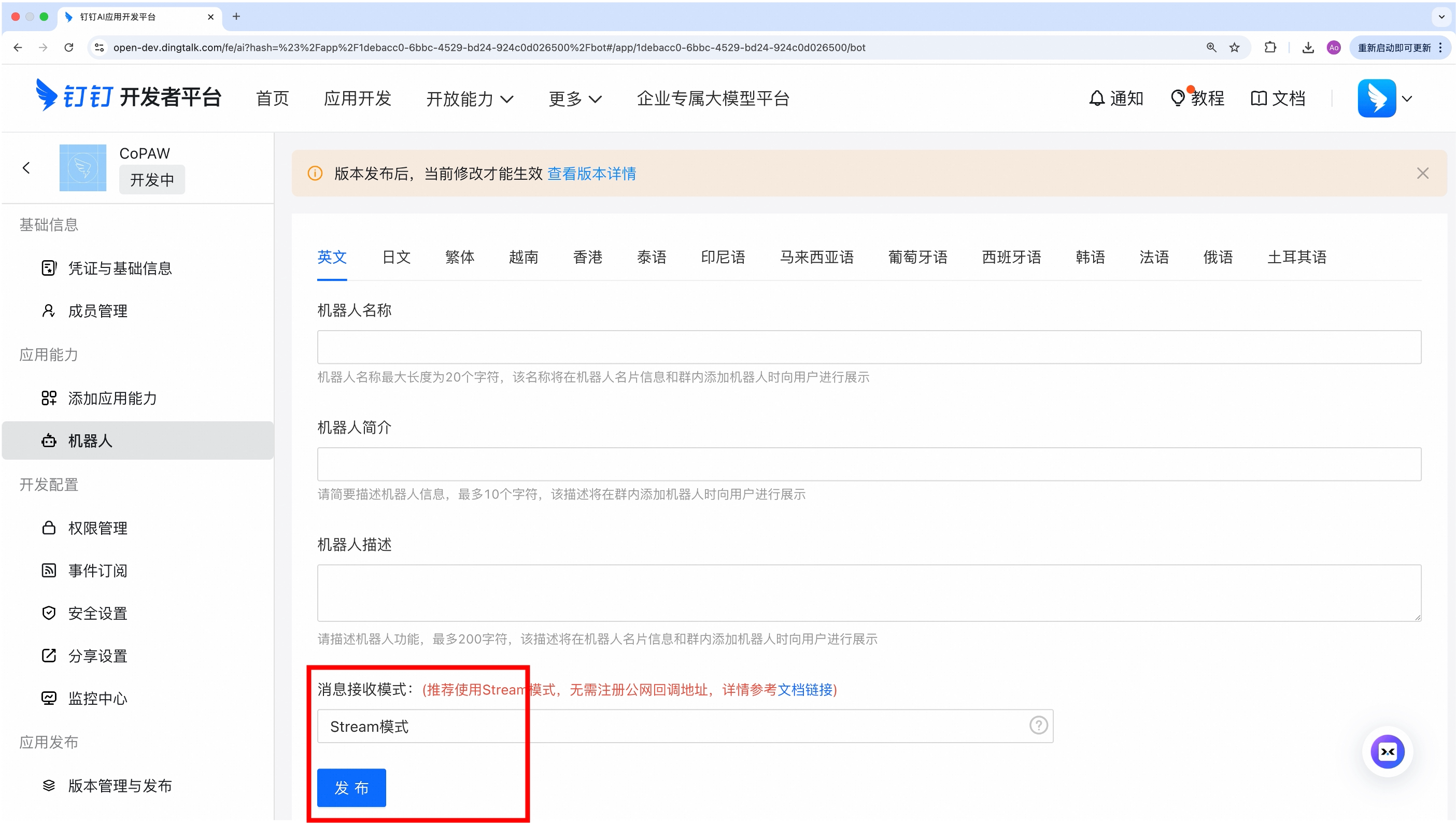
Set message receiving mode to Stream then publish
-
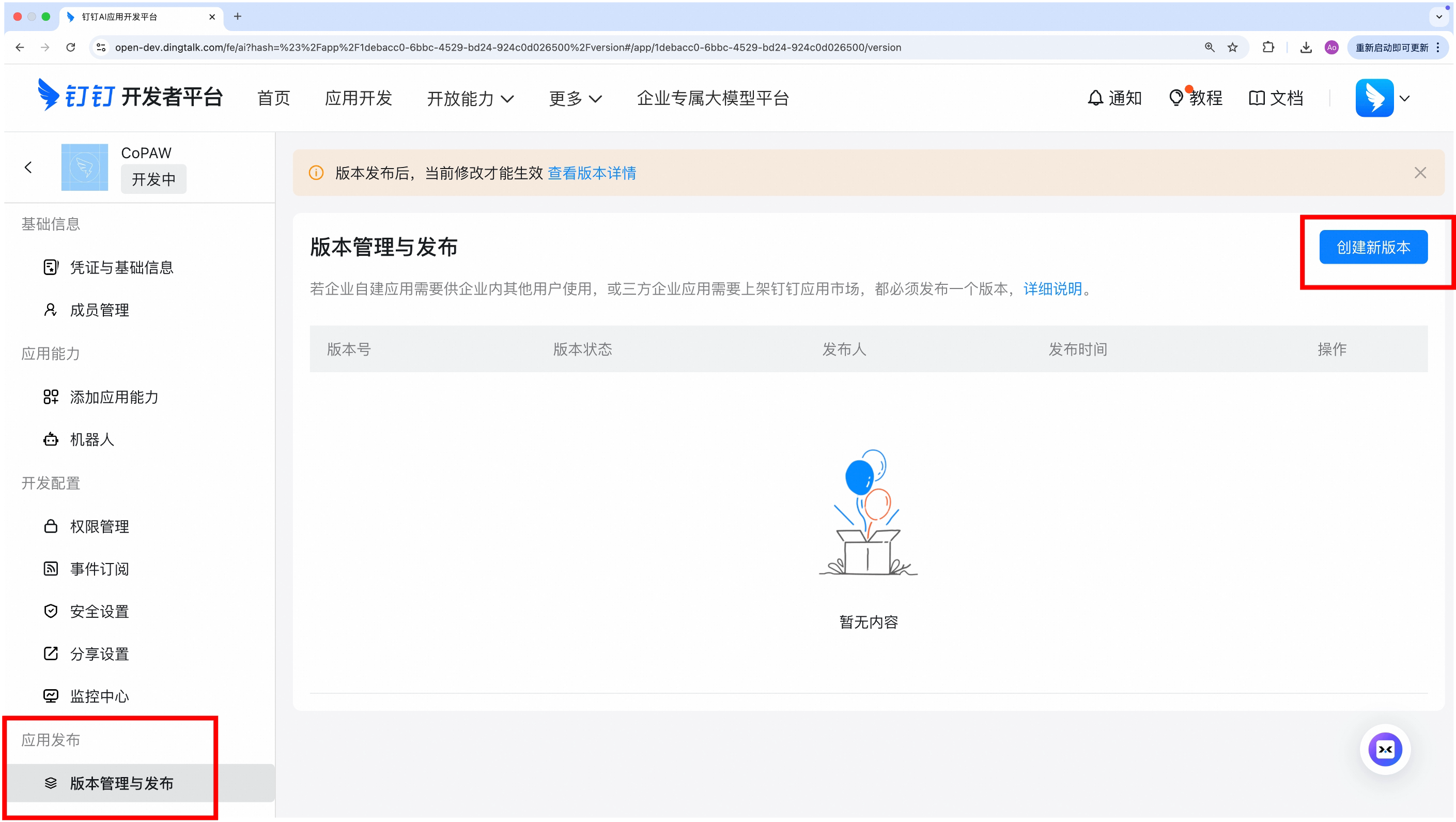
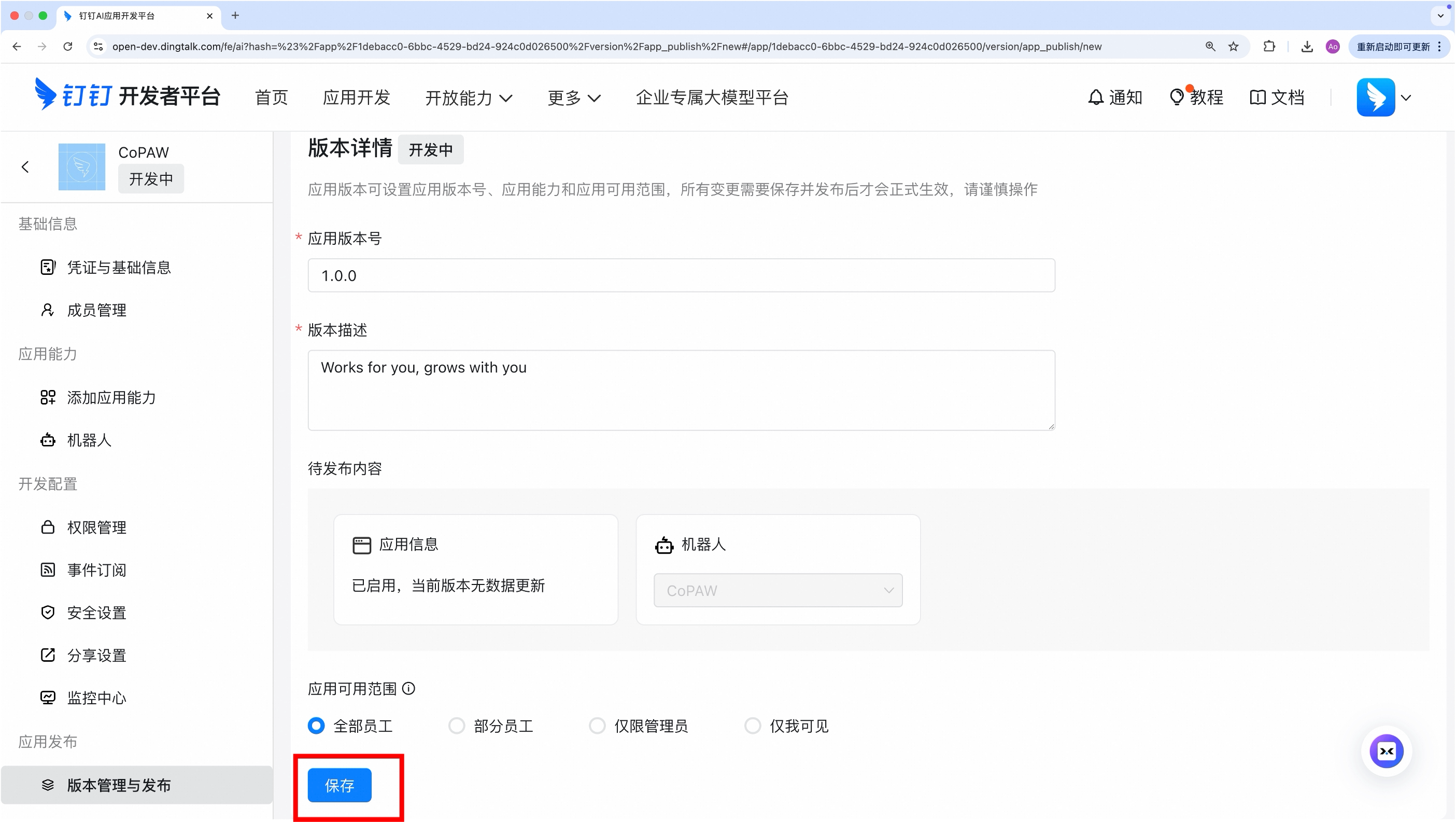
Create a new version to publish, fill in basic info and save
-
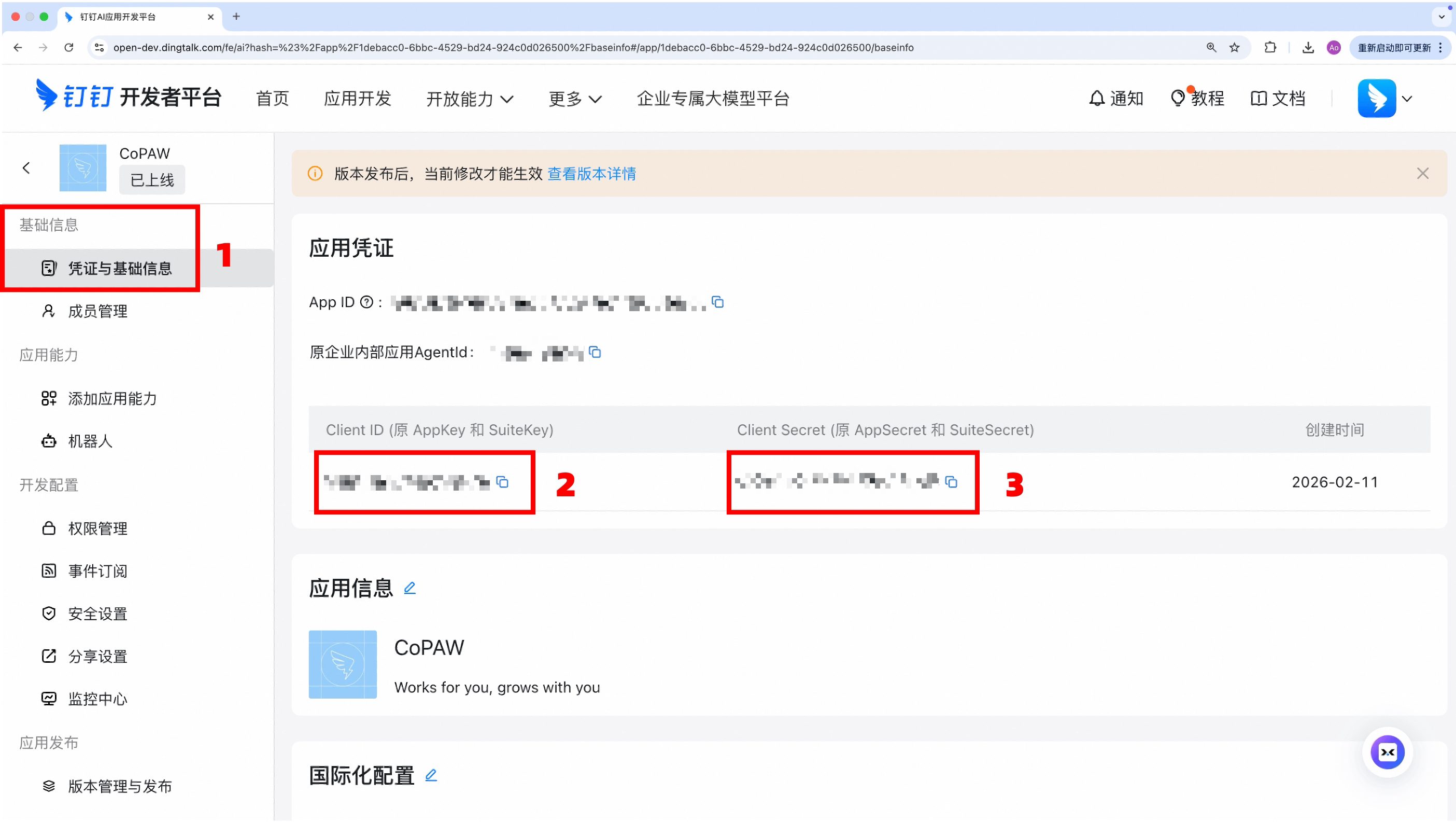
In the app details, copy:
- Client ID (AppKey)
- Client Secret (AppSecret)
-
(Optional) Add your server's IP to the whitelist — this is required for features that call the DingTalk Open API (e.g. downloading images and files sent by users). Go to "Security & Compliance → IP Whitelist" in your app settings and add the public IP of the machine running CoPaw. You can find your public IP by running
curl ifconfig.mein a terminal. If the IP is not whitelisted, image and file downloads will fail with aForbidden.AccessDenied.IpNotInWhiteListerror.
You can configure it either in the Console frontend or by editing ~/.copaw/config.json.
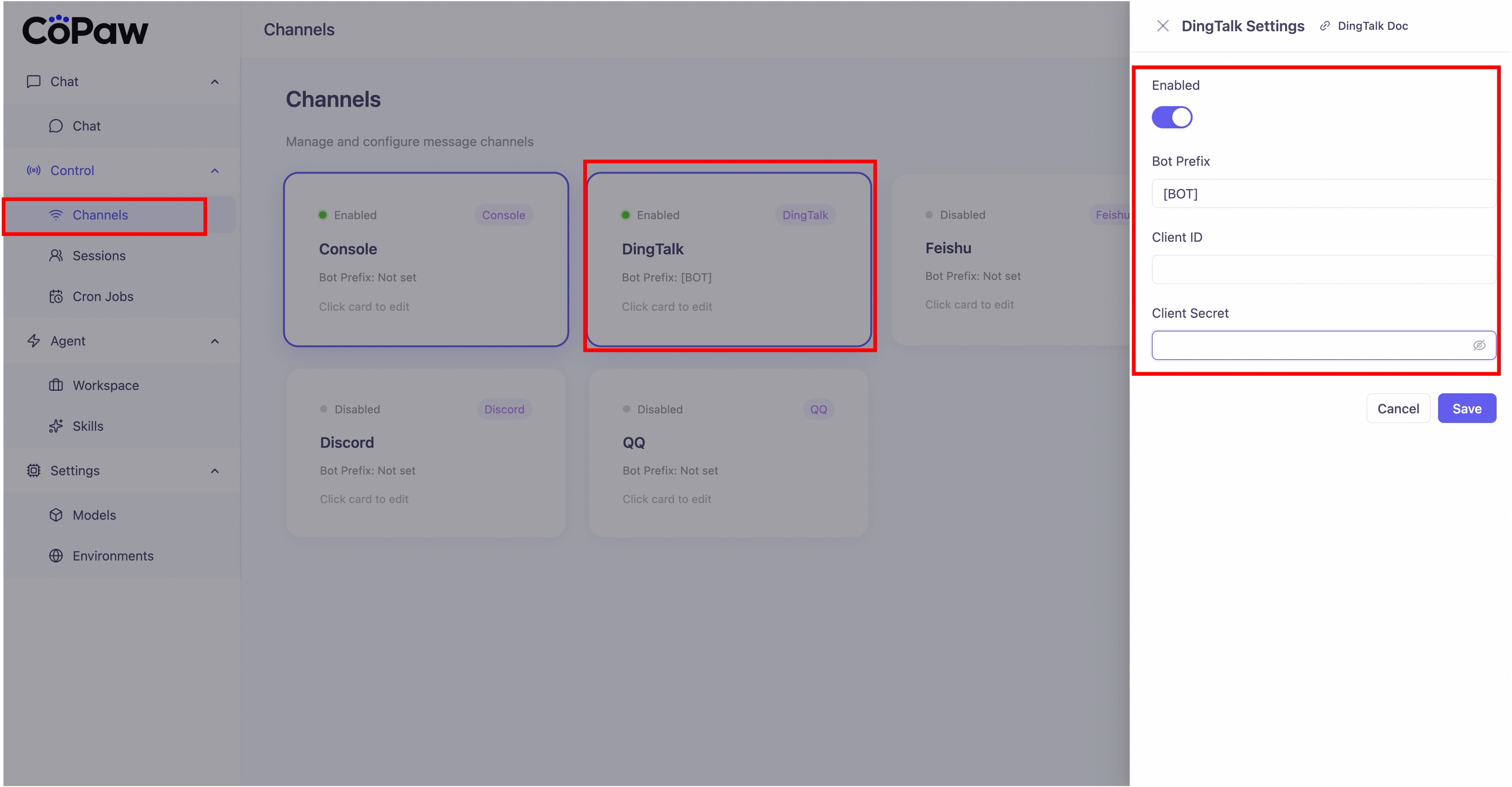
Method 1: Configure in the Console frontend
Go to "Control→Channels", find DingTalk, click it, and enter the Client ID and Client Secret you just obtained.
Method 2: Edit ~/.copaw/config.json
In config.json, find channels.dingtalk and fill in the corresponding information, for example:
"dingtalk": {
  "enabled": true,
  "bot_prefix": "[BOT]",
  "client_id": "your Client ID",
  "client_secret": "your Client Secret",
  "message_type": "markdown",
  "card_template_id": "",
  "card_template_key": "content",
  "robot_code": "",
  "filter_tool_messages": false
}- Set
filter_tool_messages: trueif you want to hide tool execution details in the chat. - AI Card mode: set
message_typetocard, then configurecard_template_id; keepcard_template_keyconsistent with your DingTalk template variable (defaultcontent). robot_codeis recommended in group scenarios; if empty, CoPaw falls back toclient_id.
Save the file; if the app is already running, the channel will reload. Otherwise run
copaw app.
Video tutorial:
Step-by-step:
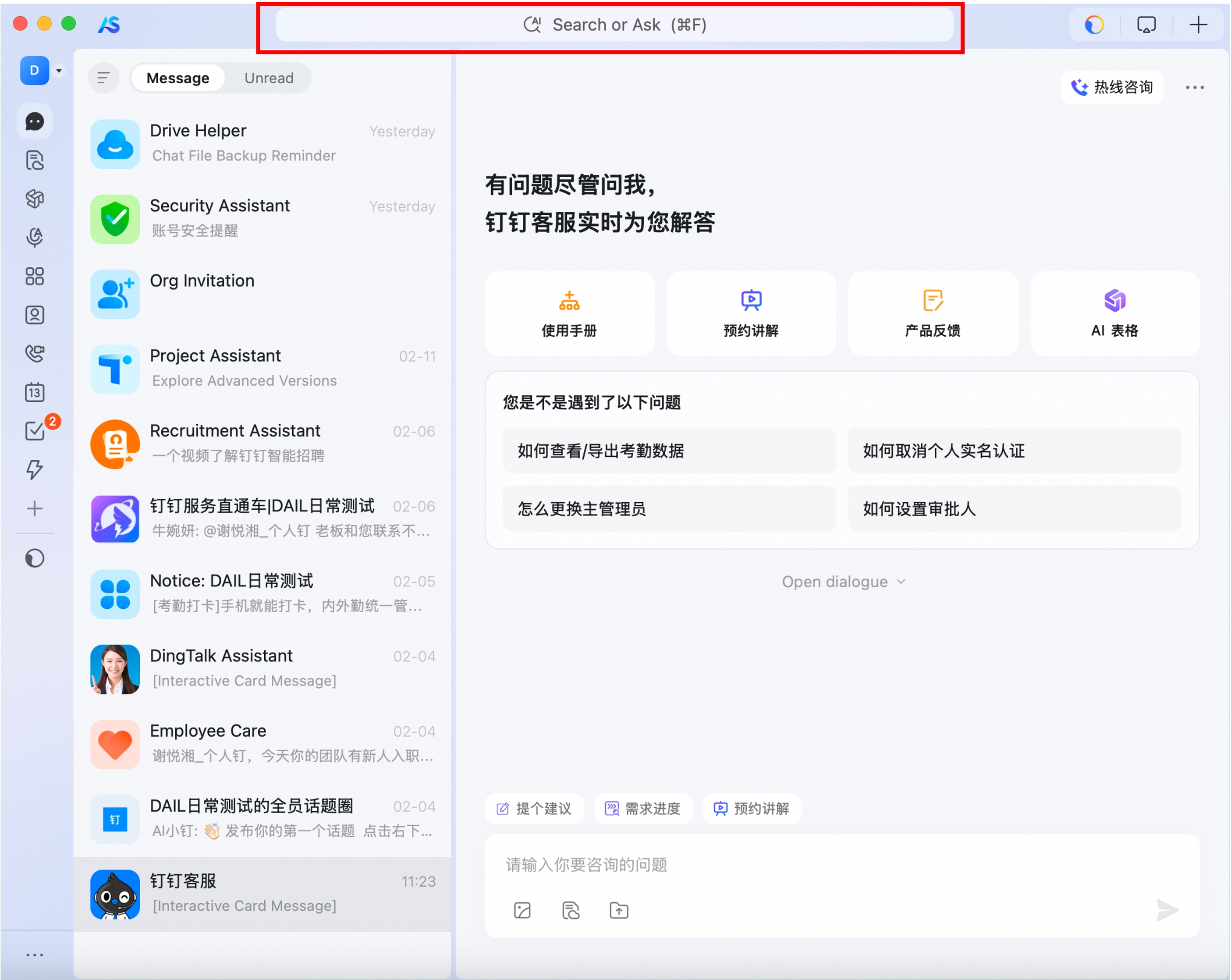
- In DingTalk, tap the search box in the [Messages] tab
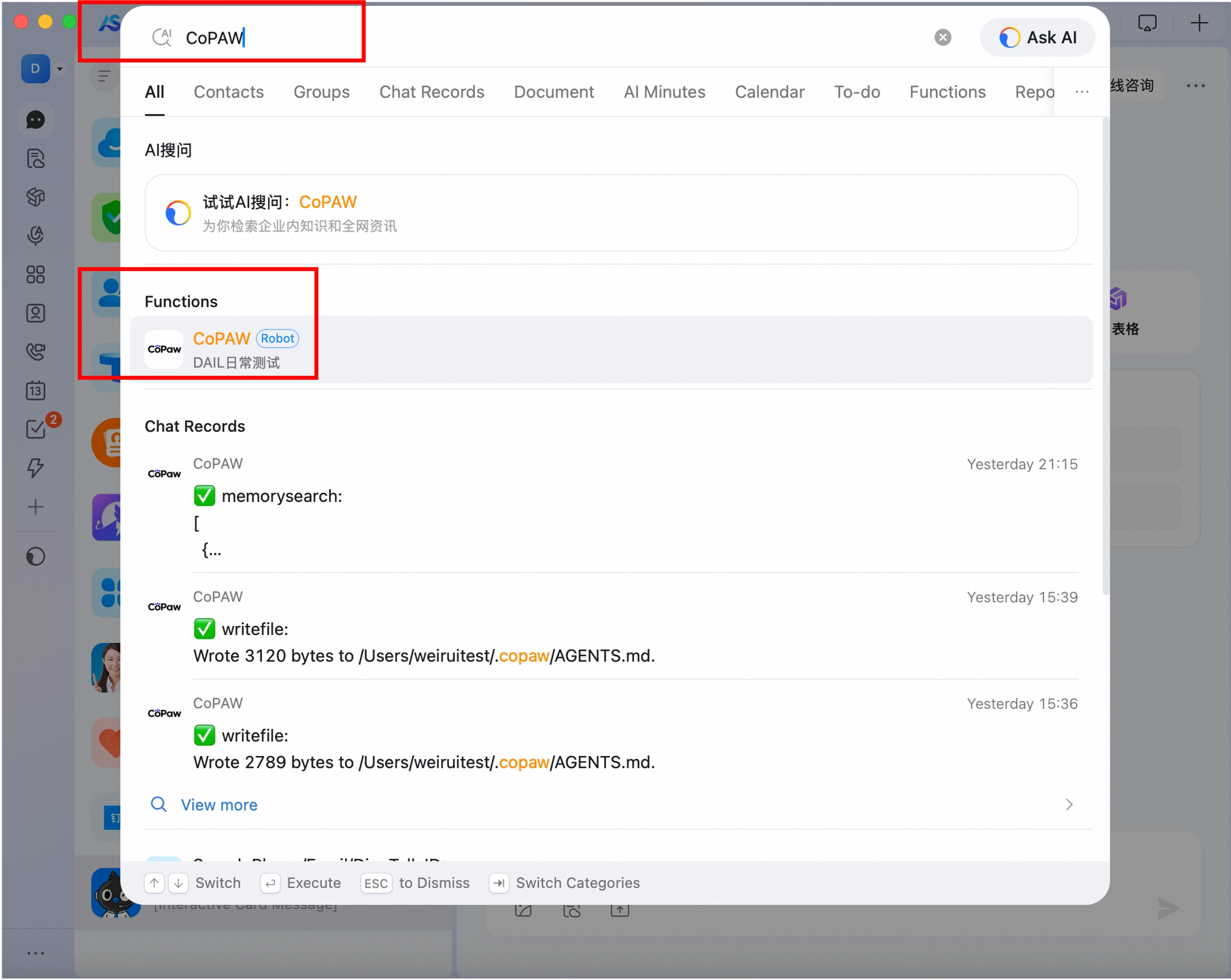
- Search for the bot name you just created; find the bot under [Functions]
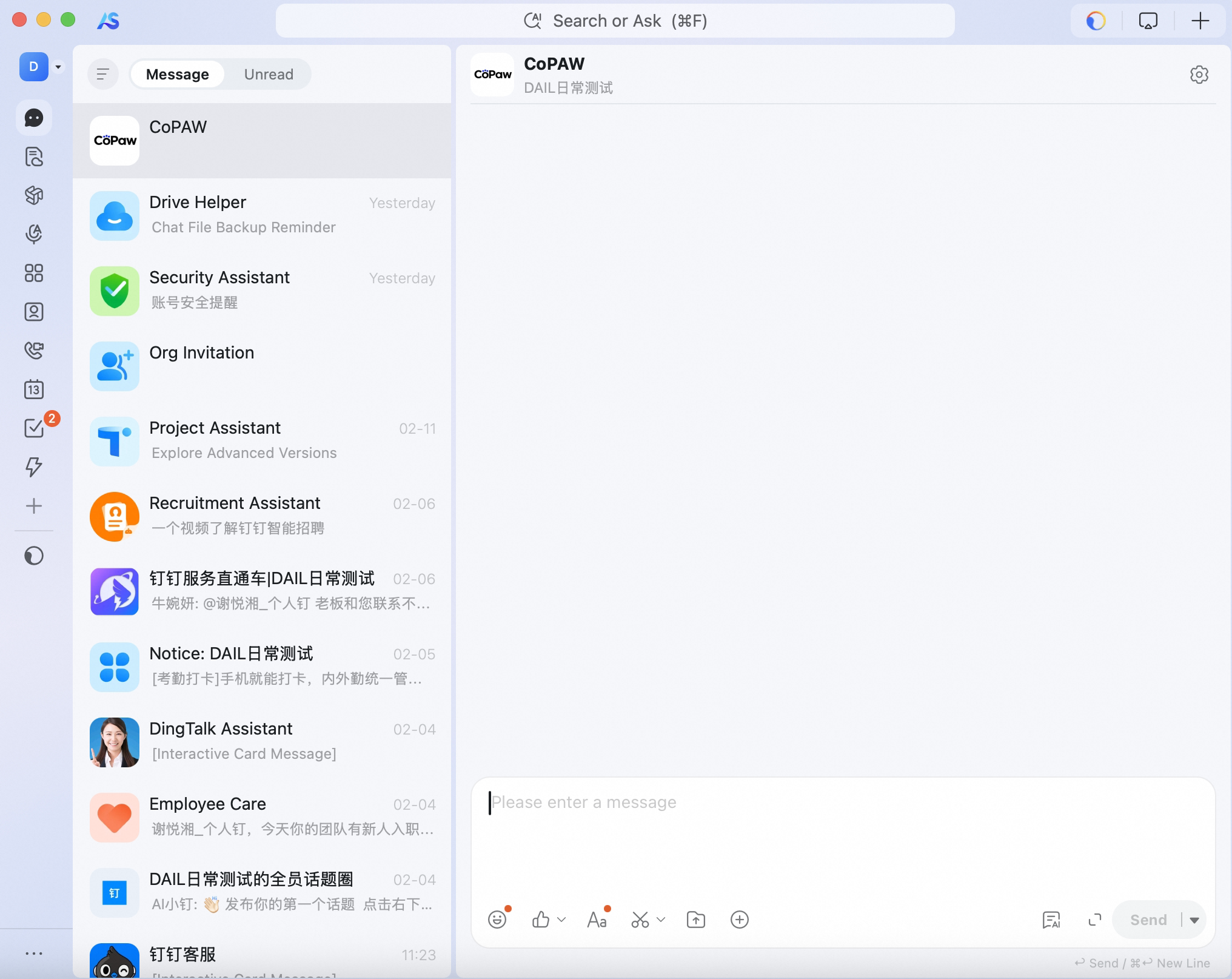
- Tap to open the chat
You can add the bot to a group chat via Group Settings → Bots → Add a robot in DingTalk. If you create a group chat from your one-on-one chat with the bot, the bot’s replies will not be triggered.
The Feishu channel receives messages via WebSocket long connection (no public IP or webhook). Sending uses the Feishu Open API. It supports text, image, and file in both directions. For group chats, chat_id and message_id are included in the request message metadata for downstream deduplication and context.
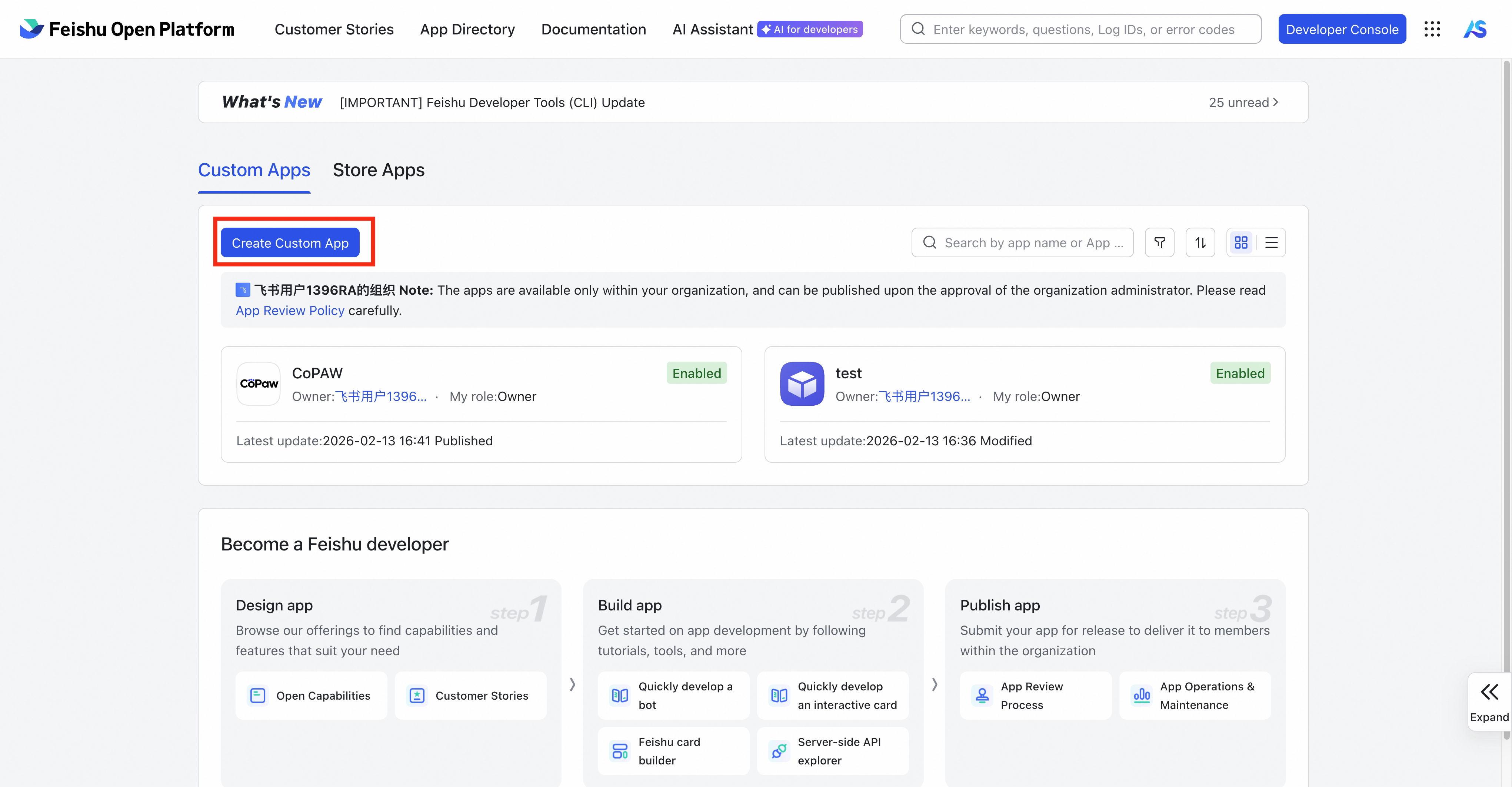
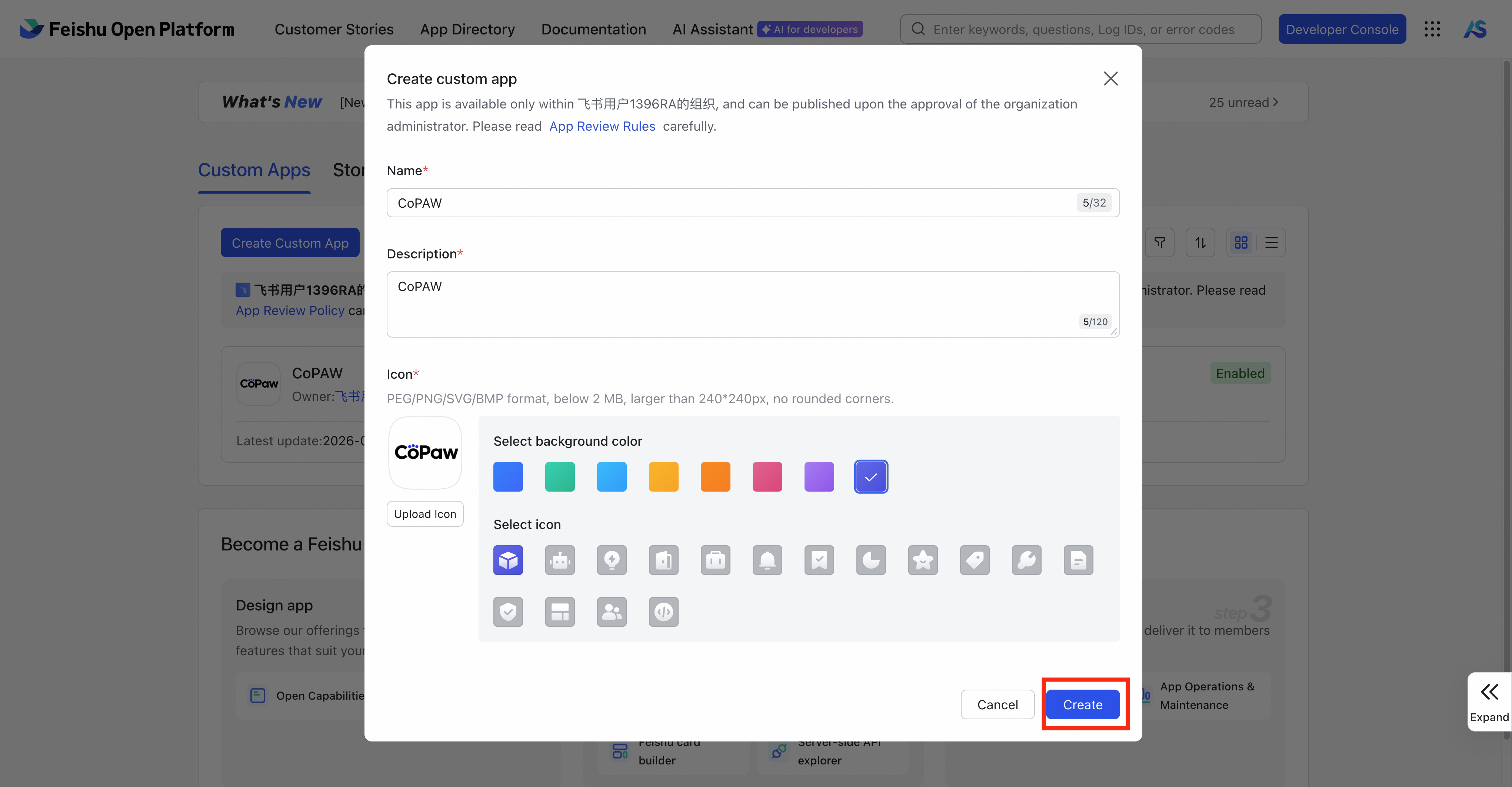
- Open the Feishu Open Platform and create an enterprise app
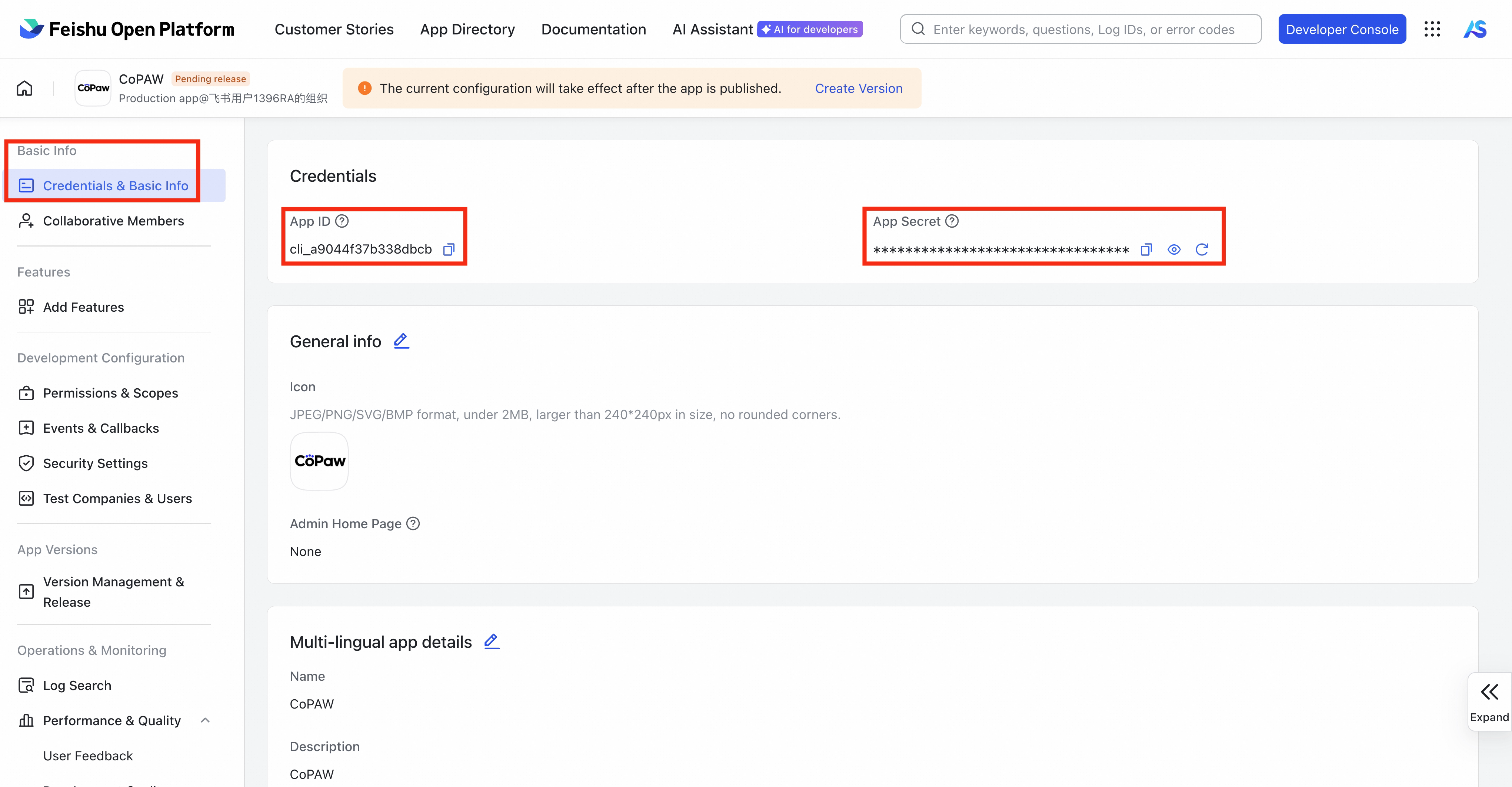
- In Credentials & Basic Info, copy App ID and App Secret
-
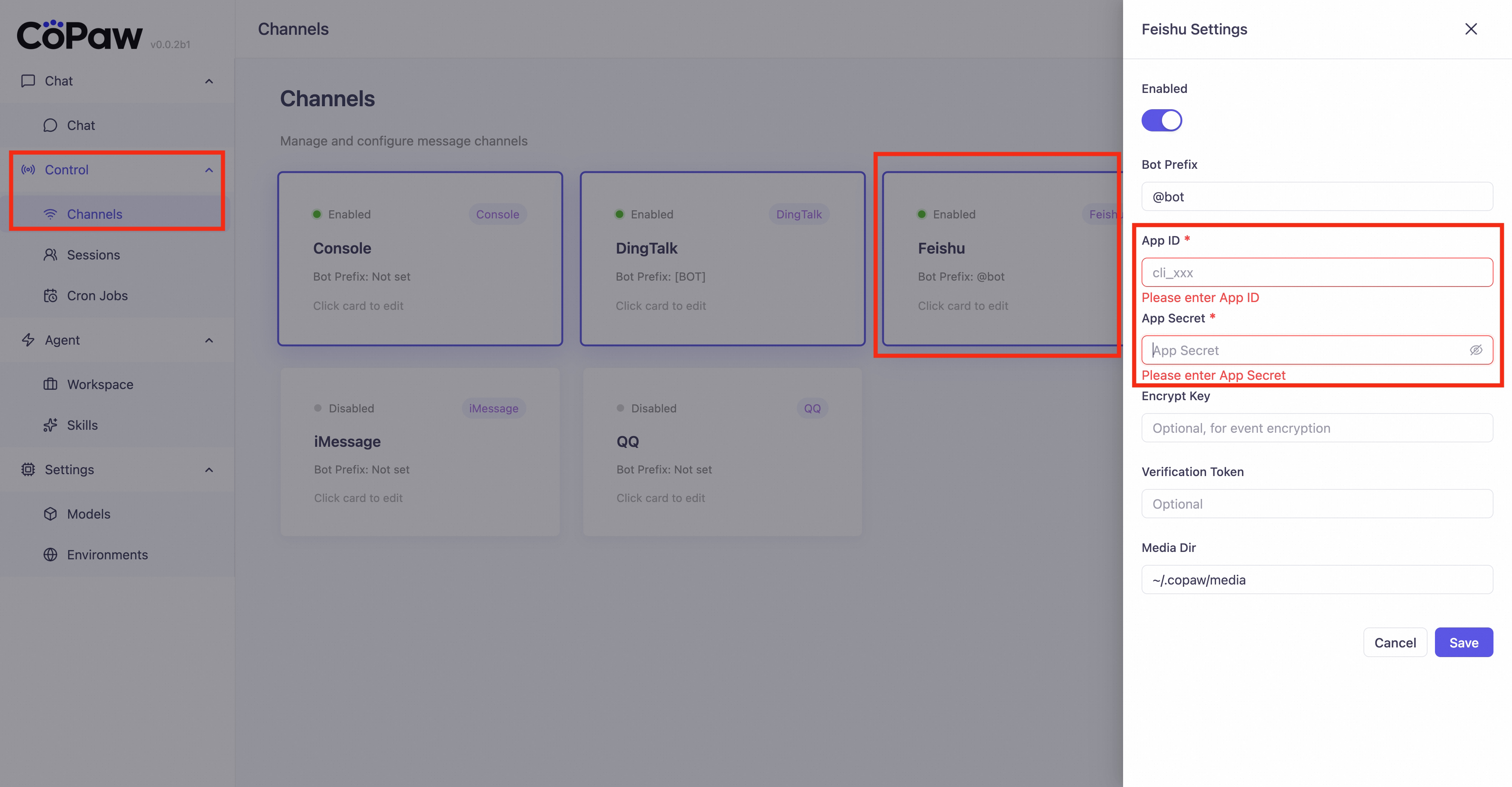
Fill App ID and App Secret in
config.json(see "Fill config.json" below) and save -
Run
copaw appto start CoPAW -
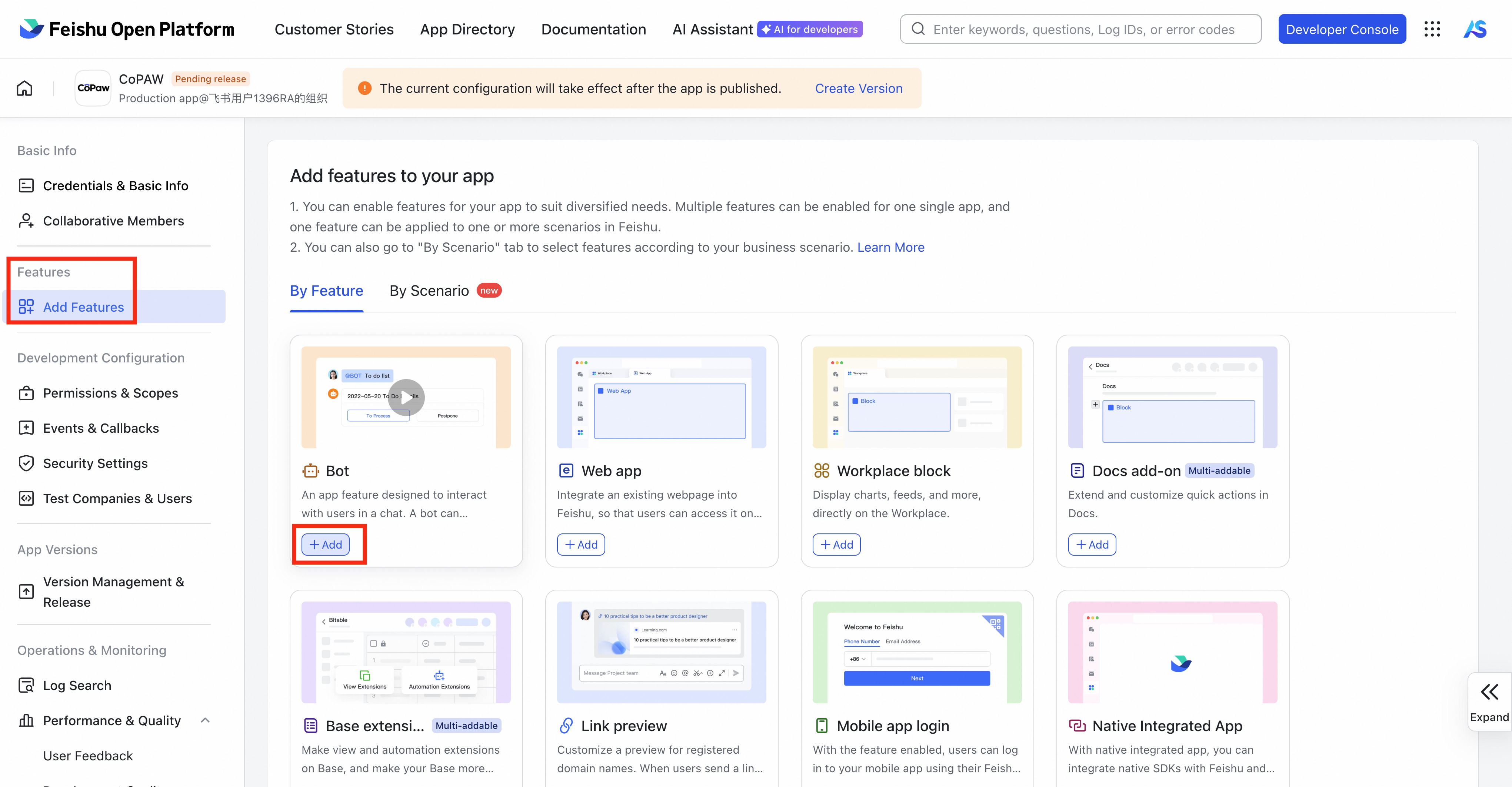
Back in the Feishu console, enable Bot under Add Features
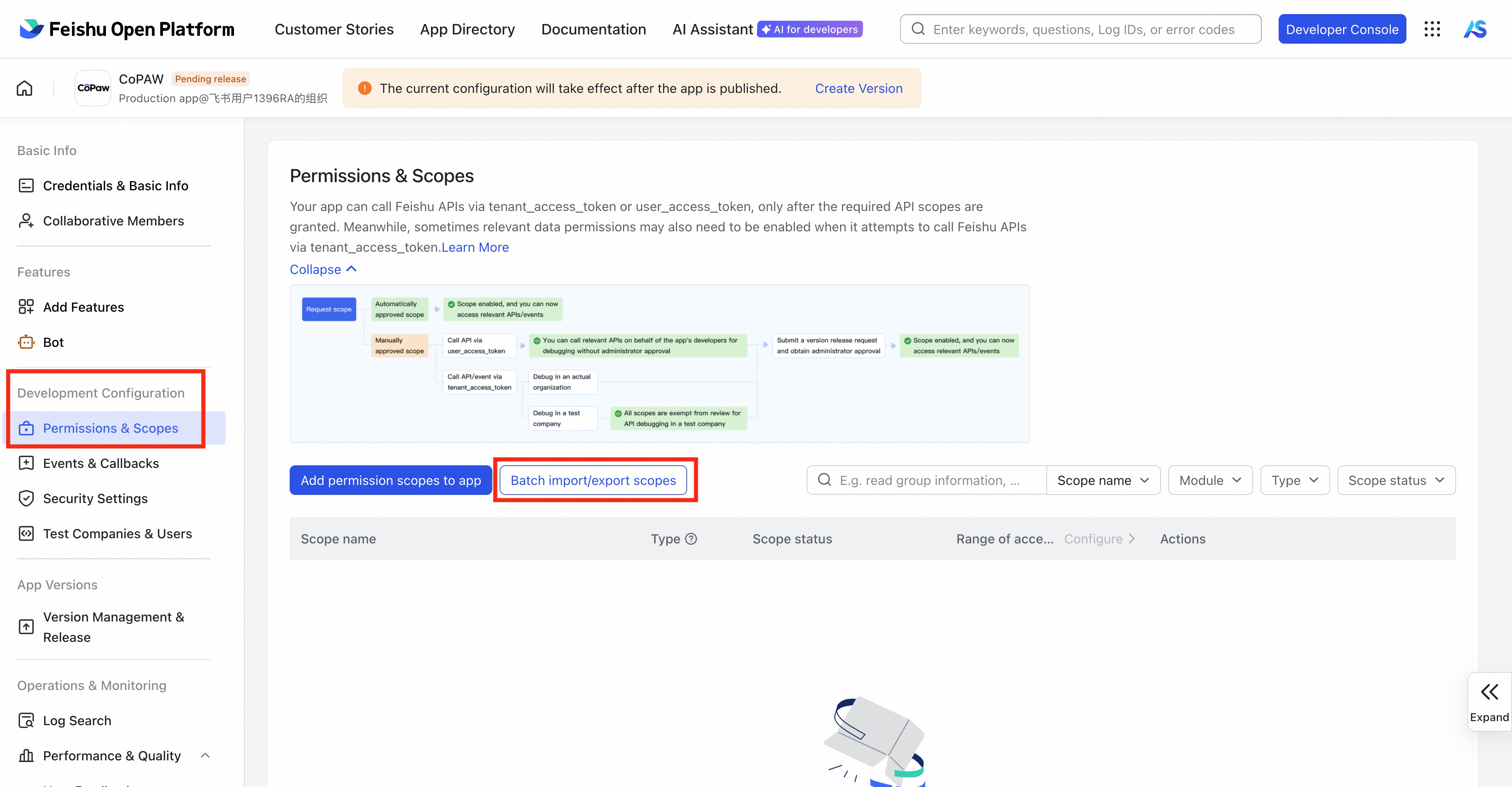
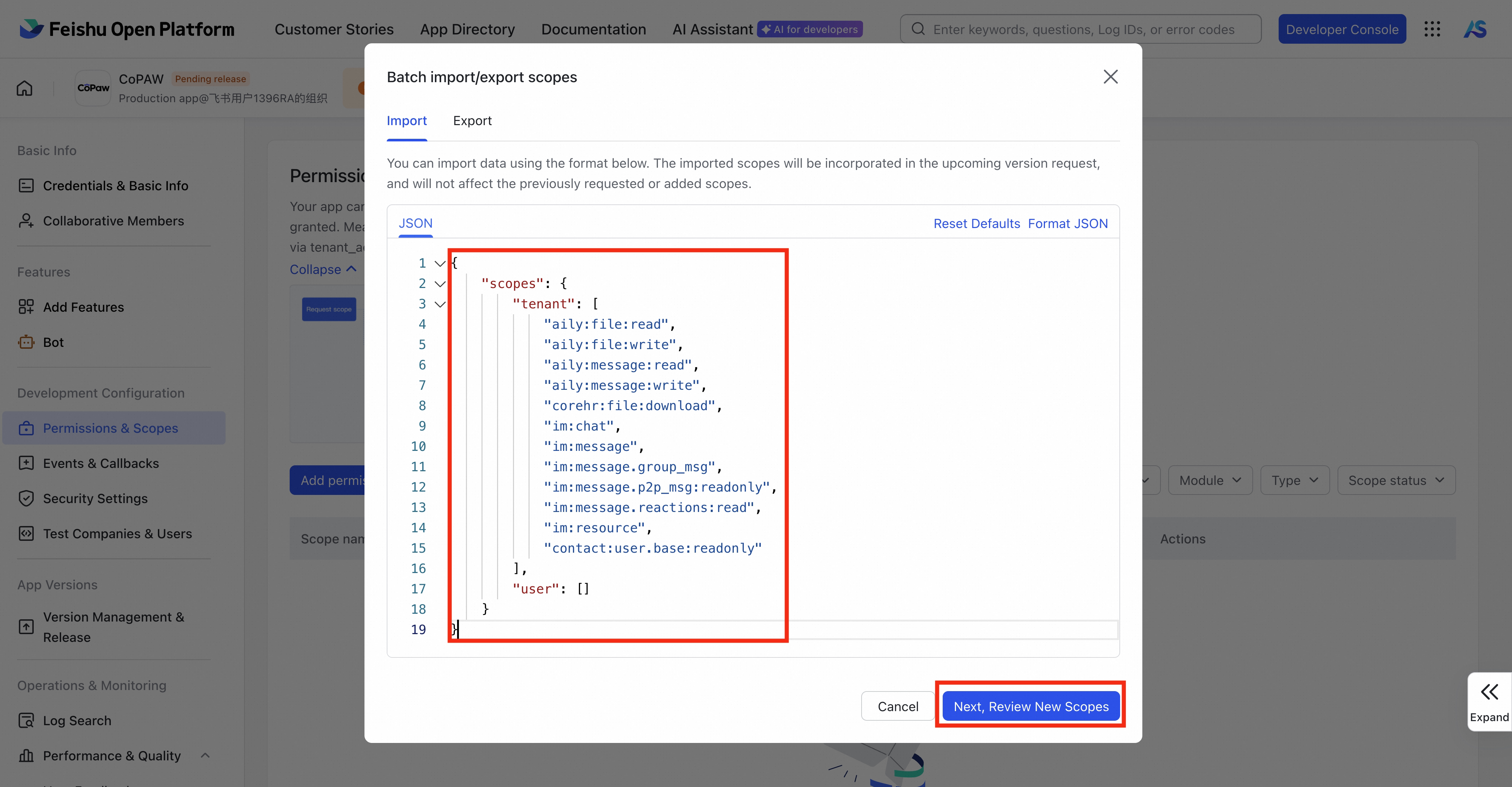
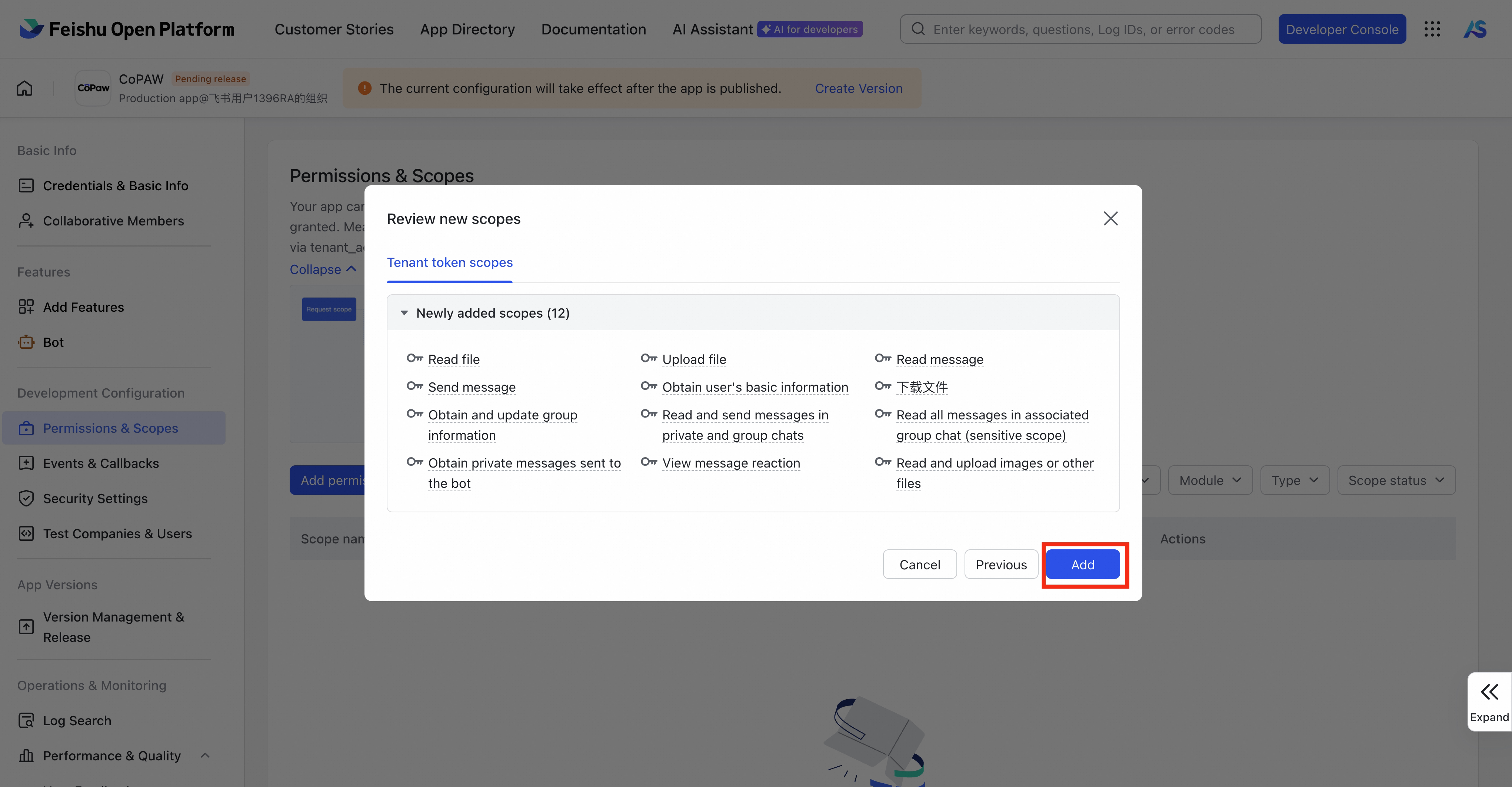
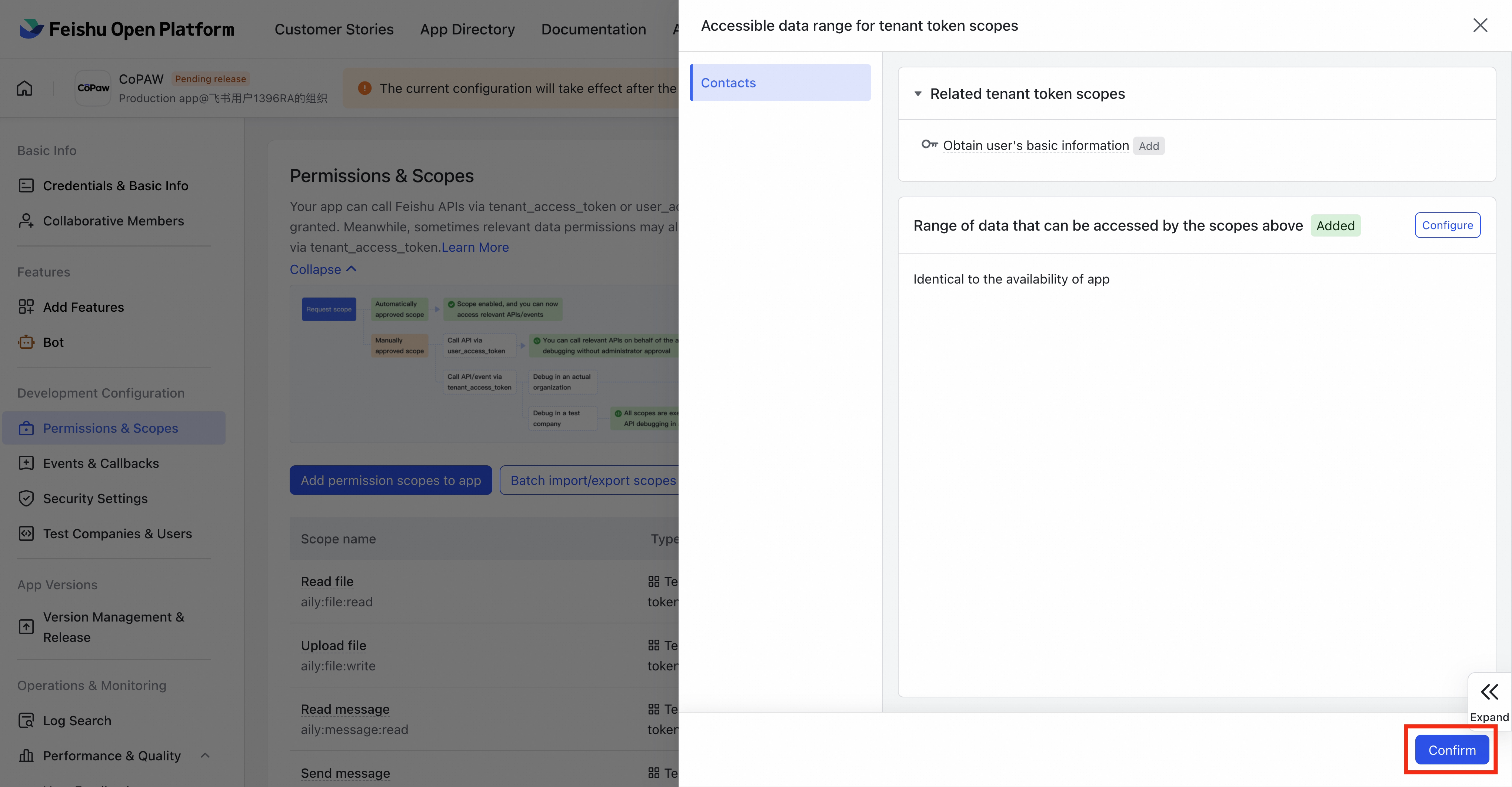
- Under Permissions & Scopes, select Batch import/export scopes and paste the following JSON:
{
  "scopes": {
    "tenant": [
      "aily:file:read",
      "aily:file:write",
      "aily:message:read",
      "aily:message:write",
      "corehr:file:download",
      "im:chat",
      "im:message",
      "im:message.group_msg",
      "im:message.p2p_msg:readonly",
      "im:message.reactions:read",
      "im:resource",
      "contact:user.base:readonly"
    ],
    "user": []
  }
}
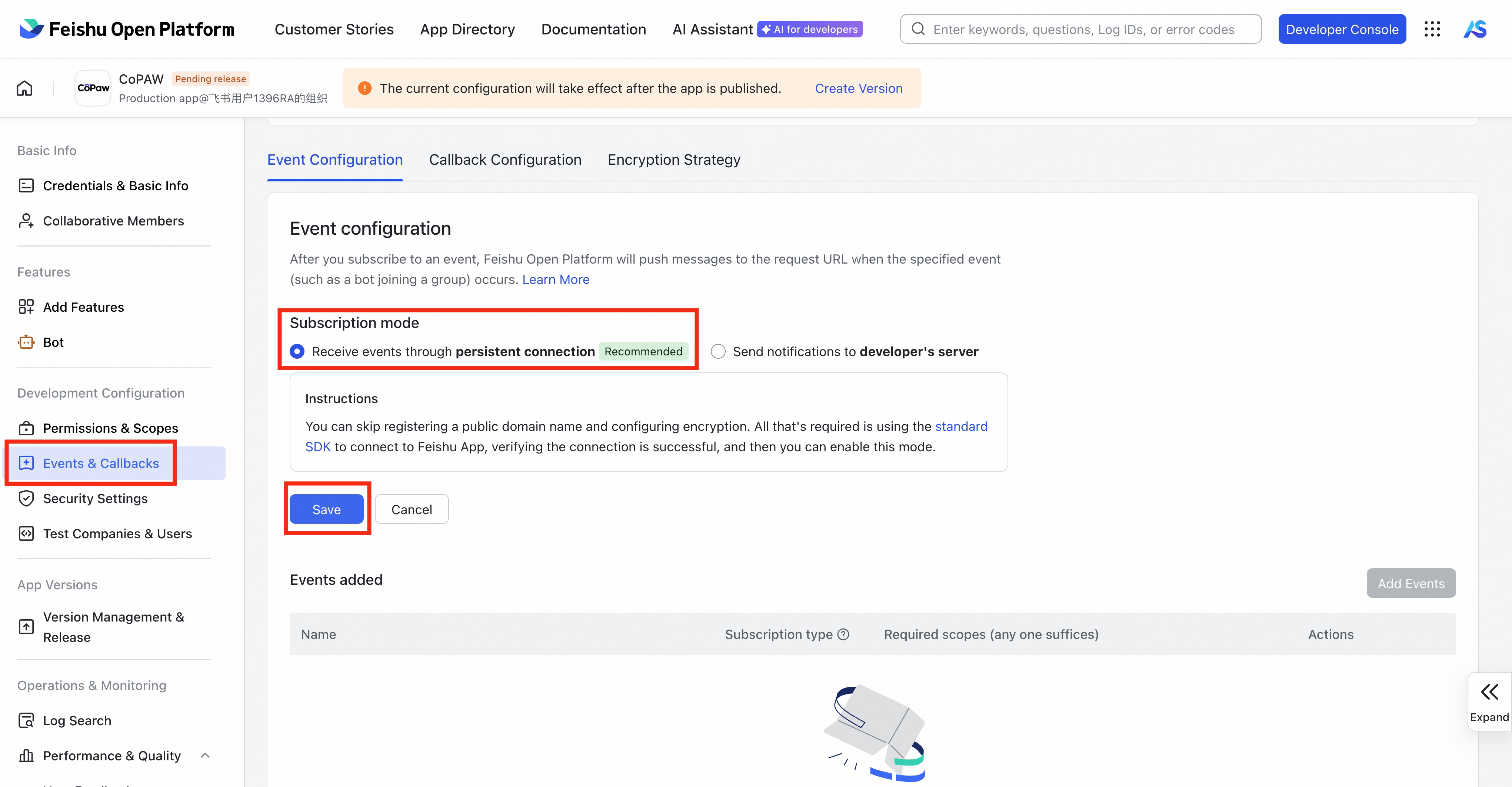
- Under Events & Callbacks, click Event configuration, and choose Receive events through persistent connection as the subscription mode (no public IP needed)
Note: Follow this order: Configure App ID/Secret → start
copaw app→ then configure the long connection in the Feishu console. If errors persist, try stopping the copaw service and restartingcopaw app.
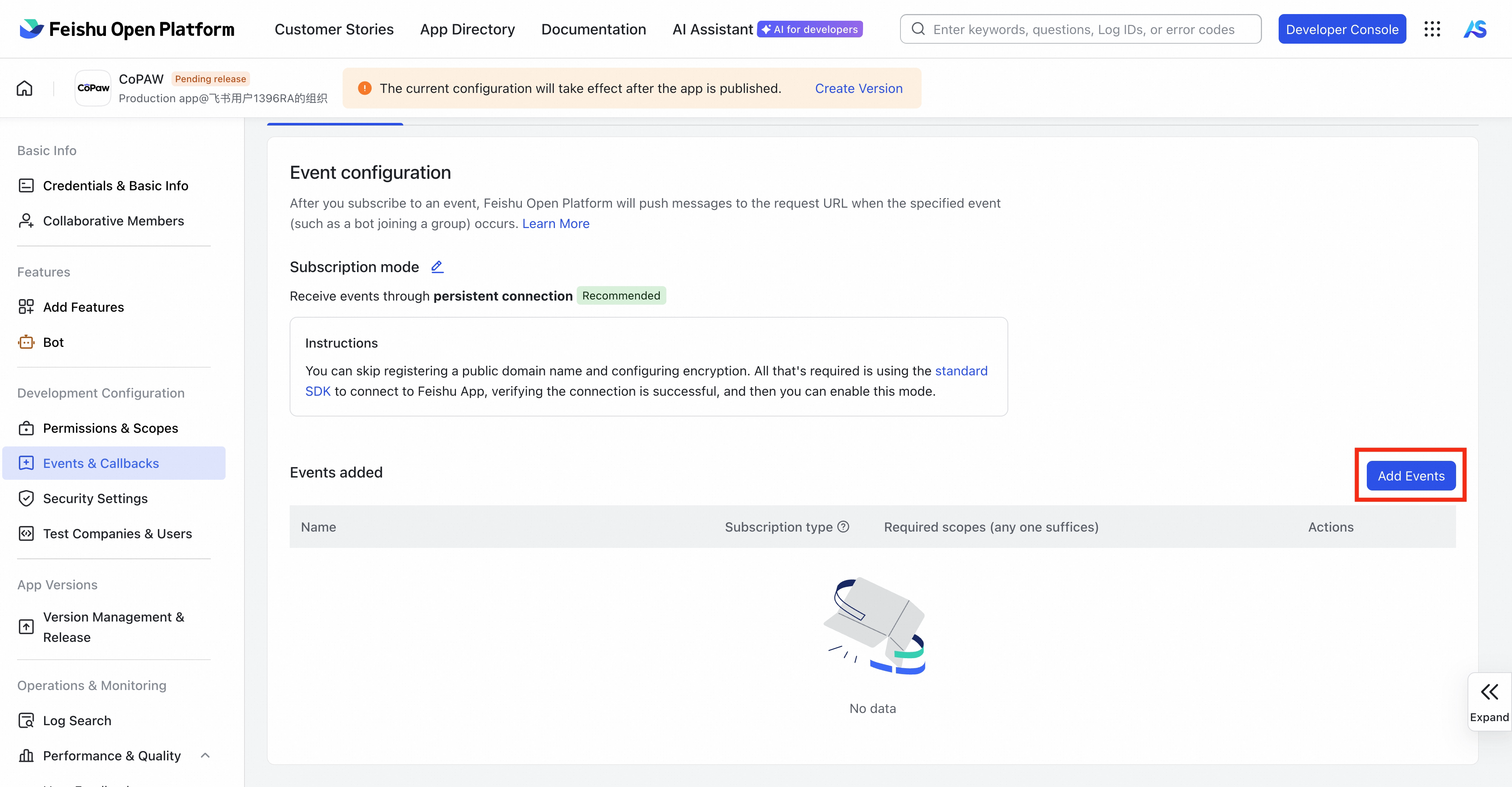
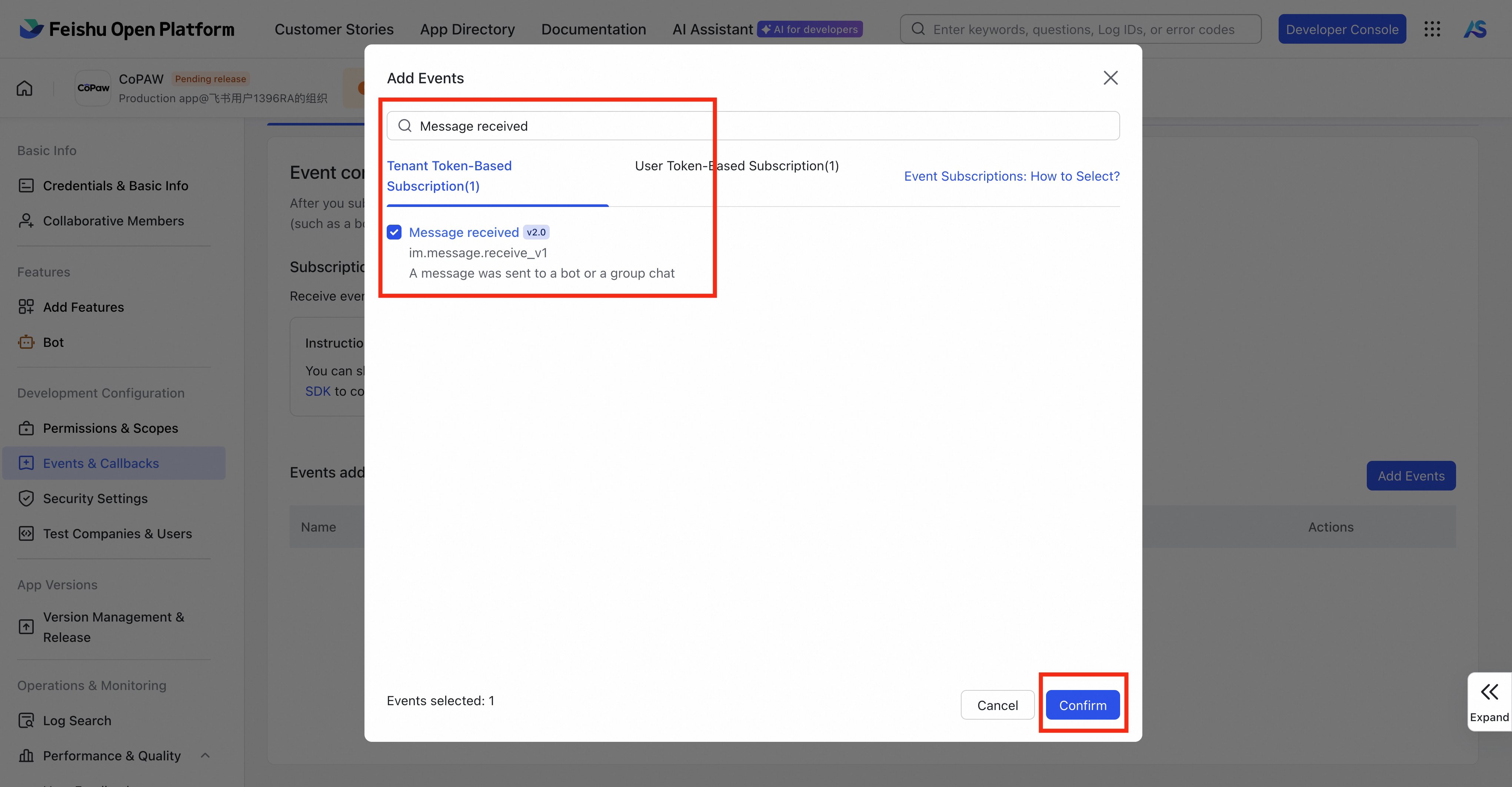
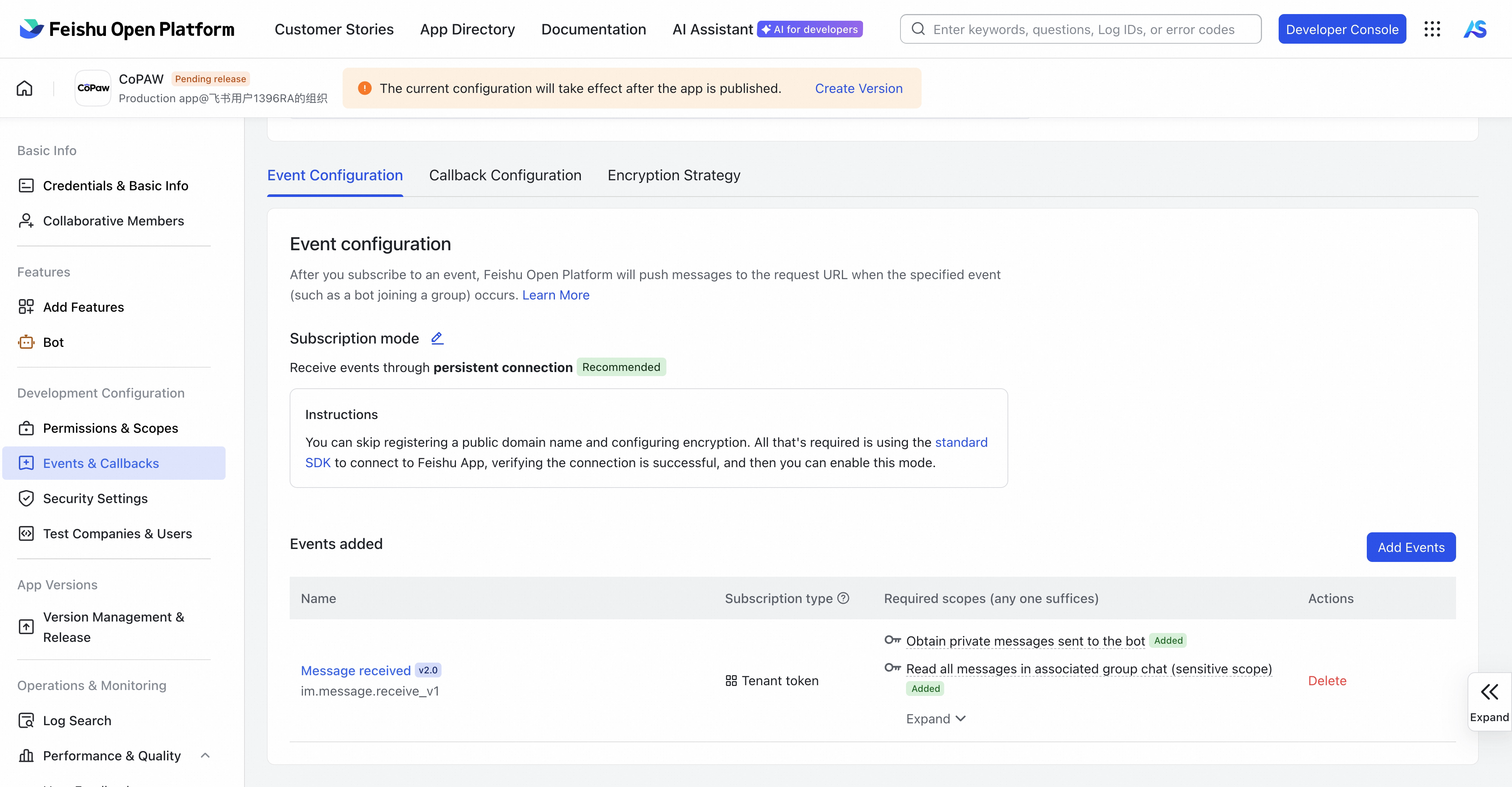
- Select Add Events, search for Message reveived, and subscribe to Message received v2.0
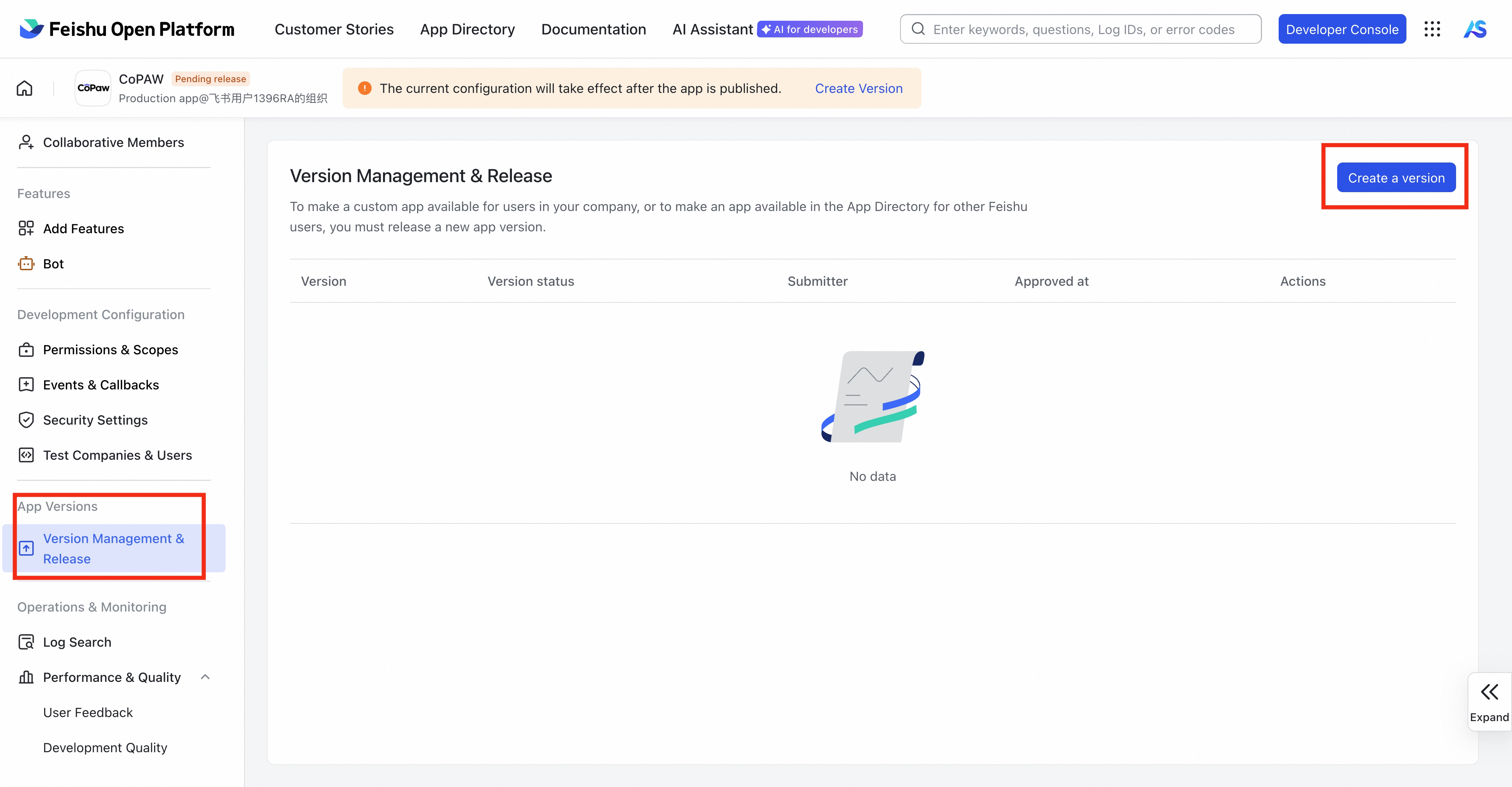
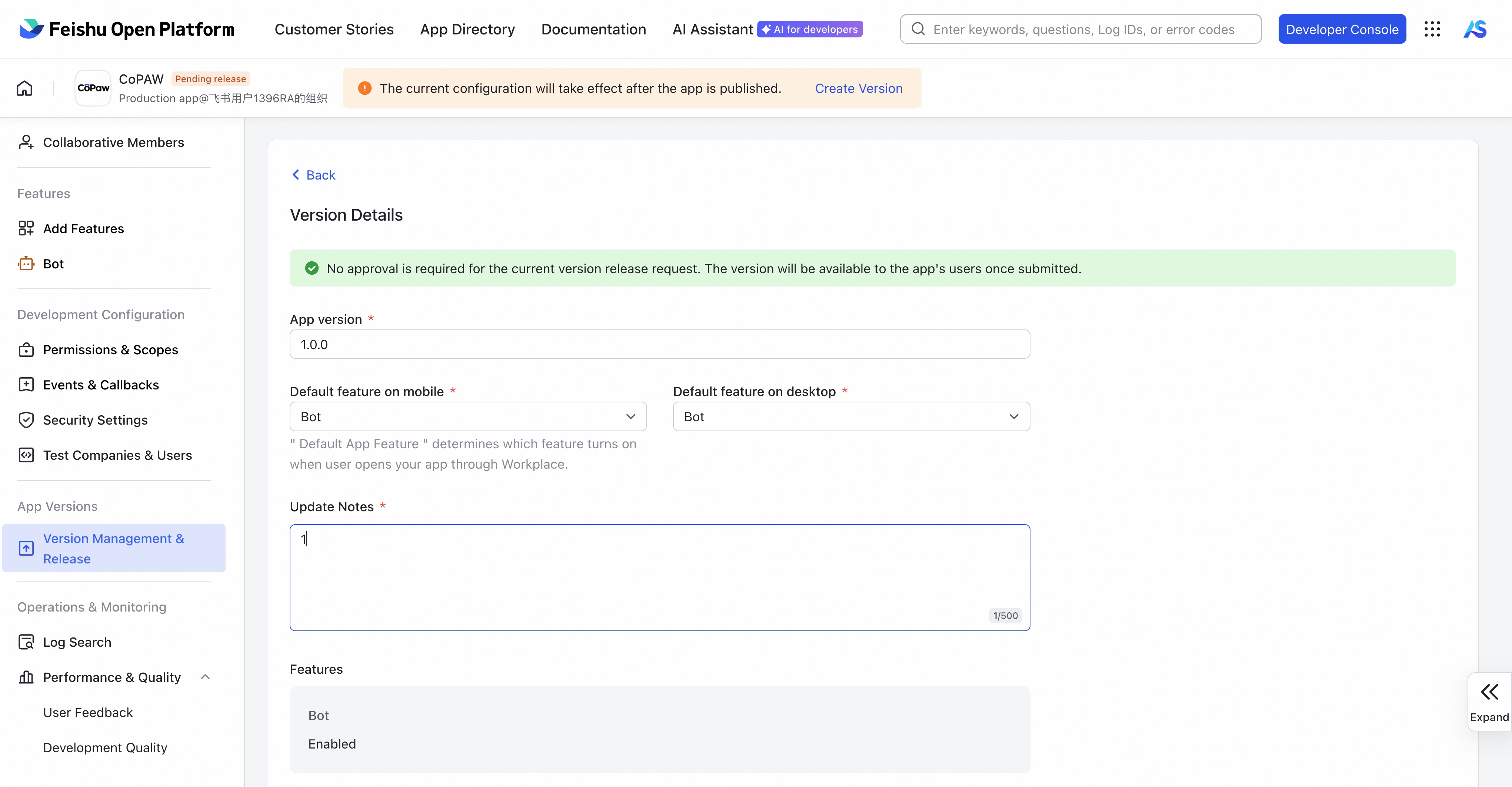
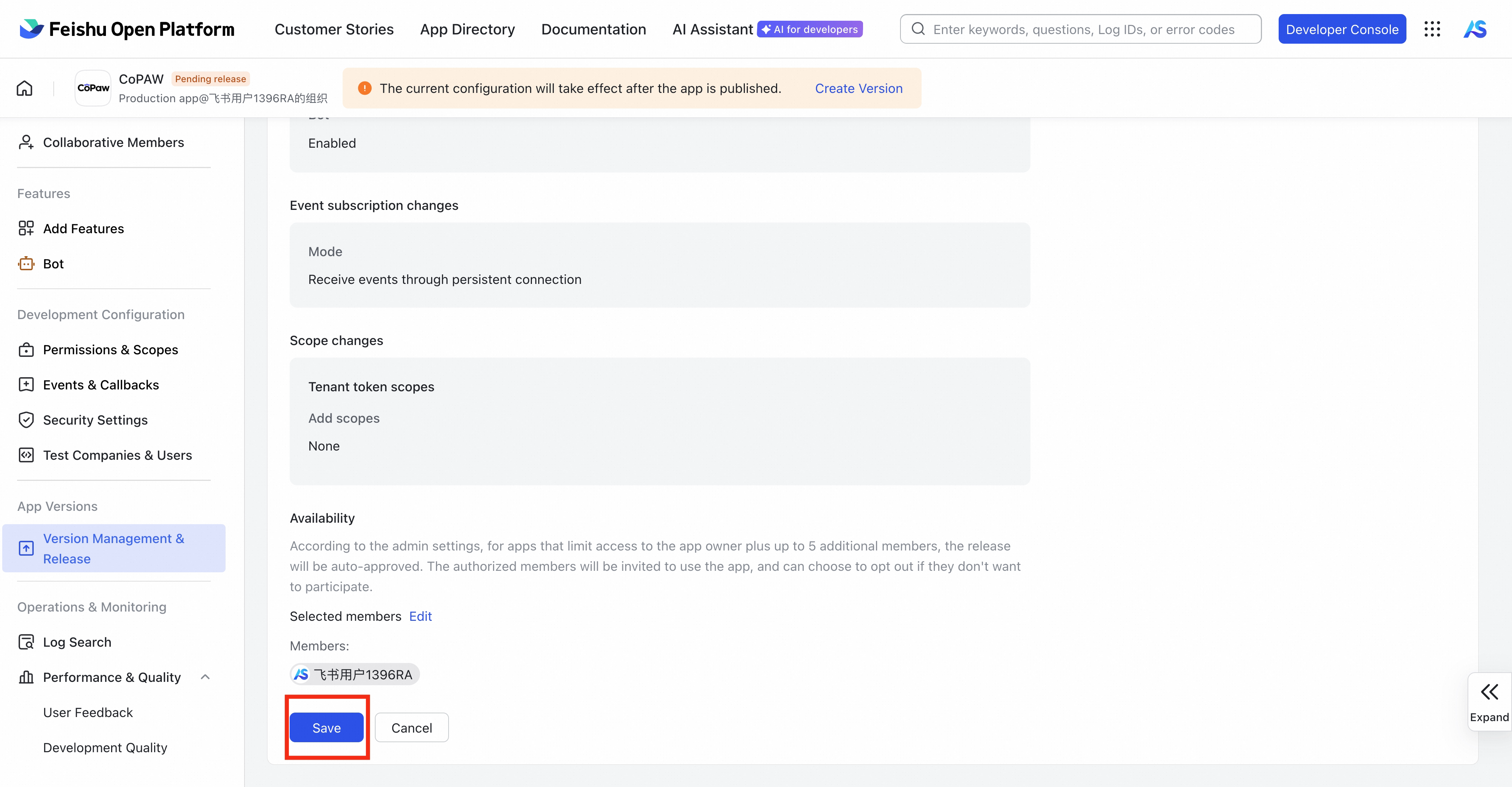
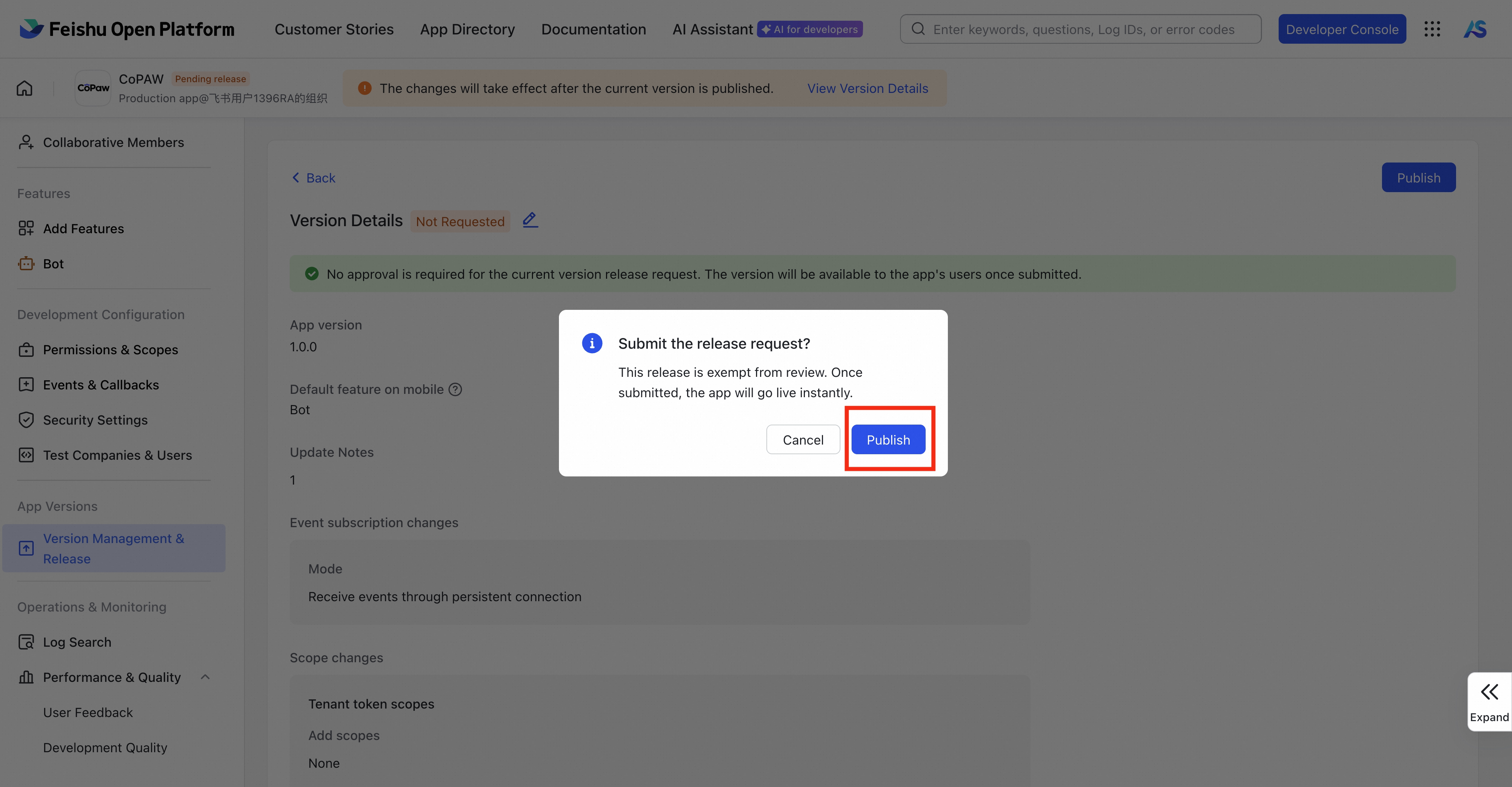
- Under App Versions → Version Management & Release, Create a version, fill in basic info, Save and Publish
Find channels.feishu(default as ~/.copaw/config.json) in config.json. Only App ID and App Secret are required (copy from the Feishu console under Credentials & basic info):
"feishu": {
  "enabled": true,
  "bot_prefix": "[BOT]",
  "app_id": "cli_xxxxx",
  "app_secret": "your App Secret"
}
Other fields (encrypt_key, verification_token, media_dir) are optional; with WebSocket mode you can omit them (defaults apply). Then pip install lark-oapi and run copaw app. If your environment uses a SOCKS proxy, also install python-socks (for example, pip install python-socks), otherwise you may see: python-socks is required to use a SOCKS proxy.
Note: You can also fill in App ID and App Secret in the Console UI, but you must restart the copaw service before continuing with the long-connection configuration.
The JSON in step 6 grants the following permissions (app identity) for messaging and files:
| Permission name | Permission ID | Type | Notes |
|---|---|---|---|
| Get file | aily:file:read | App | - |
| Upload file | aily:file:write | App | - |
| Get message | aily:message:read | App | - |
| Send message | aily:message:write | App | - |
| Download file | corehr:file:download | App | - |
| Get/update group info | im:chat | App | - |
| Get/send chat and group messages | im:message | App | - |
| Get all group messages (sensitive) | im:message.group_msg | App | - |
| Read user-to-bot DMs | im:message.p2p_msg:readonly | App | - |
| View message reactions | im:message.reactions:read | App | - |
| Get/upload image and file resources | im:resource | App | - |
| Read contact as app | contact:user.base:readonly | App | See below |
User display name (recommended): To show user nicknames in sessions and logs (e.g. "张三#1d1a" instead of "unknown#1d1a"), enable the contact read permission Read contact as app (
contact:user.base:readonly). Without it, Feishu only returns identity fields (e.g. open_id) and not the user's name, so CoPAW cannot resolve nicknames. After enabling, publish or update the app version so the permission takes effect.
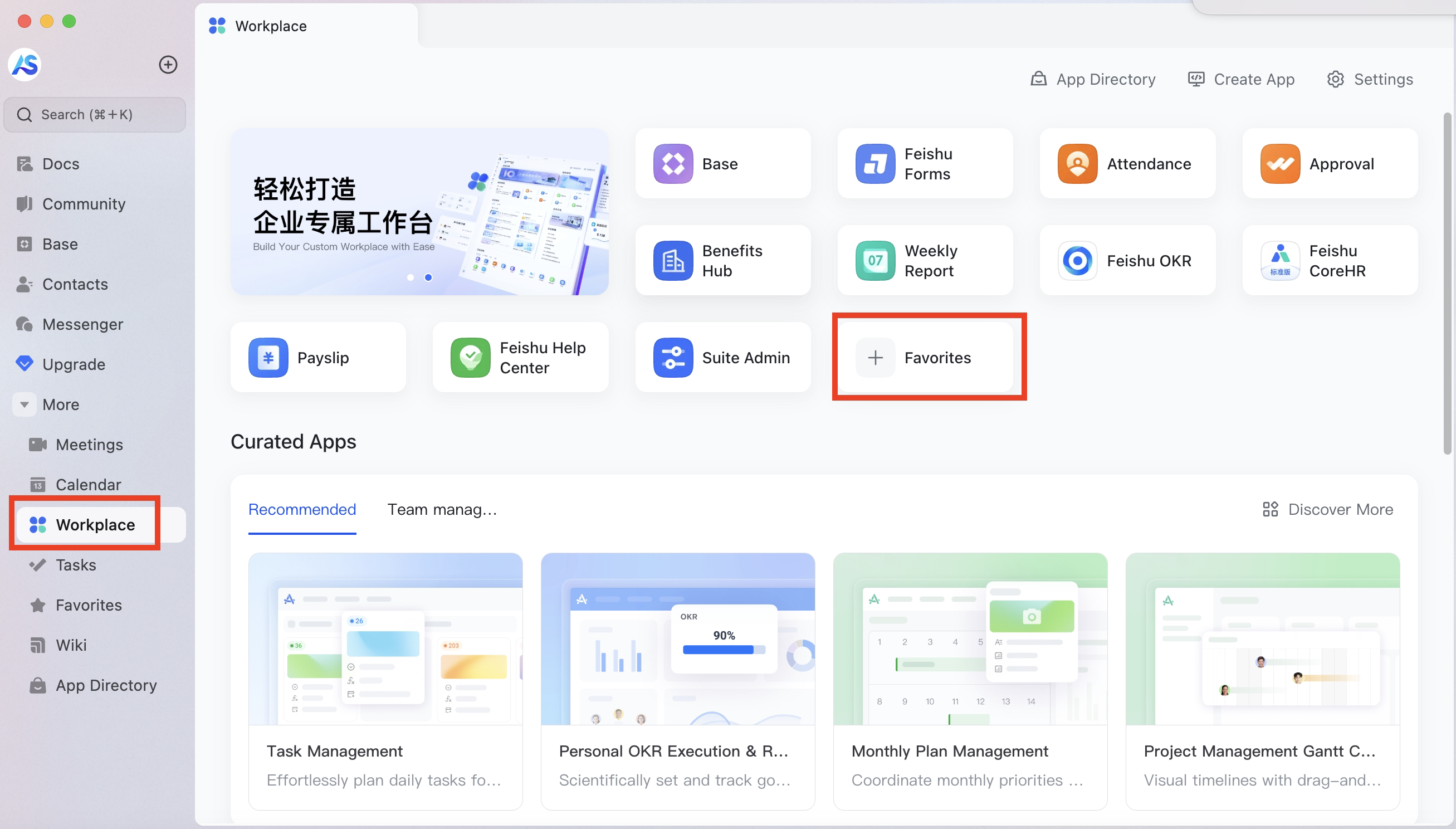
- In the Workplace, tap add Favorites
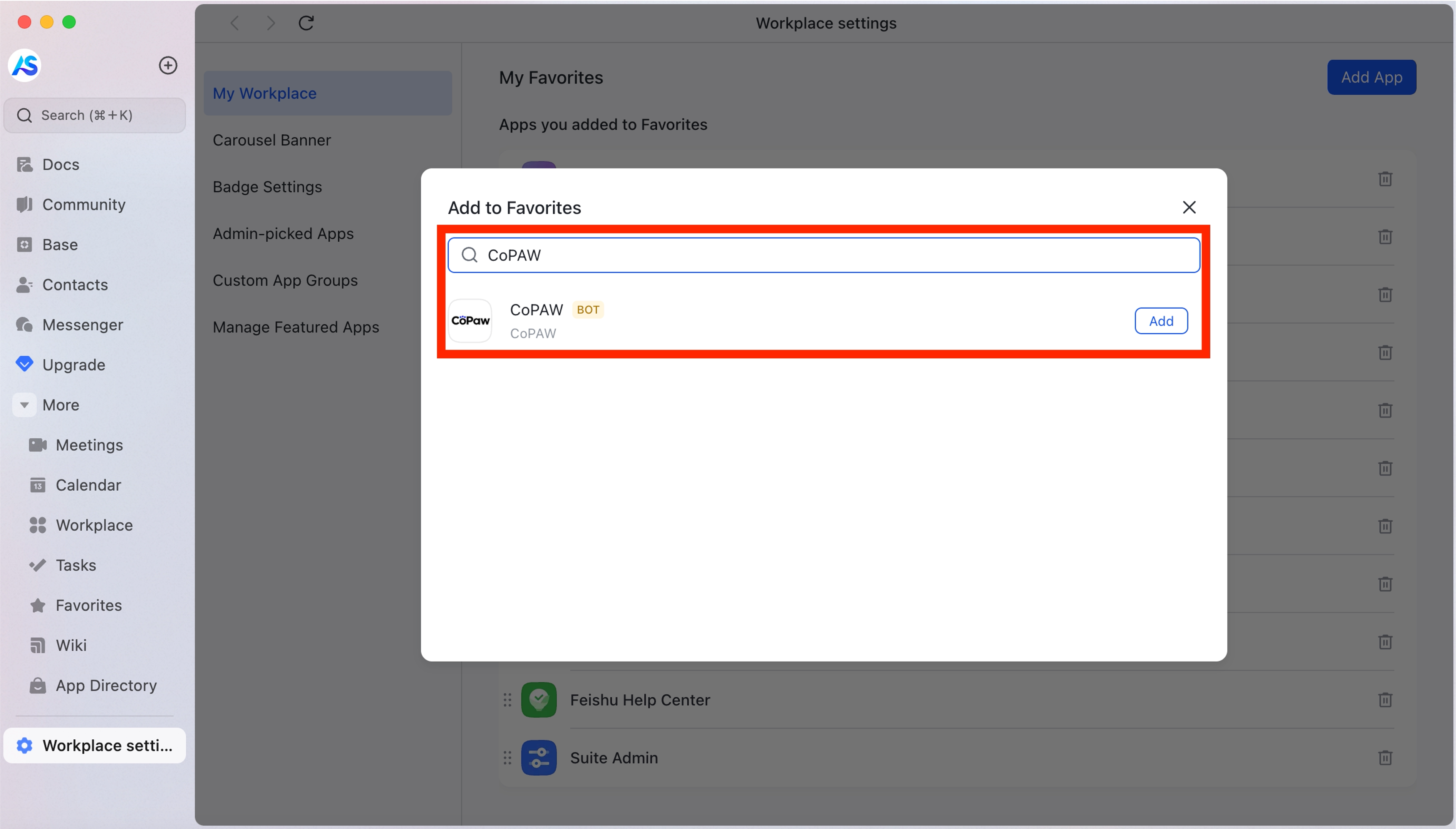
- Search for the bot name you created and tap Add
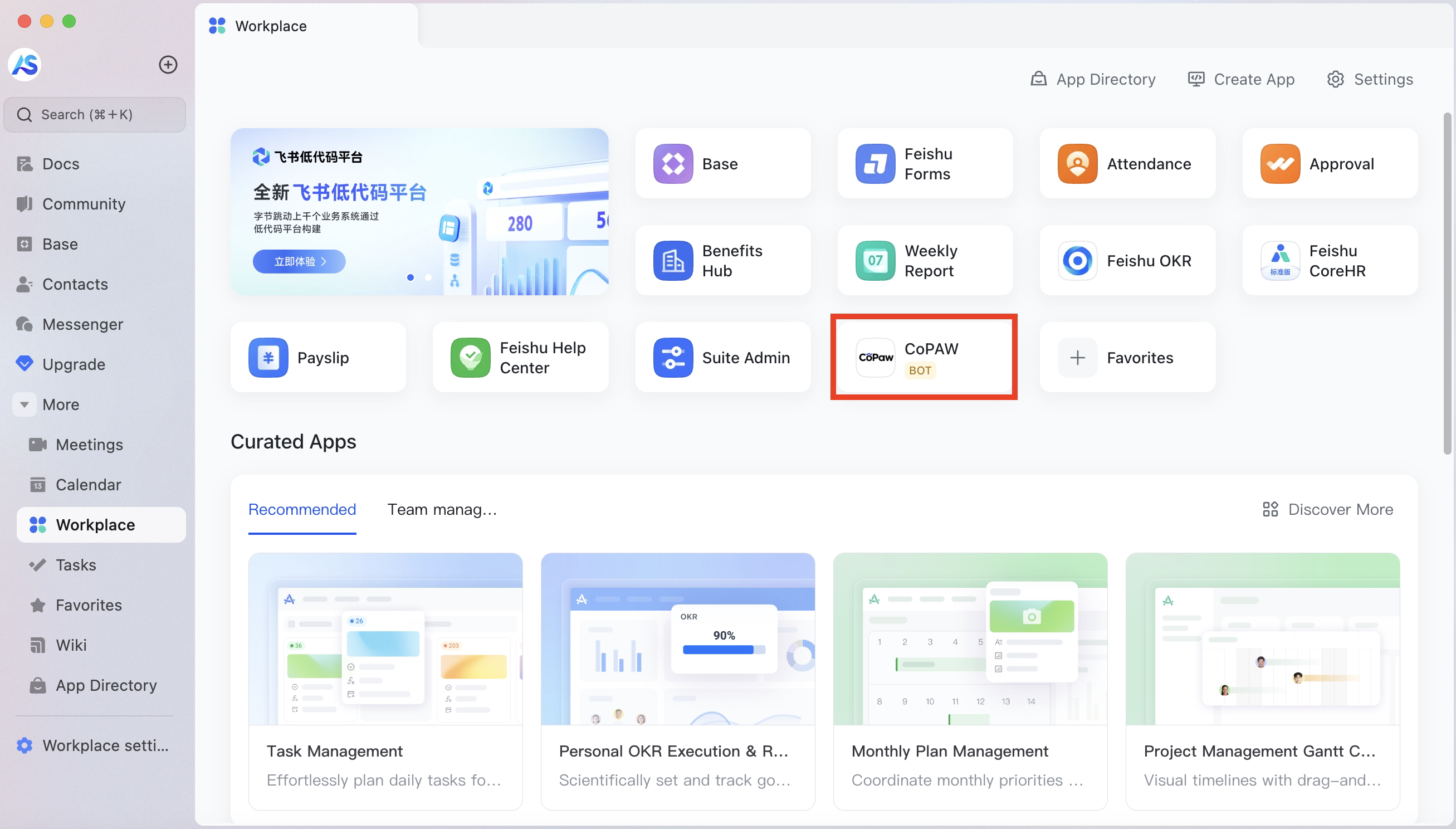
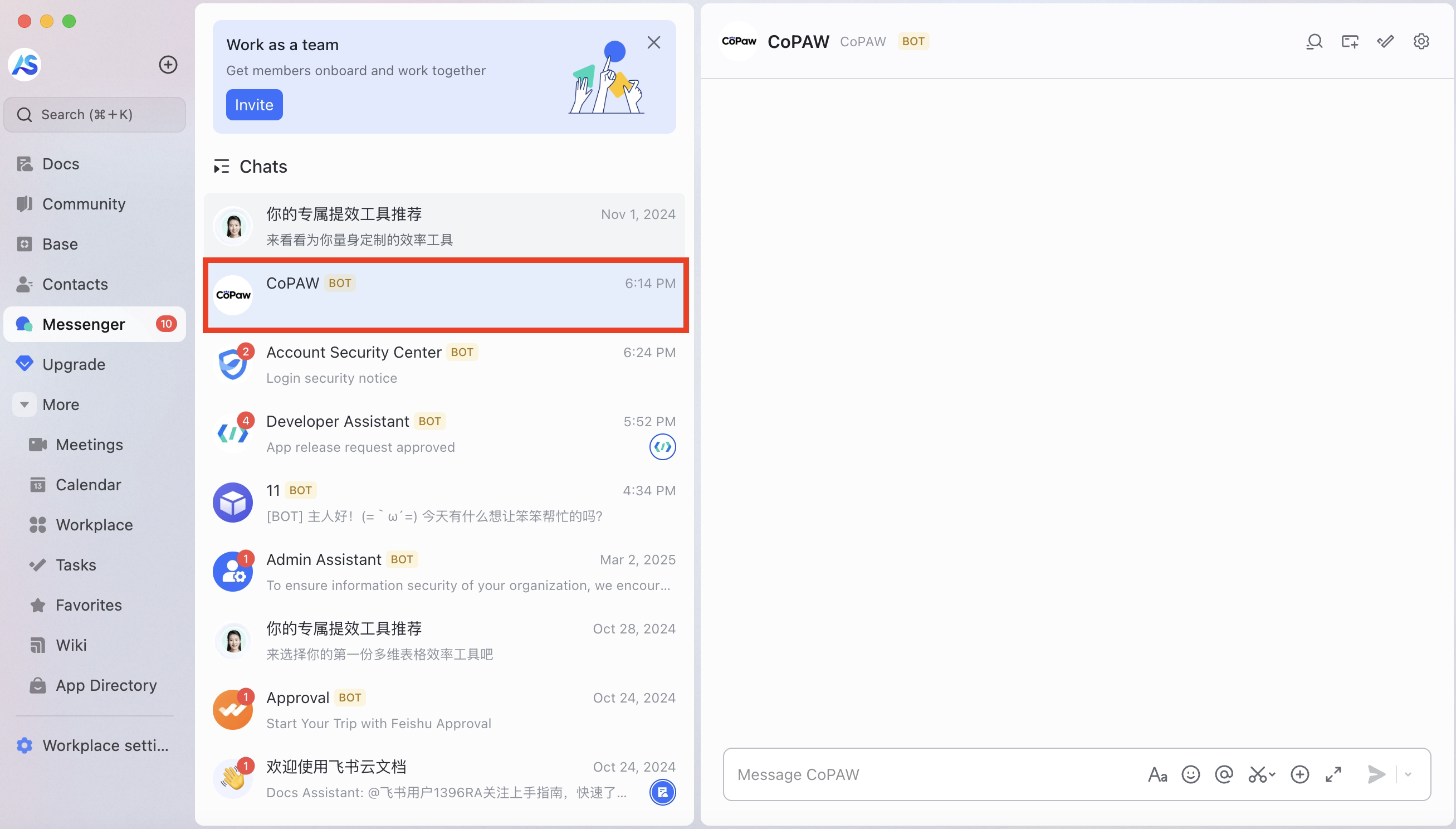
- The bot will appear in your favorites; tap it to open the chat
⚠️ The iMessage channel is macOS only. It relies on the local Messages app and the iMessage database, so it cannot run on Linux or Windows.
The app polls the local iMessage database for new messages and sends replies on your behalf.
-
Ensure Messages is signed in on this Mac (open the Messages app and sign in with your Apple ID in System Settings).
-
Install imsg (used to access the iMessage database):
brew install steipete/tap/imsg
If installation fails on Intel Mac, clone the repo and build from source:
git clone https://github.com/steipete/imsg.git cd imsg make build sudo cp build/Release/imsg /usr/local/bin/ cp ./bin/imsg /usr/local/bin/ -
For CoPaw to read iMessage data, Terminal (or the app you use to run
copaw app) and Messages need Full Disk Access (System Settings → Privacy & Security → Full Disk Access). -
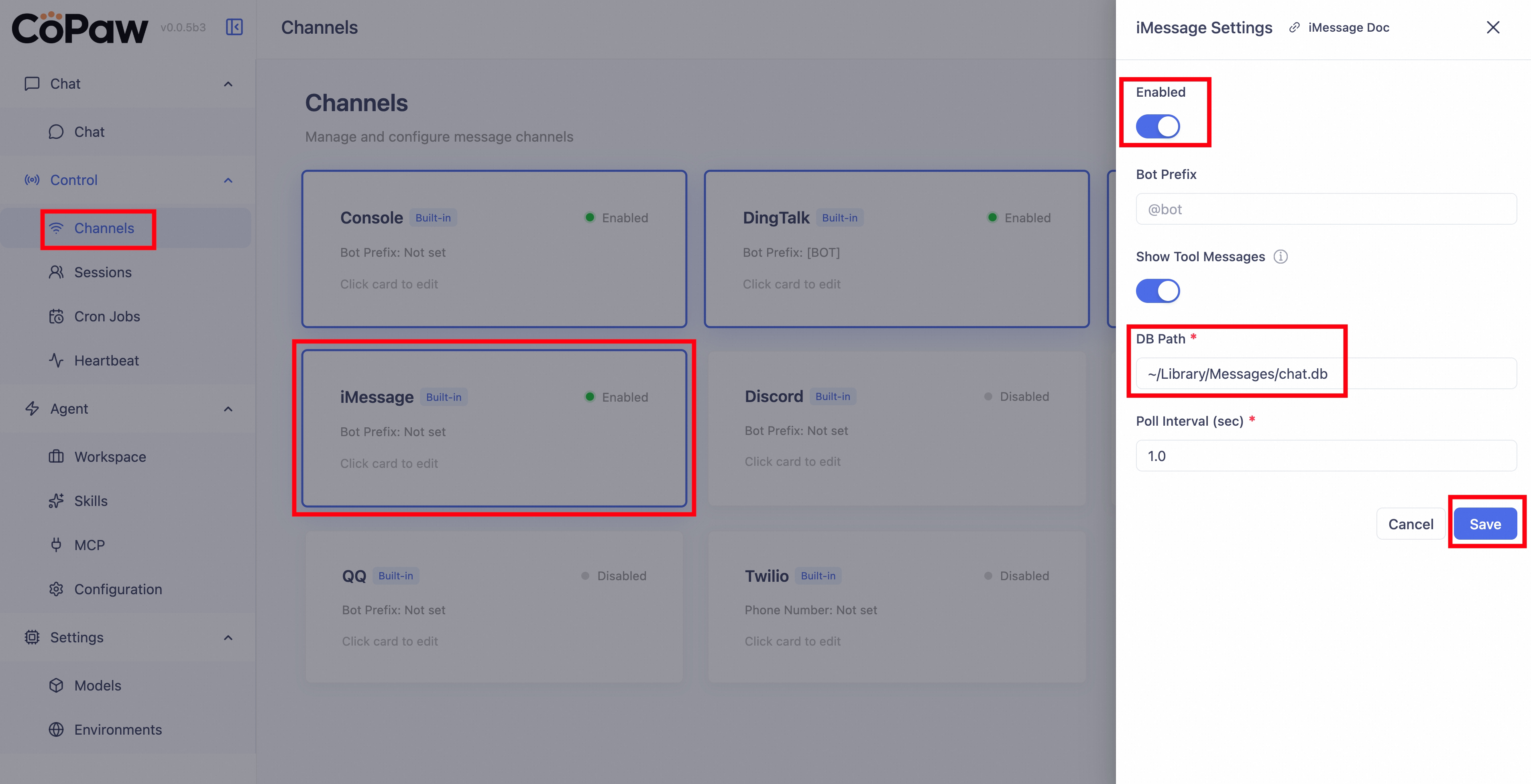
Set the iMessage database path. The default is
~/Library/Messages/chat.db; use this unless you've moved the database. You can configure it in either of these ways:-
In Console → Channels, click the iMessage card, turn Enable on, enter the path in DB Path, and click Save.
-
Or edit
config.json(usually at~/.copaw/config.json):"imessage": { "enabled": true, "bot_prefix": "[BOT]", "db_path": "~/Library/Messages/chat.db", "poll_sec": 1.0 }
db_path — Path to the iMessage database
poll_sec — Poll interval in seconds (1 is fine)
-
-
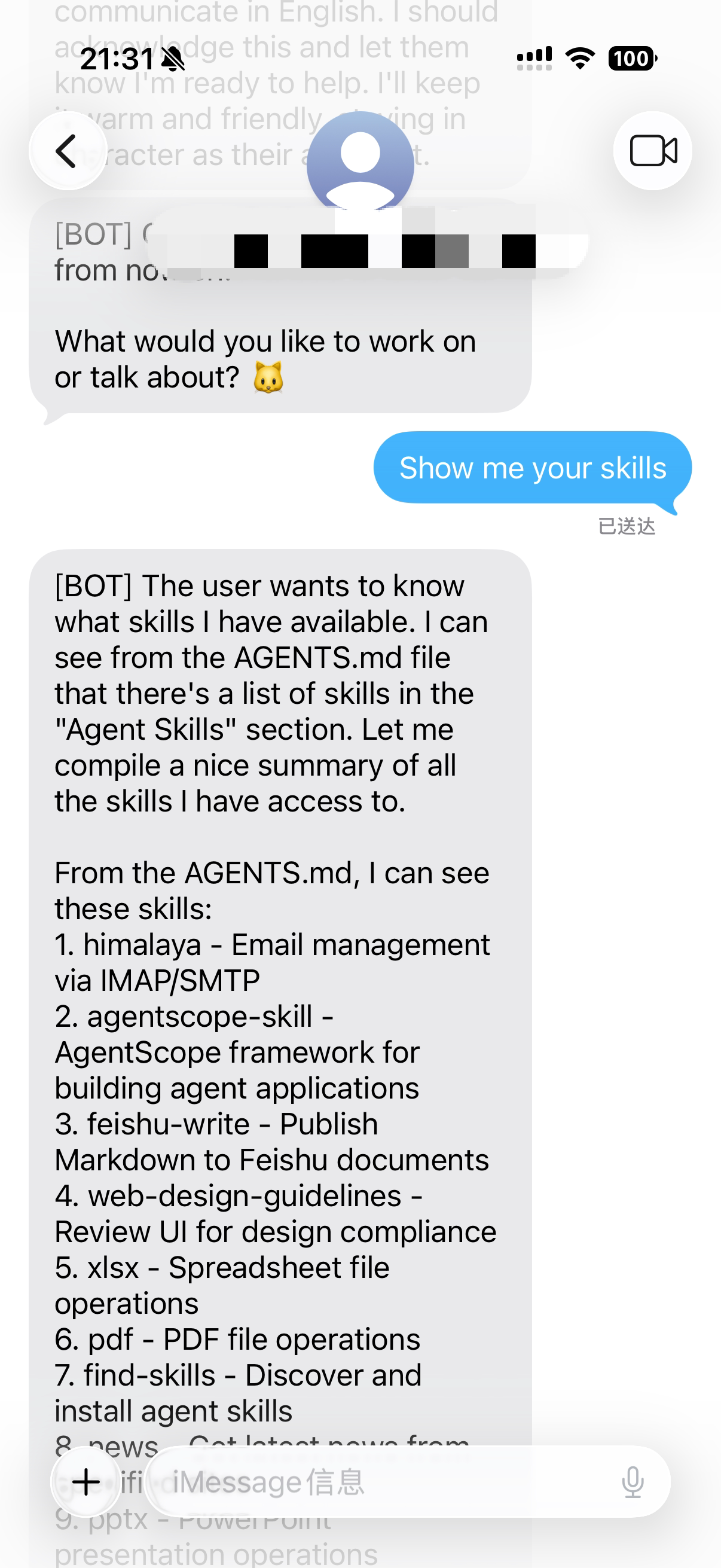
After saving, send any message from your phone to the iMessage account signed in on this Mac (same Apple ID). You should see a reply.
- Open the Discord Developer Portal
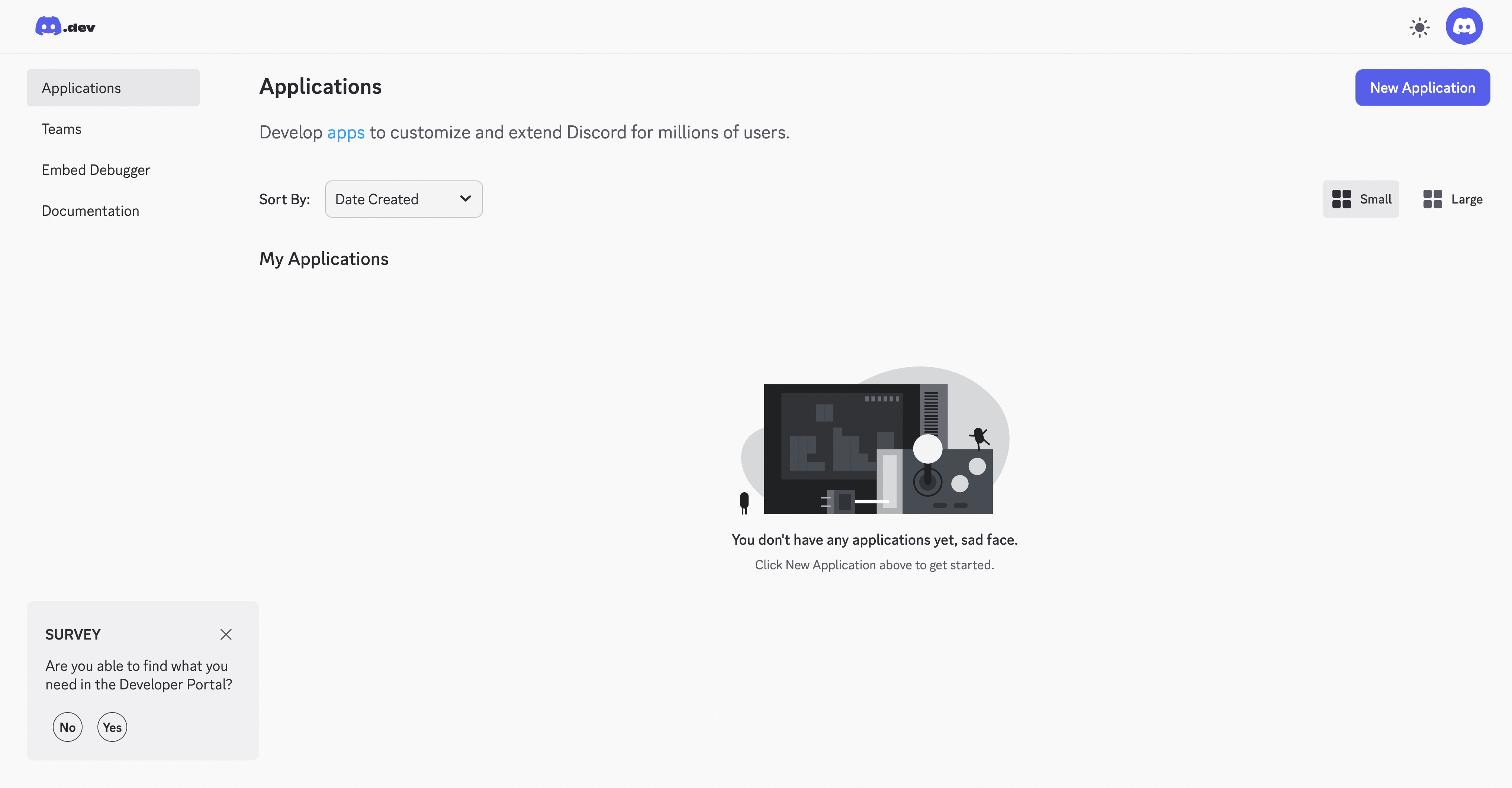
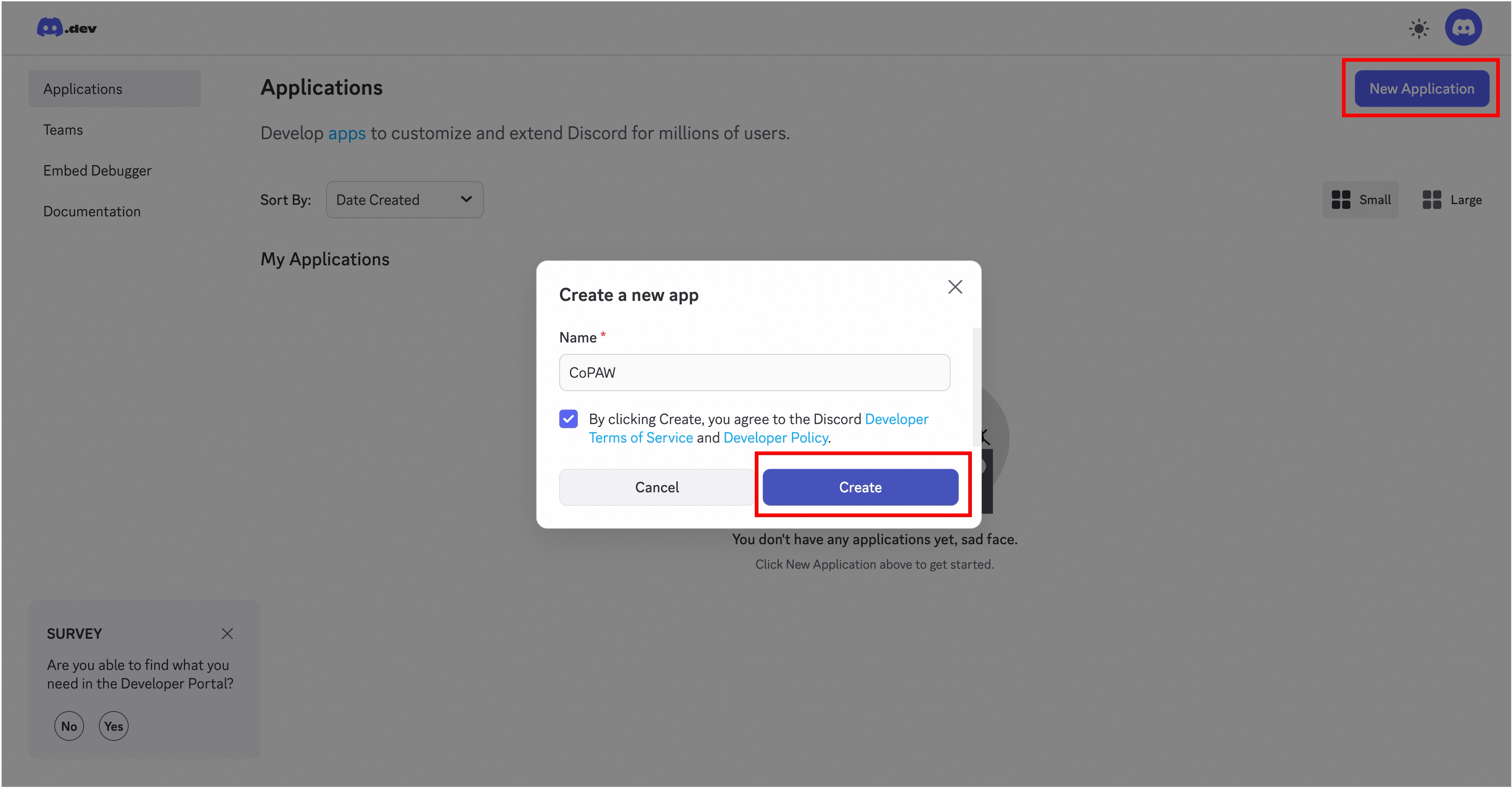
- Create a new application (or select an existing one)
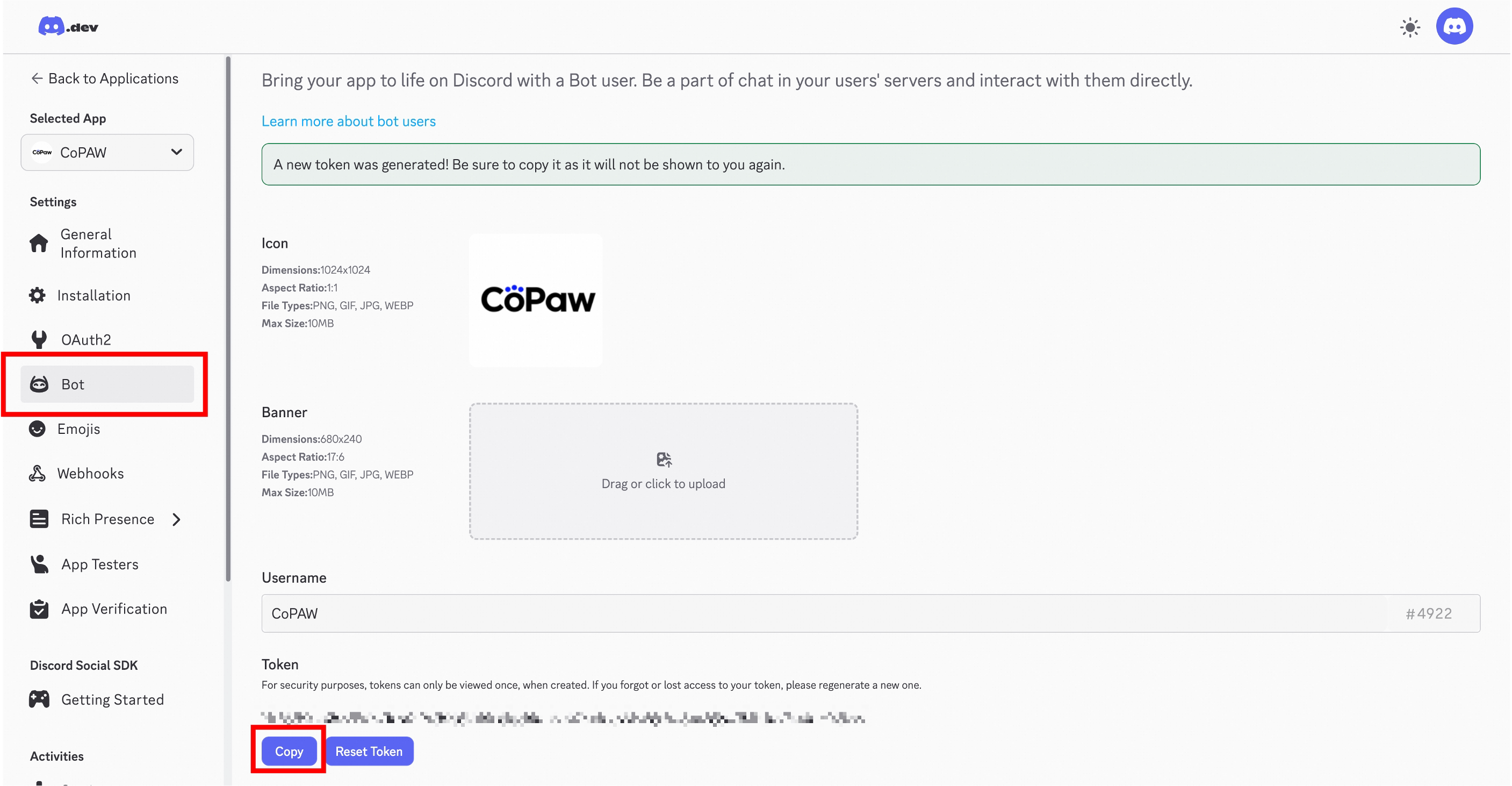
- Go to Bot in the left sidebar, create a bot, and copy the Token
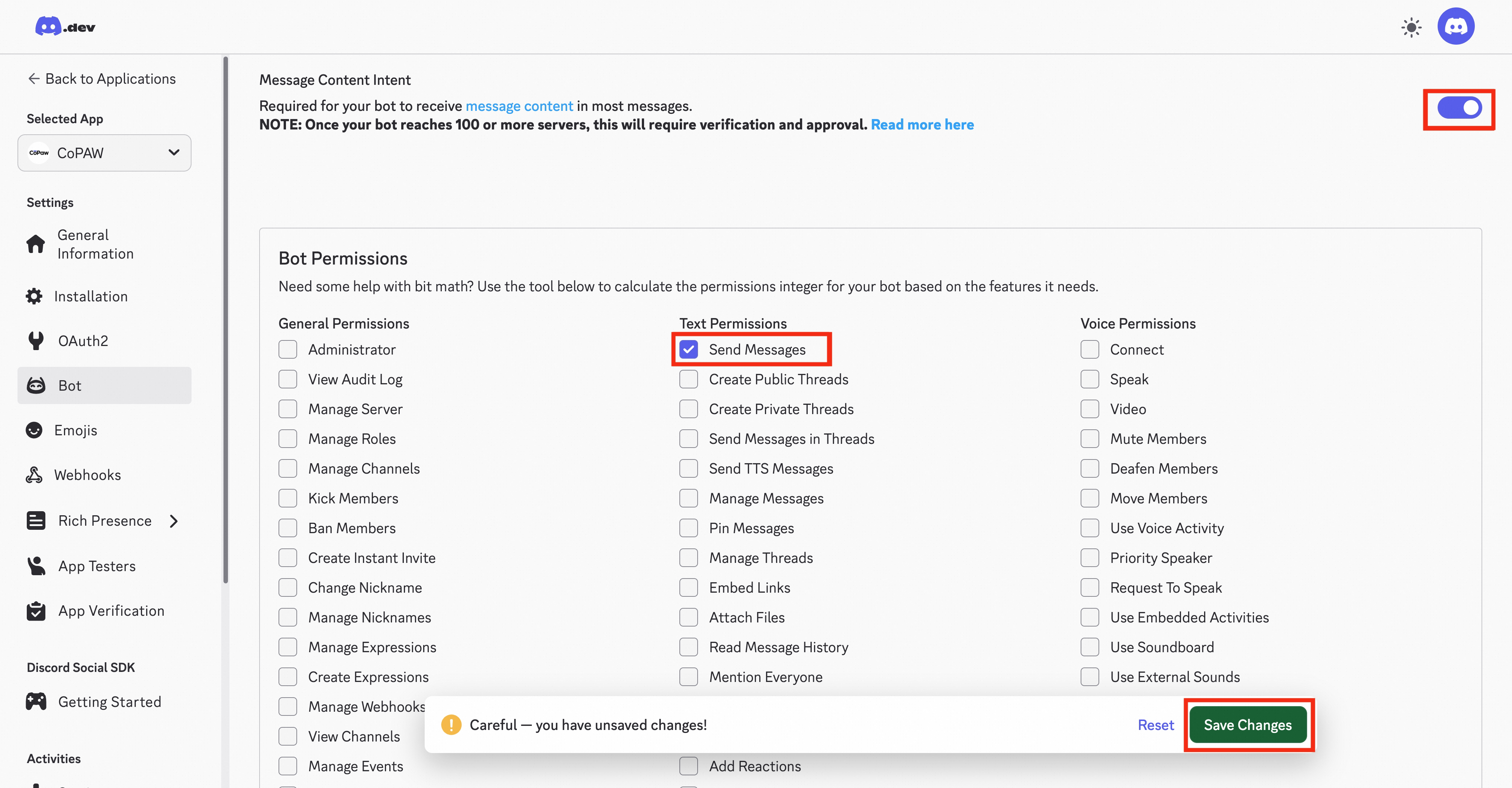
- Scroll down, enable Message Content Intent and Send Messages for the bot, then save
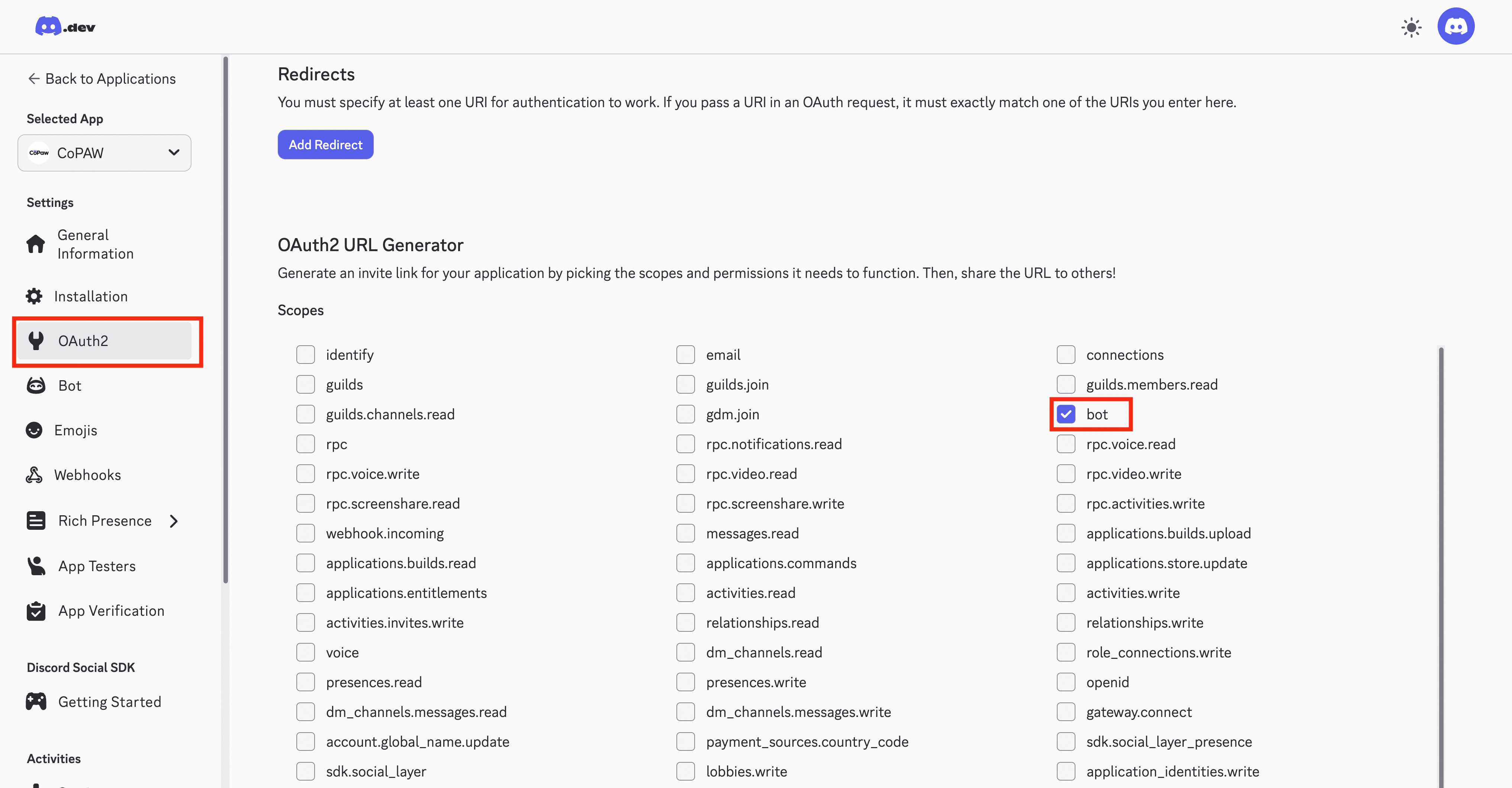
- In OAuth2 → URL Generator, enable
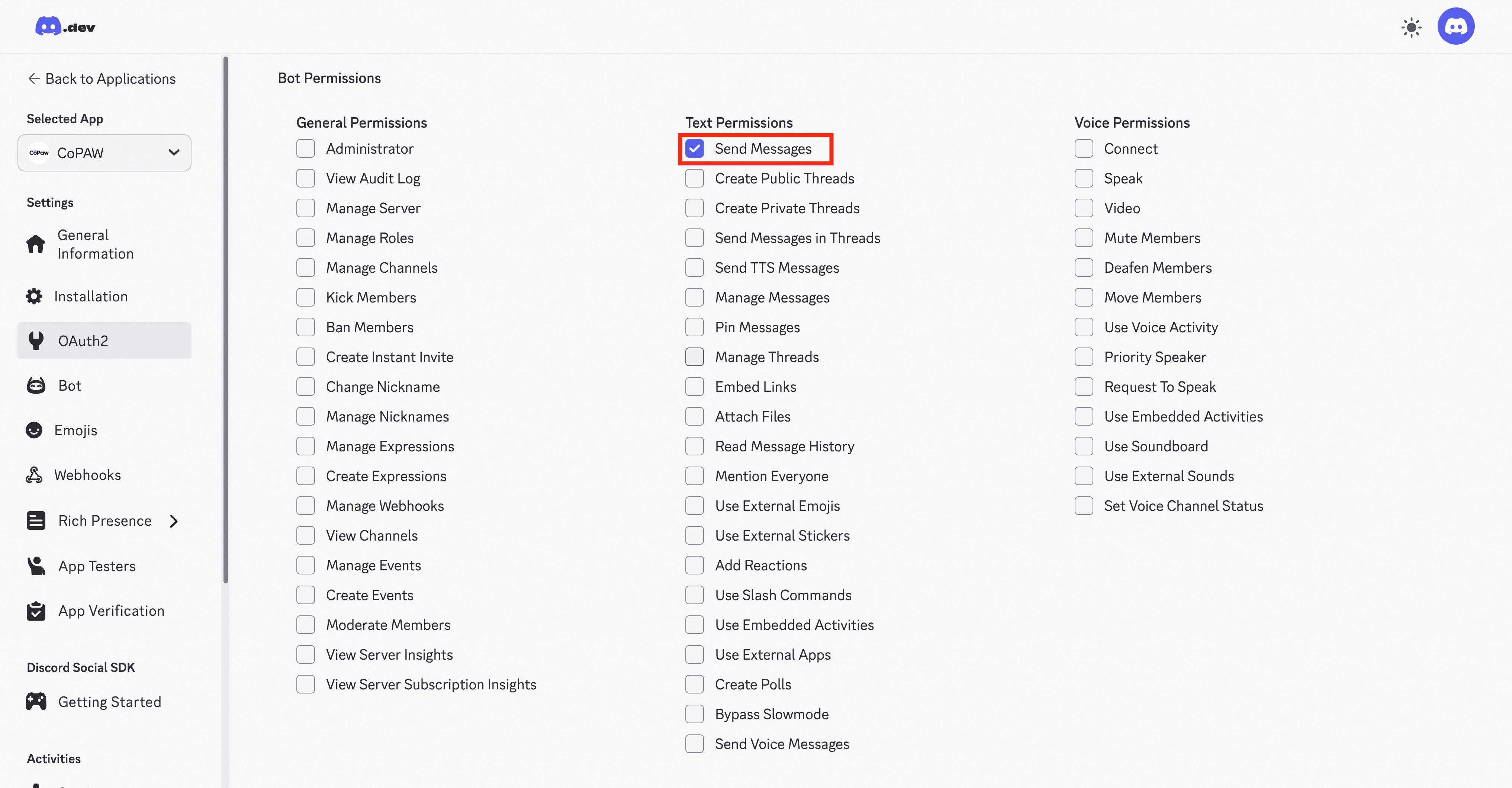
bot, grant Send Messages, and generate the invite link
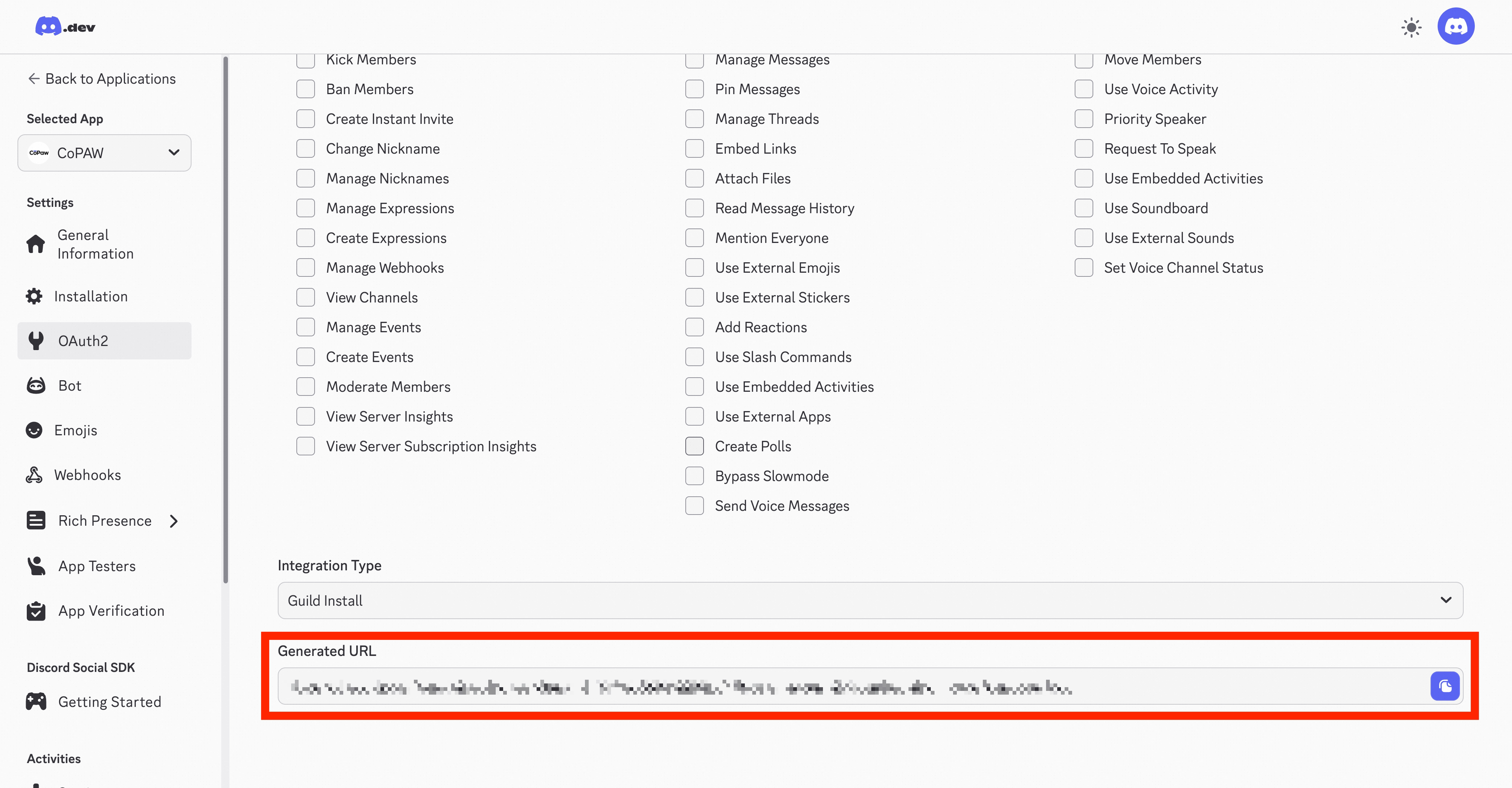
- Open the link in your browser; it will redirect to Discord. Add the bot to your server
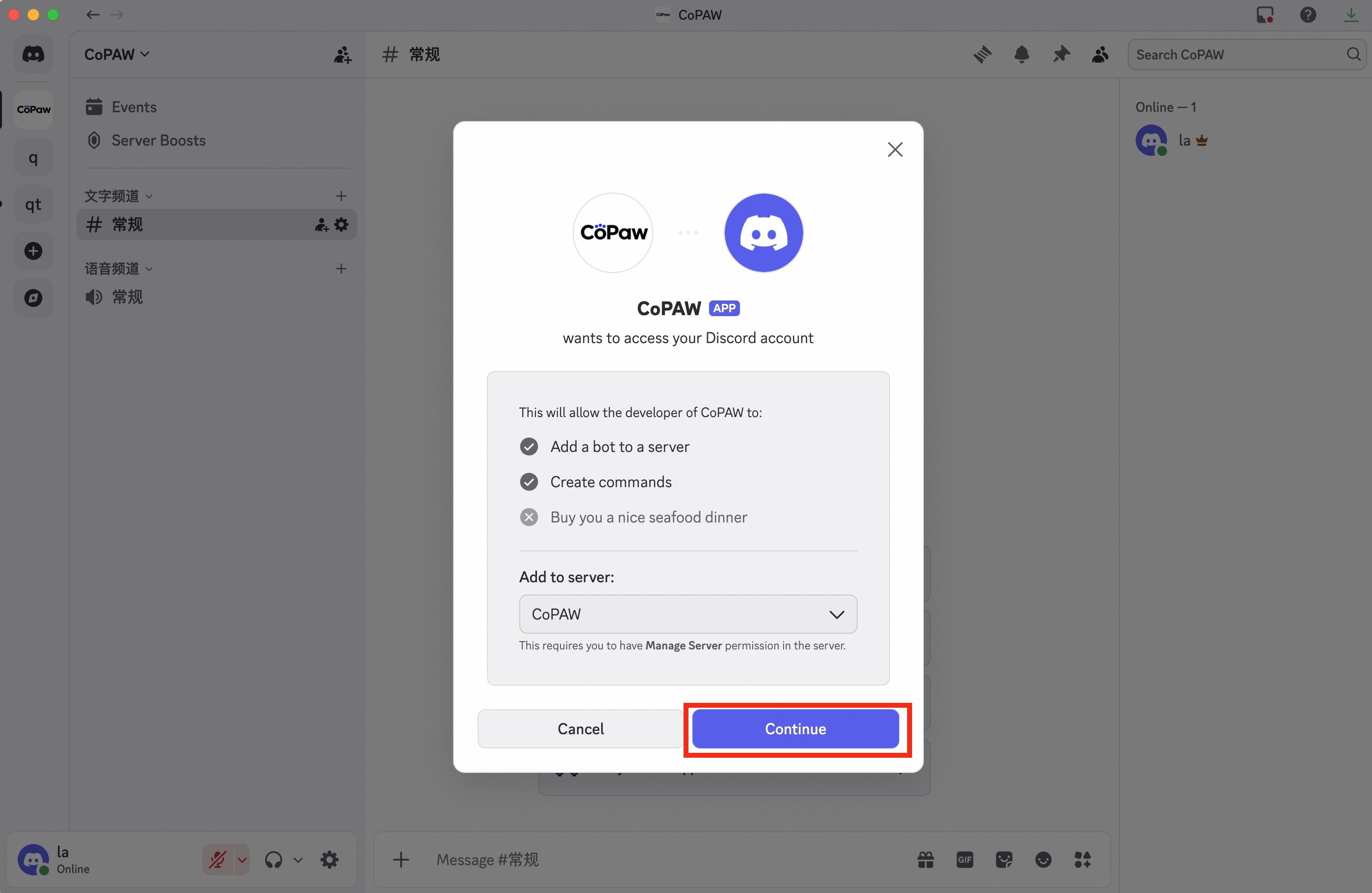
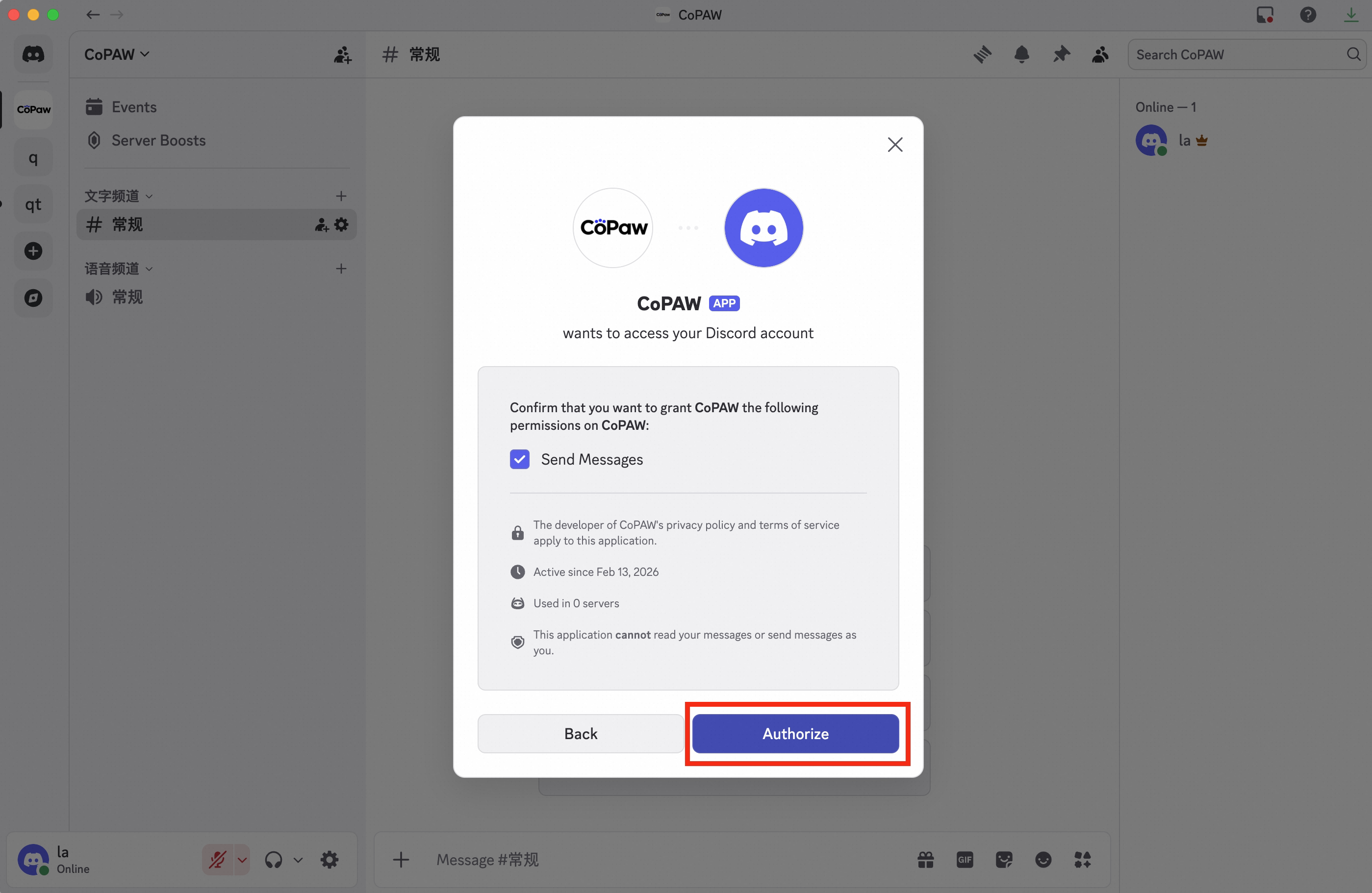
- You can see the bot is now in your server
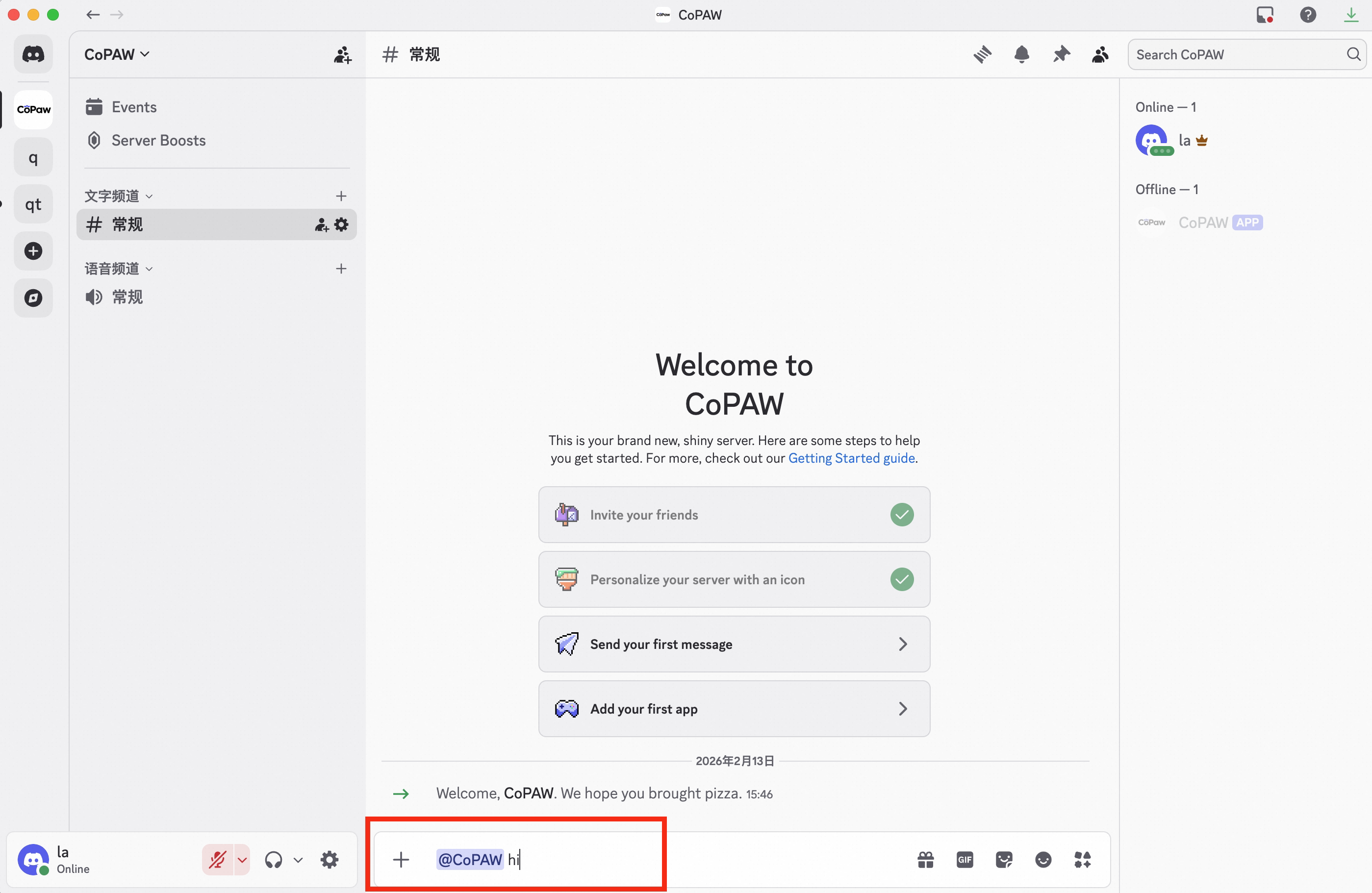
You can configure via the Console UI or by editing ~/.copaw/config.json.
Method 1: Configure in the Console
Go to Control → Channels, click Discord, and enter the Bot Token you obtained.
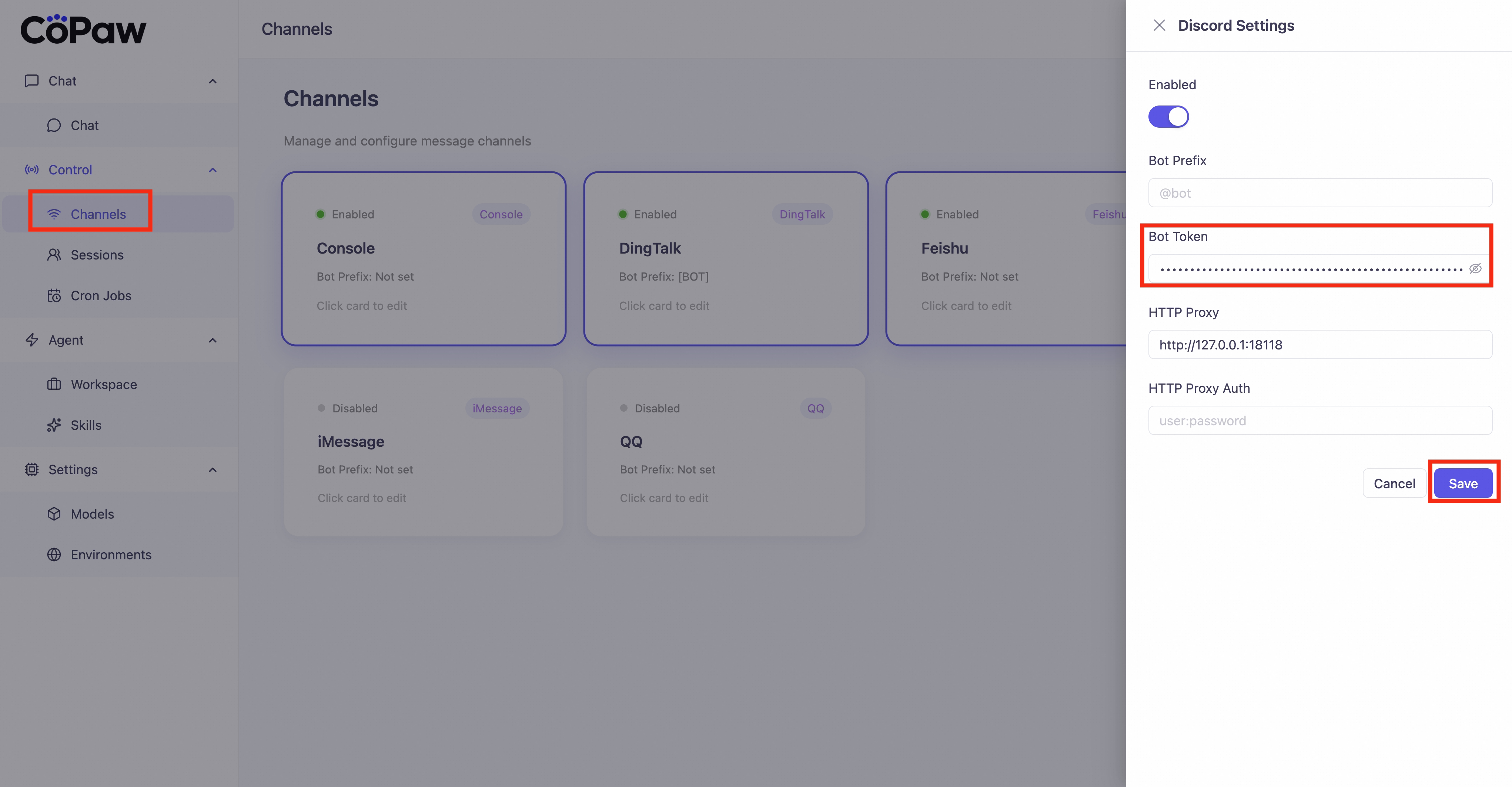
Method 2: Edit ~/.copaw/config.json
Find channels.discord in config.json and fill in the fields, for example:
"discord": {
  "enabled": true,
  "bot_prefix": "[BOT]",
  "bot_token": "your Bot Token",
  "http_proxy": "",
  "http_proxy_auth": ""
}
If you need a proxy (e.g. for network restrictions):
- http_proxy — e.g.
http://127.0.0.1:7890 - http_proxy_auth —
username:passwordif the proxy requires auth, otherwise leave empty
- Open the QQ Developer Platform
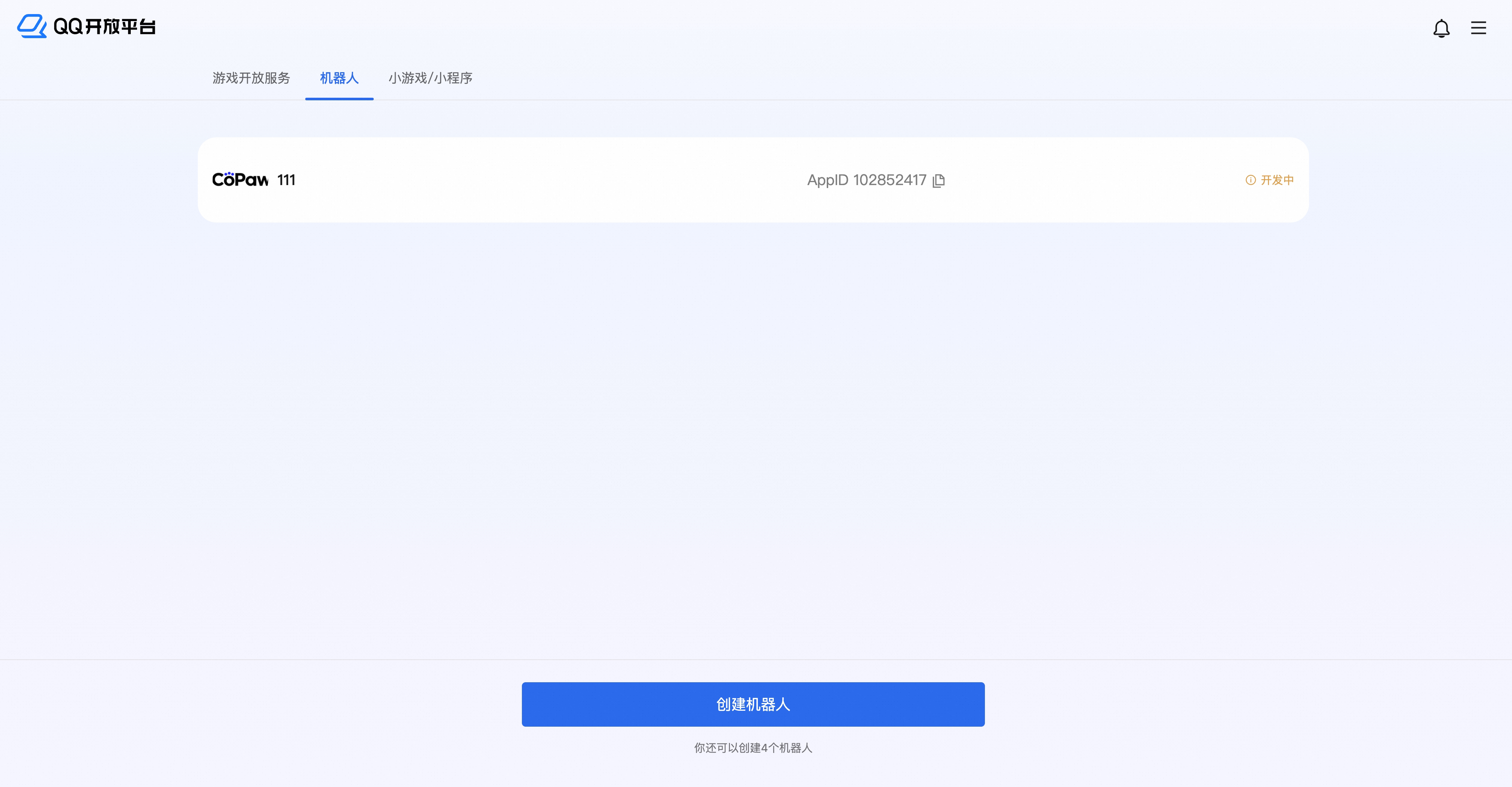
- Create a bot application and click to open the edit page
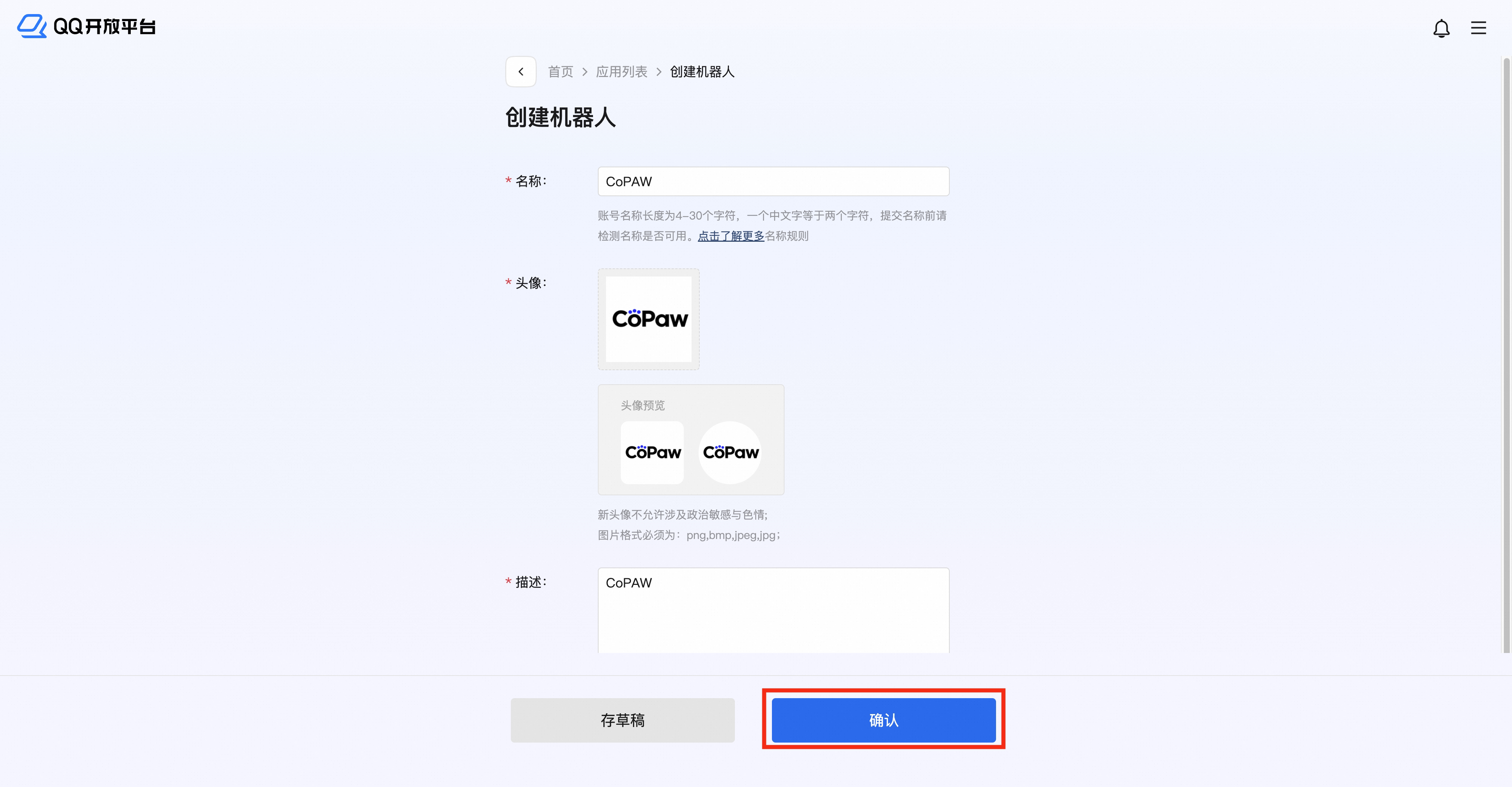
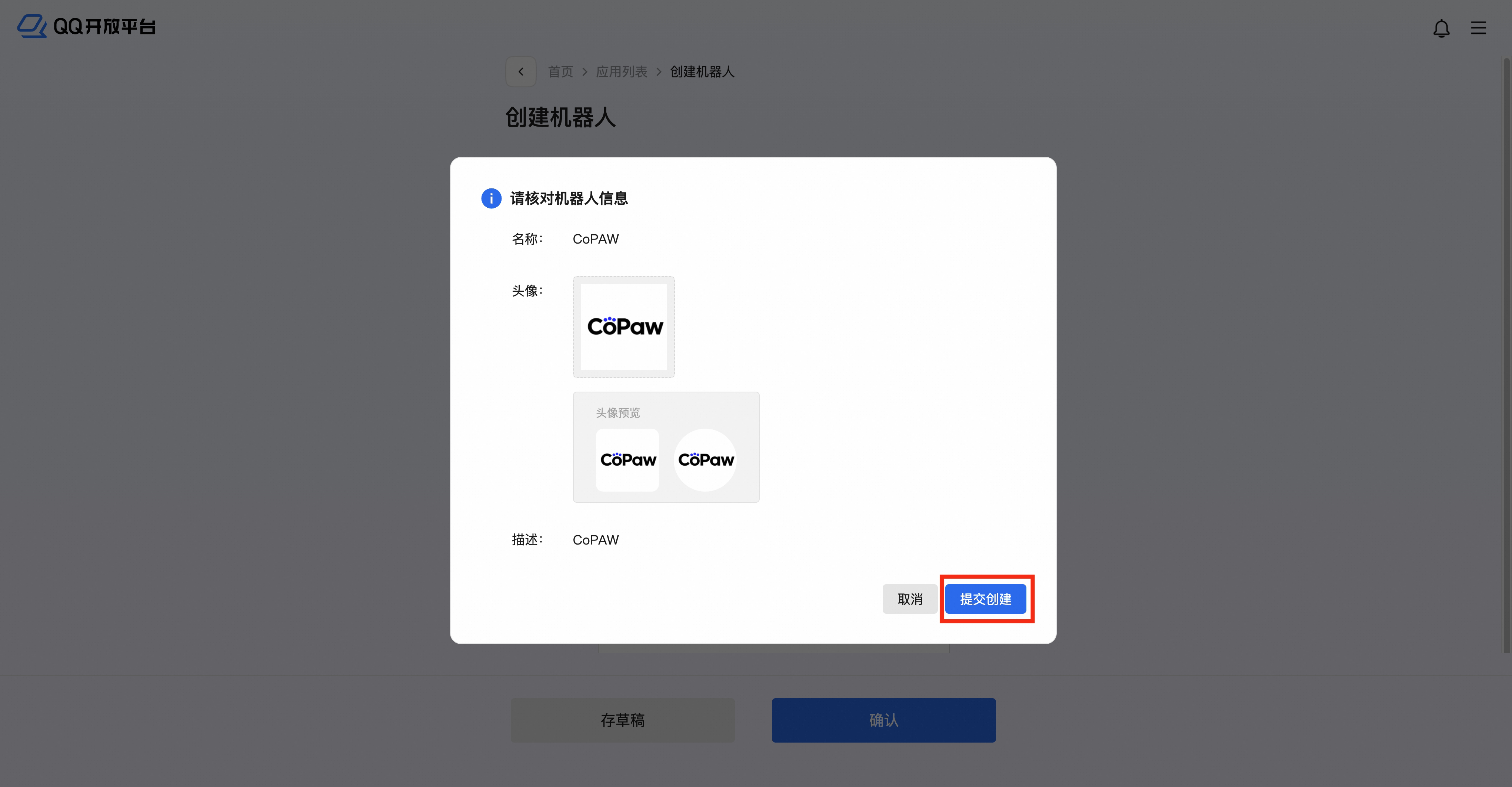
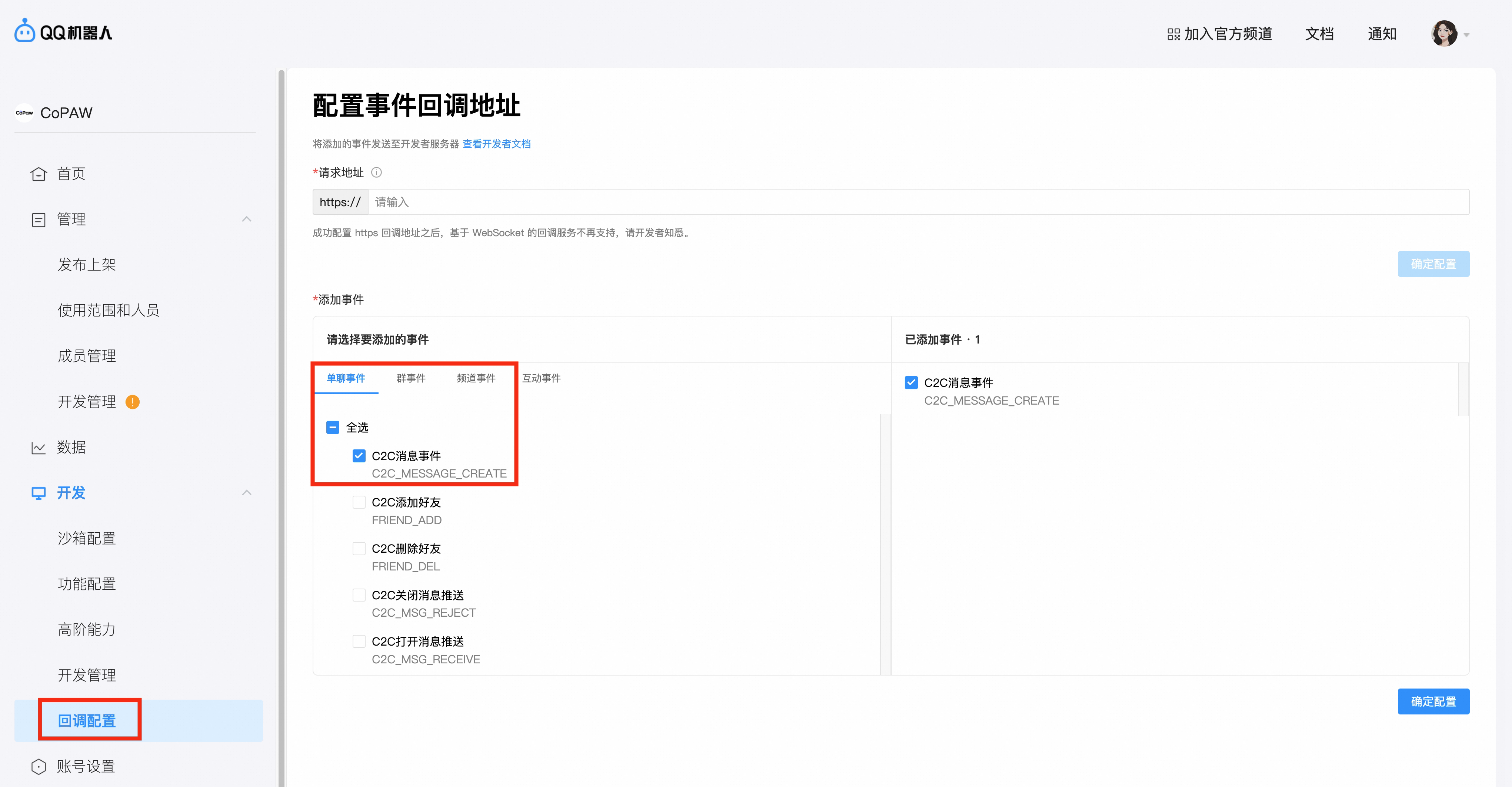
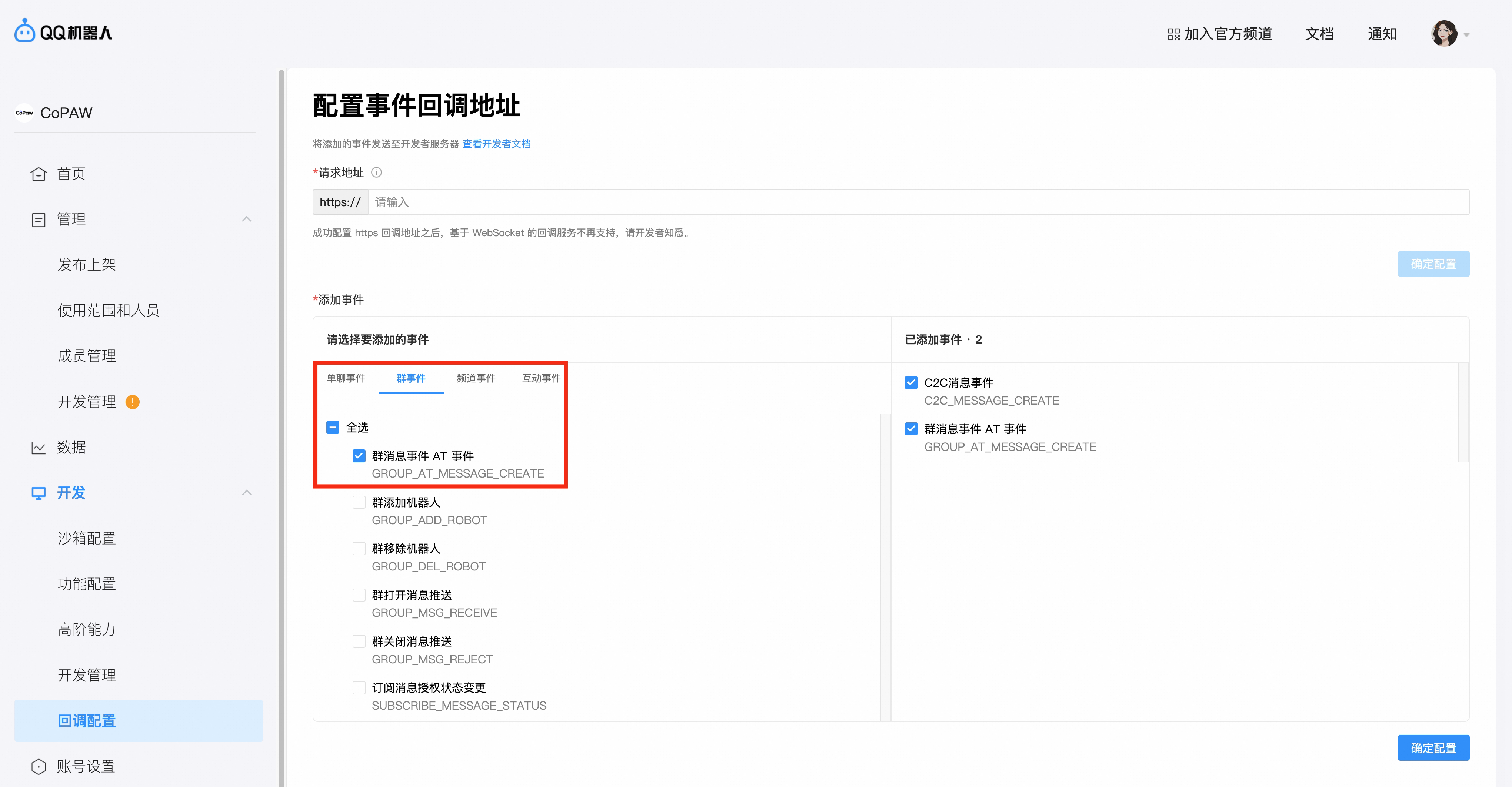
- Go to Callback config → enable C2C message events under Direct message events, and At-event for group messages under Group events, then confirm
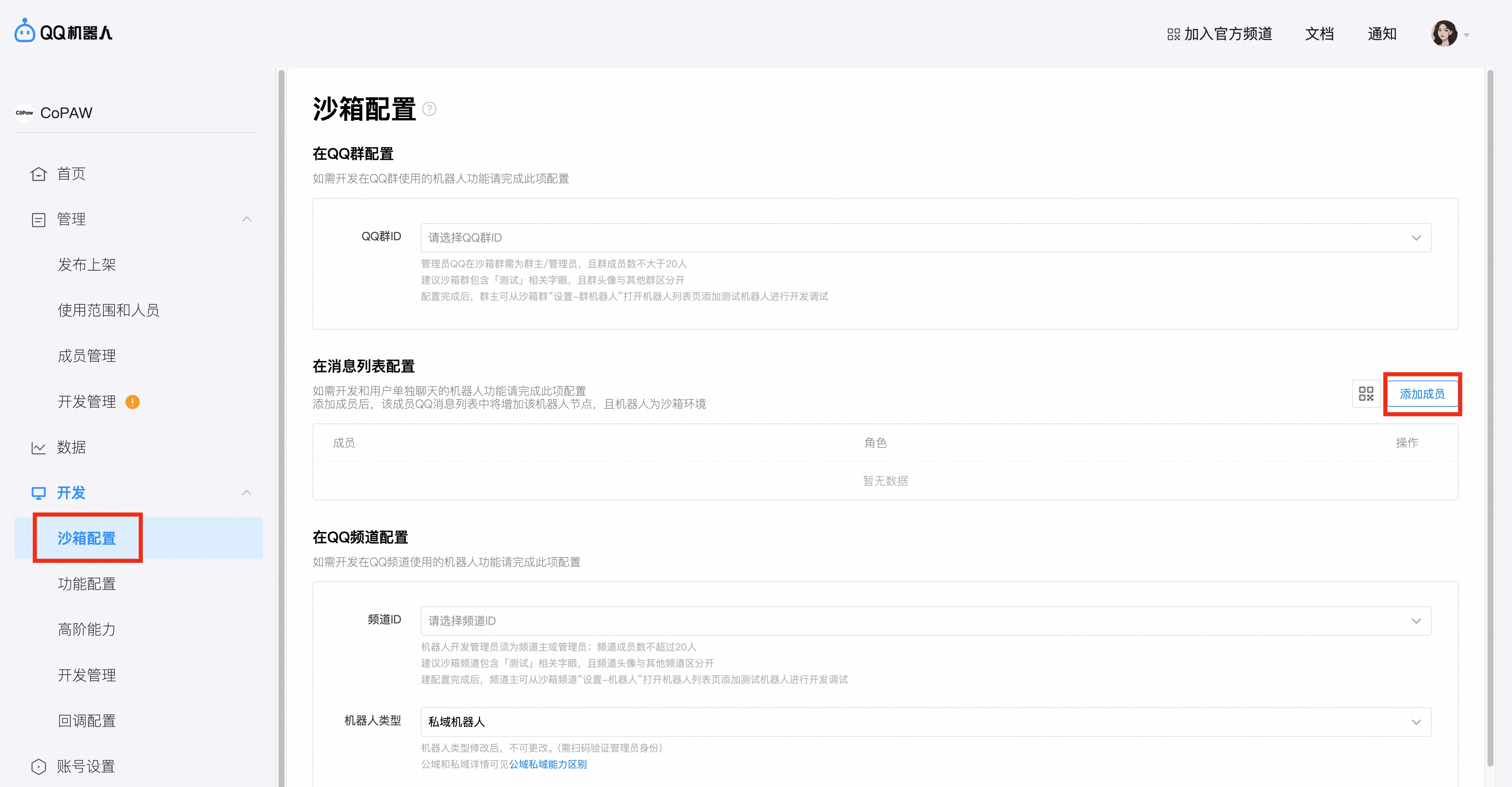
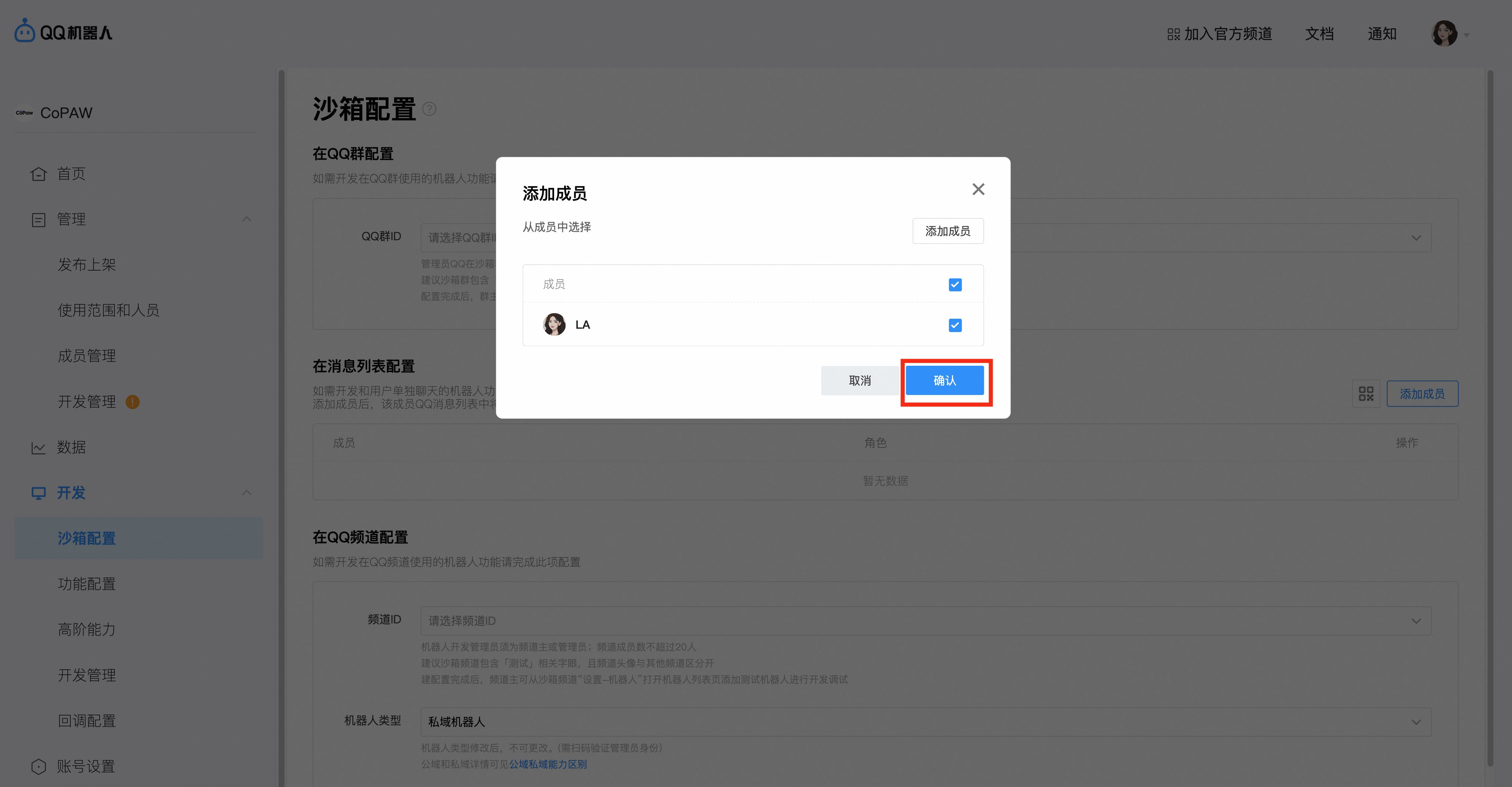
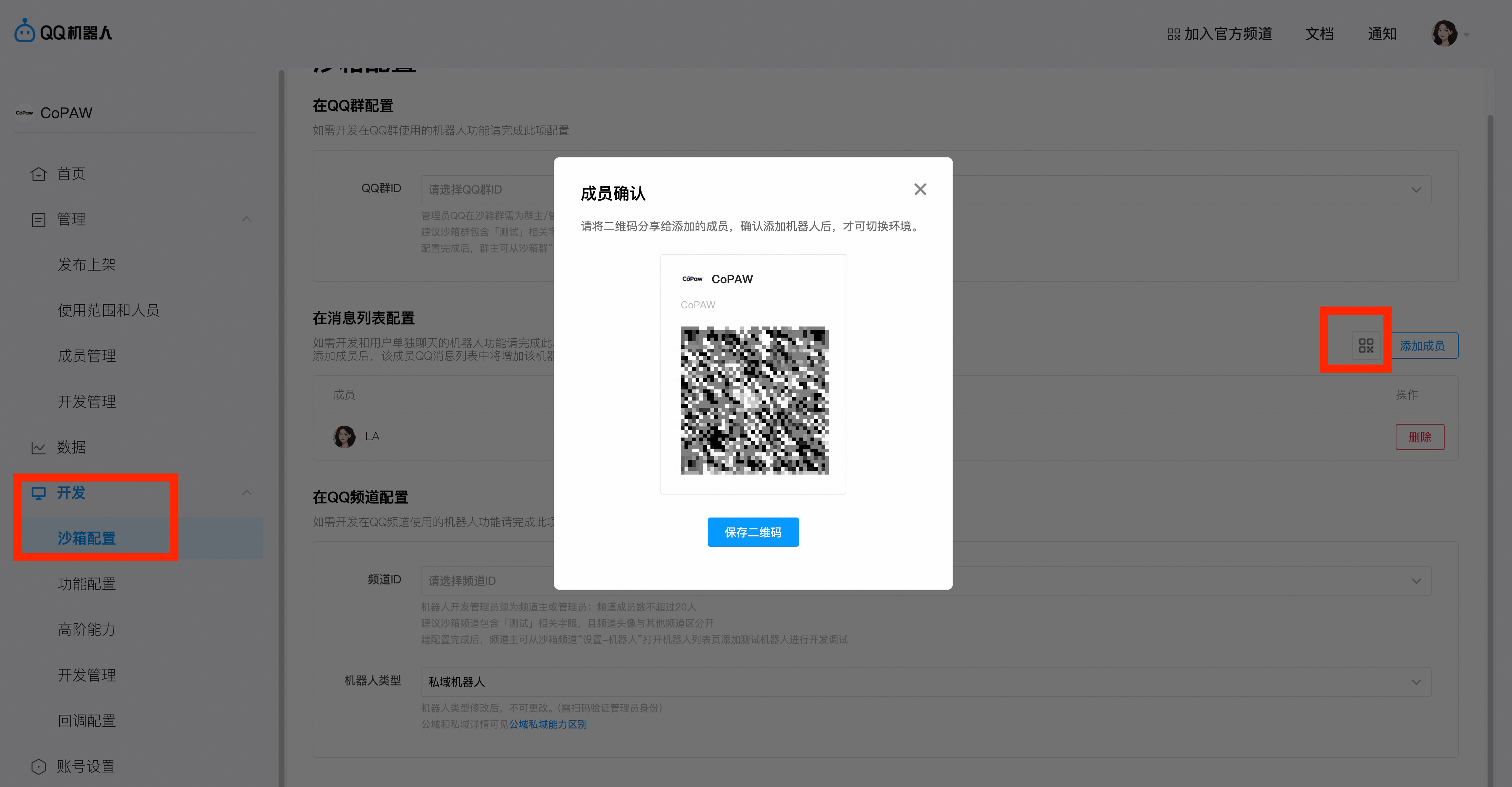
- In Sandbox config → Message list, click Add member and add yourself
-
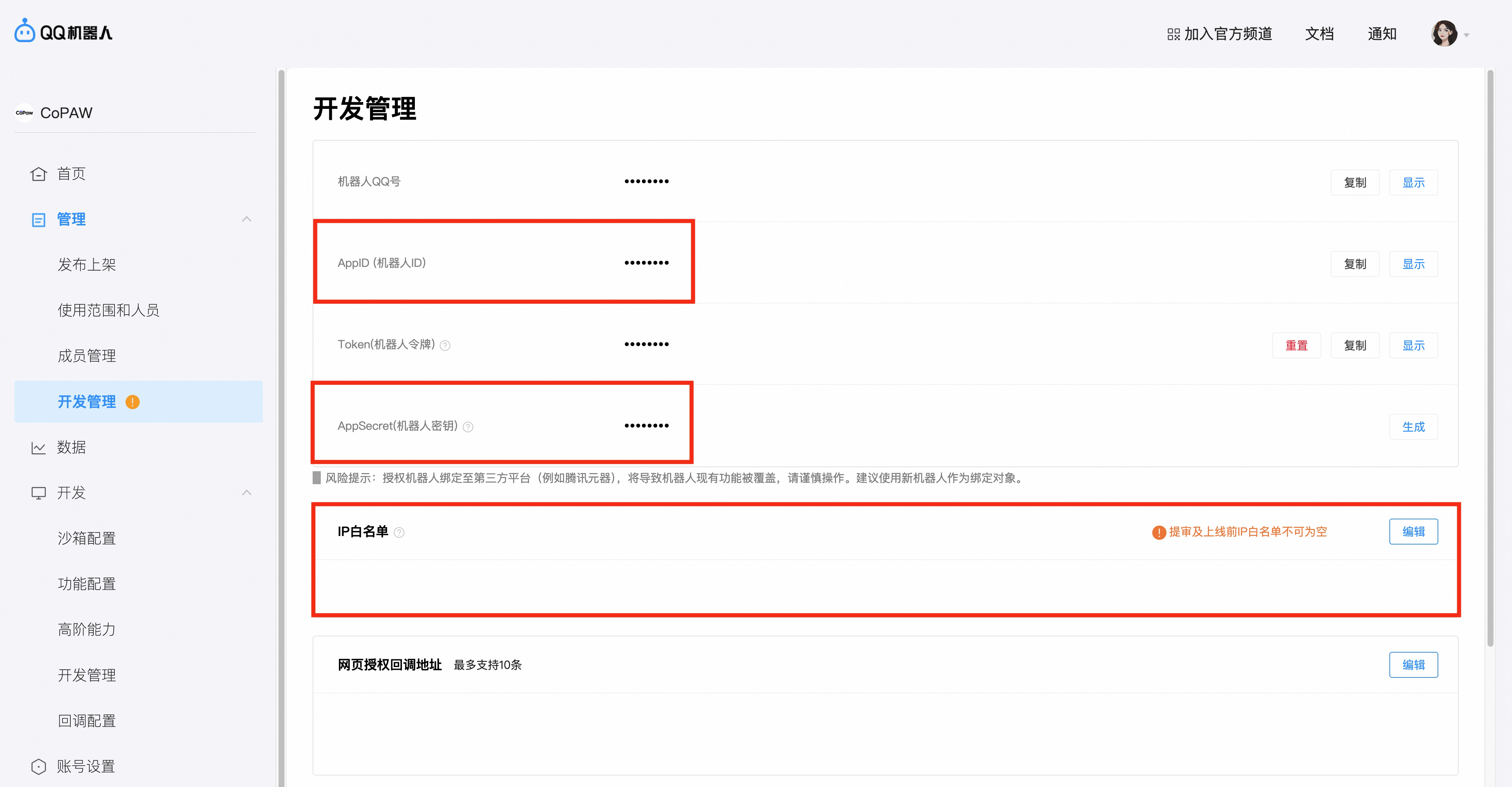
In Developer settings, get AppID and AppSecret (ClientSecret) and fill them into config (see below). Add your server’s IP to the whitelist — only whitelisted IPs can call the Open API outside sandbox.
Tip: If you are using ModelScope Creative Space to deploy CoPaw, the IP whitelist for QQ channel should be:
47.92.200.108
- In sandbox config, scan the QR code with QQ to add the bot to your message list
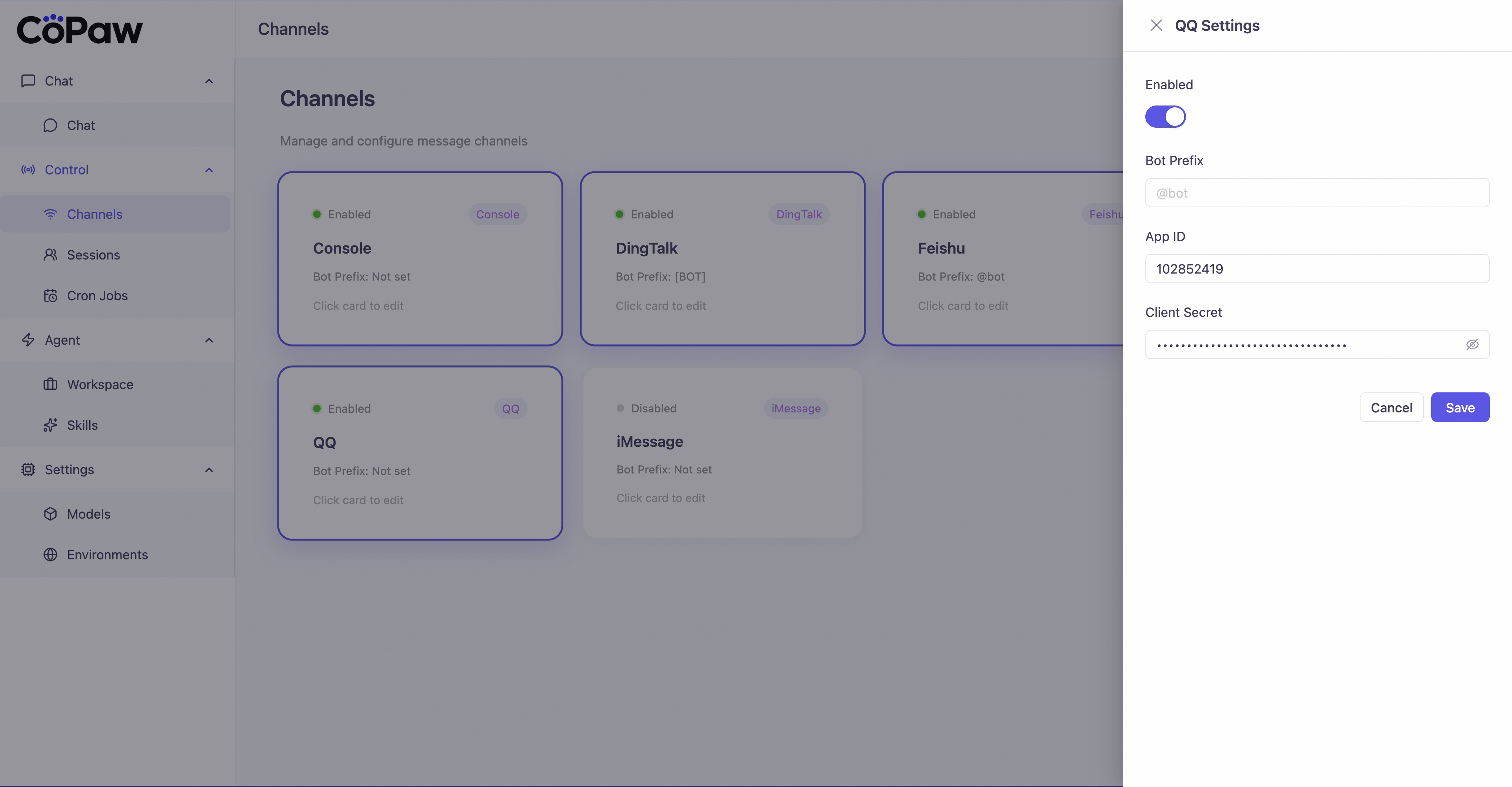
In config.json, find channels.qq and set app_id and client_secret to the
values above:
"qq": {
  "enabled": true,
  "bot_prefix": "[BOT]",
  "app_id": "your AppID",
  "client_secret": "your AppSecret"
}
You provide AppID and AppSecret as two separate fields; do not concatenate them into a single token.
You can also fill them in the Console UI.
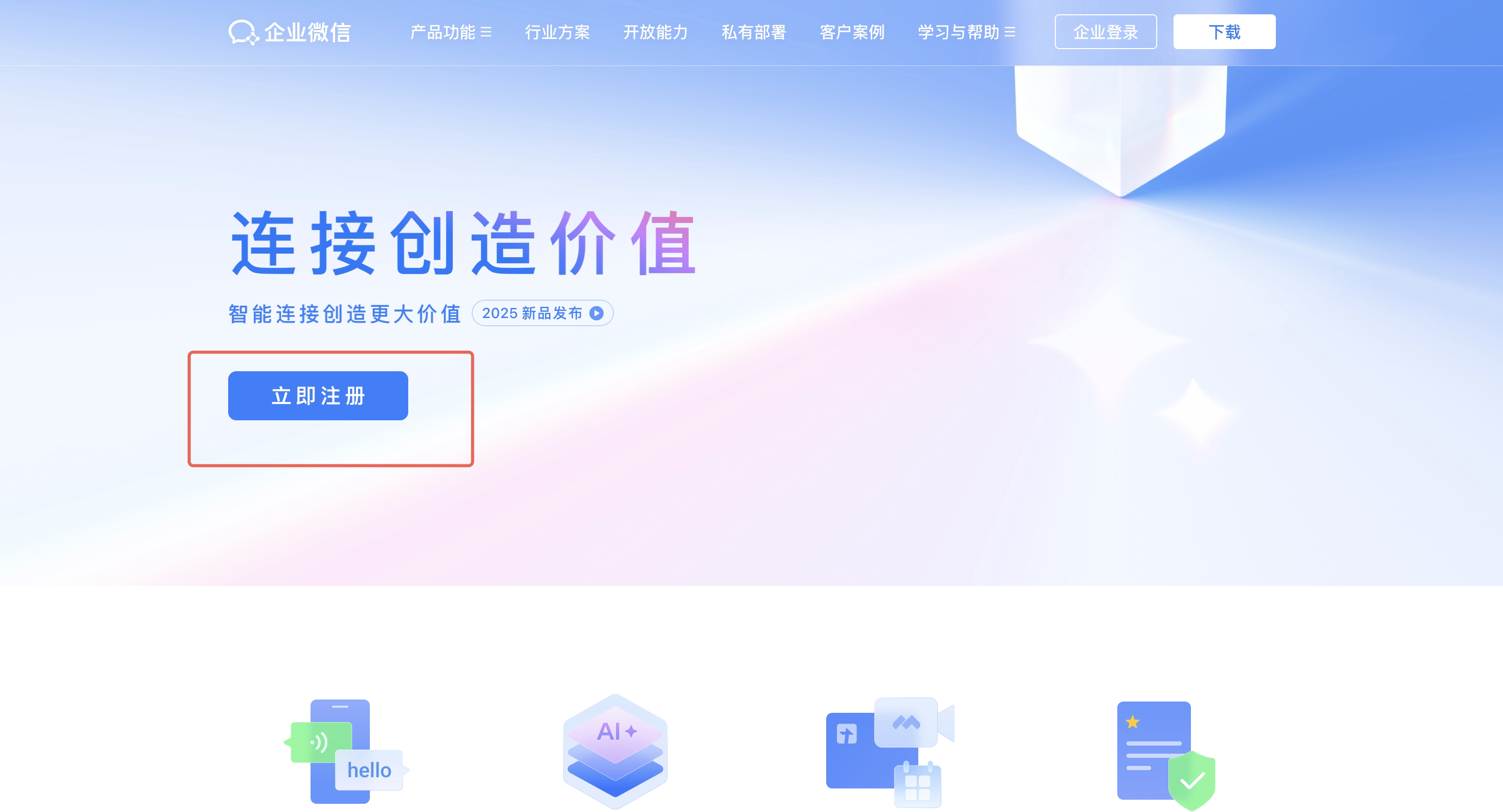
Individual users can visit the WeCom official website to register an account, create a new enterprise, and become an enterprise administrator.
Fill in the enterprise information and administrator information, and bind your WeChat account.
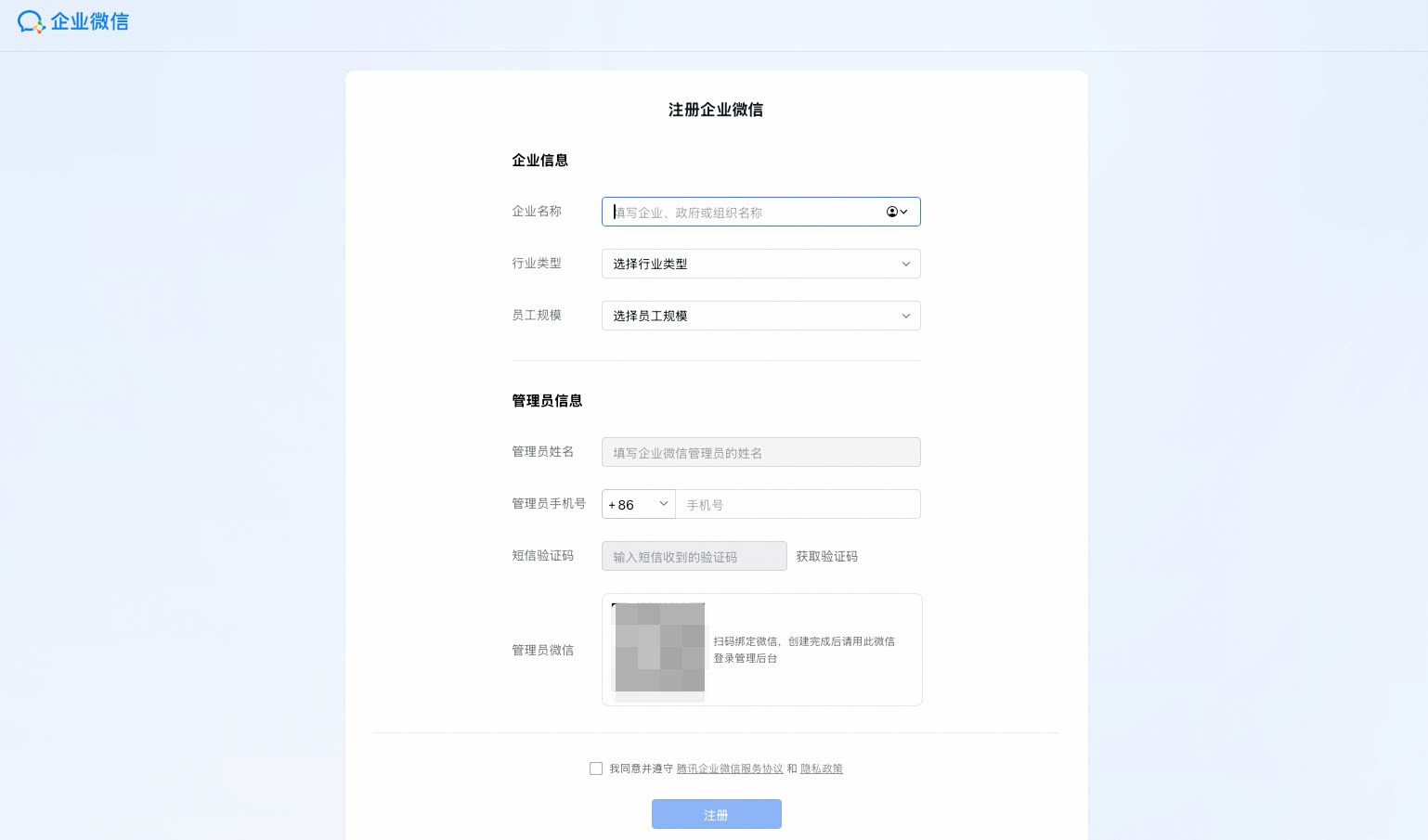
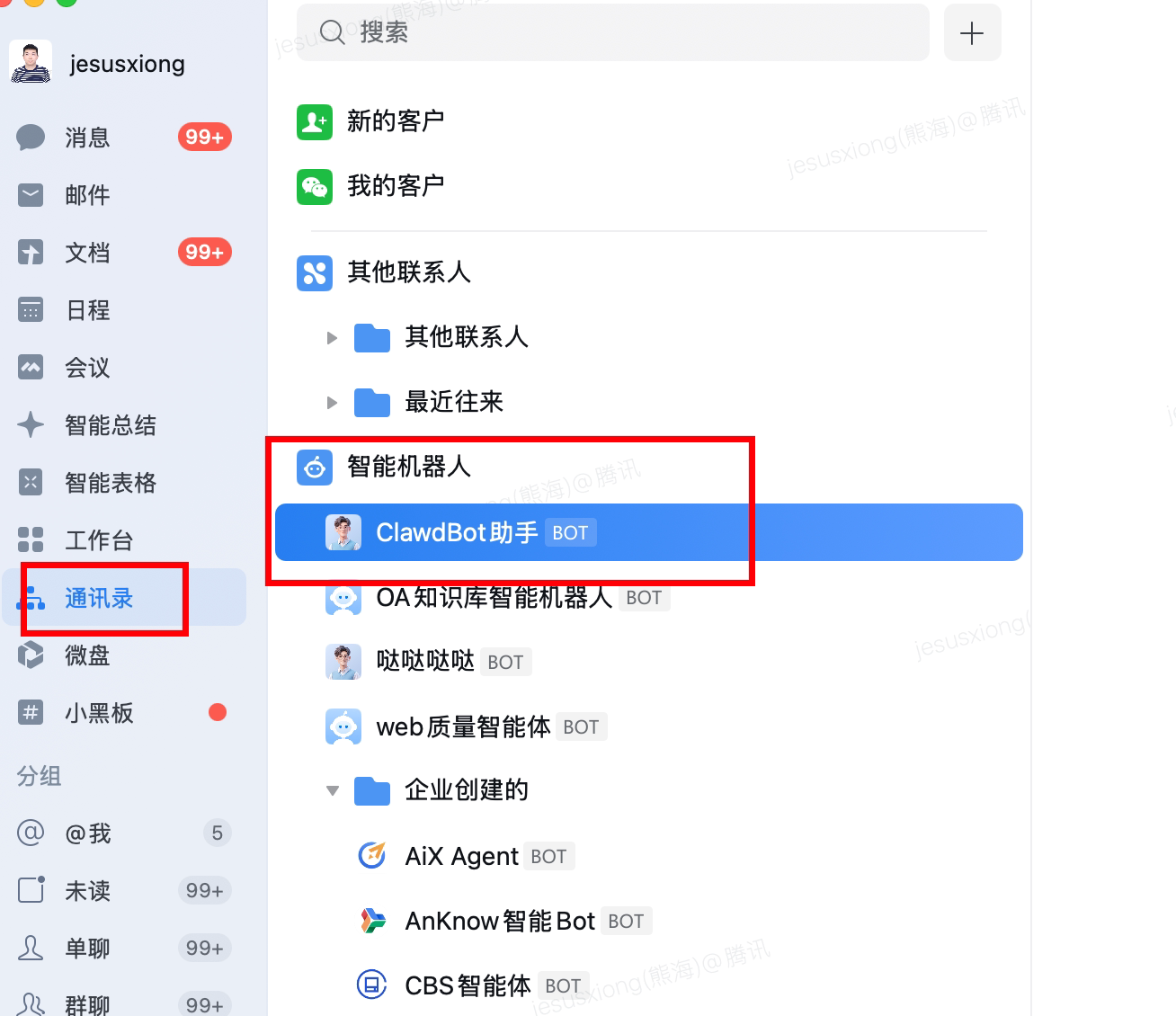
Once registered, you can log in to WeCom and start using it.
If you already have a WeCom account or are a regular employee of an enterprise, you can directly create an API-mode robot in your current enterprise.
In the Workplace, click Smart Robot → Create Robot, select API Mode → Configure via Long Connection.
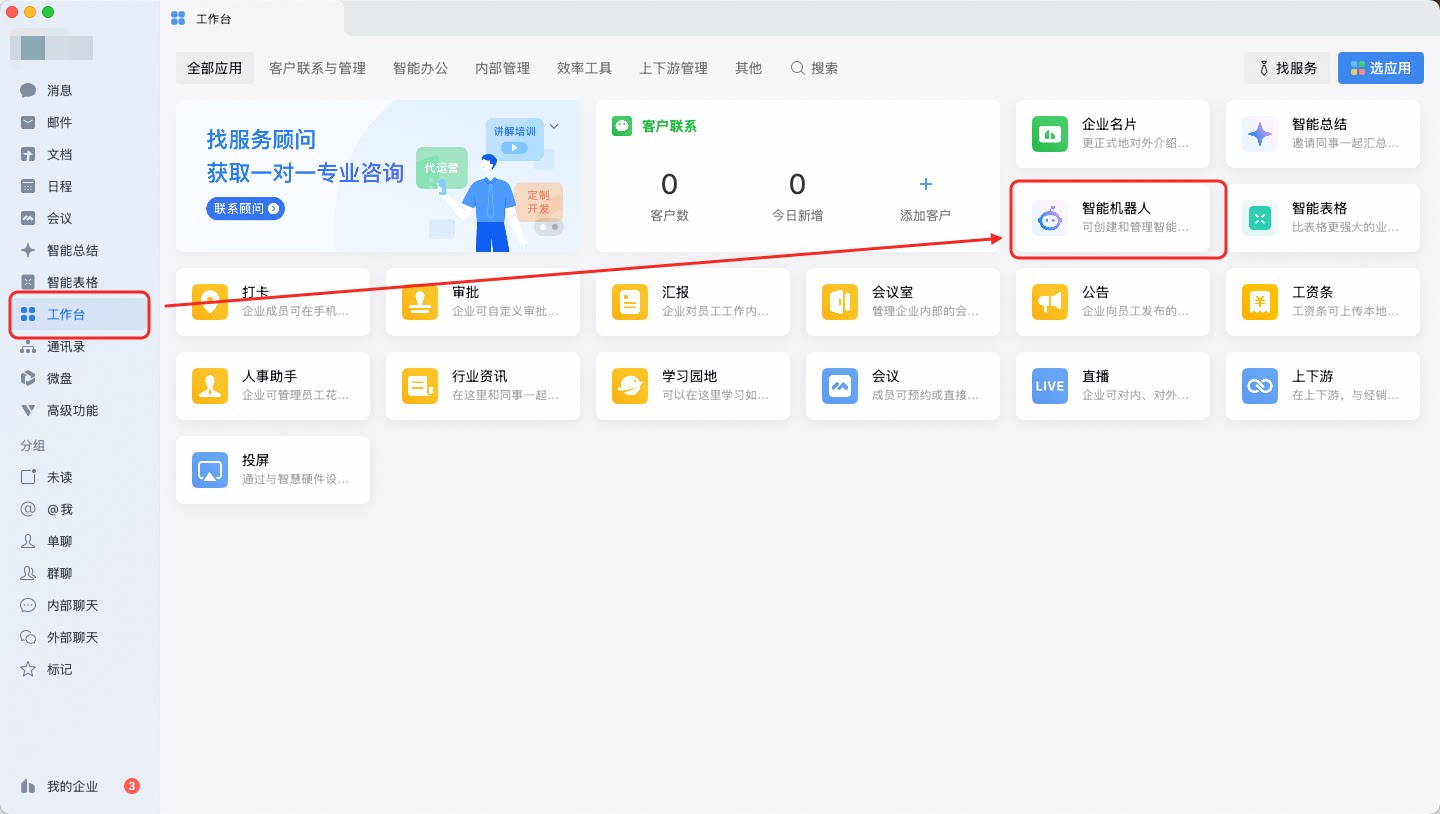
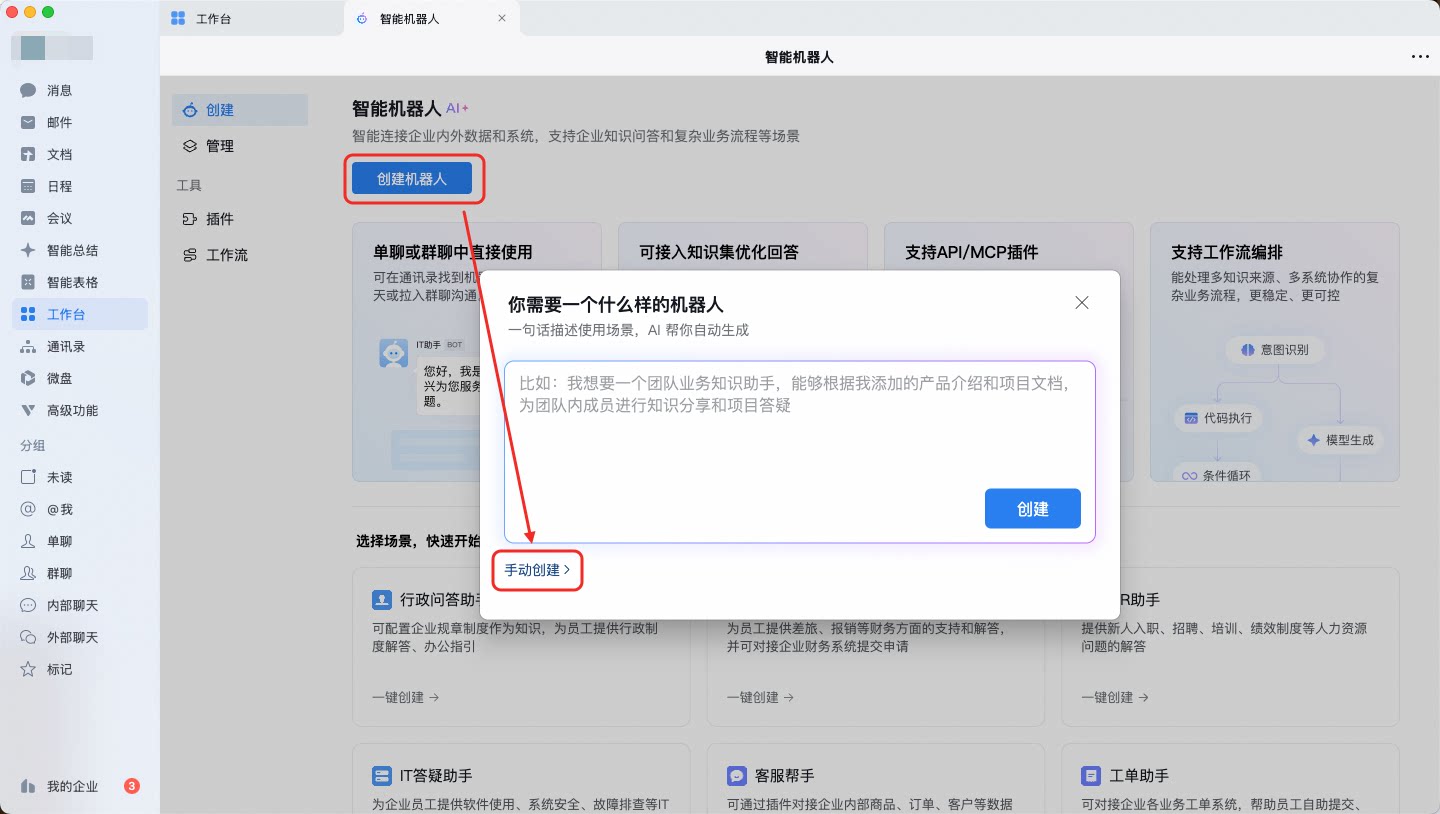
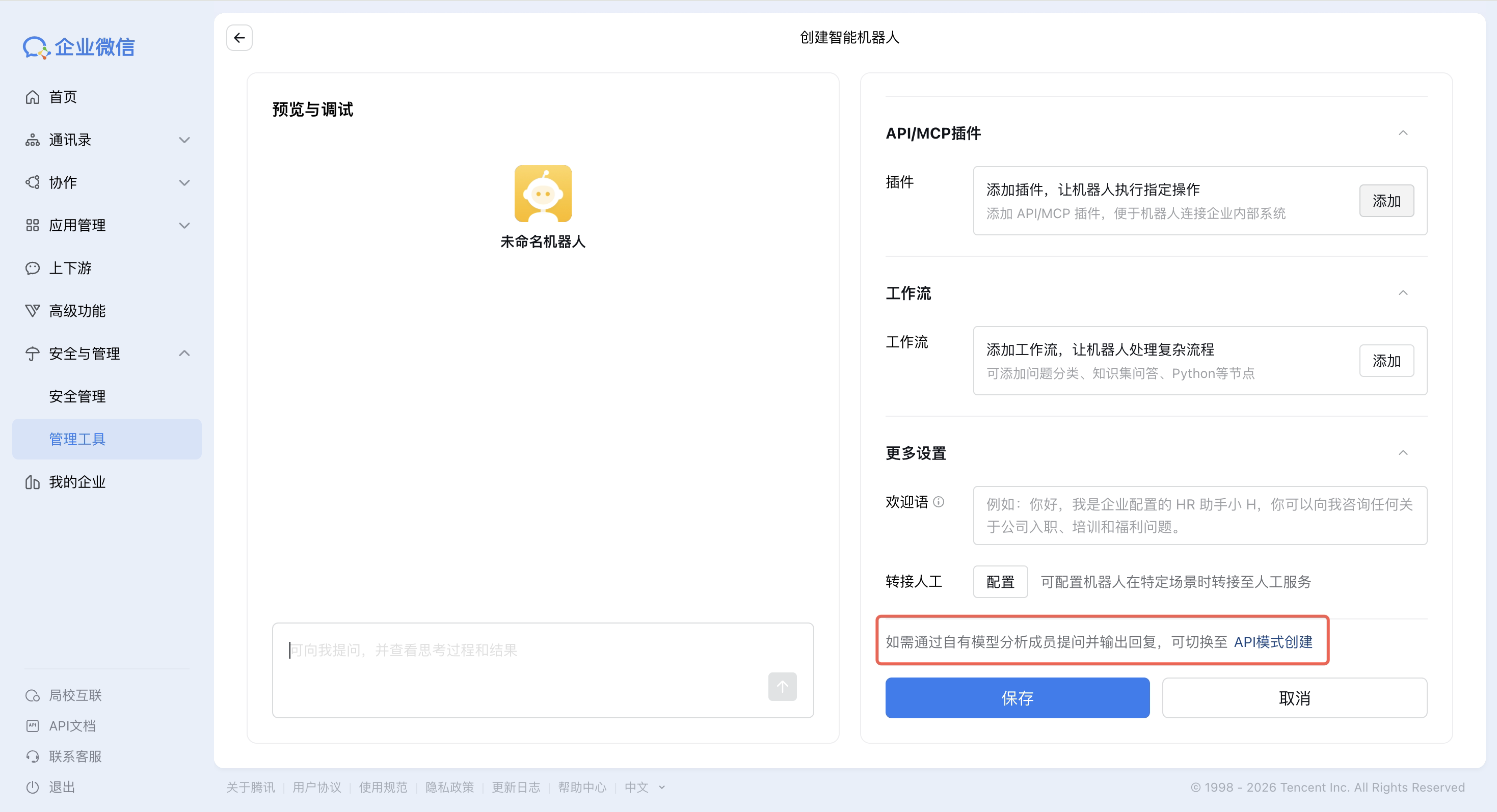
Obtain the Bot ID and Secret.
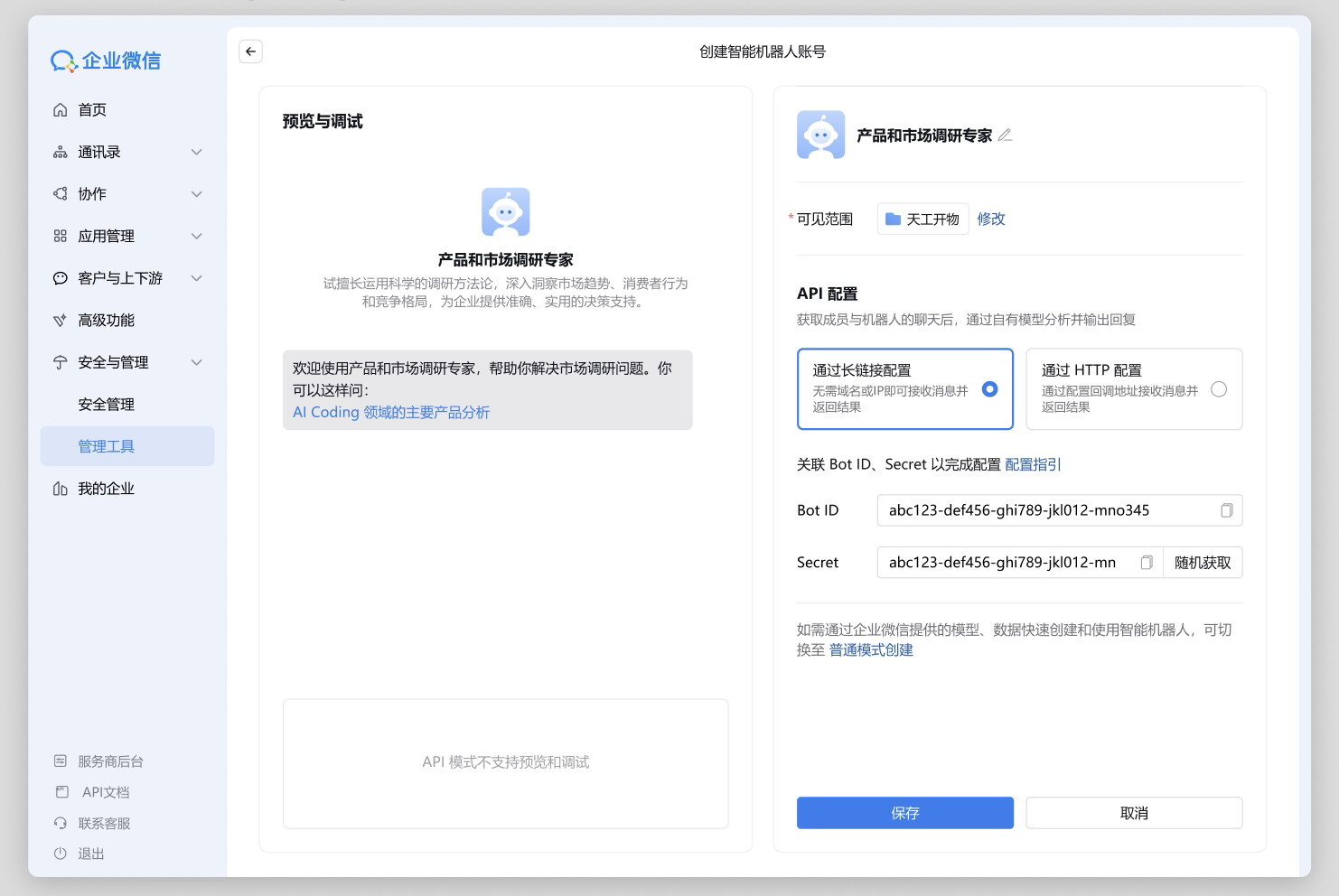
You can bind the bot by filling in the Bot ID and Secret in the Console or config.json.
Method 1: Fill in the Console
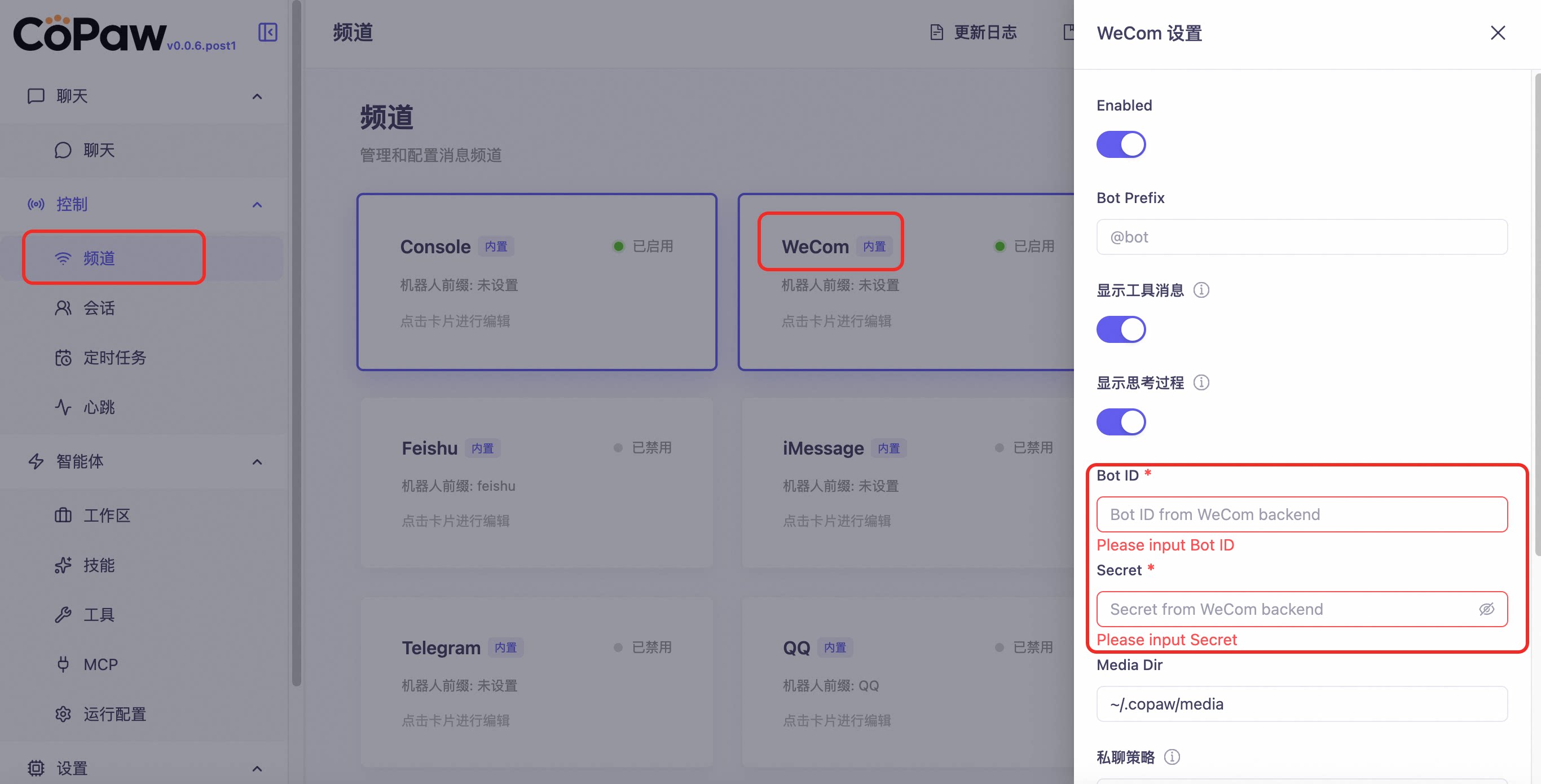
Method 2: Fill in config.json (default file path is ~/.copaw/config.json)
Find wecom and fill in the corresponding information, for example:
"wecom": {
  "enabled": true,
  "dm_policy": "open",
  "group_policy": "open",
  "bot_id": "your bot_id",
  "secret": "your secret",
  "media_dir": "~/.copaw/media",
  "max_reconnect_attempts": -1
}
-
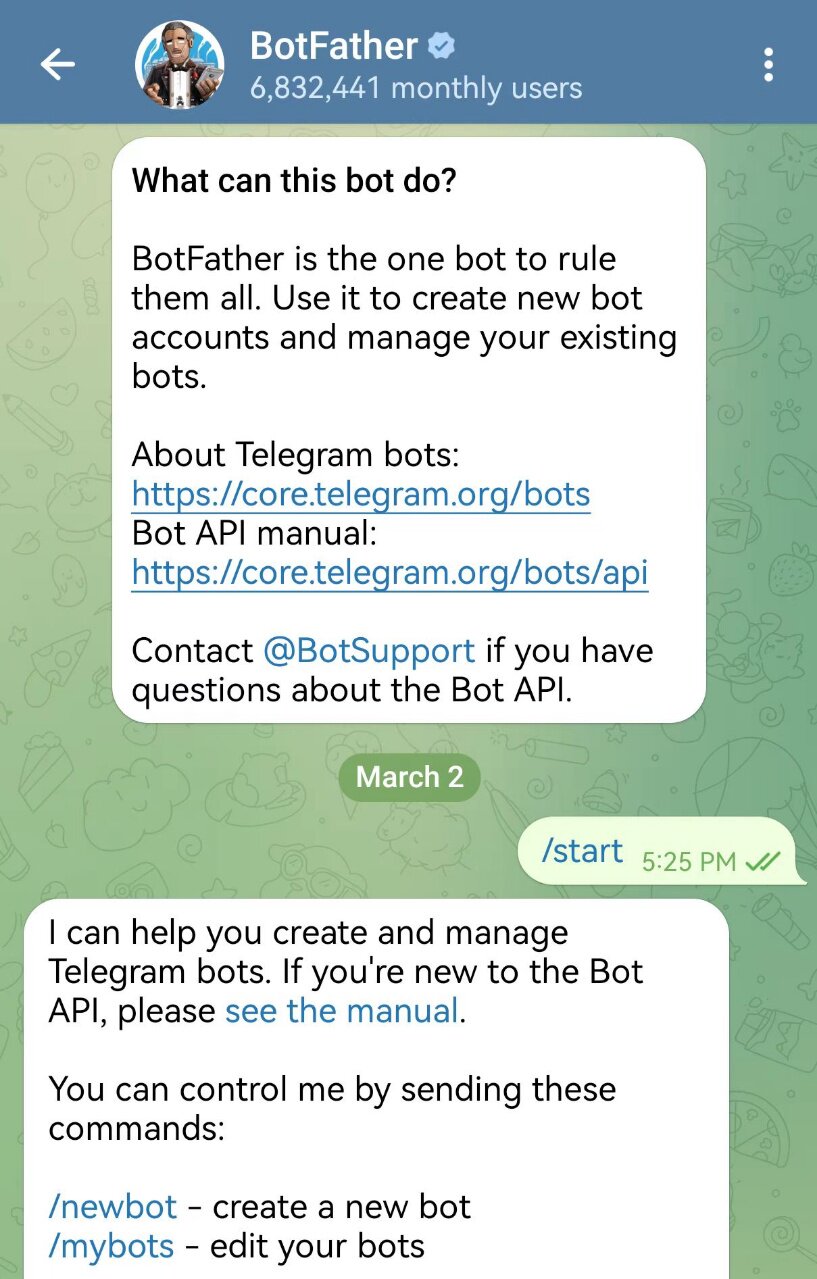
Open Telegram and search for
@BotFatherto add a Bot (make sure it is the official @BotFather with a blue verified badge). -
Open the chat with @BotFather and follow the instructions to create a new bot
-
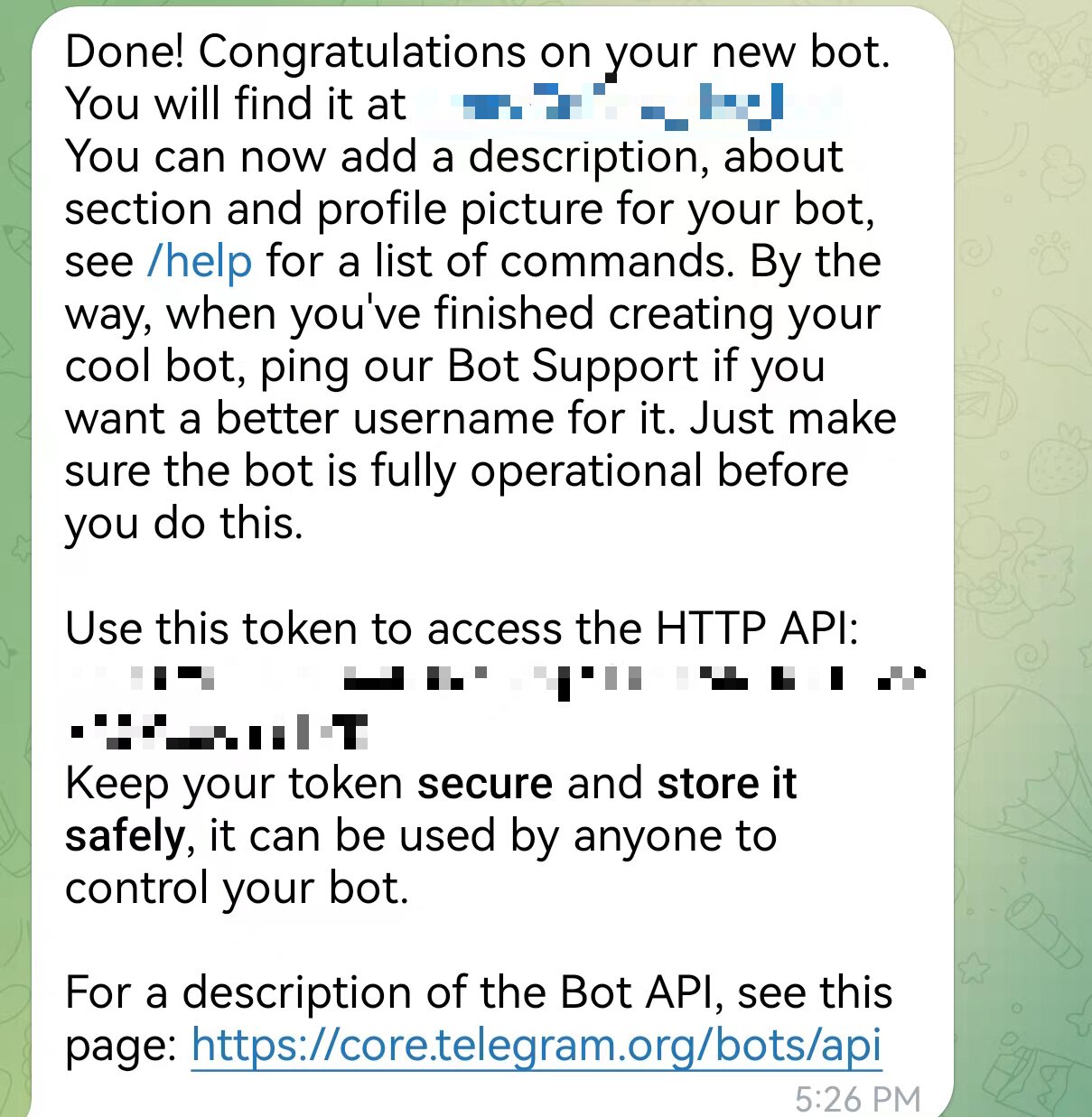
Create the bot name in the dialog and copy the bot_token
You can configure via the Console UI or by editing ~/.copaw/config.json.
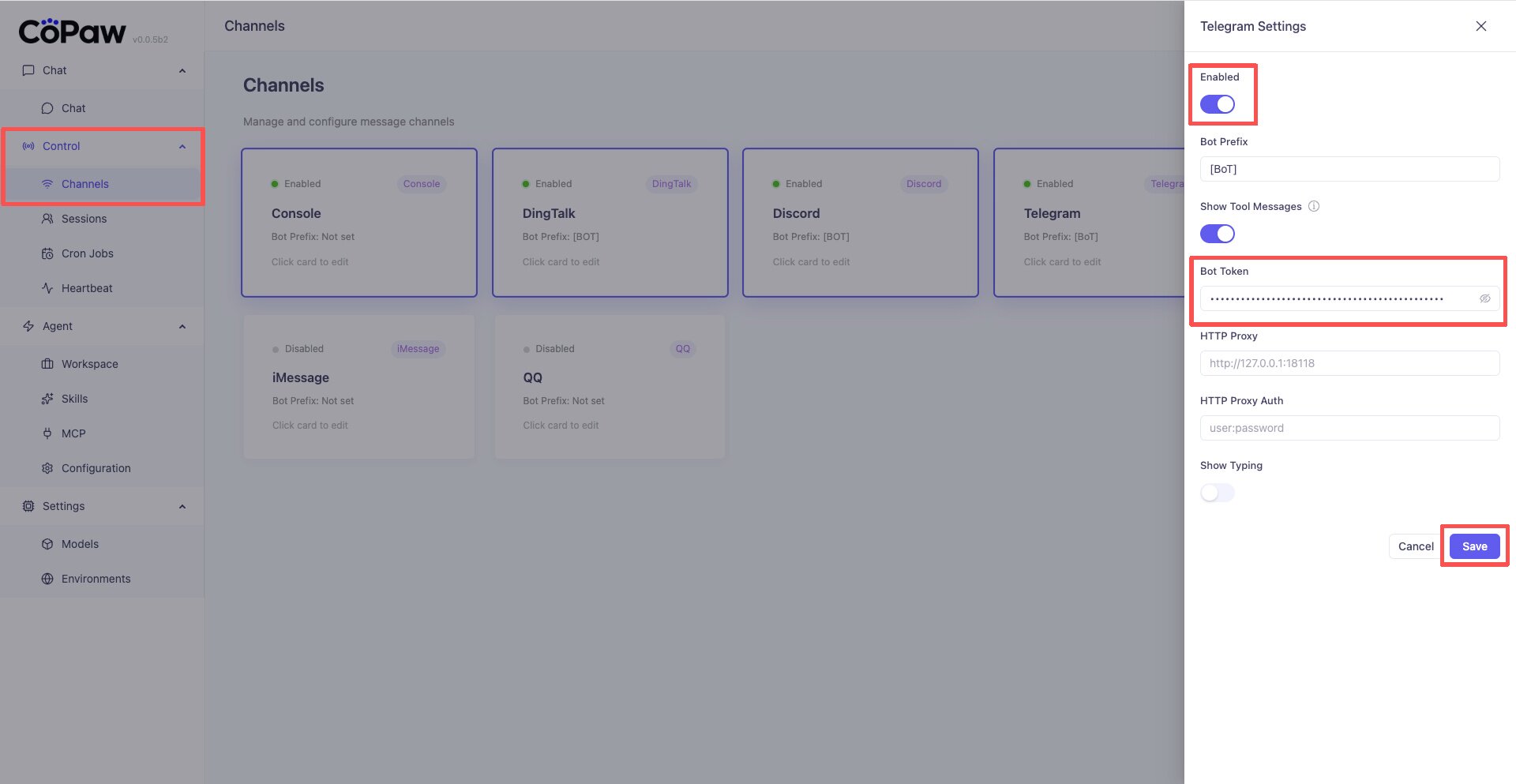
Method 1: Configure in the Console
Go to Control → Channels, click Telegram, and enter the Bot Token you obtained.
Method 2: Edit ~/.copaw/config.json
Find channels.telegram in config.json and fill in the fields, for example:
"telegram": {
    "enabled": true,
    "bot_prefix": "[BOT]",
    "bot_token": "your Bot Token",
    "http_proxy": "",
    "http_proxy_auth": ""
}
If you need a proxy to access the Telegram API (e.g. for network restrictions):
- http_proxy — e.g.
http://127.0.0.1:7890 - http_proxy_auth —
username:passwordif the proxy requires auth, otherwise leave empty
To control who can interact with the bot, use the common access control fields (dm_policy, group_policy, allow_from, deny_message, require_mention) described at the top of this page. It is still recommended to avoid exposing your bot username publicly.
It is recommended to configure the following in @BotFather:
/setprivacy -> ENABLED    # Restrict bot reply permissions
/setjoingroups -> DISABLED # Block group invitations
The Mattermost channel uses WebSockets for real-time monitoring and REST APIs for replies. It supports both direct messages and group chats, using Threads to isolate conversation contexts in channels.
- Create a Bot Account in Mattermost (System Console → Integrations → Bot Accounts).
- Grant necessary permissions (e.g.,
Post all) and obtain the Access Token. - Configure the URL and Token in the Console or
config.json.
| Field | Description | Default |
|---|---|---|
| url | Full URL of your Mattermost instance | - |
| bot_token | Bot Access Token | - |
| show_typing | Whether to show the "typing..." indicator | true |
| thread_follow_without_mention | Whether to respond without @mention in threads the bot has already joined | false |
| dm_policy | DM policy: open (allow all) or allowlist (whitelist only) |
"open" |
| group_policy | Group policy: open (allow all) or allowlist (whitelist only) |
"open" |
| allow_from | List of allowed User IDs (effective if policy is allowlist) |
[] |
| deny_message | Automatic reply when access is denied by the whitelist | "" |
Note: The
session_idfor Mattermost is fixed asmattermost_dm:{mm_channel_id}for DMs and isolated by Thread ID for group chats. Recent history is automatically fetched as context supplement only upon the first trigger of a session.
Currently, only text and JSON format messages are supported.
JSON message format
{
  "text": "...",
  "redirect_client_id": "..."
}
| Description | Field | Required field | Example |
|---|---|---|---|
| MQTT Host | host | Y | 127.0.0.1 |
| MQTT Port | port | Y | 1883 |
| Transport | transport | Y | tcp |
| Clean Session | clean_session | Y | true |
| QoS | qos | Y | 2 |
| MQTT Username | username | N | |
| MQTT Password | password | N | |
| Subscribe Topic | subscribe_topic | Y | server/+/up |
| Publish Topic | publish_topic | Y | client/{client_id}/down |
| TLS Enabled | tls_enabled | N | false |
| TLS CA Certs | tls_ca_certs | N | /tsl/ca.pem |
| TLS Certfile | tls_certfile | N | /tsl/client.pem |
| TLS Keyfile | tls_keyfile | N | /tsl/client.key |
-
Simple subscription and push
subscribe_topic publish_topic server client -
Fuzzy match subscription and automatic push
Subscribe to the wildcard topic
/server/+/up. Messages will be automatically pushed to the corresponding topic based on the client'sclient_id. For example, after a client pushes a message to/server/client_a/up, OpenClaw will push the message to/client/client_b/downafter processing.subscribe_topic publish_topic server/+/up client/{client_id}/down -
Redirected topic push
The message sent is in JSON format. The subscription topic is
server/client_a/up, and the push topic isclient/client_a/down.{ "text": "Tell me a joke, return the result in plain text", "redirect_client_id": "client_b" }Messages will be pushed to
client/client_b/downbased on theredirect_client_idattribute, enabling cross-topic push. In IoT scenarios, with OpenClaw as the core, autonomous message pushing between multiple devices can be achieved according to individual requirements.
The Matrix channel connects CoPaw to any Matrix homeserver using the matrix-nio library. It supports text messaging in both direct messages and group rooms.
-
Create a bot account on any Matrix homeserver (e.g. matrix.org — register at app.element.io).
-
Get the bot's access token. The easiest way is via Element:
- Log in as the bot account at app.element.io
- Go to Settings → Help & About → Advanced → Access Token
- Copy the token (it starts with
syt_...)
Alternatively, use the Matrix Client-Server API directly:
curl -X POST "https://matrix.org/_matrix/client/v3/login" \
  -H "Content-Type: application/json" \
  -d '{"type":"m.login.password","user":"@yourbot:matrix.org","password":"yourpassword"}'
The response includes
access_token. -
Note your bot's User ID (format:
@username:homeserver, e.g.@mybot:matrix.org) and the Homeserver URL (e.g.https://matrix.org).
Method 1: Configure in the Console
Go to Control → Channels, click Matrix, enable it, and fill in:
- Homeserver URL — e.g.
https://matrix.org - User ID — e.g.
@mybot:matrix.org - Access Token — the token you copied above (shown as a password field)
Method 2: Edit ~/.copaw/config.json
Find channels.matrix in config.json:
"matrix": {
  "enabled": true,
  "bot_prefix": "[BOT]",
  "homeserver": "https://matrix.org",
  "user_id": "@mybot:matrix.org",
  "access_token": "syt_..."
}
Save the file; the channel will reload automatically if CoPaw is already running.
Invite the bot to a room or send it a direct message from any Matrix client (e.g. Element). The bot listens for messages in all rooms it has joined.
- The Matrix channel is text-only (no image/file attachments in the current version).
- Only rooms the bot has already joined are monitored. Invite the bot to a room before sending messages.
- For self-hosted homeservers, set
homeserverto your server's base URL (e.g.https://matrix.example.com).
The XiaoYi channel connects CoPaw via A2A (Agent-to-Agent) protocol over WebSocket to Huawei's AI assistant platform.
- Create an agent in the XiaoYi Open Platform.
- Obtain AK (Access Key), SK (Secret Key), and Agent ID.
| Field | Description | Default |
|---|---|---|
| ak | Access Key | - |
| sk | Secret Key | - |
| agent_id | Agent unique identifier | - |
| ws_url | WebSocket URL | wss://hag.cloud.huawei.com/openclaw/v1/ws/link |
| Channel | Config key | Main fields |
|---|---|---|
| DingTalk | dingtalk | client_id, client_secret |
| Feishu | feishu | app_id, app_secret; optional encrypt_key, verification_token, media_dir |
| iMessage | imessage | db_path, poll_sec (macOS only) |
| Discord | discord | bot_token; optional http_proxy, http_proxy_auth |
| app_id, client_secret | ||
| WeCom | wecom | bot_id, secret; optional media_dir, max_reconnect_attempts |
| Telegram | telegram | bot_token; optional http_proxy, http_proxy_auth |
| Mattermost | mattermost | url, bot_token; optional show_typing, dm_policy, allow_from |
| Matrix | matrix | homeserver, user_id, access_token |
| XiaoYi | xiaoyi | ak, sk, agent_id; optional ws_url |
All channels also support the common access control fields (dm_policy, group_policy, allow_from, deny_message, require_mention) documented in the common fields section at the top of this page.
Field details and structure are in the tables above and Config & working dir.
Support for receiving (user → bot) and sending (bot → user) text, image, video, audio, and file varies by channel. ✓ = supported. 🚧 = under construction (implementable but not yet done). ✗ = not supported (not possible on this channel).
| Channel | Recv text | Recv image | Recv video | Recv audio | Recv file | Send text | Send image | Send video | Send audio | Send file |
|---|---|---|---|---|---|---|---|---|---|---|
| DingTalk | ✓ | ✓ | ✓ | ✓ | ✓ | ✓ | ✓ | ✓ | ✓ | ✓ |
| Feishu | ✓ | ✓ | ✓ | ✓ | ✓ | ✓ | ✓ | ✓ | ✓ | ✓ |
| Discord | ✓ | ✓ | ✓ | ✓ | ✓ | ✓ | 🚧 | 🚧 | 🚧 | 🚧 |
| iMessage | ✓ | ✗ | ✗ | ✗ | ✗ | ✓ | ✗ | ✗ | ✗ | ✗ |
| ✓ | 🚧 | 🚧 | 🚧 | 🚧 | ✓ | 🚧 | 🚧 | 🚧 | 🚧 | |
| WeCom | ✓ | ✓ | 🚧 | ✓ | ✓ | ✓ | 🚧 | 🚧 | 🚧 | 🚧 |
| Telegram | ✓ | ✓ | ✓ | ✓ | ✓ | ✓ | ✓ | ✓ | ✓ | ✓ |
| Mattermost | ✓ | ✓ | 🚧 | 🚧 | ✓ | ✓ | ✓ | 🚧 | 🚧 | ✓ |
| Matrix | ✓ | ✓ | ✓ | ✓ | ✓ | ✓ | ✓ | ✓ | ✓ | ✓ |
| XiaoYi | ✓ | 🚧 | 🚧 | 🚧 | 🚧 | ✓ | 🚧 | 🚧 | 🚧 | 🚧 |
Notes:
- DingTalk: Receives rich text and single-file (downloadCode); sends image / voice / video / file via session webhook.
- Feishu: WebSocket long connection for receiving; Open API for sending.
Text / image / file supported both ways; message metadata includes
feishu_chat_idandfeishu_message_idfor group context and dedup. - Discord: Attachments are parsed as image / video / audio / file for the agent; sending real media is 🚧 (currently link-only in reply).
- iMessage: imsg + database polling; text only; attachments are ✗ (not possible on this channel).
- QQ: Receiving attachments as multimodal and sending real media are 🚧; currently text + link-only.
- Telegram: Attachments are parsed as files on receive and can be opened in the corresponding format (image / voice / video / file) within the Telegram chat interface.
- WeCom: WebSocket long connection for receiving; markdown/template_card for sending. Supports text, image, voice, and file receiving; sending media is not supported by the SDK (only text via markdown).
- Matrix: Receives image, video, audio, and file attachments via
mxc://media URLs. Sends media by uploading to the homeserver and sending native Matrix media messages (m.image,m.video,m.audio,m.file). - XiaoYi: Text only; media support is 🚧.
With the app running you can read and update channel config; changes are written to
config.json and applied automatically:
GET /config/channels— List all channelsPUT /config/channels— Replace allGET /config/channels/{channel_name}— Get one (e.g.dingtalk,imessage)PUT /config/channels/{channel_name}— Update one
To add a new platform (e.g. WeCom, Slack), implement a subclass of BaseChannel; core code stays unchanged.
- ChannelManager keeps one queue per channel that uses it. When a message arrives, the channel calls
self._enqueue(payload)(injected by the manager at startup); the manager’s consumer loop then callschannel.consume_one(payload). - The base class implements a default
consume_one: turn payload intoAgentRequest, run_process, callsend_message_contentfor each completed message, and_on_consume_erroron failure. Most channels only need to implement “incoming → request” and “response → outgoing”; they do not overrideconsume_one.
| Method | Purpose |
|---|---|
build_agent_request_from_native(self, native_payload) |
Convert the channel’s native message to AgentRequest (using runtime Message / TextContent / ImageContent etc.) and set request.channel_meta for sending. |
from_env / from_config |
Build instance from environment or config. |
async start() / async stop() |
Lifecycle (connect, subscribe, cleanup). |
async send(self, to_handle, text, meta=None) |
Send one text (and optional attachments). |
- Consume flow:
_payload_to_request,get_to_handle_from_request(defaultuser_id),get_on_reply_sent_args,_before_consume_process(e.g. save receive_id),_on_consume_error(default:send_content_parts), and optionalrefresh_webhook_or_token(no-op; override when the channel needs to refresh tokens). - Helpers:
resolve_session_id,build_agent_request_from_user_content,_message_to_content_parts,send_message_content,send_content_parts,to_handle_from_target.
Override consume_one only when the flow differs (e.g. console printing, debounce). Override get_to_handle_from_request / get_on_reply_sent_args when the send target or callback args differ.
For text-only channels using the manager queue, you do not need to implement consume_one; the base default is enough:
# my_channel.py
from agentscope_runtime.engine.schemas.agent_schemas import TextContent, ContentType
from copaw.app.channels.base import BaseChannel
from copaw.app.channels.schema import ChannelType

class MyChannel(BaseChannel):
    channel: ChannelType = "my_channel"

    def __init__(self, process, enabled=True, bot_prefix="", **kwargs):
        super().__init__(process, on_reply_sent=kwargs.get("on_reply_sent"))
        self.enabled = enabled
        self.bot_prefix = bot_prefix

    @classmethod
    def from_config(cls, process, config, on_reply_sent=None, show_tool_details=True):
        return cls(process=process, enabled=getattr(config, "enabled", True),
                   bot_prefix=getattr(config, "bot_prefix", ""), on_reply_sent=on_reply_sent)

    @classmethod
    def from_env(cls, process, on_reply_sent=None):
        return cls(process=process, on_reply_sent=on_reply_sent)

    def build_agent_request_from_native(self, native_payload):
        payload = native_payload if isinstance(native_payload, dict) else {}
        channel_id = payload.get("channel_id") or self.channel
        sender_id = payload.get("sender_id") or ""
        meta = payload.get("meta") or {}
        session_id = self.resolve_session_id(sender_id, meta)
        text = payload.get("text", "")
        content_parts = [TextContent(type=ContentType.TEXT, text=text)]
        request = self.build_agent_request_from_user_content(
            channel_id=channel_id, sender_id=sender_id, session_id=session_id,
            content_parts=content_parts, channel_meta=meta,
        )
        request.channel_meta = meta
        return request

    async def start(self):
        pass

    async def stop(self):
        pass

    async def send(self, to_handle, text, meta=None):
        # Call your HTTP API etc. to send
        pass
When you receive a message, build a native dict and enqueue (_enqueue is injected by the manager):
native = {
    "channel_id": "my_channel",
    "sender_id": "user_123",
    "text": "Hello",
    "meta": {},
}
self._enqueue(native)In build_agent_request_from_native, parse attachments into runtime content and call build_agent_request_from_user_content:
from agentscope_runtime.engine.schemas.agent_schemas import (
    TextContent, ImageContent, VideoContent, AudioContent, FileContent, ContentType,
)

def build_agent_request_from_native(self, native_payload):
    payload = native_payload if isinstance(native_payload, dict) else {}
    channel_id = payload.get("channel_id") or self.channel
    sender_id = payload.get("sender_id") or ""
    meta = payload.get("meta") or {}
    session_id = self.resolve_session_id(sender_id, meta)
    content_parts = []
    if payload.get("text"):
        content_parts.append(TextContent(type=ContentType.TEXT, text=payload["text"]))
    for att in payload.get("attachments") or []:
        t = (att.get("type") or "file").lower()
        url = att.get("url") or ""
        if not url:
            continue
        if t == "image":
            content_parts.append(ImageContent(type=ContentType.IMAGE, image_url=url))
        elif t == "video":
            content_parts.append(VideoContent(type=ContentType.VIDEO, video_url=url))
        elif t == "audio":
            content_parts.append(AudioContent(type=ContentType.AUDIO, data=url))
        else:
            content_parts.append(FileContent(type=ContentType.FILE, file_url=url))
    if not content_parts:
        content_parts = [TextContent(type=ContentType.TEXT, text="")]
    request = self.build_agent_request_from_user_content(
        channel_id=channel_id, sender_id=sender_id, session_id=session_id,
        content_parts=content_parts, channel_meta=meta,
    )
    request.channel_meta = meta
return request- Directory: Channels under the working dir at
custom_channels/(default~/.copaw/custom_channels/) are loaded at runtime. The manager scans.pyfiles and packages (subdirs with__init__.py), loadsBaseChannelsubclasses, and registers them by the class’schannelattribute. - Install:
copaw channels install <key>creates a template<key>.pyincustom_channels/for you to edit, or use--path <local path>/--url <URL>to copy a channel module from disk or the web.copaw channels add <key>does the same and also adds a default entry to config (with optional--path/--url). - Remove:
copaw channels remove <key>deletes that channel’s module fromcustom_channels/(custom channels only; built-ins cannot be removed). By default it also removes the key fromchannelsinconfig.json; use--keep-configto leave config unchanged. - Config:
ChannelConfigusesextra="allow", so any channel key can appear underchannelsinconfig.json. Usecopaw channels configfor interactive setup or edit config by hand.
- Introduction — What the project can do
- Quick start — Install and first run
- Heartbeat — Scheduled check-in / digest
- CLI — init, app, cron, clean
- Config & working dir — config.json and working directory