Frequently Asked Questions For Users
Flash Player has been removed from browsers in 2021. As of now, the only ways of using the official player is using desktop players, alternative browsers or obsolete versions of browsers. Ruffle is a project that allows running Flash content in the browser without the official player.
There is no single release date. Development is in progress, and as it progresses, simple content will start working first, while more complex content will follow later. However, as of right now (August 2023), Ruffle now has decent support for AVM 2, and it's our experience that most games will work well enough to be played. We're still rapidly improving in this area though, so bug reports about any broken content are always welcome! See the ActionScript 3 API Implementation page for advanced implementation details of current API support.
If you’re wondering why ActionScript 3 support is taking a long time to develop, see this comment for an in-depth explanation.
While you can no longer run Flash Player in modern browsers, you can still run SWF files in the official desktop Flash Player. You can also research other projects like Flashpoint or Lightspark.
To obtain the SWF file from an online Ruffle emulator, open the context menu on the Ruffle container, then click "Copy Debug Info"- the SWF URL should be included in the debug info. Alternatively, the Ruffle extension has a toggle to show a "Download SWF" button in the context menu.
Ruffle does not have any official mobile apps yet. But if you have an SWF file downloaded to your device, you can play the file in your web browser using the Ruffle Web Demo. Websites that self-host content using Ruffle work on mobile devices too. For example, the Internet Archive has a constantly growing collection of Flash files running via Ruffle in your browser - no download required.
If you have an Android device, you may be able to install the Ruffle Chrome extension using the Kiwi Browser - see Using Ruffle for more details.
The virtual keyboard should appear when you click an editable text field, but if a game has keyboard controls, functionality may be missing. You can work around this by opening the touch keyboard from the taskbar on Windows or by using Hacker's Keyboard on older versions of Android. You must then enable 'use permanent notification' in its settings. It will then show an ongoing notification which you can tap on to invoke the keyboard at any point. But this does not work anymore in Android 12!
Ruffle cannot run directly on local HTML files because of browser limitations, so you'll need to access the files via a local web server. If you use Chrome, the easiest option is to install the Web Server for Chrome extension. Or if you have Python, you can run this command from the folder containing your files: python -m http.server.
I'm trying to use ruffle on Microsoft Edge, but it runs extremely slowly or I get a "Something went wrong" error.
A browser setting is likely interfering with WebAssembly, which Ruffle requires to run. To fix this problem, follow the steps below.
- Open Microsoft Edge's settings

- Click the "Privacy, search and services" tab on the left

- Turn off "Enhance your security on the web"

If you don't want to turn off this setting completely, you can add exceptions for specific sites to allow Ruffle to run. See this Microsoft documentation for more information.
The Ruffle desktop app is portable; just delete its folder to uninstall it.
The extension can be uninstalled by right-clicking on the extension and selecting the "Remove" option. It can also be uninstalled from chrome://extensions (in Chrome or Chromium-based browsers) or about:addons (in Firefox).
If Ruffle is still running on a website after you uninstalled the extension, that means that the site is self-hosting Ruffle - it’s already part of the website itself. If you don't want to use Ruffle, you'll have to visit a different website.
This can happen when hardware acceleration is disabled in Chrome. To enable hardware acceleration, follow these steps:
- Click the menu button at the top-right of your Chrome window, then click Settings.

- On the left sidebar, click System.
- Turn on "Use hardware acceleration when available."

In Chrome, Edge and other Chromium-based browsers, the Ruffle extension sometimes cannot load early enough to play Flash content on the page. To fix the issue, simply "hard refresh" the page by holding down the Shift key while clicking the browser's Reload icon.
When I try to view Flash items on the Internet Archive, I always get a "Something went wrong" error.
This can happen when a cached script interferes with Ruffle. To fix the problem, simply "hard refresh" the page by holding down the Shift key while clicking the browser's Reload icon.
Unlike Adobe Flash player, modern browsers don't allow content to begin playing audio without user interaction. If Ruffle automatically began playing the visuals but not the audio of content that was meant to start with audio, the audio could become de-synced when it does begin, so the content pauses altogether until it has been interacted with, and Ruffle shows an orange play button.
Additionally, unlike Flash Player, Ruffle currently does not support streamed loading of content. Because some content could take a long time to load, and also Ruffle itself can take a while to load as it uses a several megabyte large WebAssembly file, a splash screen was added to indicate that progress occurred.
However, all of that is just the default behavior. If your content is not meant to start playing audio before interaction anyway, the play button is unnecessary. Also, the splash screen could look strange on old-Flash based websites, and is not as necessary if the Flash content loads quickly anyway (though Ruffle itself can still take some time to load).
If all of that is the case and you are using the extension: You can click the Ruffle symbol to enable the option "Play automatically without splash screen (then click to unmute)"
If all of that is the case and you are self-hosting Ruffle, you can use these configuration options (see https://github.com/ruffle-rs/ruffle/wiki/Using-Ruffle#configuration-options):
window.RufflePlayer.config = {
     // Start playing the content automatically, without audio if the browser in use does not allow audio to autoplay
    "autoplay": "on",
    // Do not show an overlay to unmute the content while it plays; when the content area receives its first interaction, it will unmute
    "unmuteOverlay": "hidden",
     // Do not show a splash screen before the content loads; the content area will remain blank until Ruffle fully loads the content
    "splashScreen": false,
}Unfortunately we aren't able to use users actual device fonts, and we only provide one font ourselves currently (Noto Sans) - so a lot of content that relied on device fonts may look slightly wrong, or in some cases not render any characters at all (such as CJK texts).
To workaround this, you can provide your own fonts and configure ruffle to treat these as if they were device fonts.
For now we only support SWFs containing fonts, but in the future we'll allow actual font files too (such as ttf).
- Create a new document in Flash Pro or Animate, make sure it's ActionScript 3 (screenshot)
- On the right hand side, click the Library tab and right click somewhere in the big empty space, and hit New Font (screenshot)
- Set the name, pick the font and style from the list, and then choose which characters you want to embed. Only these characters will be available to use from this font. (screenshot)
- In the ActionScript tab, check "Export for ActionScript" to make sure it stays inside the swf, and make sure it's "DF3" not "DF4" (screenshot)
- Export the SWF. Make sure you export it as a SWF. (screenshot 1 screenshot 2)
- Configure Ruffle to load that SWF as a font source.


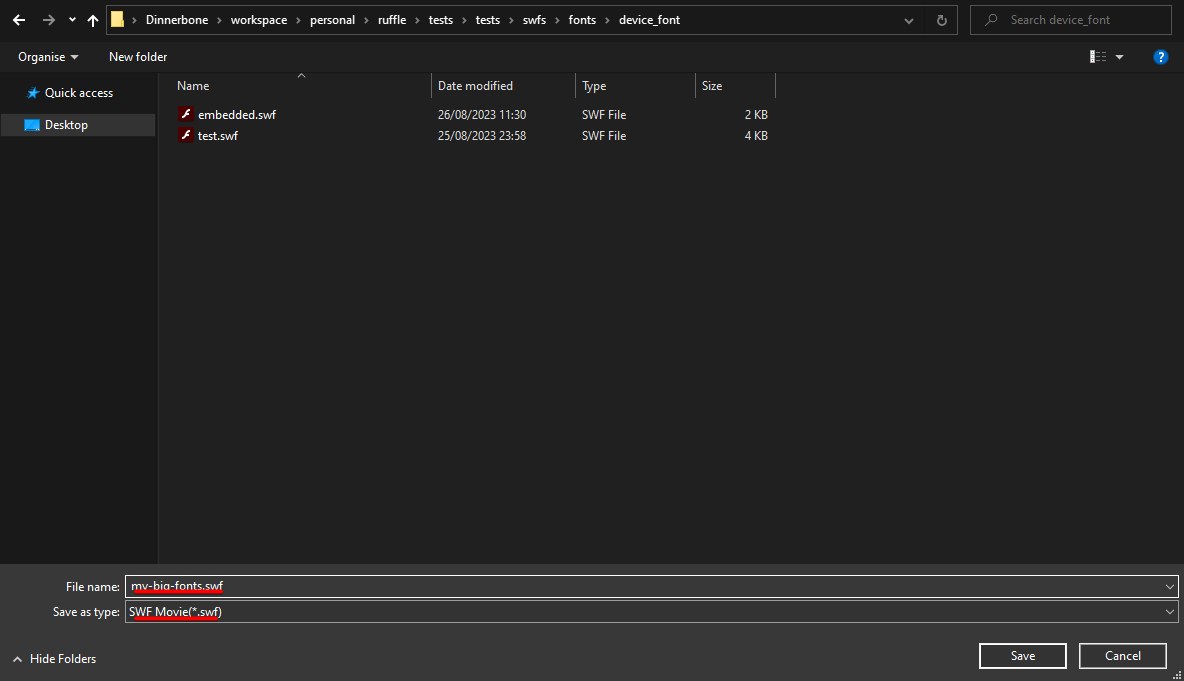
window.RufflePlayer.config = {
    fontSources: ["my-big-fonts.swf"]
}
If you need to override one of the default fonts, you can use defaultFonts in addition to fontSources to change the default font definition. There are 3 default fonts in Flash, _sans _serif and _typewriter - in Ruffle they are normally all set to Noto Sans, but you can replace it such as:
window.RufflePlayer.config = {
    fontSources: ["fonts.swf"], // load up fonts here
    defaultFonts: {
        sans: ["Caveat"], // then replace them here.
        // serif: ["Font Name 1", "Font Name 2"], // Multiple fonts can be provided
        // typewriter: ["Noto Sans"], // typewriter is normally a monospace font
    }
}You can sponsor us by visiting this page.