


This modules allows to use CECA payment acquirer.
Table of contents
To configure this module, both you and your customer must configure Odoo and the CECA portal platform.
Both platforms must be correctly interconnected and must use the same credentials to ensure proper communication.
To configure this module, you need configure the CECA payment Acquirer. For that, to go to Invoicing > Configuration > Payment Acquirers and select Ceca. The following values need to be set in the Credentials tab:
- Ceca Acquirer Bin. It can be found in the ceca portal.
- Ceca Merchant Id. It can be found in the ceca portal.
- Cerca Terminal Id. It can be found in the ceca portal.
- Ceca Business Name. It can be found in the ceca portal.
- Ceca Encriptation Key. It can be found in the ceca portal.
- Ceca Exponente.
- Ceca Tipo de Moneda.
It is also possible to force the use of a certain payment mode through the fields 'Force Bizum', 'Force Card', 'Force Google Pay', and 'Force Apple Pay'. Only one checkbox can be selected. In case one of these checkbox is activated, the customer will not be able to select a payment mode, but the one selected will be mandatory. If no payment mode is selected, the customer will be asked to select the payment mode to be used among those activated by the bank.
In order to make Ceca Payment Acquirer available, it needs to be activaded. Go to Invoicing > Configuration > Payment Acquirers and select Ceca, then change the 'State' option to one of the following:
- Disabled. The payment acquirer is not available.
- Enabled. The payment acquirer is available both in test and production environment.
- Test Mode. The payment acquierer is only available for testing.
Keep in mind that different security credentials are used in 'Enable' and 'Test Mode' states. The CECA firm can be badly calculated if you are not using the correct credentials, and then a error will be displayed on the CECA payment screen. To create a testing CECA payment acquirer you can duplicate the original one.
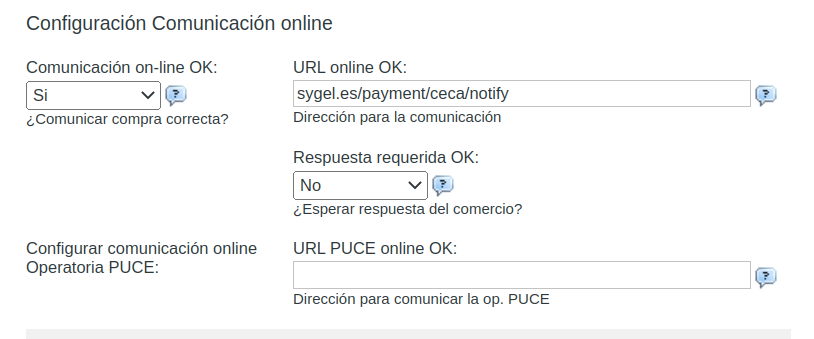
You would also need to make some configurations on your CECA portal to ensure the compatibility with this module. Specifically, you must inform CECA of the URL on your server corresponding to the endpoint provided by this module to mark a payment as completed. To do that, you must go to the "Configuración Comunicación Online" of your TPV Portal and fill the following options:
- Comunicación on-line OK: Si
- URL online OK: http://<your_server_domain>/payment/ceca/notify/. Example: https://www.sygel.es/payment/ceca/notify
- Respuesta requerida OK: No
You can see an example in the image located in this module at static/src/img/ceca_config.png to see how to configure CECA on its portal
For more information about how to configure the CECA payment, you can refer to the CECA manual.
To use this module, you need to create an order and pay it using the CECA method. The detailed steps are explained below:
- Create an order and go to its payment view on the portal or website shop. For example, you can create a Sale Order, and click on Action / Generate a Paymnent link. Select the CECA payment acquirer, and go to the provided link. Note: If no payment mode has been selected to be forced, it will be necessary to select which payment mode has to be used for the specific transaction
- In the payment view, review the corresponding fields and click on the Pay button.
- You would be redirected to the payment gateway. Fill the fields and confirm the payment. If the CECA acquirer is in test mode, you can use CECA's test credentials; if not, a real credit card needs to be used.
- Once the payment is confirmed, you would be redirected again to Odoo's payment view. Then, the transaction will be changed to the 'Done' state. If an error occurs, the transaction will be cancelled.
IMPORTANT: When a previously confirmed transaction is canceled, the payment needs to be canceled too. The payment can be accessed from the transaction form view.
- It only works with serial numbers, not lots.
- Unit tests should be added in the next versions of this module
- The payment acquirer has fields written in spanish. That sould be changed in the next versions of this module.
Bugs are tracked on GitHub Issues. In case of trouble, please check there if your issue has already been reported. If you spotted it first, help us to smash it by providing a detailed and welcomed feedback.
Do not contact contributors directly about support or help with technical issues.
- Sygel
- Sygel:
- Manuel Regidor
- Valentin Vinagre
- Harald Panten
- Alberto Martínez
This module is part of the sygel-technology/sy-l10n-spain project on GitHub.
You are welcome to contribute.