How to host MonitoRSS on Railway (fastest setup and without web dashboard) #295

Description

Inspired by: #95.
Create Discord bot application
-
Go to https://discord.com/developers/applications, click to New Application

-
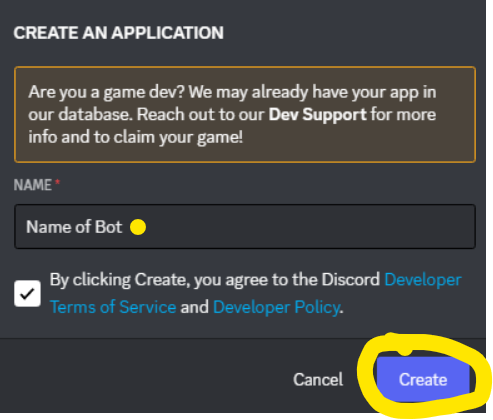
Name it and click to Create
-
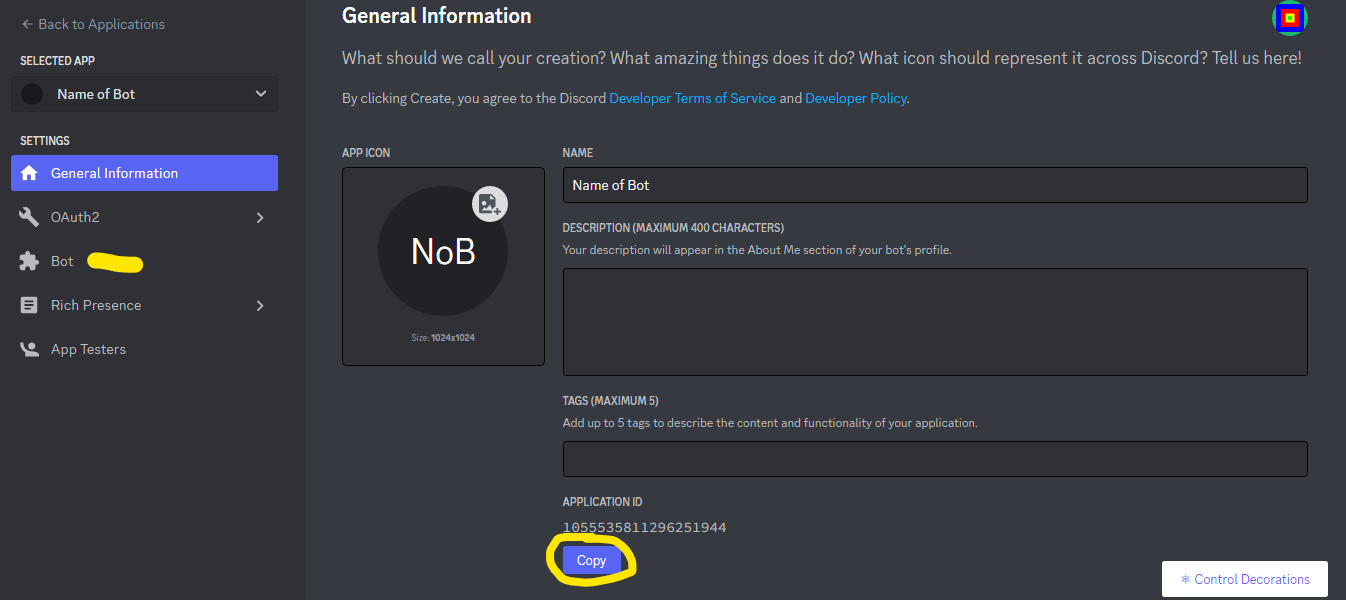
Navigate to Bot tab:
You can also see Application ID, you will need it when you invite bot to your server.
-
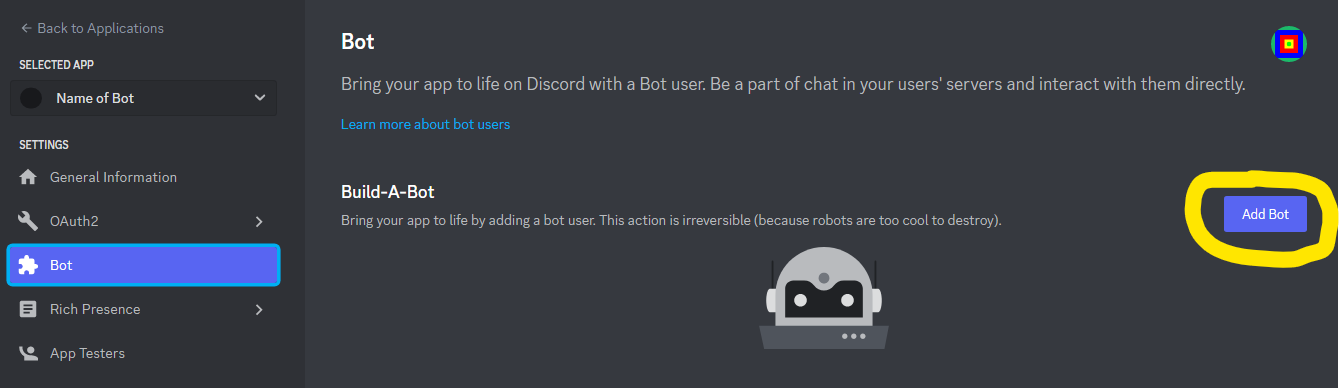
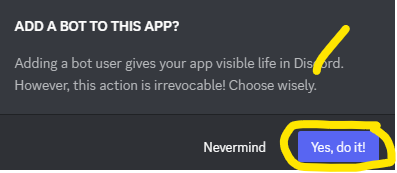
Click to Add Bot and confirm you want do it:
-
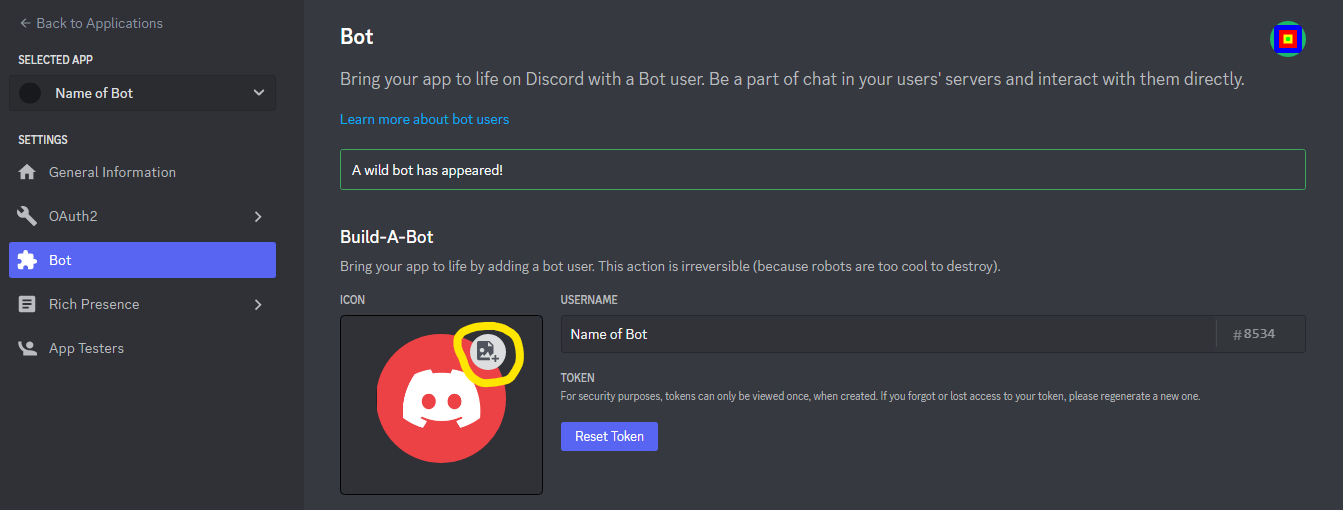
Add avatar of your bot:
You can also see Token, you will need it later. Do not share this token with anyone else!!!!
-
If you don't want others to be able to add your bot turn off the Public Bot setting.
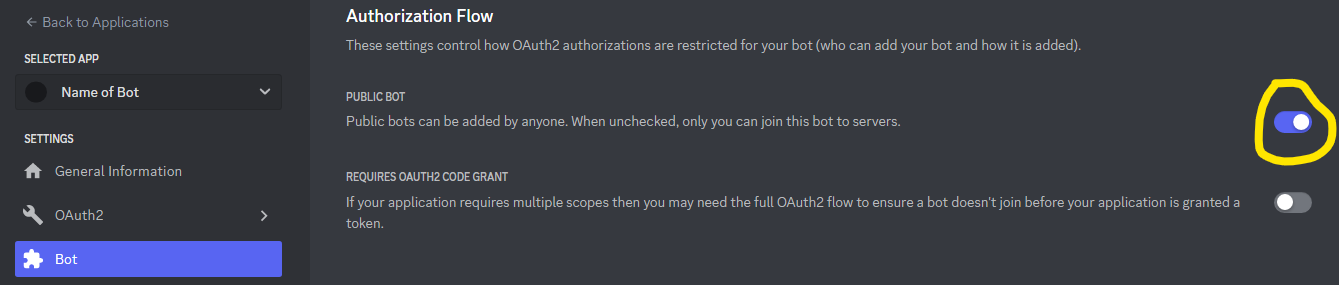
-
To be able ot use bot commands, turn on all these settings:
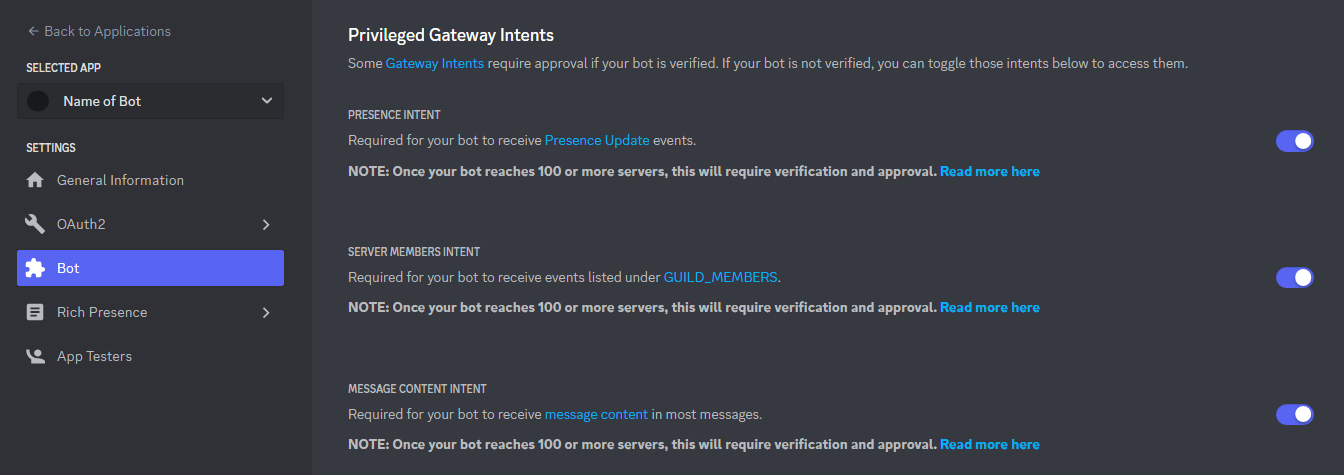
Invite the bot
Use one of the below URLs replacing the INSERTHERE with the Application ID from previous Step 3.
With Role: https://discord.com/oauth2/authorize?client_id=INSERTHERE&scope=bot&permissions=19456 (Permissions Read Messages, Send Messages, Embed Links)
Without Role: https://discord.com/oauth2/authorize?client_id=INSERTHERE&scope=bot
Create MongoDB Atlas Database
Go to https://www.mongodb.com/cloud/atlas/register and create an account if you don't already have one and verify your email. Once you completed registration, follow these instructions to create shared cluster:
-
On Shared column, click to Create:
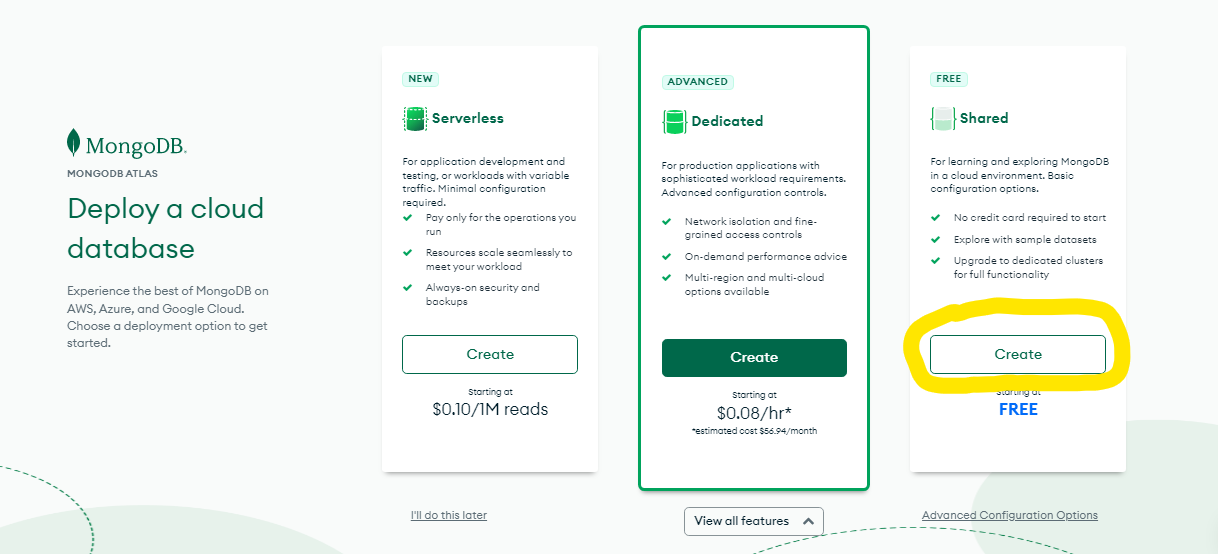
-
You can customize it, but you're safe if you will just click to Create Cluster:
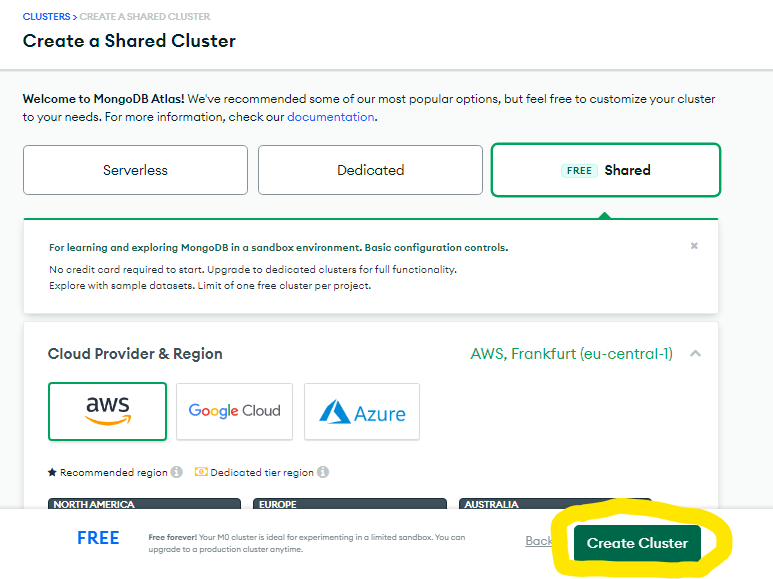
-
Create your database account and set username and password and click to Create User:
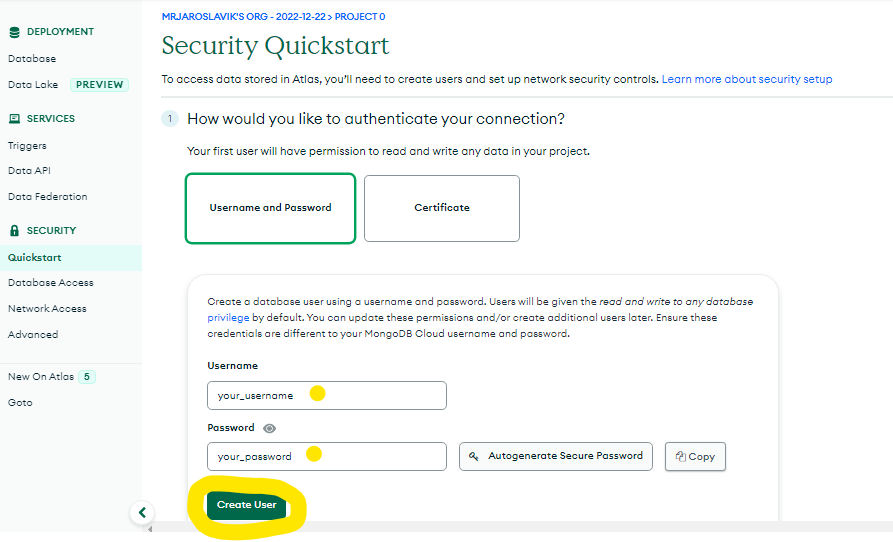
-
Navigate to Network Access tab and click to Add IP Address:
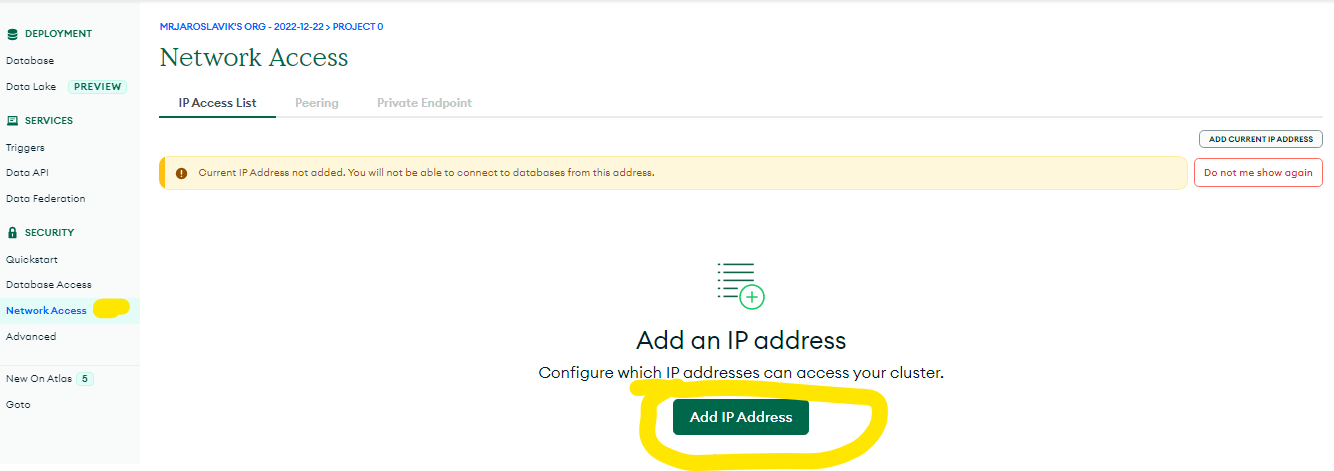
-
Click to Alow access from anywhere and Confirm:
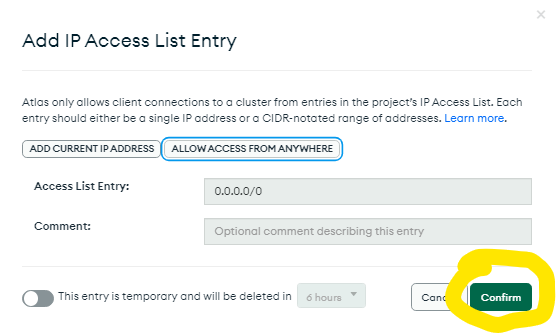
-
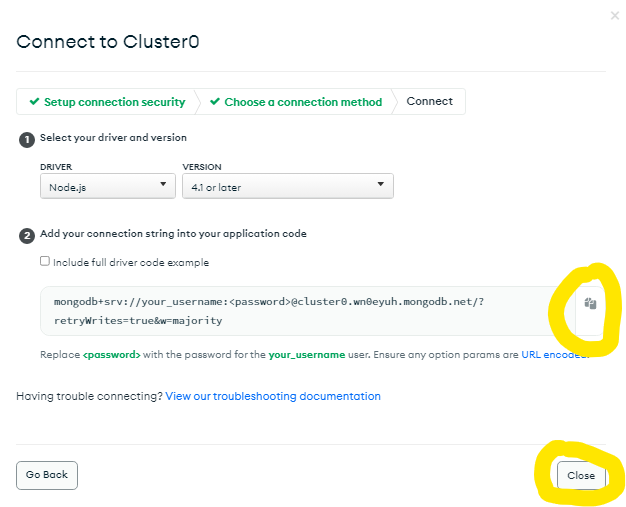
Navigate to Database tab and click to Connect:
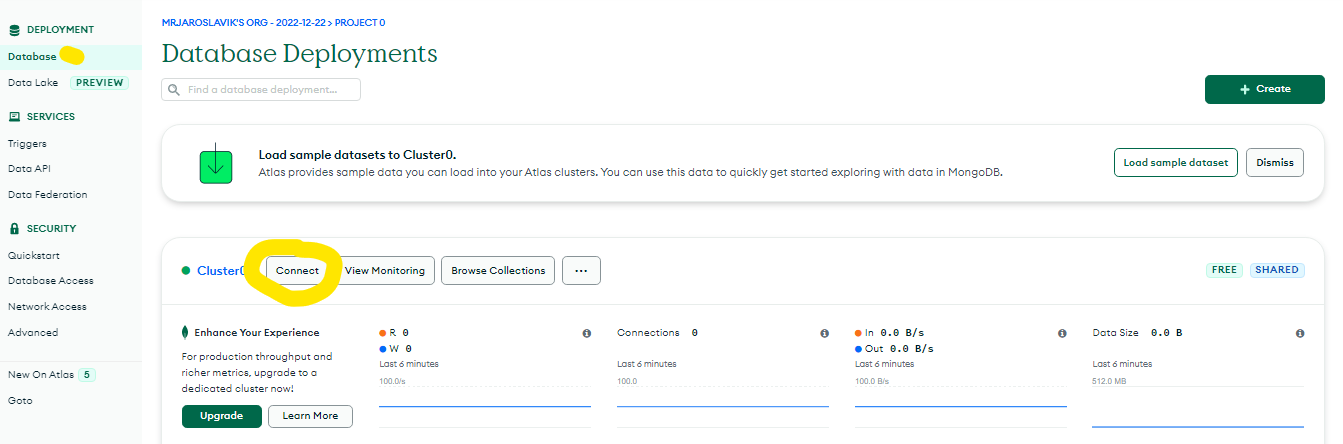
-
You will see your connection string, copy it and replace
<password>with you password you've set in Step 3:
-
Now save your connection string, you will need it in moment, it should look like this:
mongodb+srv://your_username:[email protected]/?retryWrites=true&w=majority
Railway
-
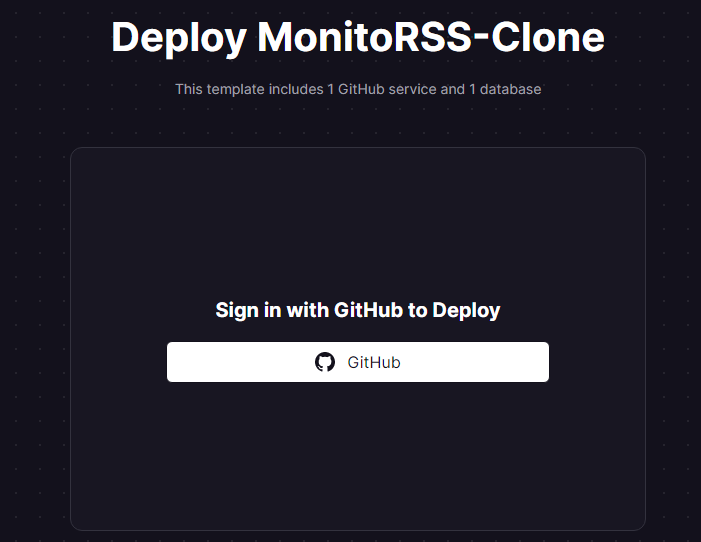
Use this button:
-
You will need to login with Github


-
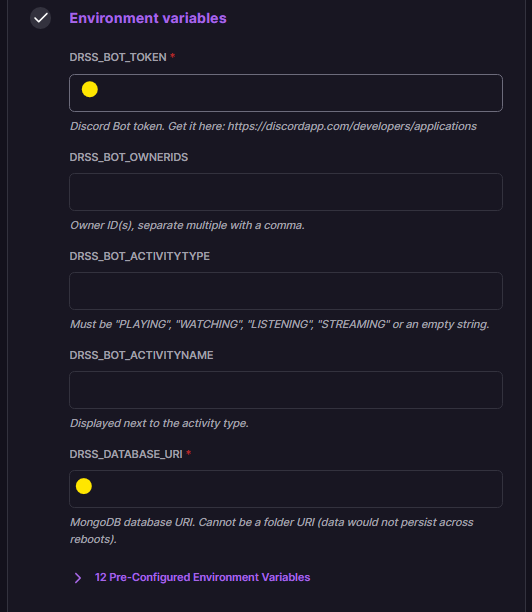
Now you will need set Enviroment Variables:
You have to set onlyDRSS_BOT_TOKENandDRSS_DATABASE_URIvariables, others are optional.
DRSS_BOT_TOKENis from Create Discord bot application > Step 5, click to Reset Token and insert copied token.
DRSS_DATABASE_URIis from Create MongoDB Atlas Database > Step 14-15, insert it here
-
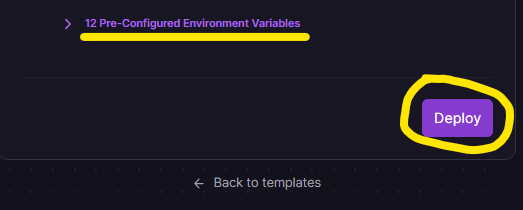
If you want to change some default settings, you can change it too. Once you're done, click to Deploy:
-
Now you will need wait your project is created and deployed.
-
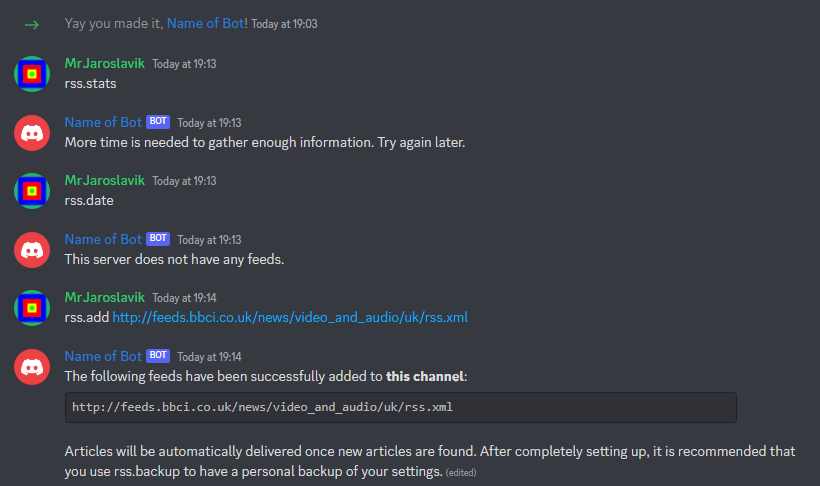
When you see green checkmark, you can check if your Discord bot is online and if so, you can try discord commands: