


- The Use Case
- Architecture overview
- Setting up fabric
- Setting up the Power Platform Solution
- How to test
Introducing our innovative Food Fighters solution, aimed at combatting food waste: a seamless integration of Azure Open AI, Power Apps, Fabric Lakehouses, and Notebooks and much more. Our solution empowers users to effortlessly manage their food inventory, track expiration dates, and receive personalized recipe suggestions via email, all with the simple scan of a product.
Imagine the convenience of scanning each item you purchase and instantly generating a comprehensive fridge inventory. With our solution, keeping track of expiration dates becomes a breeze, eliminating the frustration of discovering forgotten items wasting away at the back of the fridge.
But our solution goes beyond mere inventory management. Leveraging the power of AI, it analyzes your inventory and proactively suggests delicious recipes tailored to the items nearing their expiration dates. Say goodbye to wasted food and hello to inspired culinary adventures!


Download and Import Solution:
Begin by downloading the FoodFightersSLN solution file provided. Navigate to Power Apps and log in to your account. Locate the option to import a solution and upload the downloaded FoodFightersSLN file. Follow the on-screen prompts to complete the import process.
Set Up Connections:
After importing the solution, set up connections and sure that credentials are correctly configured (Keyvault, Outlook, Reflex Trigger).
Create Fabric Enabled Workspace:
Navigate to https://app.powerbi.com and create a new fabric enabled workspace.

Set Up A Lakehouse:
Within the fabric enabled workspace, create a lakehouse to serve as a storage repository for imported data.

Run Initial Load:
Add the provided py_loadproducts notebook to the newly created lakehouse.
Execute the notebook to start the initial data load process from Open Food Facts.
This process populates the database with essential product information.

Handle Fridge Inventory Data:
Incorporate the py_addtofridge notebook into the lakehouse environment. This notebook facilitates the processing and integration of incoming data from the fridge inventory application.
Scan and Send Products:
Begin utilizing the fridge inventory application to scan products and transmit relevant information to the designated lakehouse.

Build Semantic Model:
With the data successfully imported into the lakehouse, proceed to construct a semantic model.

Calculate Expiry Dates:
Within the semantic model, add a DAX expression to calculate the number of days remaining before each product's expiration.
For example:Expires in x Days = DATEDIFF(TODAY(),Min(fridgecontents[expirydate]),DAY)

Create Fridge Inventory Report:
Set up a report within Power BI showcasing the current inventory of products along with their respective expiry dates.
Activate Data Reflex:
Set up Data Activator reflex to automate responses based on predefined conditions within the inventory report. Select the measure you created earlier in the reflex select section, set the amount of days you want to be informed before product expiration in the detect section and within the act section set the custom action that you will configure in the next step.

Create custom action:
Define a custom action within the reflex to initiate the GetRecipeOpenAI_Flow when your products are getting closer to their expiration date. Copy paste the connection string for the action and add replace the current value for the Trigger action within that flow.

Add Connection Details:
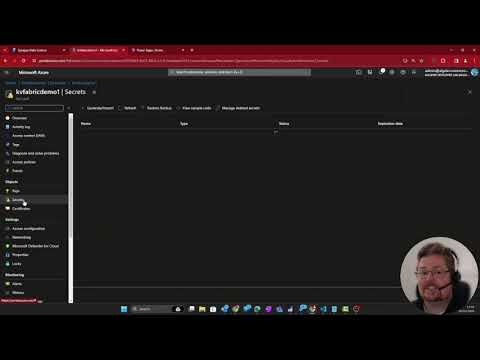
If you haven't configured the connection reference details for the Food Fighter SLN yet you should now add keyvault credentials to the keyvault that holds your OpenAI api-key (if you have no keyvault configured yet you should set it up and add the api-key to it) and the connection to your outlook to send the recipe mail.
After setting up the credentials as mentioned above the FoodFighter solution will be ready to use. Download the PowerApps App to your phone and open the FoodFighters App within PowerApps. Scan the barcode some food that you would like to add to your fridge. Select Log Product and wait a couple of minutes. You can now refresh Fridge Inventory lakehouse you created before and check the inventory table for the product you scanned.
If the product is added to the inventory you can move to the reflex you created earlier and send a test alert. If configured correctly this will trigger the GetRecipeOpenAI_Flow that will now send 3 recipes to your email adress using the products you added to the Fridge Inventory lakehouse.
You are now ready to use the solution. Add all your products to your Fridge Invetory and let Food Fighters keep track of your products and supply you with great recipes you can enjoy!
If there are any questions, feel free to reach out!
Alex Dean - adean@allgeier.ch Christian Todte - christian.todte@allgeier-inovar.de
The following documentation was used to source the information contained in this workshop.