4. Network considerations
Before Azure Monitor for SAP solutions (AMS) is deployed for the first time, following two areas regarding Networking must be addressed.
- (Mandatory for all) Create a new subnet within VNET which has network connectivity with source systems you want to monitor
- (Only if applicable) Choose an option to address no-outbound internet access from VNET in which source systems you want to monitor are deployed
For more information please read the following.
Please create a new empty subnet that's an IPv4/28 block or larger and ensure there is network connectivity between this new subnet and target systems you wish to monitor. This new subnet will be used to host Azure Functions. Azure Function is the telemetry collection engine for AMS. Please refer this article for more details and learn more about subnets for Azure functions.
Many customers choose to lockdown their SAP network environment by restricting or blocking outbound-internet access. If this scenario is applicable for you, please choose one of the following methods to address it. It is highly recommended that you pick one of the following methods, perform the needed actions before trying to deploy first AMS resource. Without addressing this scenario, AMS deployments will likely fail.
Following are two methods to address restricted/blocked outbound-internet access from SAP environemnt. You can choose the one that makes most sense for you.
Option 1: Route All
Option 2: Service Tags
Option 3: Private Endpoints
Following section describes both these options for your consideration:
Route All is a standard feature in Azure functions, it is a setting of Azure functions that you can enable or disable. Your selection (enable/disable) for route-all setting only affects traffic from Azure functions which is deployed as part of AMS deployment. This selection does not affect any other incoming/outgoing traffic within your VNET. Learn more about Route All in Azure functions.
Pre AMS deployment action:
If you choose to go with this option, you need to take an action before/during AMS resource creation. You can select enable/disable for route-all setting while creating your AMS resource with portal 'create' experience. If outbound internet access is not allowed from your environment, please select 'disable' for this field. If outbound internet access is allowed from your environment, you can leave this selection as 'enable'.
Note: During private preview, once the selection (enable/disable) is made, it cannot be changed. However, for future milestone we are considering a feature where you can change your selection (enable/disable) for route-all setting.
If you use Network Security Groups (NSGs), you can create AMS related service tags to allow appropriate traffic flow for successfully deploy AMS. A service tag represents a group of IP address prefixes from a given Azure service. Learn more about virtual network service tags.
Post AMS deployment action:
If you choose to go with this option, please follow the steps mentioned below:
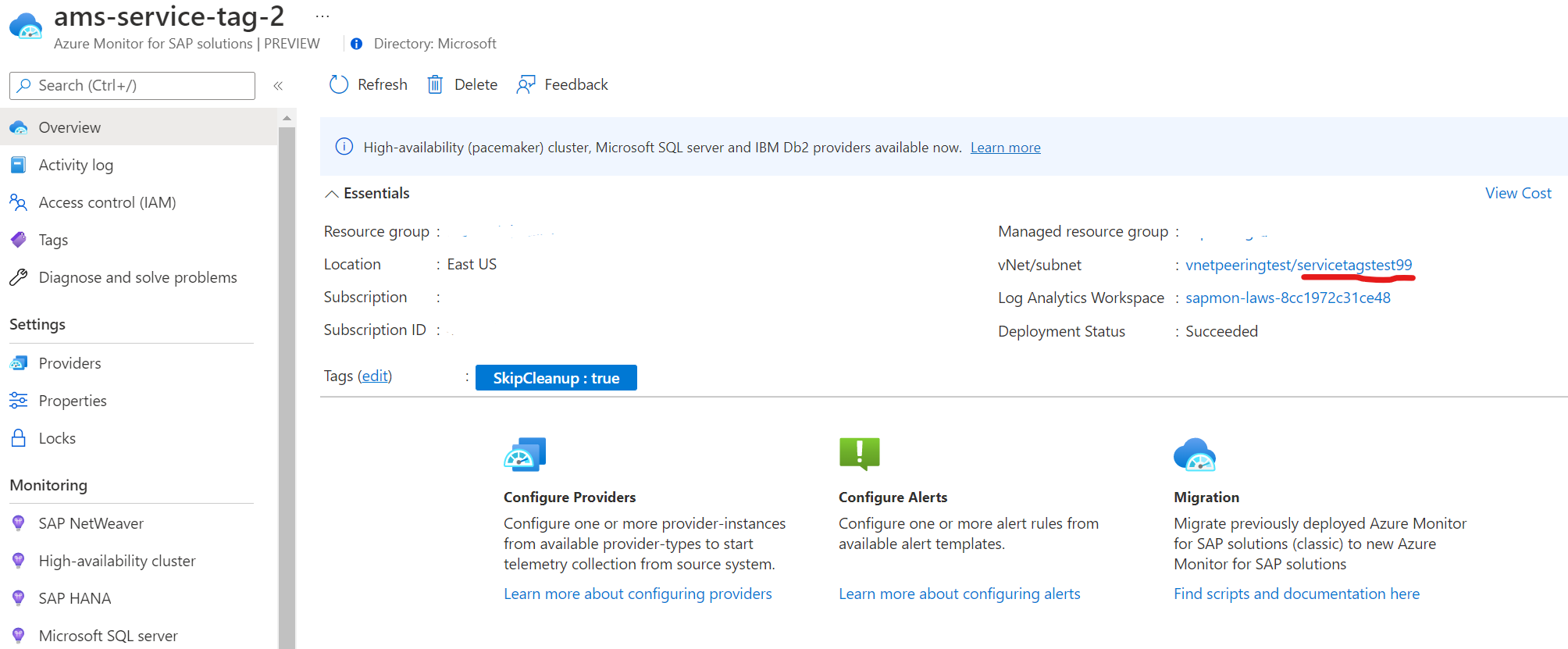
- Find subnet associated with AMS managed resource group
a. Navigate to your AMS resource, overview tab
b. Inside managed resource group, select Azure functions app
c. In functions app, navigate to Networking tab and click on VNET Integration
d. Scroll down to find Subnet details - Find Network Security Group (NSG) associated with Subnet by clicking Subnet name. Make note of this NSG
- Set new NSG rules for outbound network traffic
a. Navigate to NSG
b. On left panel, under Settings, navigate to Outbound security rules
c. Add following new rules by clicking Add button on top
* Priority: 450, Name: allow_monitor, Port: 443, Protocol: TCP, Source: , Destination: AzureMonitor, Action: Allow * Priority: 501, Name: allow_keyVault, Port: 443, Protocol: TCP, Source: , Destination: AzureKeyVault, Action: Allow * Priority: 550, Name: allow_storage, Port: 443, Protocol: TCP, Source: , Destination: Storage, Action: Allow * Priority: 600, Name: allow_azure_controlplane, Port: 443, Protocol: Any, Source: , Destination: AzureResourceManager, Action: Allow * Priority: 660, Name: deny_internet, Port: any, Protocol: Any, Source: Any, Destination: Internet, Action: Deny
- AMS subnet IP refers to Ip of subnet associated with AMS resource
- The priority order for deny_internet and allow_vnet is important, allow_vnet should have a lower priority than deny_internet
- The priority order for other rules is interchangeable, all of them should have priority less than allow_vnet
To enable private endpoint, a new subnet is required in the same vnet as the source system (system you wish you monitor). This subnet must not be delegated to any other resource, hence the subnet used by azure function cannot be used to create private endpoints. Once new subnet is created, please follow these steps:
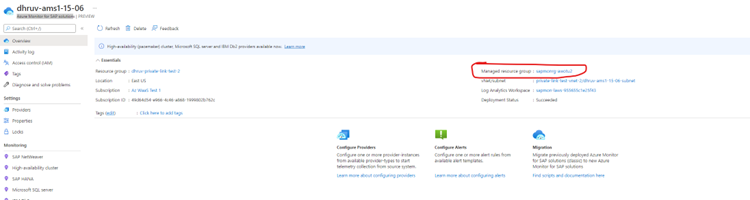
In Azure monitor for SAP Solutions overview blade, go to managed resource group.
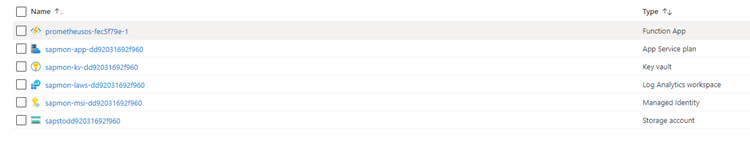
A private endpoint connection needs to be created for the following resources inside the managed resource group:
- Key-vault,
- Storage-account, and
- Log-analytics workspace
Key Vault Only 1 private endpoint is required for all the key vault resources (secrets, certificates, and keys). Once a private endpoint is created for key vault, the vault resources cannot be accessed from systems outside the given vnet.
Go to the networking tab of the key vault under settings.
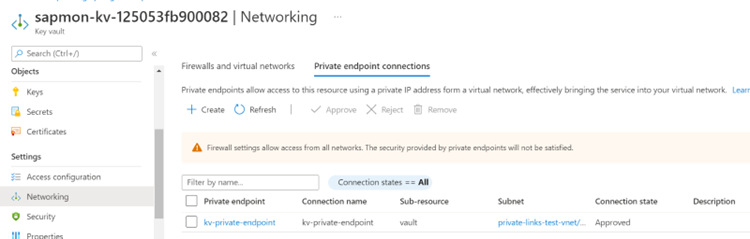
Private endpoint connections -> Create Select the region for private endpoint.
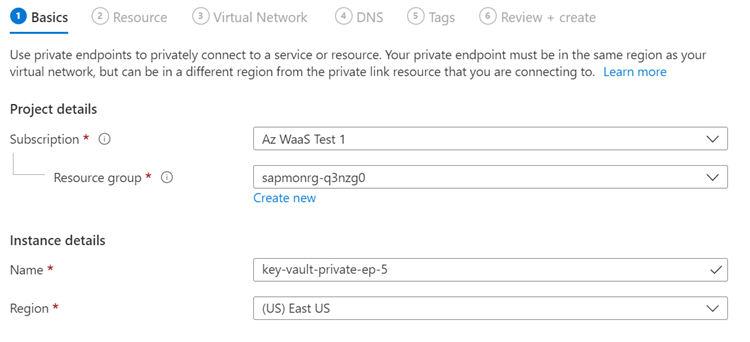
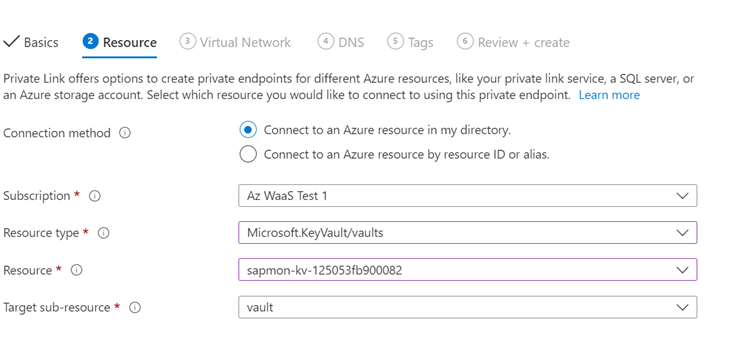
Select the resource, and target sub-resource for which private endpoint is required. (Only one sub-resource available for key vault.)
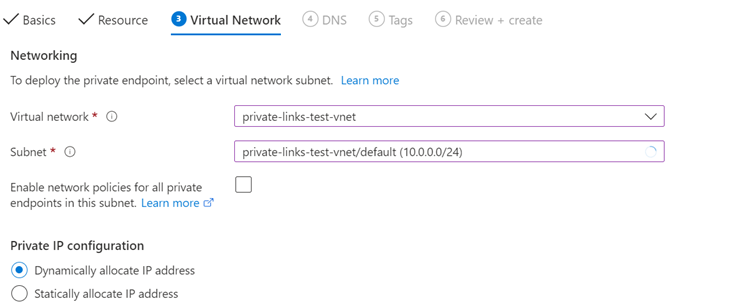
Select the vnet, and subnet. (The subnet used for function app cannot be used for endpoint creation).
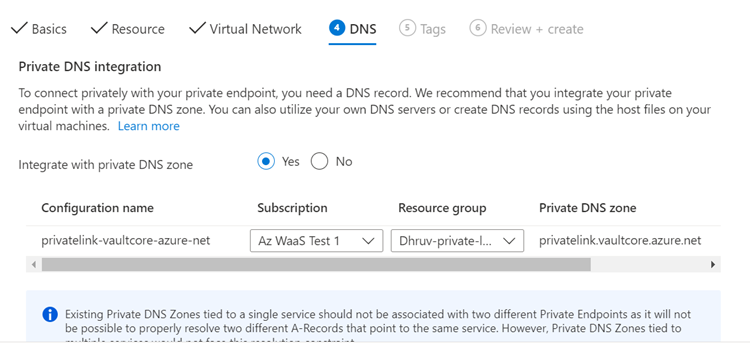
Integrate the resource with a private DNS zone and add tags (if required).
Hit review and create. In the networking tab, use the following access policy. This will allow the service to access the key-vault resources.
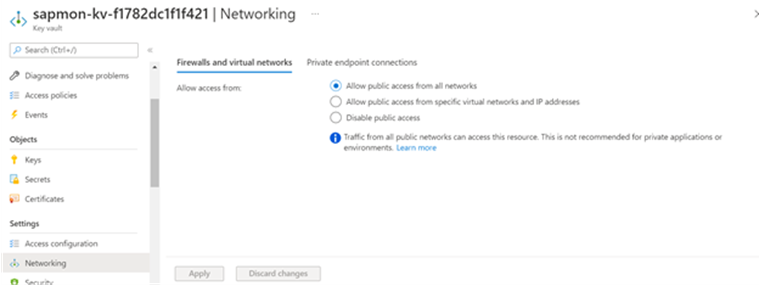
Storage Account
A separate private endpoint is required for each storage account resource (queue, table, storage blob, and file). If we create a private endpoint for storage queue, we cannot access it from systems outside the vnet (including azure portal). But other resources of the same storage account can be accessed.
Follow the same steps to create private endpoints as the key vault resource.
Choose the following resource type:
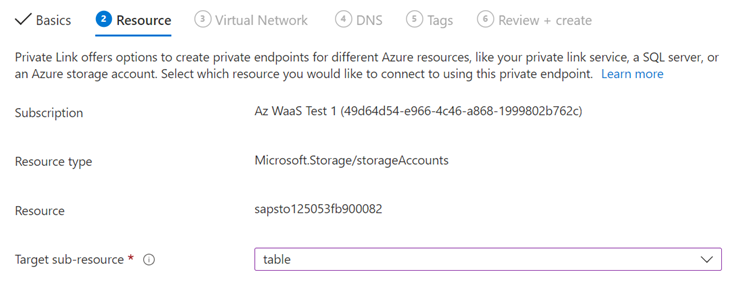
Repeat the above steps for each sub-resource type required. (Table, queue, blob, and file in our case)
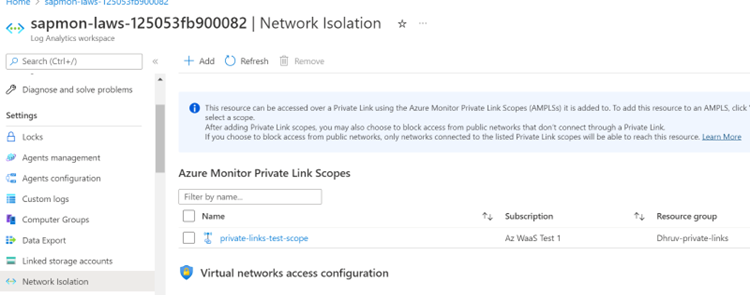
Log Analytics Workspace Private endpoint cannot be created for laws directly. To enable private endpoint for Laws, we need to connect it to an Azure Monitor Private Link Scope, and then create a private endpoint for the Azure Monitor Private Link Scope.
Note: If any system is accessing laws before enabling private endpoint (I.e using public endpoint), that system will continue to use public endpoint until restarted.
Thus, private endpoint for laws must be enabled before provider creation else the azure function would not be unable to access laws until restarted.
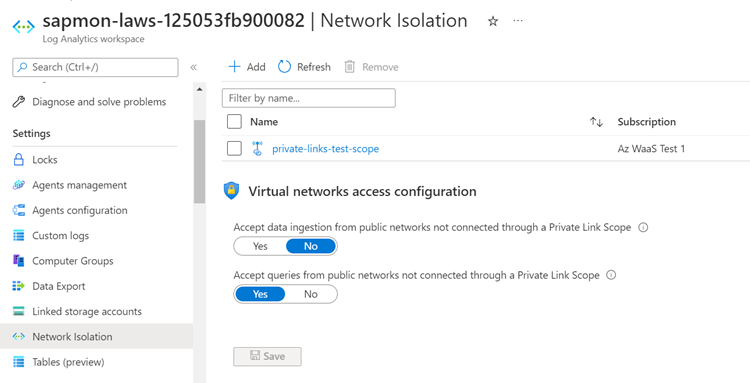
Go to the network isolation tab under settings. -> Add
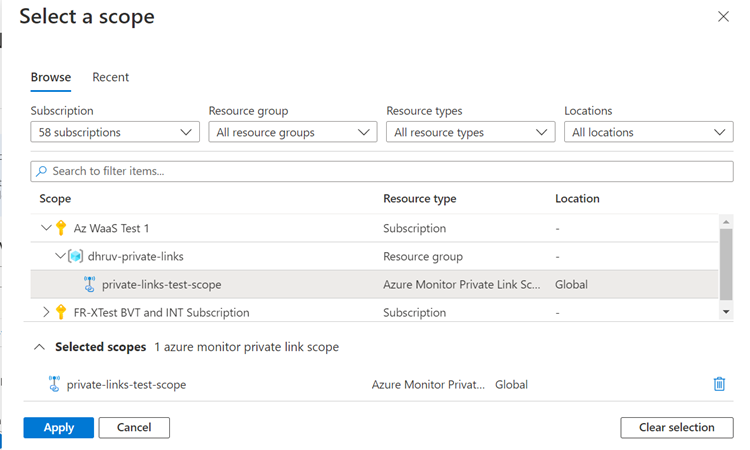
Select the desired scope -> hit apply.
To enable private endpoint for Azure Monitor Private Link Scope, go to Private Endpoint connections tab under configure.
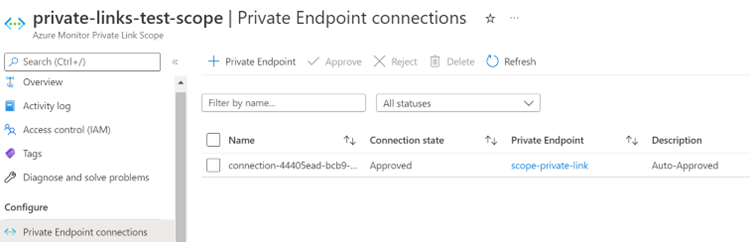
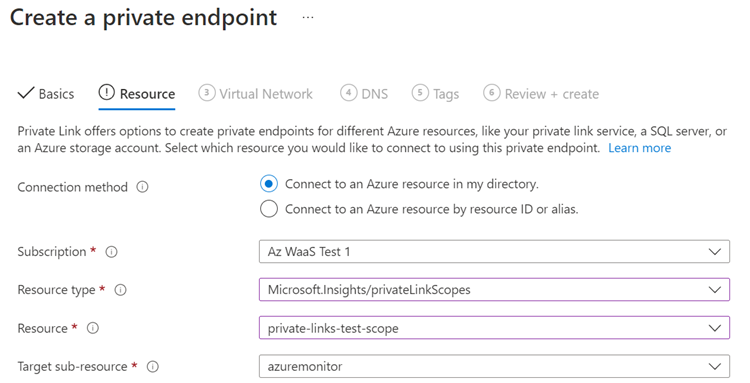
Follow the same steps as key vault, and choose the following resource type, and sub-resource type:
In the network isolation tab for laws, select the following network access configurations.
Accept data ingestion from public networks: NO (To disable data ingestion from any system outside the vnet.)
Accept queries from public networks: YES (This is necessary for workbooks to display data properly.)
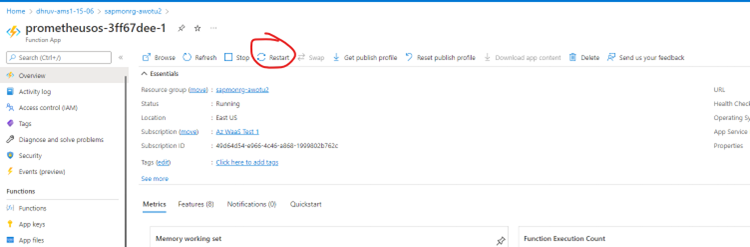
+Restart azure function apps_ If private endpoint for log-analytics is enabled after any provider creation, then all the function apps in managed resource group must be restarted. In Azure monitor for SAP Solutions overview blade, go to managed resource group.
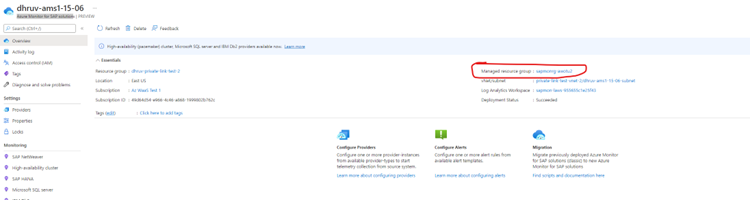
Find all the function apps in the managed resource group:

In the function app overview blade, click on restart button
NSG rules to disable outbound internet calls
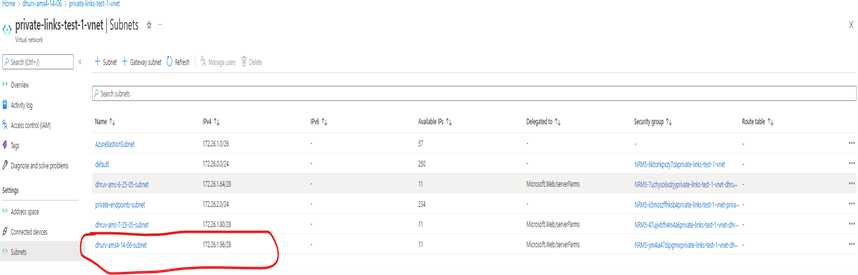
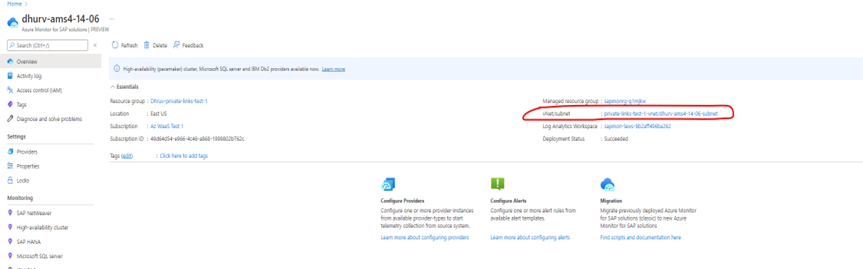
Find source IP range for AMS resource
From overview blade of AMS resource, got to vnet used to create the AMS resource.
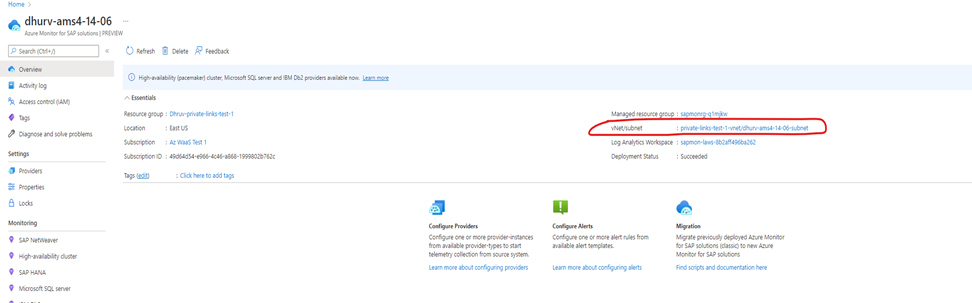
The IPV4 range is the desired source system IP address range.
Find the ip-range for private endpoints created in above steps
For key-vault, and storage account private endpoints:
Find the private endpoint created for key-vault/storage-account.
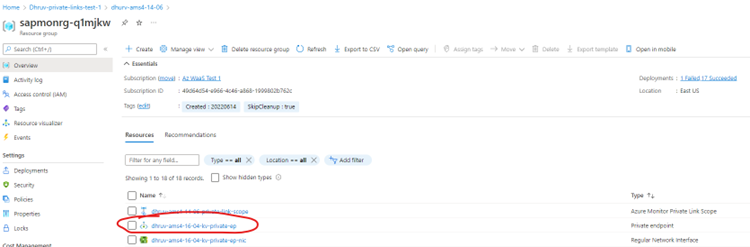
You will find the ip-address for private endpoint in DNS configuration blade under settings.
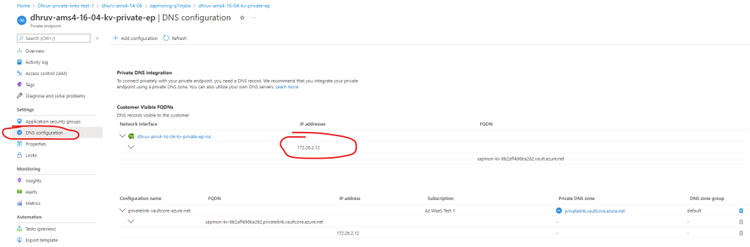
For Log analytics private endpoint:
Go to the private endpoint created for Azure Monitor Private Link Scope resource.

The required IP can be found in DNS configurations under settings tab with configuration name: privatelink-ods-opinsights-azure-com
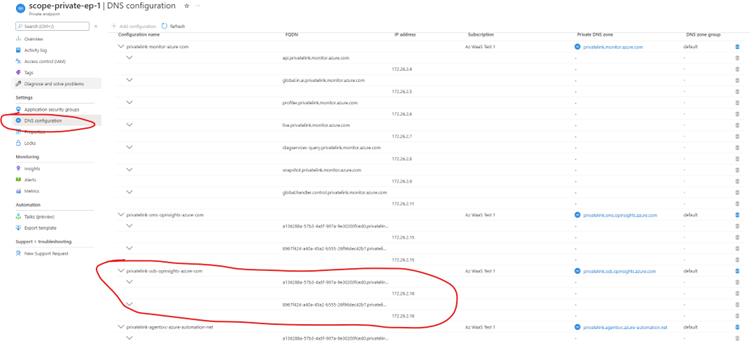
Required outbound NSG rules:
From overview blade of AMS resource, got to vnet used to create the AMS resource.
Go to network security group corresponding to the subnet used to create the AMS resource.
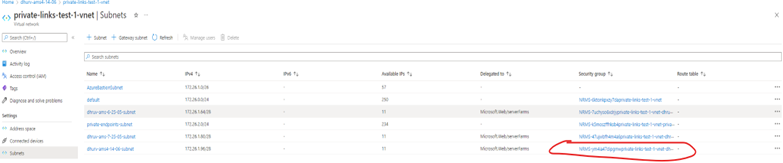
Go to Outbound security rules tab under settings.
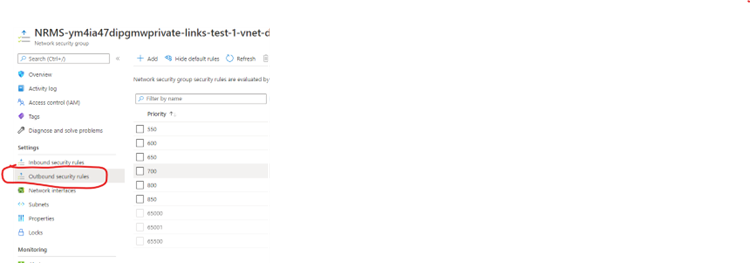
The below image contains the required security rules for AMS resource to work.

550: Allow the source IP for making calls to source system to be monitored. 600: Allow the source IP for making calls AzureResourceManager service tag. 650: Allow the source IP to access key-vault resource using private endpoint IP. 700: Allow the source IP to access storage-account resources using private endpoint IP. (Include IPs for each of storage account sub resources: table, queue, file, and blob) 800: Allow the source IP to access log-analytics workspace resource using private endpoint IP.