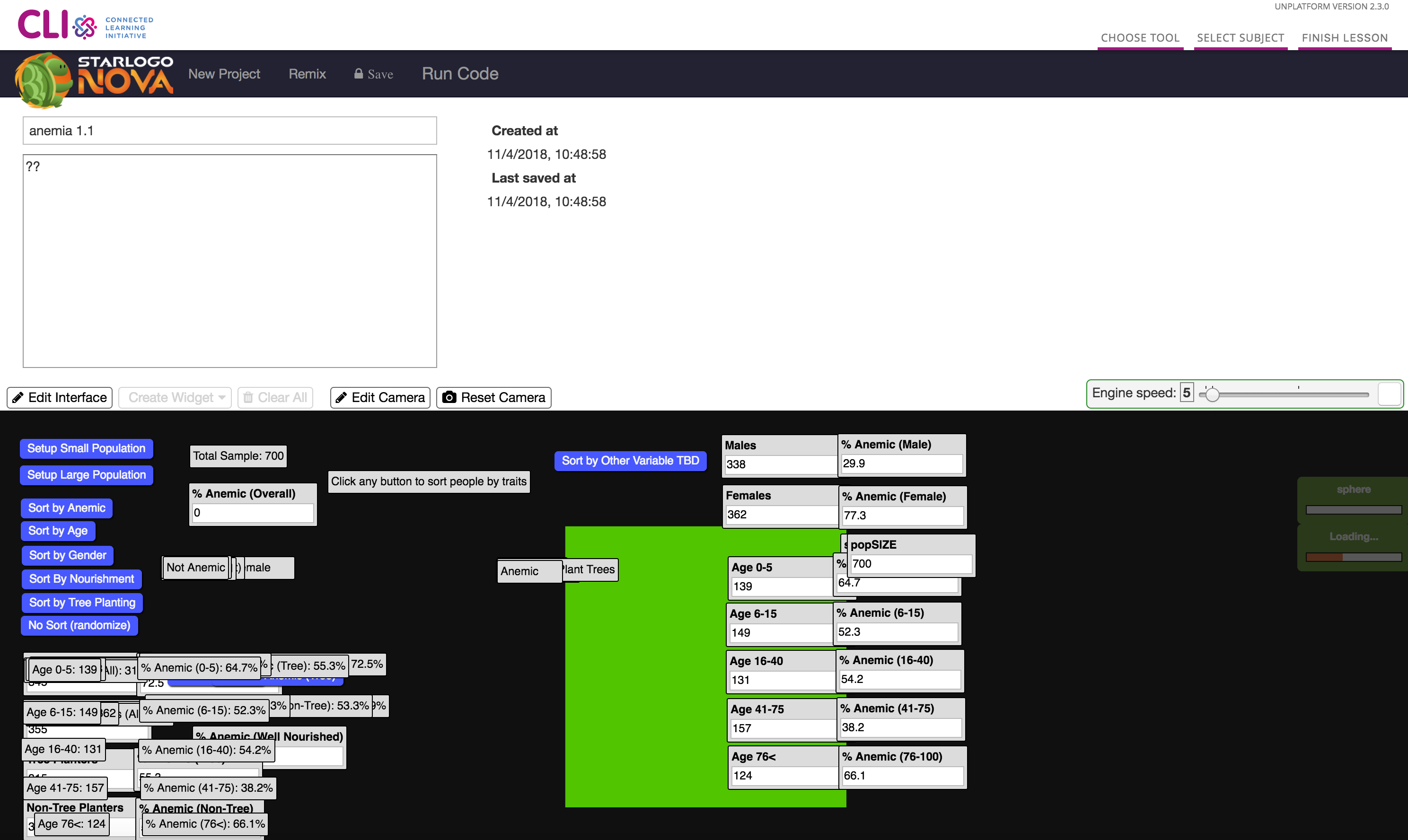
Importing Locked StarLogoNova Models
There are three CLIx curriculum models for StarLogoNova that are to be used by students, but not modified -- students are expected to create their own "remixes" and play with those. These are "locked" models, and they are:
- Anemia 1
- Anemia 2
- Fish Algae
In early versions of unplatform for CLIx, these three models were included as "frozen" StarLogoNova static pages -- this allowed students to play with the models, but not save any changes.
With unplatform version 2.3.0 and higher incorporating StarLogoNova Lite, students can remix and save their changes to any projects, or even create their own projects from scratch.
This page describes how to migrate the three locked models from the static pages into the new unplatform data store.
We provide a form in unplatform to let you import an existing StarLogoNova model: /sln-create-template. You can open that up directly on your instance, like https://unplatform.example.com/sln-create-template. To populate this form, you need three pieces of data:
- Title -- what you want to call the project. This will show up in the list of projects.
- Description -- a text description that you can see once the project is open.
- Project String -- the saved state of the project.
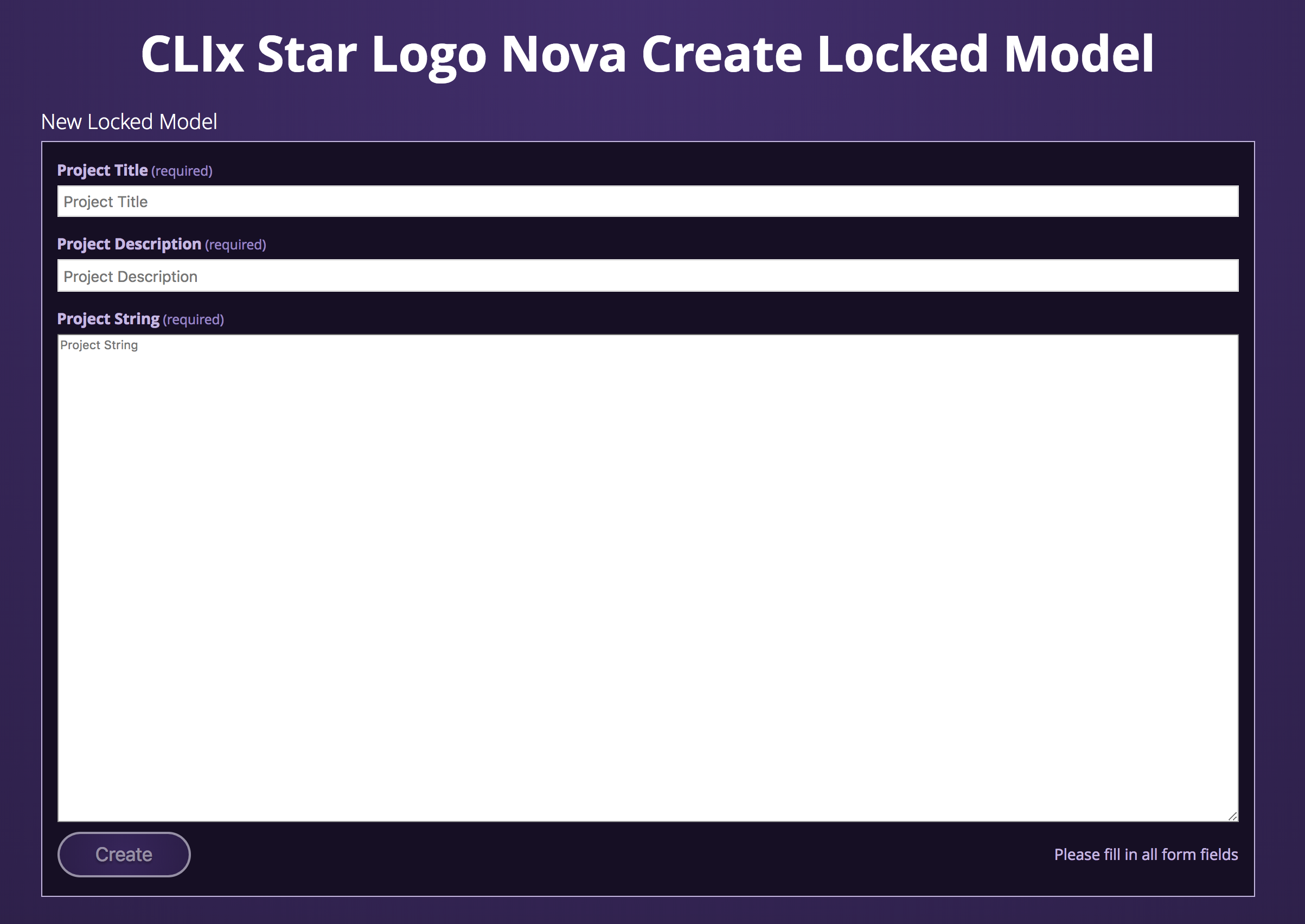
You can extract the actual project data from one of the frozen models, from the index.html file, with the following steps. The three created for CLIx have already been converted and are available in the MIT SEI repository if you have access to that repository. For these three models, you can skip to step #6.
- Open up
index.htmlin a text editor. - Find the
projectvariable. It will look something like:
    // ********************************************************
    // OVERWRITE THIS WITH THE CONTENTS OF THE PROJECT TO LOAD
    var project = {"version":"beta2.4", "otherInfo":{},"widgets":[{"y_position":"122","widgetType":"WebLand.Widgets::ToggleButtonWidget","x_position":"917","saveInfo":{"name":"forever","properties":{"label":"forever"}}},{"y_position":"13","widgetType":"WebLand.Widgets::ButtonWidget","x_position":"4","saveInfo":{"name":"Setup%20Small%20Population","properties":{"label":"Setup%20Small%20Population"}}},{"y_position":"113","widgetType":"WebLand.Widgets::DataBoxWidget","x_position":"871","saveInfo":
...
...
{"label":"black","value":"0x000000"},{"label":"blue","value":"0x0000FF"},{"label":"brown","value":"0xA07050"},{"label":"cyan","value":"0x00FFFF"},{"label":"gray","value":"0x8E8E8E"},{"label":"green","value":"0x51C500"},{"label":"lime","value":"0x00FF00"},{"label":"magenta","value":"0xFF00FF"},{"label":"orange","value":"0xFF5500"},{"label":"pink","value":"0xFF007F"},{"label":"purple","value":"0x7F00FF"},{"label":"red","value":"0xFF0000"},{"label":"sky%20blue","value":"0x007FFF"},{"label":"turquoise","value":"0x00FFC6"},{"label":"white","value":"0xFFFFFF"},{"label":"yellow","value":"0xFFFF00"},{"label":"lime%20green","value":"0x80FF00"}],"value":"0xFFFF00"}],"connections":[],"color":"#99CCFF","returnType":"string"}, "connectedblocks":[]}]}],"sounds":{}};
    //********************************************************
- Copy the entire contents of
projectto a new document (from{"version"all the way until"sounds":{}}). - Fix the static object paths to match the unplatform deployment paths.
- Do a global find / replace inside of the project string document.
- Find:
slnova_static_files. - Replace with:
/static/sln_editor.
- Find:
- Do a global find / replace inside of the project string document.
- Be patient with your editor. These are long strings and doing the find / replace may take some time.
- Copy / paste the resulting string into the
Project Stringfield of the form. - Fill out the
Project TitleandProject Descriptionfields of the form. - Click the
Createbutton. - Wait -- be patient. It takes several seconds to save the project to the data store.
- Once saved, you will be redirected back to the unplatform splash screen. If you navigate to
Tools->StarLogoNova, your new locked model should appear in the projects list.
NOTE: There currently is no easy way for developers to delete any StarLogoNova models (locked or unlocked). So use the above with caution. The simplest way to remove all created StarLogoNova models is to reset your qbank data store to a "clean" version from the authoring tool.
The current version of unplatform includes a generic StarLogoNova selector in the Tools page.
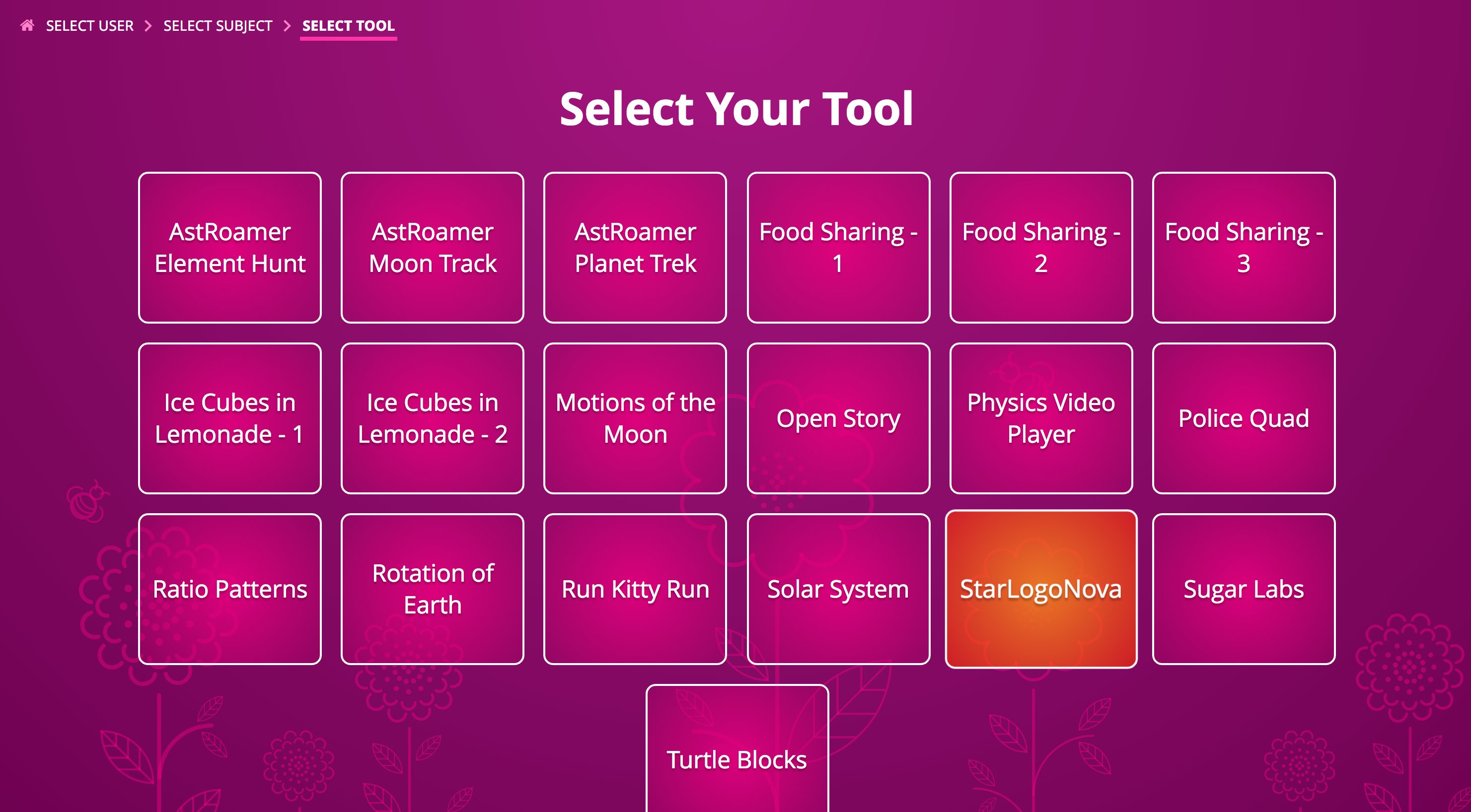
When you open that, you will get a list of projects with the locked ones at the top. All projects are sorted with the most recently edited ones at the top of the list.
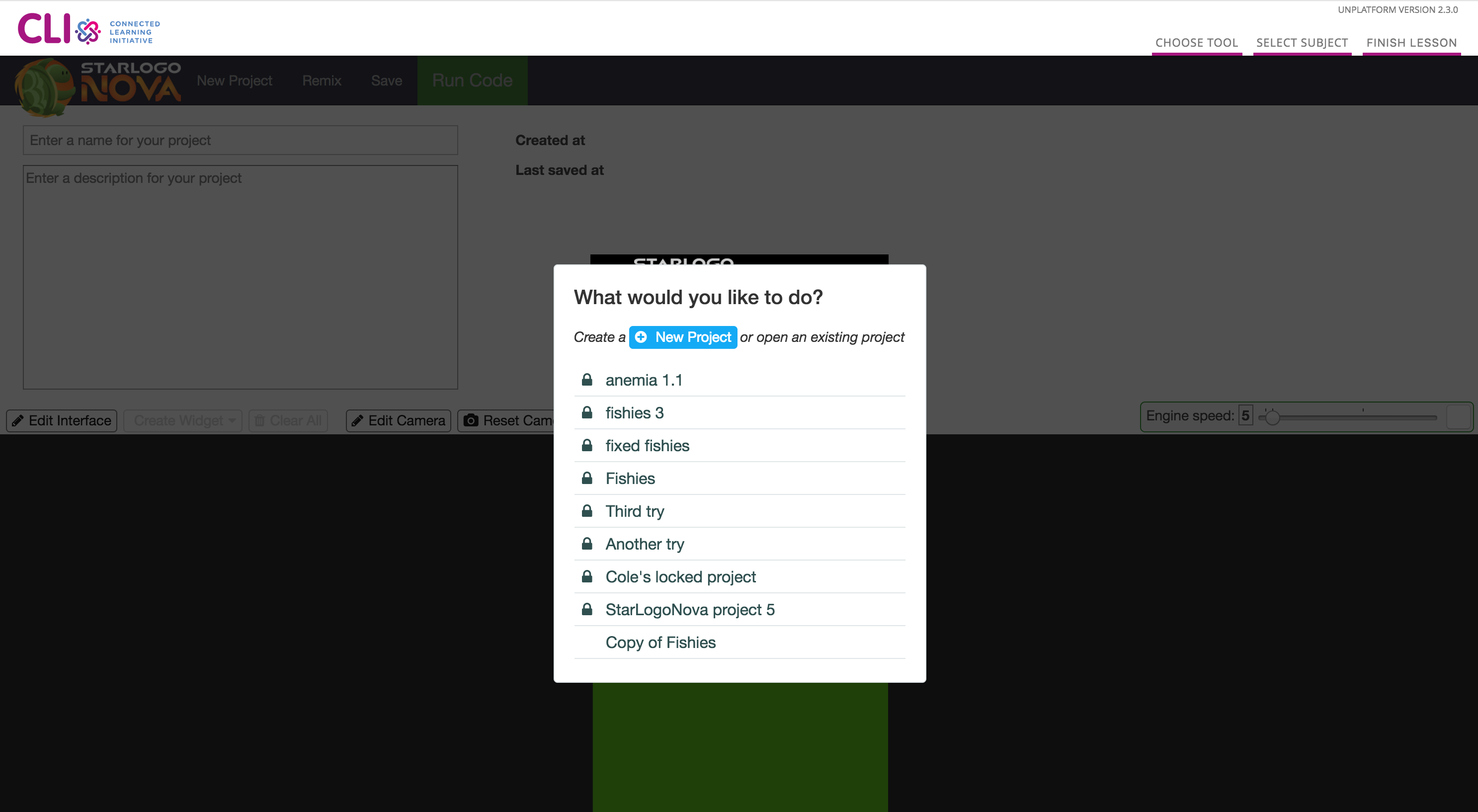
If you would like to get direct links to the three locked models, you can include a new Tools directory + index.html file that points to the specific model ID.
NOTE this means that these specific StarLogoNova "Tools" are tied to a specific qbank data set, and will only work with that data set. You must make sure that they are distributed together!
-
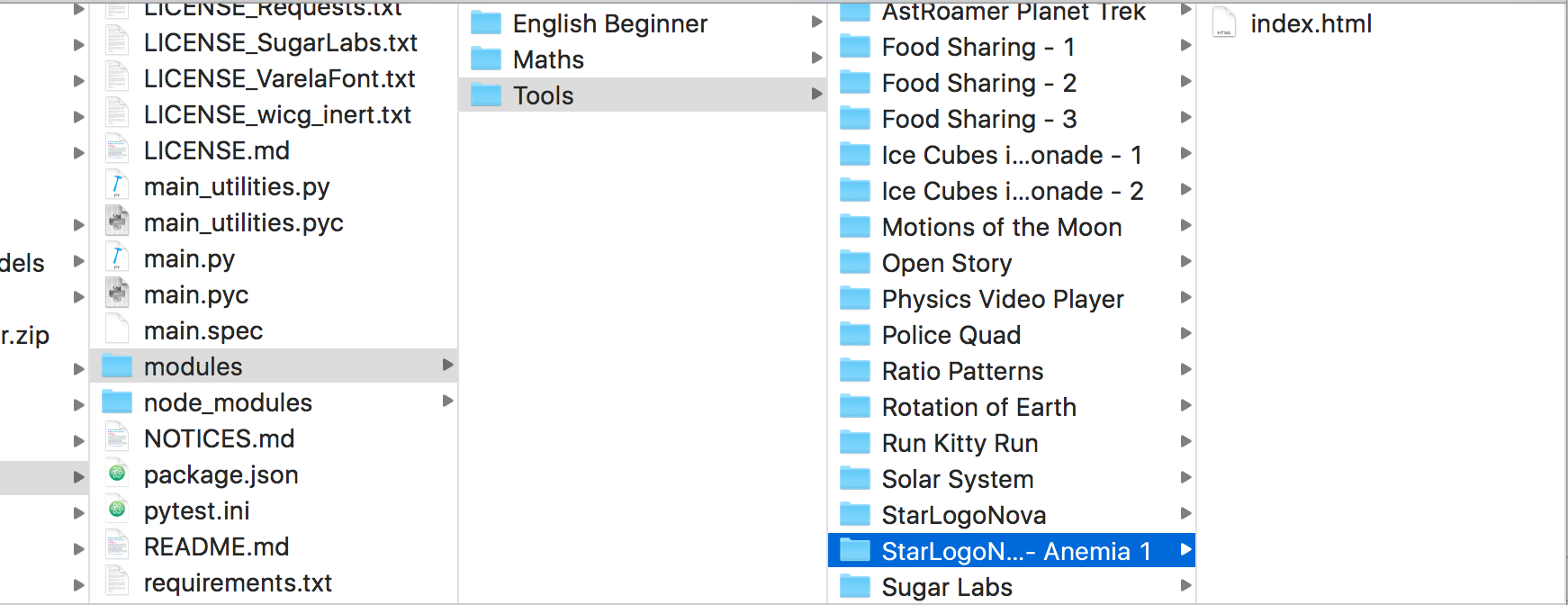
Create a directory in
modules/Tools, where the name is what will appear in the interface. For example,modules/Tools/StarLogoNova - Anemia 1. -
Inside of that directory, create a file called
index.html.
-
Now get the ID of the locked model. You can find this by opening up the model in the
StarLogoNovaeditor directly (not via theToolsbutton), and parsing the URL.- Navigate to
/editorof your unplatform installation, like https://unplatform.example.com/editor. - Select the locked model from the pop-up window.
- When the locked model opens, the URL should look like:
https://unplatform.example.com/editor?id=assessment.AssessmentTaken%3A5ace2054828a12b3a763780f%40ODL.MIT.EDU - The string
assessment.AssessmentTaken%3A5ace2054828a12b3a763780f%40ODL.MIT.EDUis the model's ID and will be used in the next step.
- Navigate to
-
Edit
index.htmlto include aniframecode. In thesrcattribute, make sure to use the ID string from step 3:
<iframe title="StarLogoNova - Anemia 1" name="frame" frameBorder="0" src="/editor?id=assessment.AssessmentTaken%3A5ace2054828a12b3a763780f%40ODL.MIT.EDU" style="position: absolute; left: 0; top: 0; width: 100%; height:100vh;" allowfullscreen></iframe>
- Now when you load the
Toolspage, the specific StarLogoNova model should appear.
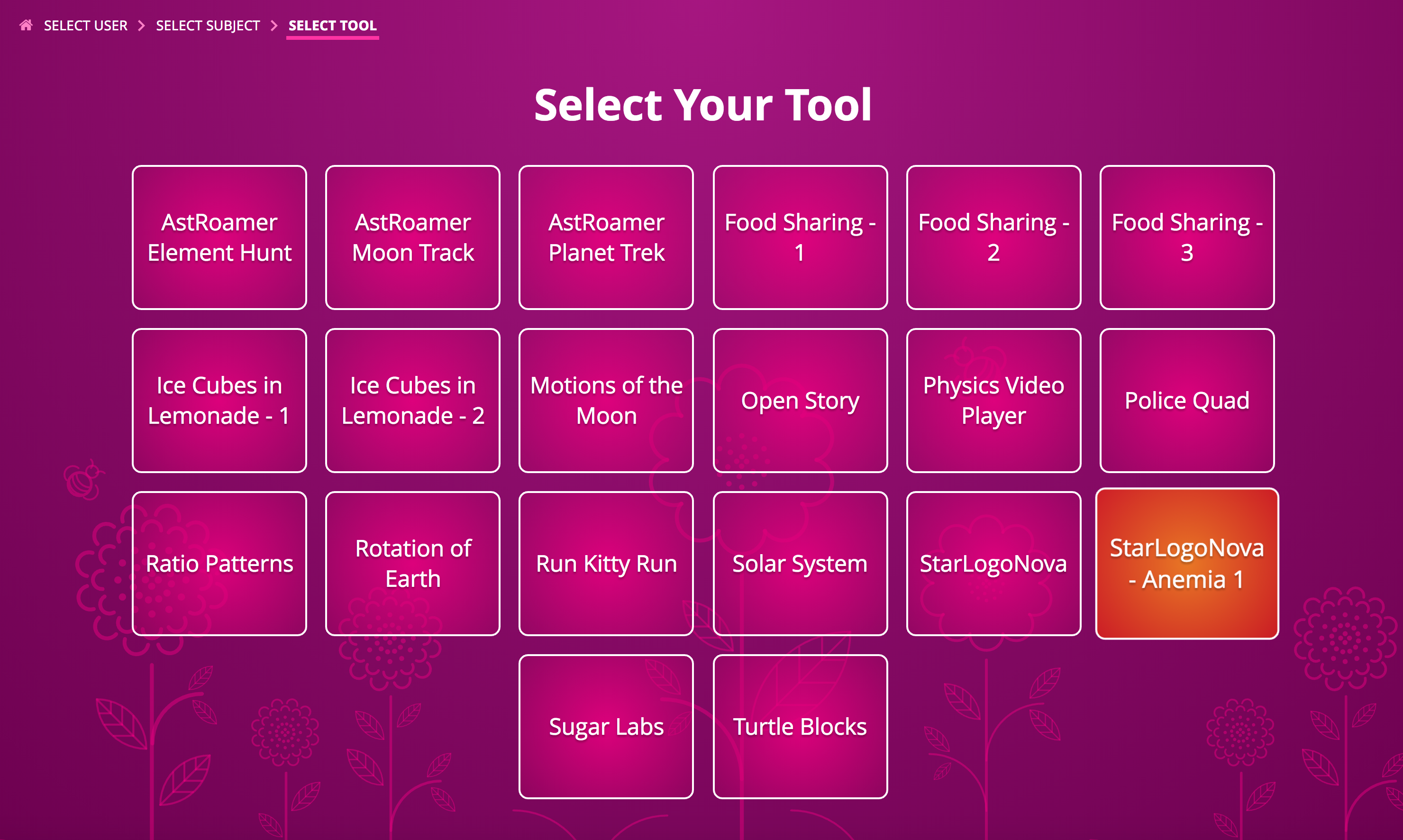
- Clicking that button will open that model directly in StarLogoNova.