This project allows a user to keep track of deadlines for a specific class. By accessing the web application, the user can select a course and see future and past events with the date and a description of the event. They can also download a .ics file (iCalendar) to import all important events into their Google or Outlook calendar.
To access the class and sequence diagrams, select "Documentation" and then "System Architecture", and select the appropriate page.
Instructions For Use
One must first have the following libraries installed on their machine:
- ics
- api
- flask
To install, use the following terminal command:
pip3 install [name]
Clone the repository and first run api.py. Then run web.py, and access http://127.0.0.1:5000 on your web browser. You now have access to the Syllabus Explorer.
From the homepage, you can select the course for which you want to see due dates. Once you've selected the course, you'll see a page with the current date and time, as well as past and future events in the course. Scrolling through the tables will allow you to see all events in the semester.
At the top of the course page, you'll see three links.
-
Download ICS
By clicking this link, a .ics will be downloaded to your machine. This file is compatible with both Google and Outlook calendar apps.
-
Google Calendar
By clicking this link, you will be redirected to Google Calendar, where you can import the .ics file to automatically be added to your calendar.
-
Outlook Calendar
By clicking this link, you will be redirected to Microsoft Calendar, where you can import the .ics file to automatically be added to your calendar.
Adding ics file to Google Calendar
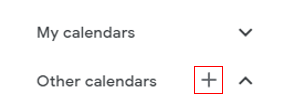
- To add the ics file to your Google Calendar, after clicking the link, select the plus sign next to "Other Calendars" on the lower left side of the page.
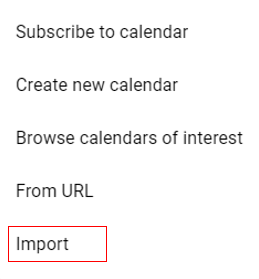
- Next, select the "import" option from the dropdown menu.
- Select the .ics file from the appropriate location on your computer, and select import. Your calendar should now populate with the events from the file!
Adding ics file to Outlook Calendar
- To add the ics file to your Outlook Calendar, after clicking the link, select the "Add Calendar" button on the lower left side of the page.

- Next, select the "Upload from file" option in the pop up window.
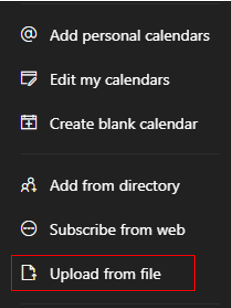
- Select browse, and choose the .ics file from the appropriate location on your computer. Select import, and your calendar will now be populated with the events from the file.