











Mailozaurr is a PowerShell module that aims to provide SMTP, POP3, IMAP and few other ways to interact with Email. Underneath it uses MimeKit and MailKit and EmailValidation libraries written by Jeffrey Stedfast.
This project has 2 branches:
v1-legacy- this is the old version of the module. It's working, it's stable and has been around for a while. It's written entirely in PowerShell, and has nice features. It will be maintained until v2 is ready.v2-speedygonzales- this is the new version of the module. It's a complete rewrite. It's written in C#, it's faster, and has couple of new features. To simplify the support and functionality:- Removed DNS functions as they are moved to DnsClientX module
- Removed SPF/DKIM/DMARC/MX/DMARC (except download functionality) functions as they are moved to DomainDetective module
This V2 branch uses following libraries:
For oAuth2 it also requires some Microsoft and Google libraries that are also bundled in
Additional dependencies due to features added
This started with a single goal to replace Send-MailMessage which is deprecated/obsolete with something more modern, but since MailKit and MimeKit have lots of options why not build on that?
If you find this project helpful, please consider supporting its development. Your sponsorship will help the maintainers dedicate more time to maintenance and new feature development for everyone.
It takes a lot of time and effort to create and maintain this project. By becoming a sponsor, you can help ensure that it stays free and accessible to everyone who needs it.
To become a sponsor, you can choose from the following options:
Your sponsorship is completely optional and not required for using this project. We want this project to remain open-source and available for anyone to use for free, regardless of whether they choose to sponsor it or not.
If you work for a company that uses our .NET libraries or PowerShell Modules, please consider asking your manager or marketing team if your company would be interested in supporting this project. Your company's support can help us continue to maintain and improve this project for the benefit of everyone.
Thank you for considering supporting this project!
To build a project and play with the sources you need to:
Install-Module PSPublishModule -Force -VerboseOnce the module is installed - go to Build folder and run: Manage-Mailozaurr.ps1.
This will make sure the project has required libraries.
- Send Email (
Send-EmailMessage) using:- SMTP with standard password
- SMTP with oAuth2 Office 365
- SMTP with oAuth2 Google Mail
- SMTP with SendGrid
- SendGrid API
- Amazon SES API
- Office 365 Graph API
- PGP/MIME encryption and signature verification
- Optional retry logic for
Send-EmailMessagevia-RetryCount,-RetryDelayMilliseconds,-RetryDelayBackoffand-RetryAlways. Retries are only attempted for transient errors by default, but-RetryAlwaysforces retries on all errors. - Optional SMTP connection pooling via
-UseConnectionPooland-ConnectionPoolSizefor faster repeated sends. UseClear-SmtpConnectionPoolto reset the pool andTest-SmtpConnectionto check if your server keeps connections open.
- POP3
- Connect to POP3
- Get POP3 Emails
- Save POP3 Emails
- Delete POP3 Messages with
Get-POP3Message -Delete - Wait for new POP3 messages with the
Wait-POP3Messagecmdlet supporting-Until,-StopOnMatchand-TimeoutSeconds - Search POP3 mailboxes with
Search-POP3Mailboxreturning messages (use-Countto limit results)
- IMAP
- Connect to IMAP
- Get IMAP Folder
- List IMAP root folders with
Get-IMAPFolder -Root - Get IMAP Messages
- Delete IMAP Messages with
Get-IMAPMessage -Delete - Listen for new IMAP messages via
ImapIdleListener - Wait for new IMAP messages with the
Wait-IMAPMessagecmdlet supporting-Until,-StopOnMatchand-TimeoutSeconds - Search IMAP mailboxes with
Search-IMAPMailboxreturning messages (use-Countto limit results)
- Office 365 Graph API
- Get Mail Folders via
Get-EmailGraphFolderwith-Connectionor-MgGraphRequest - Get Mail Messages
- Save Mail Messages
- Mark messages read or unread with
Set-GraphMessage - Wait for new Graph messages with the
Wait-GraphMessagecmdlet - Search Graph mailboxes with
Search-GraphMailboxreturning message info (use-Countto limit results) - Message cmdlets output friendly wrappers exposing From, To, Subject, Date and body text
- Get Mail Folders via
- Pipeline input is supported for Graph connection objects when retrieving folders or messages:
$graph = Connect-EmailGraph -Credential $cred
$graph | Get-EmailGraphFolder -UserPrincipalName '[email protected]'
$graph | Get-EmailGraphMessage -UserPrincipalName '[email protected]' -Limit 10 |
Save-GraphMessage -Path 'C:\Archive'- DNS and email validation functionality is now provided by DomainDetective
- Convert between EML and MSG message formats
Both Connect-IMAP and Connect-POP3 support a variety of sign-in methods. You can use plain credentials, pass a PSCredential object, or supply an OAuth token.
# Username and password
$imap = Connect-IMAP -Server 'imap.example.com' -UserName '[email protected]' -Password 'p@ssword'

# Credential object
$cred = Get-Credential
$pop3 = Connect-POP3 -Server 'pop.example.com' -Credential $cred

# OAuth2 token
$oauth = Connect-OAuthGoogle -ClientId 'id' -ClientSecret 'secret' -GmailAccount '[email protected]' -Scope https://mail.google.com/
$imapOAuth = Connect-IMAP -Server 'imap.gmail.com' -Credential $oauth -OAuth2After connecting you can list the top-level folders:
$client = Connect-IMAP -Server 'imap.example.com' -Credential $cred
Get-IMAPFolder -Client $client -Root
Using OAuth tokens works the same:
$token = Connect-OAuthGoogle -ClientId 'id' -ClientSecret 'secret' -GmailAccount '[email protected]' -Scope https://mail.google.com/
$client = Connect-IMAP -Server 'imap.gmail.com' -Credential $token -OAuth2
Get-IMAPFolder -Client $client -Root
You can also open a specific folder by path:
$client = Connect-IMAP -Server 'imap.example.com' -Credential $cred
Get-IMAPFolder -Client $client -Path 'Inbox/Reports'Once a folder is opened you can retrieve its messages using Get-IMAPMessage.
# Inbox messages
$client = Connect-IMAP -Server 'imap.example.com' -Credential $cred
Get-IMAPFolder -Client $client
Get-IMAPMessage -Client $client

# Nested folder
Get-IMAPFolder -Client $client -Path 'Inbox/Reports/2024'
Get-IMAPMessage -Client $client

# Sent and deleted items
Get-IMAPFolder -Client $client -Path 'Sent'
Get-IMAPMessage -Client $client
Get-IMAPFolder -Client $client -Path 'Deleted Items'
Get-IMAPMessage -Client $clientThe ImapIdleListener class uses the IMAP IDLE command to raise events whenever
new mail arrives. Create an instance with your connected ImapClient, subscribe
to MessageArrived, and call StartAsync:
using var client = new ImapClient();
await client.ConnectAsync("imap.example.com", 993, SecureSocketOptions.SslOnConnect);
await client.AuthenticateAsync("[email protected]", "password");

var listener = new Mailozaurr.ImapIdleListener(client);
listener.MessageArrived += (s, msg) =>
    Console.WriteLine($"New message: {msg.Message.Subject}");
await listener.StartAsync();
Call Stop() to end listening. See
Sources/Mailozaurr.Examples/ImapIdleListenerExample.cs for a full example.
Alternatively, use the PowerShell cmdlet Wait-IMAPMessage to output new
messages directly to the pipeline:
$cred = Get-Credential
$client = Connect-IMAP -Server 'imap.example.com' -Credential $cred
Wait-IMAPMessage -Client $client -Until { $_.Message.From.Mailboxes.Address -contains '[email protected]' } -StopOnMatch -TimeoutSeconds 600 -Action { param($m) "New IMAP from Alice: $($m.Message.Subject)" }
Press Ctrl+C to stop waiting for messages.
The same concept applies to POP3, IMAP and Microsoft Graph mailboxes. Wait-POP3Message, Wait-IMAPMessage and Wait-GraphMessage all support -Until, -StopOnMatch and -TimeoutSeconds parameters so you can wait for specific senders or stop after a period of time:
$cred = Get-Credential
$graph = Connect-EmailGraph -Credential $cred
Wait-GraphMessage -Connection $graph -UserPrincipalName '[email protected]' -Until { $_.from.emailAddress.address -eq '[email protected]' } -StopOnMatch -TimeoutSeconds 600 -Action {
    param($m)
    "Graph from Alice: $($m.subject)"
}Mailozaurr v2 includes a built‑in policy for Microsoft Graph sends that handles throttling and transient errors:
- Concurrency limiting to avoid request bursts
- Exponential backoff with jitter and a max cap
- Honors Retry-After header on 429
- Optional SMTP fallback when Graph ultimately fails
PowerShell
# Graph send with conservative retry/backoff and concurrency
$cred = ConvertTo-GraphCredential -ClientId $ClientId -ClientSecret $ClientSecret -DirectoryId $TenantId

Send-EmailMessage -Graph -From '[email protected]' -To '[email protected]' `
  -Credential $cred -HTML '<b>Hello</b>' -Subject 'Graph policy demo' `
  -RetryCount 4 -RetryDelayMilliseconds 1000 `
  -JitterMilliseconds 500 -MaxDelayMilliseconds 30000 `
  -GraphMaxConcurrency 2 -Verbose

# Optional: SMTP fallback when Graph keeps failing (configure once)
[Mailozaurr.MailozaurrOptions]::SmtpFallbackFactory = {
  param($graph)
  $s = [Mailozaurr.Smtp]::new()
  $s.Connect('smtp.office365.com', 587)
  $s.Authenticate([System.Net.NetworkCredential]::new('user','pass'))
  $s
}
Send-EmailMessage -Graph -EnableSmtpFallback -From '[email protected]' -To '[email protected]' `
  -Credential $cred -HTML '<b>Hello via fallback</b>' -Subject 'Graph+SMTP fallback'

# Same jitter/max-delay knobs also apply to SMTP/SendGrid/Mailgun/SES
Send-EmailMessage -Server 'smtp.office365.com' -Port 587 -UseSsl `
  -From '[email protected]' -To '[email protected]' -Credential (Get-Credential) `
  -RetryCount 4 -RetryDelayMilliseconds 2000 -JitterMilliseconds 400 -MaxDelayMilliseconds 30000
C# (Graph)
using Mailozaurr;
var policy = new GraphSendPolicy {
    MaxConcurrency = 2,
    MaxRetries = 4,
    BaseDelayMs = 1000,
    MaxDelayMs = 30000,
    JitterMs = 500,
    RetryOnTransient = true,
    EnableSmtpFallback = true
};

var graph = new Graph()
    .WithSendPolicy(policy)
    .WithSmtpFallback(() => {
        var s = new Smtp();
        s.Connect("smtp.office365.com", 587);
        s.Authenticate("[email protected]", "password");
        return s;
    });

graph.From = "[email protected]";
graph.To = new object[] { "[email protected]" };
graph.Subject = "Graph policy demo";
graph.HTML = "<b>Hello</b>";
graph.Authenticate(new System.Net.NetworkCredential("[email protected]", "client-secret"));
await graph.ConnectO365GraphAsync();
await graph.SendMessageAsync();
Notes
- Defaults are conservative. Override per‑invocation in PowerShell or set
MailozaurrOptions.DefaultGraphPolicyin code. - For raw
Invoke‑MgGraphRequestscenarios, use-GraphMaxConcurrencyto keep batch operations within Graph tenancy limits.
$cred = Get-Credential
$client = Connect-POP3 -Server 'pop.example.com' -Credential $cred
Wait-POP3Message -Client $client -Until { $_.Message.From.Mailboxes.Address -contains '[email protected]' } -StopOnMatch -TimeoutSeconds 600 -Action {
    param($m)
    "POP3 from Alice: $($m.Message.Subject)"
}PGP/MIME encryption allows securing messages using public and private keys. To sign and encrypt a message provide paths to the public and secret key files:
$pub = 'Examples/PGPKeys/mimekit.gpg.pub'
$sec = 'Examples/PGPKeys/mimekit.gpg.sec'
Send-EmailMessage -From '[email protected]' -To '[email protected]' \
    -Server 'smtp.example.com' -Port 25 -Body 'Test' -Subject 'Test' \
    -SignOrEncrypt PgpSignAndEncrypt -PublicKeyPath $pub -PrivateKeyPath $sec \
-PrivateKeyPassword 'no.secret'While I didn't spent much time creating WIKI, working on Get-Help documentation, I did write blog articles that should help you get started.
- Mailozaurr - New mail toolkit (SMTP, IMAP, POP3) with support for oAuth 2.0 and GraphApi for PowerShell
- Easy way to send emails using Microsoft Graph API (Office 365) with PowerShell
You can also utilize Examples which should help to understand use cases. Of course it would be great having pretty help so if you can help me out feel free to submit PR's.
- Example-SendEmail-SignEncrypt.ps1 - sign and encrypt an email using SMTP.
- Example-SendEmail-Pgp.ps1 - send a PGP encrypted email.
- Example-SendEmail-OAuthGmail.ps1 - send mail through Gmail using OAuth2.
- Example-SendEmail-OAuthO365.ps1 - send mail through Office 365 using OAuth2.
- Example-GraphManageMessages.ps1 - download attachments, set read state and move messages using Microsoft Graph.
- Example-SetGraphMessage.ps1 - mark Graph messages read or unread and move them.
- Example-SavePop3MessageAttachment.ps1 - download attachments from a POP3 mailbox.
- Example-SaveImapMessageAttachment.ps1 - download attachments from an IMAP mailbox.
- Example-SavePop3MessageAttachmentFiltered.ps1 - search POP3 messages and save matching attachments.
- Example-SaveImapMessageAttachmentFiltered.ps1 - search IMAP messages and save matching attachments.
- Example-ListImapRootFolders.ps1 - list root folders using credentials.
- Example-ListImapRootFoldersOAuth.ps1 - list root folders using OAuth.
- Example-ListImapFolderContents.ps1 - open folders by path and list messages.
- Example-GetMailFolder.ps1 - list folders using either
-Connectionor-MgGraphRequest. - Example-ConnectEmailGraph-DeviceCode.ps1 - authenticate with device code.
- Example-ConnectEmailGraph-OnBehalfOf.ps1 - exchange a user token for Graph access.
- Example-SendEmail-GraphDeviceCode.ps1 - interactive device code sign-in and send an email.
- Example-SendEmail-GraphWithMgRequest.ps1 - send mail using Connect-MgGraph and the
-MgGraphRequestswitch. - Use
Connect-EmailGraphandDisconnect-EmailGraphto authenticate and release application credentials for Microsoft Graph. The connection cmdlet supports both client secret and certificate authentication modes. Connect-EmailGraph,Connect-IMAPandConnect-POP3store the last successful connection in module variables. Subsequent cmdlets use these defaults when-Connectionor-Clientis omitted.- Example-SendEmail-Attachments.ps1 - demonstrate file and in-memory attachments.
- Example-SendEmail-ConnectionPool.ps1 - basic connection pool usage.
- Example-SendEmail-ConnectionPool-Advanced.ps1 - reuse the connection while sending multiple different messages.
- Example-TestSmtpConnection.ps1 - verify if the server keeps connections alive before enabling pooling.
- Example-WaitImapMessage.ps1 - wait for new mail from PowerShell.
- Example-DeleteImapMessages.ps1 - delete messages from an IMAP mailbox.
- Example-DeletePop3Messages.ps1 - delete messages from a POP3 mailbox.
- Example-ImapFilterScenarios.ps1 - ten filtering techniques for IMAP.
- Example-Pop3FilterScenarios.ps1 - ten filtering techniques for POP3.
- ImapIdleListenerExample.cs - C# sample listening for new mail.
- PGP documentation - overview of OpenPGP support.
- OAuth flow documentation - device code and on-behalf-of usage.
-Some useful examples:
Examples/Example-AcquireO365TokenInteractive.ps1– demonstratesConnect-OAuthO365,ConvertFrom-OAuth2Credential, and using the token withSend-EmailMessage, IMAP, and POP3.Examples/Example-AcquireGoogleTokenInteractive.ps1– demonstratesConnect-OAuthGoogle,ConvertFrom-OAuth2Credential, and using the token withSend-EmailMessage, IMAP, and POP3.Sources/Mailozaurr.Examples/AcquireO365TokenInteractive.cs– C# sample forOAuthHelpers.AcquireO365TokenInteractiveAsync.Sources/Mailozaurr.Examples/AcquireGoogleTokenInteractive.cs– C# sample forOAuthHelpers.AcquireGoogleTokenInteractiveAsync.Sources/Mailozaurr.Examples/SendEmailAttachments.cs– C# sample demonstrating attachments and inline resources.
The module supports two ways of calling Microsoft Graph. Use -Graph when you connect with Connect-EmailGraph and provide credentials created with ConvertTo-GraphCredential or ConvertTo-GraphCertificateCredential. The -MgGraphRequest switch is meant for scenarios where you authenticate through the Microsoft Graph PowerShell SDK using Connect-MgGraph.
| Parameter | Connect command | When to use |
|---|---|---|
-Graph |
Connect-EmailGraph |
Application or certificate authentication handled by Mailozaurr. |
-MgGraphRequest |
Connect-MgGraph |
Already authenticated via the Microsoft Graph PowerShell SDK. |
Example using -Graph
$cred = ConvertTo-GraphCredential -ClientId $ClientId -ClientSecret $ClientSecret -DirectoryId $TenantId
Connect-EmailGraph -Credential $cred
Send-EmailMessage -From '[email protected]' -To '[email protected]' -Subject 'Graph Test' -Graph
Disconnect-EmailGraph
Example using -MgGraphRequest
Import-Module Microsoft.Graph.Authentication
Connect-MgGraph -Scopes Mail.Send -NoWelcome
Send-EmailMessage -From '[email protected]' -To '[email protected]' -Subject 'Graph Test' -MgGraphRequestGet-EmailGraphMessage supports the -Filter parameter for raw OData queries. This value is passed directly to Microsoft Graph's $filter option.
Get-EmailGraphMessage -UserPrincipalName '[email protected]' -Filter "receivedDateTime ge 2024-01-01T00:00:00Z and contains(subject,'Invoice')"See the Microsoft Graph query parameters documentation for details.
Keep in mind PSSharedGoods is only required for development. When you use this module from PowerShellGallery it's not installed as everything is merged.
You can reuse SMTP connections by enabling the connection pool with the -UseConnectionPool switch of Send-EmailMessage. The -ConnectionPoolSize parameter controls how many connections are kept alive. Use Test-SmtpConnection to examine the banner and capabilities and to check whether the connection remains open after a NOOP command. If the returned object has Persistent set to True, you can safely enable pooling. Call Clear-SmtpConnectionPool whenever you need to discard existing pooled clients.
Microsoft Graph API requires Send.Mail permission to send emails. In some cases Mail.ReadWrite permission is also required when the size of email is above 4MB.
If the application is registered in Azure AD (Entra ID) without any additional configuration, it will have access to all mailboxes in the organization.
To limit access to specific mailboxes, you need to use Application Access Policy.
This is a feature that allows you to limit access to specific mailboxes. You can read more about it here.
Following permissions (as shown on the screenshot) are required to send emails using Microsoft Graph API.
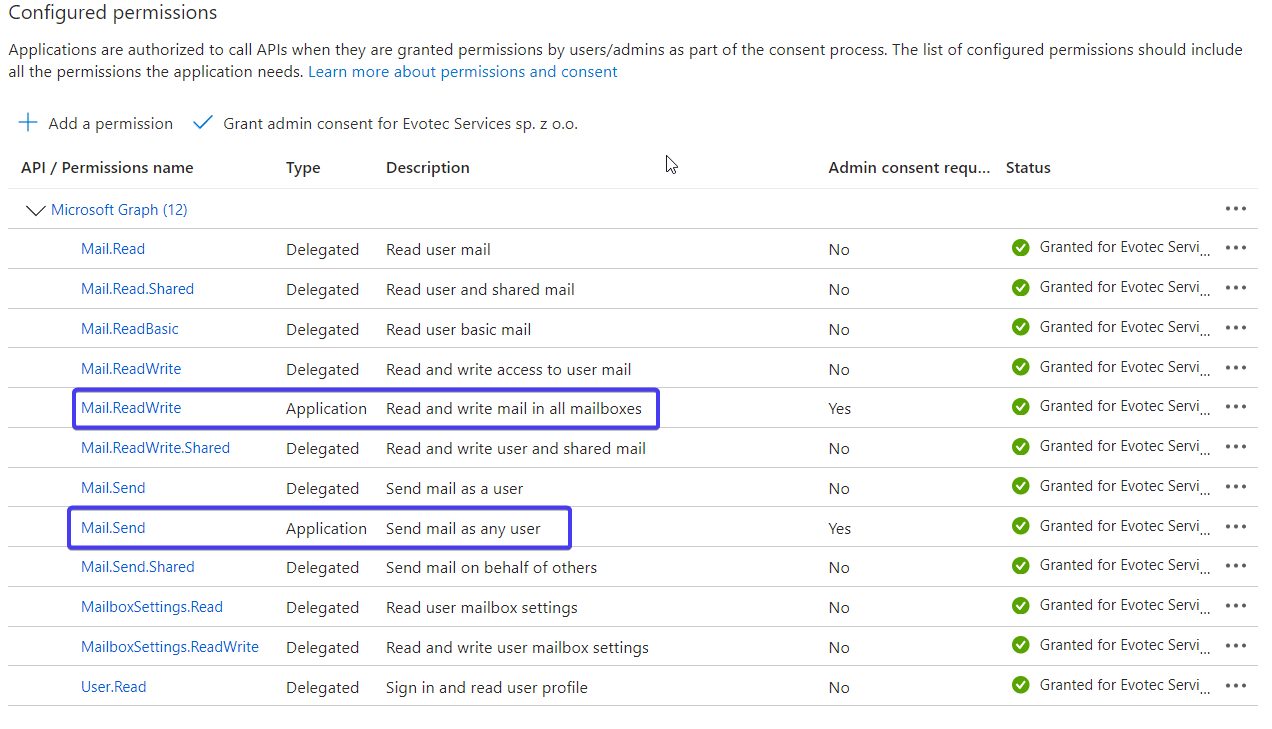
The rest of the permissions is not required and is there for other features that Microsoft Graph provides.
Install-Module -Name Mailozaurr -AllowClobber -ForceForce and AllowClobber aren't necessary, but they do skip errors in case some appear.
Update-Module -Name MailozaurrThat's it. Whenever there's a new version, you run the command, and you can enjoy it. Remember that you may need to close, reopen PowerShell session if you have already used module before updating it.
The essential thing is if something works for you on production, keep using it till you test the new version on a test computer. I do changes that may not be big, but big enough that auto-update may break your code. For example, a small rename to a parameter, and your code stops working! Be responsible!