1. Vam05 keyboard building guide (Step by Step)
This is an BLE PCB designed for the v4n layout and is compatible with ZMK firmware.
The vam05 is based on trashman’s original v4n layout design, v4n4g0n, and integrates features from several later open-source variants of the v4n PCB — including underglow lighting using WS2812 LEDs.


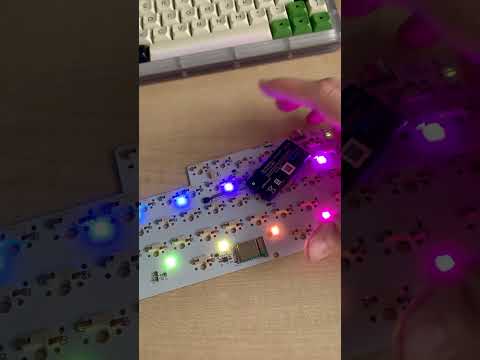
⬇ Watch the video (installing the battery)
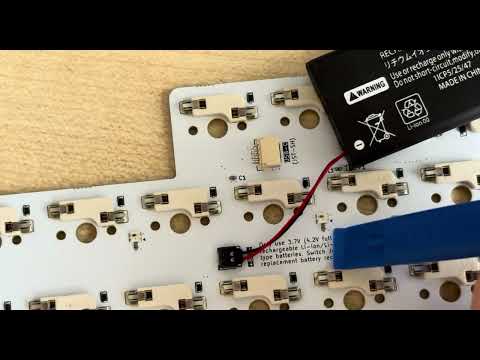
⬇ Watch the video (uninstalling the battery)
Downloadable plate files/models
The vam05 aims to make the v4n layout portable and wireless. Frequent plugging/unplugging of USB-C cables on wired versions risks static discharge damage to the PCB. To mitigate this, the vam05 was designed with BLE support.
-
12 WS2812 RGB LEDs form a circular underglow on the back of the board. The lighting is reasonably bright — especially with transparent cases like the _paw / vam05 PC version.
- When turned off via keymap control, the LEDs do not significantly drain battery life.
-
Battery Power Switch: Instead of completely cutting off power, it uses a clever circuit design that allows charging even when the switch is off.
-
Simplified v4n Layout:
-
No split spacebar or encoder support (due to BLE MCU size constraints).
-
However, split-spacebar functionality can be simulated via ZMK: e.g., short press = space, long press = another key.
-
-
Three Pre-soldered Indicator LEDs (same as other v4n variants):
-
Indicator1:
-
Red = Charging
- Off = Fully charged
-
On boot, it also shows battery status via green blinks:
-
80%: 2 blinks
-
<20%: 5 blinks
-
<5%: 10 blinks
-
-
-
Indicator2:
-
Layer indicator
-
Lime = Layer 1
-
Magenta = Layer 2
-
Cyan = Layer 3
-
-
Bluetooth connection indicator
-
Red = not connected to any profile
-
Blue = bluetooth connected
-
-
-
Indicator3: Caps Lock indicator
- Unlike layer indicators, Caps Lock feedback depends on how the operating system handles the key press.
- Some systems (like macOS) may ignore very quick taps and require the key to be held for around 200 ms to register properly. If the indicator doesn't light up, try pressing and holding the key slightly longer.
- On iPad/iPhone, CapsLock may not work as expected because it's used to switch input languages by default.
-
To enable CapsLock indicator on iPhone/iPad, first connect vam05 to your iPhone/iPad, then navigate to:
Settings → General → Keyboard → Hardware Keyboard, and turn off 'Caps Lock to switch language'.
Use https://zmk.studio/ to modify keymaps in real time via USB connection.

If you purchased the PCB directly from me, it comes pre-flashed. vam05_firmware.zip
There is a reset button next to the SWD footprint on the back of the PCB. Pressing it once will reset the board. Double-clicking it quickly within 500ms will enter .uf2 bootloader mode. In this mode, a disk named nrf52boot will appear on your computer. Simply drag and drop the .uf2 file (the .uf2 file in vam05_firmware.zip) into the disk to flash the firmware.
During flashing, the green indicator1 LED will stay on. (If the battery is charging at the same time, the green LED will combine with the red charging LED and appear yellow.)
However, you are free to flash your own firmware if needed. In most cases, the firmware provided above is sufficient.
If you're building the PCB from open-source files and using the nRF52840, note that this MCU needs a bootloader before it can flash .uf2 files.
Here is a modified bootloader suited for vam05:
Layer 3 (MO3) keys 1–4 map to BT Profiles 0–3 respectively, allowing connection to up to four devices (ZMK supports five, but most users will find four sufficient).
Press the key for BT Profile 0 — LED2 turns lime to show it’s ready but unpaired.
-
Red = Profile paired, device not currently connected
-
Blue = Connection successful
Now, pair with your first device (e.g. PC). Once connected, LED2 turns blue. Next, try pairing BT Profile 1 (key 2 on Layer 3) with your second device (e.g. phone) the same way — don’t press BT_CLR between pairings.
Now you can switch freely between the two devices using their profile keys.
Think of the 4 BT profiles as parking spaces:
-
You just parked your first and second cars.
-
Pressing BT_CLR while in a profile clears that space.
-
Pressing BT_CLR_ALL clears all paired devices.
If the Bluetooth connection drops, try the following steps in order:
-
Test Wired Mode: Connect via USB to confirm the keyboard works, ruling out hardware issues.
-
Power Reset:
-
Switch to MO2 layer (LED indicator = magenta).
-
Press the System Reset key (second row, top-right corner, labeled Delete).
-
Turn off the keyboard’s power switch, then turn it back on.
-
-
Restart Computer & Bluetooth: Disable Bluetooth on your computer, restart the computer, then re-enable Bluetooth.
-
Clear Pairings:
-
On the MO2 layer, press the first key on the third row (from the left, labeled Tab) to clear all Bluetooth pairings from the keyboard.
-
Remove the
vam05device from your computer’s Bluetooth list. -
Re-pair the keyboard.
-
-
Re-flash Firmware: If the above steps fail, re-flash the firmware.