



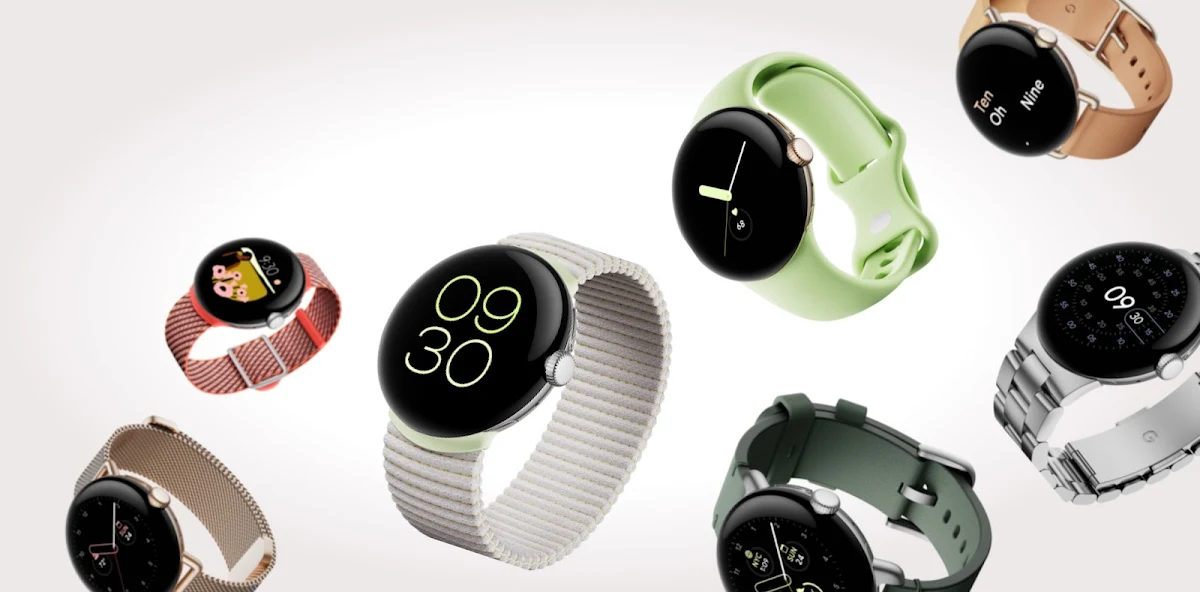
A plugin that provides a wrapper that enables Flutter apps to communicate with apps running on WearOS.
Note: I'd also written packages to communicate with WatchOS devices, you can check it out right here.
- Screenshots
- Supported platforms
- Features
- Getting started
- Configuration
- How to use
- Android
Use this plugin in your Flutter app to:
- Communicate with WearOS application.
- Send message data.
- Obtaining and handling data items.
- Sync data.
- Transfer files.
- Obtain connected device list.
- Detect other devices capabilities.
For WatchOS companion app, this plugin uses Watch Connectivity framework under the hood to communicate with IOS app.
- Create an WearOS companion app, you can follow this instruction to create new WearOS app.
Note: The WearOS companion app package name must be same as your Android app package name in order to communicate with each other.
That's all, you're ready to communicate with WearOS app now.
import 'package:flutter_wear_os_connectivity/flutter_wear_os_connectivity.dart';FlutterWearOsConnectivity _flutterWearOsConnectivity =
FlutterWearOsConnectivity();NOTE: Your will unable to use other methods if you don't call
configureWearableAPI()method.
_flutterWearOsConnectivity.configureWearableAPI();Each Android device can connect to many WearOS devices at the same time, so you should keep track on all available devices.
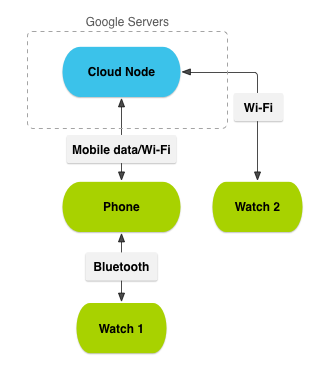
For each WearOsDevice in Android Wear network, Google Server generates a corresponding path.
For example: wear://<deviceId>/<customPath>
WearOsDevice has following properties:
-
idAn opaque string that represents aWearOsDevicein the Android Wear network. -
nameThe name of theWearOsDevice. -
isNearbyAboolvalue indicating that thisWearOsDevicecan be considered geographically nearby the localWearOsDevice. -
getCompanionPackageNameA method gets the package name for the Companion application associated with thisWearOsDevice.
Get current connected devices in Android Wear network. This method returns a List of WearOsDevice.
List<WearOsDevice> _connectedDevices = await _flutterWearOsConnectivity.getConnectedDevices();Get current local device (your phone) information. This method returns a single WearOsDevice object shows local device information.
WearOsDevice _localDevice = await _flutterWearOsConnectivity.getLocalDevice();Call this method when you have a bluetooth address and need to find WearOsDevice's id. This method return a nullable String value indicating whether a device is exist on Android Wear network.
String? deviceId = await _flutterWearOsConnectivity.findDeviceIdFromBluetoothAddress("AA-AA-AA-AA-AA-AA");FlutterWearOsConnectivity plugin provides information on which WearOsDevices on the Android Wear network support which custom app capabilities. WearOsDevices represent both mobile and wearable devices that are connected to the network. A capability is a feature that an app defines.
For example, a mobile Android app could advertise that it supports remote control of video playback. When the wearable version of that app is installed, it can use the FlutterWearOsConnectivity plugin to check if the mobile version of the app is installed and supports that feature. If it does, the wearable app can show the play/pause button to control the video on the other device using a message.
This can also work in the opposite direction, with the wearable app listing capabilities it supports.
The capability information will be retrieved as CapabilityInfo object.
CapabilityInfo object contains following properties:
-
nameName of capability which can be declared from Advertise new device capability. -
associatedDevicesASetofWearOsDeviceindicating which devices associated with corresponding capability.
Announces that a capability has become available on the local device. After you declare new capability, other devices can see your local device's capabilities via getAllCapabilities method.
There are two ways to do that:
1/ Declare new capabilities inside res/values/wear.xml:
- Create an XML configuration file in the res/values/ directory of your project and name it wear.xml.
- Add a resource named android_wear_capabilities to wear.xml.
- Define capabilities that the device provides.
<resources xmlns:tools="http://schemas.android.com/tools"
           tools:keep="@array/android_wear_capabilities">
    <string-array name="android_wear_capabilities">
        <item>sample_capability_1</item>
        <item>sample_capability_2</item>
        <item>sample_capability_3</item>
        <item>sample_capability_4</item>
    </string-array>
</resources>
2/ Declare new capabilities with registerNewCapability(name) method of FlutterWearOsConnectivity:
await Future.wait([
_flutterWearOsConnectivity.registerNewCapability("sample_capability_1"),
_flutterWearOsConnectivity.registerNewCapability("sample_capability_2"),
_flutterWearOsConnectivity.registerNewCapability("sample_capability_3"),
_flutterWearOsConnectivity.registerNewCapability("sample_capability_4")
]);If you don't want to advertise a capability anymore, you can just simply remove it by calling removeExistingCapability(name).
await _flutterWearOsConnectivity.removeExistingCapability("sample_capability_1");You can also get all available capabilies associated with other devices on Android Wear network.
List<CapabilityInfo> _availableCapabilities = _flutterWearOsConnectivity.getAllCapabilities();Find CapabilityInfo via capability name. This method returns a nullable CapabilityInfo instance indicating whether a capability is existed.
CapabilityInfo? _capabilityInfo = await _flutterWearOsConnectivity.findCapabilityByName("sample_capability_1");You can either listen to CapabilityInfo changed via capability name
_flutterWearOsConnectivity.capabilityChanged(capabilityName: "sample_capability_1").listen((capabilityInfo) {
    inspect(capabilityInfo);
});
Or via capability path
_flutterWearOsConnectivity.capabilityChanged(capabilityPathURI: Uri(scheme: "wear", host: "*", path: "/sample_capability_1")).listen((capabilityInfo) {
    inspect(capabilityInfo);
});
Note: Capability path is provided in following format by Wear network:
wear://*/<capabilityName>
You can either unlisten to CapabilityInfo changed via capability name
_flutterWearOsConnectivity.removeCapabilityListener(capabilityName: "sample_capability_1");Or via capability path
_flutterWearOsConnectivity.removeCapabilityListener(capabilityPathURI: Uri(scheme: "wear", host: "*", path: "/sample_capability_1"));Note: Capability path is provided in following format by Wear network:
wear://*/<capabilityName>
Messages are stored in a unique path within the Android Wear network. Messaging is a good one-way communication mechanism for remote procedure calls (RPC), such as sending a message to a wearable to initiate an activity.
Note: Message paths are auto-generated by Android Wear network in the following format:
wear://<deviceId>/<messagePath>
Message is presented in WearOSMessage object.
WearOSMessage has following properties:
-
dataAn Uin8List payload that represents message data. -
pathA uniqueStringpath represents message route within the Android Wear network. -
requestIdTheStringuniquely identifies theWearOSMessageonce it is sent. -
senderDeviceIdThe device ID of the sender.
You can send a message to other devices
String requestId = await _flutterWearOsConnectivity.sendMessage(bytes,
    deviceId: _selectedDevice!.id, path: "/sample-message",
    message,
    priority: MessagePriority.low
).then(print);
The system will opportunely send the message, if you have a message you want to send immediately, set the priority to MessagePriority.high
You can either listen to global message receive events
_flutterWearOsConnectivity.messageReceived().listen((message) {
    inspect(message);
});
Or listen to message events that belong to a specific message path
_flutterWearOsConnectivity.messageReceived(pathURI: Uri(scheme: "wear", host: _selectedDevice?.id, path: "/wearos-message-path")).listen((message) {
    inspect(message);
});
In a example above, you're listen to a path on specific device, you can also listen to a path on all devices associated with Android Wear network.
_flutterWearOsConnectivity.messageReceived(pathURI: Uri(scheme: "wear", host: "*", path: "/wearos-message-path")).listen((message) {
    inspect(message);
});
Note: In the example above, the host is setted to
*, which means that all devices on current Android Wear network will be matched.
You can either unlisten to global message received events
_flutterWearOsConnectivity.removeMessageListener();Or unlisten to message events that belong to a specific message path
_flutterWearOsConnectivity.removeMessageListener(pathURI: Uri(
    scheme: "wear",
    host: _selectedDevice?.id, // specific device id
    path: "/wearos-message-path"
));

_flutterWearOsConnectivity.removeMessageListener(pathURI: Uri(
    scheme: "wear",
    host: "*", // all devices
    path: "/wearos-message-path"
));Same as messages, data items are also store in a unique path within the Android Wear network. A DataItem is synchronized across all devices in an Android Wear network. It is possible to set data items while not connected to any nodes. Those data items will be synchronized when the nodes eventually come online.
Note: Data paths are auto-generated by Android Wear network in the following format:
wear://<deviceId>/<dataPath>
The data will be constructed inside DataItem object.
DataItem object contains following properties:
-
dataAn Uin8List payload that represents the encoded data. -
pathURIA uniqueUripath represents data route within the Android Wear network. -
mapDataA human-readableMap<String, dynamic>data ofdata. -
filesList of files contained inside thisDataItem.
To sync DataItem on a specific path, call syncData method
DataItem? _dataItem = await _flutterWearOsConnectivity.syncData(path: "/data-path", data: {
    "message": "Data sync by AndroidOS app on /data-path at ${DateTime.now().millisecondsSinceEpoch}"
}, isUrgent: false);
This method return an optional DataItem indicating whether the DataItem is successfully synchronized.
The system will opportunely sync the data, if you want your DataItem to be synchronized immediately, set isUrgent to true.
Not only for data, we can also synchronize files by specify files parameter, which acccepts a Map<String, File>.
XFile? file = await ImagePicker().pickImage(source: ImageSource.gallery);
if (file != null) {
    _flutterWearOsConnectivity.syncData(path: "/data-image-path", data: {
        "message":  "Data sync by AndroidOS app at ${DateTime.now().millisecondsSinceEpoch}",
        "count": 10,
        "bytearray8": Uint8List(8),
        "bytearray16": Uint16List(16),
        "sampleChildMap": {
            "message": Data sync by AndroidOS app at ${DateTime.now().millisecondsSinceEpoch}",
                "count": 10,
                "bytearray8": Uint8List(8),
                "bytearray16": Uint16List(16),
                "sampleMap": {"key": "sadas"}
            }
        },
        /// Specifiy files that you want to syncronize right here
        files: {
            "sample-image": File(file.path),
            "sample-image1": File(file.path),
            "sample-image2": File(file.path),
        }
    );
}You can obtain all available DataItems on Android Wear network by calling getAllDataItems method
List<DataItem> _allDataItems = await _flutterWearOsConnectivity.getAllDataItems();You can also find a DataItem on specific path by calling findDataItemOnPath method
Note: In order to specificly find a
DataItem, you must provide a full URI path, which mean all components of that URI must not contain wildcard value (*)
DataItem? _foundDataItem = await _flutterWearOsConnectivity.findDataItemOnPath(pathURI: Uri(scheme: "wear", host: "123456", path: "/data-path"));This method returns an optional DataItem indicating whether the DataItem can be found.
You can also find all DataItems that associated with specific path by calling findDataItemsOnPath method
Note: If URI path is fully specified, this method will find at most one data item. If path contains a wildcard host, multiple data items may be found, since different devices may create data items with the same path. See this for details of the URI format.
List<DataItem> _foundDataItems = await _flutterWearOsConnectivity.findDataItemsOnPath(pathURI: Uri(scheme: "wear", host: "*", path: "/data-path"));You can also delete all DataItems on a specific path.
Note: If URI path is fully specified, this method will delete at most one data item. If path contains a wildcard host, multiple data items may be deleted, since different devices may create data items with the same path. See this for details of the URI format.
DataItem change or delete events will be constructed inside DataEvent objects
DataEvent object contains following properties:
-
dataItemTheDataItemassociated with this event. -
typeTheDataEventTypeenum value indicating which type of event is it. Can bechangedordeleted. -
isDataValidAboolvalue indicating if this data is valid
You can either listen to global data changed events
_flutterWearOsConnectivity.dataChanged().listen((dataEvents) {
    inspect(dataEvents)
});
Or listen to specific path data events
_flutterWearOsConnectivity.dataChanged(
    pathURI: Uri(
        scheme: "wear",
        host: "*",
        path: "/wearos-message-path")
    .listen((dataEvents) {
        inspect(dataEvents);
    }
);You can either unlisten to global data changed events
await _flutterWearOsConnectivity.removeDataListener();Or unlisten to specific path data events
await _flutterWearOsConnectivity.removeDataListener(
    pathURI: Uri(
        scheme: "wear",
        host: "*",
        path: "/wearos-message-path"
    )
);
For more details, please check out my Flutter example project and WearOS example project.