No longer maintained
This is a software project held in the collaboration of JetBrains and TU Delft. We are a group of 4 students working on this project.
Software documentation has an important role in software projects. There are many links, references in these documentations. Most of us do not update the documentation after each change to the project and it causes numerous invalid links and references in time. That brings along poor documentation and lower quality in product development.
The result of this software project endeavour is an IntelliJ IDEA plugin that fully supports the maintenance of relative links, as well as links to web-hosted repositories that correspond to the currently open project in the IDE. The plugin has the ability to scan through all of the markdown files within project scope, retrieve the links defined in these files, retrieve the changes that have affected the link targets and based on these found changes generate newer links. Finally, the user has the ability to update each particular decayed link via the user interface of the plugin.
-
Use following steps to run the plugin:
- Make sure the Gradle plugin is installed in your IDE.
- Make sure the Gradle is installed in your computer
- Then, install plugin repository to your computer
- Open your
Terminaland go to the directory you installed the plugin - Then, run
gradle runIde - Plugin is ready to use!
-
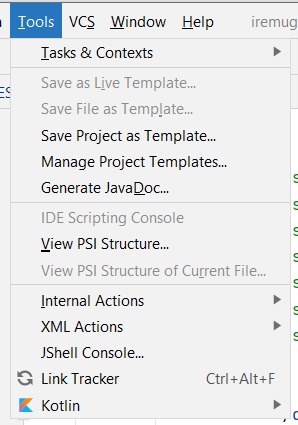
In order to activate markdown files plugin go to tools menu click on
Link Trackeror optionally useCtrl+Alt+Fshortcut.
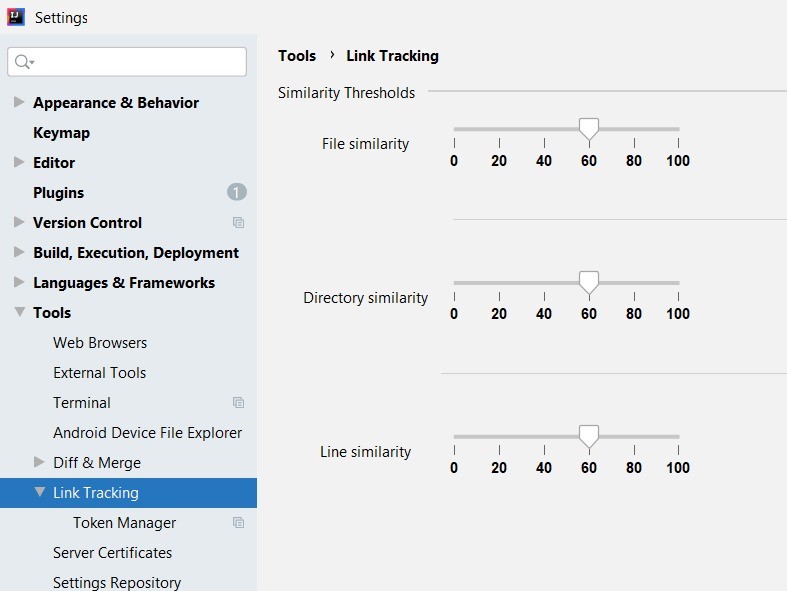
- The plugin settings have been placed into the default settings of Intellij IDEA. These can be found under
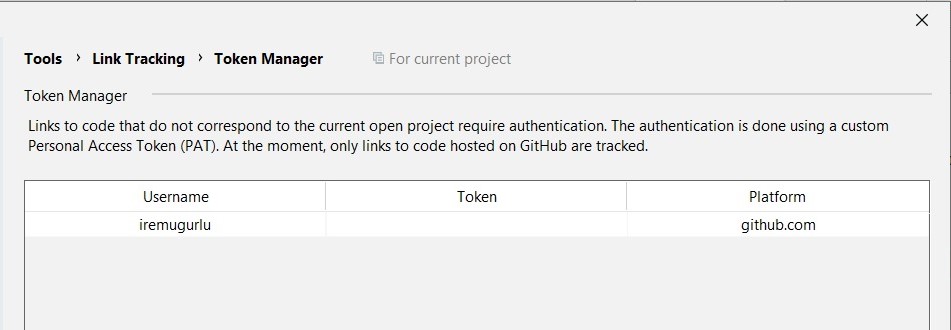
Tools/Link Tracking. There are 2 different pages that constitute the plugin’s settings. The first one is a page where the user can set similarity thresholds for tracking links to files, directories and lines. The second one corresponds to a token management page for managing personal access token to private GitHub repositories. The latter is needed in order to track links to web-repositories that do not correspond to the currently open project.
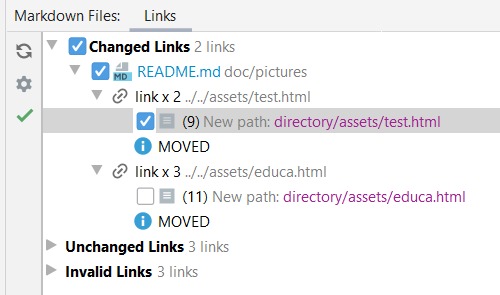
- The tool is mostly represented by the link tree. Following the design of the UI, this tree has three main leaves: one for changed links, unchanged links and invalid links. For each link, it contains another sub-tree, which shows the link’s information.
- To perform an update operation, the user has two choices: either press the right click button on a link, and then press on ”Accept Change”, or by ticking the checkbox of each link. The user is capable of ticking multiple changed link’s checkboxes in order to perform a batch update operation on these links. After ticking the checkboxes, the user needs to click on the checkmark on the left part of the Tool Window, which will trigger the update operation.
- A button for accessing the settings page of the plugin has been included in the left bar. The plugin action can also be re-triggered by pressing the first button in the left bar.