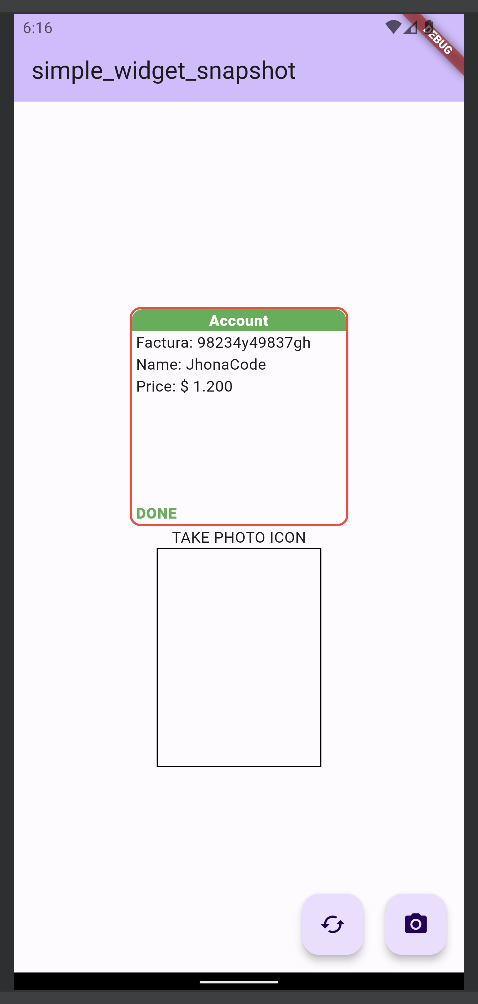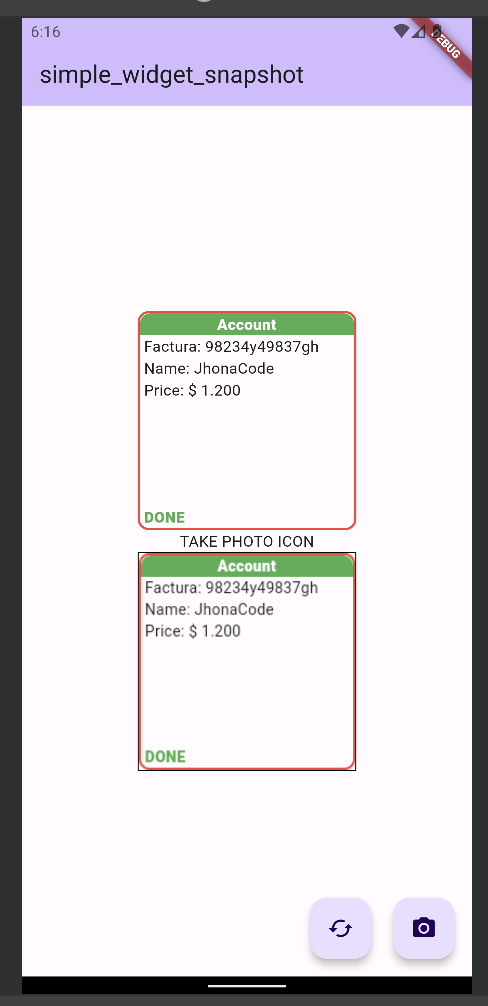


Capture snapshots of your widgets and convert them into images or PDF files with ease using our library. Featuring advanced customization options, intuitive APIs, and seamless integration with popular Flutter packages, our library empowers you to take full control over your snapshot generation process.
To install simple_build_context, add the following dependency to your pubspec.yaml file:
flutter pub add simple_widget_snapshotdependencies:
simple_widget_snapshot: ^2.0.2
The WidgetSnapshot class provides a simple way to capture a widget as an image.
This guide demonstrates how to use it in your Flutter application.
- Create a
GlobalKeyto identify the widget you want to capture:
final GlobalKey _globalKey = GlobalKey();- Wrap the widget you want to capture with a
RepaintBoundaryand assign theGlobalKey:
    RepaintBoundary(
      key: _globalKey,
      child: YourWidget(),
)- Call the
WidgetSnapshot.capture()method to capture the widget:
    WidgetSnapshot.capture(_globalKey, pixelRatio: 3.0).then((result) {
      // Use the captured image data
      setState(() {
        _byteData = result.byteData;
      });
});Here's a complete example of how to use WidgetSnapshot in a Flutter app:
class _MyHomePageState extends State<MyHomePage> {
   ByteData? _byteData;

   @override
   Widget build(BuildContext context) {
     return Scaffold(
       appBar: AppBar(title: Text('WidgetSnapshot Demo')),
       body: Center(
         child: Column(
           mainAxisAlignment: MainAxisAlignment.center,
           children: <Widget>[
             RepaintBoundary(
               key: _globalKey,
               child: Container(
                 height: 200,
                 width: 200,
                 color: Colors.blue,
                 child: Center(child: Text('Capture me!')),
               ),
             ),
             SizedBox(height: 20),
             ElevatedButton(
               onPressed: () {
                 WidgetSnapshot.capture(_globalKey, pixelRatio: 3.0).then((result) {
                   setState(() {
                     _byteData = result.byteData;
                   });
                 });
               },
               child: Text('Capture Widget'),
             ),
             SizedBox(height: 20),
             if (_byteData != null)
               Container(
                 height: 200,
                 width: 200,
                 child: Image.memory(_byteData!.buffer.asUint8List()),
               ),
           ],
         ),
       ),
     );
   }
 }
/// This example demonstrates:
- Setting up a widget to be captured using
RepaintBoundaryand aGlobalKey. - Capturing the widget when a button is pressed.
- Displaying the captured image below the original widget.
- The
pixelRatioparameter inWidgetSnapshot.capture()affects the quality of the captured image. Higher values result in higher quality but larger file sizes. - Make sure the widget you're capturing is fully rendered before capturing it.
- The captured image is returned as part of a
SnapshotResultobject, which includes various representations of the image (ByteData, Uint8List, Image).