

A small demo scene is included in the project, which showcases most of the features of the engine. The demo scene can be found in Game/DemoScene.h and .cpp
Watch the Demo Video (click):
Config
Change the EDemo m_Demo; in the header to a different enum value to view different scenes.
Config.cmake: build settings
Renderer/Config/VulkanConfigs: buffer sizes, extensions
Core/Public/Config/EngineConfig.h: macros, general settings
Key binds
SPACE: Output the keybinds
F1: Profile
F2: Toggle light debug render (display spheres for point light, arrow for dir light)
F3: Toggle light mode - point light only, dir light only, both
F4: Toggle shadows
F5: Lower light intensity
F6: Up light intensity
F7: Toggle rotation
F8: Toggle Debug render mode
F9: Randomize light color
F10: Toggle cam settings
F11: Toggle tone mapper
E: Lower custom exposure (used in custom exposure mode)
R: Higher custom exposure (used in custom exposure mode)
Mouse movement + Left Mouse Button Held: Cam rotation
Arrows/WASD: Cam movement
Control: Sprint
The engine's core contains basic functionality used by the engine (and the game). It includes debugging tools, a timer manager, an event system, a UUID generator, and profiling tools.
The logger can log to the console and a file using different log priority levels and categories. The priority of logging can be adjusted to skip logging all levels below the set level; this priority adjustment can also be done per log category. The colors of the console logs are configurable.
The file logging has a configurable file size, before it rotates to the next file. Currently, it simply keeps a single backup. If a full backup is stored and the new rotation happens, the backup is overwritten with the new file. The file also contains the log level more clearly and is timestamped.
// Logging can be done using the LOG macro or using the specific _Priority level macro.
ME_LOG(MauCor::LogPriority::Error, MauCor::LogCategory::Game,"test {}", 1000);
ME_LOG_ERROR(MauCor::LogCategory::Game, "TEST");

// Creating a custom log category can be done in the following way:
// Define the category in a single cpp file
DEFINE_LOG_CATEGORY(TestLogCategory)
DEFINE_LOG_CATEGORY(TestLogCategory2, Warn) // If you wish to set a log priority level for the category

TestLogCategory2.SetPriority(Debug); // Or change it afterward

// In the header / cpp files where you wish to use the log category
DECLARE_LOG_CATEGORY_EXTERN(TestLogCategory)
Example of console logging (Renderer category, info & trace log level)

Example of file logging (contains time stamp, category & log level)

- Assert only triggers in debug, the message is an optional parameter that will be logged to the console / file logger.
- Check triggers in all builds, message is an optional parameter that will be logged to the console / file logger.
- Verify logs a warning in release builds, fails in debug. This means code in the macro is still executed in release. Message is an optional parameter that will be logged to the console / file logger.
| Macro | Build Type | Fails on Condition? | Removed in Release? | Use Case |
|---|---|---|---|---|
| ME_ASSERT | Debug-only | Yes (fatal) | Yes | Catching programmer errors |
| ME_CHECK | All builds | Yes (fatal) | No | Critical runtime invariants |
| ME_VERIFY | All builds* | No (log only)* | No* | Validate logic without halting execution |
// Some assert examples
ME_ASSERT(std::filesystem::exists("Path123.txt"));
ME_CHECK(pRenderer, "Renderer must be valid");
ME_VERIFY(CalculateAndValidatePath(), "Path must be valid");The event system is simple to use. The only requirement is storing a Delegate and creating an event class. Note: A MauCor::Delegate<> is implicitly the same type as MauCor::Delegate
struct TestEvent
{
	int i = 10;
};

class Scene
{
	MauCor::Delegate<TestEvent> m_DelegateTest{};
	MauCor::Delegate<> m_DelegateVoidTest{};
};
Broadcasting events and listening to events is also fairly simple, but it comes with different options, as you may want an immediate broadcast (which calls the corresponding function immediately when the event is broadcast). Or a delayed broadcast (which calls the corresponding function at the beginning of the next frame when the event is broadcast).
Similar to broadcasting, unsubscribes can be done immediately and delayed as well. The default here is to do it delayed, which prevents issues where you may unsubscribe, but there's still a lingering function call, resulting in nullptr or invalid ptr usage.
// Subscribe to an event
m_DelegateTest += MauCor::Bind(&DemoScene::OnDelegate, this);

auto const& handle{ m_DelegateTest += MauCor::Bind<TestEvent>
(
	[this](TestEvent const& event) { OnDelegate(event); }
) };

m_DelegateTest.Get()->Subscribe([this](TestEvent const& event) { OnDelegate(event); }, this);

// Broadcast an event (the default is the immediate broadcast)
m_DelegateTest.Get()->QueueBroadcast(event);
m_DelegateTest.QueueBroadcast(event);
m_DelegateTest << event;
// Do an immediate broadcast:
m_DelegateTest.Get()->Broadcast(event);
m_DelegateTest.Broadcast(event);
m_DelegateTest < event;

// Unsubscribe from an event
m_DelegateTest /= this; // Immediate
m_DelegateTest.UnSubscribeImmediate(handle02.owner);
m_DelegateTest.UnSubscribeAllByOwnerImmediate(this);

m_DelegateTest -= handle; // Delayed
m_DelegateTest.UnSubscribe(handle02.owner);

// The function called in this example
void DemoScene::OnDelegate(TestEvent const& event)
{
	ME_LOG_DEBUG(LogGame, "Event test: {}", event.i);
}The timer manager works fairly similarly to the event system, but you don't have to store a delegate (storing the timer handle may be beneficial though).
// Set a one-shot timer (2 seconds)
auto const& handle2{ m_TimerManager += MauCor::TimerDataCallable{ MauCor::Bind([]()
	{
		ME_LOG_DEBUG(TestTimers, "Timer 2 fired (one-shot after 2s)");
	}), 2.f} };

// Set a looping timer (1 second)
auto const& handle1{ m_TimerManager.SetTimer([&]()
	{
		ME_LOG_DEBUG(TestTimers, "Timer 1 fired (looping every 1s)");

		// Remove a timer
		m_TimerManager.RemoveTimer(handle2);
	}, 1.f, true) };

m_TimerManager.SetTimer(&DemoScene::OnTimerFires, this, 5.f, true);

// Set timers for the next tick
m_TimerManager *= MauCor::Bind([&]()
				{
					ME_LOG_DEBUG(TestTimers, "Next tick timer fired");
				});
m_TimerManager.SetTimerForNextTick(&DemoScene::OnTimerFires, this);

// Check if a timer is active
m_TimerManager.IsTimerActive(handle2);
It's also possible to pause timers, reset timers, get the remaining time and so on. Check the timer manager header for the full functionality.
Small custom UUID library that generates a unique identifier for each object. It is used to identify objects in the engine, such as entities, components, and resources.
View UUID Library on GitHub
The engine has 2 available profilers, a very barebones profiler that simply parses to a .json file and can be uploaded to chrome://tracing/. The other profiler is an integration of the Optick library and provides a lot more information if required.
Profiling requires 2 steps.
- Add the macros in all the functions & scopes you wish to profile:
// Examples
void MySleepFunc() {
	// Do stuff
	{
		ME_PROFILE_SCOPE("Main Thread Sleep");
		Sleep();
	}
}

void Render(){
	ME_PROFILE_FUNCTION();
}
- Press F1 to start profiling & upload it to the exe or chrome://tracing/.
Profiling only happens when it is enabled in the Config.cmake file.
Core libraries used all over the engine, that the user may or may not also need access to: SDL, fmt, glm and Optick.
auto& input{ INPUT_MANAGER };
input.DestroyPlayer(0u);
input.CreatePlayer<PlayerClass>();

auto const player{ input.GetPlayer() };

input.BindAction("PrintInfo", MauEng::KeyInfo{ SDLK_SPACE, MauEng::KeyInfo::ActionType::Up });
input.BindAction("PrintInfo", MauEng::KeyInfo{ SDLK_V, MauEng::KeyInfo::ActionType::Up }, "SECONDCONTEXTTEST");
player->SetMappingContext("SECONDCONTEXTTEST");

input.EraseMappingContext("SECONDCONTEXTTEST", "DEFAULT");

// Unbind tests
input.UnBindAction("PrintInfo");
input.UnBindAllActions(MauEng::KeyInfo{ SDLK_UP,MauEng::KeyInfo::ActionType::Held });
input.UnBindAllActions(MauEng::MouseInfo{ {},MauEng::MouseInfo::ActionType::Moved });

// Responding to an executed action can be done in the following way
if (player->IsActionExecuted("PrintInfo"))
{
	OutputKeybinds();
}

// Or in the player class
void PlayerClass::OnActionExecuted(MauEng::InputEvent const& event) noexcept
{
	bool constexpr DEBUG_OUT_ACTIONS{ false };

	if constexpr(DEBUG_OUT_ACTIONS)
	{
		ME_LOG_DEBUG(LogGame, "Action executed for player class! Action: {}, Player ID: {}", event.action, PlayerID());
	}
}The engine currently uses a wrapper around entts component system, which supports almost all functions entt offers.
In this project, we use a right-handed 3D coordinate system with the following conventions: X-axis: Represents the horizontal direction.
- Positive X moves to the right.
- Negative X moves to the left.
Y-axis: Represents the vertical direction (with Y-up convention).
- Positive Y moves upward.
- Negative Y moves downward.
Z-axis: Represents the depth direction.
- Positive Z moves forward (towards the camera's view).
- Negative Z moves backward (away from the camera's view).

-
Instanced Rendering
As a test, I loaded a mesh with 100,000 instances. The mesh is a simple gun and has 1425 indices and 311 vertices. This runs very smoothly on my hardware (RTX 3060, 60 FPS cap, but main thread was sleeping for +/-10ms and GPU had a lot of room left)

-
Bindless (indirect) Rendering
The renderer uses a global index and vertex buffer; draw commands are batched and issued using vkCmdDrawIndexedIndirect. Textures are in a descriptor array. -
Deferred rendering
-
Depth prepass
Reduce overdaw by doing a depth prepass. -
Dynamic rendering
-
Mesh & material support (loading a material from a file)
Assimp is integrated, and all formats supported by Assimp can be used to load meshes & materials. Meshes are split up in submeshes, these submeshes are then instanced. Default and invalid materials are used to prevent branching on the GPU. -
Lighting & Material
-
Tone map & Exposure


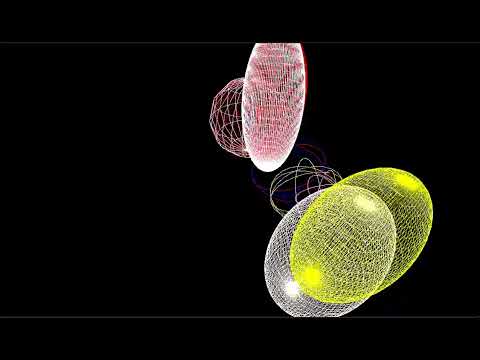
Easy-to-use API for debug rendering. See. Debug rendering demo.
void GameScene::Tick()
{
	Scene::Tick();

	// start, end, colour
	DEBUG_RENDERER.DrawLine({0, 0,0 },  {0, 100, 100} );
	DEBUG_RENDERER.DrawLine({-10 , 10, -10}, {10, 10, 10}, { 0, 1, 0});

	// center, radius, colour, segments (per circle), layers
	DEBUG_RENDERER.DrawSphereComplex({20,20,20}, 20.f, { 1, 1, 1 }, 24, 10);
}
Watch the Demo Video (click):
- Image-based lighting (skybox)
- Auto exposure
- GPU frustrum culling
- Optimized scene AABB calculation for shadow maps
- Soft shadows
- ImGUI integration
- Animations
- Different post-processing effects