Currently this project will only run in a Windows environment. We are using the Umbraco CMS which is built on the .NET Framework. We are keeping a sharp eye on the progress of their cross-platform release on .NET Core which will run on macOS and Linux.
- Copy
SgfDevs/config/connectionStrings.config.exampletoSgfDevs/config/connectionsStrings.config.- Don't enter your connection string just yet. Umbraco will ask for that as a part of the install process and write that value to this file. If Umbraco sees that value is already set it will assume the database schema is already setup.
- Open
SgfDevs/Web.config, look for<add key="Umbraco.Core.ConfigurationStatus" value="8.9.1" />, and remove the8.9.1(or whatever version number we're currently on).- Umbraco will automatically add that value back as a part of the install process.
- Run the project and open it in a browser. You should be presented with the Umbraco install screen.
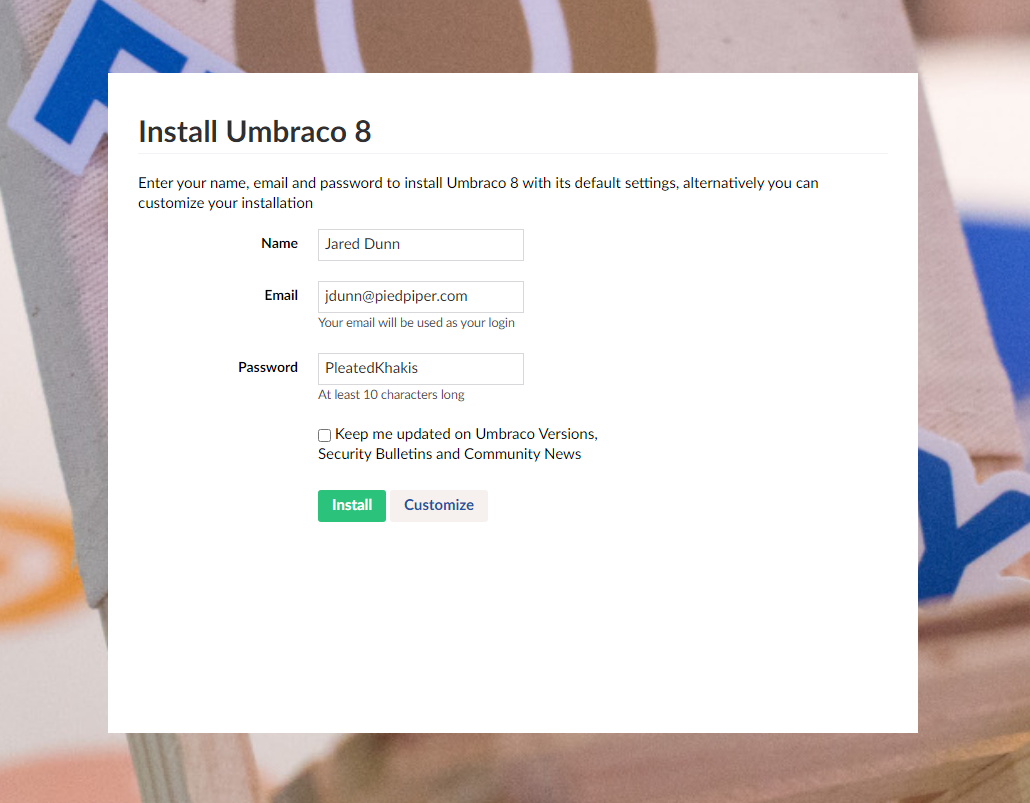
- Enter in the details for what will be your local admin user for the CMS and click Customize.
-
Enter in the connection details for your local SQL database.
-
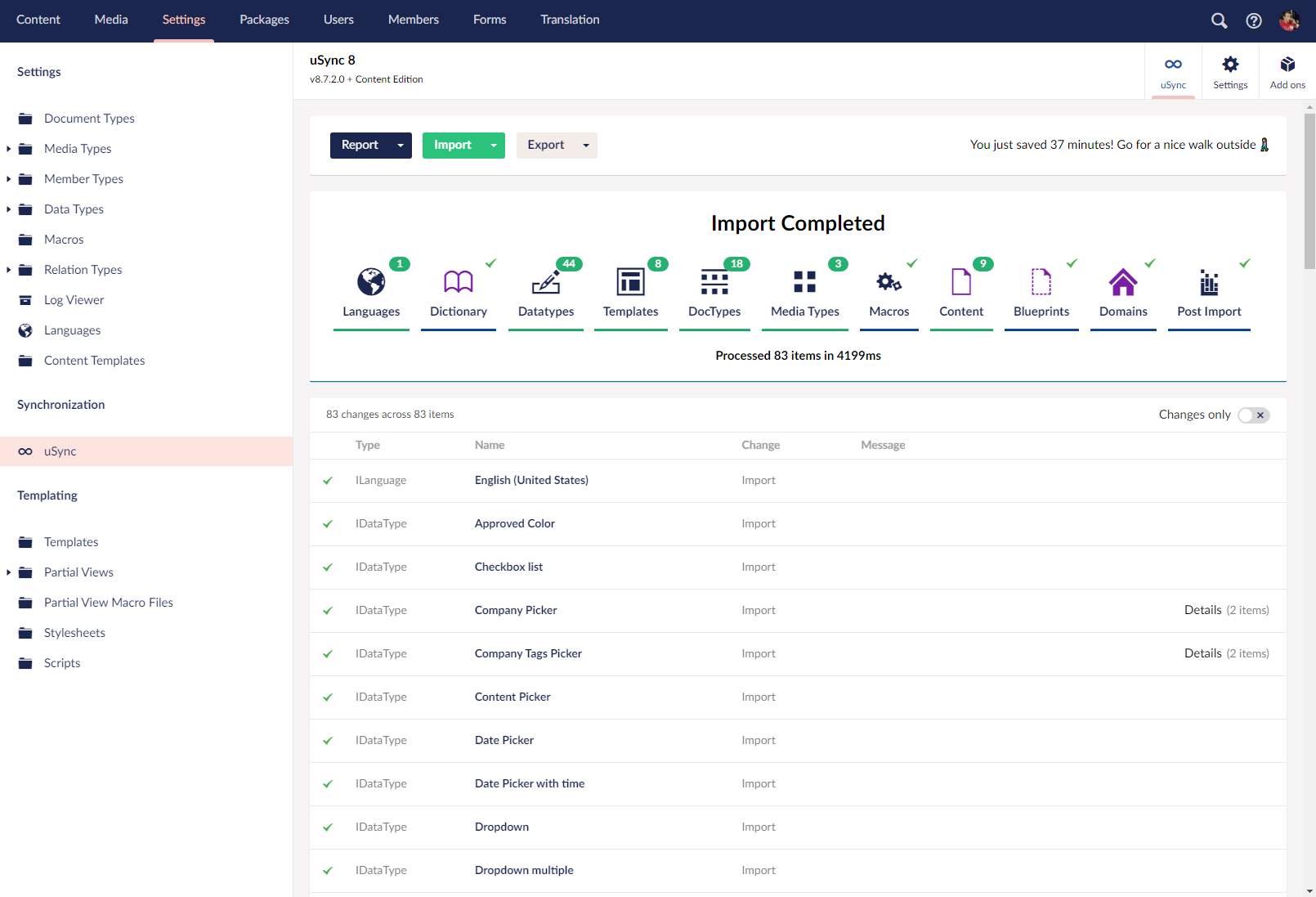
Login to the Umbraco backoffice (/umbraco) and go to Settings > uSync.
-
Click the Import dropdown arrow(not the button text) and select Full Import.
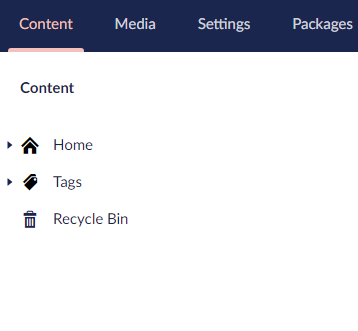
- Refresh the page and go to the Content section you should now see some nodes in the content tree.
- For good measure, run a build in Visual Studio to compile everything needed on the front-end of the site.