A monorepo project for generating AI-powered short videos. The application combines multiple AI services to create videos from text prompts, including content generation, text-to-speech, image generation, and automated captioning.
The application consists of two main components:
- Frontend (docs): Next.js application that provides the user interface and handles video rendering using Remotion on AWS Lambda
- Backend (docs): ASP.NET Core API that orchestrates AI services and manages video data
- User submits video topic, style, and duration
- Backend generates script using Gemini API
- Backend converts script to audio using Google Cloud Text-to-Speech
- Backend generates images for each scene using Cloudflare Workers AI
- Backend creates captions using AssemblyAI
- Frontend triggers Remotion Lambda to render final video
- Rendered video is stored in Cloudinary
- Architecture
- Features
- Requirements
- Installation
- Environment Variables
- Development
- Docker
- API Reference
- Deployment
- Usage
- Video Creation: Users can create short videos by selecting topics, styles, and durations.
- Video Preview: After generating a video, users can preview it with generated captions and images.
- Video Deletion: Users can delete the video from the database and the cloud if video was once rendered.
- Export Video: Users can export the generated video once the rendering is completed.
- Theming: Supports light and dark themes using
next-themes.
- Content Generation: Create video content based on user input using Google's Gemini API.
- Audio Synthesis: Convert text input to speech using Google Cloud Text-to-Speech API.
- Caption Generation: Generate captions for audio or video files using AssemblyAI.
- Image Generation: Generate images from text prompts using Cloudflare's AI API.
- Video Storage: Save and retrieve video data, including associated content and captions.
- Node.js (v20.x LTS or later)
- .NET 9 SDK
- PostgreSQL (or use Neon Serverless Postgres)
- Docker and Docker Compose (optional, for containerized development)
- Cloudinary account and API key
- Cloudflare Workers AI account and API key (using flux-1-schnell Model)
- AssemblyAI API key
- Google Cloud project with Text-to-Speech and Gemini APIs enabled
- AWS Account for Remotion Lambda (video rendering)
-
Clone the repository to your local machine:
git clone https://github.com/yourusername/AiShortsVideoGenerator.git cd AiShortsVideoGenerator -
Install frontend dependencies:
cd frontend npm install -
Install backend dependencies:
cd ../backend
dotnet restore
NEXT_PUBLIC_API_URL=http://localhost:8080
REMOTION_AWS_SERVE_URL=<Your AWS Serve URL for Remotion>
REMOTION_AWS_BUCKET_NAME=<Your AWS Bucket Name for Remotion>
See Remotion Lambda setup guide for AWS configuration.
For local development, use .NET user secrets instead of committing API keys:
cd backend
dotnet user-secrets init
dotnet user-secrets set "GoogleApi:GeminiKey" "your-gemini-api-key"
dotnet user-secrets set "GoogleApi:TextToSpeechKey" "your-text-to-speech-api-key"
dotnet user-secrets set "AssemblyAi:ApiKey" "your-assemblyai-api-key"
dotnet user-secrets set "CloudinaryUrl" "your-cloudinary-url"
dotnet user-secrets set "Cloudflare:ApiKey" "your-cloudflare-api-key"
dotnet user-secrets set "Cloudflare:AccountId" "your-cloudflare-account-id"
dotnet user-secrets set "ConnectionStrings:DefaultConnection" "your-postgresql-connection-string"
For production, use appsettings.Production.json or environment variables.
- Create a service account in Google Cloud Console
- Download the service account JSON key
- Set
GOOGLE_APPLICATION_CREDENTIALSenvironment variable to the key path - Enable Text-to-Speech and Gemini APIs in your project
To run the frontend application in development mode:
cd frontend
npm install
npm run dev
The frontend will be available at http://localhost:3000.
To run the backend application:
cd backend
dotnet restore
dotnet ef database update
dotnet run
The backend API will be available at http://localhost:8080.
Ensure the backend is configured to accept requests from the frontend. Update appsettings.Development.json or use user secrets to configure CORS if needed.
To run the application in Docker:
- Configure environment variables in
.env.local:
NEXT_PUBLIC_API_URL=http://localhost:8080
-
Set backend secrets or create
appsettings.Production.jsonwith API keys -
Run the containers:
docker compose upThis starts:
- Backend API on
http://localhost:8080 - Frontend on
http://localhost:3000 - PostgreSQL database (if configured in compose.yaml)
http://localhost:8080
- GET /videos: Retrieve a list of all videos stored in the database.
- POST /generate-content: Generate video content from user input using Google's Gemini API.
- POST /generate-audio: Convert text input to audio (MP3) using Google Cloud Text-to-Speech API.
- POST /generate-captions: Generate captions for an audio or video file using AssemblyAI.
- POST /generate-image: Generate an image from a text prompt using Cloudflare's AI API.
- POST /save-video: Save a video record to the database.
- PUT /videos/{id}: Update video Output File and Render Id.
- DELETE /videos/{id}: Delete video from the database.
- Next.js: React framework for building server-side rendered applications.
- TailwindCSS: Utility-first CSS framework for styling the app.
- Remotion: Library for creating videos programmatically with React.
- Axios: HTTP client for making requests to the API.
- shadcn: A collection of re-usable components that you can copy and paste into your apps.
- Google.Cloud.TextToSpeech.V1: Google Cloud Text-to-Speech client.
- AssemblyAI: Client library for AssemblyAI services.
- CloudinaryDotNet: Cloudinary SDK for uploading media.
- Npgsql.EntityFrameworkCore.PostgreSQL: PostgreSQL support for Entity Framework Core.
Deploy to Vercel or similar platforms:
cd frontend
npm run build
Set environment variables in your deployment platform:
NEXT_PUBLIC_API_URL: Production backend URLREMOTION_AWS_SERVE_URL: AWS Lambda endpointREMOTION_AWS_BUCKET_NAME: S3 bucket for video outputs
Deploy to Azure App Service, AWS, or similar:
- Build the application:
cd backend
dotnet publish -c Release -o ./publish-
Set production environment variables or use
appsettings.Production.json -
Ensure database migrations run on startup or manually:
dotnet ef database update --configuration ReleaseFollow the Remotion Lambda setup guide to configure video rendering on AWS Lambda.
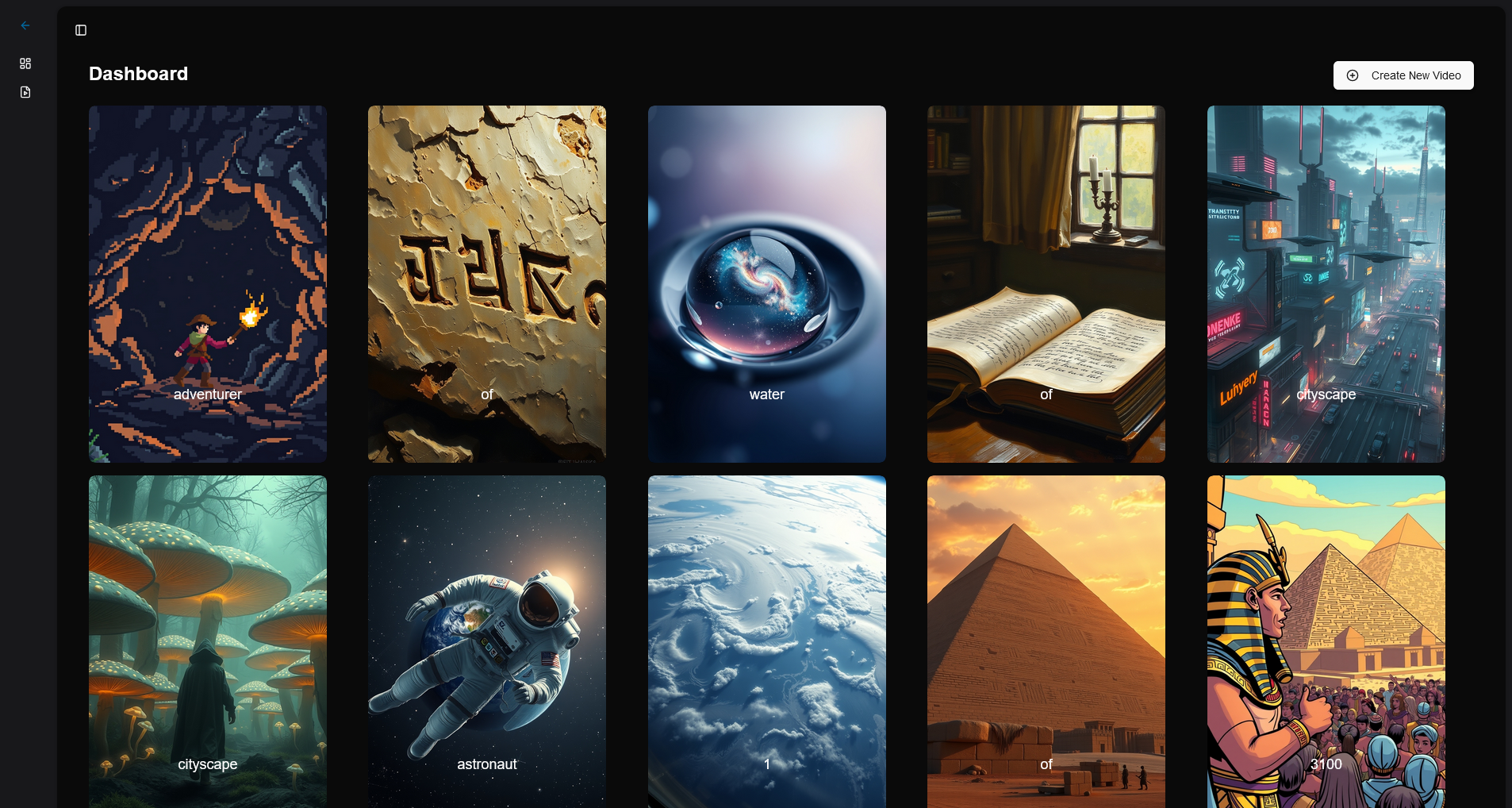
- Dashboard: Users can view and manage generated short videos.

- Create New Video: Users can define the video topic, style, and duration, and the app will generate the video content, audio, captions, and images using AI.

- Video Preview & Export: After the video is generated, users can preview it in the dialog and export it once rendered.


