A highly customizable Lovelace card that transforms your Home Assistant person tracking into personalized status messages tailored to your preferences. Whether you want detailed tracking ("Working at the Office", "At the gym") or prefer privacy-conscious, vague statuses ("Away", "Out"), it's entirely up to you—display as much or as little detail as you're comfortable with.
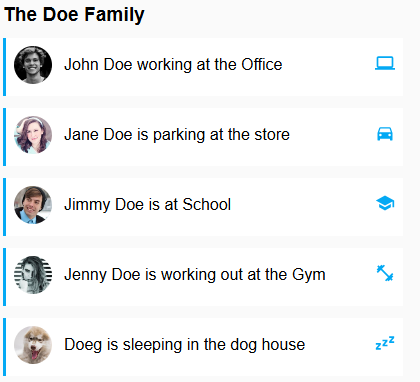
The Whereabouts Card goes beyond basic location tracking by giving you complete control over how presence information is displayed. Using any location sensor, activity tracker, or helper entity available in your Home Assistant setup, you can create personalized status messages that are as detailed or as simple as you prefer.
Why Whereabouts Card?
- Infinitely Flexible: Use any sensor—person entities, device trackers, zone states, calendar events, or custom helpers—to determine and display activities
- Activity-Aware: Combine location data with any other sensor to show rich context—detect "Working at home" vs "Relaxing at home" using work calendar integration, or "At the gym" based on zone + time of day
- Truly Personalized: Craft status messages that match your household's lifestyle and language, from simple tracking ("Home" / "Away") to detailed activities ("Running errands" / "In a meeting" / "At soccer practice")
- Your Privacy, Your Choice: Control the level of detail—from precise tracking for family coordination to intentionally vague statuses for privacy. You decide what to show
- Complete Customization: Every aspect—text templates, icons, colors, conditions—is configurable to match your exact preferences
Key Features:
- Universal Sensor Support: Works with person entities, device trackers, zones, or any custom sensor/helper you create
- Smart Activity Detection: Define activities using flexible condition rules based on multiple sensor states, time ranges, and custom logic
- Named Sensors: Map generic sensor names to person-specific entities for reusable activity definitions
- Zone Groups: Combine multiple zones (like "School", "Soccer Field", "Library") into a single activity ("Out with kids")
- Conditional Display: Dynamically show or hide persons based on any sensor value or condition
- Flexible Templates: Customize display format with full template support for any language or style preference
- Icon Hierarchy: Fine-grained control over icon display with activity > zone group > zone precedence
This card is designed to work with Home Assistant's person entities and zone tracking.
If you use HACS to manage Home Assistant custom cards:

- Go to HACS → Frontend.
- Add this repository:
https://github.com/Springvar/home-assistant-whereabouts-cardas a custom repository. - Download and install the card, then restart Home Assistant.
-
Download the Card:
- Download the latest release from the GitHub repository.
-
Add to Home Assistant:
- Copy the file into your
www/whereabouts-carddirectory under your Home Assistant config.
- Copy the file into your
-
Reference the Card in Lovelace Resources:
resources:
  - url: /local/whereabouts-card/home-assistant-whereabouts-card.js
    type: module
Minimal configuration to get started:
type: custom:whereabouts-card
persons:
  - entity_id: person.john
- entity_id: person.jane| Name | Description | Default Value | Constraints |
|---|---|---|---|
persons |
List of person configurations | [] |
Array of person objects (see below) |
show_title |
Show card title header | true |
Boolean |
title |
Card title text | Whereabouts |
String |
show_avatars |
Show person avatars in a separate column | false |
Boolean |
default_activity |
Default activity for location display (e.g., "is", "are") | is |
String |
default_preposition |
Default preposition for locations (e.g., "in", "at") | in |
String |
Each person in the persons array can have these properties:
persons:
  - entity_id: person.john
    name: John Smith
    namedSensors:
      activity:
        entity_id: sensor.john_activity
      charging:
        entity_id: binary_sensor.john_phone_charging
    hideIf:
visibility: "hidden"| Name | Description | Default Value | Constraints |
|---|---|---|---|
entity_id |
Person entity ID | Required | Must be a valid person entity ID |
name |
Display name (overrides entity friendly name) | Entity's friendly name | String |
namedSensors |
Map of sensor names to entity IDs | {} |
Object with sensor definitions (see below) |
hideIf |
Conditions to hide this person | undefined |
Object with condition key-value pairs |
Named Sensors:
Named sensors allow you to reference sensors by semantic names in activity conditions. Each sensor definition has:
namedSensors:
  activity:
    entity_id: sensor.john_activity
  visibility:
    entity_id: sensor.john_visibility
  location_status:
    entity_id:
      - sensor.john_gps
- sensor.john_wifi # Multiple sensors = OR logic| Property | Description | Constraints |
|---|---|---|
entity_id |
Single entity ID or array for OR logic | String or array of strings |
Hide If Conditions:
The hideIf property hides a person when conditions match:
hideIf:
  visibility: "hidden"           # Simple equality
  confidence: ">90"              # Numeric comparison
  status: ["away", "vacation"]   # Match any value in array
  timer: "!=idle"                # Not equal comparison
  active: "!"                    # Boolean false check
Supported operators: >, <, >=, <=, =, !=, <>
Special prefix:
!- Checks if value is falsy (empty, 0, false, off, no, unavailable, unknown)!value- Checks if value is not equal to "value"
Activities detect contextual states and display custom activity text and icons:
activities:
  - activity: "is working"
    icon: "mdi:briefcase"
    location_override: "-"
    show_preposition: false
    conditions:
      activity: "working"
      where: "work"
  - activity: "is gaming"
    icon: "mdi:gamepad"
    show_preposition: true
    conditions:
      activity: "gaming"
where: "home"| Name | Description | Default Value | Constraints |
|---|---|---|---|
activity |
Activity text to display. Supports sensor placeholders like {sensorName} |
Required | String |
conditions |
Conditions that must match | Required | Object with condition key-value pairs |
icon |
Icon override for this activity | undefined |
String (mdi:icon-name) |
location_override |
Custom location text, or "-" to hide location | undefined |
String |
show_preposition |
Control preposition display: true = always show, false = always hide, undefined = inherit from zone group |
undefined |
Boolean or undefined |
Activity Conditions:
Conditions are evaluated against the person's named sensors. All conditions must match (AND logic).
conditions:
  activity: "working"              # Match sensor state
  confidence: ">80"                # Numeric comparison
  status: ["active", "busy"]       # Match any in array
  timer: "!=idle"                  # Not equal comparison
  override: "!"                    # Boolean false check
  discord.game: "Counter-Strike"   # Match sensor attribute (dot notation)
  steam.last_online: "!"           # Check if attribute is not falsy
  when: ["morning", "weekday"]     # Match multiple time periods (OR logic)
  who: ["person.john", "John"]     # Special: match specific person
  who: "user"                      # Special: match logged-in user only (for private messages)
  where: ["work", "zone.office"]   # Special: match zone or zone group
  random: "50%"                    # Special: matches 50% of the time (for randomization)
Example: "For Your Eyes Only" Status:
activities:
  - activity: "is debugging a complex issue"
    icon: "mdi:bug"
    conditions:
      who: "user"                  # Only show when viewing your own status
      activity: "working"
      stress_level: ">80"
Sensor State vs Attributes:
Conditions can check either the sensor's state or its attributes using dot notation:
sensorName: "value"- Checks the sensor's statesensorName.attribute: "value"- Checks a sensor attributesensorName.nested.path: "value"- Checks nested attributes
Example with Discord gaming sensor:
namedSensors:
  discord:
    entity_id: sensor.discord_user_123456789

conditions:
  discord.game: "!=null"           # Check if game attribute is not null
  discord.activity_state: "playing" # Check activity_state attribute
Special Condition Keys:
random: Probability-based matching for randomization between similar activities. Value can be:- Percentage:
"50%","75.5%"(0-100%) - Decimal:
"0.5","0.75"(0-1) - Example:
random: "50%"matches 50% of the time
- Percentage:
who: Matches against person entity ID, name, or entity ID without "person." prefix- Special value
"user": Matches when the person being evaluated is the currently logged-in Home Assistant user (enables "for your eyes only" messages) - Examples:
who: "user",who: "person.john",who: ["John", "Jane"]
- Special value
where: Matches against zone entity ID, zone name, zone friendly name, or zone group nameuser: Matches against the current Home Assistant user (by user ID, user name, or associated person entity)
Temporal Condition Keys:
when: Array of time periods (OR logic) - matches if ANY period matches. Values:"night","morning","afternoon","evening","weekday","weekend","schoolday","afterschool"is_workday:"true"on Monday-Friday,"false"on weekendsis_work_hours:"true"on workdays between 08:00-16:00is_night:"true"between 00:00-06:00is_morning:"true"between 06:00-12:00is_afternoon:"true"between 12:00-18:00is_evening:"true"between 18:00-24:00day: Current day of week ("mon","tue","wed","thu","fri","sat","sun")
Supported operators: >, <, >=, <=, =, !=, <>
Special prefix:
!- Checks if value is falsy (empty, 0, false, off, no, unavailable, unknown)!value- Checks if value is not equal to "value"
Activities are evaluated top-to-bottom and the first matching activity is used.
Sensor Placeholders in Activity Text:
You can use {sensorName} or {sensorName.attribute} placeholders in activity text to dynamically insert sensor values:
persons:
  - entity_id: person.john
    namedSensors:
      activity:
        entity_id: sensor.john_activity_override
      discord:
        entity_id: sensor.discord_user_123456789
      spotify:
        entity_id: sensor.john_spotify
activities:
  - activity: "{activity}"
    conditions:
      activity: "!"

  - activity: "spiller {discord.game}"
    icon: "mdi:gamepad"
    conditions:
      discord.game: "!"

  - activity: "hører på {spotify.artist} - {spotify.title}"
    icon: "mdi:spotify"
    conditions:
      spotify.title: "!"
Placeholders are replaced with actual sensor values:
{activity}- Replaced with the sensor's state (e.g., "is exercising"){discord.game}- Replaced with the game attribute (e.g., "Counter-Strike"){spotify.artist}- Replaced with nested attribute values
If a sensor or attribute is not found or is null, the placeholder remains unchanged.
Group multiple zones together with a common name and settings:
zone_groups:
  - name: "work"
    zones:
      - zone.office
      - zone.laboratory
    icon: "mdi:office-building"
    preposition: "at"
    show_preposition: true
  - name: "home"
    zones:
      - zone.home
    icon: "mdi:home"
    preposition: "at"
show_preposition: false| Name | Description | Default Value | Constraints |
|---|---|---|---|
zones |
List of zone entity IDs | Required | Array of strings |
name |
Display name for the group | undefined |
String |
icon |
Icon for zones in this group | undefined |
String (mdi:icon-name) |
preposition |
Custom preposition for this group | Card's default_preposition | String |
show_preposition |
Show preposition before location | true |
Boolean |
override_location |
Replace zone name with group name | true |
Boolean |
activities |
Zone-specific activity overrides | undefined |
Array of activity objects (see below) |
Note: Set override_location: false to keep the original zone names while still applying the group's preposition and icon. This is useful when you want to group zones for preposition/icon consistency without losing the specific zone names (e.g., "Office", "Laboratory" both use "at" preposition and work icon, but keep their individual names).
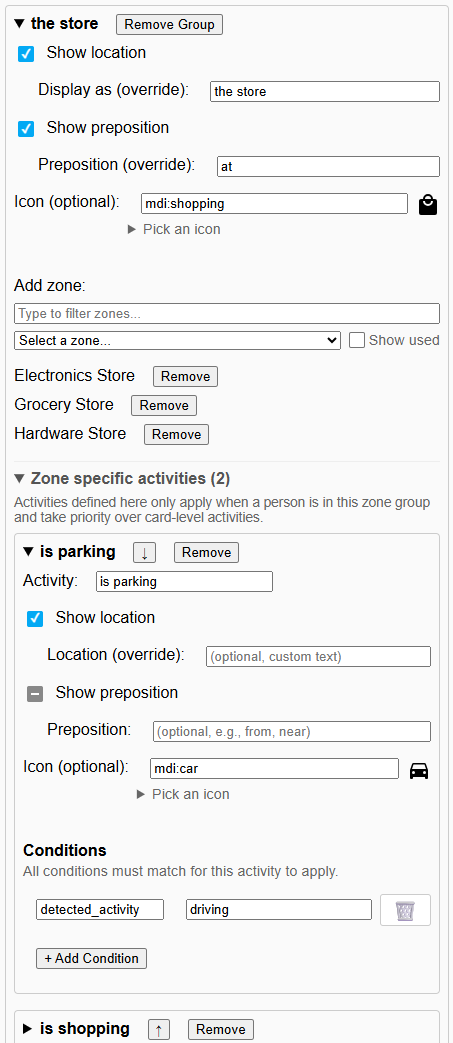
Zone Group Activities:
Zone groups can define their own activities that only apply when a person is in one of the group's zones. These activities take priority over card-level activities, allowing location-specific behavior:
zone_groups:
  - name: "work"
    zones:
      - zone.office
      - zone.coworking_space
    icon: "mdi:office-building"
    preposition: "at"
    activities:
      - activity: "in a meeting"
        icon: "mdi:account-group"
        show_location: false
        conditions:
          calendar: "busy"
      - activity: "working"
        icon: "mdi:laptop"
        conditions:
          activity: "working"
          is_work_hours: "true"
  - name: "gym"
    zones:
      - zone.gym_downtown
      - zone.gym_north
    activities:
      - activity: "working out"
        icon: "mdi:dumbbell"
        show_preposition: false
        conditions:
          when: ["morning", "evening"]
Activity Evaluation Priority:
- Zone Group activities - Evaluated first if person is in a zone belonging to a zone group
- Card-level activities - Fallback if no zone group activity matches
- Default activity - Final fallback if no activities match
This allows you to define general activities at the card level while having location-specific overrides. For example, a card-level activity might show "is working" anywhere, but a zone group activity can override it to show "in a meeting" specifically when at the office and the calendar shows "busy".
Icon Precedence:
- Activity icon (if activity detected)
- Zone group icon (if zone is in a group)
- Zone's native icon (from zone entity attributes)
- Default icon (
mdi:map-marker)
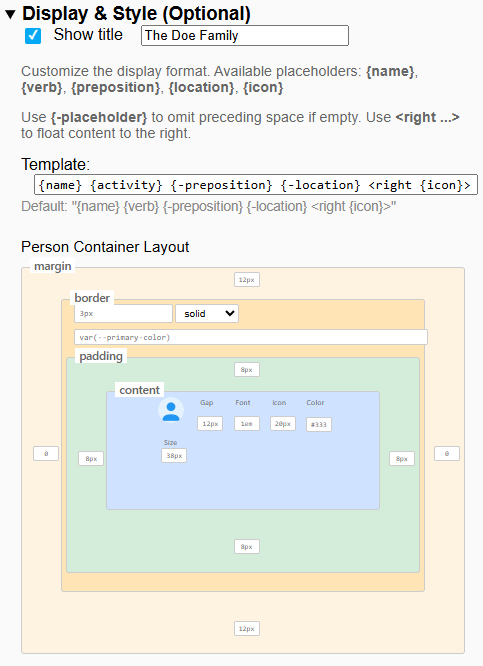
Customize the display format using template placeholders:
template: "{name} {activity} {-preposition} {-location} <right {icon}>"| Name | Description | Default Value |
|---|---|---|
template |
Display template with placeholders | {name} {activity} {-preposition} {-location} <right {icon}> |
Available Placeholders:
{name}- Person's display name{activity}- Activity text or default activity{verb}- Alias for{activity}(backward compatibility){preposition}- Preposition (respects show_preposition setting){location}- Zone or zone group name (respects location_override){icon}- Icon element
Special Syntax:
{-placeholder}- Omits preceding whitespace if value is empty<right ...>- Floats content to the right side
Example Templates:
# Default
template: "{name} {activity} {-preposition} {-location} <right {icon}>"

# No icon, location first
template: "{location}: {name} {activity}"

# Icon on left
template: "{icon} {name} {activity} {-preposition} {-location}"The Whereabouts Card includes a comprehensive visual editor accessible through the Lovelace UI:
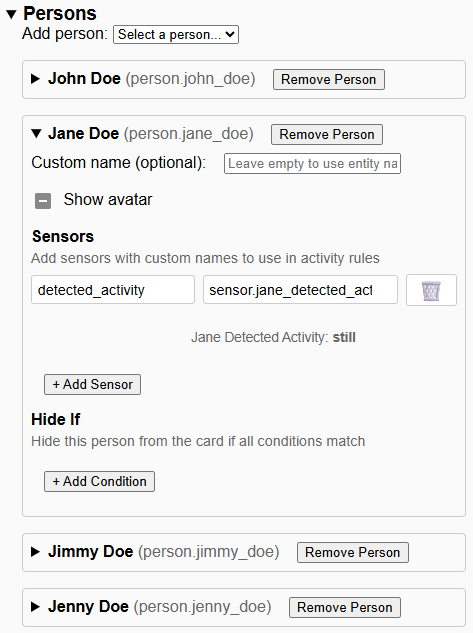
Persons Configuration:
Configure persons, custom sensors, and conditional visibility:
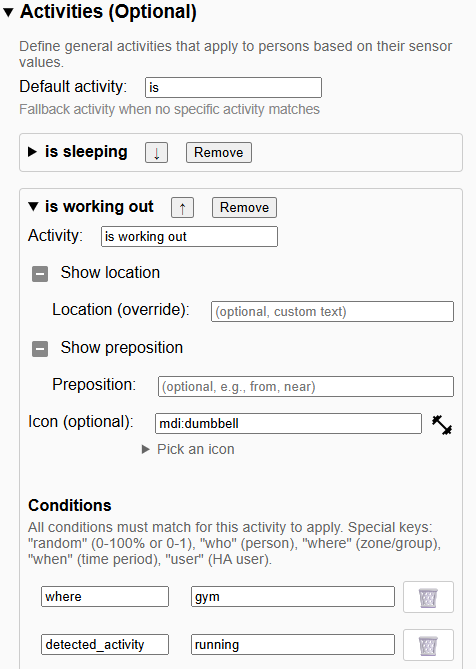
Activities Configuration:
Define context-aware activities with conditions and icons:
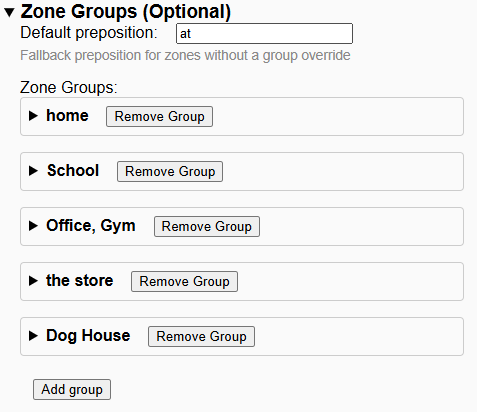
Zone Groups Configuration:
Group zones together and define zone-specific activities:
Zone-Specific Activities:
Activities can be specific to zone groups, with intelligent filtering when adding zones to multiple groups:
Display & Style Customization:
Fine-tune the card's visual appearance with the interactive layout editor:
Person Location Display:
- Shows each person's current zone with friendly names
- Supports zone groups for semantic grouping (e.g., all work locations)
- Hides persons conditionally based on sensor values
Activity Detection:
- Evaluates sensor conditions to detect contextual activities
- Customizable activity text and icons per activity
- Can override or hide location information
- Activities evaluated in order (first match wins)
Flexible Presentation:
- Template system for different languages and word orders
- Icon positioning control with
<right>directive - Conditional whitespace removal with
{-placeholder} - Icon precedence system for visual hierarchy
Basic Configuration:
type: custom:whereabouts-card
persons:
  - entity_id: person.john
  - entity_id: person.jane
show_title: true
title: Family Status
With Activities:
type: custom:whereabouts-card
persons:
  - entity_id: person.john
    namedSensors:
      activity:
        entity_id: sensor.john_activity
  - entity_id: person.jane
    namedSensors:
      activity:
        entity_id: sensor.jane_activity
activities:
  - activity: "is working"
    icon: "mdi:briefcase"
    location_override: "-"
    show_preposition: false
    conditions:
      activity: "working"
  - activity: "is sleeping"
    icon: "mdi:power-sleep"
    conditions:
      activity: "sleeping"
      where: "home"
default_activity: "is"
default_preposition: "at"
With Zone Groups:
type: custom:whereabouts-card
persons:
  - entity_id: person.john
  - entity_id: person.jane
zone_groups:
  - name: "work"
    zones:
      - zone.office
      - zone.laboratory
    icon: "mdi:office-building"
    show_preposition: true
  - name: "home"
    zones:
      - zone.home
    icon: "mdi:home"
    show_preposition: false
With Zone Group Activity Overrides:
type: custom:whereabouts-card
persons:
  - entity_id: person.john
    namedSensors:
      activity:
        entity_id: sensor.john_activity
      calendar:
        entity_id: calendar.john_work
zone_groups:
  - name: "work"
    zones:
      - zone.office
      - zone.coworking_space
    icon: "mdi:office-building"
    preposition: "at"
    activities:
      # Zone-specific activities only apply when in these zones
      - activity: "in a meeting"
        icon: "mdi:account-group"
        show_location: false
        conditions:
          calendar: "busy"
      - activity: "working at desk"
        icon: "mdi:laptop"
        conditions:
          activity: "working"
# Card-level activities as fallback
activities:
  - activity: "is working"
    icon: "mdi:briefcase"
    conditions:
      activity: "working"
With Conditional Visibility:
type: custom:whereabouts-card
persons:
  - entity_id: person.john
    namedSensors:
      visibility:
        entity_id: sensor.john_sharing_location
    hideIf:
      visibility: "off"
With User-Specific Activities:
type: custom:whereabouts-card
persons:
  - entity_id: person.john
    namedSensors:
      activity:
        entity_id: sensor.john_activity
  - entity_id: person.jane
    namedSensors:
      activity:
        entity_id: sensor.jane_activity
activities:
  # Show "You are..." for the current user
  - activity: "are working"
    icon: "mdi:briefcase"
    show_preposition: false
    conditions:
      user: "person.john"  # Or user ID or name
      activity: "working"
  # Show "is working" for others
  - activity: "is working"
    icon: "mdi:briefcase"
    show_preposition: false
    conditions:
      activity: "working"
With Temporal Conditions:
type: custom:whereabouts-card
persons:
  - entity_id: person.john
    namedSensors:
      activity:
        entity_id: sensor.john_activity
activities:
  # Show specific message during work hours
  - activity: "is working at the office"
    icon: "mdi:briefcase-clock"
    location_override: "-"
    show_preposition: false
    conditions:
      is_work_hours: "true"
      where: "work"
  # Show different message on weekend mornings
  - activity: "is having breakfast"
    icon: "mdi:coffee"
    conditions:
      is_workday: "false"
      is_morning: "true"
      where: "home"
  # Day-specific activity
  - activity: "is at gym (leg day)"
    icon: "mdi:dumbbell"
    conditions:
      day: "mon"
      where: "gym"
Custom Template (Norwegian):
type: custom:whereabouts-card
persons:
  - entity_id: person.john
  - entity_id: person.jane
default_activity: "er"
default_preposition: "på"
template: "{name} {activity} {-preposition} {-location} <right {icon}>"For support, you can:
- Open an issue in the GitHub repository
- Join the Home Assistant community forums for further help
Your suggestions and feedback are welcome!