This tutorial will help you to get started with the ONOS Controller and Mininet.
You need to be able to run the onos-minikube VM (~ 6Gb), which can be downloaded from this link https://drive.google.com/file/d/1YdBudFsxGDuLT-P8Phf3sI0dGd_sH4mj/view?usp=sharing
ONOS prompt
onos>
Mininet promt
mininet>
Linux user terminal
$
Super user terminal
#
ONOS GUI hot keys
H: to enable Host view

M: to toggle offline visibility

P: Port highlight

A: Monitoring all traffic

L: hide/show device label
- Commands
- Getting started with OpenvSwitch and ONOS
- Running Mininet with custom topology
- Adding Flow Rules 3.1. Proactive Flow Insertion 3.2. Reactive Flow Insertion
- Adding Host Intent
- Question
1/ To re-attach to ONOS CLI, open a new terminal:
$ onos 1
1/ Open a Terminal and execute the following command to create an OvS switch
$ sudo ovs-vsctl add-br br1
1bis/ (for M1/M2) Specify the OpenFlow version used in this switch
ovs-vsctl set bridge br1 protocols=OpenFlow14
2/ Show OvS description
$ sudo ovs-vsctl show
3/ Run "Setup ONOS Cluster" to start ONOS controller => A new Terminal appears with the ONOS CLI prompt
4.1/ Run "ONOS GUI" to access ONOS Web Interface or via the address with username/pwd is karaf/karaf or onos/rocks:
http://172.17.0.2:8181/onos/ui/login.html
4.2/ Access the ONOS REST APIs as follows with the credentials karaf/karaf:
172.17.0.2:8181/onos/v1/docs/
5/ Establish an OpenFlow session to ONOS
$ sudo ovs-vsctl set-controller br1 tcp:172.17.0.2:6653
6/ Delete the bridge
$ sudo ovs-vsctl del-br br1
1/ Download and run the custom topology
# curl https://raw.githubusercontent.com/Telecom-SudParis/sdn-onos/main/topo/connected_topo.py > connected_topo.py
# mn -c
# python connected_topo.py
4/ Observe the custom topology on ONOS GUI:
NOTE: It is normal if you don't see any host on the GUI. The hosts will appear after the ping.
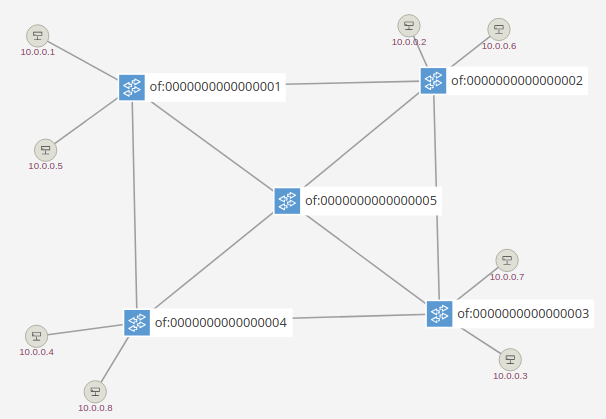
Prerequisite Flows could be added via the REST API using Postman (Chrome Extension) and a Json Beautifier tool (https://jsonbeautifier.org/)
NOTICE If you use Postman or curl to send the REST request, remember to specify the Authorization method as follows

1/ Send the POST method with the following URL and Content
http://172.17.0.2:8181/onos/v1/flows
{
  "flows": [
    {
      "priority": 9,
      "timeout": 3600,
      "isPermanent": false,
      "deviceId": "of:0000000000000001",
      "treatment": {
        "instructions": [
          {
            "type": "OUTPUT",
            "port": "5"
          }
        ],
        "deferred": []
      },
      "selector": {
        "criteria": [
          {
            "type": "ETH_TYPE",
            "ethType": "0x800"
          },
          {
            "type": "IN_PORT",
            "port": 2
          },
          {
            "type": "IPV4_DST",
            "ip": "10.0.0.3/32"
          },
          {
            "type": "IPV4_SRC",
            "ip": "10.0.0.1/32"
          }
        ]
      }
    },
    {
      "priority": 9,
      "timeout": 3600,
      "isPermanent": false,
      "deviceId": "of:0000000000000005",
      "treatment": {
        "instructions": [
          {
            "type": "OUTPUT",
            "port": "4"
          }
        ],
        "deferred": []
      },
      "selector": {
        "criteria": [
          {
            "type": "ETH_TYPE",
            "ethType": "0x800"
          },
          {
            "type": "IN_PORT",
            "port": 1
          },
          {
            "type": "IPV4_DST",
            "ip": "10.0.0.3/32"
          },
          {
            "type": "IPV4_SRC",
            "ip": "10.0.0.1/32"
          }
        ]
      }
    },
    {
      "priority": 9,
      "timeout": 3600,
      "isPermanent": false,
      "deviceId": "of:0000000000000003",
      "treatment": {
        "instructions": [
          {
            "type": "OUTPUT",
            "port": "4"
          }
        ],
        "deferred": []
      },
      "selector": {
        "criteria": [
          {
            "type": "ETH_TYPE",
            "ethType": "0x800"
          },
          {
            "type": "IN_PORT",
            "port": 5
          },
          {
            "type": "IPV4_DST",
            "ip": "10.0.0.3/32"
          },
          {
            "type": "IPV4_SRC",
            "ip": "10.0.0.1/32"
          }
        ]
      }
    },
    {
      "priority": 9,
      "timeout": 3600,
      "isPermanent": false,
      "deviceId": "of:0000000000000003",
      "treatment": {
        "instructions": [
          {
            "type": "OUTPUT",
            "port": "5"
          }
        ],
        "deferred": []
      },
      "selector": {
        "criteria": [
          {
            "type": "ETH_TYPE",
            "ethType": "0x800"
          },
          {
            "type": "IN_PORT",
            "port": 4
          },
          {
            "type": "IPV4_DST",
            "ip": "10.0.0.1/32"
          },
          {
            "type": "IPV4_SRC",
            "ip": "10.0.0.3/32"
          }
        ]
      }
    },
    {
      "priority": 9,
      "timeout": 3600,
      "isPermanent": false,
      "deviceId": "of:0000000000000005",
      "treatment": {
        "instructions": [
          {
            "type": "OUTPUT",
            "port": "1"
          }
        ],
        "deferred": []
      },
      "selector": {
        "criteria": [
          {
            "type": "ETH_TYPE",
            "ethType": "0x800"
          },
          {
            "type": "IN_PORT",
            "port": 4
          },
          {
            "type": "IPV4_DST",
            "ip": "10.0.0.1/32"
          },
          {
            "type": "IPV4_SRC",
            "ip": "10.0.0.3/32"
          }
        ]
      }
    },
    {
      "priority": 9,
      "timeout": 3600,
      "isPermanent": false,
      "deviceId": "of:0000000000000001",
      "treatment": {
        "instructions": [
          {
            "type": "OUTPUT",
            "port": "2"
          }
        ],
        "deferred": []
      },
      "selector": {
        "criteria": [
          {
            "type": "ETH_TYPE",
            "ethType": "0x800"
          },
          {
            "type": "IN_PORT",
            "port": 5
          },
          {
            "type": "IPV4_DST",
            "ip": "10.0.0.1/32"
          },
          {
            "type": "IPV4_SRC",
            "ip": "10.0.0.3/32"
          }
        ]
      }
    }
  ]
}
2/ Send TCP packets between two hosts
mininet> iperf h1 h3
3/ To delete all flows added by the REST API, send DELETE method to:
http://172.17.0.2:8181/onos/v1/flows/application/org.onosproject.rest
1/ Flows are added on packet arrival using the Forwarding app
onos> app activate fwd
2/ Ping all hosts in the topology mutually
mininet> pingall
3/ To deactivate app
onos> app deactivate fwd
onos> add-host-intent <host_id1> <host_id2>
Bring down a link to test auto-redirect
mininet> link s1 s3 down
Please submit:
1/ The content of the JSON message body in a separate .json file (Lab1-onos-NOMPrénom.json)
2/ Two screenshots:
a) The ping between two hosts
b) The content of the flow table of three switches along the path using the following command (replace "s1" with your assigned switch)
sudo ovs-ofctl dump-flows s1