
An all-in-one Tariff Management Platform to streamline the process of calculating tariffs and optimizing trade routes between countries.
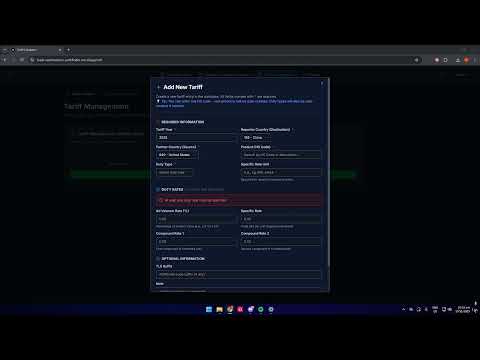
Design and implement a system called TARIFF (Trade Agreements Regulating Imports and Foreign Fees):
Its purpose is to define import tariffs (and/or additional fees) and calculate them across industries or products between different countries at any given time.
Trade Optimization Pathfinder (TOP) simplifies and unifies the Tariff Calculation and Management process by providing:
- 🧮 Accurate trade route tariff calculations
- 🧑💼 Admin management tools for tariffs
- 🌐 Interactive route visualization for smarter coordination

Step 1: Enter source and destination countries to search for goods using HSCode or descriptions

Step 2: System returns available tariff(s). Select from dropdown and enter product quantity
Step 3: Choose desired currency conversion and calculate the result
Exchange rates are pulled hourly from ExchangeRateAPI and cached in Redis, ensuring both speed and accuracy without straining API limits.
TOP transparently breaks down the formula and displays each step:
- Builds user trust in the final calculation
- Helps learners understand tariff computation mechanics

Provides users with post-calculation compliance requirements such as declarations and certifications.
Built using Pinecone + OpenAI for semantic search with JSON-structured results for the frontend.
All items are sourced from official government reports with direct source links for verification.

Displays four optimized route types:
⚠️ Risk – lowest likelihood of incidents and piracy for shipping- 💸 Cost – cheapest route
- 🌿 Carbon – eco-friendly route
- ⏱️ Time – fastest shipping option
Each route includes a breakdown across all four factors for deeper comparison.

Our chatbot uses a Retrieval-Augmented Generation (RAG) system:
- User sends a query
- Pinecone retrieves relevant tariff data
- GPT generates a data-grounded, source-backed answer
This ensures accuracy and reliability — not hallucination.

Admins can upload or update tariff documents directly in Pinecone.
Quickly build new routes, compare tariffs, and export results as a PDF report.

Combine multiple legs across various countries to optimize cost and efficiency.
Compare direct vs. multi-leg routes seamlessly.

Compare tariffs based on the following factors:
- Risk
- Cost
- Carbon emissions
- Time
With additional analytics:


Secured via AWS Cognito with strict least-privilege access control.
| User Type | Permissions |
|---|---|
| User | Access tariff calculations, results tab, chatbot |
| Admin | All user features + Tariff Management and Chatbot Data Editing |
Admin-only page for:
- ➕ Add/Delete Tariff – stay up-to-date with changing regulations
- ✏️ Edit Tariff – correct mistakes without database rebuilds
- 📚 Update Chatbot Context – manage compliance documents used in RAG system
- Frontend: React + TypeScript (Mapbox for visualization)
- Backend: Java (Spring Boot), Python
- Databases: PostgreSQL, Neo4J, Pinecone, Redis
- Deployment: Vercel (Frontend), AWS EC2 (Backend)

Automated via GitHub Actions:
- Runs full test suite
- Deploys backend to AWS EC2
- Deploys frontend to Vercel
Ensures production stays synchronized with every main branch push.


Automated background pipelines:
- 🗓️ Monthly: Tariff data ingestion
- ⏱️ Hourly: Exchange rate updates
Powered by AWS Lambda, Redis, and DynamoDB.
The .env.local file at frontend/.env.local is already configured to use the local endpoints. Simply perform the local setups shown below.
Note that for ease of use, there is a deployed cloud instance of the graph database hosted on Neo4j, which local endpoints reference. The provided .env file at graphdb/.env already points to the cloud database, hence no action is needed. However, it is on a free trial, and will expire on 28th November 2025. Past this date, the deployed frontend will no longer display the various trade routes, though other features will work as intended. To see the trade route visualisation after the trial expires, you must run all endpoints locally.
mvn install
mvn spring-boot:run
This runs locally at http://localhost:8080/.
cd frontend
npm install
npm run dev
This runs locally at http://localhost:3000/.
cd "Python RAG chatbot"
python -m venv .venv
source .venv/Scripts/activate
pip install -r requirements.txt
uvicorn src.api_server:app --reload --host 0.0.0.0 --port 8000
This runs locally at http://localhost:8000.
Replace source .venv/Scripts/activate with:
.\.venv\Scripts\Activate.ps1when running from PowerShell, or.\.venv\Scripts\activate.batwhen running from Command Prompt
cd Compliance_checklist
python -m venv .venv
source .venv/Scripts/activate
pip install -r requirements.txt
uvicorn src.api_server:app --reload --host 0.0.0.0 --port 8001
This runs locally at http://localhost:8001.
Replace source .venv/Scripts/activate with:
.\.venv\Scripts\Activate.ps1when running from PowerShell, or.\.venv\Scripts\activate.batwhen running from Command Prompt
cd graphdb
python -m venv .venv
source .venv/Scripts/activate
pip install -r requirements.txt
py main.py
Replace source .venv/Scripts/activate with:
.\.venv\Scripts\Activate.ps1when running from PowerShell, or.\.venv\Scripts\activate.batwhen running from Command Prompt
This runs locally at http://localhost:8002.
- Install Neo4j desktop. Follow the installation instructions.
- Create a new database instance. Note down the database user and the password. Ensure the values of the
NEO4J_USERandNEO4J_PASSWORDenvironment variables ingraphdb/.envare respectively updated to these values. - Enable the Graph Data Science (GDS) and APOC plugins by clicking on menu (3 dots) -> Plugins -> Install Graph Data Science and APOC plugins
- Delete the pre-existing generated
neo4jdatabase, if any. Then, stop the database instance, and load the .dump file by clicking "Load database from file" and selecting the neo4j.dump file provided atgraphdb/neo4j.dump. - Start the instance again, if it did not automatically start running in step 4. It will be running on localhost, port 7687. You should also see the connection URI (e.g. neo4j://127.0.0.1:7687 - check the exact URI you are provided). Delete the
NEO4J_URIvariable in the provided .env file atgraphdb/.envand replace it with this value.
mvn clean test
mvn test -Dtest=TariffManagementControllerIntegrationTest
mvn jacoco:reportService URL
Frontend https://trade-optimisation-pathfinder.vercel.app
Backend https://cs203tariffproject.duckdns.org
Chatbot https://cs203chatbot.duckdns.org
Compliance Checklist https://cs203compliance.duckdns.org
Note: If you encounter a NetworkError while on SMU Wi-Fi, switch to another network (DNS blocking issue).
Ensure Docker Desktop is running before executing tests:
docker ps
mvn test
If Docker is not running, integration tests will fail.
This project was built by