
SiYuan Plugin「Embed Series」
Draw high-quality vector graphics directly in SiYuan using Excalidraw.
No external dependencies · Full editability · Free to share
This plugin serves as the fourth plugin in the Embed Series, aiming to provide a more complete and flexible Excalidraw experience within SiYuan.
The principle of Embed Series plugins: They are designed solely as auxiliary editing tools for SiYuan, embedding all information directly into formats supported by SiYuan and Markdown. This ensures that all content created by the plugin remains fully visible and functional even after being separated from the plugin — or even from SiYuan itself — such as when exporting to Markdown or sharing on third-party platforms.
- Offline usage (no internet required)
- Save Excalidraw image as SVG/PNG format
- Edit Excalidraw image
- Support export to PDF
- Support for mobile devices
- Support dark mode for image display
- Fullscreen edit
- Light/Dark mode
- Edit in Tab/Dialog
- Custom Snippets
- Support SiYuan block in Excalidraw
- Markdown (include LaTeX math formulas, code block, mermaid, graphviz, flowchart)
If you have additional feature requests or suggestions, feel free to open an issue on GitHub or post in the SiYuan community to request support for additional features.
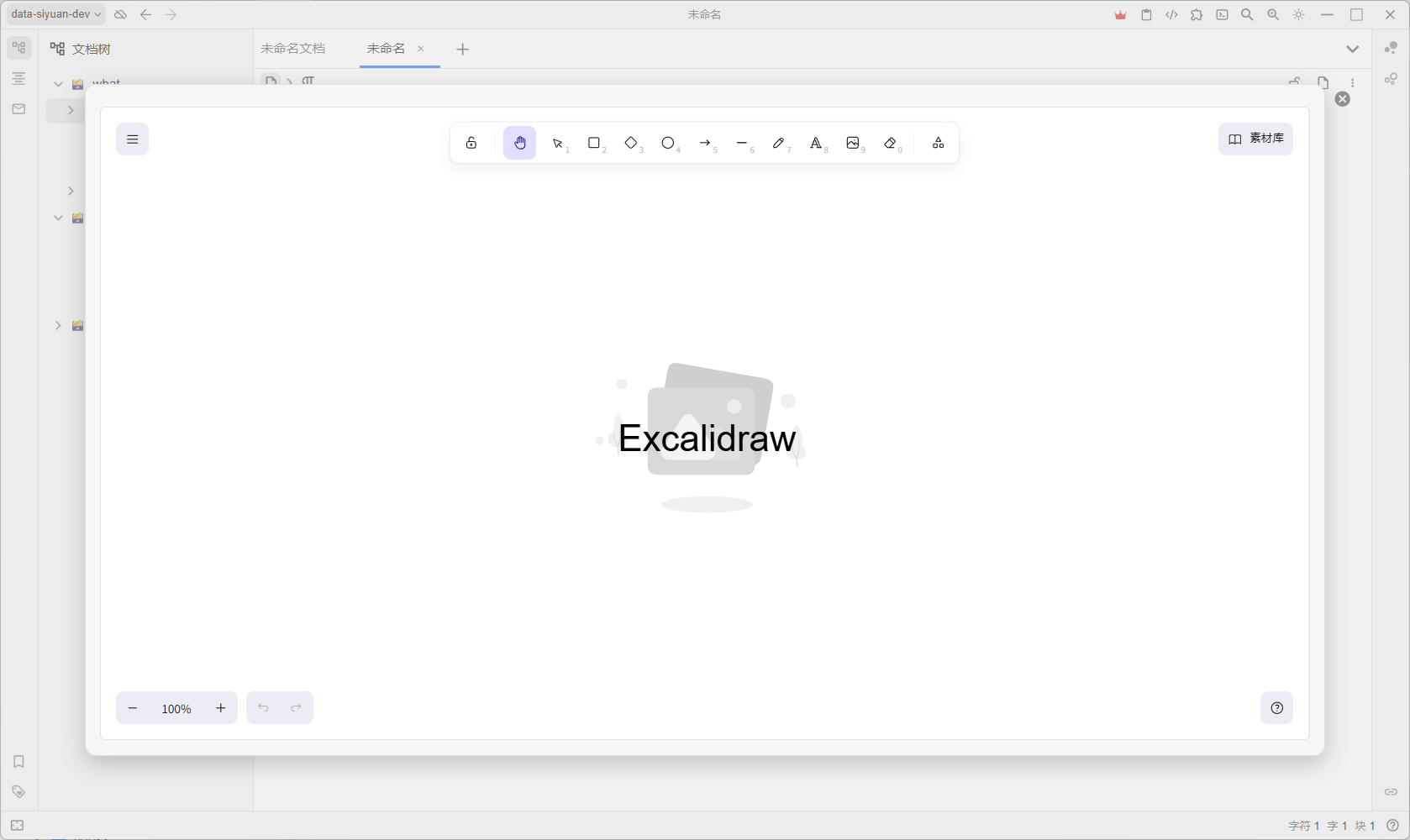
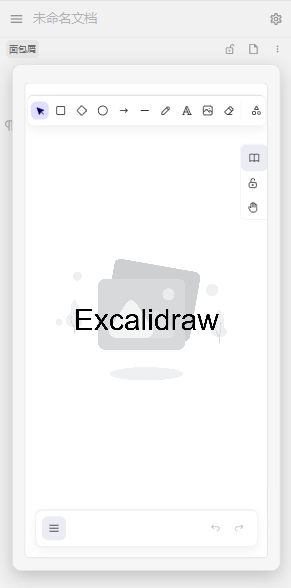

Set Excalidraw image storage format:
In the plugin settings, modify the Excalidraw image storage format (only affects newly created images). You can choose SVG/PNG.
Create an Excalidraw Image:
Type /excalidraw in the editor to create a new Excalidraw image.
Edit a Excalidraw Image:
Click the menu button in the top-right corner of the image. If the block is recognized as a valid Excalidraw image, an Edit Excalidraw option will appear. Click it to open the editor.
Excalidraw Image Block Label:
The label of an Excalidraw image block can be configured in the plugin settings.
Excalidraw Snippets: Create CSS/JS code snippets (do not enable) in the code snippet editor in SiYuan, then select the code snippet enabled in Excalidraw in the plugin settings to implement custom functionality and styles. You can also find code snippets in the Excalidraw Code Snippet Marketplace.
Embedding SiYuan Content:
- Method1: Hold the left button of the SiYuan block / document in the filetree, drag it to the Excalidraw window, and the SiYuan content will be embedded in Excalidraw.
- Method2: Click the button on the left side of the SiYuan document/block, click
Copy - Copy block hyperlink, and get a link starting withsiyuan://blocks/. In Excalidraw, clickEmbed Web Page, paste the link, and the SiYuan content will be embedded in Excalidraw.
Migrating from other sources:
- Method 1: Simply export your diagram as an SVG/PNG from any Excalidraw platform with the "Embed scene" option enabled, then drag the resulting SVG/PNG file into SiYuan.
- Method 2: Copy all content from any Excalidraw platform, type
/excalidrawin the editor, and paste the copied content into the pop-up Excalidraw window.
Buy me a coffee☕

- v1.0.4
- Optimize: add shortcut for fullscreen
- v1.0.3
- Optimize: support full save interval lower than 5s
- v1.0.2
- Feature: able to drag and drop SiYuan blocks/documents into Excalidraw
- v1.0.1
- Fix: Image stored in subdirectory of assets directory didn't show edit button
- Fix: fail to enter excalidraw interface in non-localhost environment
- v1.0.0
- Feature: Markdown
- Optimize: Redo the SiYuan block embedding function
- Optimize: Redesign save mechanism, greatly improve the smoothness of embedding SiYuan blocks/Markdown
- v0.8.0
- Feature: Set whether to enable auto save and auto save time interval
- v0.7.8
- Optimize: Only images starting with
excalidraw-will show edit button and label to optimize document loading speed
- Optimize: Only images starting with
- v0.7.7
- Feature: Quickly create Excalidraw images with shortcut
- v0.7.6
- Fix: Excalidraw dark mode color inconsistency with SiYuan dark mode
- v0.7.5
- Fix: edit button can only modify image once
- v0.7.4
- Fix: set label to none will not show edit button
- v0.7.3
- Fix: All images have edit buttons added to the right top
- v0.7.2
- Feature: Image right top edit button
- v0.7.1
- Add QQ group
- v0.7.0
- Featrue: SiYuan block link support pop-up window
- v0.6.0
- Feature: SiYuan block & non-cross-domain iframe can be rendered as images
- v0.5.1
- Fix: don't show plugin content when embedding SiYuan blocks
- v0.5.0
- Feature: Embed Web page support SiYuan hyperlinks (embedding SiYuan blocks)
- Feature: Link object support SiYuan hyperlinks
- Fix: Failed to jump to normal web page
- v0.4.6
- Feature: Embed Web page support scroll bars
- v0.4.5
- Fix: input
/excalidrawtoo fast causes create image fail
- Fix: input
- v0.4.4
- Fix: MacOS click to open
- Optimize: toast style
- v0.4.3
- Fix: open excalidraw file
- v0.4.2
- Feat: open excalidraw file
- v0.4.1
- Fix: Embed Web page
- v0.4.0
- Feature: support custom snippets (JS/CSS)
- v0.3.6
- Fix: shortcut for Tab Switch
- Fix: shortcut for save in web page
- v0.3.5
- Fix: shortcut for Tab
- v0.3.4
- Feature: fullscreen support for shortcut in Tab
- Feature: Support manual saving and save completion information
- v0.3.3
- Fix: unable to save when saving large content
- v0.3.2
- Optimize: set Excalidraw data of SVG/PNG placeholder image to empty
- v0.3.1
- Feature: placeholder SVG image
- Feature: save button in Excalidraw menu
- v0.3.0
- Feature: configuration of edit window: Tab / Dialog
- Feature: configuration of theme: Light / Dark
- v0.2.0
- Feature: select SVG or PNG storage for Excalidraw image
- Feature: fullscreen edit
- Optimize: simplify the menu
- v0.1.2
- Optimize: import library
- v0.1.1
- Optimize: reload all editors when confirming settings change
- v0.1.0
- Feature: save Excalidraw image as SVG format
- Feature: edit Excalidraw image