⚠ Warning: The Timetable Extension Turbo Mode is currently not stable. You may experience unexpected behavior or crashes. Use it at your own risk. We are actively working on improvements!
Credits to Joshua: https://github.com/damnitjoshua/um-timeedit-timetable-toolkit
This SDK provides a foundation for students and developers to build innovative timetable applications for Universiti Malaya (UM). By leveraging data from the UM TimeEdit system, this tool aims to democratize access to timetable information and foster the creation of user-friendly and customized scheduling solutions.
- Installation
- Building Blocks for Timetable Applications
- Getting Started with the UM TimeEdit Toolkit Turbo Extension
- Troubleshooting
- Development
- Note on Turbo Mode
- Phase 2: Data Structuring with
cleaner.js(Node.js Environment) - Contributing to the UM Timetable Ecosystem
- License
- Acknowledgements
- Author
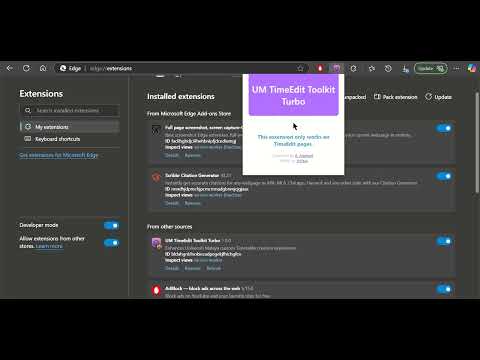
- Select the latest release, install the dist.zip and unzip it.
- Go to extensions by
chrome://extensionsand click on Load unpacked. - Select the unzipped /dist folder from (1) to load it.
- Navigate to
https://cloud.timeedit.net/my_um/web/students/and the extension should popup when loaded successfully.
This toolkit interacts with the TimeEdit API to provide essential data for timetable software development. It offers the following key functionalities:
- Comprehensive Module Catalog Retrieval: Fetches an exhaustive list of all modules available within the UM TimeEdit system. This includes courses, events and other relevant entities, providing a complete inventory for application development.
- Detailed Module Information Acquisition: Retrieves in-depth specifications for each module. This encompasses crucial details like module codes, descriptions, and any other pertinent metadata necessary for enriching timetable applications.
- Event Data Extraction: Gathers all scheduled events (reservations) linked to each module. This core functionality provides the raw timetable data, including timings, dates, locations, and event types (e.g., Lecture, Tutorial), essential for building scheduling features.
- Raw Data Export (JSON): Facilitates the download of all extracted data into a single
course_events_with_details.jsonfile directly within the browser environment. This raw JSON output serves as the initial dataset for further processing and application integration. - Structured Data Refinement (Node.js): Includes a
cleaner.jsscript (Node.js) to transform the raw JSON data into a more organized and application-readytimetable_data.jsonfile. This process restructures the data for efficient programmatic access and simplifies the development of timetable functionalities.
This guide will help you get the UM TimeEdit Toolkit Turbo extension up and running in your Chrome browser for development and testing.
- Google Chrome Engine Browsers: This extension is designed for Chrome Engine browsers (Ms Edge, Chrome etc...).
- Node.js and npm: You'll need Node.js and npm (Node Package Manager) installed to build the extension. Download them from https://nodejs.org/.
- A Text Editor or IDE: Choose your preferred code editor (e.g., VS Code, Sublime Text, Atom).
-
Clone the Repository:
git clone https://github.com/a7m-1st/um-timeedit-toolkit-turbo-extension.git cd um-timeedit-toolkit-turbo-extension/sch-ext -
Install Dependencies:
npm install
This command installs all the necessary packages defined in the
package.jsonfile. -
Build the Extension:
npm run build
This command uses webpack (configured in
webpack.config.js) to bundle the extension's code into thedistdirectory. -
Load the Extension in Chrome:
a. Open Browser and go to
chrome://extensions.b. Enable "Developer mode" in the top right corner.
c. Click "Load unpacked" and select the
distdirectory insideum-timeedit-toolkit-turbo-extension/sch-ext. (The full path will look something likeC:/Users/ASUS/Desktop/Personal Projects/um-timeedit-toolkit-turbo-extension/sch-ext/dist) -
Using the Extension:
a. Navigate to the Universiti Malaya TimeEdit website (
https://cloud.timeedit.net/my_um/web/students/).b. Log in with your UM credentials.
c. The extension should now be active. Click the extension icon in the Chrome toolbar to open the popup.
d. Enter the desired number of items to fetch and click "Fetch Courses".
e. Upon successful script completion, the browser will automatically download a file named
course_events_with_details.jsonto your browser's default download directory. This file contains the raw, extracted data in JSON format, ready for the next phase.
- "Could not load extension" error: Double-check that you selected the
distdirectory when loading the unpacked extension. Also, ensure that yourmanifest.jsonfile is correctly formatted. - Extension not working on TimeEdit website: Make sure you are logged in to the correct TimeEdit URL (
https://cloud.timeedit.net/my_um/web/students/). Also, verify that thehost_permissionsin yourmanifest.jsoninclude this URL. - Content script not injecting: Check the background script (
scripts/background.ts) and content script (scripts/contentScript.ts) for any errors. Useconsole.logstatements to debug. Also, ensure that the content script is correctly specified in theweb_accessible_resourcessection ofmanifest.json.
- Automatic Rebuilds: Run
npm run watchto automatically rebuild the extension whenever you make changes to the source code. You'll need to manually reload the extension in Chrome (chrome://extensions) to see the updates.
- When
turboModeis disabled (false), concurrency is applied only between batches. Therefore, modules within each batch are not sorted. - When
turboModeis enabled (true), full concurrency is applied, and the extracted modules are not sorted.
To facilitate efficient application development, the raw data from Phase 1 requires structuring. The cleaner.js script, executed using Node.js, transforms course_events_with_details.json into a more developer-friendly timetable_data.json file.
timetable_data.json Structure for Application Development:
timetable_data.json is designed to be module-centric, grouping events by module code. This structure simplifies data access and manipulation within your timetable applications. Within each module, activities are further categorized by type (e.g., "Lecture," "Tutorial"). Each activity type then contains an array of scheduled events, including time, day, and room details. This hierarchical structure is optimized for building features such as module-based timetable views, conflict detection, and personalized scheduling tools.
Execution Instructions for cleaner.js:
-
Node.js Requirement: Ensure you have Node.js installed on your system.
-
Run
cleaner.jsin Terminal: Open your terminal or command prompt, navigate to the directory containingcleaner.jsandcourse_events_with_details.json, and execute the following command:node cleaner.js course_events_with_details.json
This command will process the raw data and generate
timetable_data.jsonin the same directory, providing you with the structured data ready for integration into your UM timetable application.Example of json data:
{
  "moduleName": "INTRODUCTION TO DATA SCIENCE",
  "moduleCode": "WIE2003",
  "credit": 3,
  "yearPeriod": "2024/S2",
  "overallTargetStudent": 100,
  "level": "BACHELOR",
  "faculty": "FACULTY OF COMPUTER SCIENCE AND INFORMATION TECHNOLOGY",
  "continuousAssessmentWeightage": "60~40",
  "examDuration": 7200,
  "levelCode": 3,
  "activities": {
    "LEC": [
      {
        "dayOfWeek": "Tuesday",
        "startTime": "10:00",
        "endTime": "12:00",
        "room": "DK1",
        "occurrences": [
          "1",
          "2"
        ]
      }
    ],
    "EXAM": [
      {
        "dayOfWeek": "Thursday",
        "startTime": "08:30",
        "endTime": "10:30",
        "room": "EXAM_HOLD_G",
        "startDate": "10/07/2025",
        "endDate": "10/07/2025",
        "activityTypeExam": "Physical",
        "occurrences": [
          "1",
          "2"
        ]
      }
    ],
    "TUT": [
      {
        "dayOfWeek": "Thursday",
        "startTime": "13:00",
        "endTime": "14:00",
        "room": "BK",
        "occurrences": [
          "1"
        ]
      },
      {
        "dayOfWeek": "Thursday",
        "startTime": "14:00",
        "endTime": "15:00",
        "room": "BK",
        "occurrences": [
          "2"
        ]
      }
    ],
    "LAB": [],
    "ONL": [],
    "REPROJECT": [],
    "SEM": [],
    "PRA": []
  }
}
We encourage contributions to enhance this toolkit and expand the possibilities for UM timetable software development. If you encounter issues, have feature suggestions, or wish to contribute code improvements, please utilize the issue reporting and pull request functionalities within this repository. Your contributions are vital to building a thriving ecosystem of UM timetable applications.
This project is open-source and licensed under the MIT License.
- https://github.com/juhosa/time-edit-api - Providing insights into TimeEdit API interactions.
- Joshua Chew Jay Han
- Gemini 2.0 Flash Thinking Experimental 01-21