- implement fadeout to white
- level text must be removed after level is won
- Add level description
- add level menu using images that scroll horizontally.
all levels after the current are grayed out. - fix shadows
- Reset timer for main menu
- Show level step target and current steps
- harmonize menu color with level color
- Add visual buttons to rotate the cube.
- Do we need a main menu?
- Rename back to main menu to quit level
- Add reset level menu
- allow menu keyboard navigation
Pluvia Web site
Pluvia github site
Pluvia is written in Java using libgdx game library and the pbr extension gdx-gltf.


Pluvia is released as a msi installer for Windows platform. This installer is however not digitally signed. This means
that your Windows will warn you with a popup that the software could be harmful
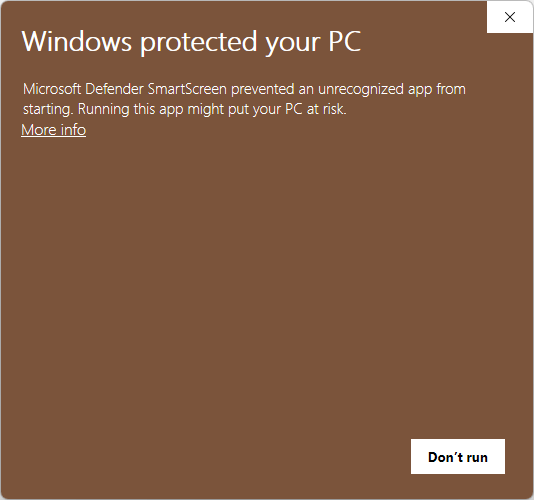
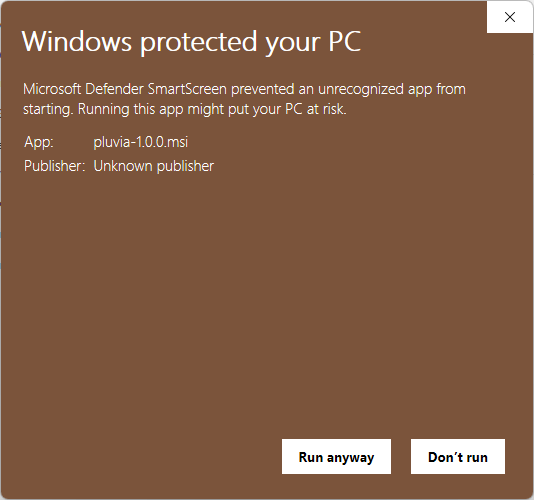
You need to select More info to see the next popup
Now you can seelect Run anyway to start the installer.
Pluvia is released as a pkg installer for the MacOS platform. This installer is however not digitally signed. This means
that if you double click the file your MacOS will warn you with a popup that the software could be harmful
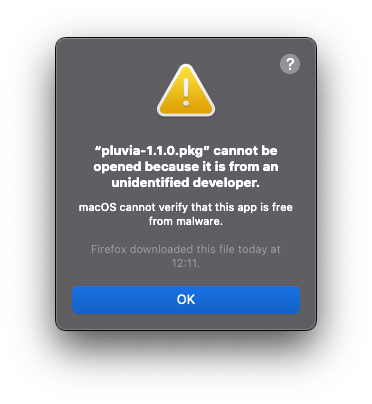
You need to Control-click the pkg file and select open.
Now another warning is shown
If you select open, the installer will open and you can just click continue until it is finished installing Pluvia.
You can find Pluvia in the finder under Applications.

| Control | Purpose |
|---|---|
| Space | drops more stones into the level |
| Left mouse button | clicking a stone with the left mouse button will push the stone to the left |
| Right mouse button | clicking a stone with the righjt mouse button will push the stone to the right |
| ESC | open Pause Dialog |
These controls are only valid in debug mode
| Control | Purpose |
|---|---|
| W/cursor up | move camera towards the screen |
| A/cursor left | move camera left |
| D/cursor right | move camera right |
| S/cursor down | move camera away from the screen |
| save screenshot of various fbos into the screenshot folder | |
| I | open info pane including debug inforamtion |
| F5 | toggle debug mode |
| F6 | show time graphs |
| Middle mouse button | clicking and move mouse to tilt camera |
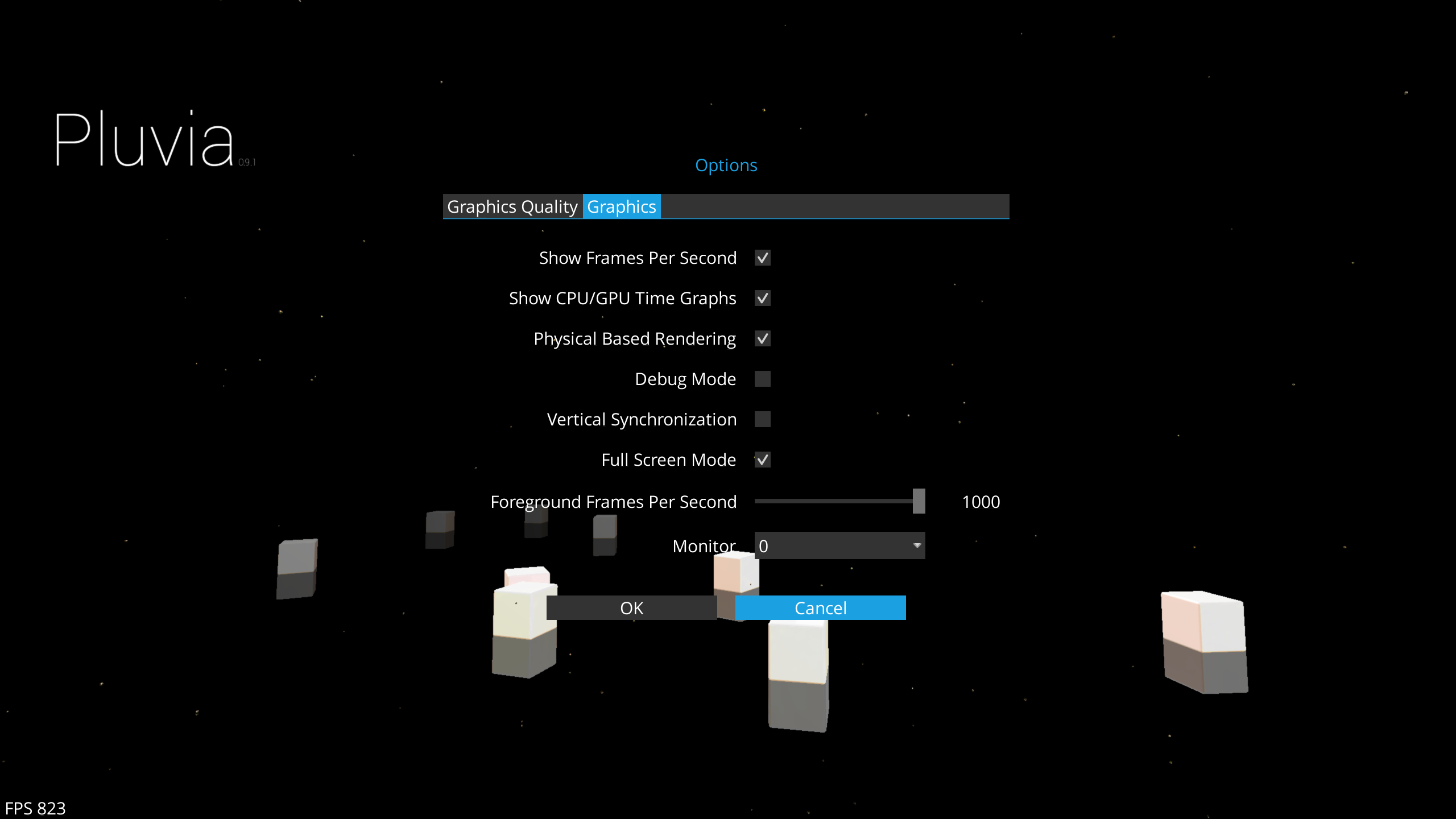
Pluvia can be configured in the Options dialog.
You can configure the performance of Pluvia to match your system, just slide the Graphics Quality slider to the positoin
that works on your computer. The difference of performance on my computer is factor 20.
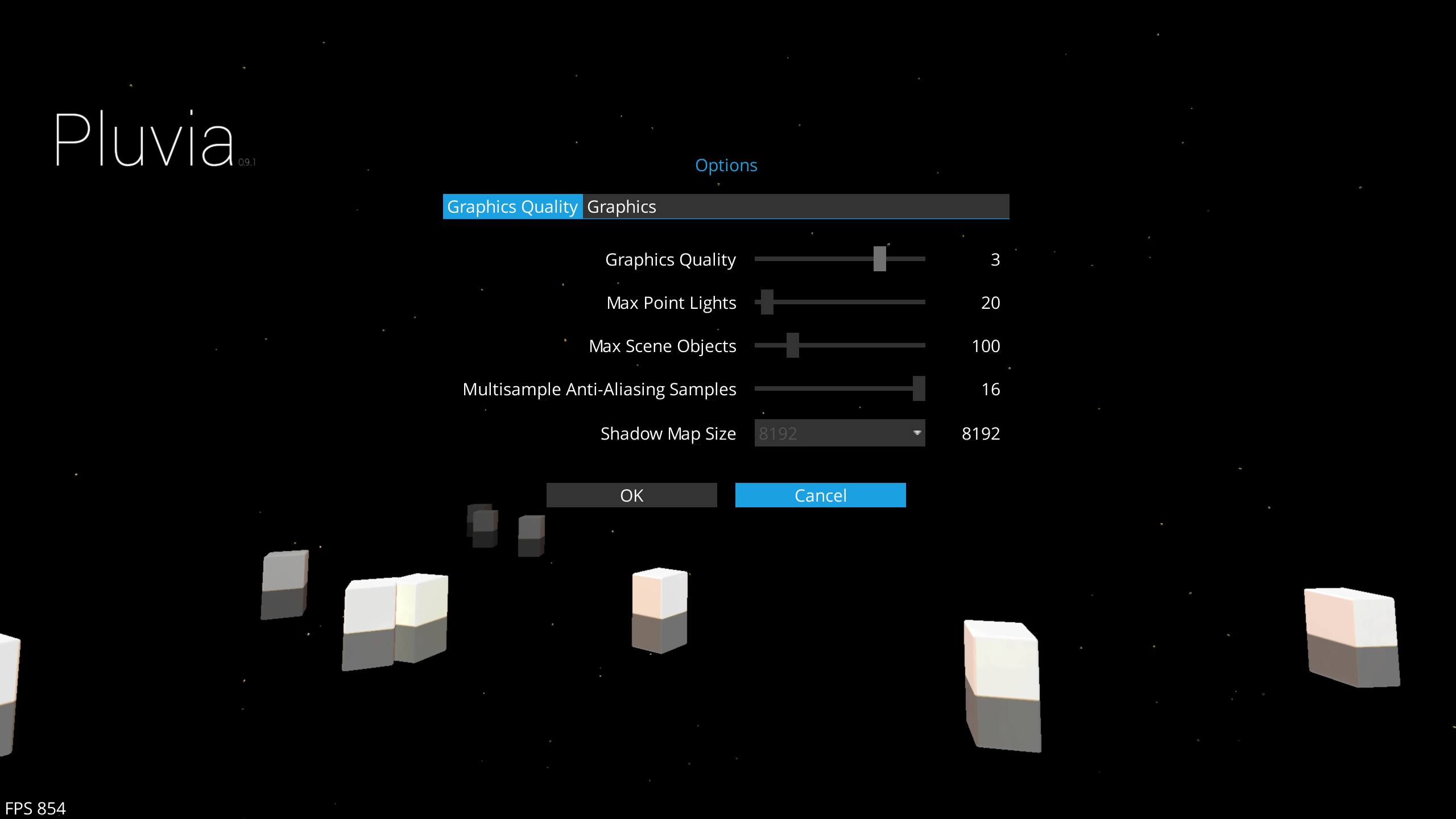
All other settings like multi monitor, full screen mode, etc. can be configured in the Graphics Tab of the Options
dialog.
Please contact me to report a bug or just create a ticket at https://github.com/kunterbunt2/pluvia/issues
A direct x diagnostic report is very helpfull, as every system is different.
- Open DirectX Diagnostic Tool by clicking the Start button Picture of the Start button, typing dxdiag in the Search box, and then pressing ENTER.
- A window will pop up asking if you wish to check if your drivers are digitally signed.
- Select No
- On the next window, select Save All Information
- Save the file to your desktop
- attach the dxdiag.txt file to teh ticket