
🇬🇧 English | 🇪🇸 Español
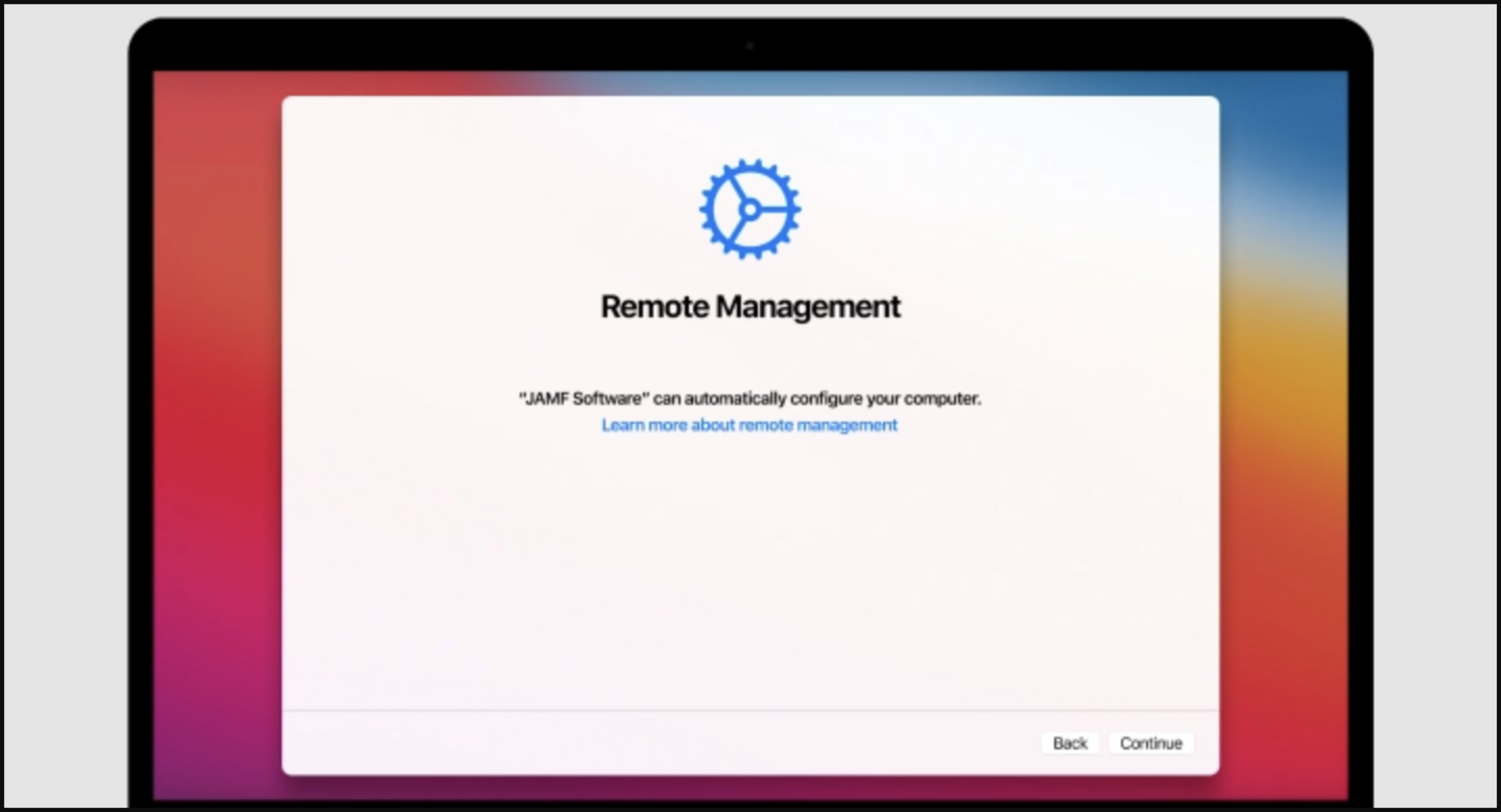
A script to bypass Mobile Device Management (MDM) enrollment during macOS setup.
Version 2 Now Available! Due to the high number of requests and repeated issues reported, I've released a new version of the script with significant improvements:
- Automatic Volume Detection - No longer requires specific volume names like "Macintosh HD"
- Comprehensive Error Handling - Clear error messages and validation at every step
- Input Validation - Validates usernames and passwords to prevent common mistakes
- UID Conflict Detection - Automatically finds available UIDs to avoid conflicts
- Better User Experience - Color-coded output, progress indicators, and helpful feedback
The instructions below use v2 by default (recommended). If you experience issues, you can still use the original version by replacing bypass-mdm-v2.sh with bypass-mdm.sh in the commands.
v2 hardened for Apple Silicon & modern macOS (up to macOS 26 "Tahoe"). Based on the community work in upstream PR #170, bypass-mdm-v2.sh now targets the Data volume correctly and survives OS updates:
- Signed System Volume (SSV) fix — On Apple Silicon the OS boots from a sealed, read-only System snapshot. The live
/etc/hostsandConfigurationProfilesactually live on the Data volume (via the/privatefirmlink). v2 now writes everything there, so the block actually takes effect. - FileVault support — Finds the Data volume by APFS role (not by name) and unlocks it with
diskutil apfs unlockVolume. Fixes the "Could not detect data volume" failure on Macs with FileVault on by default. - Durable enrollment-daemon block — Writes a launchd override on the Data volume disabling
com.apple.ManagedClient.enroll(macOS 26 replacedcloudconfigurationd). It survives the System-volume reseal a macOS update performs, so the enrollment nag doesn't return after updating. - Smarter domain blocking — Reads the organization's own MDM host from the DEP record and blocks it too, adds
acmdm.apple.com, and blocks IPv6 as well as IPv4 — while deliberately leavinggdmf.apple.comandalbert.apple.comunblocked so Software Update and iMessage/FaceTime keep working. - New
bypass-mdm-v3.sh— A standalone, two-mode variant (suppress-only for an already set-up Mac, or full bypass for a stuck Setup Assistant) with the same SSV / FileVault / daemon hardening.
Note: This remains local suppression. Your device's serial still lives in the organization's Apple Business/School Manager (DEP) inventory and can reappear after a factory reset or major reactivation. Never run
profiles renewor Erase All Content & Settings.
Three scripts, three situations:
| Your situation | Use | What it does |
|---|---|---|
| Mac stuck on the MDM / Remote Management enrollment screen | bypass-mdm-v2.sh (recommended) |
Creates a temp admin, skips Setup Assistant, blocks enrollment, clears the DEP record |
| Same as above, but the Mac has FileVault, is a recent Apple Silicon / macOS 26 machine, or you want a suppress-only mode | bypass-mdm-v3.sh (advanced, pending field-testing) |
Everything v2 does, plus APFS-role detection, FileVault unlock, and two modes |
| Mac already set up and working, but the enrollment notice flashes for a second on every boot | clear-dep-record-v2.sh |
Only removes the leftover DEP record and sets the bypass markers — no user created, no hosts edits, nothing erased |
| Old Mac where auto-detection fails and you know the exact volume names | bypass-mdm.sh (legacy) |
Original script with hardcoded volume names |
In one line each:
- v2 — "get me past the stuck enrollment screen." The default choice.
- v3 — "same, but hardened" (FileVault, macOS 26, two modes). Not yet field-tested.
- clear — "just stop the boot-time flicker" on an already-working Mac. The gentlest one.
⚠️ All of them are local suppression. Your Mac's serial stays in the organization's Apple Business/School Manager (DEP) inventory and can reappear after a factory reset or reactivation against Apple. The permanent fix is the owning organization releasing the serial.
- 🔍 Smart Volume Detection - Automatically detects system and data volumes regardless of custom names
- ✅ Input Validation - Validates usernames and passwords to prevent common errors
- 🛡️ Comprehensive Error Handling - Clear error messages guide you through any issues
- 🎯 UID Conflict Resolution - Automatically finds available user IDs to avoid conflicts
- 📊 Real-time Progress - Color-coded status messages show exactly what's happening
- 🔄 Duplicate Prevention - Checks for existing entries to avoid duplicates
- 🍎 Apple Silicon / SSV-aware - Writes to the Data volume (via
/private) so changes reach the running OS on sealed-System-Volume Macs - 🔓 FileVault Support - Locates the Data volume by APFS role and unlocks it with
diskutil apfs unlockVolume - 🧱 Durable Enrollment Block - Disables the enrollment daemon via a launchd override on the Data volume, surviving macOS updates
- 🌐 Smarter Domain Blocking - Blocks the org's own MDM host + IPv6, while leaving
gdmf/albertintact (keeps Software Update & iMessage working)
- It is strongly recommended to erase the hard drive prior to starting
- It is recommended to reinstall macOS using an external flash drive
- English language recommended (not required for v2, but recommended)
Follow these steps to bypass MDM enrollment during a fresh macOS installation:
Starting Point: You've reached the MDM enrollment screen during macOS setup
1. Force Shutdown - Long press the Power button to shut down your Mac
2. Boot into Recovery Mode:
- Apple Silicon Mac: Hold Power button until "Loading startup options" appears
- Intel-based Mac: Hold CMD + R during boot
3. Connect to WiFi to activate your Mac
4. Open Terminal in Recovery Mode:
- Click Utilities in the menu bar
- Select Terminal
5. Run the bypass script - Copy and paste this command into Terminal:
curl -L https://raw.githubusercontent.com/aquilu/bypass-mdm/main/bypass-mdm-v2.sh -o bypass-mdm.sh && chmod +x ./bypass-mdm.sh && ./bypass-mdm.sh6. Volume Detection - The script will automatically detect your volumes:
- System Volume (e.g., "Macintosh HD", "MacOS", or your custom name)
- Data Volume (e.g., "Data", "Macintosh HD - Data", or your custom name)
7. Select Option 1 - "Bypass MDM from Recovery"
8. Create Temporary User - Configure the admin account (or press Enter for defaults):
- Fullname: Apple (default)
- Username: Apple (default)
- Password: 1234 (default)
💡 Tip: The script validates your input and will prompt you to retry if there are issues
9. Wait for Completion - You'll see progress messages:
- ✓ Validating system paths
- ✓ Creating user account
- ✓ Blocking MDM domains
- ✓ Configuring MDM bypass settings
10. Reboot - When you see "MDM Bypass Completed Successfully", close Terminal and reboot
11. Login with the temporary account:
- Username:
Apple(or your custom username) - Password:
1234(or your custom password)
12. Skip Setup - Skip all prompts (Apple ID, Siri, Touch ID, Location Services)
13. Create Real Account:
- Navigate to System Settings > Users and Groups
- Create your actual Admin account with your preferred credentials
14. Switch Accounts - Log out and sign in to your new account
15. Setup Properly - Now configure Apple ID, Siri, Touch ID, etc.
16. Clean Up - Delete the temporary Apple profile:
- Go to System Settings > Users and Groups
- Select the Apple profile and click the minus (−) button
17. 🎉 Done! You're MDM free!
Problem: Script fails to detect volumes
Solutions:
- Ensure you're in Recovery Mode (not booted into macOS normally)
- Verify macOS is installed on your drive
- Check your drive is visible in Disk Utility
- Try the original version (legacy, hardcoded volume names):
curl -L https://raw.githubusercontent.com/aquilu/bypass-mdm/main/bypass-mdm.sh -o bypass-mdm.sh && chmod +x ./bypass-mdm.sh && ./bypass-mdm.shProblem: Permission denied errors
Solutions:
- Confirm you're running from Terminal in Recovery Mode
- Recovery Mode automatically provides elevated privileges
- Make sure the script is executable:
chmod +x bypass-mdm.sh
Problem: Script doesn't run
Solutions:
# Make sure it's executable
chmod +x bypass-mdm.sh

# Run it again
./bypass-mdm.shProblem: Script rejects your username/password
Validation Rules:
- Username: Letters, numbers, underscore, hyphen only; must start with letter or underscore
- Password: Minimum 4 characters
- Press Enter to use defaults if unsure
Use this when: your Mac already finished Setup Assistant and works normally
(you already have a local admin account), but the Device Enrollment / MDM notice
still flashes for a few seconds on every boot. That happens when the machine
still carries a real DEP activation record on the Data volume
(.cloudConfigHasActivationRecord / .cloudConfigRecordFound).
This is not the "stuck at the enrollment screen" case — for that, use
bypass-mdm-v2.sh.
What it does: working only on the Data volume, it removes the residual
activation records, deletes the DEP nag file, and writes the bypass markers
(.cloudConfigProfileInstalled / .cloudConfigRecordNotFound).
What it does NOT do: it does not create users, does not edit /etc/hosts,
and does not erase or reinstall anything. No need to wipe the disk.
- Boot into Recovery — required. While macOS is running, SIP protects
/var/db/ConfigurationProfilesand the changes will fail. - If FileVault is enabled, unlock/mount the Data volume first
(
diskutil apfs unlockVolume <disk>).
From Terminal in Recovery Mode:
curl -L https://raw.githubusercontent.com/aquilu/bypass-mdm/main/clear-dep-record-v2.sh -o clear-dep-record.sh && chmod +x ./clear-dep-record.sh && ./clear-dep-record.shThe script auto-detects your volumes, shows the current activation records, asks for confirmation, cleans them, and writes the bypass markers. Reboot when done.
Note: this clears the local record only. The device still appears in the organization's Apple Business/School Manager (DEP) inventory. If the Mac is erased and reactivated against Apple, the DEP record comes back.
⚠️ Field-testing status: v3 passes syntax checks and code review but is pending real-world verification on affected hardware. Preferbypass-mdm-v2.shunless you specifically need v3's features and can test it on a device you own.
A standalone rewrite hardened for Apple Silicon + Signed System Volume (macOS 11 Big Sur through macOS 26 "Tahoe"). It shares one enrollment-suppression core across two modes:
- Suppress enrollment only — for a Mac that is already set up and just nags you to enroll. Does not create any user; your accounts and data are untouched.
- Full bypass — for a Mac stuck at the Remote Management / Setup Assistant
screen. Creates a temporary local admin +
.AppleSetupDone, then suppresses.
- Locates the Data volume by APFS role and unlocks FileVault automatically
- Reads the org's own MDM host from the DEP record and blocks it (plus IPv6)
- Disables the enrollment daemon (
com.apple.ManagedClient.enroll) via a launchd override on the Data volume — survives macOS updates - A "Verify current state" menu option to inspect markers / hosts / override
- Boot into Recovery (Apple Silicon: hold Power → Options → Utilities → Terminal)
- If FileVault is on, the script prompts to unlock the Data volume
From Terminal in Recovery Mode:
curl -L https://raw.githubusercontent.com/aquilu/bypass-mdm/main/bypass-mdm-v3.sh -o bypass-mdm-v3.sh && chmod +x ./bypass-mdm-v3.sh && ./bypass-mdm-v3.shNote: Like all versions, this is local suppression only — the device remains in the organization's DEP inventory. Never run
profiles renewor Erase All Content & Settings, both of which re-arm DEP.
| Version | Description | Status |
|---|---|---|
bypass-mdm-v2.sh |
Hardened: SSV/Data-volume aware, FileVault unlock, durable daemon block, smart domain list | ✅ Recommended |
bypass-mdm-v3.sh |
Two-mode (suppress-only / full bypass), APFS-role detection, macOS 11–26 | 🧪 Advanced |
bypass-mdm.sh |
Original version with hardcoded volume names | |
clear-dep-record-v2.sh |
Companion: clears a residual DEP record on an already-configured Mac | 🩹 Specific case |
Many people have reached out asking how to say thank you for saving their Mac. This is completely optional and not expected! If you'd like to contribute, crypto donations are appreciated.
People have forked this repository and put the script behind a pay-wall. I do not care at all. Once again, crypto contributions are not expected, but feel free if you want to.
Bitcoin (BTC):
bc1qzguh4908r7wguz20ylzeggya9d38t6hega5ppf
Monero (XMR):
45RnFseY4gNZv58DvShz2KJEbx1EyaTtaMCDnU5th21KbRThWurjjK6iugEdq9wfc4Kbw3a7AAyqo6WnEmL1StAMJur8QJp
Important: Although it's virtually impossible to detect that you've removed MDM (because it was never configured locally), be aware that your device's serial number will still appear in your organization's inventory system. This script prevents MDM from being configured locally, making the device unmanageable remotely.
Use responsibly and at your own risk. This tool is intended for personal devices and should not be used to circumvent legitimate organizational policies without proper authorization.
This project is provided as-is for educational purposes. Use at your own discretion.