
GalleryDL Beyond is a graphical user interface (GUI) for gallery-dl, built to provide a dynamic queue system for URLs. This was developed out of a personal need to queue URLs while browsing galleries, as using a text file was not ideal.
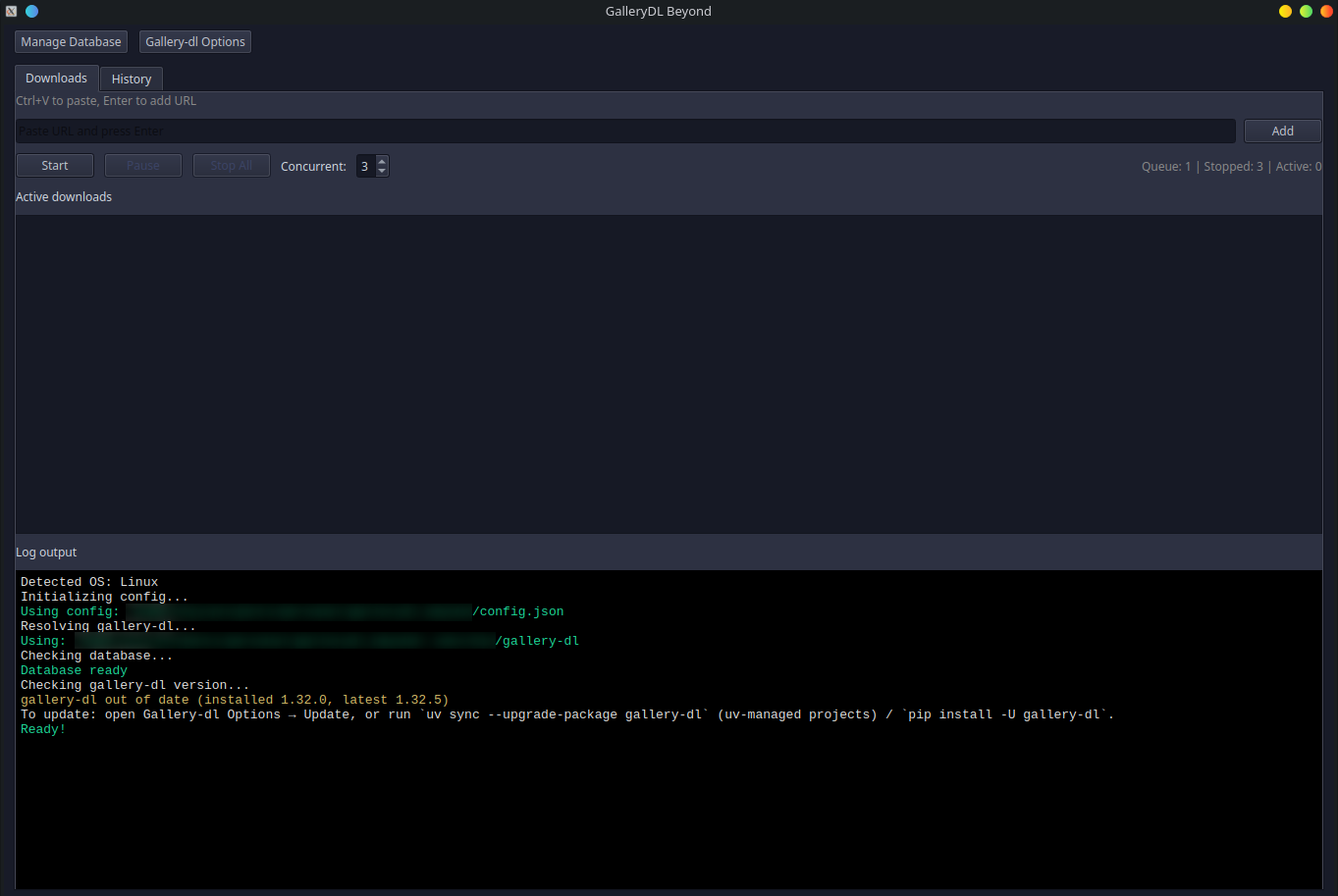
- Dynamic queue system (add URLs while downloads are running)
- Concurrent downloads (1-8 configurable workers, adjustable while running)
- Downloads tab: active downloads list + worker-prefixed log output
- History tab: searchable URL list with color-coded status, download count, tags, and last error; pagination for large databases
- URL tagging: organize URLs with custom tags, filter by tag, assign tags via context menu
- Duplicate URL handling: "Check for new files" or "Force full re-download"
- Pause/resume and Stop All controls
- Resume stopped downloads: stopped downloads are automatically resumed when clicking Start
- Partial completion tracking: detects when some files fail during a download
- Skip URLs: mark URLs to be skipped so they won't be downloaded
- Individual download control: stop or skip specific downloads from the active list
- Auto-start: URLs start downloading immediately if there's available capacity (works for new URLs and history actions)
- Live worker scaling: increase or decrease concurrent downloads on-the-fly without stopping
This project targets Python 3.12+ and uses uv for environment management.
uv syncFor a more controlled environment, this application requires a configuration file to be located in the same directory as the project or the executable. If no configuration file is found, an example configuration file will be created with the following settings:
- Creates and uses a
downloadsdirectory for all downloads. - Creates archive and cache SQLite databases in the
binsubdirectory. - Replaces some invalid characters that were causing problems.
- Restricts download speed to 1 MB/s.
- Sets other download and output configurations.
The app uses a config.json file for gallery-dl.
- On startup, it ensures
config.jsonexists in the current working directory. - If missing, it copies from
config_example/config.jsonwhen available (otherwise it writes a minimal default). - Use the Gallery-dl Options button in the UI to edit common settings:
extractor.base-directoryextractor.archivedownloader.ratedownloader.retriesdownloader.timeout
The app resolves how to run gallery-dl at startup and stores your preference in QSettings.
Open Gallery-dl Options in the UI to configure:
- Auto (recommended): uses system
gallery-dlif found onPATH, otherwise uses the current Python environment (python -m gallery_dl). - System: always uses
gallery-dlfromPATH. - Python env: uses
python -m gallery_dlfrom the current environment. - Custom: use a user-selected executable path.
Edit common config.json settings (base-directory, archive, rate, retries, timeout).
Right-click any row in History for quick actions:
- Copy URL: copies the selected URL to your clipboard
- Resume download: (for Stopped/Failed items) re-queues the URL to continue downloading
- Skip: marks the URL as skipped so it won't be downloaded
- Check for new files: re-queues the URL using archive semantics (only downloads new items)
- Force full re-download: re-queues the URL and runs gallery-dl with
--no-skip - Tags: submenu with checkable tags to assign/remove tags from the URL
- Remove from history…: deletes the row after a confirmation prompt (blocked while downloading)
Note: Resume, Check for new files, and Force full re-download will auto-start immediately if downloads are running and slots are available.
Use the Tag dropdown next to the search box to filter URLs by tag:
- Select "All" to show all URLs
- Select a specific tag to show only URLs with that tag
- Combine with the search box to filter by both tag and URL text
The History tab supports pagination for efficient browsing of large databases:
- Use << / < / > / >> buttons to navigate between pages
- The page indicator shows "Page X of Y (Z items)"
- Use the Rows dropdown to change items per page (50, 100, 200, or 500)
- Page size preference is saved and persists across app restarts
- Search and tag filters reset to page 1; other actions preserve the current page
Click any sortable column header to sort the History tab:
- # - Row number (sorts by database ID)
- URL - Sort alphabetically by URL
- Status - Sort by status (Pending → Completed → Failed, etc.)
- Downloads - Sort by download count
- Added - Sort by date added
- Processed - Sort by last processed date
Click again to toggle between ascending and descending order. Sorting resets to page 1.
Right-click any item in the Active downloads list for quick actions:
- Stop this download: stops the selected download (marks as Stopped, can be resumed later)
- Skip this download: stops the selected download and marks it as Skipped
You can adjust the number of concurrent downloads (1-8) while downloads are running:
- Increasing workers: New workers immediately start downloading from the queue
- Decreasing workers: Excess downloads are stopped and their URLs are put back in the queue (as Pending), so they'll be picked up when a slot becomes available
This allows you to dynamically allocate more or fewer resources without interrupting your download session.
The History tab displays the following columns for each URL: #, URL, Status, Downloads, Added, Processed, Last error, and Tags. The status is color-coded:
| Status | Color | Description |
|---|---|---|
| Pending | Gray | Waiting in queue |
| In progress | Blue | Currently downloading |
| Completed | Green | Successfully finished |
| Failed | Red | Download failed (non-zero exit code) |
| Stopped | Orange | User manually stopped the download |
| Partial | Yellow | Completed but some files failed to download |
| Skipped | Purple | User marked URL to be skipped |
Note: Stopped downloads are automatically resumed when you click the Start button, along with any pending downloads. Skipped URLs will not be downloaded until manually re-queued.
When you close the app while downloads are running:
- All active downloads are stopped gracefully
- They are marked as "Stopped" so they can be resumed on next launch
- If the app crashes or is force-killed, any interrupted downloads are automatically reset to "Stopped" on next startup
Click Manage Database in the UI to access database management features:
- Total URLs and counts by status (completed, failed, pending, stopped, skipped, partial)
- Total successful downloads
- Database and archive file sizes
- Date range of entries
- Clear by status: Remove all completed, failed, stopped, or partial URLs
- Retry all failed: Reset failed URLs to pending for another attempt
- Clear all: Remove entire history (with confirmation)
- Export URLs: Save all URLs to a text file
- Import URLs: Load URLs from a text file (one per line, supports
#comments)
Create and manage tags to organize your URLs:
- Add Tag: Create a new tag with a unique name
- Rename: Change an existing tag's name
- Delete: Remove a tag (also removes it from all URLs)
Tags are assigned to URLs via the History tab's right-click context menu.
Import data from external gallery-dl archive databases (.sqlite3 files):
-
Merge Archive: Copy download records from another archive into the current one. This preserves gallery-dl's tracking of what was already downloaded, preventing re-downloads when migrating between machines or combining archives.
-
Extract URLs from Archive: Attempt to reconstruct gallery URLs from archive entries and add them to history. Note that URL reconstruction is best-effort:
- Many sites have simple URL patterns that can be reconstructed
- Some sites require additional information (tokens, usernames) that isn't stored in the archive, so their URLs cannot be reconstructed
- The dialog shows which extractors can/cannot have URLs reconstructed before proceeding
- Vacuum: Compact the database file to reclaim space
- Backup: Create a backup copy of the database
- Clear Archive: Delete gallery-dl's archive file (forces full re-check on all URLs)
- If you expect a system install: verify
gallery-dlis on yourPATH(or use Settings → Custom and point to the executable). - If you’re using the project environment: choose Settings → Python env (runs
python -m gallery_dl). - If
python -m gallery_dlfails, install it into the current environment (uv syncfor this project, orpip install gallery-dl).
- Auto-update is attempted when gallery-dl is installed in the current Python environment (venv), regardless of how it was detected (Python env mode or found via PATH inside the venv).
- System-wide installations are not auto-updated; instead, a warning is displayed.
- If updates fail, ensure either
uvis available or thatpipis installed in the current environment.
- Switch to System to force
PATHusage, or Custom to pin a specific executable.
Run the app (new src/ entrypoint) with:
uv run python -m gallerydl_beyondInstall dev dependencies and run the test suite:
uv sync --extra dev
uv run pytest
The test suite covers:
- Database operations and migrations
- Tag CRUD and URL-tag associations
- Config file handling
- Gallery-dl detection and resolution
- Download command building
- Archive import and URL reconstruction
To create a self-contained executable:
uv sync --extra builduv run pyinstaller --noconfirm --onefile --windowed \
--add-data "./config_example/config.json:." \
--paths "./src" \
--noconsole "./src/run_gallerydl_beyond.py"uv run pyinstaller --noconfirm --onefile --windowed \
--icon "./resources/256x256.ico" \
--add-data "./config_example/config.json;." \
--paths "./src" \
--noconsole "./src/run_gallerydl_beyond.py"The executable will be created in dist/.
When running as a packaged executable:
- Python env mode is unavailable: The app cannot use
python -m gallery_dlsince the bundled executable is not a Python interpreter - Auto-update is disabled: gallery-dl cannot be updated from within the frozen app
- gallery-dl must be installed separately: Use system-installed
gallery-dl(on PATH) or specify a custom executable path in Settings
| Directory | Required | Purpose |
|---|---|---|
config_example/ |
Yes | Bundled as config template |
resources/ |
Windows only | Contains application icon |
bin/ |
No | Runtime data (created at execution) |
A big thank you to Mike Fährmann, the developer of gallery-dl, for his invaluable contribution in creating such a useful tool. Gratitude is also extended to all the contributors who have helped make gallery-dl even better.
This project is licensed under the GNU General Public License v2.0, the same license as gallery-dl. You can find the full text of the license here.