https://github.com/clach04/pebble_watchface_framework
Working, ready to build Bare-Bones watch face for Pebble (OG/Classic, Time, Round, and Pebble 2, Pebble Time 2, Pebble Round 2) Aplite, Basalt, Chalk, Diorite, Emery, and Gabbro. With configuration and settings support via Rebble Clay.
Requires Pebble SDK of some kind current code and WAF script is for SDK 4.5, works with 4.3 (use pebble sdk list to confirm version). Original instructions are for CloudPebble.
For non-developers, check out https://github.com/HarrisonAllen/pebble-watchface-generator (started 2025).
To get started with CloudPebble open https://cloudpebble.repebble.com/ide/import/github/clach04/pebble_watchface_framework/ to import into a new CloudPebble project.
Current code works with local SDK, recommend using a Docker Container, for example:
- https://github.com/bboehmke/docker-pebble-dev
- https://github.com/clach04/docker-pebble-dev/wiki has some notes
GitHub Actions note, https://github.com/clach04/pebble_watchface_framework/blob/master/.github/workflows/main.yml includes a pebble build action that runs by default on every push to master! NOTE Downloads are ONLY available when logged into Github, otherwise, the Artifacts "PebblePBW" text is not a link (without any hint as to what is going on). Kudos to https://github.com/daktak for initial version that the action used here is based on. First seen in mattrossman/forecaswatch2#50
Installation notes for PBW (Android specific, assuming Pebble/Rebble App is installed https://help.rebble.io/setup/):
- Recommend using Cx File Explorer to "open" it and then select Pebble App.
- NOTE Android 9 and later also require File URI Plugin
- Side Loader https://play.google.com/store/apps/details?id=io.rebble.charon
- Or use Gadget Bridge https://codeberg.org/Freeyourgadget/Gadgetbridge/wiki/Pebble-Getting-Started
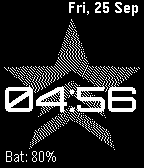
All the examples below use the same framework.
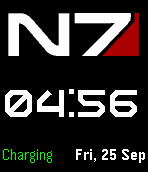
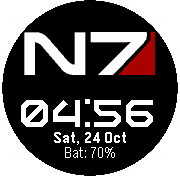
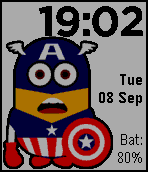
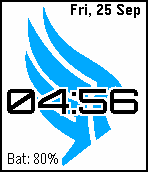

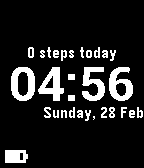
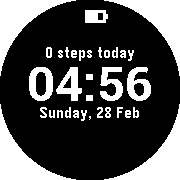
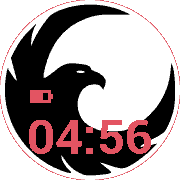


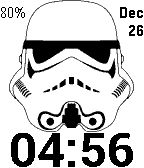
- Open https://github.com/clach04/pebble_watchface_framework/ in web browser
- Click the green "Use this template" button (top right), "Open in a codespace"
- Wait.....
- Open source file (e.g. watchface.c), see the problems pane with a couple
of errors. Right-click on the first one,
#include errors detected. Please update your includePath. Squiggles are disabled for this translation unit (/workspaces/codespaces-pebble/myfirstproject/src/c/myfirstproject.c)., right click and edit include pathEdit "includePath" setting. Then close the new edit view. This will create a .vscode file with the correct path (${workspaceFolder}/**); a preset one is not included to avoid local SDK / VScode conflicts (TODO: consider updating the setup script to handle this). - Click the Pebble button in the left-hand bar, and use run buttons to build and run in the emulator.
These are generic instructions and work for any codespace template.
- Open https://github.com/codespaces
- Find green button, "New codespace"
- Select repository (or copy/paste
clach04/pebble_watchface_framework) - Adjust as needed then click green "Create codespace" button
- Wait.....
- Open source file (e.g. watchface.c), see problems pane fill with a couple
of errors. Right click on first one,
#include errors detected. Please update your includePath. Squiggles are disabled for this translation unit (/workspaces/codespaces-pebble/myfirstproject/src/c/myfirstproject.c)., right click and edit include pathEdit "includePath" setting. Then close new edit view. This will create a .vscode file with correct path, a preset one not not included so as to avoid local SDK conflicts (TODO consider updating setup script to handle this). - Click Pebble button in left hand bar, and use run buttons to build and run in emulator.
Alternatively - less typing/clicking:
- Open https://github.com/clach04/codespaces-pebble
- Find green button, "Use this template", click dropdown triangle, Open in a codespace
- Open source file (e.g. watchface.c), see problems pane fill with a couple of errors. Right click on first one,
#include errors detected. Please update your includePath. Squiggles are disabled for this translation unit (/workspaces/codespaces-pebble/myfirstproject/src/c/myfirstproject.c)., right click and edit include pathEdit "includePath" setting. Then close new edit view. - Follow the instructions in https://developer.repebble.com/sdk/cloud
- Update the UUID in
package.json. Also see section "Simple Tutorial 2" and "Simple Tutorial 3" later in readme
Stop/Delete codespaces via https://github.com/codespaces
Start adding options and resources. By default, the empty framework will:
- Display date - using system font
- Display time, updating once per minute- using system font
- Display Battery power
- Display notice when Bluetooth is disconnected
- On Basalt and higher (e.g. Chalk) show step count for today
- Have a config/settings option on Phone to configure:
- Time/date/etc. text color
- Background color
- Whether to vibrate on Bluetooth disconnect (default is do not vibrate), honoring Quiet Time mode
There is no default icon, add a 25x25 resource and declare it as an icon, see https://developer.rebble.io/developer.pebble.com/guides/migration/migration-guide-4/index.html Additional options
https://www.stef.be/dpaint/ is a good web/cloud-based bitmap editor. Upload images to resources directory and update package.json. See linked examples/samples for images.
Also, you can use a local SDK.
In an ideal situation, watchface.c and watchface.h should not need editing ever. There may be cases where main.c needs editing. Most of the time watch_config.h is the only file that will need editing. watch_config.h options:
- If
DEFAULT_TIME_COLORis defined it will be used for the default time color. - If
DEFAULT_BACKGROUND_COLORis defined it will be used for the default background time color. - If an image is present under resources and defined as
BG_IMAGE, it will be used as a background image. For Basalt, image transparency is honored. - If a font present under resources and defined as
FONT_NAME, it will be used for displaying the time. E.g.#define FONT_NAME RESOURCE_ID_..... - If
FONT_SYSTEM_NAMEis defined to a system font name andFONT_NAMEis not defined, that system font will be used for time display - if
REMOVE_LEADING_ZERO_FROM_TIMEis defined, and the watch is configured for 12 hour format display, the leading zero "0" will be removed for times in the morning. CLOCK_POS,BT_POS, DATE_POS, andBAT_POSto change the on screen position of Time, Bluetooth disconnect message, Date, and battery power.FONT_BT_SYSTEM_NAME,FONT_BAT_SYSTEM_NAME, andFONT_DATE_SYSTEM_NAMEcan override the system font used.- if
USE_TIME_FONT_FOR_DATEis defined, the date is displayed using the same font as used for time
- if
BT_ALIGN,BAT_ALIGN, andTIME_ALIGNare used to change text alignment.- If
BLUETOOTH_DISCONNECTED_STRis defined, this text will be displayed for the Bluetooth disconnect message. - If
BT_DISCONNECT_IMAGEis defined, this resource image will be displayed on bluetooth disconnect.BT_DISCONNECT_IMAGE_GRECTcan be used to position the image
- If
DATE_FMT_STRis defined it will be used for the format of the date text. - If
BAT_FMT_STRis defined it will be used for the format of the battery power text.- If
DRAW_SMALL_BATTERYis defined a small gauge will be used.
- If
- If
DRAW_BATTERYis defined a graphical gauge will be used instead of text - If
QUIET_TIME_IMAGEis defined as a bitmap resource identifier it will be displayed when quiet time is active.- Optionally set
QUIET_TIME_IMAGE_GRECTto location/size
- Optionally set
NO_BLUETOOTH,NO_BATTERY, andNO_DATEwill disable display of bluetooth disconnect, battery status, and date.- If
USE_HEALTHis defined step counts will be displayed. Pebble Time and later only.- If
UPDATE_HEALTH_ON_ACTIVITYis set, step count is updated when the Pebble Health service has an update. If not set, step count is updated once per minute. HEALTH_POSis a GRect()HEALTH_FMT_STRis the format of the string to display.MAX_HEALTH_STRshould be updated ifHEALTH_FMT_STRis set.
- If
- If
USE_TIME_MACHINEis defined https://github.com/MorrisTimm/pebble-time-machine will be used ('dependencies' in package.json should be filled in, known to work with version 1.0.2).
Be familar with macros and techniques discussed in https://developer.repebble.com/guides/best-practices/building-for-every-pebble/
- Simple text watch, with step count https://github.com/clach04/watchface_simple_step - screenshots https://github.com/clach04/watchface_simple_step/wiki
- https://github.com/clach04/watchface_JupiterMass - Black and White, Color, and Round support
- https://github.com/clach04/watchface_JupiterMass/blob/master/src/watch_config.h + the resources (font and image) that make this different from the basic template)
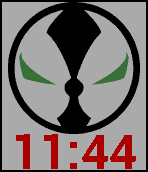
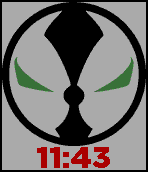
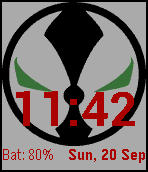
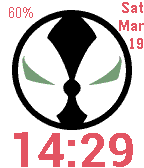
- https://github.com/clach04/watchface_spawn/wiki - has a number of branches showing different ideas and formats for a watchface with different round image sizes (leaving different amounts of space) and watch_config.h changes. Uses builtin system font and a single PNG image (with transparency). Also see https://github.com/clach04/watchface_colony/wiki. To import and demo these:
- https://cloudpebble.repebble.com/ide/import/github/clach04/watchface_spawn/120x120_bigtime_at_bottom_battery_and_date
- https://cloudpebble.repebble.com/ide/import/github/clach04/watchface_spawn/132x132_bigtime_at_bottom
- https://cloudpebble.repebble.com/ide/import/github/clach04/watchface_spawn/144x144_time_at_bottom
- https://cloudpebble.repebble.com/ide/import/github/clach04/watchface_spawn/basic_watchface
- https://github.com/clach04/watchface_CapNion
- https://github.com/clach04/watchface_CapNion/blob/master/src/watch_config.h + the resources (font and image) that make this different from the basic template)
- https://github.com/clach04/watchface_Paragade - NOTE slightly more complicated than JupiterMass and CapNion as it has:
- a custom ticker
- setup/cleanup
- uses a package dependency on the excellent https://github.com/ygalanter/pebble-effect-layer library
- See https://github.com/clach04/watchface_ParaGade/blob/master/src/watch_config.h and https://github.com/clach04/watchface_ParaGade/blob/master/src/main.c
- https://github.com/clach04/pebble-watchface_starwars_rebel_imperial similar to Paragade (no screen shots, but does have downloads under GitHub actions and Releases)
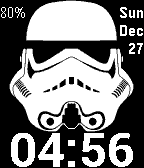
- https://github.com/clach04/pebble-watchface_storm_trooper has screen shots and and Release downloads
- https://github.com/clach04/watchface_rota_minute analog/digital hybrid
- https://github.com/clach04/pebble_tz multiple timezones, not pretty but very functional
-
clone
git clone https://github.com/clach04/pebble_watchface_framework.gitTODO consider editing
package.jsonand changing:namedisplayNameuuid
-
build
pebble build pebble analyze-size -
Run in emulator
pebble install --emulator aplite --logs  # OG Pebble
pebble build && pebble install --emulator aplite --logs  # build then emulate OG Pebble
pebble install --emulator basalt --logs  # Pebble Time
pebble install --emulator chalk --logs  # Pebble Round
pebble install --emulator diorite --logs  # Pebble 2
pebble install --emulator emery --logs  # Pebble Time 2
Start emulator, requires a web browser (NOTE potential issues with Clay).
pebble emu-app-configKill / clean up:
pebble kill pebble wipe pebble clean -
Run on Pebble watch, connected via Developer Connection TODO document phone steps
pebble install --phone IP_ADDRESS_HERE --logs
pebble build && pebble install --phone IP_ADDRESS_HERE --logs
pebble logs --color --phone PHONE_IP
Enable remote install / logs via:
- Settings, enable Use LAN devloper connection
- Device view, enable Dev Connection
BOTH are required for local LAN connections. The last will show IP address to use. Ensure phone and dev machine are using the same access point.
-
Import into Cloud CodeSpace - see Instructions section
-
Edit
watch_config.hat the bottom, add the following lines:#define TICK_HANDLER_INTERVAL SECOND_UNIT // Update once per second #define TIME_FMT_STR_24H "%R:%S" // Display seconds #define TIME_FMT_STR_12H "%I:%M:%S" // Display seconds, produces leading zero for hour,minute, and seconds #define MAX_TIME_STR "00:00:00" // Ensure space allocated for string representation of time #define FONT_SYSTEM_NAME FONT_KEY_ROBOTO_CONDENSED_21 // Use a medium sized system font
This will show seconds (the %S in both formats) and update once a second (by setting TICK_HANDLER_INTERVAL to update once a second). MAX_TIME_STR is updated to ensure space is allocated for both the colon and the two digits.
FIXME this is for Cloud Pebble which requires self hosting
- Import into Cloud CodeSpace - see Instructions section
- Add a Resource (lower left corner), load a TTF font, e.g. upload the .ttf files from https://www.fontsquirrel.com/fonts/permanent-marker
- Name the resource
FONT_50- 50 means scale to 50 (optional enter in the CHARACTERS field[0-9:. ]to only use the characters needed for time, makes watchface smaller, for numbers include-), Click Save. - Edit
watch_config.hadd line#define FONT_NAME RESOURCE_ID_FONT_50add after (or replace) '#undef FONT_NAME' to match resource name above - Build and run :-)
- Try experimenting with different font sizes, make use of
#define DEBUG_TIMEto try wide fonts. For example using the permanent-marker font above with size 60 looks fine for some times but not all. DEBUG_TIME quickly tries a number of different times to check sizes. Also seeUSE_TIME_MACHINEnotes.
NOTE there are limitations in the Pebble SDK/Firmware on maximum font size. 60 is the absolute maximum, and for some fonts even 60 is problematic. Very large fonts need to be converted into bitmaps, see https://github.com/pebble-examples/big-time
Add a quiet time icon, for now use local SDK.
Grab PNG from #17 https://github.com/clach04/pebble_tz/blob/tz_mins/resources/images/quiet_time_red_white_14x14.png

Create dir resources/images/ (or .gitkeep)
Populare directory / folder with bitmap(s), for GitHub CodeSpace; Drag and drop from local machine PNG to that directory.
Edit package.json need to add resources section pointing to uploaded file
    ....
    "resources": {
        "media": [
            {
                "file": "images/quiet_time_red_white_14x14.png",
                "name": "IMAGE_QUIET_TIME",
                "targetPlatforms": null,
                "type": "bitmap"
            }
        ]
    },
    ....
Also look to add an application icon
Locate and ensure QUIET_TIME_IMAGE is set in watch config header
For GitHub CodeSpace problem:
  File "/home/vscode/.pebble-sdk/SDKs/current/sdk-core/pebble/common/waftools/resources/find_resource_filename.py", line 33, in find_most_specific_filename
    root_len = len(root_node.relpath()) + 1
                   ^^^^^^^^^^^^^^^^^
AttributeError: 'NoneType' object has no attribute 'relpath'
git remote add upstream_pebble_watchface_framework https://github.com/clach04/pebble_watchface_framework.git
git fetch upstream_pebble_watchface_framework
git merge upstream_pebble_watchface_framework/master
For suggestions on image options and conversion see https://www.reddit.com/r/pebble/comments/3ej5wf/pebble_time_image_conversion_contrast/
Multi-platform support https://developer.rebble.io/developer.pebble.com/guides/best-practices/index.html
SDK API https://developer.rebble.io/developer.pebble.com/docs/index.html
Pebble developer wiki https://github.com/pebble-dev/wiki/wiki
Developer portal on Rebble for uploading/editing watchfaces and apps https://dev-portal.rebble.io/
See https://github.com/clach04/not-yet-definitive-pebble-guide/#watchface-generators