Welcome to the DJI Android App (DJIAAPP) !
DJIAAPP is built primarily with the DJI Mobile Android SDK alongside various libraries.
DJIAAPP is designed to have the controlled DJI drone follow and track down a drone via the use of computer vision and a controller script.
Features that DJIAAPP offers:
- Uploading and executing waypoint missions (linear or curved)
- Virtual joystick control of drone
- Live streaming video feed of drone (RTSP and RTMP)
- Autonomous movement control of drone
- Logging of information such as telemetry, video quality and drone speed
- Geo-fencing
Compatibility (DJIAAPP has been tested using):
- Mavic 2 Pro + DJI Smart Controller
- Phantom 3 Pro + Phantom 3 Controller + Sony Xperia XZ2
Requirements:
- Android 5.0 and above
-
d. Logging
e. Failsafe
-
b. Live Testing
This section provides a quickstart guide of using DJIAAPP alongside the Deepstream application and the Controller Script.
If you just want the application, download it here!
This quickstart guide assumes that the following requirements are met:
- GPU Laptop that has Deepstream application (
dvd.py), Controller Script (receiveamqp3.py), Android Debug Bridge (adb) - DJI Drone (Mavic 2 Pro)
- DJI Smart Controller
After meeting the above requirements, follow the steps below:
- Download the apk here
- Install DJIAAPP on the Smart Controller
- Power on drone
Note: Where you power on the drone is where the drone's home point is. Therefore, power it on in a safe region for takeoff and landing.
- Launch DJIAAPP on the Smart Controller
- After DJIAAPP has establish connection with the drone, hit the Start button
- Start RTSP/RTMP server on the GPU Laptop
Note: To check whether stream is received by the server, check RTSP server terminal on GPU Laptop if the RTSP stream is not opened, it could be that the IP address of the RTSP server is incorrect in which case hit back and change the IP address in the settings.
- Hit the RTSP button on screen and the drone's live video should be streaming to the RTSP server on the GPU Laptop
Note: Ensure that both DJI Smart Controller and GPU Laptop are on the same network. To setup wired network connection between DJI Smart Controller and GPU Laptop see here.
- Takeoff the drone by hitting the Toggle UI button then the Takeoff button
- Launch Deepstream application on the GPU Laptop by running the command:
py dvd.py -i rtsp://localhost:8554/test - Position the drone in desired position using Virtual Joystick buttons
- Turn on the command listener on DJIAAPP by hitting the Command Listener button
- Launch Controller Script on GPU Laptop by running the command:
py receiveamqp3.py - Voila! Your drone should be following a drone in the video view! (or at least something else that has been detected)
The following diagram illustrates the architecture of the entire system (DJIAAPP + Deepstream Application + Controller Script).
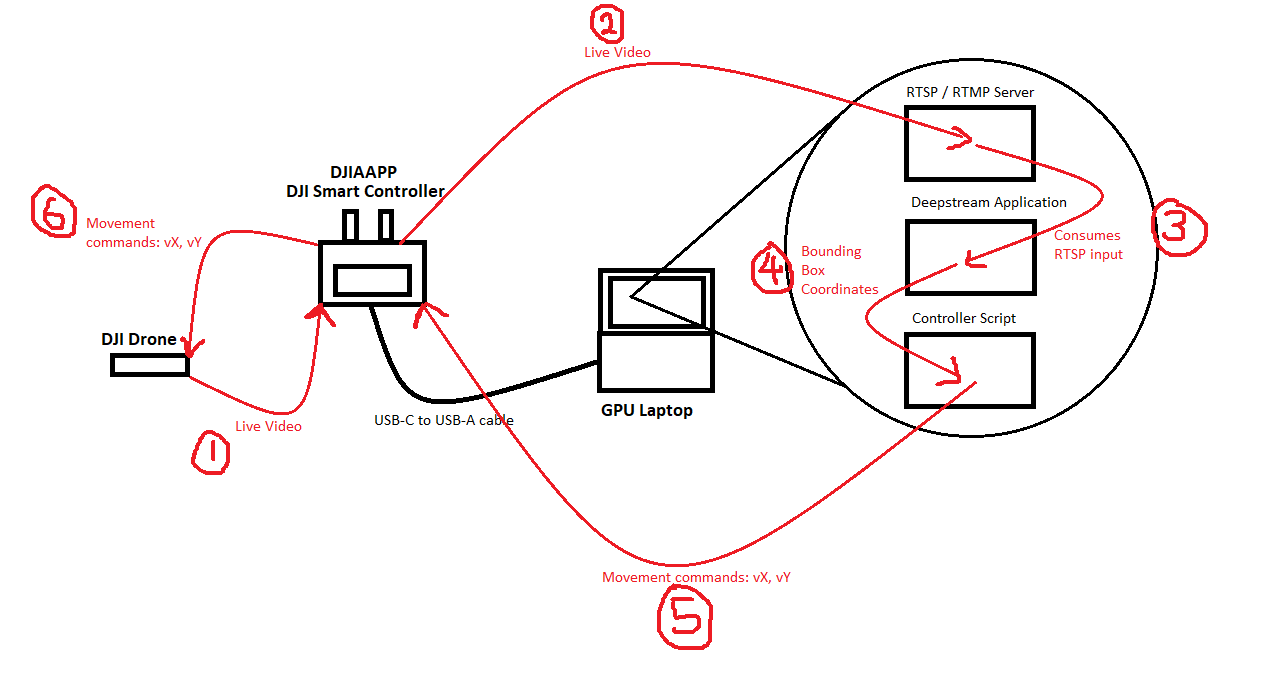
- DJIAAPP obtains live video feed from DJI drone
- DJIAAPP streams out the live video feed via RTSP or RTMP to a server on the GPU Laptop
- Deepstream application on GPU Laptop consumes RTSP stream from server and runs inference,etc.
- Deepstream application upon inference outputs coordinates of bounding boxes to Controller Script running on GPU Laptop
- Controller Script processes coordinates and sends out movement commands to DJIAAPP to consume
- DJIAAPP consumes movement commands and executes movement commands
DJIAAPP follows the Model View ViewModel (MVVM) architecture. It contains only 3 activities namely: Connection, Home and Video. The following images depicts the various activities and provides information on each activity.
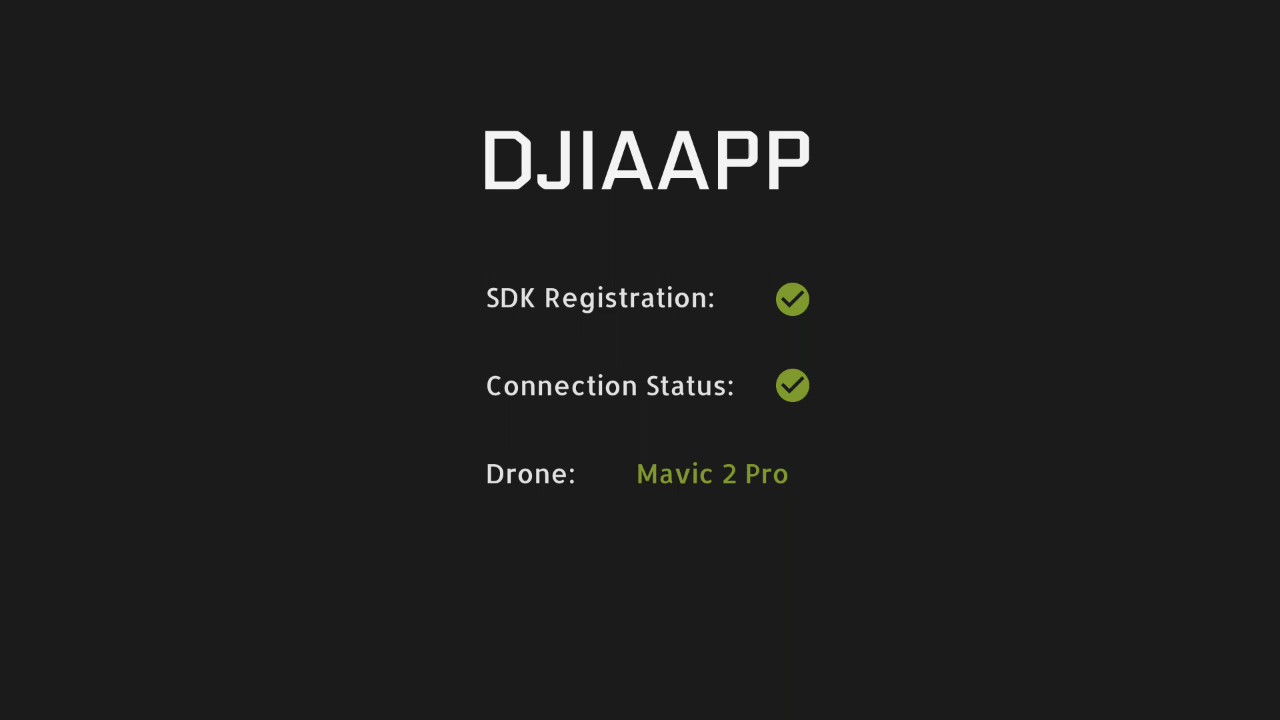
This is the landing page of DJIAAPP when the user first starts the application.
It establishes connection with DJI's Mobile SDK as well as the DJI Drone. This activity is only opened upon launching the application. Upon successfully connecting, this activity will not be able to returned to.
Note: First installation and launch will require internet connection to register DJI SDK.
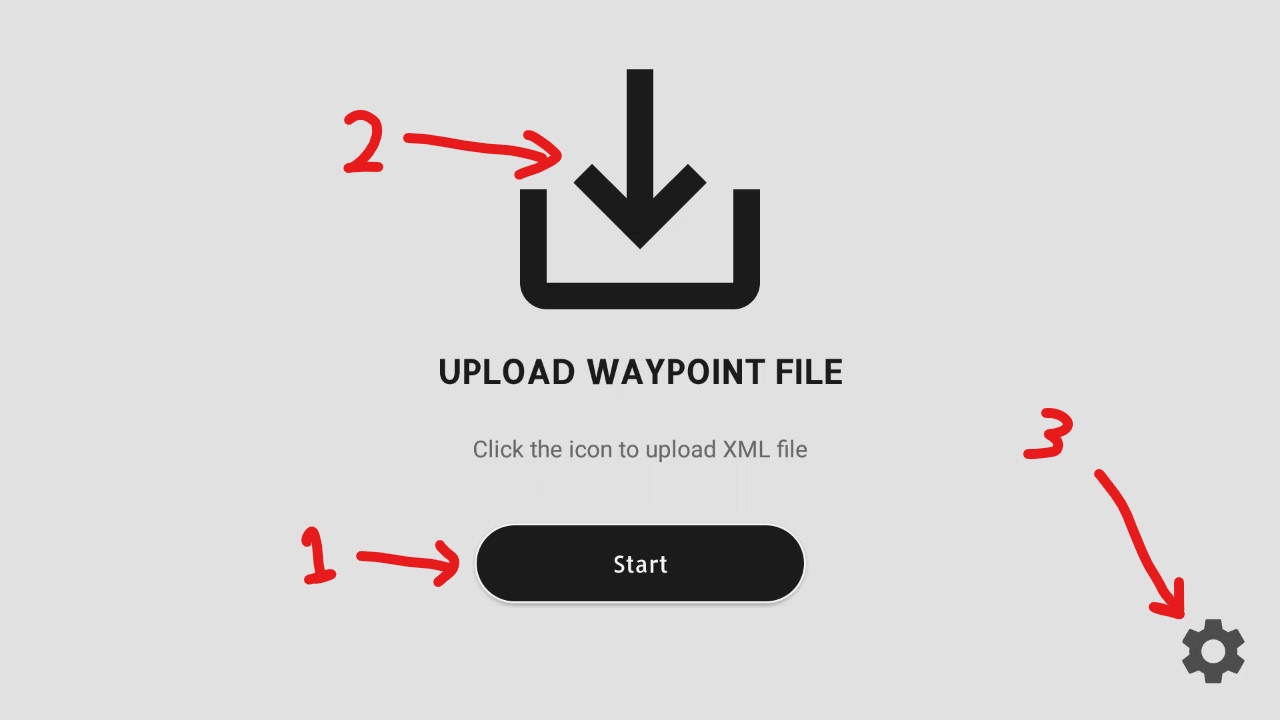
UI Legend:
Start buttonto move to Video ActivityUpload Mission buttonto open file browser and select mission to be uploadedSettings buttonto change certain settings such as:- Controller IP address
- RTSP server URL
- RTMP server URL
- Drone max speed
Note: Controller IP address can only be changed before Video Activity is started. Once Video Activity has started, changing Controller IP address has no effect as the Command Listener has already been initialized.
This is the home page of DJIAAPP where users can tune certain settings as well as upload a waypoint mission.
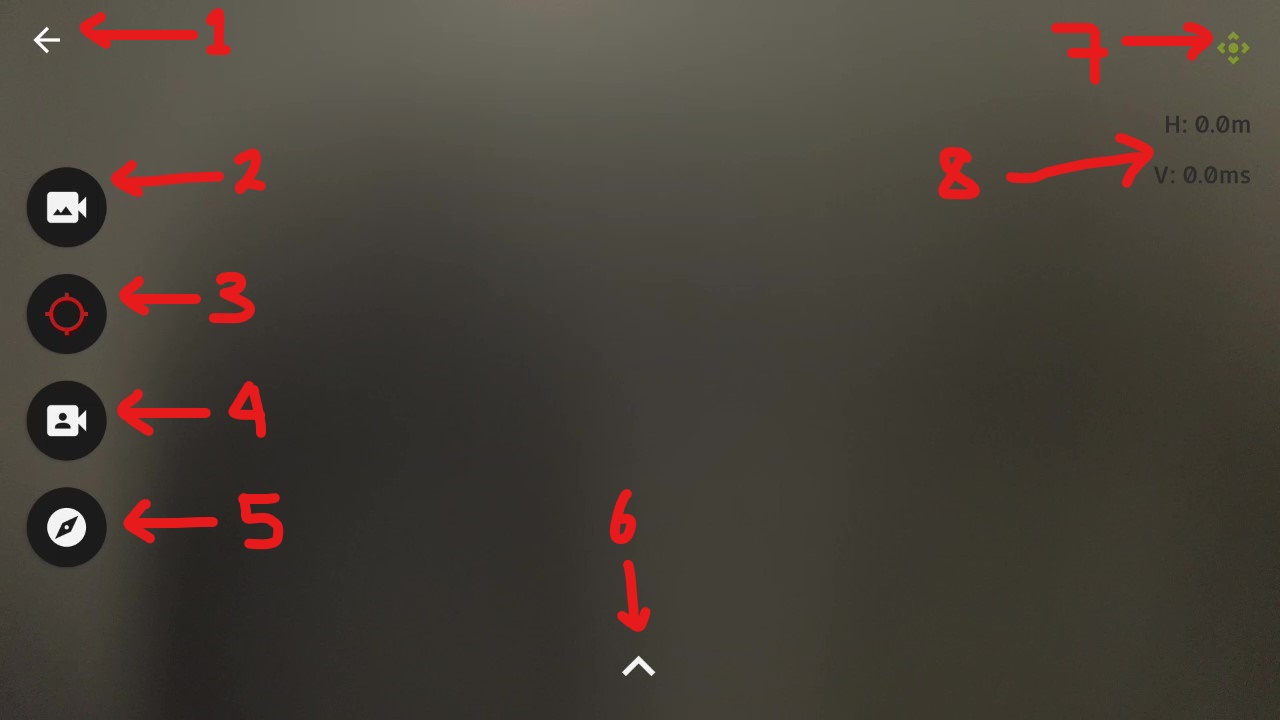
VideoActivity (Untoggled):
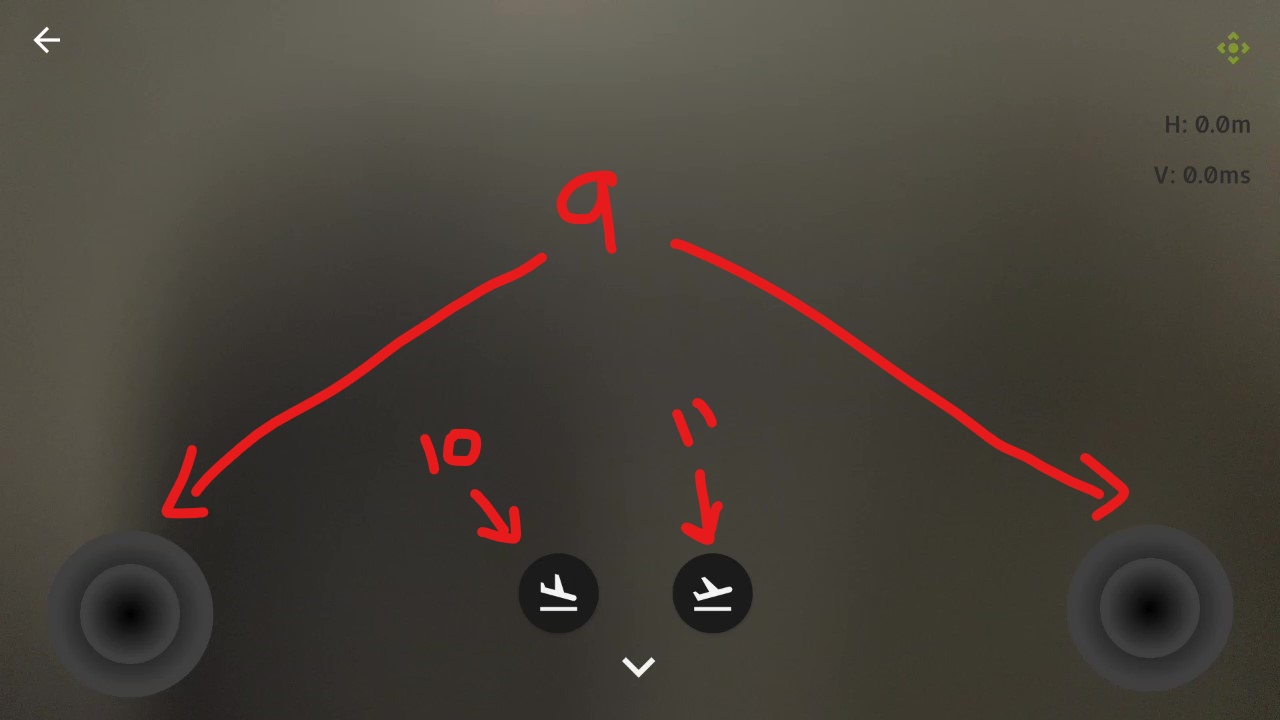
VideoActivity (Toggled):
UI Legend:
Back buttonto return to Home ActivityRTSP buttonto toggle start/stop of RTSP streamCommand Listener buttonto toggle start/stop of listening to commands from the Controller ScriptRTMP buttonto toggle start/stop of RTMP streamMission buttonto toggle start/stop of executing waypoint mission
Note: this button is only present if user has uploaded a mission previously in Home Activity.
Toggle UI buttonto toggle UICurrent Mode of Dronerepresents the current mode of droneAltitude and velocity indicatorsdisplays the real time altitude and velocity of droneVirtual joystick buttonsto control movement of droneLand buttonfor drone to return to home and landTakeoff buttonfor drone to takeoff
This is the main page of DJIAAPP where most key features are located in namely live streaming of live video feed and virtual control of drone.
Note: Both Home and Video activity are only created once that means that there is only one instance of each activity every time the application ran. That is both activities are able to switch/toggle between each other without having the need to create a new activity every time.
This section explains the various logic in the WaypointMissionHandler class.
-
Parsing Waypoint Mission files
WaypointMissionHandlerprovides theparseWaypointFile()method to parse an XML file and generate the various waypoints to be uploaded. Below is a sample of such file.<?xml version="1.0" encoding="UTF-8"?> <kml xmlns="http://www.opengis.net/kml/2.2" xmlns:gx="http://www.google.com/kml/ext/2.2"> <Document> <name>KML Drone Path</name> <Folder> <Placemark> <Point> <altitudeMode>relativeToGround</altitudeMode> <coordinates>103.7843396,1.3300671,50.0,15,0.5</coordinates> </Point> </Placemark> <Placemark> <Point> <altitudeMode>relativeToGround</altitudeMode> <coordinates>103.78434365960734,1.3300008989011576,50.0,15,0.5</coordinates> </Point> </Placemark> </Folder> <Placemark> <LineString> <altitudeMode>relativeToGround</altitudeMode> <coordinates> 103.7843396,1.3300671,50.0,15,0.5 103.78434365960734,1.3300008989011576,50.0,15,0.5 </coordinates> </LineString> </Placemark> </Document> </kml>Key point to note here is that the format under the coordinates tag is as follows: (latitude, longitude, altitude, speed, turn radius).
Refer to here for more information on what each field means.
Setting turn radius allows for waypoint missions to be 'smoother' if turn radius = 0 then drone will pause at each waypoint before moving to the next.
-
Uploading Waypoint Mission
WaypointMissionHandlerprovides theuploadWaypointMission()method which uploads the parsed waypoints to the drone.Waypoints have to meet certain requirements in order to be successfully uploaded. See here.
Note: That are instances where uploading of missions can fail most prominently due to poor connection / interference between DJI controller and the drone. If so, try readjusting or going nearer to drone.
-
Executing Waypoint Mission
WaypointMissionHandlerprovides thestartWaypointMission()method which executes a successfully uploaded waypoint mission.When executing mission, drone will start listening to commands. In other words, if a movement command is sent via the Controller Script, the drone will switch to Chase Mode from Search Mode.
This section explains the various logic in the VirtualControllerHandler and VideoViewModel classes.
-
Taking off
VirtualControllerHandlerprovides thestartTakeoff()method to takeoff the drone. -
Landing
VirtualControllerHandlerprovides thestartLand()method to land the drone by first returning to its home point and then landing. -
Virtual Joysticks
VirtualControllerHandlerprovides themoveRightStick()andmoveLeftStick()methods to move the drone via virtual joysticks.Note: DJI SDK requires movement commands to be send at a certain frequency in order for the drone to be responsive. Hence, a
TimerTaskis used to send these commands. -
Autonomous Control (Moving via Controller Script)
VideoViewModelinitializes a ZeroMQ command listener with theinitCommandReceiver()method and pulls messages from the connected server. Movement commands received are in the form of (vX, vY) which refers to pitch and roll respectively. vX and vY are float values between -1 to 1.Note: ZeroMQ is not threadsafe so for simplicity it is only initialized once and we use flags to determine whether to listen to movement commands.
When listening to movement commands and upon receiving commands,
VideoViewModelwill callVirtualControllerHandler'smove()method to send movement commands to the drone.At this juncture, it is important to take note of the various modes of the drone. The drone will be on one of the below modes when running and is displayed as Current Mode of Drone on screen.
- Free Mode (Green)

Drone is able to move via the virtual joysticks and is not executing any mission or listening to commands from the Controller Script.
- Search Mode (Yellow)

Drone is executing a mission and is listening to commands from the Controller Script.
- Chase Mode (Red)
Drone is listening to commands from the Controller Script and executing autonomous movement commands.
Note: Drone is able to transition from any mode to any mode (i.e. Free Mode -> Chase Mode, Search Mode -> Chase Mode, etc.)
When the drone is executing a mission, it is actively listening to commands from the Controller Script. That is, if the Controller Script sends a command to DJIAAPP then the drone will abort the current mission and switch from Search Mode to Chase Mode.
Command Listener button allows for toggling between Free and Chase Mode at any point. That is, drone can be forcefully switch to Chase / Free Mode when executing a mission by hitting the button.
Also, switching to Free Mode ensures that the drone is no longer listening to commands or executing a mission and will stop its current position. Free Mode is more of a safe way to 'pull the plug' on the drone's movement.
This section explains the various logic in the LiveStreamHandler class.
-
Live Video Feed
This refers to the live video feed shown on DJIAAPP which is initialized when
VideoActivityis opened/resumed. This is done by instantiating aDJICodecManager. Seeinit()method ofLiveStreamHandler. -
RTSP Stream
This is done by using this rtsp-rtmp-client-library.
Essentially, this library helps to reencode DJI's raw video feed to be suited for streaming via RTSP. This is done in the
startRTSP()method as it reencodes the raw video data it sends out the formatted video data to a RTSP server.Note: This is NOT a RTSP server but a RTSP client. Hence, there will be a need for RTSP server to be hosted elsewhere for DJIAAPP to send the live stream video data to.
RTSP stream settings that can be adjusted are:
- Video resolution
- Bitrate
- iFrame Interval
- Frames per Second (FPS)
Test with FFMPEG or Deepstream application to measure difference in latency as Deepstream application will incur some costs due to inference. FFMPEG command:
ffplay -fflags nobuffer -flags low_delay rtsp://localhost:8554/test -
RTMP Stream
This is done by using the LiveStreamManager SDK that DJI provides.
This is done in the
startRTMP()method.RTMP stream settings that can be adjusted are:
- Video resolution
- Bitrate
As the current Deepstream application only takes in RTSP stream as input, there will be a need to translate this RTMP stream into RTSP stream which can be done using FFMPEG. This will require two servers one for RTMP and another for RTSP. FFMPEG command to translate:
ffmpeg -i rtmp://localhost:1936/test -c copy -f rtsp rtsp://localhost:8554/testImportant: DJI's
LiveStreamerManagerrequires internet connection to initialize. After the stream has been setup, assuming the server and DJIAAPP are in the same Local Area Network (LAN), then the internet connection is no longer required.Note: Similar in the case of the RTSP stream, there will be a need to have a RTMP server hosted elsewhere.
Note: Stream may appear choppy occasionally because of poor connectivity between the drone remote controller and the drone itself and not because of the live stream. As a result, both live video feed seen on DJIAAPP as well as the stream will appear choppy as well.
This is done in the VideoViewModel and VirtualControllerHandler classes.
The VirtualControllerHandler provides an onUpdate()method which is called every 10 times every second when the drone is armed. The VideoViewModel inputs a callback for the above onUpdate() method to execute.
Information being logged are:
- Telemetry (Latitude, Longitude, Altitude)
- RTMP / RTSP stream bitrate
- Drone current speed
Note: RTSP stream bitrate is logged in the
LiveStreamHandler
To obtain and save log do: adb logcat -s GCS > output_file.txt
This section explains the various logic in the SafetyHandler class. This class is primarily for controlling safety behaviors of the drone.
SafetyHandler is initialized once when HomeActivity is created. Upon initializing, it will set its max flight radius (geo-fencing) as well as the connection failsafe behavior (i.e. when drone controller loses connection to drone).
Geo-fencing is set with relation to the drone's home point.
Note: If DJIAAPP crashes as the drone is flying, the drone will stop moving and stay at its current position. Use actual remote control joystick to move drone or restart DJIAAPP.
Use DJI's simulators to test DJIAAPP logic. Note that different drone models uses different simulators.
Using the Unity Simulator's video feed as the Deepstream application's input video stream, the Controller Script will be able to send movement commands to both the Unity Simulator and the DJIAAPP which should see both Unity Simulator's drone moving as well the DJI Simulator's drone moving.
Use DJI Bridge App for debugging Android App. You will need 2 Android devices for this to work. This only applies to non-Smart controllers as these controllers will have to be connected to the Android device which then cannot be connected to Android Studio. An alternative will be using Android Debug Bridge wirelessly to debug as well.
Either control target control manually or generate waypoint missions for it. For target drone waypoint movement, use DJI Pilot for linear waypoint missions. For curved waypoint missions use DJIAAPP. Use Google Maps to map out waypoints based on latitude and longitude and then import.
Note: Waypoint mission files are different for DJI Pilot and DJIAAPP. DJI Pilot uses kml while DJIAAPP uses xml. Contents of files are also different.
Through the use of adb port forwarding, the Android device and the GPU Laptop can be setup in such a way where both devices are able to communicate with each other via wired connection. This requires the Android device to be connected to the GPU Laptop via USB-C to USB-A. Therefore, this eliminates the need for mobile hotspots when out on the field.
$ sudo adb reverse tcp:8554 tcp:8554 # For RTSP Stream
$ sudo adb reverse tcp:1935 tcp:1935 # For RTMP Stream
$ sudo adb reverse tcp:5555 tcp:5555 # For Controller script ZMQ
$ adb devices
To explore: It is suspected that the White GPU Laptop has a poor WIFI card resulting in receiving live video streams via RTSP (Mobile hotspot) to be very slow. Therefore, can try using other GPU Laptops to prove this.
However, since we are using a Smart Controller we are able to setup the above wired connection via adb but if we do not have a Smart Controller then the above has been yet to be replicated. As the non-Smart Controller requires it to be connected to an Android device, the Android device is then unable to connect to the GPU Laptop. Therefore, if that is the case can try to explore:
- USB C Hub so that the Android device can connect to both the controller and the GPU Laptop
- If GPU Laptop is able to receive RTSP stream without much latency / lag using Mobile Hotspot, then don't have to do port forwarding.
- Connect wirelessly via adb (this requires Mobile Hotspot), this might be worth exploring as logging uses adb as well.
This section includes useful libraries and repos.
- Why is Android Studio build failing due to Manifest error?
Go to build.gradle(Module) and change compiledSdkVersion and targetSdkVersion to 30. Then go to AndroidManifest.xml and click on Merged Manifest (located beside Text tab below) and insert android:exported="true" to services that are missing it. Return back to build.gradle and SdkVersions to 32.
- Why is DJI Simulator not landing drone after pressing land button?
DJI Simulator occasionally bugs out (even occasionally when taking off, it will just move on its own) but landing works during live field testing.
- Why is DJI SDK not registering during connection?
Ensure that Android device has internet connection during first installation and launch of DJIAAPP and ensure that all permissions are allowed.
IMPORTANT: If problem still persists, it could mean the dji sdk api key has expired, to replace create a DJI developer account and register an application to obtain key. After which, replace dji sdk api key in AndroidManifest under com.dji.sdk.API_KEY.
- Why are the Virtual Controls not working but physical joysticks are?
There might be occasions where the physical control takes control. Try to send drone on a waypoint mission and see whether virtual joysticks will be able to activate then.
- What happens if DJIAAPP crashes during flight?
All controls will seize and drone will remain at its position. Physical remote controller might not take control in which case send it back to home and see whether the physical controls is able to be activated.
- What happens if drone goes past geo-fencing?
Virtual controls will deactivate and the drone will remain still, passing movement controls to the actual remote controller.