We have updated the Mattermost plugin. Only versions 2.1.0 and above will work with the default BigBlueButton server credentials.
Older versions will, however, continue to work when configured with your own BigBlueButton server.
BigBlueButton is an open source web conferencing system for online learning. Teams can create, join and manage their BigBlueButton meetings from inside Mattermost.
Jump to:
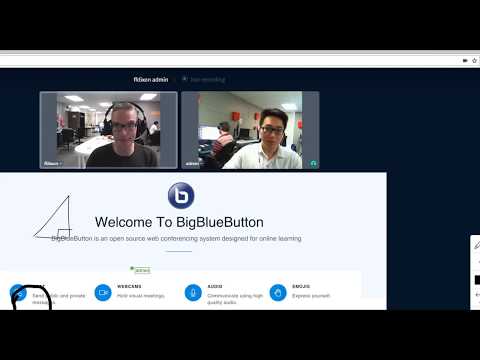
Want to see how the BigBlueButton integration with Mattermost works? Checkout the video below.
-
Go to: https://github.com/blindsidenetworks/mattermost-plugin-bigbluebutton/releases
-
Download the
tar.gzfile corresponding to your server platform. You do not need to extract the tar file once you download it.
-
Inside Mattermost, go to System Console > Integrations > Integration Management. Make sure the following are turned to true:
Enable Incoming WebhooksEnable Outgoing WebhooksEnable Custom Slash CommandsEnable integrations to override usernamesEnable integrations to override profile picture icons
-
Next you must enable Plugins. Go to System Console > Plugin Management > Configuration and set
Enable Pluginsto true. Depending on your Mattermost version, an additional step may be required to enable uploading plugins in your Mattermost config.json file:
vi /opt/mattermost/config/config.json- Under
PluginSettings, make sureEnableandEnable Uploadsare both set totrue - Restart your Mattermost with
sudo systemctl restart mattermostassuming you used systemd for Mattermost services
-
Go to System Console > Plugins > Management and upload your
bigbluebutton_<arch>_amd64.tar.gz. The BigBlueButton Plugin should appear under Installed Plugins.
-
Before activating the plugin, you must configure the plugin settings. By default, you are given a BigBlueButton test server to try it out. However, you have options. Like Mattermost, BigBlueButton is open source. You are (more than) welcome to setup your own BigBlueButton server. If you do, the command
sudo bbb-conf --secretwill print out the server's URL and secret key for configuration with Mattermost. Alternatively, you can contact Blindside Networks for hosting options.
-
Next, go back to System Console > Plugins > Management and
Activatethe plugin.


You can create a meeting that all channel participants can join.

Clicking the Join Meeting button immediately loads the BigBlueButton HTML5 client.

After the meeting ends, you see the Date, Meeting Length, and Attendees.

Using the drop-down menu you can easily search a channel for all past recordings.

You can click on any user's name and choose Start BigBlueButton Meeting.

When you invite a user to a meeting, they will get a pop-up notification to Join Meeting.

You can type /bbb in any channel to create a meeting. When

Using the bbb-install.sh script you can setup your own BigBlueButton server in about 15 minutes. If your interested in going through the steps in detail, see BigBlueButton install guide.
Plugin is written in Golang for server side and Javascript and React for client side. Use make build to build the plugin. You can also use make quickbuild following first build for faster builds.
The dependencies are managed with Glide for Go and NPM for javascript.
The plugin should be placed in a directory such as ~/go/src/github.com/blindsidenetworks/mattermost-plugin-bigbluebutton
To download a local version: mkdir -p ~/go/src/github.com/blindsidenetworks and git clone https://github.com/blindsidenetworks/mattermost-plugin-bigbluebutton.git
Mattermost plugin development guides available here: https://developers.mattermost.com/extend/plugins/
BigBlueButton API available here: http://docs.bigbluebutton.org/dev/api.html