This runbook will outline the steps required to configure an ubuntu instance on AWS with an NGINX application.
- Create a new instance by using the Amazon EC2
- Under the AMI, select Ubuntu 20.04 LTS in the Quick Start section
- Make sure to create a Key pair
- Under Network Settings, find the Firewall section & click “create security group”
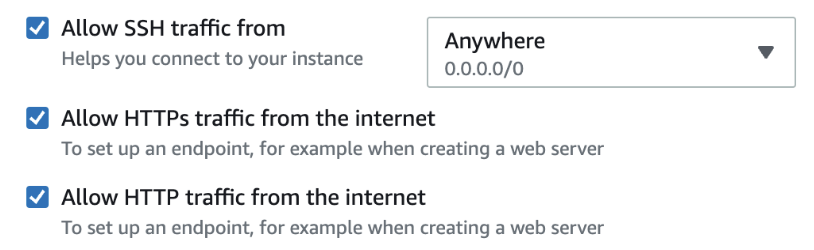
- Check all three boxes to create rules for SSH, HTTPs & HTTP traffic
- Use default settings for everything else and then click “Launch instance”
- Connect the Instance to the Ubuntu server by clicking on “Connect” that is located in the Instance summary
-
Add a new user
- From the Ubuntu user, move to the home directory and add a USERNAME
sudo adduser <USERNAME>
-
Add the new user to the ‘sudoers’ directory
- This is needed in order to install nginx in our user directory
sudo adduser <USERNAME> sudo
-
Switch into the user
su - <USERNAME>
-
Create a directory in your user directory
- This is where we can create our app directory
mkdir <DIRECTORY-NAME>
-
In the new user directory, download NGINX
- Run these commands. When complete, type in the command
quit
sudo -s nginx=stable # use nginx=development for latest development version add-apt-repository ppa:nginx/$nginx apt update apt install nginx - Run these commands. When complete, type in the command
-
Verify the installation with
nginx -v- It’ll display the software version nginx version:
nginx/1.18.0 (Ubuntu)
- It’ll display the software version nginx version:
-
Start by checking the status where it will display active (running)
sudo systemctl status nginx
-
If NGINX is not running, run the following
sudo systemctl start nginx -
Load when the system starts
sudo systemctl enable nginx
-
Allow NGINX traffic and grant access to the firewall
 sudo ufw app list
 sudo ufw allow 'nginx full'
 sudo ufw reload
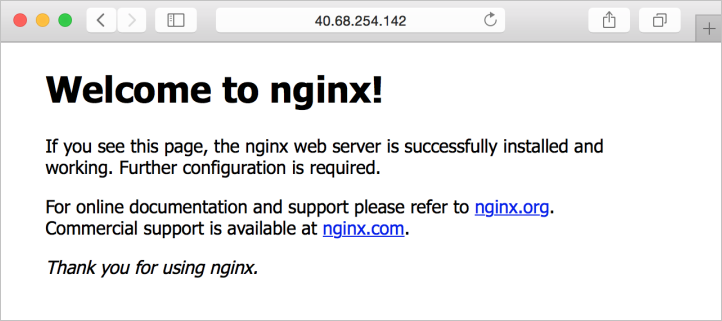
- Open a new web browser with the IP address from the Connect instance page
- It should look like this, where the localhost is the IP address
https://phoenixnap.com/kb/how-to-install-nginx-on-ubuntu-20-04
https://ubuntu.com/tutorials/install-and-configure-nginx#1-overview