A WebGL / WASM library for rendering, moving, and updating large numbers of sprites, text labels, and polylines at high frequency



(Japanese language is here/日本語はこちら)
Please note that this English version of the document was machine-translated and then partially edited, so it may contain inaccuracies. We welcome pull requests to correct any errors in the text.
(Documents under constructing!)
You may want to place large numbers of images and labels on top of a logical coordinate system.
You may want to move them smoothly, swap them, fade them, and combine them with polylines.
And you may want a rendering foundation that does not fall apart even when add / update / remove is repeated at high frequency.
That is what massive-sprites is built for.
massive-sprites can handle the following on an arbitrary 2.5D logical coordinate system:
- Sprite images
- Text labels
- Polylines
- Layered draw ordering
- Cameras and camera auto-tracking
- Picking objects from coordinates
- Easing-based interpolation for almost all parameters
- Distance-based pseudo LOD and scaling
- High-level route modeling through the logical-graph API
Internally, the library uses WebGL and WASM, with a strong focus on cases where a large number of objects must be updated continuously.
Rendering, animation, and interaction logic are separated from the drawing target implementation, so it can also be integrated into other systems that manage WebGL objects directly. The standard package also includes a wrapper that renders into an HTML Canvas and supports mouse interaction, so it can be integrated into ordinary web pages as well.
The logical-graph API is a high-level computation layer that manages route graphs with explicit topology and lets you place moving entities on top of them. You define a physical topology in world coordinates, then describe positions as ratios between route endpoints and place or move sprites accordingly.
It can be used for route maps, facility diagrams, topology views, transport systems, traffic flow visualizations, logical graphs, and game-like UI layouts in arbitrary coordinate spaces. The following is the smallest example that places one sprite on an HTML Canvas:
import {
  createObjectCanvasRenderer,
  loadWasmModule,
} from 'massive-sprites';

// Get the existing HTML Canvas element
const canvas = document.getElementById('main-canvas')!;

// Load the WASM module and create the renderer
const wasmModule = await loadWasmModule('/assets/massive-sprites/compute.wasm');
const renderer = createObjectCanvasRenderer(canvas, wasmModule);

// Start the renderer
renderer.start();

// Helper for loading image files by URL
const loadBitmap = async (url: string) =>
  createImageBitmap(await (await fetch(url)).blob());

// Initialize the renderer
await renderer.initializeScope(async () => {
  // Create a texture atlas
  const atlasId = renderer.allocateAtlas();
  // Register an image to render
  const carBitmap = await loadBitmap('/assets/car.png');
  await renderer.registerImage(atlasId, 'car', carBitmap);

  // Wait until the sprite has been added
  await renderer.addSprite(
    {
      sx: { value: 0 },  // World-space position
      sy: { value: 0 },
      elements: [        // Image elements inside the sprite
        {
          imageId: 'car',          // Registered image ID
          scale: { value: 0.25 },  // Image scale
        },
      ],
    },
    true  // Awaitable
  );

  // Automatically move the camera so the sprite fits in view
  renderer.adjustCameraPosition({ interpolation: null });
});
The demos show combinations of sprites, text, polylines, tracking, and logical-graph:


- Can place, update, and remove large numbers of sprites (>10000).
- Can combine multiple images, text labels, borders, and leader lines in a single sprite.
- Supports
surface,billboard, andbillboard_perspectiverender modes per element. - Supports interpolation for movement, rotation, offset, opacity, and scale.
- Can add polylines as independent objects.
- Supports picking, camera events, and HTML Canvas coordinate helpers.
- Supports automatic camera tracking for sprite swarms and distance-based scaling control.
- The logical-graph API enables high-level route search, route rendering, and movement on routes.
- Uses WebGL and WASM to keep rendering fast.
- A modern browser with WebGL support
- A runtime environment with WASM (WebAssembly) support
The library is available as an npm package:
npm install massive-spritesIf you want to use the high-level logical-graph API, import it from the subpath:
import {
  createGraphGeometry,
  buildGraphPolylinePlacements,
} from 'massive-sprites/logical-graph';
Besides the JavaScript package itself, dist/wasm/compute.wasm must also be reachable from your runtime environment.
See the later section "WASM Acceleration" for details.
In most cases, ObjectCanvasRenderer is the easiest choice.
You pass an HTML Canvas element, a WASM module, and optional initialization options, and it gives you the render loop, picking, and camera helper APIs.
Place an HTML Canvas on the page like this:
<div style="width: 100%; height: 100vh;
    margin: 0; overflow: hidden; background: #101820;">
  <canvas id="main-canvas" style="width: 100%; height: 100%; display: block;">
  </canvas>
</div>
ObjectCanvasRenderer uses a normal <canvas> element directly.
You only need to decide the display size with CSS, then obtain id="main-canvas" in the initialization code below and pass it to the renderer.
Run the initialization procedure like this:
import {
  createObjectCanvasRenderer,
  getConsoleLogger,
  loadWasmModule,
} from 'massive-sprites';

// Get the existing HTML Canvas element
const canvas = document.getElementById('main-canvas');
if (!(canvas instanceof HTMLCanvasElement)) {
  throw new Error('Missing canvas element.');
}

// Load the WASM module and create the renderer
const wasmModule = await loadWasmModule('/assets/massive-sprites/compute.wasm');
const renderer = createObjectCanvasRenderer(canvas, wasmModule, {
  logger: getConsoleLogger(),   // Console logger
  precision: 'f32',             // 32-bit floating point input precision
});

// Start the renderer
const stop = renderer.start();

// Helper for loading image files by URL
const loadBitmap = async (url: string) =>
  createImageBitmap(await (await fetch(url)).blob());

// Initialize the renderer
await renderer.initializeScope(async () => {
  // Create a texture atlas
  const atlasId = renderer.allocateAtlas({
    pickMask: { enabled: true, alphaThreshold: 1 },
  });

  // Register an image to render
  const carBitmap = await loadBitmap('/assets/car.png');
  await renderer.registerImage(
    atlasId,
    'car',   // Image ID
    carBitmap
  );

  // Register a text glyph to render
  await renderer.registerTextGlyph(
    atlasId,
    'car-label',  // Image ID
    'Vehicle A',  // Text content
    { maxWidthPixel: 192 },
    {
      color: '#ffffff',
      backgroundColor: 'rgba(0, 0, 0, 0.7)',
      paddingPixel: { top: 6, right: 10, bottom: 6, left: 10 },
      borderColor: 'rgba(255, 255, 255, 0.35)',
      borderWidthPixel: 1,
      borderRadiusPixel: 8,
    }
  );

  // Add a sprite
  const spriteId = await renderer.addSprite(
    {
      sx: { value: 0 },  // World-space position
      sy: { value: 0 },
      elements: [        // Images and text in this sprite (up to 8 entries)
        {
          imageId: 'car',                 // Image ID
          mode: 'billboard_perspective',  // Render mode
          scale: { value: 0.25 },         // Scale
        },
        {
          imageId: 'car-label',   // Image ID
          mode: 'billboard',      // Render mode
          originLocation: { index: 0, useResolvedAnchor: true },  // Parent element reference
          shiftDistance: { value: 42 },  // Shift distance
          shiftAngleDeg: { value: 90 },  // Shift angle
          scale: { value: 0.18 },        // Scale
        },
      ],
    },
    true  // Awaitable
  );

  // Enable automatic camera tracking
  renderer.setCameraTracking({
    spriteIds: [spriteId],  // Target sprite
    minDistance: 120,       // Minimum distance
  });

  // Automatically move the camera so the sprite fits in view
  renderer.adjustCameraPosition({ interpolation: null });
});

// To stop:
// stop();
// renderer.release();
APIs such as addSprite(..., true) and updateSprite(..., true) define awaitable overloads that return Promise<T> when awaitable = true.
These APIs sometimes require a wait until massive-sprites has actually recognized the request, or more precisely, until the computation has been executed.
If you need to wait until a request is definitely accepted, await the Promise<T>.
If you want fire-and-forget behavior, use awaitable = false to avoid unnecessary resources.
Just note that you cannot retrieve result values in the non-awaitable form.
initializeScope() is important.
If you need to perform asynchronous waits safely during initialization, before the render loop starts, or outside the rendering pump, wrap the code in this scope so computation can continue and awaitable APIs can be used safely.
If you need lower-level control, you can also use createObjectRenderer().
That API is intended for cases where you want to manage the WebGL context and rendering timing yourself.
massive-sprites treats text rendering as images as well. Images and text are not attached directly to sprites. Instead, they are first registered in a Texture atlas (wikipedia) and then referenced from sprites.
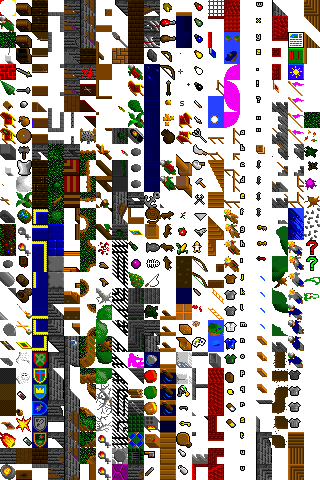
A texture atlas is a feature that packs many images into one large texture. Images inside the same atlas can be rendered very efficiently, so it is better to register related assets in the same atlas whenever possible. The downside is that image management inside an atlas has a cost, so if some images are registered and removed frequently, it is better to place them in a separate atlas.
Create atlases with allocateAtlas(), then add contents with registerImage() and registerTextGlyph():
// Create a texture atlas
const atlasId = renderer.allocateAtlas({
  widthPixel: 2048,    // Atlas width and height (default: 2048x2048)
  heightPixel: 2048,
  paddingPixel: 2,     // Padding between packed images
  textureSampling: MAX_TEXTURE_SAMPLING_OPTIONS,   // Texture sampling options
  pickMask: { enabled: true, alphaThreshold: 1 },  // Picking mask options
});

// Register an image in the atlas
await renderer.registerImage(
  atlasId,    // Atlas ID
  'car',      // Image ID
  carBitmap,  // Image data
  false,      // Power-of-two optimization
  {
    resize: {   // Image resize parameters
      maxWidth: 512,
      maxHeight: 512,
      mode: 'contain',
      quality: 'high',
    },
    logicalSize: { widthPixel: 256, heightPixel: 256 },  // Logical size
  }
);

// Register a text glyph in the atlas
await renderer.registerTextGlyph(
  atlasId,      // Atlas ID
  'label',      // Text ID (handled as an image ID)
  'Station A',  // Text string
  { maxWidthPixel: 180 },  // Maximum width or line height
  {
    color: '#ffffff',
    backgroundColor: 'rgba(0, 0, 0, 0.65)',
    paddingPixel: { top: 6, right: 10, bottom: 6, left: 10 },
    borderColor: 'rgba(255, 255, 255, 0.35)',
    borderWidthPixel: 1,
    borderRadiusPixel: 8,
  }
);
The default size (widthPixel, heightPixel) for allocateAtlas() is 2048x2048.
It will still work if you register an image larger than this size, but in that case, the image will be automatically split internally.
For details on texture sampling options, see the next section. The example above uses a preset definition, and the following values can be used:
| Preset Name | Details |
|---|---|
DEFAULT_TEXTURE_SAMPLING_OPTIONS |
Default sampling factor. Intermediate performance. |
MIN_TEXTURE_SAMPLING_OPTIONS |
Minimum sampling factor. Intended for particularly low-performance GPUs. |
MAX_TEXTURE_SAMPLING_OPTIONS |
Maximum sampling factor. |
Translated with DeepL.com (free version)
Both images and text are referenced by imageId.
In other words, text glyphs are also handled as "a kind of image."
Key points around atlas registration:
registerImage()accepts aTexImageSource.registerTextGlyph()renders a string into a glyph image and registers it in the atlas.logicalSizelets you separate source pixel size from layout size.resizelets you adjust image size before upload.- Enabling
pickMaskallows sprite picking that respects transparent pixels. - Remove no-longer-needed images with
unregisterImage(). - Remove an entire atlas with
releaseAtlas().
Text size can be specified in two ways:
maxWidthPixel: Automatically adjusts font size so the text fits within the specified width.lineHeightPixel: Chooses font size based on line height.
Although allocateAtlas() allows you to specify optional parameters related to texture quality and precision, here are some of the most common ones:
pickMask: Enables picking that respects transparent pixels. It requires extra mask data, so it is optional.paddingPixel: Spacing between images. Used to avoid filter bleed.uvInsetPixel: Reduces bleeding at sampling boundaries.textureSampling: Specifies sampling parameters including mipmap and anisotropy.
When pickMask is disabled, sprite picking is based on the rectangular area of the element.
That means that even if the image has transparent margins around it, the whole rectangle is treated as a hit target.
When pickMask is enabled, a 1-bit mask is generated from alpha values when the image is registered into the atlas, and transparent pixels are excluded in pickAt() and onPick().
alphaThreshold is a value in the 0..255 range. Pixels below this alpha are treated as transparent.
// Enable transparency-aware picking for the whole atlas
const atlasId = renderer.allocateAtlas({
  pickMask: {
    enabled: true,
    alphaThreshold: 8,
  },
});

// Register an image in the atlas
await renderer.registerImage(
  atlasId,
  'pin',
  await loadBitmap('/assets/pin.png')
);

// With pickMask enabled, transparent areas are not treated as hits
const pickResult = renderer.pickAt(320, 240);
if (pickResult?.kind === 'sprite') {
  console.log('sprite hit', pickResult.spriteId, pickResult.elementIndex);
}
This is useful when you want precise picking based on visible pixels instead of the full rectangle, such as for map pins or object silhouettes.
paddingPixel, uvInsetPixel, and textureSampling are parameters for balancing rendering quality and atlas efficiency.
They matter especially when you render with downscaling or mipmaps.
| Option | Role | Tuning guideline |
|---|---|---|
paddingPixel |
Extra spacing between images inside the atlas. Prevents neighboring image colors from bleeding in. | If you use linear filtering or mipmaps, 1 to 4 pixels is usually stable. |
uvInsetPixel |
Moves UV sampling slightly inward from image boundaries. | Increase it if you see boundary bleed. Usually keep it less than or equal to paddingPixel. |
textureSampling |
Specifies filters, wrap modes, and anisotropy for upscaling and downscaling. | For quality, prefer linear / mipmap / anisotropy. For performance or pixel-art crispness, move closer to nearest. |
For example, if you want labels and icons to stay smooth while being downscaled, a configuration like this works well:
// Create an atlas for labels and icons
const atlasId = renderer.allocateAtlas({
  paddingPixel: 4,   // Leave enough space between images
  uvInsetPixel: 1,   // Sample slightly inward from texture edges
  textureSampling: {
    minFilter: 'linearMipmapLinear',  // Use mipmaps when shrinking
    magFilter: 'linear',              // Use linear interpolation when magnifying
    wrapS: 'clampToEdge',             // Typical atlas textures should not wrap
    wrapT: 'clampToEdge',
    npotPolicy: 'fallback',           // Stay on the safe side under WebGL1 NPOT constraints
    maxAnisotropy: 4,                 // Reduce blur at oblique viewing angles
  },
});
On the other hand, if you want strict pixel-art behavior, it is usually better to use nearest for textureSampling.minFilter and textureSampling.magFilter.
A sprite consists of a base coordinate plus an array of child sprite elements hanging from that base.
- A sprite can contain up to 8 elements.
- A sprite has
sx/sy/sz. The unit is world space and has no predefined meaning. Note:szis currently not effective. That is why this is described as 2.5D. - Each sprite element can have an
imageId, render mode, scale, rotation, anchor, offset, border, leader line, and more. - By putting multiple elements in one sprite, you can manage an icon body, label, warning marker, and helper line as a single unit.

// Register a sprite
const spriteId = await renderer.addSprite(
  {
    sx: { value: 120 },     // World-space position
    sy: { value: 80 },
    opacity: { value: 1 },  // Opacity (0.0 to 1.0)
    elements: [             // Element definitions inside the sprite
      {
        imageId: 'earth',        // Image ID
        mode: 'surface',         // Render mode
        scale: { value: 0.22 },  // Scale
      },
      {
        imageId: 'label-8',      // Image ID (text ID)
        mode: 'billboard',       // Render mode
        originLocation: { index: 0 },
        shiftDistance: { value: 36 },
        shiftAngleDeg: { value: 130 },
        scale: { value: 0.18 },
      },
    ],
  },
  true
);To update a sprite or sprite element that has already been placed, use updateSprite().
Each parameter can accept the value undefined.
You can perform a partial update by leaving parameters you do not want to change as undefined and specifying only the values you want to update.
Additionally, to explicitly remove a parameter (such as to revert it to its default value), specify null.
The following are examples of changing specific parameter values or updating specific sprite elements:
// Update a sprite
await renderer.updateSprite(
  spriteId,
  {
    sx: {                  // Update sx
      value: 480,          // New position
      interpolation: {     // New interpolation settings
        mode: 'feedback',
        durationMs: 800,
        easing: { type: 'cubic', mode: 'in-out' },
      },
    },
    elements: [
      undefined,   // Element 0 is unchanged
      {
        opacity: {           // Opacity of element 1
          value: 0.4,        // New opacity
          interpolation: {   // New interpolation settings
            mode: 'feedback',
            durationMs: 400,
            easing: { type: 'linear' },
          },
        },
      },
      null,
    ],
  },
  true
);
Important rules:
SpriteUpdate.elements[index] === undefined: leave that element unchanged.SpriteUpdate.elements[index] === null: remove that element. The array is compacted afterward.SpriteUpdate.elements[index] === object: update an existing element, or append if it is the last slot.imageId === undefined: keep the current image binding.imageId === null: clear the current image binding.visibilityDistance === undefined: keep the current value.visibilityDistance === null: disable pseudo LOD.
Note: SpriteUpdate.elements[] can hold a maximum of 8 elements, and even if intermediate elements are removed, the remaining elements will not automatically shift to fill the gap.
Draw order is primarily controlled by layer IDs on sprites and polylines.
Sprite elements can also be ordered within the same sprite by their order value.
The sprites in the example image below are all placed on the same layer ID. However, since the rendering order is determined by the distance of each sprite element from the camera, they appear to be rendered correctly.

In contrast, in the example below, the layer ID for the label has been increased so that the label is always drawn in the foreground:

Whether this rendering approach is appropriate will depend on your application.
Layer IDs range from 0 to 31. Order values range from 0 to 7, and duplicates are allowed within one sprite.
// Register a sprite
const spriteId = await renderer.addSprite(
  {
    sx: { value: 120 },
    sy: { value: 80 },
    elements: [
      {
        imageId: 'earth',
        mode: 'surface',
        layer: 0,
        order: 0,
      },
      {
        imageId: 'label-8',
        mode: 'billboard',
        layer: 0,
        order: 1,
      },
    ],
  },
  true
);
The draw order of sprite elements is resolved in this order:
layer: broad front/back grouping inside the scene. Larger values render in front. It applies to both sprite elements and polylines. Ties fall back to step 2.order: fine-grained ordering between elements inside the same sprite. Larger values render in front. Ties fall back to step 3.- Distance to the camera: final tie-break.
It is easiest to think of layer as coarse scene ordering and order as fine adjustment within a sprite.
If all of the above still tie, rendering may become unstable and flicker. In that case, revise your layer and order values so the ordering is clearly separated. The distance-based tie-break can also flip due to numerical precision.
Sprite elements support the following three render modes:
surface: Surface mode. Stuck to the world plane. Useful for floor, ground, or map-surface objects.billboard: Billboard mode. Always faces the camera. Useful for HUD-like labels and icons.billboard_perspective: Perspective adjusted billboard mode. Keeps facing the camera but also expresses perspective. It applies an angle correction based on position.
The following shows Surface Mode:

That said, it looks like a standard rendering. However, if we lower the camera to the horizon:

The Earth and the celestial sphere are rendered “flat.” Sprite elements in Surface Mode are rendered as if they were stuck to the horizon, like stickers.
On the other hand, please note that the labels associated with these objects (such as Label-8) are always rendered the same way, regardless of the camera’s field of view.
This is because the rendering mode for labels is set to Billboard Mode.
Billboard Mode always faces the camera directly. Because it remains front-facing regardless of camera angle, visibility is improved. This is commonly used for HUD-like identification icons.
If an image looks correct in surface but loses the intended directional feeling in billboard, you can use billboard_perspective.
In billboard mode, all sprites always face the same direction (upward):

In billboard_perspective mode, the orientation of sprites is automatically adjusted based on their relative angle to the camera:

For example, if an image contains an arrow to indicate direction, the image rotates automatically based on the current camera view. This ensures the arrow points in the correct direction while remaining facing forward like in billboard mode, resulting in better visibility.
Additionally, the angle correction in this mode affects the angle calculation of descendant elements when dealing with parent-child relationships, as described later. In the example above, please note that the label’s leader line is drawn so that it always extends from the parent element at the same angle.
An anchor defines the position of the "coordinate reference point" used by a sprite element.

Each element's anchorX / anchorY represents the reference point inside the element itself.
The values are interpreted relative to half the element width and height, so you usually use values around -1.0 to 1.0.
0.0 means the center.
// Element definitions
elements: [
  {   // Element (index=0)
    imageId: 'pin',
    anchorX: { value: 0.0 },       // Anchor at the bottom center
    anchorY: { value: 1.0 },
    originLocation: { index: 2 },  // Refer to the origin of another element (index=2)
  }
];
With originLocation, you can place one element relative to another parent element.
This is useful when, for example, you want a label to follow an icon automatically.
See the next section for details.
If you want to display an element offset from the sprite's origin, use the shift feature. The shift feature uses polar parameters to offset the position.

This is useful when you want to move a label above an icon or arrange multiple elements radially.
shiftDistance and shiftAngleDeg are parameters for shifting an element from its origin point in a polar manner.
// Element definitions
elements: [
  {  // Parent element (index=0)
    imageId: 'pin',
    // ...
  },
  {   // Child element (index=1)
    imageId: 'label',
    mode: 'billboard',
    originLocation: { index: 0, useResolvedAnchor: true },  // Refer to the parent, including resolved anchor
    shiftDistance: { value: 32 },  // Distance from the parent's reference point
    shiftAngleDeg: { value: 90 },  // Angle from the parent's reference point
  },
];shiftDistance: distance in world units from the reference point.shiftAngleDeg: an angle in degrees, rotating clockwise around the reference point usingshiftDistanceas the radius.
Combined with originLocation, this lets you build hierarchical UI-like structures where child and grandchild elements follow a parent reference point.
In the example above, useResolvedAnchor is true, so the reference point is the parent's position after anchor resolution.
The plane in which the polar rotation happens depends on the parent's render mode.
| Parent element render mode | Polar rotation plane |
|---|---|
surface |
Rotates in the plane used by the parent element (a parallel plane). |
billboard, billboard_perspective |
Rotates in the plane used by the parent element when facing the camera. |
Note that the parallel plane is not always z=0.
If you build complicated parent-child-grandchild chains with mixed render modes, planes may appear to float above or sink below one another.
In practice, it is usually better to keep render modes consistent inside a parent-child group.
Element images can also be rotated.

Specify the angle with rotation. It is a clockwise angle in degrees.
// Add a sprite with rotation
const spriteId = await renderer.addSprite(
  {
    sx: { value: 120 },
    sy: { value: 80 },
    elements: [
      {
        imageId: 'arrow',
        mode: 'billboard',
        anchorX: { value: 0.5 },  // Use an off-center pivot
        anchorY: { value: 0.5 },
        rotation: { value: 45 },  // Rotate 45 degrees clockwise
      },
    ],
  },
  true
);

// Change the rotation later
await renderer.updateSprite(
  spriteId,
  {
    elements: [
      {
        rotation: { value: 135 },
      },
    ],
  },
  true
);
The center of rotation depends on the anchor. That means you can switch between "rotate around the center" and "rotate around the tip" only by changing the anchor.
You can specify a scale factor for images stored in the texture atlas.

An element's scale is a multiplier relative to the logical size of the registered image or text.
It is independent of the source image's pixel size, so you can separate the concepts like this:
- Prepare a large source image
- Specify layout size at atlas registration with
logicalSize - Adjust the per-instance size in the scene with
scale
This is convenient when you want to reuse the same image ID while giving each sprite a different visible size.
The center of scaling also depends on the anchor.
Opacity can exist both on the whole sprite and on individual sprite elements. At draw time, they are multiplied together to produce the final effective opacity.
- Sprite
opacity: affects the whole sprite - Element
opacity: affects only a specific element
This makes it easy to keep an icon visible while fading only the label, for example. Combined with interpolation, you can also express fade-in and fade-out directly.

Here is an opacity example:
const spriteId = await renderer.addSprite(
  {
    sx: { value: 120 },
    sy: { value: 80 },
    opacity: { value: 1.0 },  // Base opacity for the whole sprite
    elements: [
      {
        imageId: 'car',
        opacity: { value: 1.0 },  // Main icon is fully visible
      },
      {
        imageId: 'label',
        mode: 'billboard',
        originLocation: { index: 0, useResolvedAnchor: true },
        shiftDistance: { value: 36 },
        shiftAngleDeg: { value: 90 },
        opacity: { value: 0.8 },  // Make only the label slightly translucent
      },
    ],
  },
  true
);

// Dim the whole sprite slightly while fading out only the label
await renderer.updateSprite(
  spriteId,
  {
    opacity: {
      value: 0.6,
      interpolation: {
        mode: 'feedback',
        durationMs: 300,
        easing: { type: 'linear' },
      },
    },
    elements: [
      undefined,  // Keep element 0 unchanged
      {
        opacity: {
          value: 0.0,
          interpolation: {
            mode: 'feedback',
            durationMs: 500,
            easing: { type: 'sine', mode: 'out' },
          },
        },
      },
    ],
  },
  true
);
In this example, the final visible label opacity is the product of the sprite-wide opacity and the label element's own opacity.
This makes it natural to dim the whole sprite while completely hiding only a specific element.
Any element whose evaluated opacity becomes 0.0 is excluded from rendering, so this is processed efficiently.
Sprite / polyline scaling and pseudo LOD adjust how objects look depending on distance. They are mainly used to improve readability.
Sprite / polyline scaling is useful for restricting shrinkage in distant views so labels and decorations stay readable, or for clamping excessive enlargement in close views. Pseudo LOD sets the rendered opacity to zero once the distance from the camera to the reference point exceeds a threshold, effectively removing the object from display.

Example:
// Specify these as renderer creation options
const renderer = createObjectCanvasRenderer(canvas, wasmModule, {
  spriteScaling: {     // Sprite scaling in world-space distance
    minScaleDistance: 40,
    maxScaleDistance: 400,
  },
  polylineScaling: {   // Polyline scaling in world-space distance
    minScaleDistance: 40,
    maxScaleDistance: 800,
  },
});

// ...

// Add a sprite
await renderer.addSprite(
  {
    sx: { value: 0 },
    sy: { value: 0 },
    visibilityDistance: 600,   // Pseudo-LOD distance in world-space units
    elements: [{ imageId: 'car' }],
  },
  true
);spriteScaling/polylineScaling: options that can only be specified when creating the renderer. They clamp visible size changes based on camera distance.visibilityDistance: pseudo LOD at the sprite level.
Pseudo LOD controls opacity, but it is applied by multiplying the previously computed opacity from earlier sections by either 1.0 or 0.0.
Interpolation parameters are applied to that value as well, so visibility changes caused by pseudo LOD can also be interpolated.
Sprite elements can automatically change their orientation based on movement direction. This is autoDirection.
Typical use cases:
- Point a vehicle icon in the direction of travel
- Flip a character icon left and right according to movement
- Make a child element's shift rotation follow movement direction

Example:
// Sprite element definition
{
  imageId: 'car',
  autoDirection: {
    space: 'world',                 // Use world coordinates as the observation space
    mode: { type: 'rotation' },     // Control mode
    shiftAngleRotation: true,       // Whether shift rotation should also follow direction
    minDistance: 1,                 // Minimum movement before direction is updated
  },
}
The observation space space can be either world or parent_local:
space |
Coordinate space used for direction detection | Good fit for |
|---|---|---|
world |
Uses movement of the sprite base point directly in world space. | Vehicles or people moving on route maps or maps where orientation should match world movement. |
parent_local |
Uses movement in the local plane defined by the parent element. | Child elements connected through originLocation when orientation should respect the parent element's rotation or billboard mode. |
world produces natural direction from the perspective of the whole world, but if several elements are chained with originLocation, the end element may swing aggressively like the end of a compound pendulum.
parent_local depends only on the parent element, so it tends to look more stable.
The control mode must be one of the following (mutually exclusive):
type |
Effect | Main additional parameters |
|---|---|---|
rotation |
Performs automatic rotation. Rotates the element so it faces the direction of travel. The value is added independently from rotation.value. |
None |
flipping |
Performs automatic flipping. Flips local axes according to movement direction. Useful for 2D-style flip expressions. | flipX?: boolean, flipY?: boolean, interpolation?: ObjectInterpolationParameter |
In automatic rotation mode, the interpolation settings on the element's rotation are reused.
Automatic flipping is more suitable for schematic diagrams. In many cases it is enough to enable only horizontal flipping (flipX: true), but vertical flipping is also possible.
You can also provide interpolation settings dedicated to flipping.
Note: flipping is computed by multiplying the axis by either 1.0 or -1.0, so you cannot explicitly stop halfway through a flip.
If you use it without interpolation parameters, the flip happens instantly.
Sprite elements can show borders and leader lines.
Leader lines are used when you want to connect an element to its parent element with a line. If attached to a text label, they can be used like a speech bubble. Because leader lines are drawn between parent and child elements, they move together with the base coordinate and effectively act as labels that follow sprites.

Example:
// Sprite element parameters
{
  imageId: 'label',
  mode: 'billboard',
  border: {                 // Draw a border around the element
    color: '#ffffff',       // Border color
    width: 2,               // Border width in world units
  },
  originLocation: { index: 0 },  // Reference the parent element
  leaderline: {                  // Draw a leader line between parent and child reference points
    width: { value: 3 },         // Leader line width in world units
    color: {                     // Leader line color (gradient)
      color0: '#ffffff',
      color1: '#7dd3fc',
      repeatLength: 80,
    },
  },
}
Element borders and text outlines are similar, but designed for different purposes:
- Element border: emphasize the shape of the image itself. Useful for selection states or range emphasis.
- Text outline / background: decorate a text label to improve readability.
Element borders can also change thickness and color dynamically. Text outlines, however, are baked into the texture and cannot be changed afterward.
Note: borders are inset. In other words, they extend inward within the region occupied by the sprite element.
If you specify interpolation on sx / sy updates, sprite movement becomes smooth.
Movement interpolation requires a new value (coordinate), interpolation mode, duration, and an easing function with its parameters.
// Update a sprite and configure interpolation
await renderer.updateSprite(
  spriteId,
  {
    sx: {
      value: 320,           // New coordinate
      interpolation: {
        mode: 'feedback',   // Interpolation mode
        durationMs: 1200,   // Duration in milliseconds
        easing: { type: 'sine', mode: 'in-out' },
      },
    },
    sy: {
      value: 180,           // New coordinate
      interpolation: {
        mode: 'feedback',   // Interpolation mode
        durationMs: 1200,   // Duration in milliseconds
        easing: { type: 'sine', mode: 'in-out' },
      },
    },
  },
  true
);
durationMs is the time span within which the interpolation effect should complete.
mode can be either feedback or feedforward:
mode |
Effect |
|---|---|
feedback |
Moves from the old coordinate toward the new coordinate over the specified duration. |
feedforward |
Assumes the object would move from the old coordinate to the new coordinate over the specified duration, extends that vector by the same duration as a predicted position, and then moves from the new coordinate toward the predicted position over the specified duration. |
Choose between them depending on how you want the system to react to frequent target updates.
feedback behaves exactly as configured, but the visible position lags behind by the interpolation time.
feedforward improves real-time following by predicting motion, but because the prediction is straight, non-linear motion can look like overshoot.
easing is the parameter that applies an easing curve during the interpolation period.
See the next section for details.
The following easing functions are available:
| Type | Typical use | Additional parameters | mode |
|---|---|---|---|
linear |
Use when you want a constant speed and straight interpolation. | None | None |
ease |
Use when you want a typical smooth ease-in / ease-out style curve. | power?: numberAdjusts curve strength. Larger values produce a stronger rise and fall. |
'in' | 'out' | 'in-out' |
sigmoid |
Use when you want smooth behavior around the middle while suppressing the start and end more gently. | k?: numberSteepness of the rise. mid?: numberCenter point of the change. |
None |
exponential |
Use when you want stronger change near the beginning or the end. | exponent?: numberAdjusts the strength of the exponential curve. |
'in' | 'out' | 'in-out' |
quadratic |
Use when you want a mild acceleration / deceleration. | None | 'in' | 'out' | 'in-out' |
cubic |
Use when you want a stronger acceleration / deceleration than quadratic. |
None | 'in' | 'out' | 'in-out' |
sine |
Use when you want natural and soft acceleration / deceleration. | amplitude?: numberAdjusts the amplitude of the sine curve. |
'in' | 'out' | 'in-out' |
bounce |
Use when you want a bouncing expression such as landing or impact. | bounces?: numberNumber of bounces. decay?: numberDamping amount across bounces. |
None |
back |
Use when you want to pull back a little before advancing, or overshoot and return. | overshoot?: numberAdjusts the overshoot amount. |
None |
mode means 'in' for acceleration-heavy, 'out' for deceleration-heavy, and 'in-out' for both.
For example, fade-in often feels more natural with 'in', while stopping motion often feels more natural with 'out'.
Interpolation can be applied not only to coordinates, but also to element shiftDistance, shiftAngleDeg, scale, rotation, opacity, anchorX, and anchorY.
// Update a sprite and configure interpolation
await renderer.updateSprite(
  spriteId,
  {
    elements: [
      {
        rotation: {
          value: 90,
          interpolation: {
            mode: 'feedback',
            durationMs: 500,
            easing: { type: 'back', overshoot: 1.4 },
          },
        },
        shiftDistance: {
          value: 52,
          interpolation: {
            mode: 'feedback',
            durationMs: 500,
            easing: { type: 'quadratic', mode: 'out' },
          },
        },
        opacity: {
          value: 0.2,
          interpolation: {
            mode: 'feedback',
            durationMs: 300,
            easing: { type: 'linear' },
          },
        },
      },
    ],
  },
  true
);
Because each element has its own independent interpolation state, you can create effects such as making only the label follow slowly or making only a warning icon bounce.
The camera is controlled through updateCamera(), adjustCameraPosition(), and setCameraTracking().
If you use the HTML Canvas renderer, attachCameraControls() also enables pointer-based camera interaction.

Example:
// Enable pointer-based camera interaction
renderer.attachCameraControls({
  interactionInterpolation: {
    mode: 'feedback',
    durationMs: 20,
    easing: { type: 'linear' },
  },
  pan: {
    mode: 'distance',
    trigger: {
      button: 'right',
      modifiers: { ctrl: false },
    },
    x: { invert: true },
    y: { invert: true },
  },
  rotation: {
    mode: 'focusPlane',
    trigger: {
      button: 'right',
      modifiers: { ctrl: true },
    },
    yaw: { invert: true },
    pitch: { invert: true },
  },
});

// Enable automatic camera tracking for a sprite
renderer.setCameraTracking({
  spriteIds: [spriteId],
  targetMode: 'contentApprox',
  minDistance: 100,
  fitPadding: 1.1,
  interpolation: {
    mode: 'feedback',
    durationMs: 20,
    easing: { type: 'linear' },
  },
});
Key points about camera tracking:
- It can track one or many sprites. Tracking multiple sprites gives you swarm-style tracking.
- When tracking sprites, you cannot specify sprite elements individually. All elements of the target sprite are considered.
- If an element is hidden (
opacity=0.0), it is excluded from the tracking calculation. targetMode: 'base'only looks at the sprite base point. It is fast.targetMode: 'contentApprox'looks at approximate element sizes when deciding the tracked range. A fully accurate calculation would be more expensive, so elements near the edge of the view may still end up outside the viewport.- Use
clearCameraTracking()to disable tracking.
massive-sprites supports polylines as first-class objects, not just sprites. You can render them by specifying node lists, thickness, color, gradients, join correction, and end-cap correction.
// Add a polyline
const polylineId = await renderer.addPolyline(
  {
    layer: 1,
    color: {
      color0: '#53b7ff',
      color1: '#ffffff',
      repeatLength: 120,
    },
    joinCorrection: {
      type: 'fan',
      intermediatePointCount: 1,
    },
    capCorrection: {
      type: 'fan',
      pointCount: 6,
    },
    nodes: [
      { x: -240, y: -80, thickness: 14 },
      { x: -40, y: -10, thickness: 14 },
      { x: 180, y: 120, thickness: 14 },
    ],
  },
  true
);
Key characteristics:
- Polylines have IDs independent from sprites.
- They participate in front/back ordering through
layer. - Thickness can vary per node.
- They can be drawn in a single color or with gradients.
joinCorrection/capCorrectionlet you adjust the look of sharp corners and endpoints.

The HTML Canvas renderer provides not only drawing, but also events and coordinate conversion.
// Get information about the position clicked by the pointer (picking)
const detachPick = renderer.onPick((event) => {
  switch (event.kind) {
    case 'sprite':
      console.log('sprite', event.spriteId, event.elementIndex, event.world);
      break;
    case 'polyline':
      console.log('polyline', event.polylineId, event.segmentIndex, event.world);
      break;
  }
});

// Called when the camera state changes
const detachCameraChange = renderer.onCameraChange((event) => {
  console.log(event.source, event.cameraState.position.z.value);
});

// Pick an object at a canvas position
const pickResult = renderer.pickAt(320, 240);

// Convert a world coordinate to HTML Canvas coordinates
const canvasPoint = renderer.worldToCanvas({ x: 10, y: 20, z: 0 });

// Convert a world coordinate to page coordinates
const pagePoint = renderer.worldToPage({ x: 10, y: 20, z: 0 });
Main APIs:
onPick()onCameraChange()onCameraInteraction()pickAt()worldToCanvas()worldToPage()
If you want picking that ignores transparent parts of a sprite, enabling pickMask on the texture atlas is effective.
When you deal with many objects, the bulk APIs are useful. They are faster than issuing the same operation one object at a time.
// Bulk-add sprites
const spriteIds = await renderer.addSprites(
  placements,
  true
);

// Bulk-update sprites
await renderer.updateSprites(
  spriteIds.map((spriteId, index) => ({
    spriteId,
    sx: { value: index * 24 },
    sy: { value: index * 12 },
  })),
  true
);

// Bulk-remove polylines
await renderer.removePolylines([polylineId0, polylineId1], true);
Notes about awaitable APIs:
awaitable === truereturnsPromise<T>and also reports validation failures.awaitable !== truereturns no value and ignores validation failures.- If you need to await these APIs outside the render loop, use
initializeScope().
If you want validation failures to be visible during initialization or batch submission, the awaitable form is generally the safer default.
The main options for createObjectCanvasRenderer() / createObjectRenderer() are:
precision: WASM input precision. Either'f32'or'f64'logger: logger implementationspriteScaling: sprite scaling options (see earlier section)polylineScaling: polyline scaling options (see earlier section)
massive-sprites accelerates part of sprite/polyline vertex computation, state updates, and picking support with WASM.
You can use the helper loadWasmModule() to load the WASM module:
import { loadWasmModule } from 'massive-sprites';

// Load the WASM module from the specified location
const wasmModule = await loadWasmModule('/assets/massive-sprites/compute.wasm');
You can also use generic WebAssembly.instantiate(), but unless you have a special reason, the helper is the easiest approach.
In production, make sure the following distributed files are reachable:
- JS entry files such as
dist/index.mjs dist/wasm/compute.wasm
In build systems such as Vite, it is usually easiest to copy compute.wasm into public/ or make it available as a static asset.
precision controls the precision of input buffers passed to the WASM side.
The allowed values are 'f32' and 'f64', and the default is 'f32'.
const renderer = createObjectCanvasRenderer(canvas, wasmModule, {
  precision: 'f64',
});
Internally, the following changes depending on precision:
| Value | What changes internally | Good fit for |
|---|---|---|
'f32' |
Uses 32-bit precision. Command buffers, state query buffers, view matrix buffers, and similar WASM inputs become Float32Array, and the *_f32 WASM exports are used. |
Ordinary coordinate systems where you want lower memory use and lower computation cost. |
'f64' |
Uses 64-bit precision. The same input/state buffers become Float64Array, and the *_f64 WASM exports are used. |
Very large coordinate values, tiny deltas at long distances, or cases where you need to reduce numerical error. |
On the other hand, the final vertex output buffer sent to WebGL is Float32Array in both modes.
In other words, f64 improves computation precision inside WASM for command resolution, state updates, coordinate conversion, and picking support, but it does not change the final GPU vertex format itself to 64-bit precision.
In practice, starting with f32 is usually enough.
Switch to f64 only when you notice visible jitter or precision loss in large coordinate systems or under extreme zoom conditions.
For example, if you use latitude and longitude directly as world coordinates, f32 may not be precise enough.
Also note that the massive-sprites API itself is defined in JavaScript, so values are always passed as number at the API surface.
Even in f32 mode, you can still supply higher-precision numbers; they are simply truncated to 32-bit precision during computation.
Performance observation APIs are also provided:
const snapshot = renderer.getPerformanceSnapshot();
console.log(snapshot.fps);
console.log(snapshot.avgSpriteRenderDurationMs);
console.log(snapshot.avgWasmComputeDurationMs);
console.log(snapshot.avgCommandCount);

renderer.resetPerformanceSnapshot();
The collected information includes:
- FPS and average frame time
- JS-side render time
- WASM computation time
- Command application time
- Texture bind / draw call tendencies
- Camera tracking time
- Buffer reallocation counts
You can use getConsoleLogger() and getNoOpLogger() directly.
If needed, you can also pass your own Logger implementation and aggregate diagnostic logs elsewhere.
massive-sprites/logical-graph provides high-level APIs that help with route computation and placement generation on top of logical route graphs.
The biggest advantage of logical-graph is that the rendering side no longer needs to carry around raw lists of absolute coordinates. For example, a moving entity can be represented as logical information such as "which route it is on" and "how far it has progressed from start to goal." That lets you treat branching, merging, stopping, and rerouting as route-model updates instead of as updates to coordinate arrays used purely for drawing.
This is especially effective for:
- Visualizations with meaningful route networks, such as route maps or transport routes
- State transitions triggered by reaching a waypoint or switching ways
- Generating both route lines and moving entities consistently from the same data model
- Updating only "destination" and "progress", while resolving actual world coordinates only when necessary
The data model is relatively simple:
| Type | Meaning |
|---|---|
WayPoint |
A named reference point. Has id, lng, and lat. |
Way |
A route connecting two WayPoints. Has fromWayPointId, toWayPointId, and nodeList including intermediate points. |
Graph |
The whole route graph, consisting of wayPointList and wayList. |
GraphPosition |
A position representation. It supports three forms: wayPointId, wayId + ratio, and fromWayPointId + toWayPointId + ratio. |
GraphGeometry |
Validated and indexed data created by createGraphGeometry(). All later search, resolution, and placement generation uses this. |
First you need to construct graph data that represents the logical routes. This is a simple object structure represented by the Graph type.
The following is a minimal graph example.
- Imagine a logical route such as
'A' --- 'B' --- 'C'. Each reference point can be thought of as something like a bus stop. - Each reference point has a world-space coordinate, but logical-graph distinguishes them by ID.
- The line connecting reference points is also a polyline in world space, but once the point list is defined as the control points, you stop handling those coordinates directly. It corresponds more to a schematic route line on a transit map than to a literal physical road, although using a physical road shape is also fine.
import type { Graph } from 'massive-sprites/logical-graph';

// Build route graph information
const graph: Graph = {
  // Reference points in the logical graph
  // id is a stable identifier referenced by routes
  wayPointList: [
    // Start point
    { id: 'A', lng: 0, lat: 0 },      // Reference point 'A'
    // Intermediate point
    { id: 'B', lng: 120, lat: 0 },    // Reference point 'B'
    // End point
    { id: 'C', lng: 220, lat: 80 },   // Reference point 'C'
  ],
  // Routes connecting reference points
  // Each route connects a from/to pair and uses nodeList for the actual curve or polyline shape
  wayList: [
    {
      // Route ID
      id: 'route-ab',
      // Start waypoint of this route
      fromWayPointId: 'A',
      // End waypoint of this route
      toWayPointId: 'B',
      // Node list that makes up the route
      // The first and last nodes must match the from/to reference points
      nodeList: [
        // Same coordinates as reference point A (polyline start)
        { lng: 0, lat: 0 },
        // Intermediate control point
        { lng: 60, lat: 20 },
        // Same coordinates as reference point B (polyline end)
        { lng: 120, lat: 0 },
      ],
    },
    {
      // Next route ID
      id: 'route-bc',
      // Connected from the end of route-ab at B
      fromWayPointId: 'B',
      // Goes to reference point C
      toWayPointId: 'C',
      // Again, the first and last nodes must match the related waypoints
      nodeList: [
        // Same coordinates as reference point B (polyline start)
        { lng: 120, lat: 0 },
        // Intermediate control point
        { lng: 160, lat: 20 },
        // Same coordinates as reference point C (polyline end)
        { lng: 220, lat: 80 },
      ],
    },
  ],
};
A position expressed with fromWayPointId / toWayPointId and ratio assumes that there is exactly one simple path between those two points.
By refusing ambiguous paths, the rendering side always receives a fully resolved world position.
Once you have built the graph data, you can render it with massive-sprites:
import {
  buildGraphPolylinePlacements,
  buildGraphWayPointSpritePlacements,
  createGraphGeometry,
  type Graph,
} from 'massive-sprites/logical-graph';

// ...

// Validate graph data and build the indexed structure used for search and placement generation
const geometry = createGraphGeometry(graph);

// Convert each route directly into a renderable polyline
const polylinePlacements = buildGraphPolylinePlacements(
  geometry,
  (wayGeometry) => ({
    layer: 0,
    color: '#808080',
    // Map logical-graph nodes to massive-sprites polyline nodes
    nodes: wayGeometry.nodeList.map((node) => ({
      x: node.lng,
      y: node.lat,
      thickness: 6,
    })),
  })
);

// Convert each waypoint into a renderable sprite
const waypointPlacements = buildGraphWayPointSpritePlacements(
  geometry,
  (wayPoint) => ({
    sx: { value: wayPoint.lng },
    sy: { value: wayPoint.lat },
    elements: [
      {
        imageId: 'waypoint',
        mode: 'billboard',
        scale: { value: 0.12 },
      },
    ],
  })
);

// Submit the generated placements directly to the renderer
await renderer.addPolylines(
  polylinePlacements.map((entry) => entry.placement),
  true
);
await renderer.addSprites(
  waypointPlacements.map((entry) => entry.placement),
  true
);After rendering the route lines and waypoint sprites, the next step is to place sprites that represent moving entities on those routes:
import {
  createGraphGeometry,
  createLogicalGraphEntityManager,
} from 'massive-sprites/logical-graph';

// ...

// Application-specific data stored per moving entity
interface VehicleData {
  imageId: string;
}

// Manage sprites that move on the logical graph
const movingEntityManager = createLogicalGraphEntityManager<VehicleData>({
  geometry,
  renderer,
  // Maximum interval used for intermediate interpolation updates
  tickIntervalMs: 100,
  interpolation: {
    mode: 'feedback',
    easing: { type: 'linear' },
  },
  // Called only at registration time; later coordinate updates are handled automatically by the manager
  createSpritePlacement: (entity, position) => ({
    sx: { value: position.point.lng },
    sy: { value: position.point.lat },
    elements: [
      {
        imageId: entity.data.imageId,
        mode: 'billboard',
        scale: { value: 0.12 },
      },
    ],
  }),
});

// Register one moving entity at waypoint A
await movingEntityManager.registerEntity({
  entityId: 'vehicle-1',
  data: { imageId: 'vehicle' },
  position: { wayPointId: 'A' },
  timestampMs: Date.now(),
});
This entity manager creates a massive-sprites sprite when the entity is registered and then updates sx / sy in response to movement instructions.
In other words, the caller passes logical-graph position expressions such as "where it should go next," and the manager handles conversion into actual world coordinates.
Once the entity has been placed, you can make it move by specifying waypoints and a movement ratio:
// Move from waypoint A to waypoint C over 5 seconds
movingEntityManager.updateEntity({
  entityId: 'vehicle-1',
  position: {
    fromWayPointId: 'A',
    toWayPointId: 'C',
    ratio: 1.0,
  },
  // Arrive at this timestamp
  timestampMs: Date.now() + 5000,
});
This example uses fromWayPointId / toWayPointId / ratio to mean "how far along the unique path from A to C the entity should be."
If you want to move it to an intermediate point, change ratio to something like 0.5.
If you want to place it directly on a particular route segment, use the wayId + ratio form of GraphPosition.
You can also supply interpolation parameters when issuing movement, so sprite motion is animated smoothly.
Positions and movement instructions in the fromWayPointId / toWayPointId form can only be used when the path between the two points is unique.
For example, if there are multiple possible routes from 'A' to 'C', passing { fromWayPointId: 'A', toWayPointId: 'C', ratio: 1.0 } to updateEntity() will raise an error because the route is ambiguous.
When multiple routes are possible, first enumerate candidates with listGraphPaths(), then choose the path you want and pass it to updateEntityByPathList():
import { listGraphPaths } from 'massive-sprites/logical-graph';

// Enumerate candidate routes from A to C
const { paths } = listGraphPaths(geometry, 'A', 'C', {
  sort: 'total-length-asc',
});

// Use the shortest candidate in this example
movingEntityManager.updateEntityByPathList({
  entityId: 'vehicle-1',
  pathList: [paths[0]!],
  timestampMs: Date.now() + 5000,
});
This makes it possible for the application to state explicitly which route should be used, even on branching graphs.
If you want to work directly with a specific route only, using the wayId + ratio form of GraphPosition also avoids path ambiguity.
The main logical-graph functions are:
| Function | Description |
|---|---|
createGraphGeometry() |
Validates a Graph and builds GraphGeometry, which is used for search, position resolution, and placement generation. |
listGraphPaths() |
Enumerates candidate paths between two waypoints. Useful when comparing routes or choosing one explicitly. |
resolveGraphPosition() |
Resolves GraphPosition into a concrete coordinate and route-related information. Useful right before drawing. |
resolveGraphMotionPath() |
Resolves which route should be used between a start and end position. Useful as preprocessing for interpolated movement. |
buildGraphPolylinePlacements() |
Generates polyline placements for massive-sprites from a list of Ways. |
buildGraphWayPointSpritePlacements() |
Generates sprite placements for massive-sprites from a list of WayPoints. |
createLogicalGraphEntityManager() |
Manages registering, moving, and removing sprites that travel on a route graph and keeps renderer updates in sync. |
ObjectCanvasRenderer is a wrapper that adds HTML Canvas-oriented convenience APIs on top of ObjectRenderer.
For most cases the wrapper is enough, but if you want to integrate massive-sprites into an existing WebGL system, you can use the lower-level createObjectRenderer() directly.
The main differences are:
| API | Good fit for | Additional capabilities |
|---|---|---|
ObjectCanvasRenderer |
Ordinary browser apps, standalone Canvas rendering, use with mouse interaction | canvas, start(), onPick(), worldToCanvas(), worldToPage(), attachCameraControls() |
ObjectRenderer |
Integration into an existing WebGL render loop, use inside other rendering systems such as MapLibre | attachWebGL(), render(), setViewPortSize(), viewportToWorldOnPlane(), projectWorldToViewport(), onCameraStateChange() |
When you use ObjectRenderer, the caller must supply the following:
WebGLRenderingContext: obtain it yourself and pass it toattachWebGL().- Viewport size management: call
setViewPortSize()whenever the viewport changes. - Render loop: call
render()yourself fromrequestAnimationFrame()or your own timing loop. - Input-event connection: if you want picking, convert pointer coordinates to viewport coordinates yourself and call
pickAt(). - Camera integration when needed: synchronize the external system's camera state with massive-sprites camera updates.
In other words, you must replace the parts that ObjectCanvasRenderer normally handles for you: Canvas size synchronization, HTML coordinate conversion, event wiring, and camera-control UI.
The following is the smallest example. It still draws into an HTML Canvas, but rendering happens whenever an external function calls it:
import {
  createObjectRenderer,
  loadWasmModule,
} from 'massive-sprites';

// Get an existing Canvas from the page
const canvas = document.getElementById('main-canvas')!;

// The caller creates and supplies the WebGL context
const gl = canvas.getContext('webgl', {
  alpha: true,
  premultipliedAlpha: false,
})!;

// Load the WASM module and create the low-level renderer
const wasmModule = await loadWasmModule('/assets/massive-sprites/compute.wasm');
const renderer = createObjectRenderer(
  {
    // Initial viewport size is passed in CSS pixels
    widthPixel: canvas.clientWidth,
    heightPixel: canvas.clientHeight,
  },
  wasmModule
);

// Attach the pre-created WebGL context to the renderer
renderer.attachWebGL(gl);

// Keep the Canvas display size and renderer viewport size in sync
const resize = async () => {
  const dpr = window.devicePixelRatio || 1;
  const widthPixel = Math.max(1, Math.floor(canvas.clientWidth * dpr));
  const heightPixel = Math.max(1, Math.floor(canvas.clientHeight * dpr));
  // Reflect the actual pixel size on the Canvas
  canvas.width = widthPixel;
  canvas.height = heightPixel;
  // The outer render loop also manages the viewport
  gl.viewport(0, 0, widthPixel, heightPixel);
  // Inform massive-sprites of the CSS-pixel viewport size
  await renderer.setViewPortSize(
    {
      widthPixel: canvas.clientWidth,
      heightPixel: canvas.clientHeight,
    },
    true
  );
};

// Initial size sync
await resize();

// Keep it synchronized when the screen size changes
window.addEventListener('resize', () => {
  void resize();
});

// Use initializeScope() for safe use of awaitable APIs during setup
await renderer.initializeScope(async () => {
  const atlasId = renderer.allocateAtlas();
  // Load an image and register it into the atlas
  const carBitmap = await createImageBitmap(
    await (await fetch('/assets/car.png')).blob()
  );
  await renderer.registerImage(atlasId, 'car', carBitmap);
  // Add one minimal sprite
  await renderer.addSprite(
    {
      sx: { value: 0 },
      sy: { value: 0 },
      elements: [{ imageId: 'car', scale: { value: 0.25 } }],
    },
    true
  );
});

// The outer code decides when to render each frame
export const renderFrame = () => {
  renderer.render();
};

// Picking is also connected externally
canvas.addEventListener('click', (event) => {
  const rect = canvas.getBoundingClientRect();
  const result = renderer.pickAt(
    event.clientX - rect.left,
    event.clientY - rect.top
  );
  console.log(result);
});This project grew out of problems found in maplibre-gl-layers:
- maplibre-gl-layers was fast enough, but still did not reach the level of performance originally envisioned. Data transfer between WASM and WebGL turned out to be the bottleneck, so the structure was redesigned to avoid data copying unless absolutely necessary. WASM round-trips were reduced as much as possible, and most sprite information is kept in WASM buffers so JavaScript does not touch it. As a result, even without WASM multithreading, the library can handle at least 10x more sprites in the same environment, and in good conditions over 100x more.
- The original structure had been designed too tightly around the assumption that it would run on MapLibre, so it could not be reused elsewhere. Since that became a problem for rendering unrelated to maps, this library was redesigned from scratch as a fully standalone library. The performance improvement turned out to be larger than expected, so the structure is now being adjusted with future MapLibre integration in mind. It is not supported yet, but it may eventually evolve into something like "maplibre-gl-layers2".
- Fine-grained optimization is still incomplete, so there may still be room to push FPS further.
- The low-level drawing API was already close to complete, but high-level logical drawing support was still mostly missing, so this project also focused on filling that gap. The current logical-graph API is based on that initial design and is expected to be extended further. Immutable interfaces may also be added in the future, although that would clearly trade performance for API style, so the direction is still open.
MIT License.