






KVKCalendar is a most fully customization calendar library. Library consists of four modules for displaying various types of calendar (day, week, month, year). You can choose any module or use all. It is designed based on a standard iOS calendar, but with additional features. Timeline displays the schedule for the day and week.
- iOS 10.0+
- MacOS 10.15+ (Supports Mac Catalyst)
- Swift 5.0+
KVKCalendar is available through CocoaPods and Carthage.
pod 'KVKCalendar'github "kvyatkovskys/KVKCalendar"Import KVKCalendar.
Create a subclass view CalendarView and implement CalendarDataSource protocol. Create an array of class [Event] and return this array in the function.
import KVKCalendar

class ViewController: UIViewController {
    var events = [Event]()

    override func viewDidLoad() {
        super.viewDidLoad()

        let calendar = CalendarView(frame: frame)
        calendar.dataSource = self
        view.addSubview(calendar)

        createEvents { (events) in
            self.events = events
            self.calendarView.reloadData()
        }
    }
}

extension ViewController {
    func createEvents(completion: ([Event]) -> Void) {
        let models = // Get events from storage / API

        let events = models.compactMap({ (item) in
            var event = Event()
            event.ID = item.id
            event.start = item.startDate // start date event
            event.end = item.endDate // end date event
            event.color = item.color
            event.isAllDay = item.allDay
            event.isContainsFile = !item.files.isEmpty
            event.recurringType = // recurring event type - .everyDay, .everyWeek

            // Add text event (title, info, location, time)
            if item.allDay {
                event.text = "\(item.title)"
            } else {
                event.text = "\(startTime) - \(endTime)\n\(item.title)"
            }
            return event
        })
        completion(events)
    }
}

extension ViewController: CalendarDataSource {
    func eventsForCalendar() -> [Event] {
        return events
    }
}
Implement CalendarDelegate to handle user action and control calenadr behavior.
calendar.delegate = self

extension ViewController: CalendarDelegate {
    // get a selecting date
    func didSelectDate(_ date: Date?, type: CalendarType, frame: CGRect?) {}
    // get a selecting event
    func didSelectEvent(_ event: Event, type: CalendarType, frame: CGRect?) {}
    // tap on more fro month view
    func didSelectMore(_ date: Date, frame: CGRect?) {}
    // event's viewer for iPad
    func eventViewerFrame(_ frame: CGRect) {}
    // drag & drop events
    func didChangeEvent(_ event: Event, start: Date?, end: Date?) {}
    // tap on timeline or month cell
    func didAddNewEvent(_ event: Event, _ date: Date?) {}
    // get current displaying events
    func didDisplayEvents(_ events: [Event], dates: [Date?]) {}
}
To use a custom view for specific event or date you need to create a new view of class EventViewGeneral and return the view in function.
class CustomViewEvent: EventViewGeneral {
    override init(style: Style, event: Event, frame: CGRect) {
        super.init(style: style, event: event, frame: frame)
    }
}

// optional function from CalendarDataSource
func willDisplayEventView(_ event: Event, frame: CGRect, date: Date?) -> EventViewGeneral? {
    guard event.ID == id else { return nil }

    return customEventView
}
Control a specific style for date.
// optional function from CalendarDataSource
func willDisplayDate(_ date: Date?, events: [Event]) -> DateStyle? {
    // dates -> specific dates
    guard dates.first(where: { $0.year == date?.year && $0.month == date?.month && $0.day == date?.day }) != nil else { return nil }

    // DateStyle
    // - backgroundColor = cell background color
    // - textColor = cell text color
    // - dotBackgroundColor = selected date dot color
    return DateStyle(backgroundColor: .orange, textColor: .black, dotBackgroundColor: .red)
}
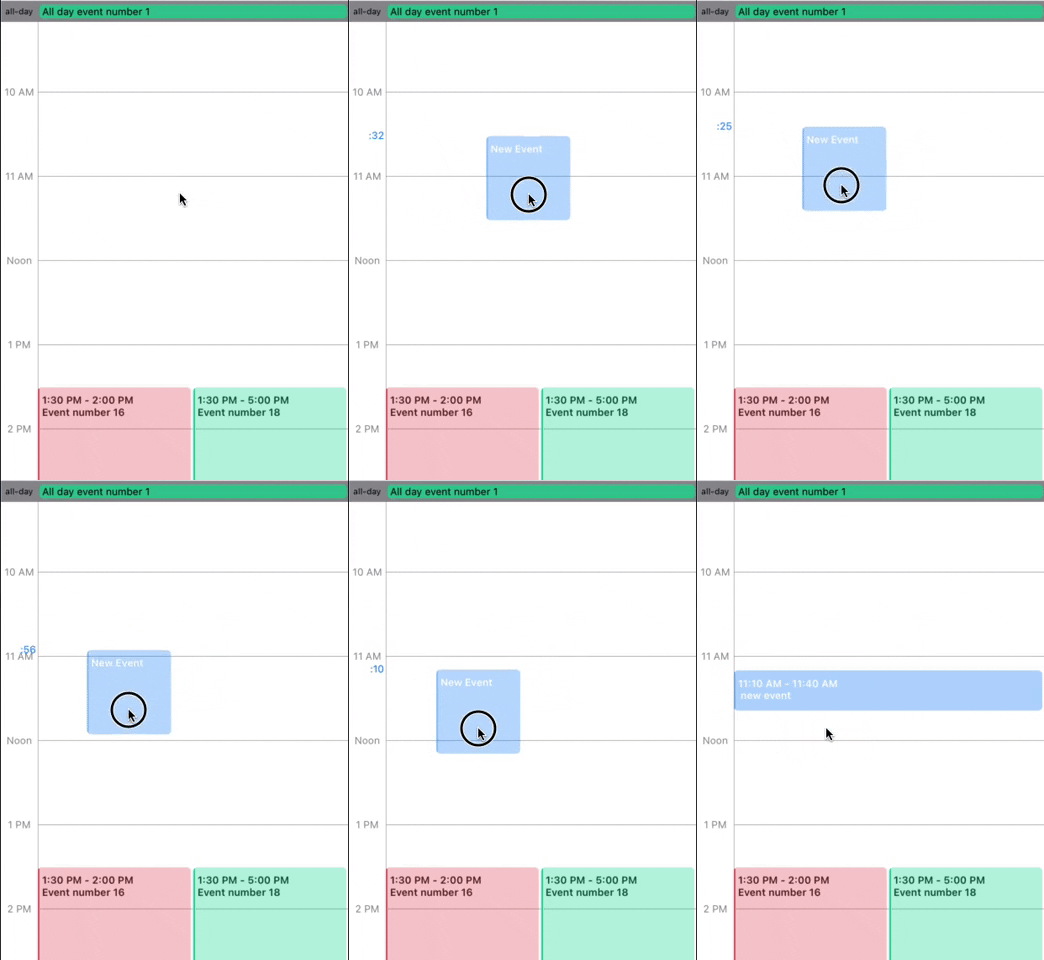
To add a new event, you need to subcribe on this method from CalendarDelegate and just press & hold on empty space in the calendar.
func didAddNewEvent(_ event: Event, _ date: Date?) {
    var newEvent = event

    guard let start = date, let end = Calendar.current.date(byAdding: .minute, value: 30, to: start) else { return }

    let startTime = timeFormatter(date: start)
    let endTime = timeFormatter(date: end)
    newEvent.start = start
    newEvent.end = end
    newEvent.ID = "\(events.count + 1)"
    newEvent.text = "\(startTime) - \(endTime)\n new event"
    events.append(newEvent)
    calendarView.reloadData()
}
Add a new SwiftUI file and import KVKCalendar.
Create a struct CalendarDisplayView and declare the protocol UIViewRepresentable for connection UIKit with SwiftUI.
import SwiftUI
import KVKCalendar

struct CalendarDisplayView: UIViewRepresentable {

    private var calendar: CalendarView = {
        return CalendarView(frame: frame, style: style)
    }()

    func makeUIView(context: UIViewRepresentableContext<CalendarDisplayView>) -> CalendarView {
        calendar.dataSource = context.coordinator
        calendar.delegate = context.coordinator
        calendar.reloadData()
        return calendar
    }

    func updateUIView(_ uiView: CalendarView, context: UIViewRepresentableContext<CalendarDisplayView>) {

    }

    func makeCoordinator() -> CalendarDisplayView.Coordinator {
        Coordinator(self)
    }

    // MARK: Calendar DataSource and Delegate
    class Coordinator: NSObject, CalendarDataSource, CalendarDelegate {
        private let view: CalendarDisplayView

        init(_ view: CalendarDisplayView) {
            self.view = view
            super.init()
        }

        func eventsForCalendar() -> [Event] {
            return events
        }
    }
}

struct CalendarDisplayView_Previews: PreviewProvider {
    static var previews: some View {
        CalendarDisplayView()
    }
}
Create a new SwiftUI file and add CalendarDisplayView to body.
import SwiftUI

struct CalendarContentView: View {
    var body: some View {
        NavigationView {
            CalendarDisplayView()
        }
    }
}

struct CalendarContentView_Previews: PreviewProvider {
    static var previews: some View {
        CalendarContentView()
    }
}To customize calendar create an object Style and add to init class CalendarView.
public struct Style {
    public var event = EventStyle()
    public var timeline = TimelineStyle()
    public var week = WeekStyle()
    public var allDay = AllDayStyle()
    public var headerScroll = HeaderScrollStyle()
    public var month = MonthStyle()
    public var year = YearStyle()
    public var defaultType: CalendarType?
    public var timeHourSystem: TimeHourSystem = .twentyFourHour
    public var startWeekDay: StartDayType = .monday
    public var followInSystemTheme: Bool = false
}KVKCalendar is available under the MIT license