After a configured time without any user interaction the display will turn off and hide all modules for economy mode.
It will wake up with a Pir sensor, Touch screen or crontab

- Minimal MagicMirror² version requirement: v2.28.0
- Minimal node version requirement: v20.18.1
Clone the module into your MagicMirror module folder and execute npm run setup in the module's directory.
cd ~/MagicMirror/modules
git clone https://github.com/bugsounet/MMM-Pir
cd MMM-Pir
npm run setup
MMM-Pir is now available for Windows environment!
To display the module insert it in the config.js file.
{
  module: 'MMM-Pir',
  position: 'top_left',
  config: {
    debug: false,
    Display: {
      timeout: 2 * 60 * 1000,
      animate: true,
      style: 1,
      colorFrom: "#FF0000",
      colorTo: "#00FF00",
      mode: 1,
      ecoMode : true,
      counter: true,
      lastPresence: true,
      lastPresenceTimeFormat: "LL H:mm",
      availability: true,
      autoDimmer: false,
      xrandrForceRotation: "normal",
      wrandrForceRotation: "normal",
      wrandrForceMode: null,
      waylandDisplayName: "wayland-0",
      relayGPIOPin: 0,
      ddcutil: {
        powerOnCode: "01",
        powerOffCode: "04",
        skipSetVcpCheck: false,
        setPowerRetries: 0
      }
    },
    Pir: {
      animate: true,
      mode: 0,
      gpio: 21,
      chip: "auto",
      triggerMode : "LH"
    },
    Motion: {
      animate: true,
      deviceId: 0,
      captureIntervalTime: 1000,
      scoreThreshold: 100
    },
    Cron: {
      mode: 0,
      ON: [],
      OFF: []
    },
    Touch: {
      mode: 3
    },
    Governor: {
      sleeping: 4,
      working: 2
    },
    Sounds: {
      on: "open.mp3",
      off: "close.mp3"
    }
  }
},| Option | Description | Type | Default |
|---|---|---|---|
| debug | enable or not debug mode | Boolean | false |
| Option | Description | Type | Default |
|---|---|---|---|
| timeout | Time before the mirror turns off the display if no user activity is detected. (in ms) | Number | 120000 |
| animate | Animate all modules on turn on/off your screen | Boolean | true |
| style | Style of the Count-down. (see bellow) | Number | 1 |
| colorFrom | Color of the start of the color gradient (default: Red in HEXA) | String | #FF0000 |
| colorTo | Color of the start of the color gradient (default: Green in HEXA) | String | #00FF00 |
| mode | mode for turn on/off your screen (see bellow) | Number | 1 |
| ecoMode | Should the MagicMirror hide all module after timeout ? | Boolean | true |
| counter | Should display Count-down in screen ? | Boolean | true |
| lastPresence | Display the date of the last user presence | Boolean | true |
| lastPresenceTimeFormat | Change the date format (moment.js format) of the last presence | String | LL H:mm |
| availability | Display screen availability time (average 24h) | Boolean | true |
| autoDimmer | creen dimmer when timeout is 1/4 time left and use opacity from 100% to 0% | Boolean | false |
| xrandrForceRotation | -mode 2 only- Forces screen rotation according to the defined value (possible value: "normal", "left", "right", "inverted") | String | normal |
| wrandrForceRotation | -mode 3 only- Forces screen rotation according to the defined value (possible value: "normal", "90", "180", "270", "flipped", "flipped-90", "flipped-180", "flipped-270") | String | normal |
| wrandrForceMode | -mode 3 only- Force screen resolution mode | String | null |
| waylandDisplayName | -mode 3 or mode 7 only- Wayland display name (generaly wayland-0 or wayland-1) |
String | wayland-0 |
| relayGPIOPin | -mode 8 only- GPIO pin of the relay | Number | 1 |
| ddcutil | -mode 5 only- Adjust feature codes of setvcp command for power on (powerOnCode) and off (powerOffCode), to skip check after setvcp commands (skipSetVcpCheck) and to retry the screen powerOn on startup (setPowerRetries) | Object | {powerOnCode: "01", powerOffCode: "04", skipSetVcpCheck: false, setPowerRetries : 0} |
-
Available style:
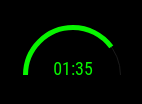
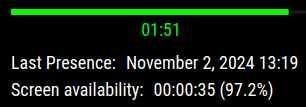
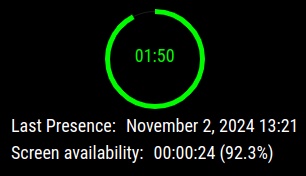
style: 0- Don't display Count-up bar in screenstyle: 1- Display count-up in text modestyle: 2- Display count-up withLinestylestyle: 3- Display count-up withSemiCirclestylestyle: 4- Display count-up withCirclestyle
-
Available mode:
mode: 0- disabled modemode: 1- use dpms (For raspbian 11 or raspbian 12 with x11 compositor)mode: 2- use xrandr (For raspbian 11 or raspbian 12 with x11 compositor)mode: 3- use wlr-randr (For raspbian 12 with wayfire compositor)mode: 4- use HDMI CECmode: 5- use ddcutilmode: 6- use dpms (linux version for debian, ubuntu, ...)mode: 7- use labwc (For raspbian 12 with labwc compositor)mode: 8- use pinctrl for switching a relaymode: 9- use windows powershell commands (windows 10, 11)
Notes:
- It's possible that
pinctrltool is not installed by default on your system (raspbian 11) - You can install it by using this command in your
MMM-Pirfolder:npm run pinctrl
Note for ddcutil:
For some displays, the getvcp commands cause the display to turn-on. In these cases it could be useful to set the display config value of ddcutil.skipSetVcpCheck to true.
⚠ Pir Sensor is not available under windows environement
| Option | Description | Type | Default |
|---|---|---|---|
| animate | Animate MMM-Pir module on detect | Boolean | true |
| mode | Detection mode (see bellow) | Number | 0 |
| gpio | BCM-number of the sensor pin. | Number | 21 |
| chip | -mode 0 Only- Define your GPIO Chip label (auto for automatic chip search) |
String | "auto" |
| triggerMode | Triggering mode (see below) | String | "LH" |
-
Available mode:
mode: 0- use node-libgpiod librarymode: 1- use python script with gpiozero library
-
Available triggering modes:
triggerMode: 'LH'- motion signal is triggered when sensor goes from LOW (0, no-motion) to HIGH (1, motion)triggerMode: 'H'- motion signal is triggered whenever the sensor sends a HIGH (1, motion) message
⚠ You can disable PIR Sensor detection by using gpio: 0
This Feature allows to control your screen with a webcam as a motion detector.
| Option | Description | Type | Default |
|---|---|---|---|
| animate | Animate MMM-Pir module on detect | Boolean | true |
| captureIntervalTime | Time in ms between capturing images for detection | Number | 1000 |
| scoreThreshold | Threshold minimum for an image to be considered significant | Number | 100 |
| deviceId | Disable, enable auto detection or Specify which camera to use in case multiple exist in the system. | Number or String | 0 |
Notes: deviceId value setting:
- Disable Motion:
deviceId: 0,(You don't have any webcam) - Enable device auto-detection:
deviceId: 1,
In 99% of time auto-detection works but in case you have SooOOoo many webcam, open the developer console (npm start dev) and try:
await navigator.mediaDevices.enumerateDevices() to get all devices and copy and past the deviceId of your needed device
sample: deviceId: "27d8c2a4b894149a2caae146d8f4bea9cd74c528453a5859ab18c2c764d7d2411",
This is the rule to turn your screen on and off based on a set time event
| Option | Description | Type | Default |
|---|---|---|---|
| mode | cron mode (see bellow) | Number | 0 |
| ON | cron times to turn ON Screen | Array | [] |
| OFF | cron time to turn OFF Screen | Array | [] |
- Available mode:
mode: 0- Disable Cron using.mode: 1- Wake up / turn OFF automaticaly by CRON and use countdownMMM-Pirtimer will be used before turn off screen- Allow to use sensor/touch/camera when CRON
ONis activated - When screen is OFF by cron, you can't wakeup it.
- When screen is OFF by timer, you can wakeup it (by sensor, touch, camera)
mode: 2- Your screen will be fully managed by cronMMM-Pirtimer will be not displayed and not used- You can't use touch mode, pir sensor or camera for wake up or turn off screen
mode: 3- Wake up / turn OFF automaticaly by CRON and allow wake upMMM-Pirtimer will be used before turn off screen- Allow to use sensor/touch/camera when CRON
ONis activated - When screen is OFF by cron or timer, you can wakeup it (by sensor, touch, camera)
CRON event (ON/OFF) have an object format:
{
  dayOfWeek: <Array of days>,
  hour: <hour>,
  minute: <minute>
}
dayOfWeek is an array of number
This number define the day:
0: Sunday1: Monday2: Tuesday3: Wednesday4: Thursday5: Friday6: Saturday
sample if you want to create an event from Monday to Thursday at 07h45:
{
  dayOfWeek: [1,2,3,4],
  hour: 7,
  minute: 45
}
sample if you want to create an event every Friday at 08h00
{
  dayOfWeek: [5],
  hour: 8,
  minute: 0
}
sample if you want to create an event from Monday to Friday at 17h00
{
  dayOfWeek: [1,2,3,4,5],
  hour: 17,
  minute: 0
}Let's create ON and OFF now I want to apply this rules:
---> Screen is ON:
- from Monday to Thursday at 07h45
- every Friday at 08h00
So, ON rules will be:
ON: [
  {
    dayOfWeek: [1,2,3,4],
    hour: 7,
    minute: 45
  },
  {
    dayOfWeek: [5],
    hour: 8,
    minute: 0
  }
],
---> Screen is OFF
- from Monday to Friday at 17h00
So, OFF rules will be:
OFF: [
  {
    dayOfWeek: [1,2,3,4,5],
    hour: 17,
    minute: 0
  }
]
Let's apply your own rules ! Don't be stupid! Don't create an ON event equal to OFF event
| Option | Description | Type | Default |
|---|---|---|---|
| mode | Selected mode for enable/disable the screen with touch (see below) | Number | 3 |
- Available mode:
-
touchMode: 0- Touch mode is disabled
-
touchMode: 1- One click on the screen will restart the timer (or Wake up the screen if needed)
- Double Click on the screen will shutdown the screen
-
touchMode: 2- One Click on the MMM-Pir area will restart the timer
- Long Click on the screen will shutdown or wake up the screen (toogle)
-
touchMode: 3- One Click on the MMM-Pir area will restart the timer
- Doucle Click on the MMM-Pir area will shutdown the screen
- One Click on the screen will wake up if shutdown
-
Notes:
- If you lock your screen with TouchScreen, PIR sensor will be disabled
- You need to unlock your screen with touchscreen to reactivate the PIR sensor
-
⚠ Governor is not available under windows environement
CPU governor enables the operating system to scale the CPU frequency up or down in order to save power or improve performance.
On each boot of your RPI, your governor is set automaticaly to ondemand.
This configuration allows to change it dynamicaly
| Option | Description | Type | Default |
|---|---|---|---|
| sleeping | Governor number mode when your screen is turned off | Number | 4 |
| working | Governor number mode when your screen is turned on | Number | 2 |
- Available
sleepingandworkingmode:0: Disable any governor mode change1: Applyconservativegovernor mode2: Applyondemandgovernor mode3: Applyuserspacegovernor mode4: Applypowersavegovernor mode5: Applyperformancegovernor mode
If you want a maximum of CPU power, performance is the best choice !
If you want an economy mode of CPU power, powersave is the best choice !
Sounds configuration will play audio file when your screen turn on or off.
| Option | Description | Type | Default |
|---|---|---|---|
| on | File to play when screen turn on | String or 0 | open.mp3 |
| off | File to play when screen turn off | String or 0 | close.mp3 |
You can personalize your sound, just past your file into sounds folder and report filename (with extension) in your configuration
You can disable sound by using 0 in your configuration
-
This module broadcasts:
MMM_PIR-SCREEN_POWERSTATUSwith payloadtruewhen your screen turn on.MMM_PIR-SCREEN_POWERSTATUSwith payloadfalsewhen your screen turn off.MMM_PIR-USER_PRESENCEwith payloadtruewhen motion is detected.
-
This module receive:
MMM_PIR-ENDnotification to force the end of the count down.MMM_PIR-WAKEUPnotification to wake up the screen and reset count down.MMM_PIR-LOCKnotification keep the screen on and lock it (freeze counter and stop pir detection).MMM_PIR-UNLOCKnotification unlock the screen and restart counter and pir detection.
In a terminal try this command:
cd ~/MagicMirror/modules/MMM-Pir
npm run update
Automatic Update from updatenotification default module
Since MagicMirror² v2.27.x, we are able to Update automaticaly any modules from updatenotification.
Let's add MMM-Pir rule
  {
    module: "updatenotification",
    position: "top_center",
    config: {
      updateAutorestart: true, // restart MagicMirror automaticaly after update
      updates: [
        // MMM-Pir rule
        {
          "MMM-Pir": "npm run update"
        },
      ]
    }
},For reinstall this module or when an update of MagicMirror² is available, you can use this command:
cd ~/MagicMirror/modules/MMM-Pir
npm run rebuild